Exporting documents
With US Legal Forms, users can seamlessly edit, manage, export, and share documents directly from their account. Whether you're finalizing a legal form or sending it for review, multiple export and delivery options ensure a smooth experience.
Where to Start
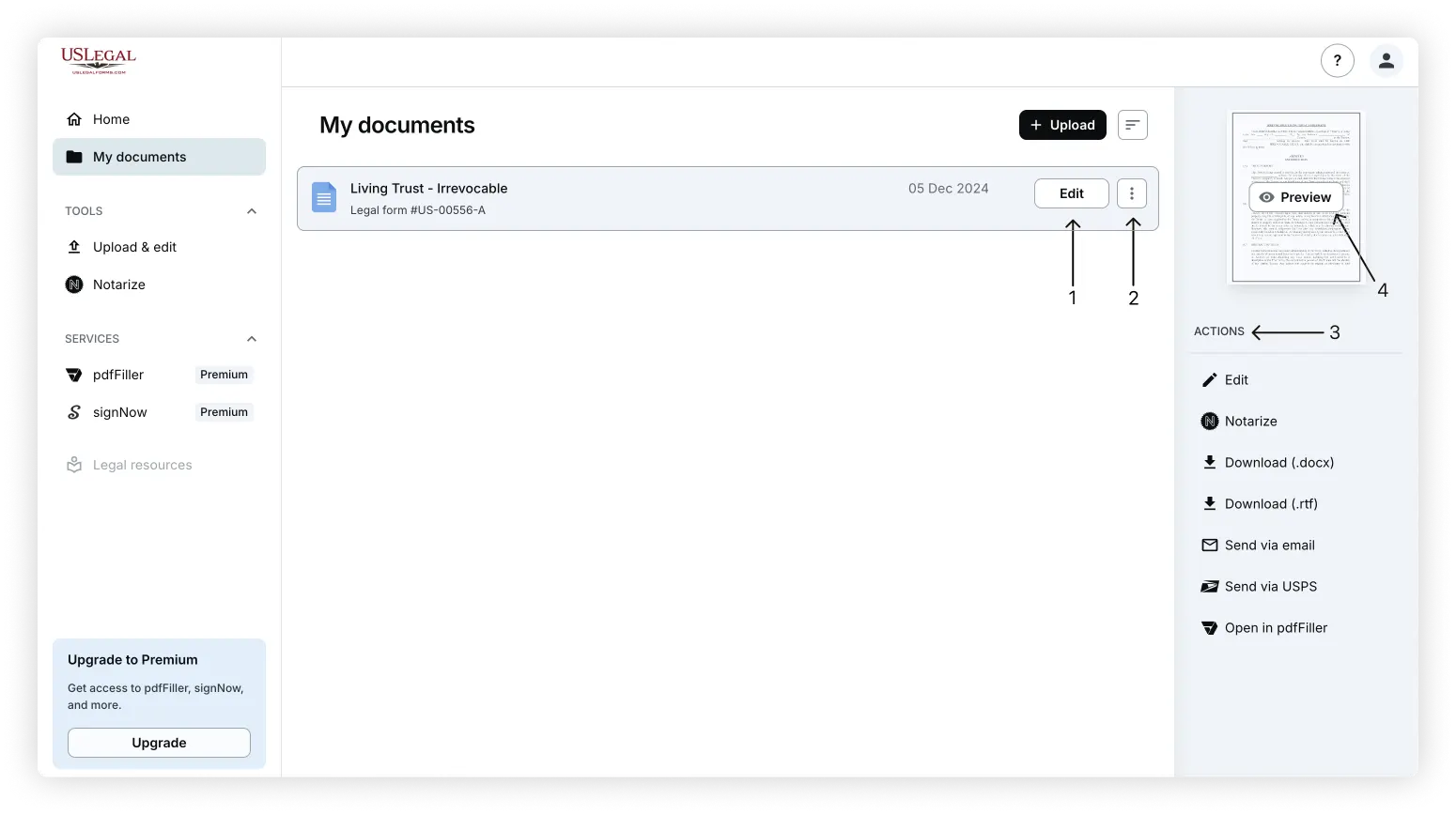
After logging into your US Legal Forms account, navigate to the My Documents section. From here, you can:
- Click the Edit button on a document thumbnail to open it in the online editor.
- Click the three dots menu for quick actions like downloading, printing, sending, or notarization.
- Select a document from the list to reveal the Actions menu.
- Open the document preview to review the document content.
Your Trusted Source for Legal Templates
Export options
Edit
Choose Edit to make changes before exporting:
- PDF documents open in the built-in editor with tools for modifying content.
- DOC/DOCX and RTF documents open in a Word-compatible editor.
When you are done working with your document in the editor, you have several options to save or export:
- Save progress without finishing
- Click the arrow button in the top-left corner (next to the document title) to exit and save changes.
- Or click Save and close in the top-right corner.
- Export or send your document
- Use the dropdown menu next to the Save and close button to access options: Download, Send via Email, or Send via USPS (paid).
- Use the Download icon (next to Save and close) to instantly download your form.
- Use the Print icon (next to Save and close) to print directly.
To print your document:
- Use the dropdown menu next to the Save and Close button and select Print, or
- Click the Print icon next to the Save and Close button to print directly.
Send via Email
Send forms to others directly via email:
- Open and edit your document.
- Use the dropdown menu next to the Save and close button to access the Send via Email option.
- Add up to 5 recipients, write a custom message, and hit Send document.
Send via USPS
Mail a printed copy of your form directly:
- Open and edit your document.
- Use the dropdown menu next to the Save and close button to access the Send via USPS option.
- Enter sender/recipient details, choose delivery method, and click Preview & Send.
Notarize Online
Digitally notarize your legal forms:
- Open the form and make edits.
- Use the dropdown menu next to the Save and close button to access the Notarize option.
- Submit the required info and connect with a licensed online notary.
Note on Exported Versions
When you export or send a document (via Email, USPS, or Notarize), your account will store two versions of that document:
- Editable version – the file you can continue updating and changing.
- Locked version – a saved copy of the exact file that was sent or notarized. This ensures you always have a record of the version you shared.
FAQ: Exporting Documents
Can I edit a form before sending it?
Yes. Use the Edit button to make changes before choosing your preferred export option.
How many recipients can I email a document to?
You can email your form to up to 5 recipients at once using the in-platform feature.
Is USPS delivery included in my subscription?
No subscription is required to use this service. However, sending forms via USPS is a paid service with a fixed fee per delivery.
Can I print the form from my account?
Absolutely. Both PDF and Word documents can be printed directly from the editor interface.
Can I notarize a document from my account?
Yes. All users can access the online notarization feature from their account. This is a paid service - once you complete the process, the notary service will bill you separately. No subscription is required to use this feature.
Are these sharing options available on mobile?
Not at the moment. To use advanced sharing features like email or USPS delivery, access your account via desktop.
Your Trusted Source for Legal Templates