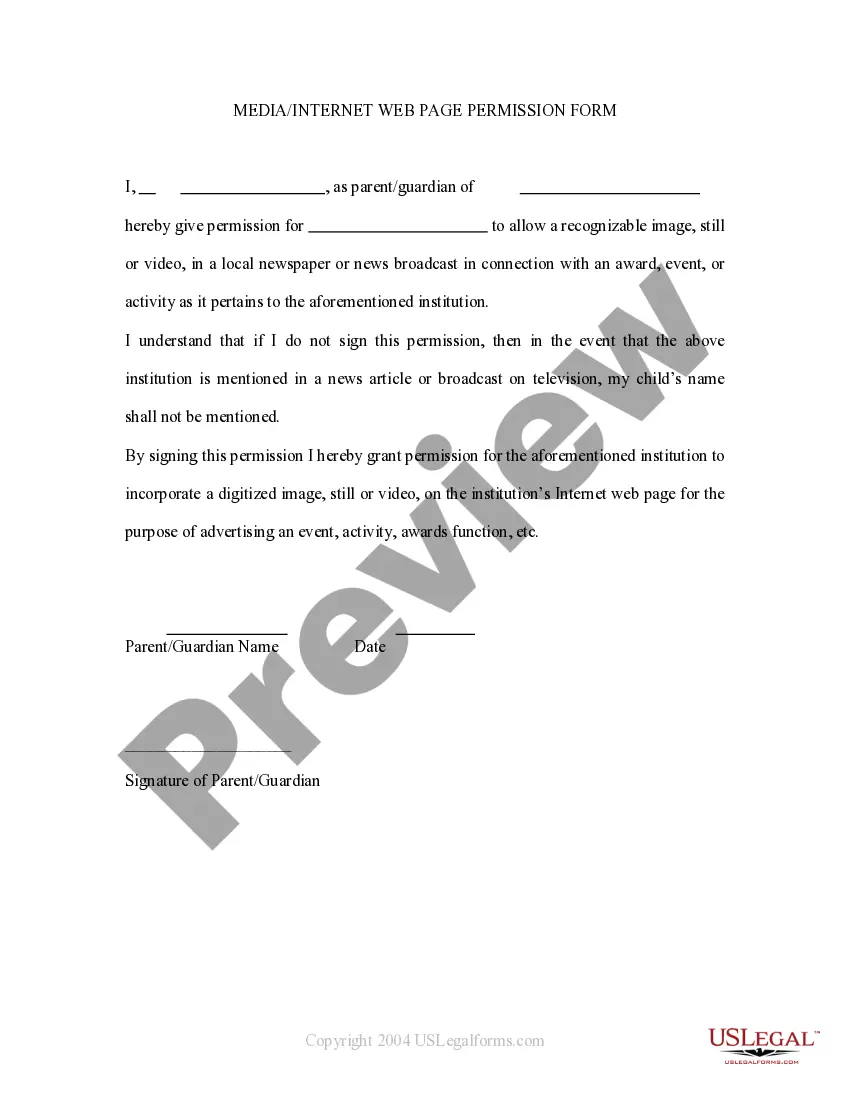
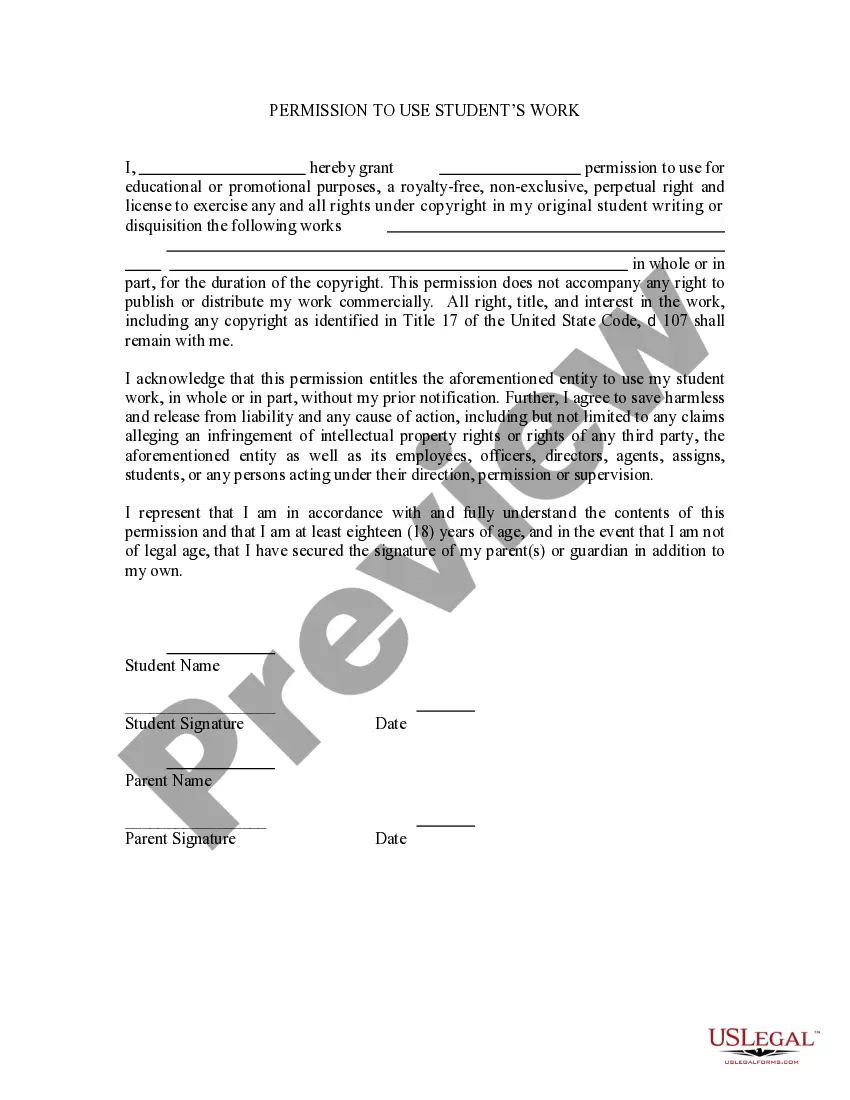
This is a permission form signed by parents allowing a child's name to be mentioned in broadcast form. If the child wins an award then permission is thereby granted to mention the child in a newspaper or on televised news. It also grants permission for the child's name to be mentioned on the school's web site.
Colorado Media - Internet Web Page Permission Form
Category:
State:
Multi-State
Control #:
US-PRM-22
Format:
Word;
Rich Text
Instant download
Description
Get your form ready online
Our built-in tools help you complete, sign, share, and store your documents in one place.
Built-in online Word editor
Make edits, fill in missing information, and update formatting in US Legal Forms—just like you would in MS Word.
Export easily
Download a copy, print it, send it by email, or mail it via USPS—whatever works best for your next step.
E-sign your document
Sign and collect signatures with our SignNow integration. Send to multiple recipients, set reminders, and more. Go Premium to unlock E-Sign.
Notarize online 24/7
If this form requires notarization, complete it online through a secure video call—no need to meet a notary in person or wait for an appointment.
Store your document securely
We protect your documents and personal data by following strict security and privacy standards.

Make edits, fill in missing information, and update formatting in US Legal Forms—just like you would in MS Word.

Download a copy, print it, send it by email, or mail it via USPS—whatever works best for your next step.

Sign and collect signatures with our SignNow integration. Send to multiple recipients, set reminders, and more. Go Premium to unlock E-Sign.

If this form requires notarization, complete it online through a secure video call—no need to meet a notary in person or wait for an appointment.

We protect your documents and personal data by following strict security and privacy standards.
Looking for another form?

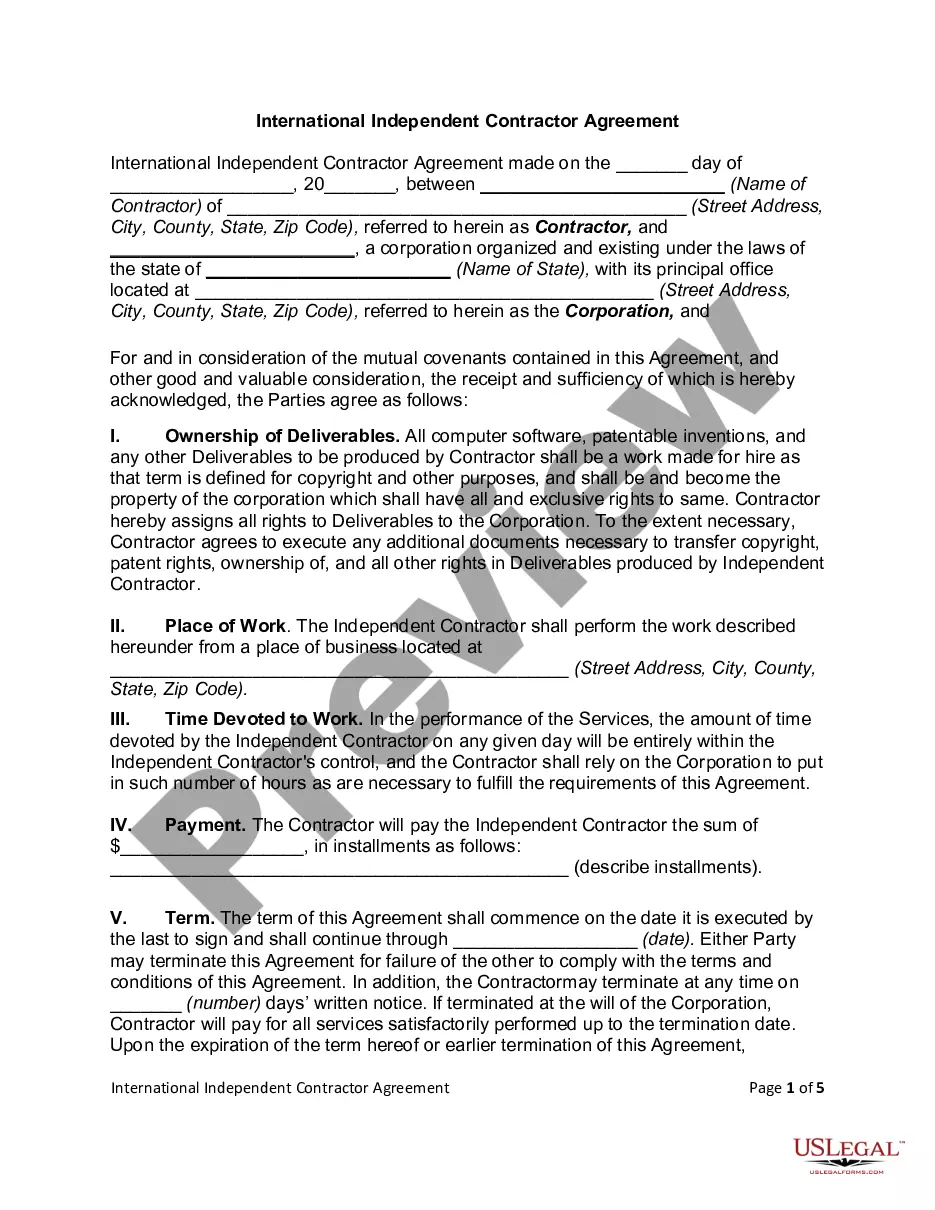
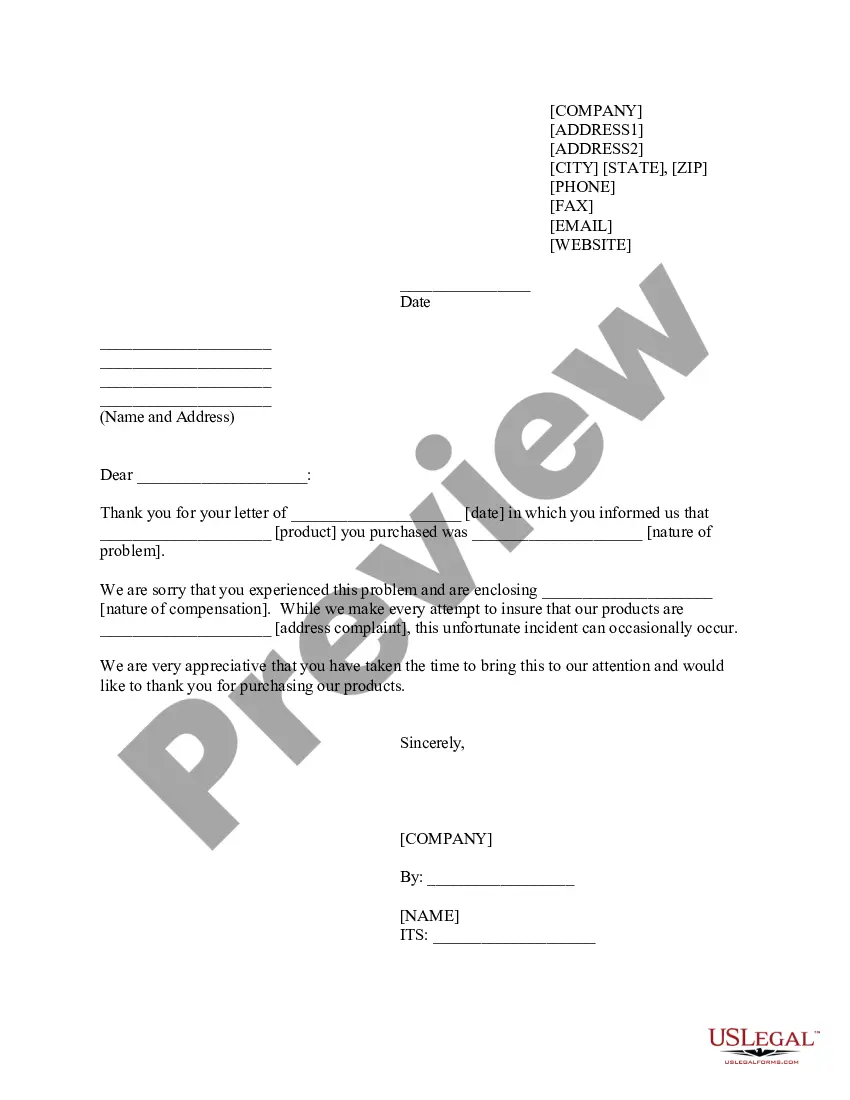
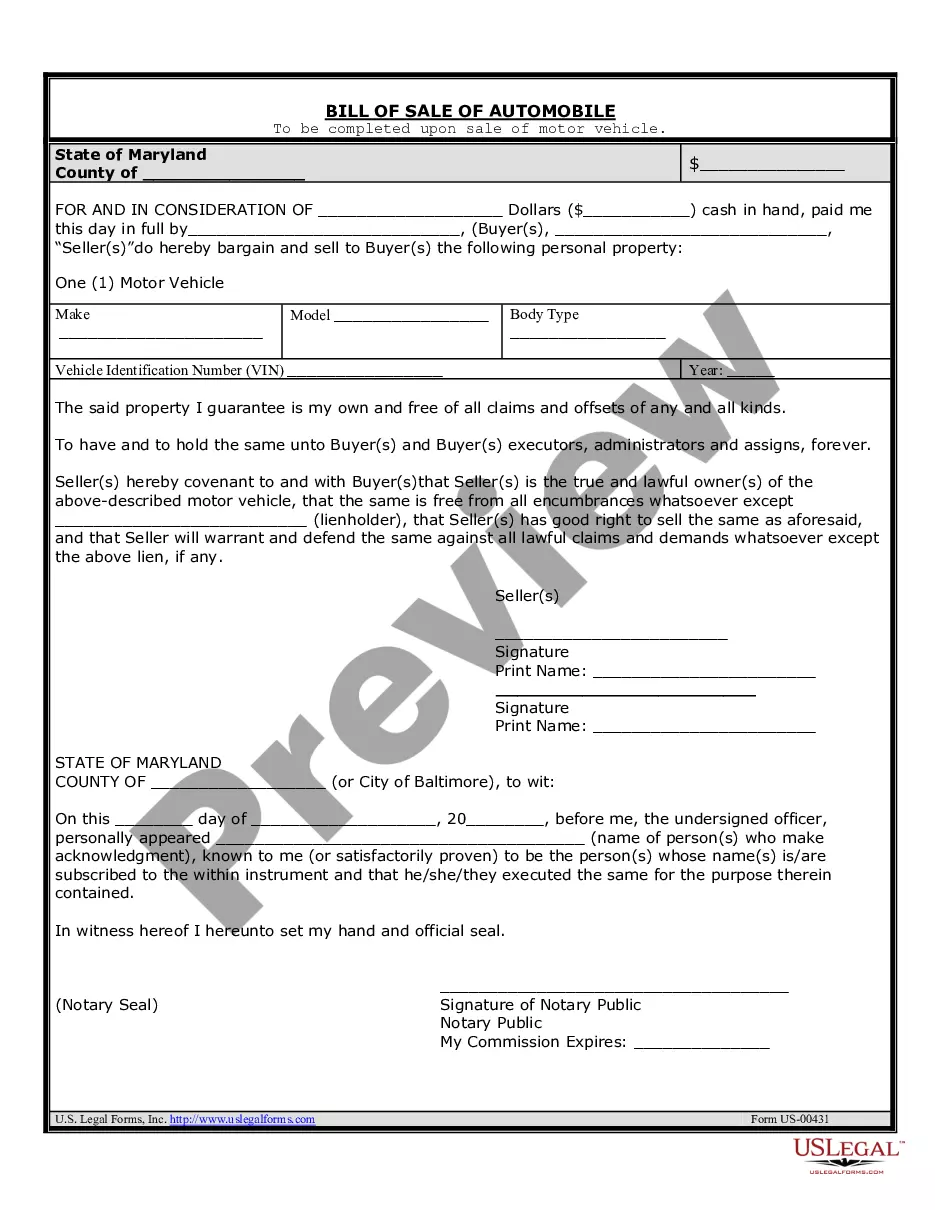
How to fill out Media - Internet Web Page Permission Form?
Selecting the finest authorized document template can be a challenge.
Certainly, there are numerous layouts accessible online, but how will you obtain the official form you require.
Utilize the US Legal Forms website.
First, ensure you have selected the correct form for your locality/state. You can browse the form using the Preview button and review the form summary to confirm this is indeed the right one for you. If the form does not fulfill your requirements, utilize the Search field to find the appropriate form. Once you are certain that the form is suitable, select the Get now button to obtain the form. Choose the pricing plan you desire and fill in the necessary information. Create your account and finalize your purchase using your PayPal account or credit card. Select the file format and download the legal document template to your device. Complete, edit, print, and sign the acquired Colorado Media - Internet Web Page Permission Form. US Legal Forms is the largest repository of legal forms where you can find numerous document templates. Use the service to acquire properly crafted documents that comply with state requirements.
- The service offers thousands of templates, including the Colorado Media - Internet Web Page Permission Form, which you can utilize for both business and personal purposes.
- All of the forms are verified by professionals and adhere to federal and state regulations.
- If you are already registered, Log In to your account and click the Download button to obtain the Colorado Media - Internet Web Page Permission Form.
- Use your account to browse through the legal documents you have acquired previously.
- Go to the My documents section of your account to retrieve another copy of the document you need.
- If you are a new user of US Legal Forms, here are straightforward instructions for you to follow.
Form popularity
FAQ
A media release form is a document that grants permission to use a person's image or voice in promotional materials or media content. It typically specifies how the media will be used and for what duration. This form serves to protect the rights of individuals while allowing organizations to promote their brand effectively. For a reliable solution, you can use the Colorado Media - Internet Web Page Permission Form provided by US Legal Forms.
A media consent form is a legal document that allows individuals to give permission for their image, voice, or likeness to be used in various media formats. This form is crucial for protecting both the individual's rights and the organization utilizing the media. By using a media consent form, you can ensure compliance with legal standards and avoid potential disputes. The Colorado Media - Internet Web Page Permission Form from US Legal Forms simplifies this process.
To write a media release consent form, start by clearly stating the purpose of the form. Include details such as the individual's name, the type of media being used, and the specific rights being granted. You should also outline any limitations regarding the use of the media. For a seamless experience, consider using the Colorado Media - Internet Web Page Permission Form available on the US Legal Forms platform.
In many cases, rebooting your router and modem might solve the problem. To do so, unplug your modem and router, wait for 10 seconds, plug it back in, and then try the website again. If the problem persists, you can connect to your local network hardware to get more information.
Go to Internet Options in Control Panel and on the Security tab, click on Restricted Websites in the Internet Security Zone, and then on the button labeled Sites (See image below). Check if the URL of the website you wish to access is listed there. If yes, select the URL and click Remove.
Change a site's camera and microphone permissionsOpen Chrome .At the top right, click More. Settings.Click Privacy and security Site settings. Camera or Microphone.Select the option that you want as your default setting. Review your blocked and allowed sites.
Change settings for a siteOn your Android phone or tablet, open the Chrome app .Go to a website.To the left of the address bar, tap Lock. Permissions.Tap the permission you want to update. To change a setting, select it. To clear the site's settings, tap Reset permissions.
1) Launch Google Chrome, click the three dots button in the upper right corner, then click Settings. 2) Scroll down to the bottom and click Advanced. 3) Under System, click Open proxy settings. 4) In the Security tab, select Restricted sites then click Sites.
Your Internet service provider might have blocked access to specific websites, e.g., YouTube, Blogger, or maybe a personal domain. Your Windows Firewall is blocking access to a particular website. Your browser is loading the webpage from its internal cache. Your browser has a site-blocking extension installed.
Change settings for a specific siteOn your computer, open Chrome.Go to a website.To the left of the web address, click the icon you want: Lock. Info. Dangerous.Click Site settings.Change a permission setting.