Employee Tracking Form With Excel
Description
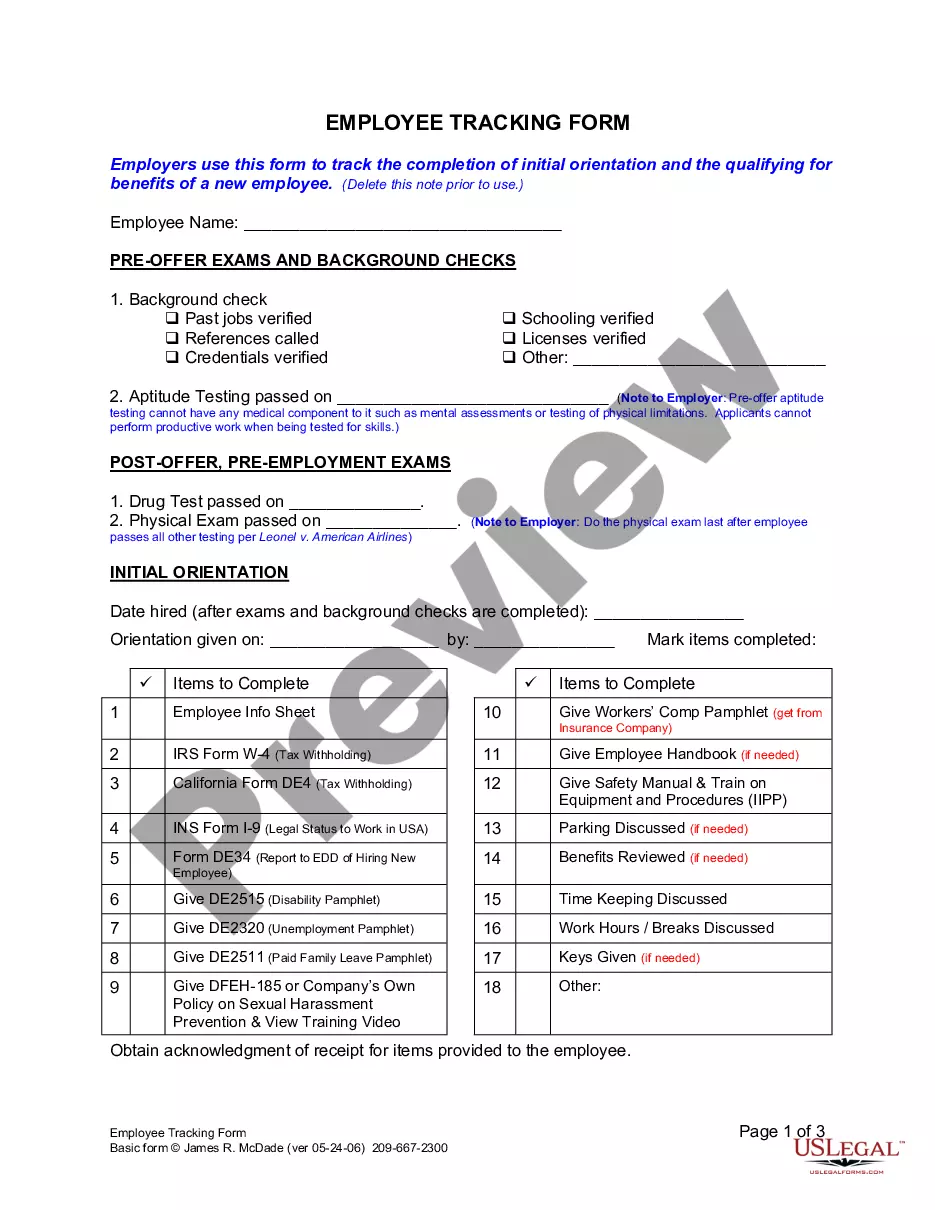
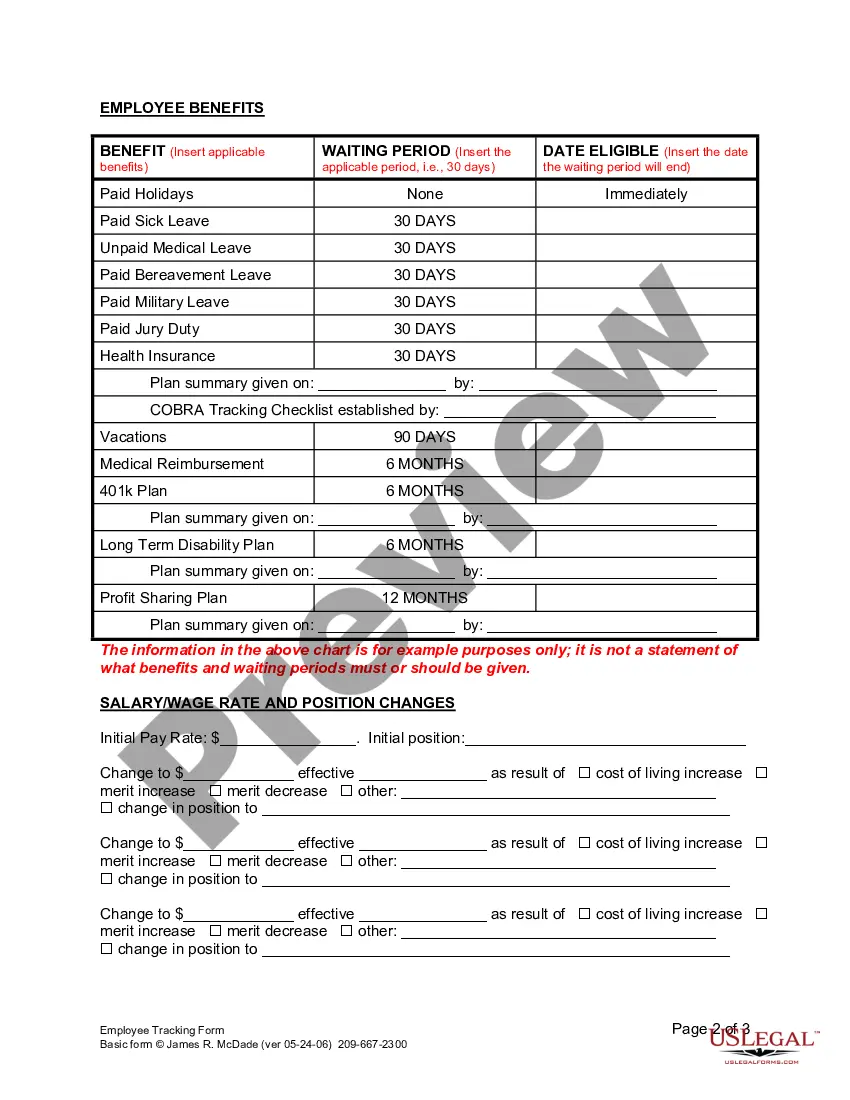

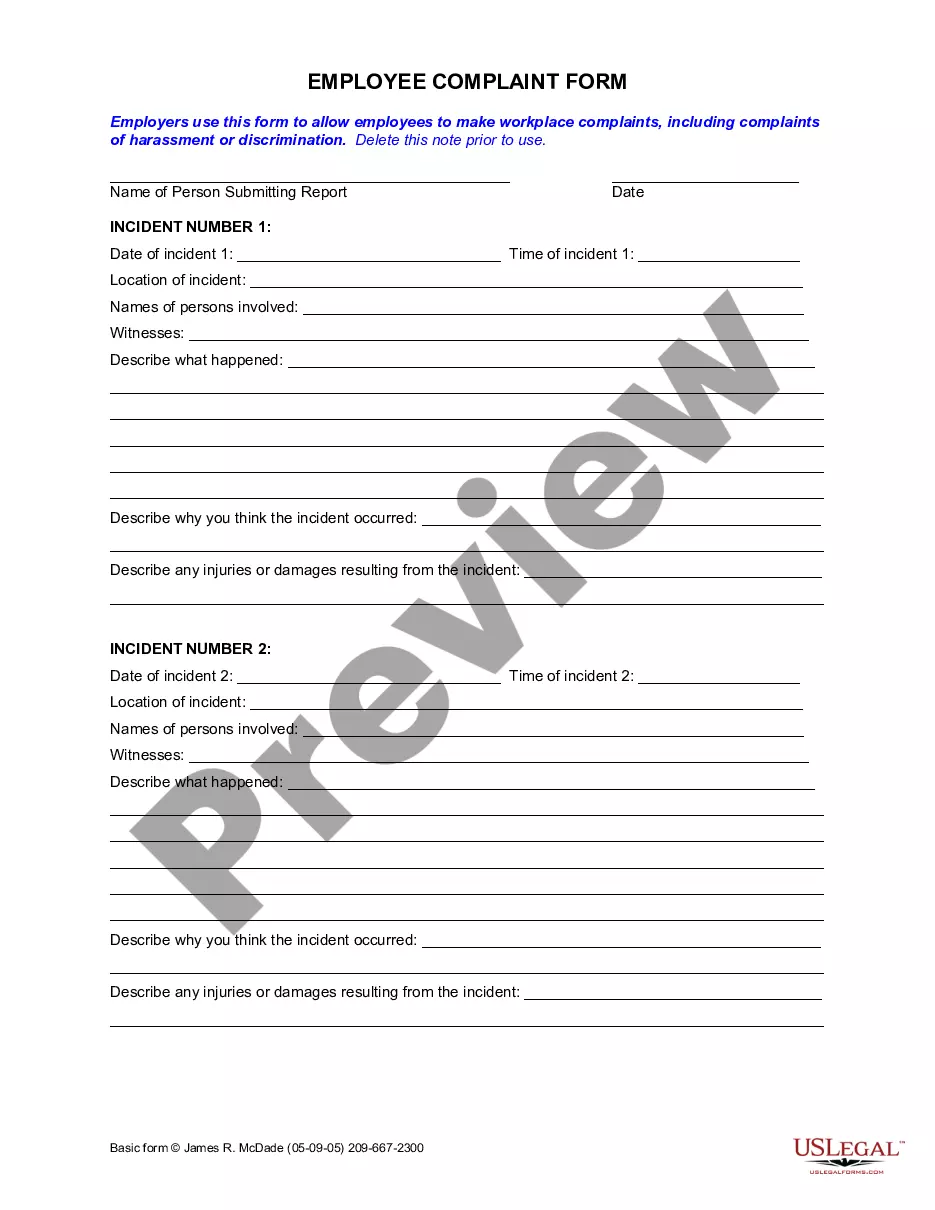
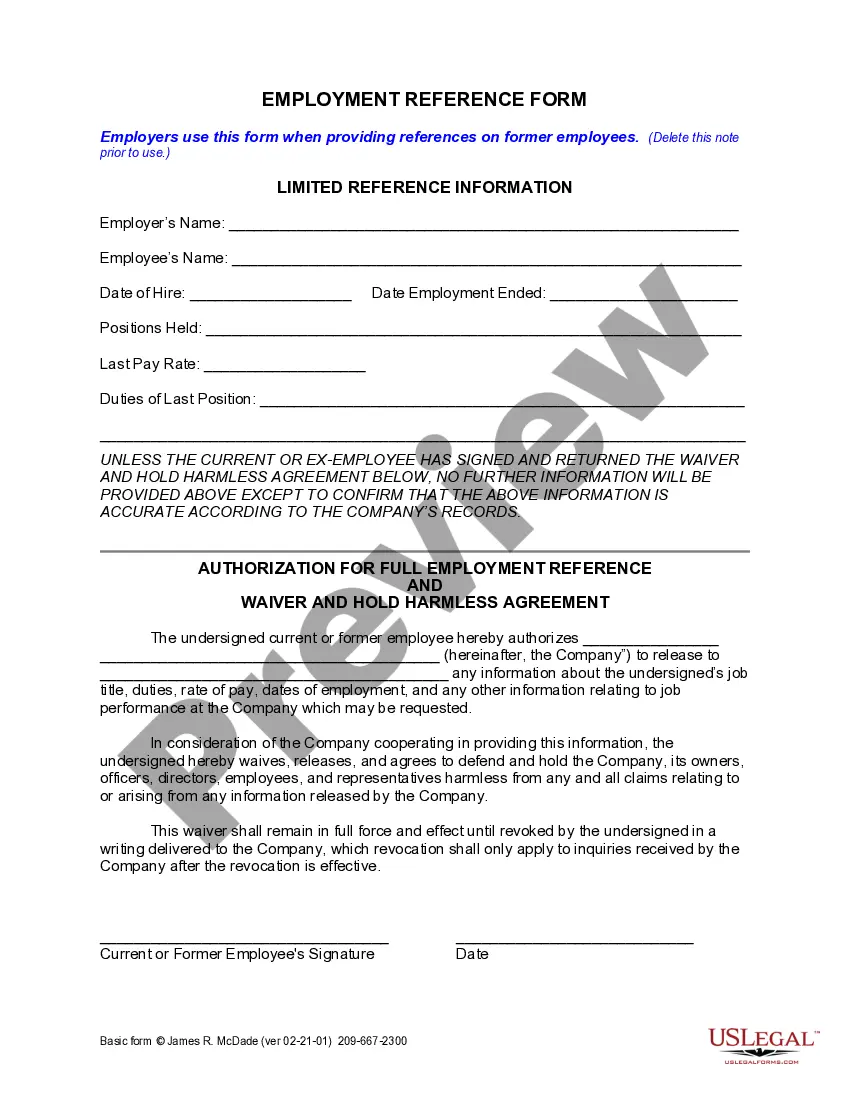
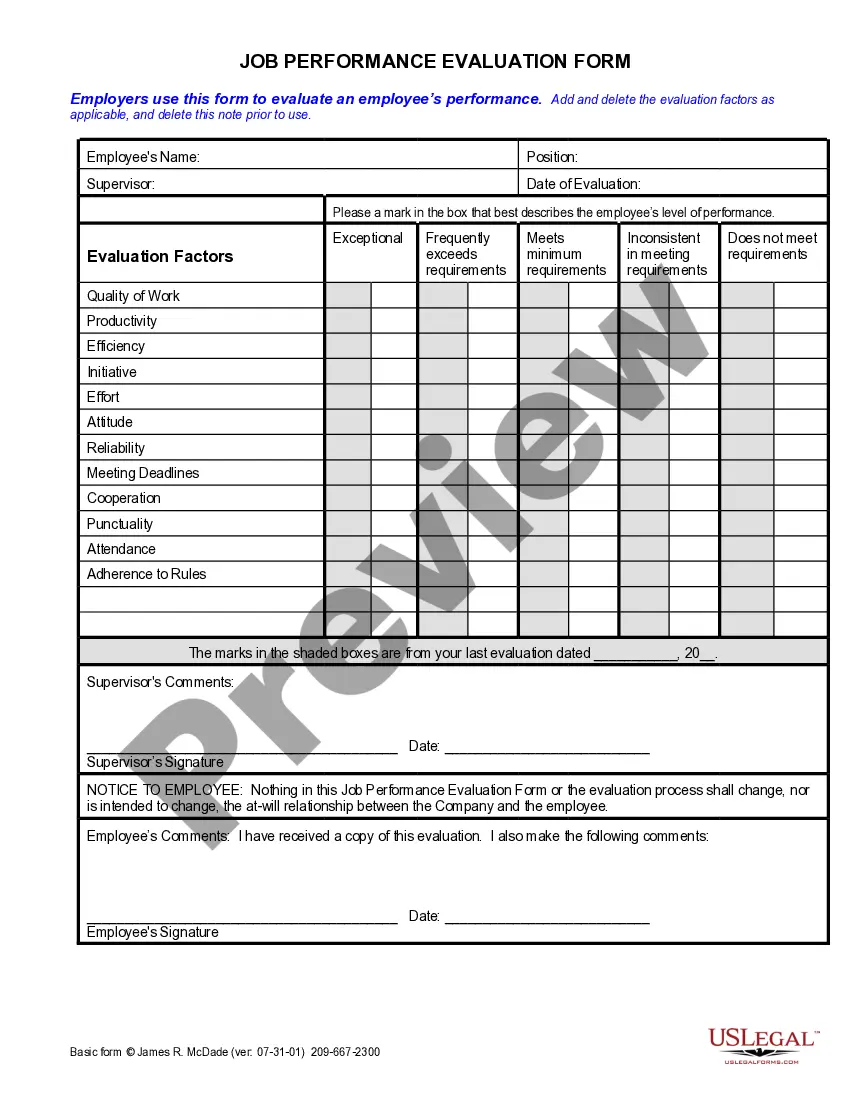
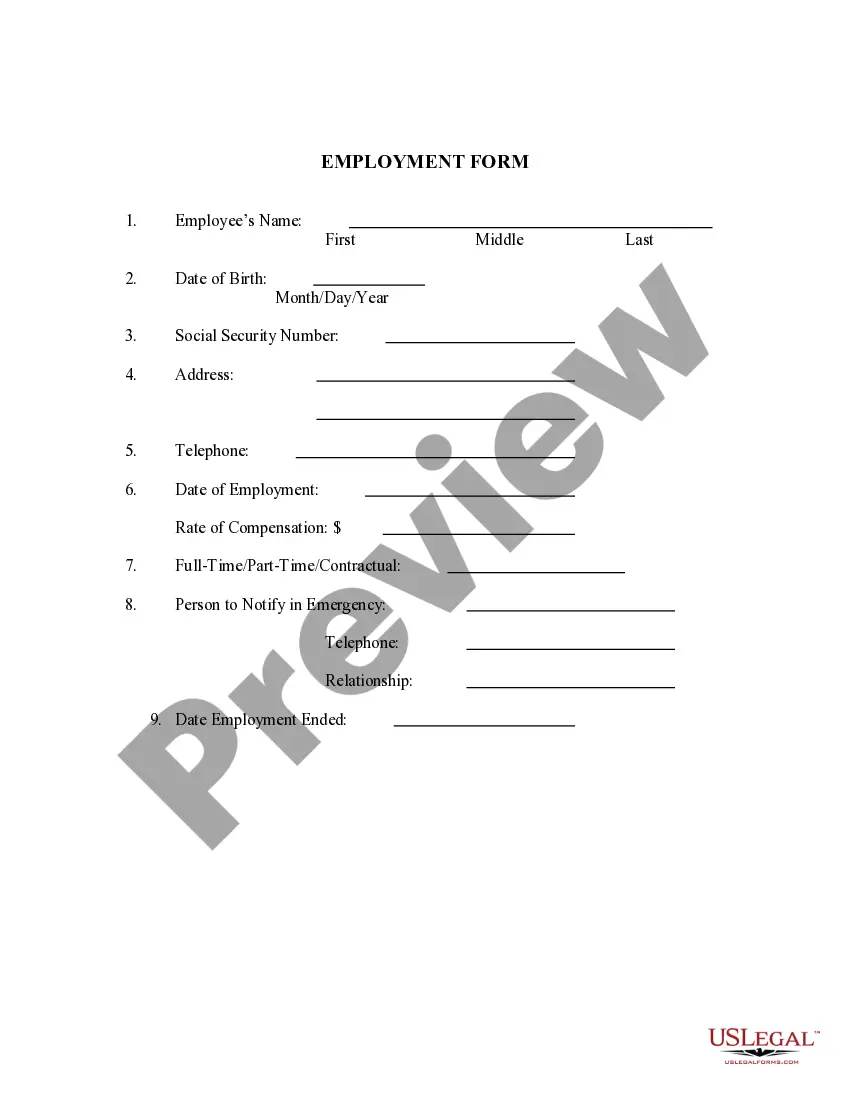
Get your form ready online
Our built-in tools help you complete, sign, share, and store your documents in one place.
Make edits, fill in missing information, and update formatting in US Legal Forms—just like you would in MS Word.
Download a copy, print it, send it by email, or mail it via USPS—whatever works best for your next step.
Sign and collect signatures with our SignNow integration. Send to multiple recipients, set reminders, and more. Go Premium to unlock E-Sign.
If this form requires notarization, complete it online through a secure video call—no need to meet a notary in person or wait for an appointment.
We protect your documents and personal data by following strict security and privacy standards.

Make edits, fill in missing information, and update formatting in US Legal Forms—just like you would in MS Word.

Download a copy, print it, send it by email, or mail it via USPS—whatever works best for your next step.

Sign and collect signatures with our SignNow integration. Send to multiple recipients, set reminders, and more. Go Premium to unlock E-Sign.

If this form requires notarization, complete it online through a secure video call—no need to meet a notary in person or wait for an appointment.

We protect your documents and personal data by following strict security and privacy standards.
Looking for another form?
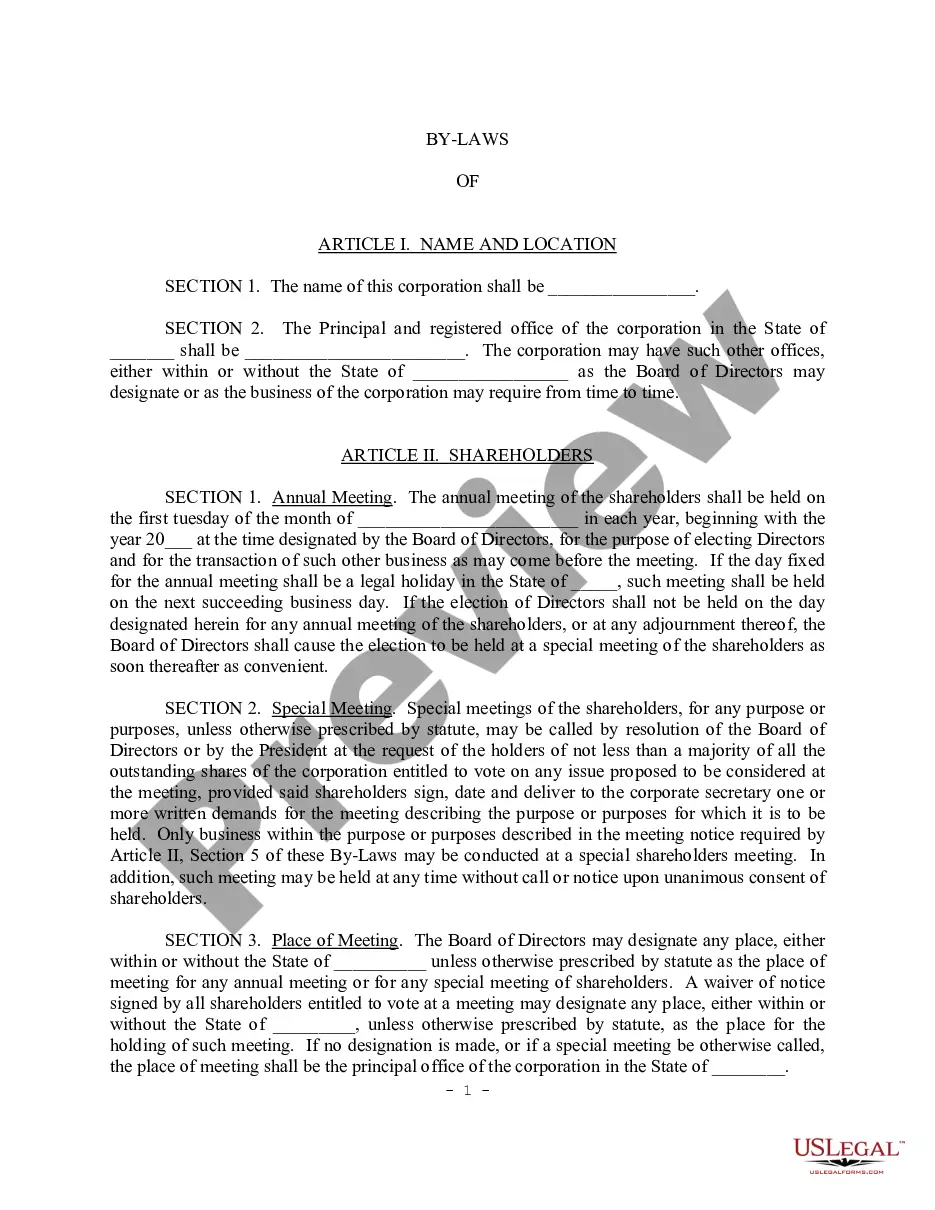
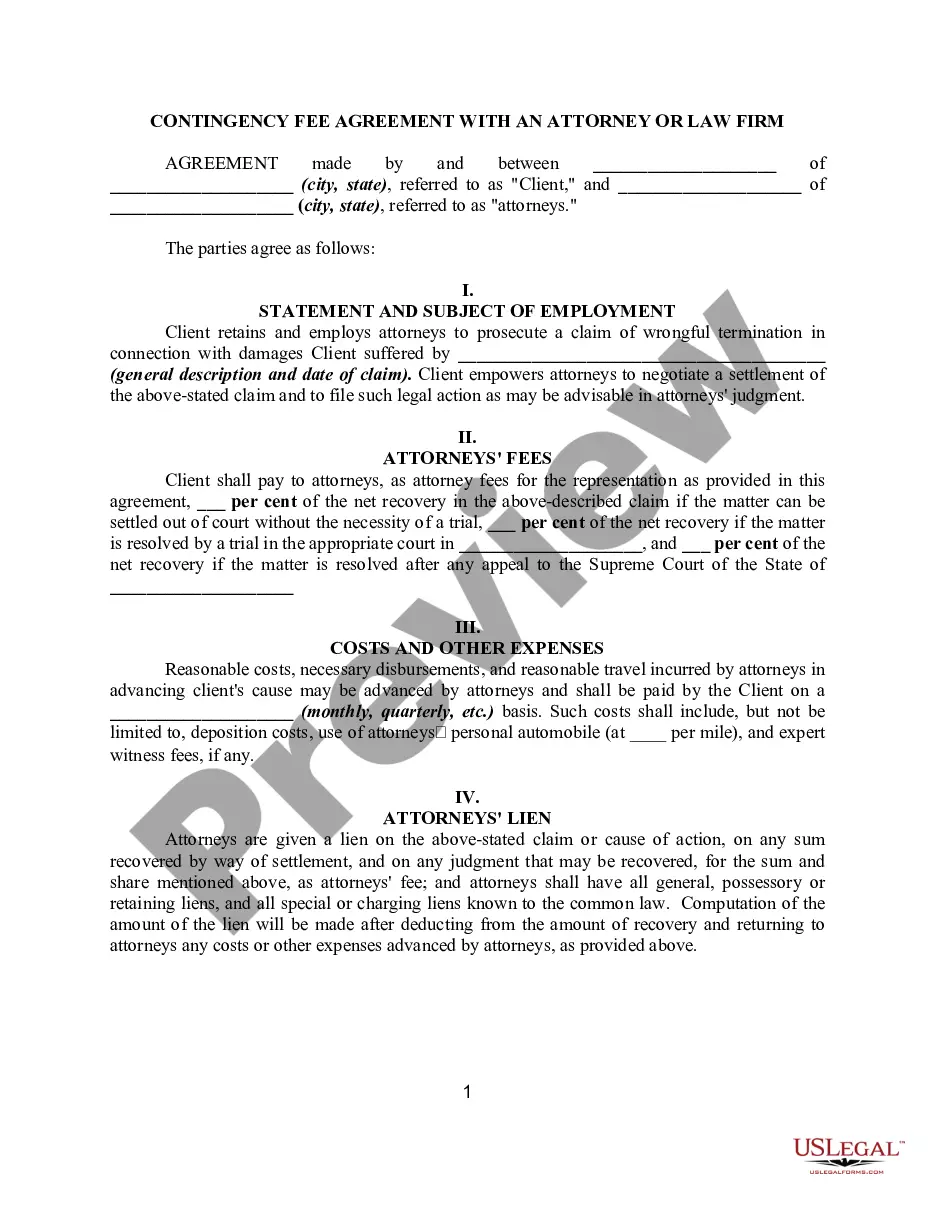


How to fill out California Employee Tracking Form?
Legal paperwork administration might be perplexing, even for seasoned experts.
When you are searching for an Employee Tracking Form With Excel and do not have the time to dedicate to finding the proper and current version, the processes can be stressful.
US Legal Forms encompasses all requirements you may have, from personal to business documentation, in one place.
Utilize advanced tools to complete and manage your Employee Tracking Form With Excel.
Here are the steps to follow after accessing the form you need: Validate that it is the correct form by previewing it and reading its description. Ensure that the template is recognized in your state or county. Click Buy Now when you are prepared. Choose a monthly subscription plan. Select the format you desire, and Download, fill out, eSign, print, and send your documents. Enjoy the US Legal Forms online catalog, supported by 25 years of experience and trustworthiness. Improve your daily document management in a seamless and user-friendly manner today.
- Access a library of articles, guides, and handbooks related to your situation and requirements.
- Save time and effort searching for the documents you need, and use US Legal Forms' sophisticated search and Review feature to locate and download Employee Tracking Form With Excel.
- If you possess a monthly subscription, Log In to your US Legal Forms account, search for the form, and download it.
- Check your My documents tab to see the documents you have previously downloaded and to organize your folders as desired.
- If it is your first time using US Legal Forms, create a free account and gain unlimited access to all the platform's benefits.
- A comprehensive online form repository can be transformative for anyone who wishes to navigate these circumstances effectively.
- US Legal Forms is a leading provider in online legal documents, with over 85,000 state-specific legal forms available to you at any moment.
- With US Legal Forms, you can access legal and business forms specific to your state or county.
Form popularity
FAQ
How to Make an Attendance Sheet in Excel Download the student attendance tracker template for Excel. Open the file and click on the Blank Student Attendance tab at the bottom of the sheet. Enter the information for the spreadsheet cells at the top of the template:
When developing a template for a standard information form, create sections for the following information: Personal details. ... Educational background. ... Work history. ... Social Security number and other important data. ... Employee Information Form Template for PDF & Excel.
Click on the cell you want to display the 'Number of Absences' in and enter the formula =COUNTIF(range,criteria). You can use the same formula to get the number of presents. For example, in the image, we have used the formula =COUNTIF(B2:Q10,A). And that's it!
Follow these five steps to create and use a trackable to-do list in Excel: Open Excel and create column headers based on your requirements. ... Fill in the details for each task. ... Add a filter. ... Use the filter to sort and prioritize your tasks. ... Continue using your task tracker. ... Project task list template.
Lock the cells (via the Home tab) besides the ones where the employees need to enter their data. Click on the cell you want to display the 'Number of Absences' in and enter the formula =COUNTIF(range,criteria). You can use the same formula to get the number of presents.