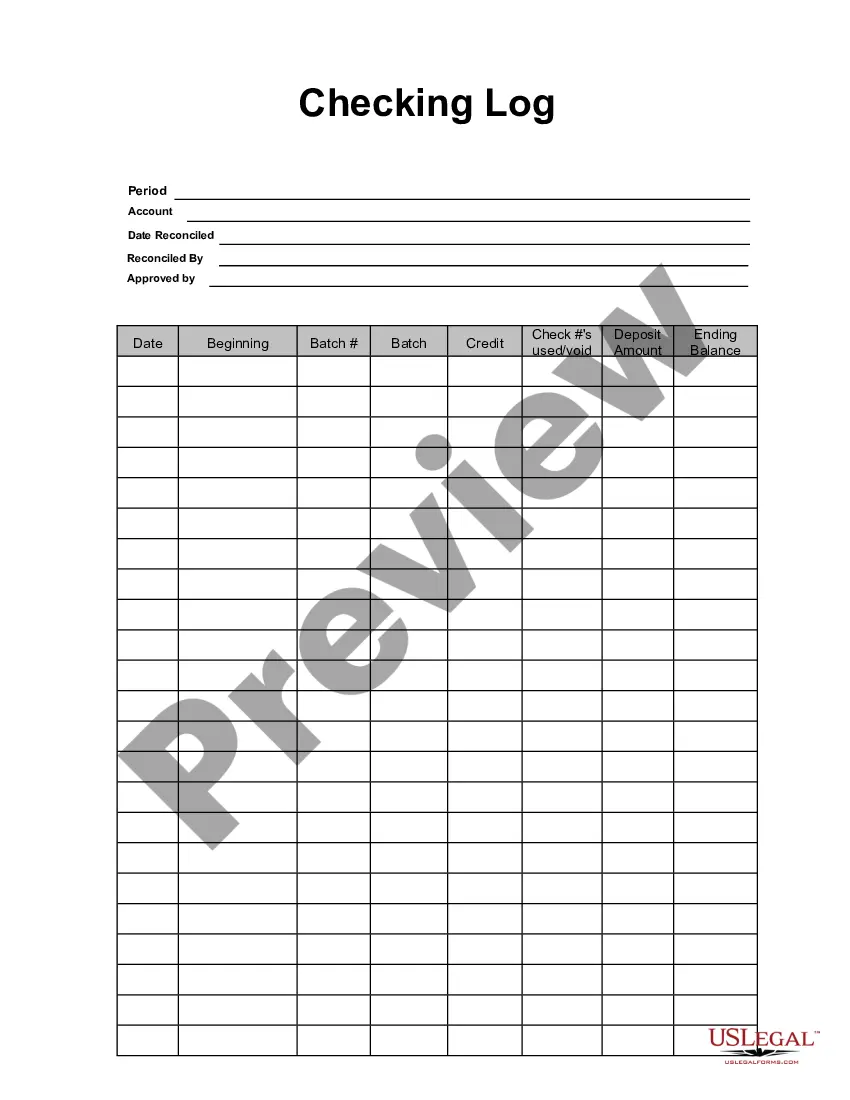
Checking Log
What this document covers
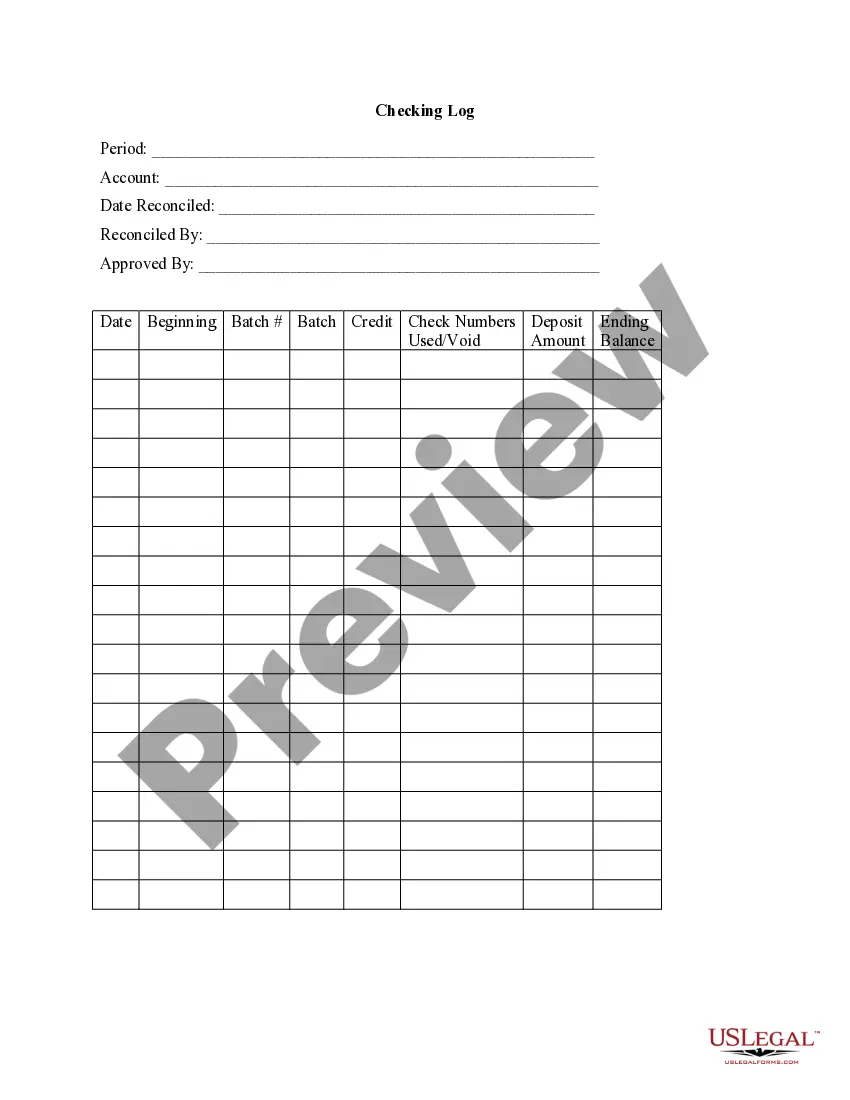
The Checking Log is a business tool that helps you track and document all checks issued by your organization. Unlike other financial forms, this log focuses specifically on check transactions, making it easier to manage your business finances and prevent errors or fraud. This form is designed for input using Adobe Acrobat or Word, allowing for easy customization and completion.
What’s included in this form
- Transaction date: Record when each check was issued.
- Payee information: Specify who the check is made out to.
- Check number: Assign a unique number to each check for tracking.
- Amount: Document the dollar amount of each transaction.
- Description: Provide a brief note on the purpose of the check.
Situations where this form applies
You should use the Checking Log whenever your business issues checks to pay vendors, employees, or for any other expenditures. It is particularly useful for maintaining comprehensive records during audits or for personal reference. This form aids in ensuring accountability and transparency in your financial dealings.
Who needs this form
This form is suitable for:
- Business owners managing accounts payable.
- Accountants and bookkeepers tracking financial transactions.
- Non-profit organizations keeping records of funds disbursed.
- Individuals who want to manage their personal finances effectively.
How to complete this form
Follow these steps to fill out the Checking Log:
- Enter the date each check is written.
- Fill in the name of the payee for each check.
- Write down the corresponding check number.
- Specify the check amount accurately.
- Add a brief description of each payment to clarify its purpose.
Notarization guidance
This form does not typically require notarization unless specified by local law. You can complete the Checking Log electronically without the need for a notary seal.
Get your form ready online
Our built-in tools help you complete, sign, share, and store your documents in one place.
Make edits, fill in missing information, and update formatting in US Legal Forms—just like you would in MS Word.
Download a copy, print it, send it by email, or mail it via USPS—whatever works best for your next step.
Sign and collect signatures with our SignNow integration. Send to multiple recipients, set reminders, and more. Go Premium to unlock E-Sign.
If this form requires notarization, complete it online through a secure video call—no need to meet a notary in person or wait for an appointment.
We protect your documents and personal data by following strict security and privacy standards.
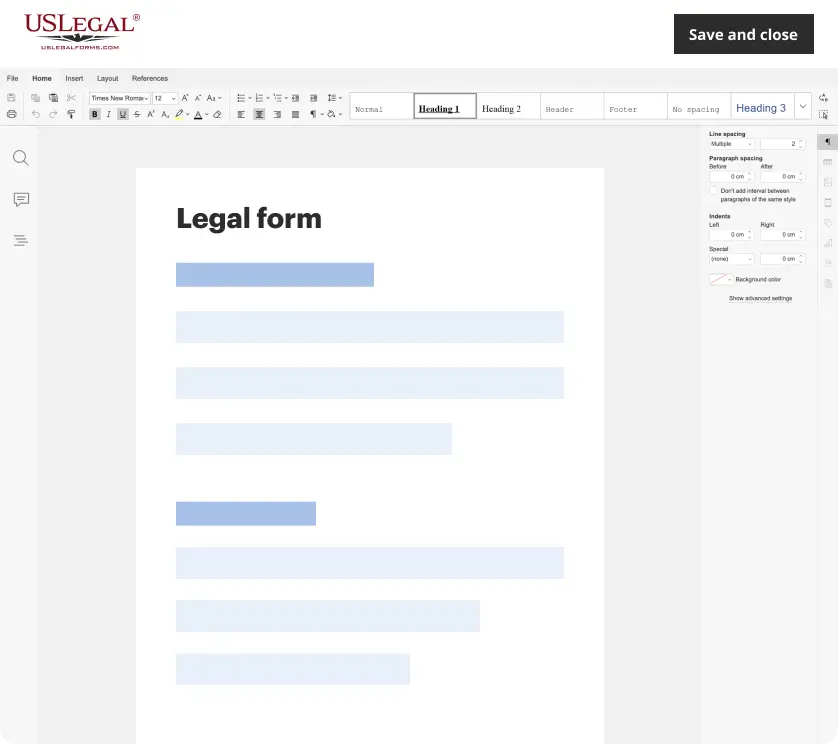
Make edits, fill in missing information, and update formatting in US Legal Forms—just like you would in MS Word.
Download a copy, print it, send it by email, or mail it via USPS—whatever works best for your next step.
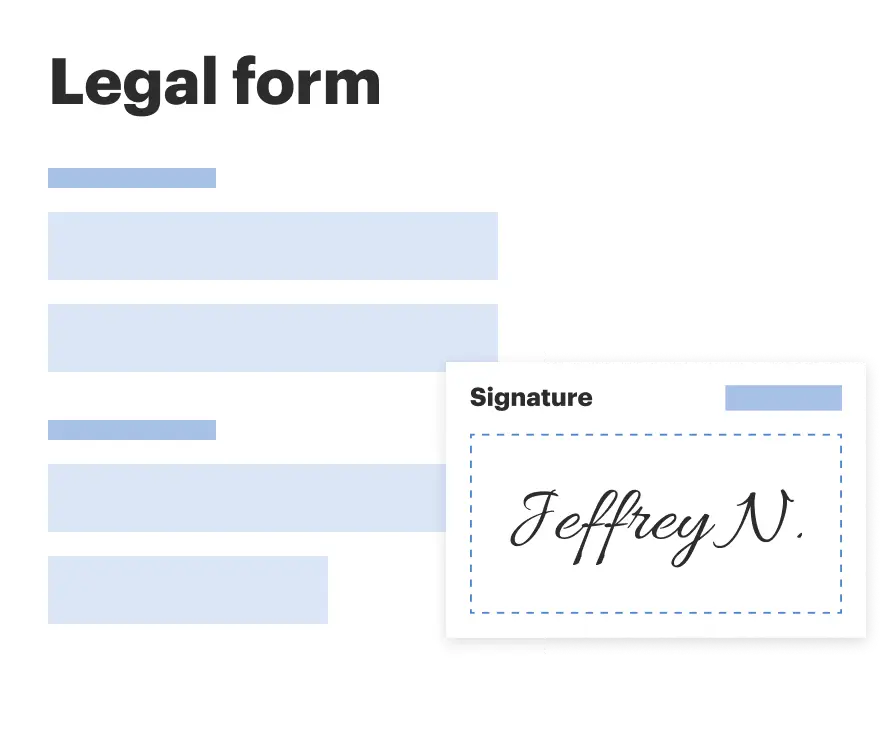
Sign and collect signatures with our SignNow integration. Send to multiple recipients, set reminders, and more. Go Premium to unlock E-Sign.

If this form requires notarization, complete it online through a secure video call—no need to meet a notary in person or wait for an appointment.
We protect your documents and personal data by following strict security and privacy standards.
Mistakes to watch out for
- Failing to record the check number, which can lead to duplication.
- Omitting the transaction date, causing discrepancies in records.
- Incorrectly entering check amounts and payee names.
Benefits of completing this form online
- Easy download and customization through software like Adobe Acrobat or Word.
- Instant access to templates tailored to your specific needs.
- No need for physical storage, as digital forms can be saved securely.
- Updated versions can be easily accessed to stay compliant with business practices.
Key takeaways
- The Checking Log is essential for managing and tracking issued checks.
- It is suitable for small businesses, accountants, and organizations.
- Consistent use can prevent financial tracking errors.
- This form is easy to complete and can be customized as needed.
Looking for another form?

Form popularity
FAQ
Click Start > Control Panel > System and Security > Administrative Tools. Double-click Event Viewer. Select the type of logs that you wish to review (ex: Windows Logs)
By default, Event Viewer log files use the . evt extension and are located in the %SystemRoot%\\System32\\Config folder. Log file name and location information is stored in the registry.
The event logs are located in Windows or WINNT directory under %WinDir%\\system32\\config. These files end in . evt, but we have seen them with different capitalization schemes (. evt, .
Coat the exposed end grain of the logs or boards with a thick layer of paint, varnish or a commercial green-wood sealer to prevent moisture from escaping too quickly. Wood loses moisture 10 to 15 times faster through the ends than it does through the faces.
Click Start > Control Panel > System and Security > Administrative Tools. Double-click Event Viewer. Select the type of logs that you wish to review (ex: Windows Logs)
How to View Linux Logs. Use the following commands to see log files: Linux logs can be viewed with the command cd/var/log, then by typing the command ls to see the logs stored under this directory. One of the most important logs to view is the syslog, which logs everything but auth-related messages.
Press 229e Win + R on the M-Files server computer. In the Open text field, type in eventvwr and click OK. Expand the Windows Logs node. Select the Application node. Click Filter Current Log... on the Actions pane in the Application section to list only the entries that are related to M-Files.
Click on the Search icon or press the key combination Windows-S. How to find crash logs on Windows 10: press the key combination Windows-S, enter the search string Event Viewer and wait for the Search to display its icon in the results.