Sample Memo Format or Template
About this form
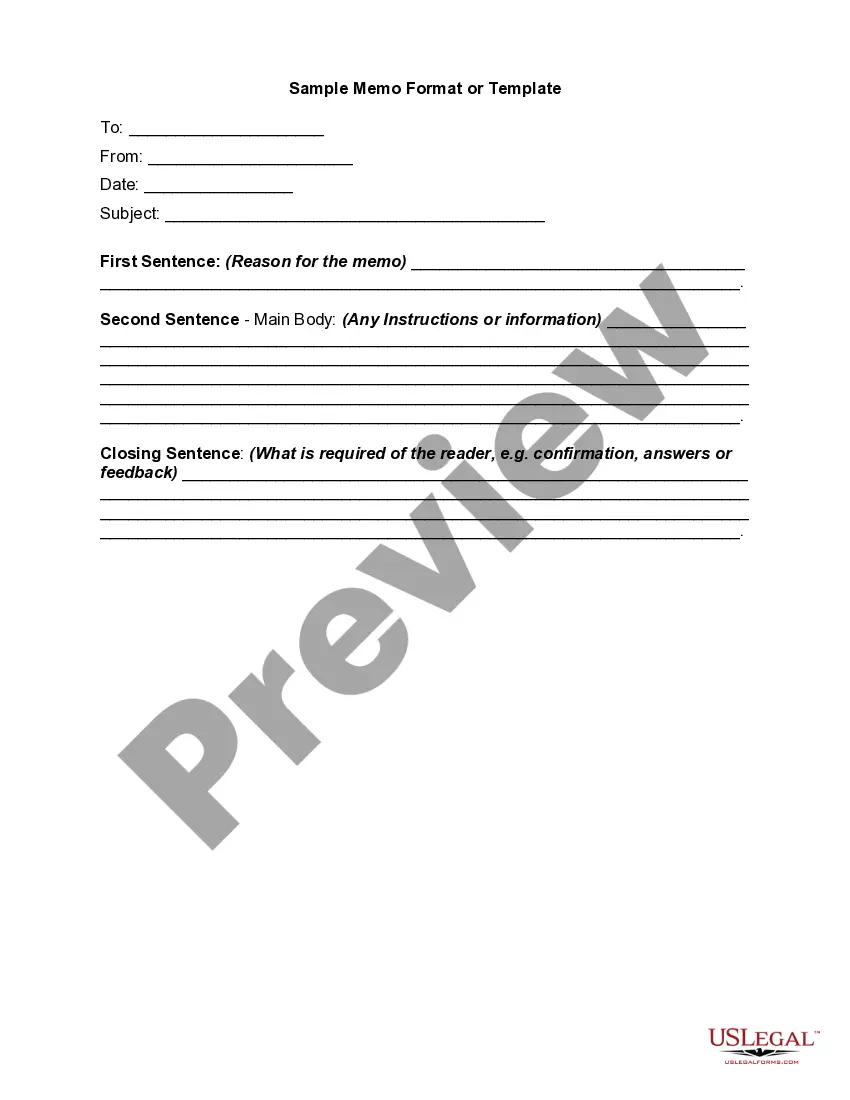
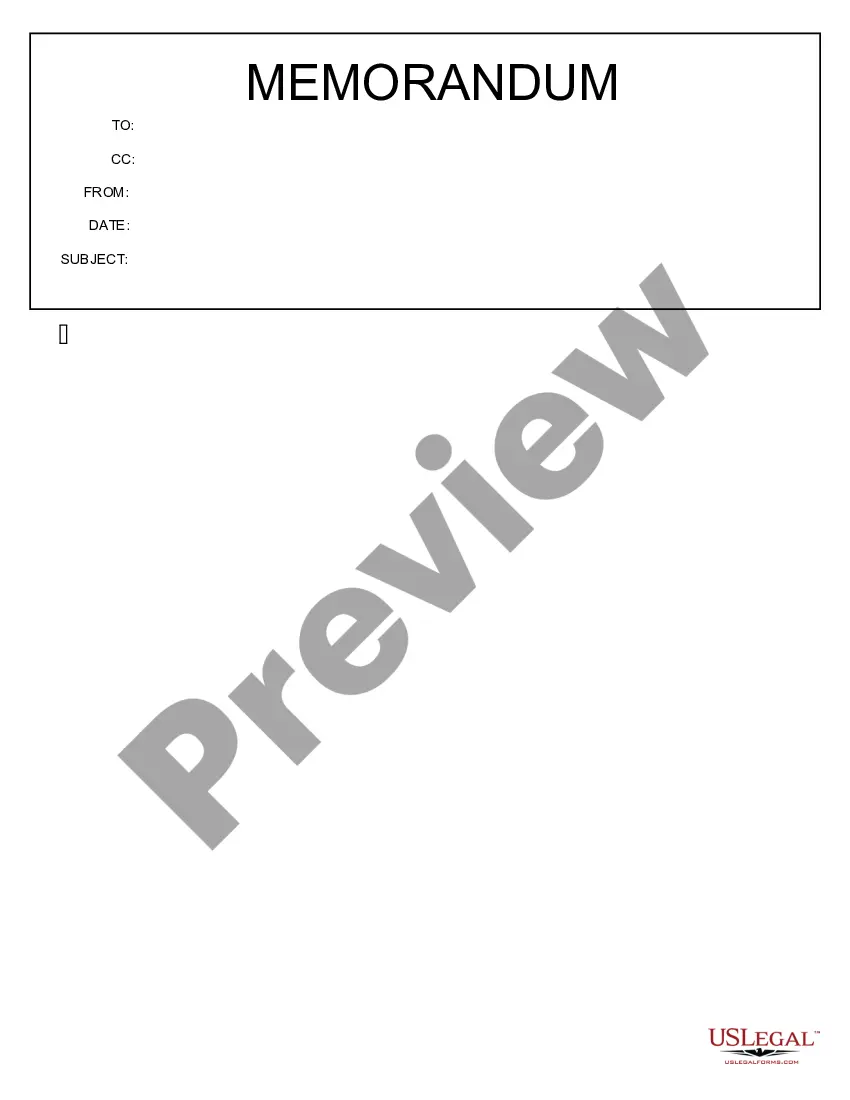
A Sample Memo Format or Template is a structured document used to communicate concise information within a business environment. A memo serves as a reminder, proposal, or informational notice among colleagues. Unlike longer reports, memos are brief, typically no longer than one page, making them ideal for straightforward communication.
Main sections of this form
- To: The recipient's name or title.
- From: The sender's name or title.
- Date: The date when the memo is issued.
- Subject: A brief description of the memo's topic.
- First Sentence: The reason for writing the memo.
- Main Body: Detailed instructions or information relevant to the subject.
- Closing Sentence: What action or response is required from the reader.
When to use this form
This memo format is useful whenever you need to communicate important information quickly to colleagues or team members. For example, you can use it to remind staff about upcoming meetings, outline new workplace policies, request feedback, or share relevant updates within the organization.
Who needs this form
- Business professionals looking to enhance internal communications.
- Managers needing to inform team members about specific tasks or changes.
- Employees who wish to communicate important updates informally.
- Anyone within an organization seeking to document information in a clear and concise format.
How to complete this form
- Identify the recipient by filling in the "To" field.
- Enter your name or title in the "From" field.
- Insert the date in the appropriate section.
- Clearly state the subject matter of the memo.
- Compose the first sentence explaining why you are sending the memo.
- Add any necessary instructions or additional information in the main body.
- Conclude with a closing sentence indicating what you expect from the recipient.
Does this form need to be notarized?
This form does not typically require notarization unless specified by local law. Memos are generally internal documents and do not necessitate a notary to be legally valid.
Get your form ready online
Our built-in tools help you complete, sign, share, and store your documents in one place.
Make edits, fill in missing information, and update formatting in US Legal Forms—just like you would in MS Word.
Download a copy, print it, send it by email, or mail it via USPS—whatever works best for your next step.
Sign and collect signatures with our SignNow integration. Send to multiple recipients, set reminders, and more. Go Premium to unlock E-Sign.
If this form requires notarization, complete it online through a secure video call—no need to meet a notary in person or wait for an appointment.
We protect your documents and personal data by following strict security and privacy standards.
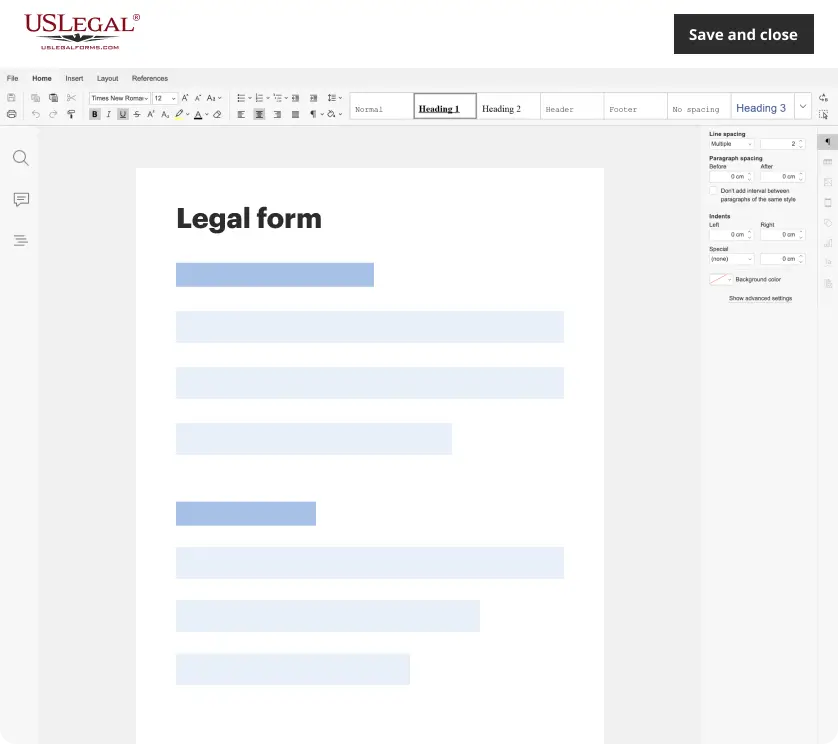
Make edits, fill in missing information, and update formatting in US Legal Forms—just like you would in MS Word.
Download a copy, print it, send it by email, or mail it via USPS—whatever works best for your next step.
Sign and collect signatures with our SignNow integration. Send to multiple recipients, set reminders, and more. Go Premium to unlock E-Sign.
If this form requires notarization, complete it online through a secure video call—no need to meet a notary in person or wait for an appointment.
We protect your documents and personal data by following strict security and privacy standards.
Mistakes to watch out for
- Making the memo too lengthy or detailed.
- Failing to include a clear subject line.
- Not specifying actionable steps or responses expected from the reader.
- Neglecting to proofread for clarity and spelling errors.
Why use this form online
- Convenience of drafting and editing memos at any time.
- Ability to download and customize the memo template as needed.
- Accessibility to professional-grade legal templates created by attorneys.
- Easy storage and retrieval of past memos for reference.
Main things to remember
- A memo is a concise communication tool used within businesses.
- It should be brief, ideally no longer than one page.
- Utilize a clear format to enhance readability and impact.
- This template can be adapted for various situations and audiences within an organization.
Looking for another form?

Form popularity
FAQ
Not to be confused with a private placement memorandum or credit memo, a memo letter is a type of business letter used mostly for internal communication within a company, organization, or school.
Part 1: HEADER. TO: provide the names and titles of everyone who will receive your memo. FROM: provide your complete name and title. DATE: provide the complete and accurate date don't forget to include the year. SUBJECT: provide a brief, yet specific description of what the memo is about.
Choose one of our memo templates, and open it in Word for the web to make it yours. Tip: If you're already in Word for the web, get to the memo templates by going to File > New, and then below the template images click More on Office.com. You'll be on the Templates for Word page.
Click the "File" tab and then select "New." Type "Memo" in the "Search Office.com For Templates" search field that appears on the right-hand side of the page of options that appears after you click "New."
Click START, then point to Programs and MS-Office. Click MS-Word. Click on File > New. From the available Templates, click Memos. Select the Memo style of your choice. Double-click the memo style to download it. Click next to TO: and press the TAB key (left side of keyboard) to put in a protected space.
Writing a Report in a Memo. Write a header. For a memo, state in the top left corner who is supposed to read the memo (for example, To: All Employees), who wrote it (From: Your Name), who else will receive it (CC: Name of Recipient) the date (Current Date) and what it is about (Subject: Topic to Address.)
Click START, then point to Programs and MS-Office. Click MS-Word. Click on File > New. From the available Templates, click Memos. Select the Memo style of your choice. Double-click the memo style to download it. Click next to TO: and press the TAB key (left side of keyboard) to put in a protected space.
Header: In your header, you'll want to clearly label your content "Memorandum" so your readers know exactly they're receiving. Paragraph One: In the first paragraph, you'll want to quickly and clearly state the purpose of your memo. Paragraph Two: Paragraph Three: Downloadable Memo Template.
A well-written business letter is made up of seven basic parts, which may include an enclosures line as needed. The format of a memo is much simpler. You write Memo or Memorandum at the top, followed by a To line, a From line, a Date line, a Subject line, and then the actual body of the message.