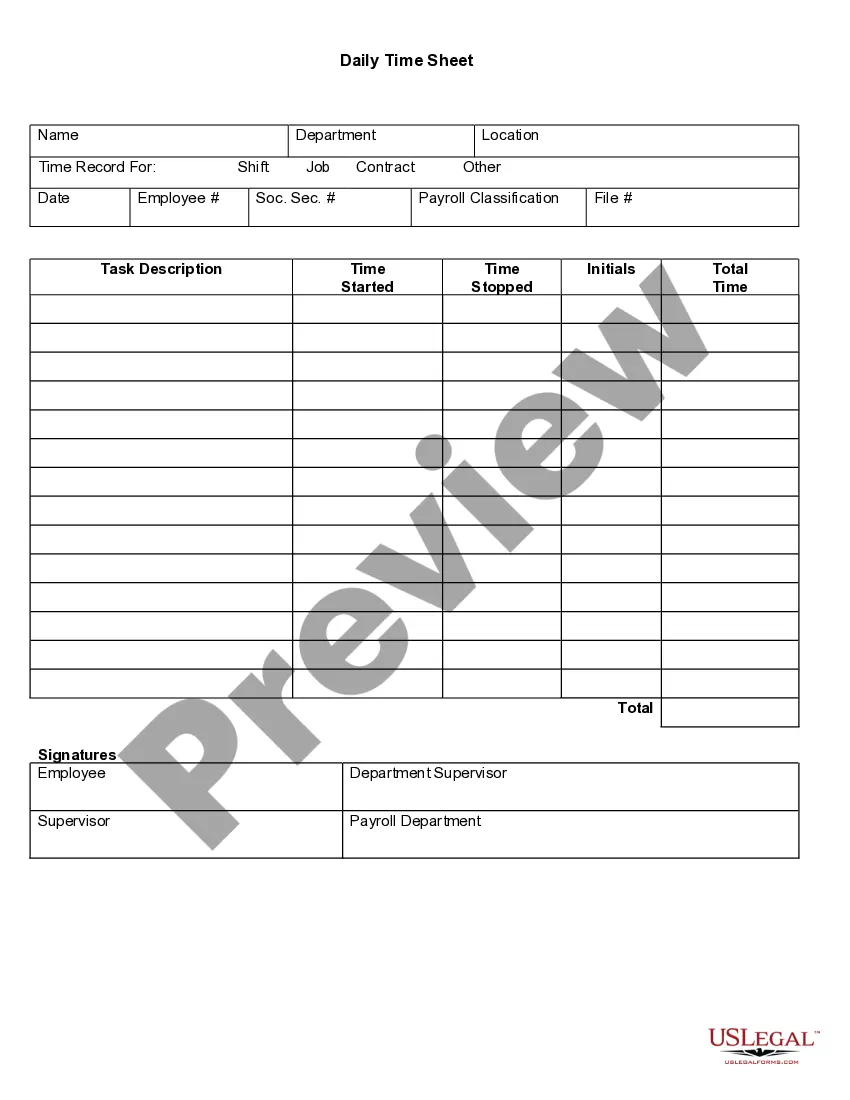
Daily Time Record Excel Timesheet Template With Formulas
Description
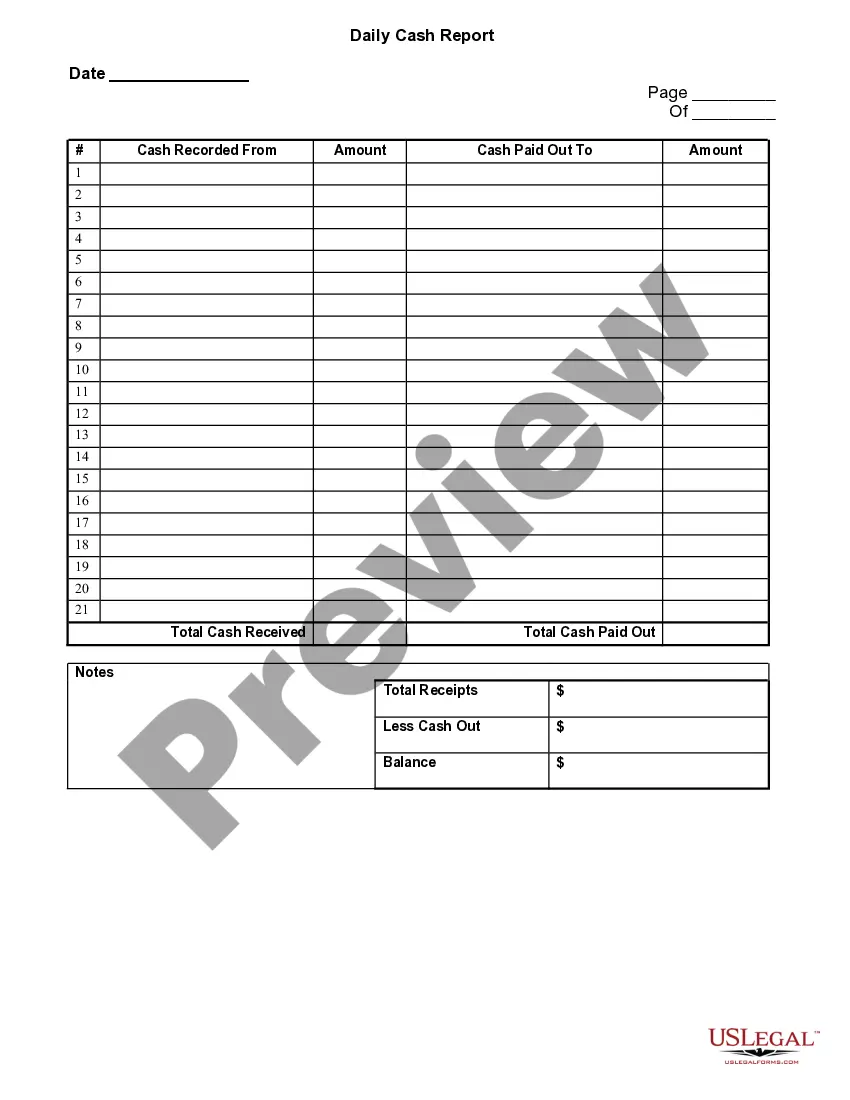
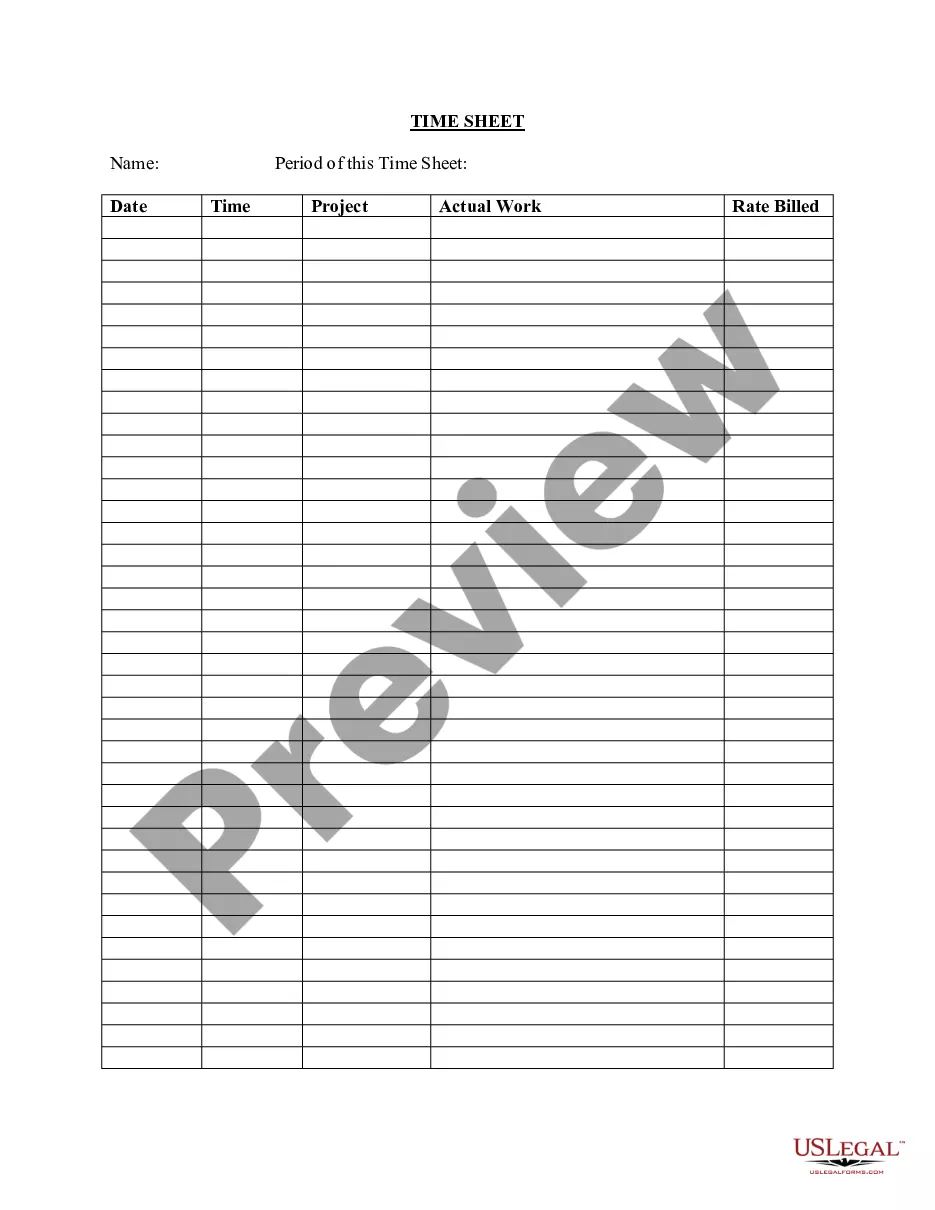
How to fill out Daily Time Sheet?
The Daily Time Record Excel Timesheet Template With Formulas displayed on this page is a versatile official template created by expert attorneys adhering to national and local regulations.
For over 25 years, US Legal Forms has offered individuals, businesses, and lawyers more than 85,000 verified, state-specific documents for any professional and personal situation.
Subscribe to US Legal Forms to have confirmed legal templates for all of life's situations readily available.
- Search for the document you require and examine it.
- Select the pricing option that fits your needs and establish an account.
- Choose the format you prefer for your Daily Time Record Excel Timesheet Template With Formulas (PDF, DOCX, RTF) and download the version to your device.
- Complete and sign the document.
- Access the same template again whenever necessary.
Form popularity
FAQ
The Excel formula for timesheets usually includes simple calculations such as SUM for adding up hours worked. For example, you can use the formula =SUM(B2:B10) to sum time entries in a specific range. Employing a daily time record excel timesheet template with formulas can further streamline this process, enabling automated tracking of hours without tedious entry.
Yes, Excel includes a variety of pre-made timesheet templates that users can access directly from the application. These templates can be customized to fit specific needs and can incorporate your desired formulas. Additionally, using a daily time record excel timesheet template with formulas can enhance your tracking efficiency and reduce errors.
To create a daily timesheet in Excel, start by opening a new spreadsheet and labeling your columns for date, start time, end time, and total hours. Then, input your data as needed. By utilizing a daily time record excel timesheet template with formulas, you can simplify this process and automatically calculate total hours without the need for manual computations.
The formula for a daily timesheet in Excel typically involves basic arithmetic operations such as addition and subtraction. You can calculate total hours worked by subtracting the start time from the end time, then summing those totals for the day. Using a daily time record excel timesheet template with formulas, you can easily automate these calculations, ensuring accuracy and saving time.
Formula 1: Calculating daily working hours Insert =sum(D8+F8) into the "Daily total" cell (marked as G8 in this timesheet example). As soon as employees type the hours in the "Morning hours" and "Afternoon hours" cells, this time automatically gets added to the "Daily total".
How to Create a Timesheet in Microsoft Excel Download an Excel Timesheet Template. Prepare the Timesheet Template. Enter Identifying Information. Enter the Rates of Pay. Enter the Employee's Hours Worked. Calculate and Enter the Type of Hours Worked. Verify Your Information and Save Your Timesheet.
How to Create a Timesheet in Microsoft Excel Download an Excel Timesheet Template. Prepare the Timesheet Template. Enter Identifying Information. Enter the Rates of Pay. Enter the Employee's Hours Worked. Calculate and Enter the Type of Hours Worked. Verify Your Information and Save Your Timesheet.