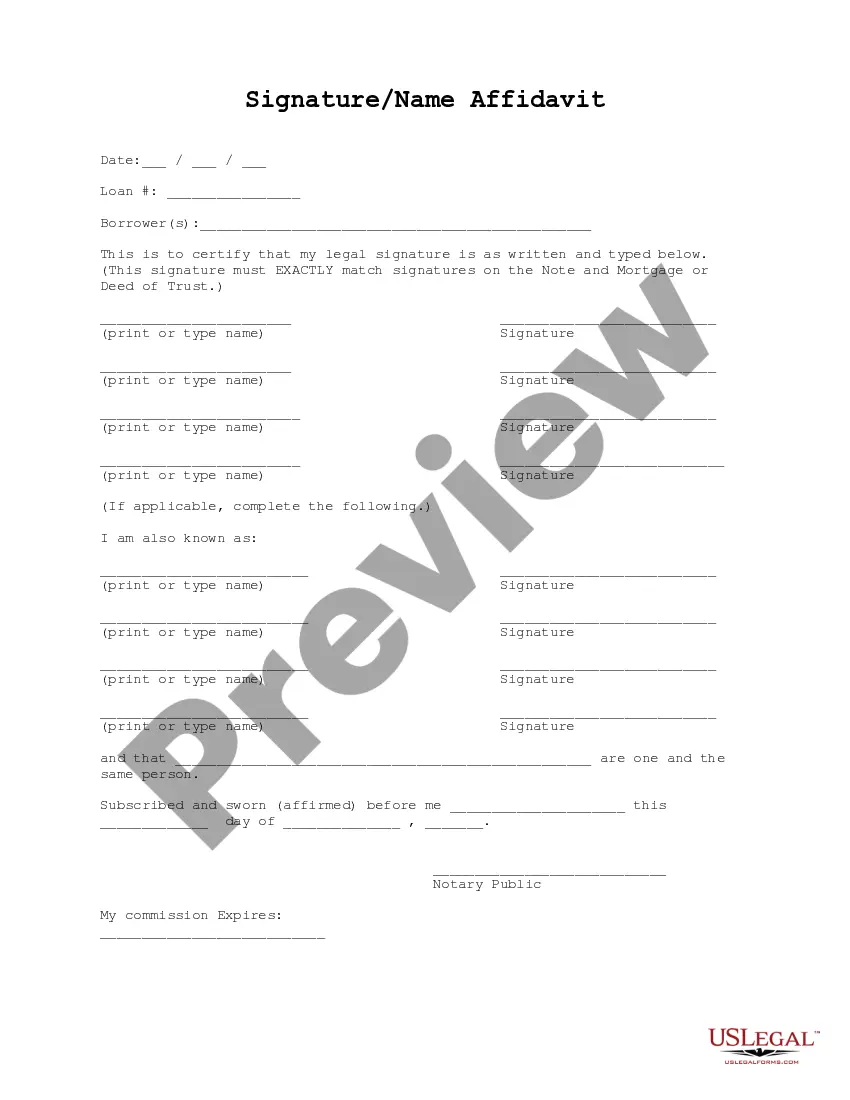
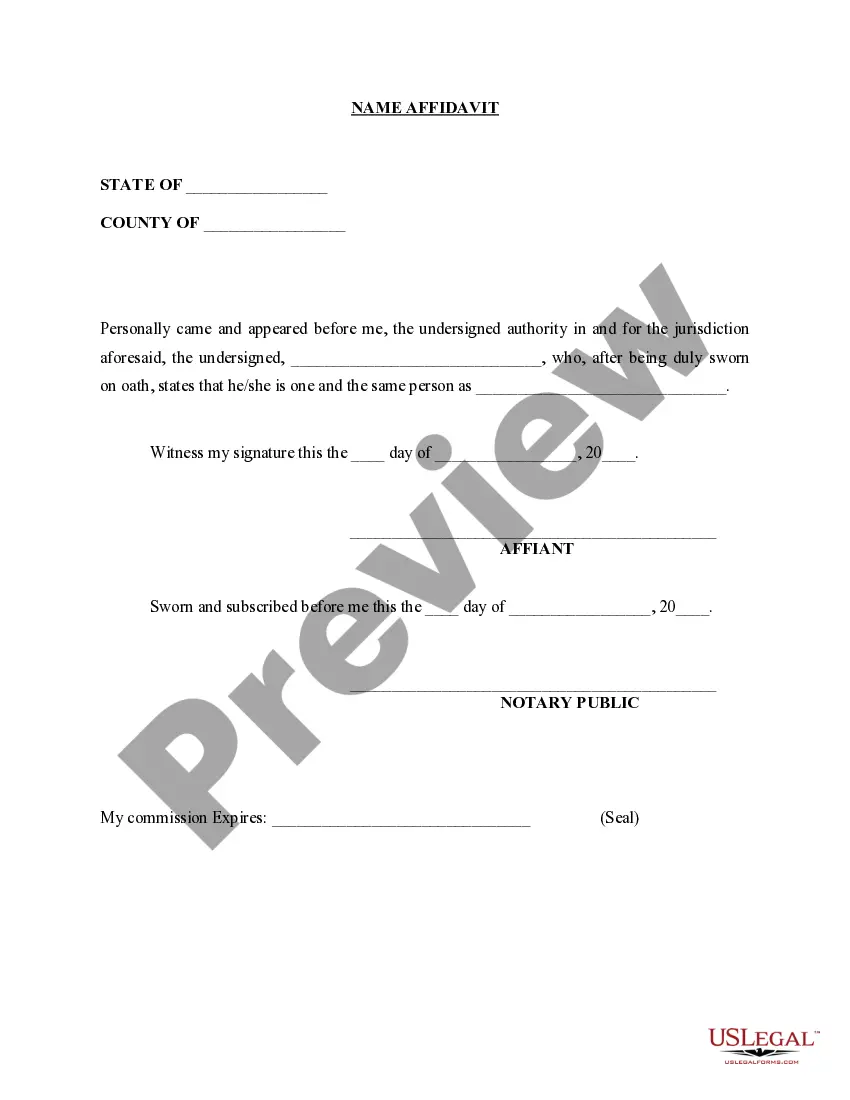
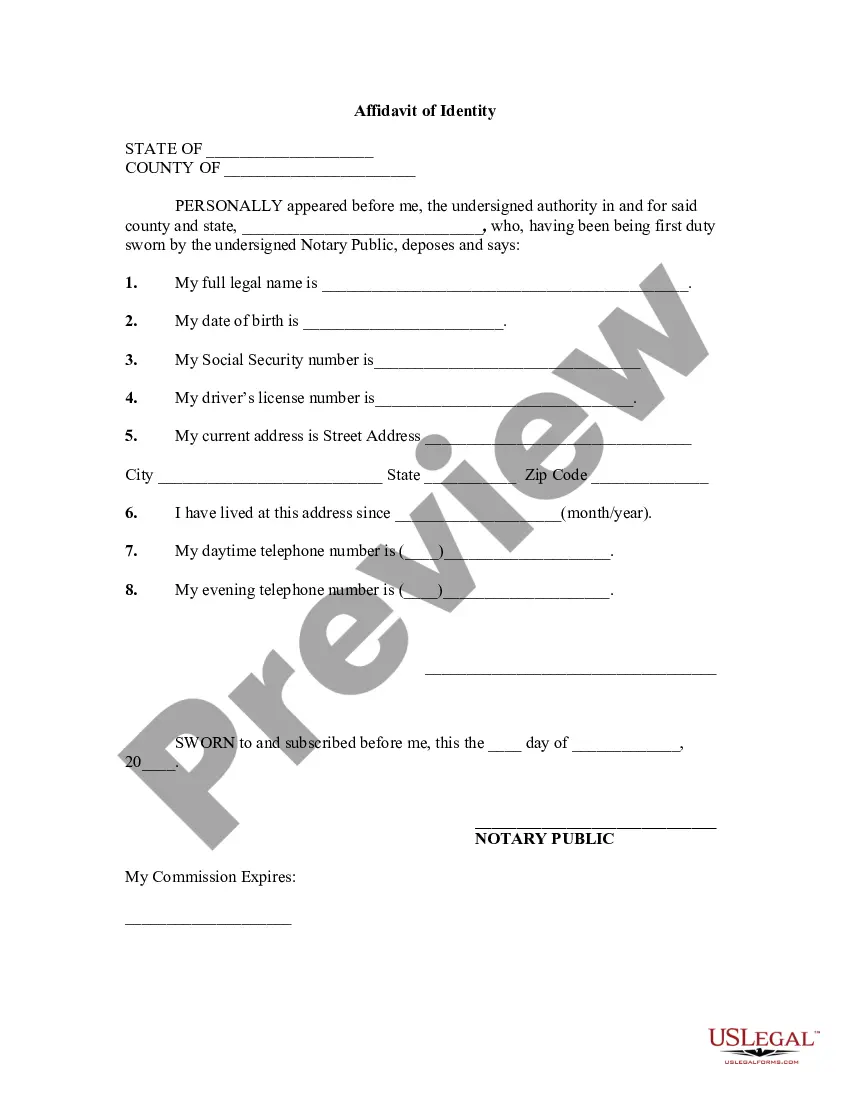
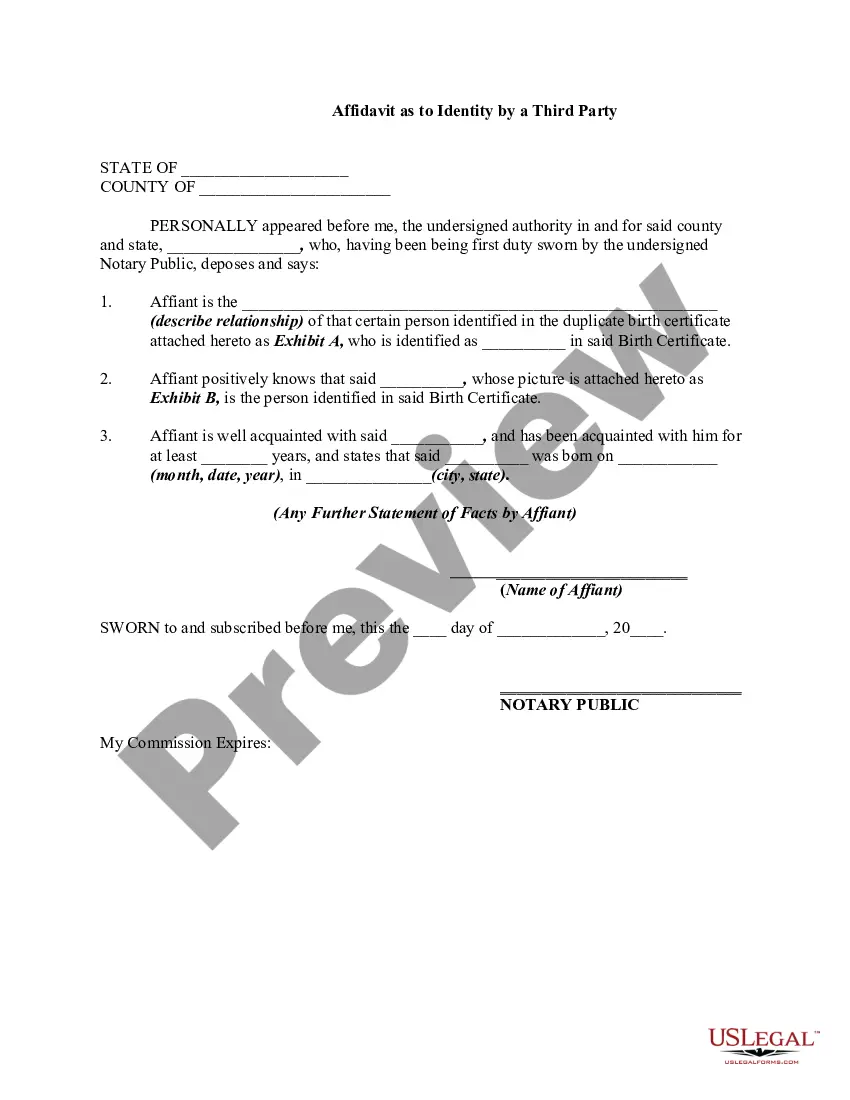
Signature Name Form For Gmail
Description
Get your form ready online
Our built-in tools help you complete, sign, share, and store your documents in one place.
Make edits, fill in missing information, and update formatting in US Legal Forms—just like you would in MS Word.
Download a copy, print it, send it by email, or mail it via USPS—whatever works best for your next step.
Sign and collect signatures with our SignNow integration. Send to multiple recipients, set reminders, and more. Go Premium to unlock E-Sign.
If this form requires notarization, complete it online through a secure video call—no need to meet a notary in person or wait for an appointment.
We protect your documents and personal data by following strict security and privacy standards.

Make edits, fill in missing information, and update formatting in US Legal Forms—just like you would in MS Word.

Download a copy, print it, send it by email, or mail it via USPS—whatever works best for your next step.

Sign and collect signatures with our SignNow integration. Send to multiple recipients, set reminders, and more. Go Premium to unlock E-Sign.

If this form requires notarization, complete it online through a secure video call—no need to meet a notary in person or wait for an appointment.

We protect your documents and personal data by following strict security and privacy standards.
Looking for another form?


How to fill out Signature And Name Affidavit?
Regardless of whether for corporate reasons or personal matters, everyone must handle legal circumstances at some point in their lives.
Completing legal paperwork requires meticulous focus, starting with choosing the correct form template.
With an extensive US Legal Forms collection available, you do not need to waste time searching for the correct template online. Make use of the library’s user-friendly navigation to find the suitable template for any situation.
- For example, selecting an incorrect version of a Signature Name Form For Gmail will lead to its rejection upon submission.
- Thus, it is vital to find a reliable source for legal documents like US Legal Forms.
- To acquire a Signature Name Form For Gmail template, follow these straightforward steps.
- Obtain the template you require by using the search bar or browsing through the catalog.
- Review the form’s description to ensure it corresponds with your circumstances, state, and county.
- Click on the form’s preview to inspect it.
- If it turns out to be the wrong document, return to the search feature to find the Signature Name Form For Gmail example you need.
- Download the file once it aligns with your requirements.
- If you have a US Legal Forms account, click Log in to access previously stored documents in My documents.
- If you do not possess an account yet, you can acquire the form by clicking Buy now.
- Select the suitable pricing option.
- Complete the profile registration form.
- Choose your payment method: you may use a credit card or a PayPal account.
- Select the document format you prefer and download the Signature Name Form For Gmail.
- Once saved, you can fill out the form using editing software or print it and complete it by hand.
Form popularity
FAQ
To put your name on your email signature in Gmail, click on the gear icon to access settings, then scroll to the 'Signature' section. Type in your name and customize the formatting as needed. This feature is vital for establishing your identity in emails, and the signature name form for Gmail ensures your signature is clear and impactful.
To add your name and signature in Gmail, open your settings and find the 'Signature' area. Enter your name, and if desired, include additional information such as your title or contact details. This feature enhances your email professionalism and helps recipients recognize you quickly, especially when using the signature name form for Gmail.
Customizing your email signature on Gmail is straightforward. Go to your Gmail settings and locate the 'Signature' section. Here, you can edit text, add images, and format your signature to reflect your personality or brand. Using the signature name form for Gmail makes it easy to ensure your signature aligns with your overall email communication style.
To include your name in your email signature, first, access your Gmail settings. Navigate to the 'Signature' section and enter your desired name. You can customize the font, size, and color to make it stand out. This simple process allows you to create a professional appearance using the signature name form for Gmail.
To create a signature name in Gmail, first, open your Gmail account and click on the gear icon in the upper right corner to access 'Settings.' Next, navigate to the 'Signature' section under the 'General' tab. Here, you can enter your desired signature name and format it to your liking. Once you are satisfied with your signature name form for Gmail, remember to save your changes at the bottom of the page.
Making a custom email template in Gmail starts with composing a new email and designing it to your taste. Once you have your desired layout, you can save it as a template by clicking on the three dots in the compose window and selecting 'Templates.' This approach can complement your signature name form for Gmail, providing a cohesive experience for your recipients.
To create an email signature template for Gmail, go to the settings menu and scroll down to the 'Signature' area. You can craft a unique signature that includes your name, title, and any other relevant information. This template functions as a signature name form for Gmail, ensuring every email you send is polished and complete.
Creating a Gmail signature template involves accessing the settings and finding the 'Signature' section. You can use the formatting tools to customize your signature with fonts, colors, and links. This template can serve as a signature name form for Gmail, allowing you to maintain consistency across your communications while reinforcing your brand.
To add a signature name in Gmail, navigate to your Gmail settings and locate the 'Signature' section. Here, you can type in your name and format it to your liking. This signature will automatically appear at the bottom of your emails, acting as a signature name form for Gmail, ensuring that your emails always reflect your professional identity.
Creating a Google Form to collect signatures is straightforward. Start by opening Google Forms and selecting a blank form template. You can add a question type that allows respondents to enter their names, which could serve as a signature name form for Gmail. Make sure to enable the option for responses to be edited, so users can confirm their signatures.