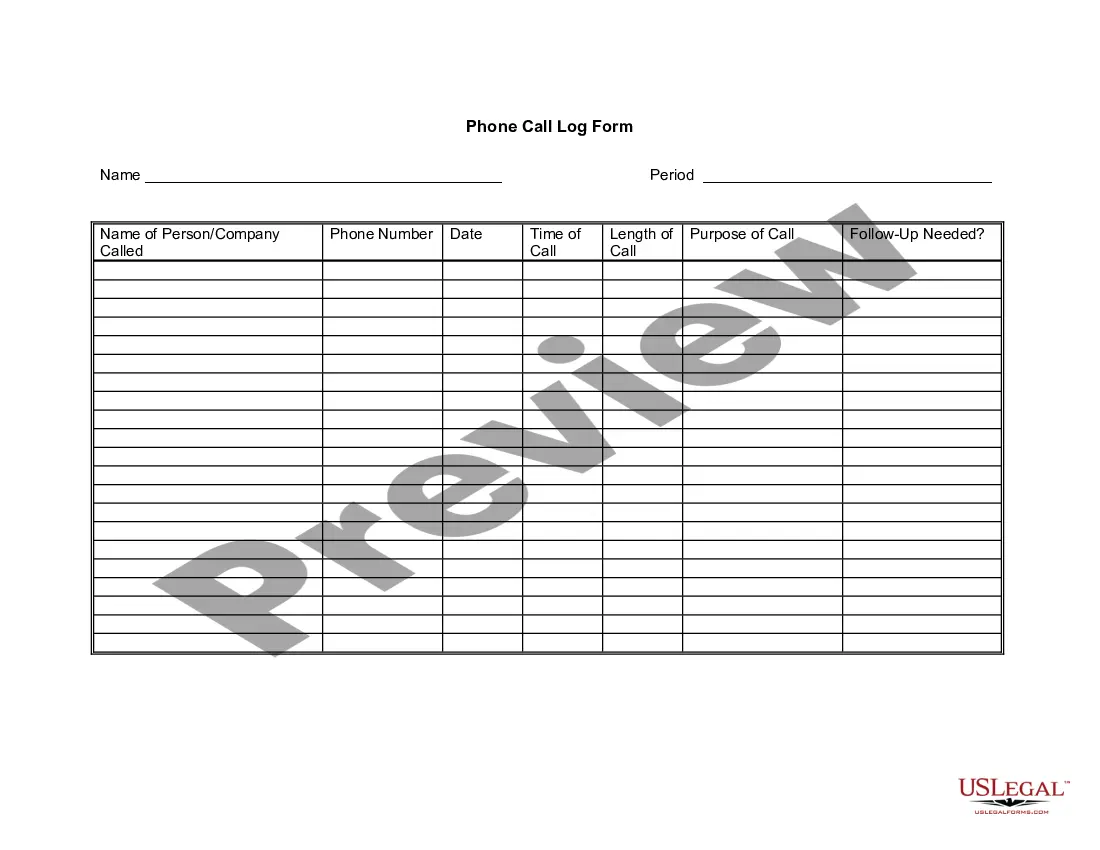
Phone Call Log Form
What is this form?
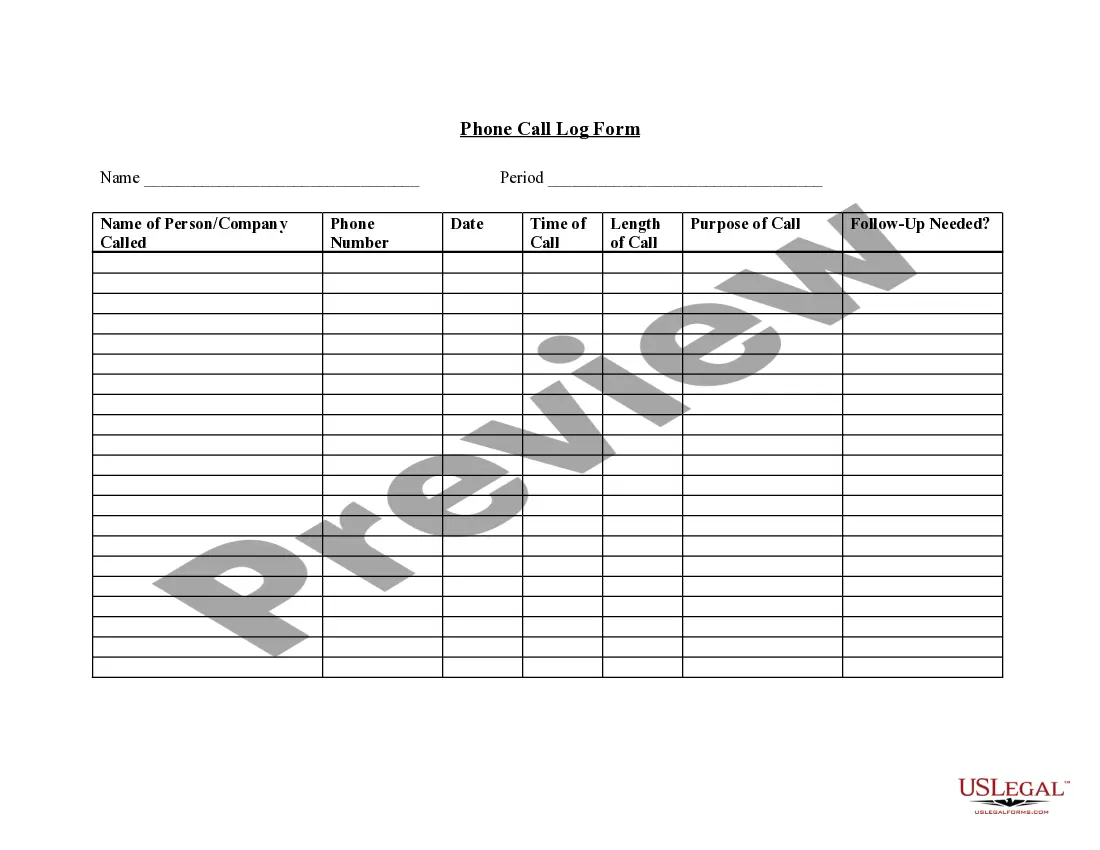
The Phone Call Log Form is a tool for tracking telephone calls made or received. It helps document important details about each call, such as the parties involved, the purpose of the call, and follow-up actions. This form is particularly useful for professionals or individuals who need to maintain accurate records of interactions for business or personal purposes, setting it apart from simple notetaking.
Main sections of this form
- Name of the individual logging the call.
- Period during which the calls are recorded.
- Name of the person or company called.
- Phone number of the contacted party.
- Date and time of each call.
- Length of the call.
- Purpose of the call.
- Follow-up needed.
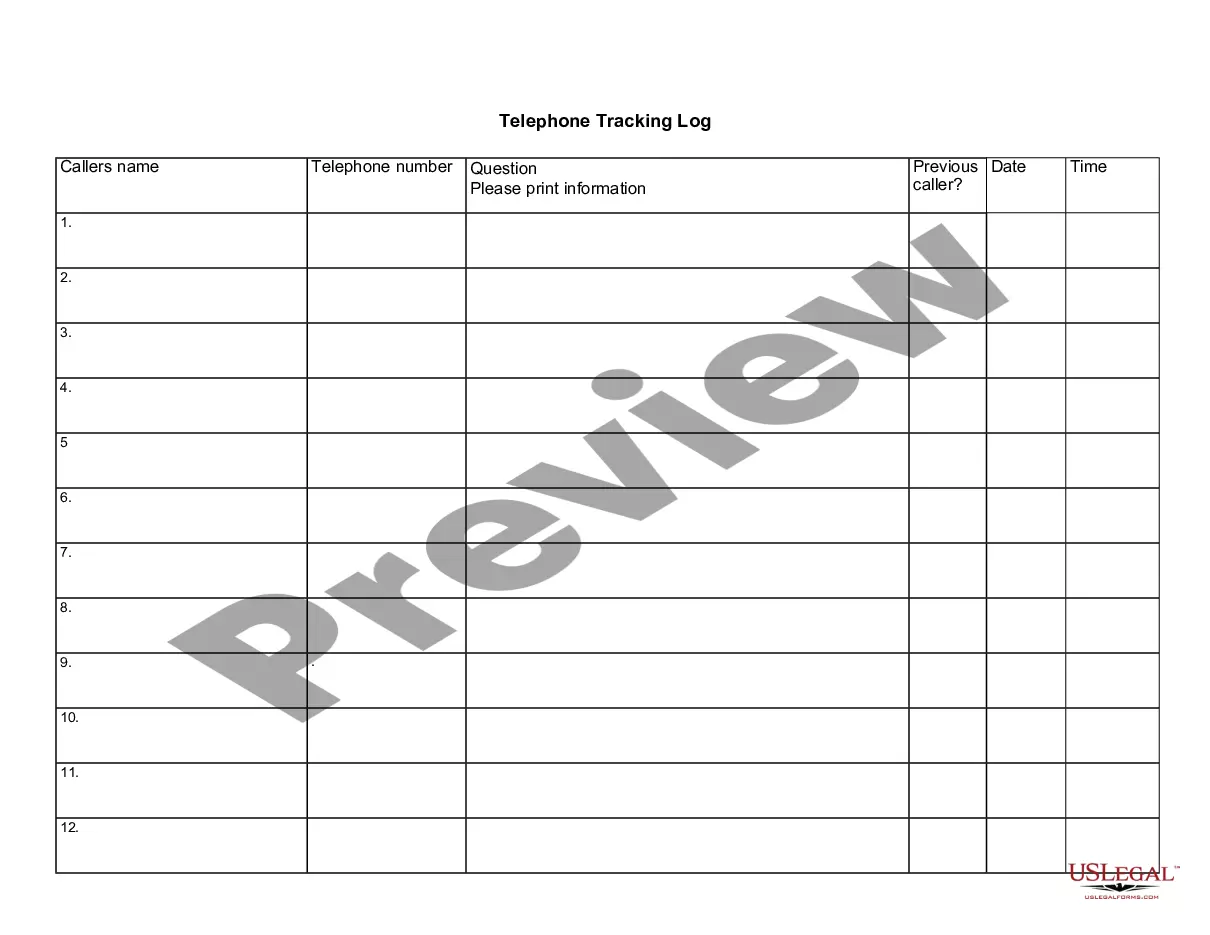
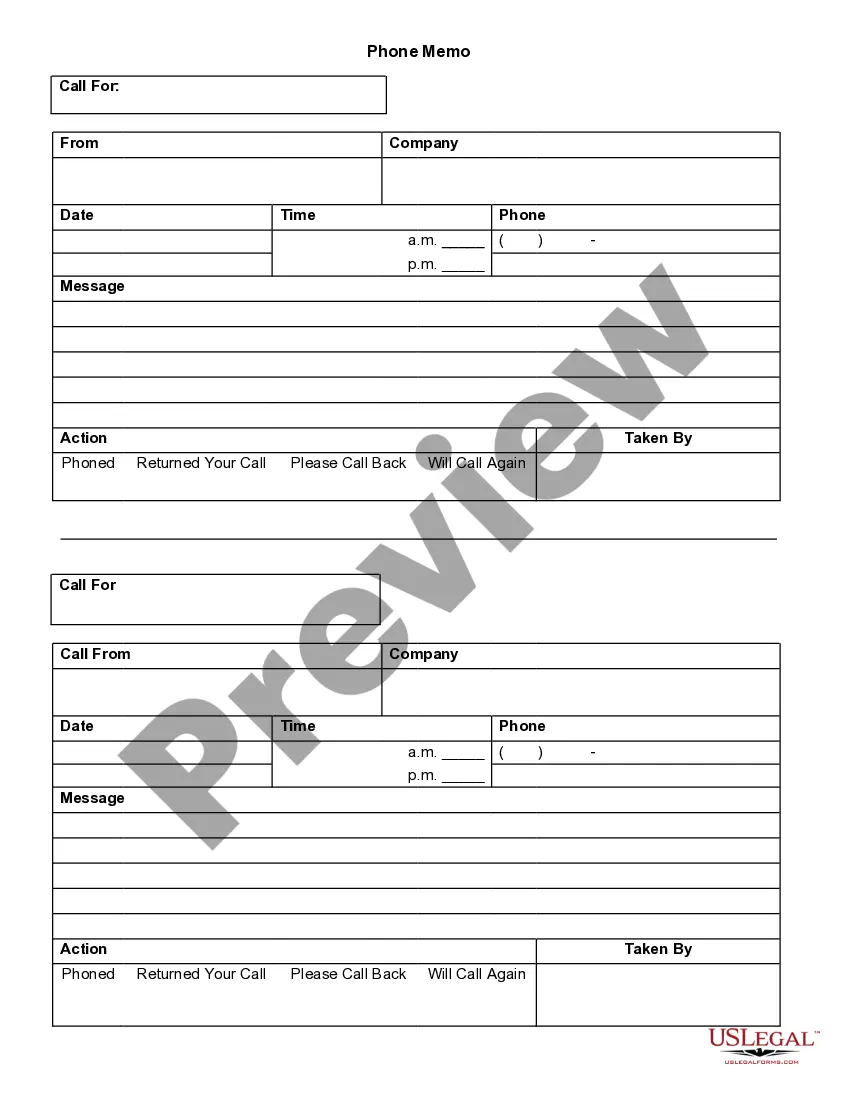
When to use this document
This form is useful in various situations, such as for businesses that need to track client communications, individuals who want to log important personal calls, or professionals managing multiple calls for projects. It serves to ensure accurate record-keeping and accountability.
Who needs this form
- Business professionals needing to document client communications.
- Individuals managing personal and professional calls.
- Employees coordinating team communications.
- Anyone seeking to maintain a record of their telephone interactions.
Steps to complete this form
- Enter your name at the top of the form.
- Specify the period for which you are logging calls.
- Record the name of the individual or company you called.
- Fill in the phone number of the contacted party.
- Note the date and time of each call.
- Indicate the length and purpose of the call, along with any follow-up actions needed.
Does this document require notarization?
This form does not typically require notarization to be legally valid. However, some jurisdictions or document types may still require it. US Legal Forms provides secure online notarization powered by Notarize, available 24/7 for added convenience.
Get your form ready online
Our built-in tools help you complete, sign, share, and store your documents in one place.
Make edits, fill in missing information, and update formatting in US Legal Forms—just like you would in MS Word.
Download a copy, print it, send it by email, or mail it via USPS—whatever works best for your next step.
Sign and collect signatures with our SignNow integration. Send to multiple recipients, set reminders, and more. Go Premium to unlock E-Sign.
If this form requires notarization, complete it online through a secure video call—no need to meet a notary in person or wait for an appointment.
We protect your documents and personal data by following strict security and privacy standards.
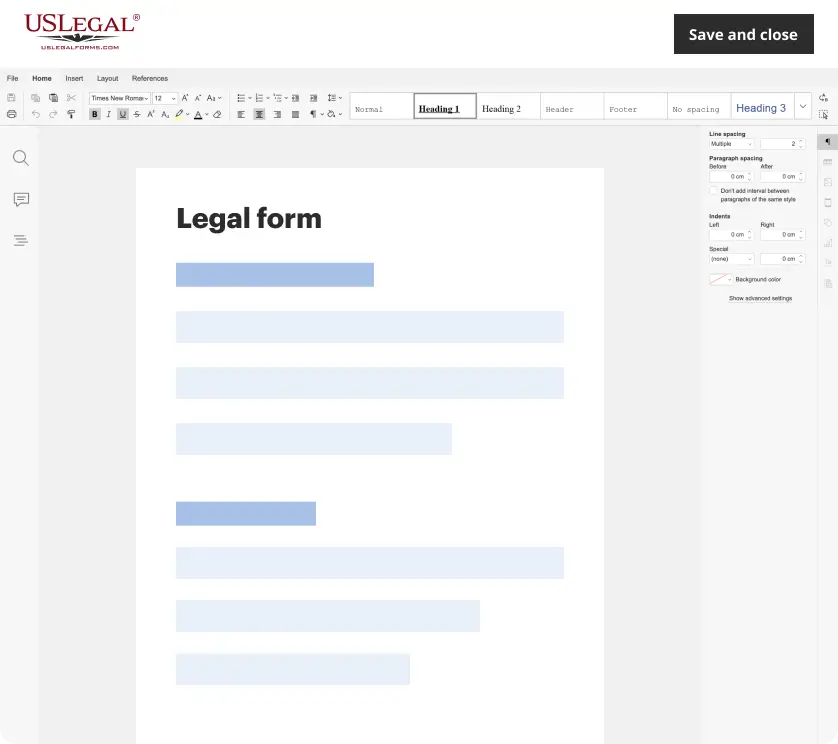
Make edits, fill in missing information, and update formatting in US Legal Forms—just like you would in MS Word.
Download a copy, print it, send it by email, or mail it via USPS—whatever works best for your next step.
Sign and collect signatures with our SignNow integration. Send to multiple recipients, set reminders, and more. Go Premium to unlock E-Sign.
If this form requires notarization, complete it online through a secure video call—no need to meet a notary in person or wait for an appointment.
We protect your documents and personal data by following strict security and privacy standards.
Mistakes to watch out for
- Failing to record the date and time accurately.
- Omitting details about the purpose of the call.
- Not updating the log with follow-up actions.
- Using vague descriptions for call purposes.
Why use this form online
- Convenient access to log calls anytime and anywhere.
- Edit and update records easily as calls are made.
- Reliable documentation that can be saved for future reference.
What to keep in mind
- The Phone Call Log Form is essential for tracking communications effectively.
- Accurate logging helps maintain professionalism and accountability.
- No notarization is usually needed for this form.
Looking for another form?


Form popularity
FAQ
Open your Microsoft Excel software. Click on the File tab then choose New to see the page with selections of template thumbnails. Click on the Search for Online Templates field and type in call log then press enter to see the display results.
Open your Microsoft Excel software. Click on the File tab then choose New to see the page with selections of template thumbnails. Click on the Search for Online Templates field and type in call log then press enter to see the display results.
In settings/apps/ , there is an app called "Phone/Messaging storage" clear the cache, and make sure it isn't disabled. The service could be crashed and require a manual restart. To do it, clear cache and shutdown service, then reboot phone. Dependencies should restart it.
Click the "File" tab on the command ribbon and then select "New" to open the page of template thumbnails. Enter "Call log" (without quotations) in the "Search for Online Templates" field and then press "Enter" to display the results.
Navigate to the project's Daily Log tool using the Procore app on an iOS mobile device. Select the date you want to add a log entry for. Tap Phone Calls. Tap + to add a new entry. Tap into the following fields to enter information: Tap Save.
In Applications Manager, select Phone. Clear the cache and data for that app.Then go into the Phone app settings and see if she configured it to not save logs. Also, apps like CCleaner or CleanMaster will delete old logs if you select the option.
In settings/apps/ , there is an app called "Phone/Messaging storage" clear the cache, and make sure it isn't disabled. The service could be crashed and require a manual restart. To do it, clear cache and shutdown service, then reboot phone. Dependencies should restart it.
Your call and text history is a detailed list of every call and text you've made and received across all your Google Fi devices. You can see your history only on the Google Fi website, not in the app. To see your call and text history: Open the Google Fi website.
Open your device's Phone app . Tap Recents . You'll see one or more of these icons next to each call in your list: Missed calls (incoming) (red) Calls you answered (incoming) (blue) Calls you made (outgoing) (green)