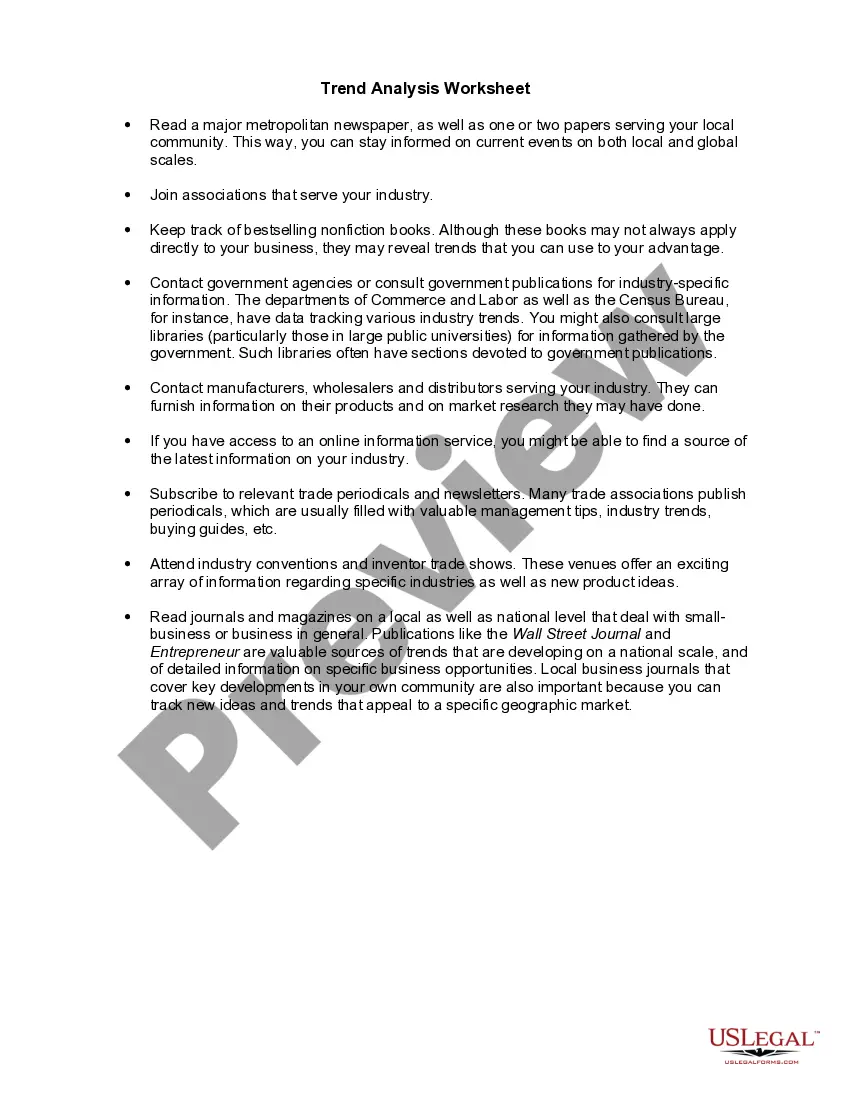
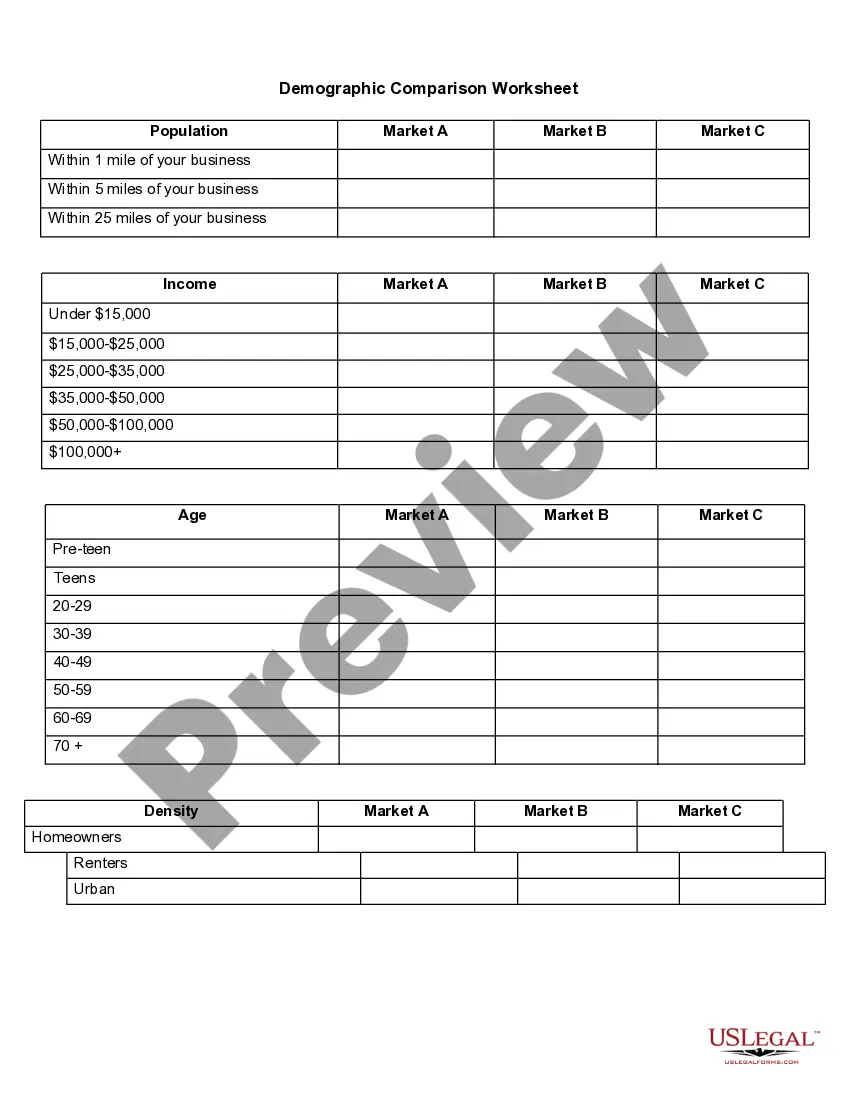
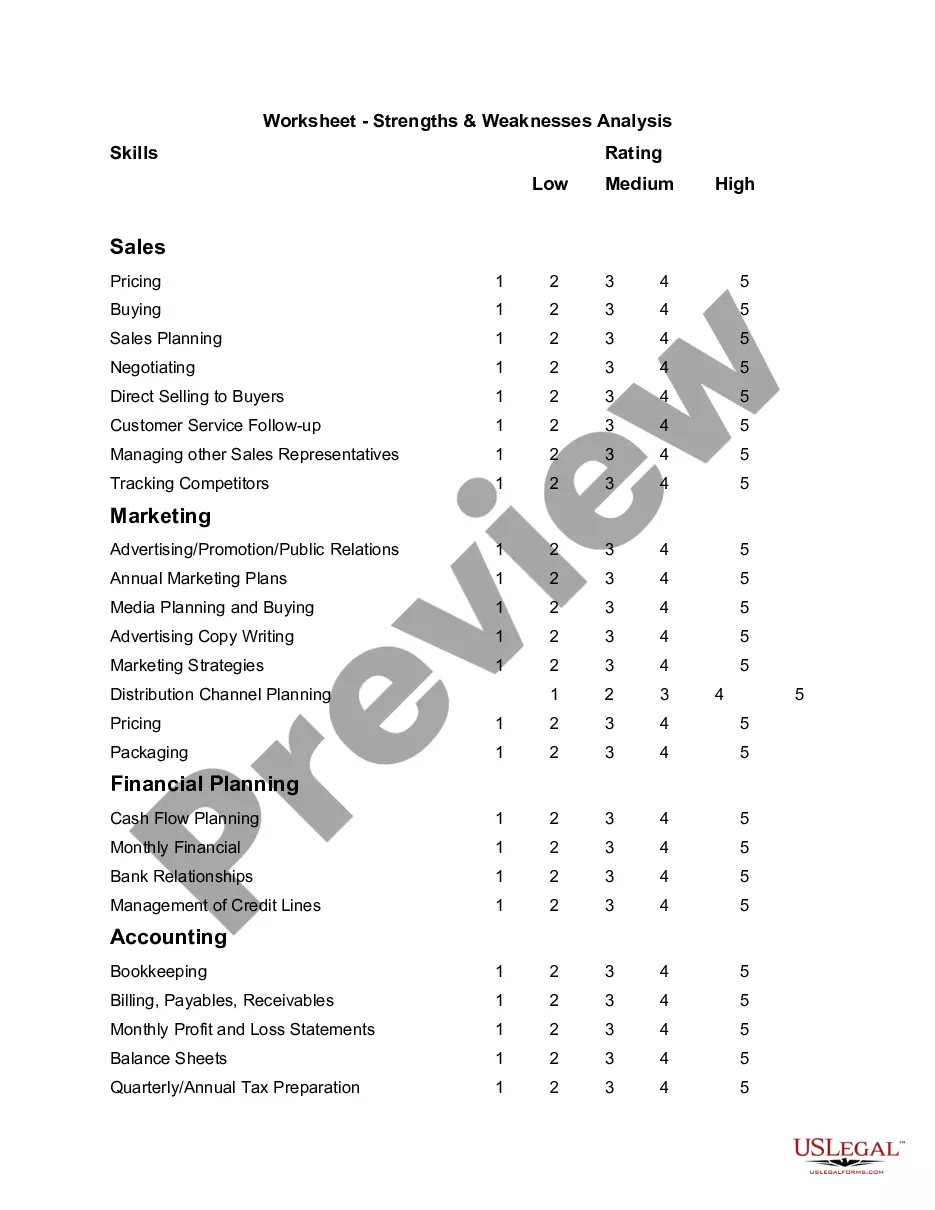
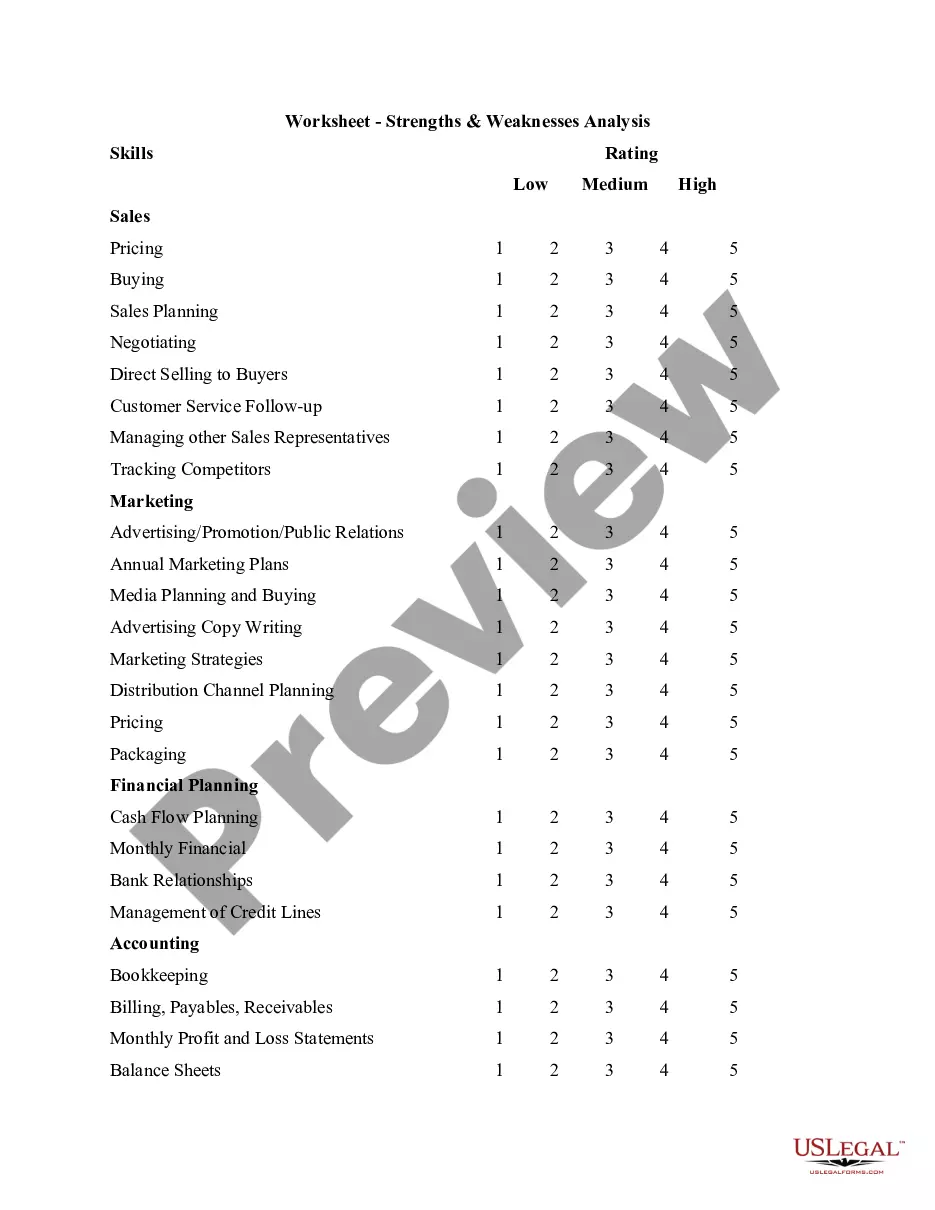
Ohio Worksheet - Trend Analysis
Description


Get your form ready online
Our built-in tools help you complete, sign, share, and store your documents in one place.
Make edits, fill in missing information, and update formatting in US Legal Forms—just like you would in MS Word.
Download a copy, print it, send it by email, or mail it via USPS—whatever works best for your next step.
Sign and collect signatures with our SignNow integration. Send to multiple recipients, set reminders, and more. Go Premium to unlock E-Sign.
If this form requires notarization, complete it online through a secure video call—no need to meet a notary in person or wait for an appointment.
We protect your documents and personal data by following strict security and privacy standards.

Make edits, fill in missing information, and update formatting in US Legal Forms—just like you would in MS Word.

Download a copy, print it, send it by email, or mail it via USPS—whatever works best for your next step.

Sign and collect signatures with our SignNow integration. Send to multiple recipients, set reminders, and more. Go Premium to unlock E-Sign.

If this form requires notarization, complete it online through a secure video call—no need to meet a notary in person or wait for an appointment.

We protect your documents and personal data by following strict security and privacy standards.
Looking for another form?

How to fill out Worksheet - Trend Analysis?
Are you currently situated in a location where you require documents for either corporate or personal purposes almost every day.
There are numerous legal document templates available online, but finding trustworthy ones can be challenging.
US Legal Forms offers thousands of form templates, such as the Ohio Worksheet - Trend Analysis, which are designed to comply with state and federal regulations.
Once you find the correct form, click Get now.
Choose the payment plan you prefer, fill in the necessary information to create your account, and pay for the order using your PayPal or credit card. Select a convenient paper format and download your copy.
- If you are already familiar with the US Legal Forms website and have an account, simply Log In.
- After that, you can download the Ohio Worksheet - Trend Analysis template.
- If you do not have an account and wish to start using US Legal Forms, follow these steps.
- Acquire the form you need and ensure it is tailored to the correct jurisdiction/county.
- Use the Review button to examine the form.
- Check the description to make sure you have selected the appropriate template.
- If the form is not what you`re looking for, utilize the Search field to find the form that meets your needs.
Form popularity
FAQ
There are three types of trend analysis methods geographic, temporal and intuitive.
The idea of a trendline is to reveal a linear relationship between two variables, x and y, in the y = mx + b form. Deriving the line equation that links two variables allows scientists to extrapolate, or predict, how one variable will change given any change in the other.
Here are the steps to follow:Put the X values for which you want predictions in a column of cells, such as B8:B10.Select the cells in which you want the predictions displayed; in this example C8:C10.Enter the following formula: =TREND(C3:C8,B3:B8,B10:B12)Press Ctrl+Shift+Enter to complete the formula.
The FORECAST (or FORECAST. LINEAR) function in Excel predicts a future value along a linear trend. The FORECAST. ETS function in Excel predicts a future value using Exponential Triple Smoothing, which takes into account seasonality.
1 Choose Which Pattern You Want to Identify. The first and most obvious step in trend analysis is to identify which data trend you want to target.2 Choose Time Period.3 Choose Types of Data Needed.4 Gather Data.5 Use Charting Tools to Visualize Data.6 Identify Trends.
Add a trendlineSelect a chart.Select the + to the top right of the chart.Select Trendline. Note: Excel displays the Trendline option only if you select a chart that has more than one data series without selecting a data series.In the Add Trendline dialog box, select any data series options you want, and click OK.
Trend analysis involves the collection of information from multiple time periods and plotting the information on a horizontal line for further review. The intent of this analysis is to spot actionable patterns in the presented information.
Here are the steps to follow:Put the X values for which you want predictions in a column of cells, such as B8:B10.Select the cells in which you want the predictions displayed; in this example C8:C10.Enter the following formula: =TREND(C3:C8,B3:B8,B10:B12)Press Ctrl+Shift+Enter to complete the formula.
The TREND function returns values along a linear trend. It fits a straight line (using the method of least squares) to the array's knowny's and knownx's. TREND returns the y-values along that line for the array of newx's that you specify.
Examples of Trend AnalysisExamining sales patterns to see if sales are declining because of specific customers or products or sales regions; Examining expenses report claims for proof of fraudulent claims. Examining expense line items to find out if there are any unusual expenditures in a reporting period.