Employee Final Pay With Xero
Description
Get your form ready online
Our built-in tools help you complete, sign, share, and store your documents in one place.
Make edits, fill in missing information, and update formatting in US Legal Forms—just like you would in MS Word.
Download a copy, print it, send it by email, or mail it via USPS—whatever works best for your next step.
Sign and collect signatures with our SignNow integration. Send to multiple recipients, set reminders, and more. Go Premium to unlock E-Sign.
If this form requires notarization, complete it online through a secure video call—no need to meet a notary in person or wait for an appointment.
We protect your documents and personal data by following strict security and privacy standards.

Make edits, fill in missing information, and update formatting in US Legal Forms—just like you would in MS Word.

Download a copy, print it, send it by email, or mail it via USPS—whatever works best for your next step.

Sign and collect signatures with our SignNow integration. Send to multiple recipients, set reminders, and more. Go Premium to unlock E-Sign.

If this form requires notarization, complete it online through a secure video call—no need to meet a notary in person or wait for an appointment.

We protect your documents and personal data by following strict security and privacy standards.
Looking for another form?


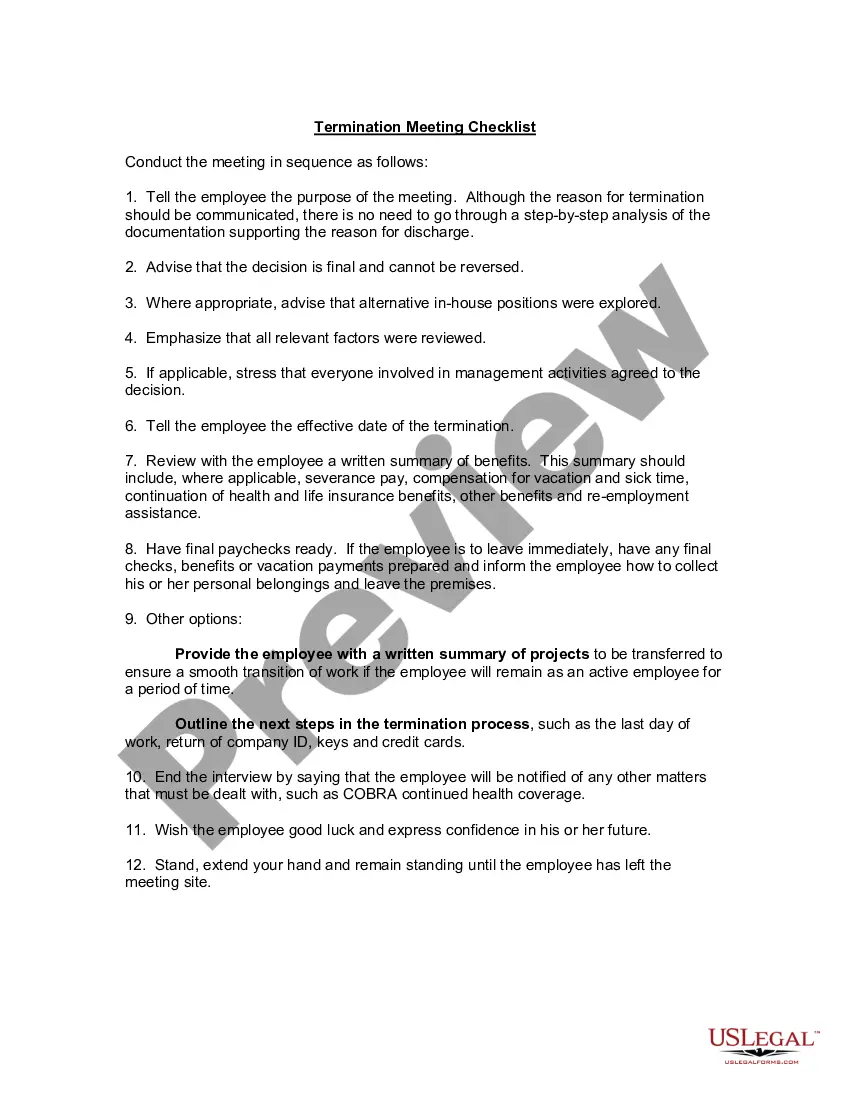
How to fill out Termination Meeting Checklist?
Identifying a reliable location to obtain the latest and suitable legal templates is a significant part of dealing with bureaucracy.
Selecting the appropriate legal documents requires accuracy and meticulousness, which is why it is crucial to source Employee Final Pay With Xero samples only from trustworthy providers, such as US Legal Forms.
Once you have the document on your device, you can modify it using the editor or print it out and fill it in by hand. Relieve the stress associated with your legal paperwork. Explore the extensive US Legal Forms library where you can find legal templates, assess their relevance to your situation, and download them instantly.
- Use the library navigation or query field to locate your form.
- Access the description of the document to verify if it meets the standards of your region and county.
- View the form preview, if available, to ensure it is the exact document you need.
- Continue searching and find the correct document if the Employee Final Pay With Xero does not fulfill your needs.
- If you are confident about the document’s pertinence, download it.
- If you are a registered user, click Log in to verify and access your selected templates in My documents.
- If you haven't created an account yet, click Buy now to acquire the form.
- Choose the pricing option that best suits your needs.
- Proceed with the registration process to finalize your purchase.
- Complete your payment by selecting a payment method (credit card or PayPal).
- Choose the file format for downloading Employee Final Pay With Xero.
Form popularity
FAQ
Generating a P45 in Xero is a simple task. You need to access the employee's profile and select the option to create the P45 when terminating their employment. With Employee final pay with Xero, this process links directly to the final pay calculations, ensuring all the necessary details are included for accurate and timely reporting.
Final payouts include all remaining wages, leave balances, and any additional compensation. Using Employee final pay with Xero, these calculations become straightforward. Xero’s automated tools calculate these amounts correctly, allowing you to focus on your departing employee’s next steps without worrying about manual errors.
To calculate the final payment using Employee final pay with Xero, you first need to sum the employee’s outstanding wages, any unpaid leave, and any bonuses owed. Make sure to deduct any necessary taxes and other withholdings. Xero simplifies this process with built-in calculations, ensuring accuracy and compliance.
To end employment on Xero Payroll, start by selecting the employee whose employment you want to terminate. Access their profile and look for the option to end employment within the payroll settings. When you do this, you can set up their employee final pay with Xero, ensuring they receive their final paycheck and any accrued entitlements. This process helps you stay organized and compliant while managing workforce transitions smoothly.
To make someone a leaver on Xero Payroll, navigate to your payroll menu and locate the employee you wish to terminate. Click on the employee's name, and then select the option to 'Terminate Employment.' This will allow you to process their employee final pay with Xero and properly manage any outstanding payments. Completing this step accurately ensures that you meet all compliance requirements and maintain proper payroll records.
Click the employee's name to open their payslip. Click Set as Final Pay at the bottom of the payslip. Under Termination Date, select the employee's last day of employment. The termination date must be before on or before the current pay period end date.
Finalise and submit your STP data In the Payroll menu, select Single Touch Payroll. Select the Finalisation tab. Select the employees you want to finalise. ... Click Start finalisation. If you have reportable fringe benefit amounts or exempt amounts, click Edit RFBA, enter the amounts, then click Save changes.
Type O: payments not described under R, including a golden handshake, gratuity, payment in lieu of notice, or payments for unused sick leave or rostered days off.
Lump sum type O which is superable ? eg payment in lieu of notice. Unused leave which has been set to be paid out as an ETP in the leave category settings ? eg unused sick leave or rostered days off (RDO).
Work smarter, not harder with Xero's payroll software. Pay employees with Gusto payroll software to calculate pay and deductions. Xero online accounting works around you and your small business, because putting you first is what's best for your business.