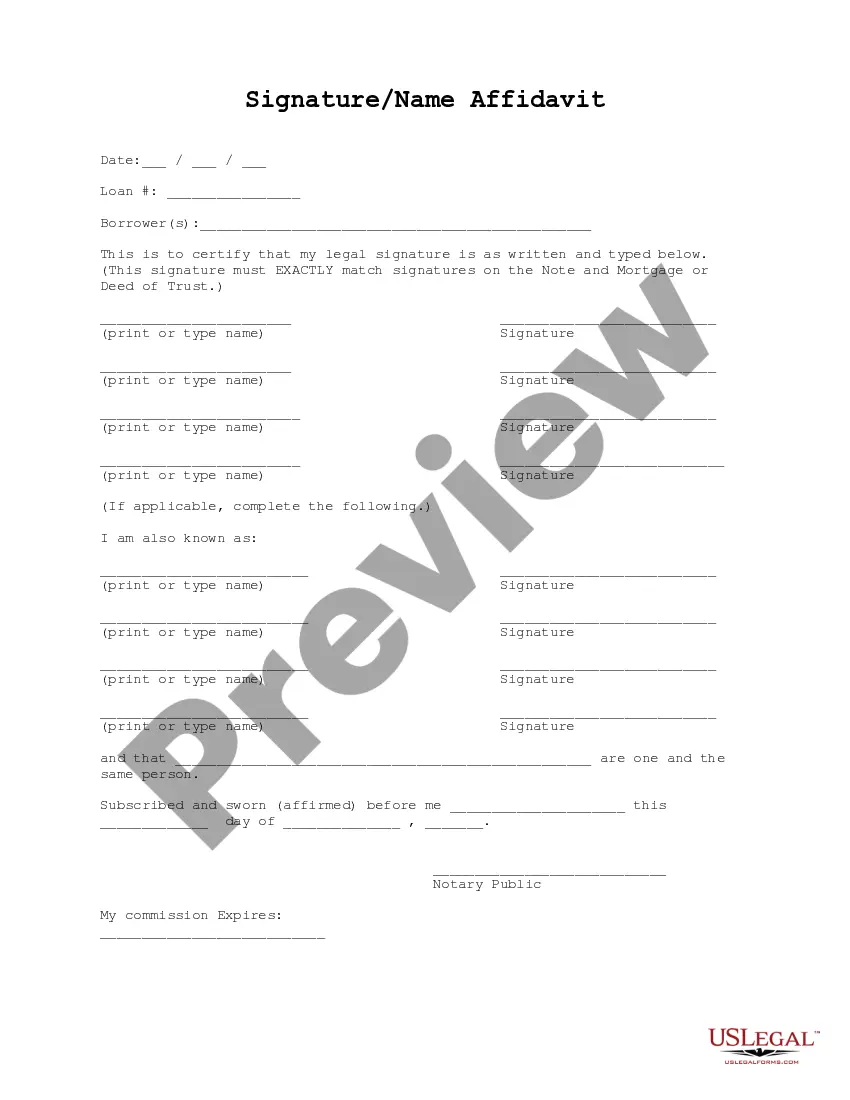
Signature Name Form With Date
Description
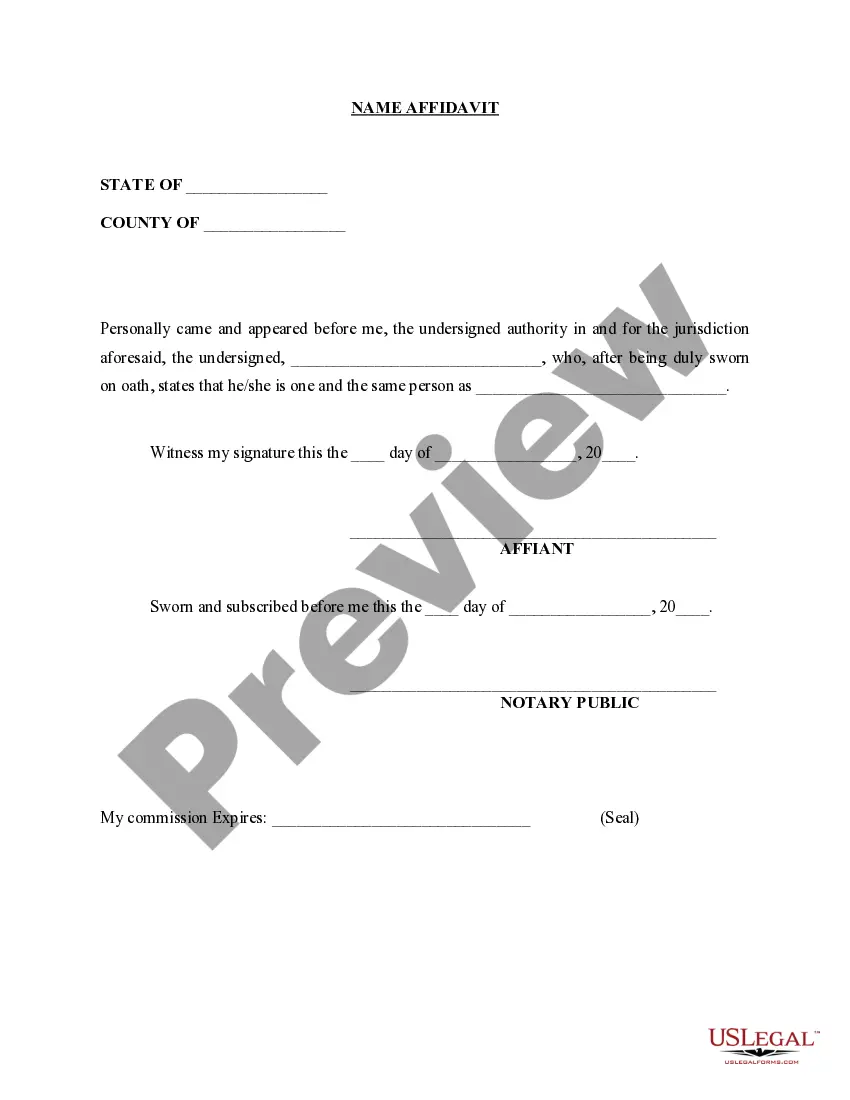
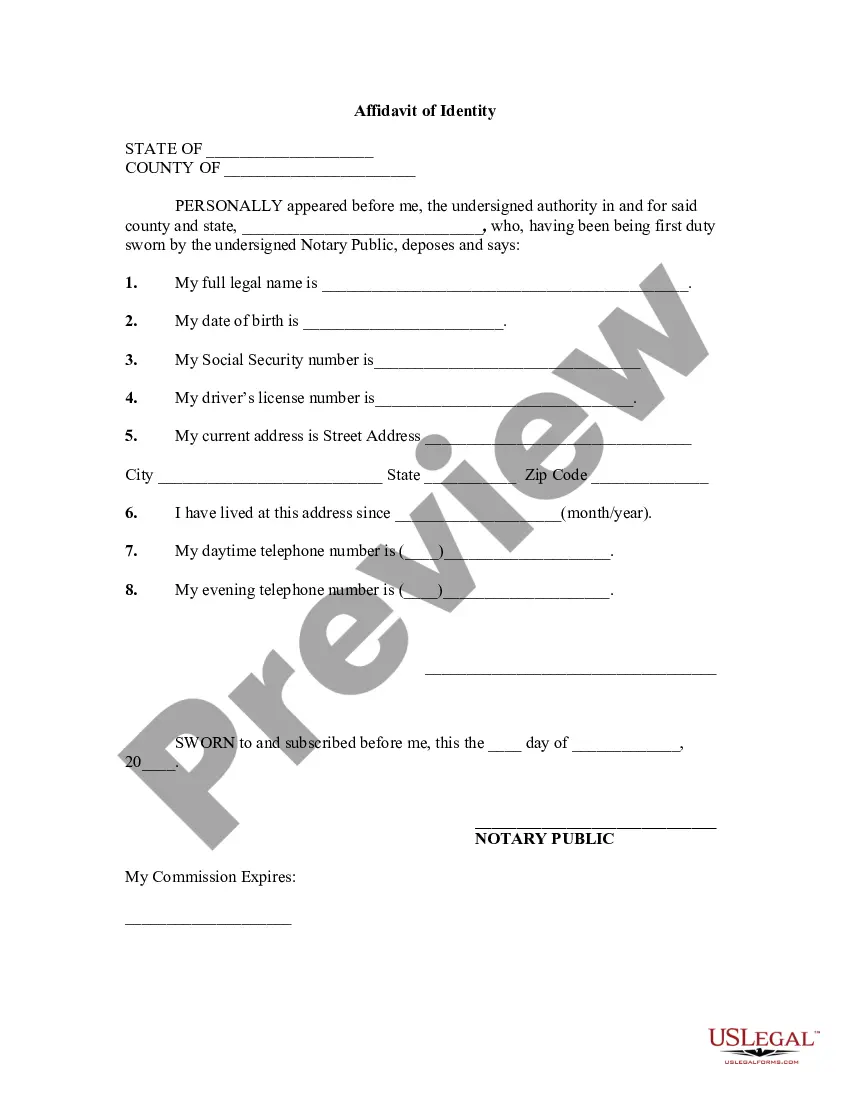
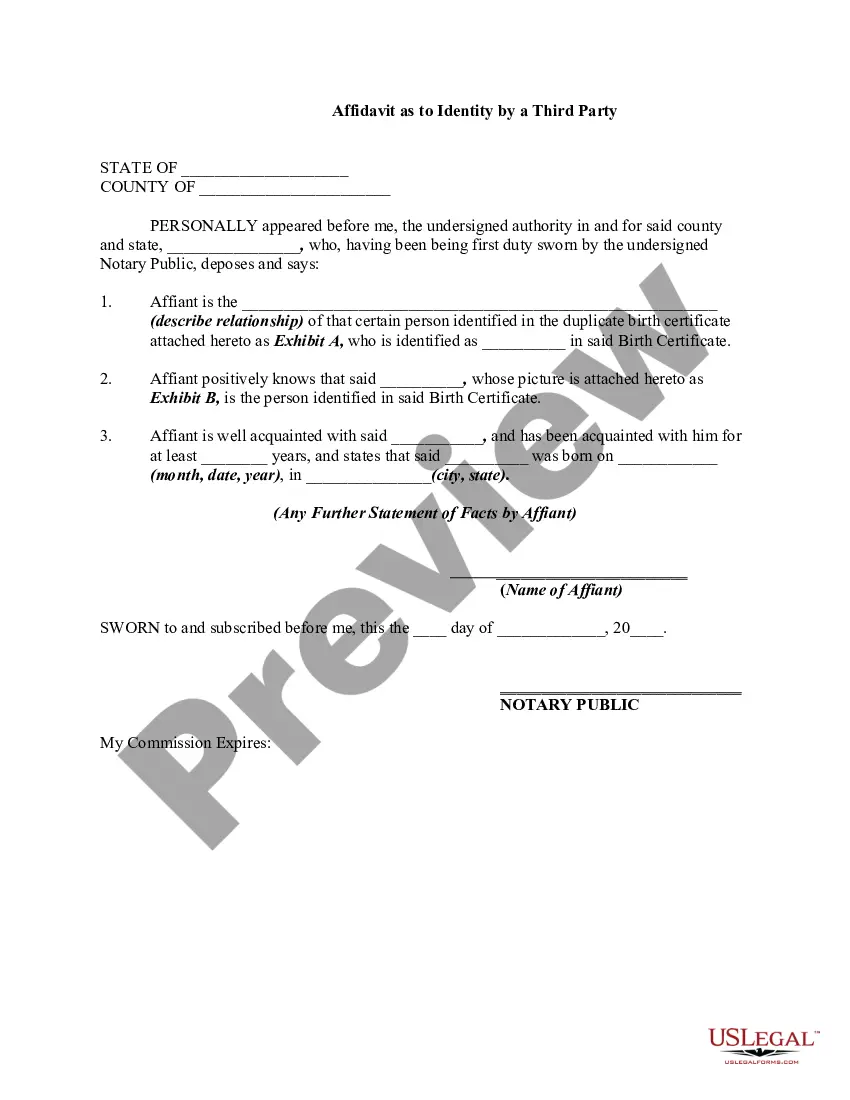
Get your form ready online
Our built-in tools help you complete, sign, share, and store your documents in one place.
Make edits, fill in missing information, and update formatting in US Legal Forms—just like you would in MS Word.
Download a copy, print it, send it by email, or mail it via USPS—whatever works best for your next step.
Sign and collect signatures with our SignNow integration. Send to multiple recipients, set reminders, and more. Go Premium to unlock E-Sign.
If this form requires notarization, complete it online through a secure video call—no need to meet a notary in person or wait for an appointment.
We protect your documents and personal data by following strict security and privacy standards.

Make edits, fill in missing information, and update formatting in US Legal Forms—just like you would in MS Word.

Download a copy, print it, send it by email, or mail it via USPS—whatever works best for your next step.

Sign and collect signatures with our SignNow integration. Send to multiple recipients, set reminders, and more. Go Premium to unlock E-Sign.

If this form requires notarization, complete it online through a secure video call—no need to meet a notary in person or wait for an appointment.

We protect your documents and personal data by following strict security and privacy standards.
Looking for another form?
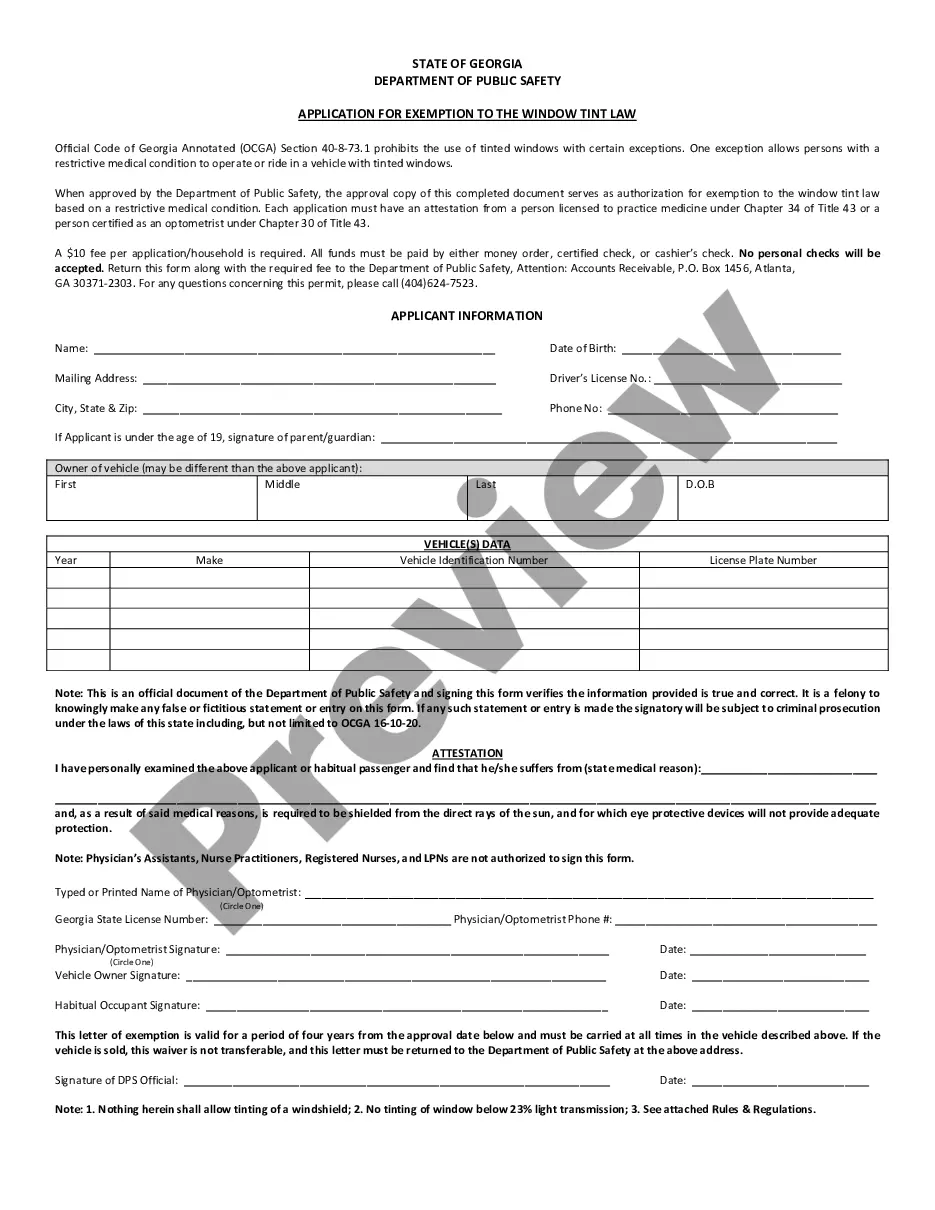
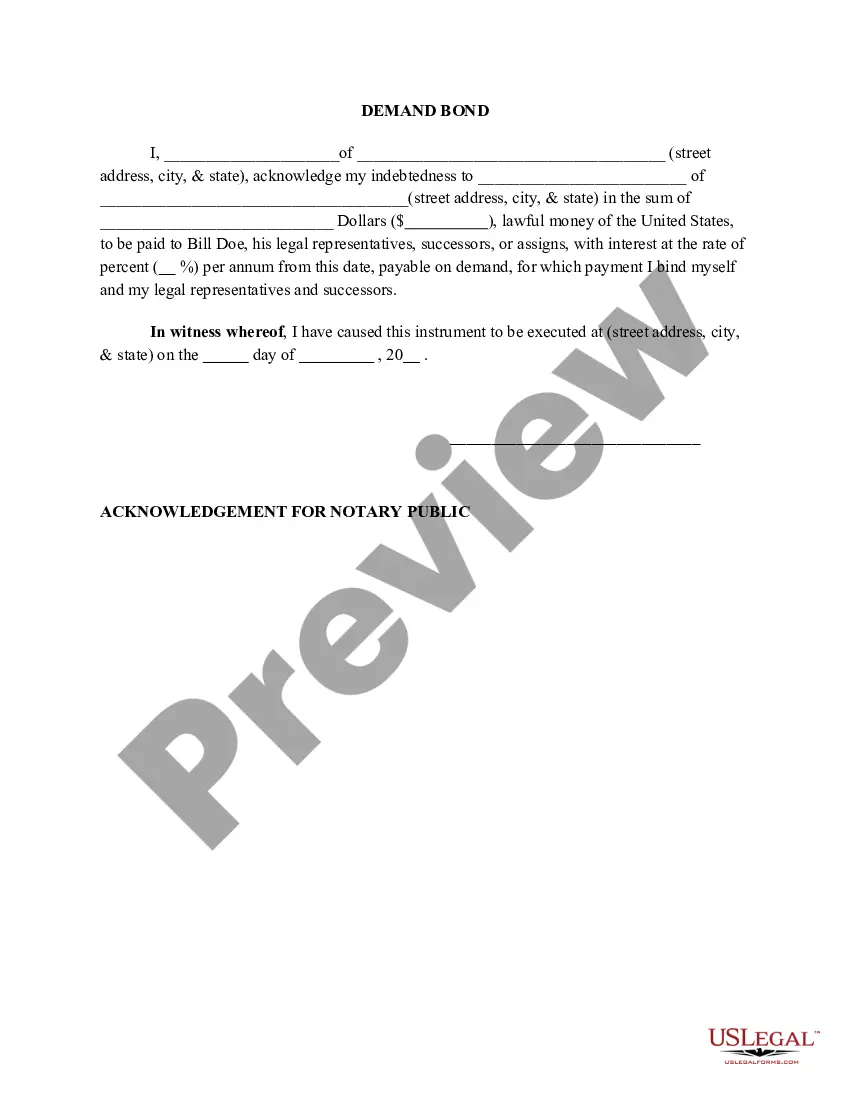
How to fill out Signature And Name Affidavit?
It’s clear that you cannot become a legal specialist instantly, nor can you learn how to swiftly draft Signature Name Form With Date without a particular set of expertise.
Producing legal documents is a lengthy process necessitating specialized education and abilities. So why not entrust the development of the Signature Name Form With Date to the experts.
With US Legal Forms, one of the most extensive legal document repositories, you can obtain everything from court forms to templates for internal corporate correspondence. We recognize how vital compliance and adherence to federal and local statutes and regulations are.
You can revisit your forms from the My documents tab at any time. If you’re a current customer, you can simply Log In, and find and download the template from the same section.
Regardless of the purpose of your forms—whether it’s financial and legal, or personal—our website has you covered. Try US Legal Forms now!
- Find the form you require by utilizing the search bar at the top of the page.
- Preview it (if this option available) and read the accompanying description to determine if Signature Name Form With Date is what you’re looking for.
- Start your search again if you need another form.
- Sign up for a free account and choose a subscription plan to acquire the template.
- Select Buy now. After the payment is processed, you can obtain the Signature Name Form With Date, fill it out, print it, and send or mail it to the necessary individuals or entities.
Form popularity
FAQ
To esign a PDF with date and time, use an electronic signature tool that allows you to add these elements. After affixing your signature, look for the option to insert the date and time automatically. Services like uslegalforms offer a signature name form with date, making the process of signing PDFs quick and efficient.
The date and signature should typically appear at the bottom of the document. Place the signature first, followed by the date directly underneath. Utilizing a signature name form with date simplifies this layout and ensures that your legal documents meet standard formatting requirements.
To put a signature with date, you can use a digital tool or a physical signature followed by the date. If you're using a digital format, simply insert your signature and type the date below. Platforms like uslegalforms provide a signature name form with date, making it easy to create legally binding documents with both elements included.
When writing a date with a signature, place the date directly below your signature on the document. It's common to format the date in a clear and standard way, such as 'MM/DD/YYYY.' Using a signature name form with date can help streamline this process, ensuring both elements are presented together in a professional manner.
To add a signature with date in Word, first, create a signature line by going to the 'Insert' tab and selecting 'Signature Line.' After setting up the signature line, you can type your name and the date directly underneath. Alternatively, you can insert a digital signature using a signature name form with date. This method ensures that your document maintains its professional appearance.
Yes, signatures typically need to include a date for legal documents. Including the date on a signature name form with date adds clarity and helps establish when the agreement was made. This information is crucial for both parties, as it can influence the enforcement of the terms outlined. For your convenience, US Legal Forms provides templates that make it easy to create a signature name form with date.
Instructions Open Adobe Acrobat or Adobe Reader. Go to Edit > Preferences. Click on the Security section on the left, then click More... Click Time Stamp Servers > New. Enter a name & URL for your timestamp server. If the server requires authentication, check the box and enter your credentials.
We have staff in the US and the UK hence we get date format ambiguities. A document signed as 3/10/2023 will be read as 10th March by a US staff and 3rd of October by UK.
Steps to add a signature block to a PDF. Open the PDF with Adobe Acrobat. Select Tools at the top left of the screen. In the Forms & Signature sections, choose Prepare Form. Select Start. Choose the Add a Signature block icon from the tools ribbon. Move your cursor to where you want to place the block and click.
Adobe Acrobat Open the necessary PDF form, choose Forms & Signatures > Prepare Form and click Add a Date Field. Drag it to the designated place in your form. Double-click the field to open its Properties. ... In Date Format in the toolbar on the right, select the date format in the dropdown menu.