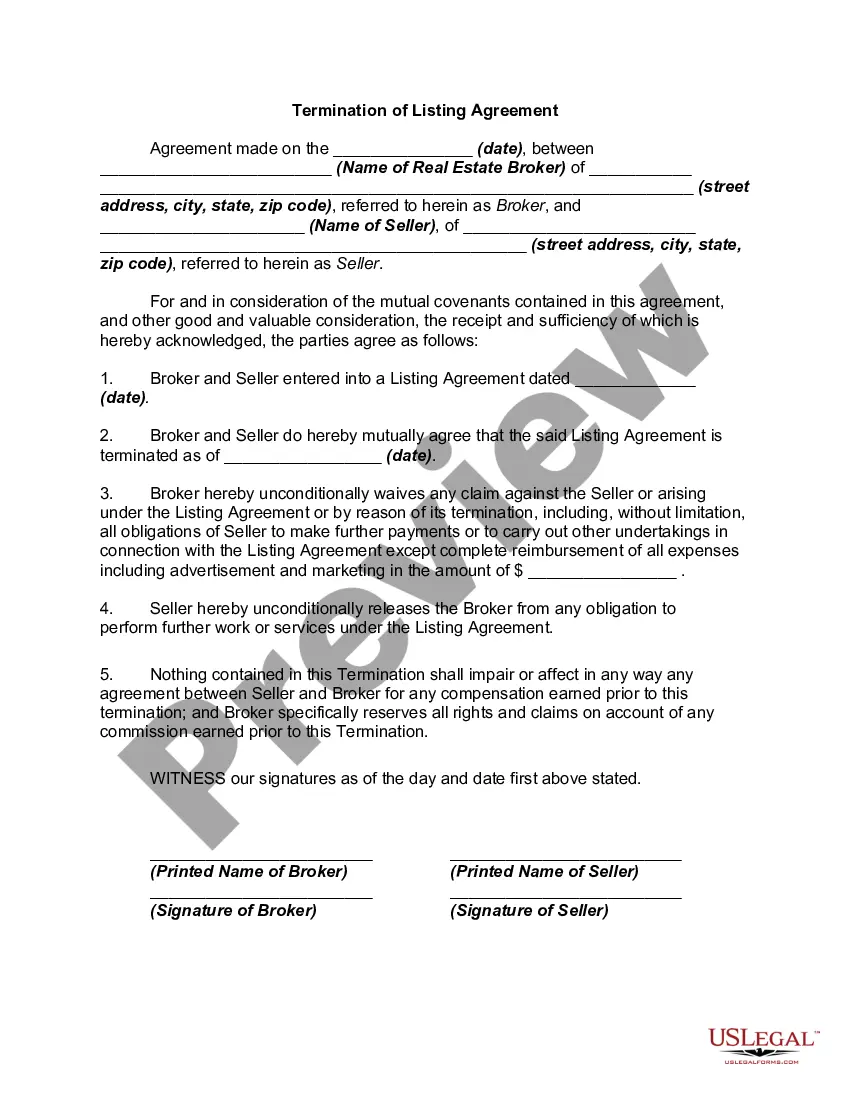
Cancellation Form Fillable With Qr Code
Description
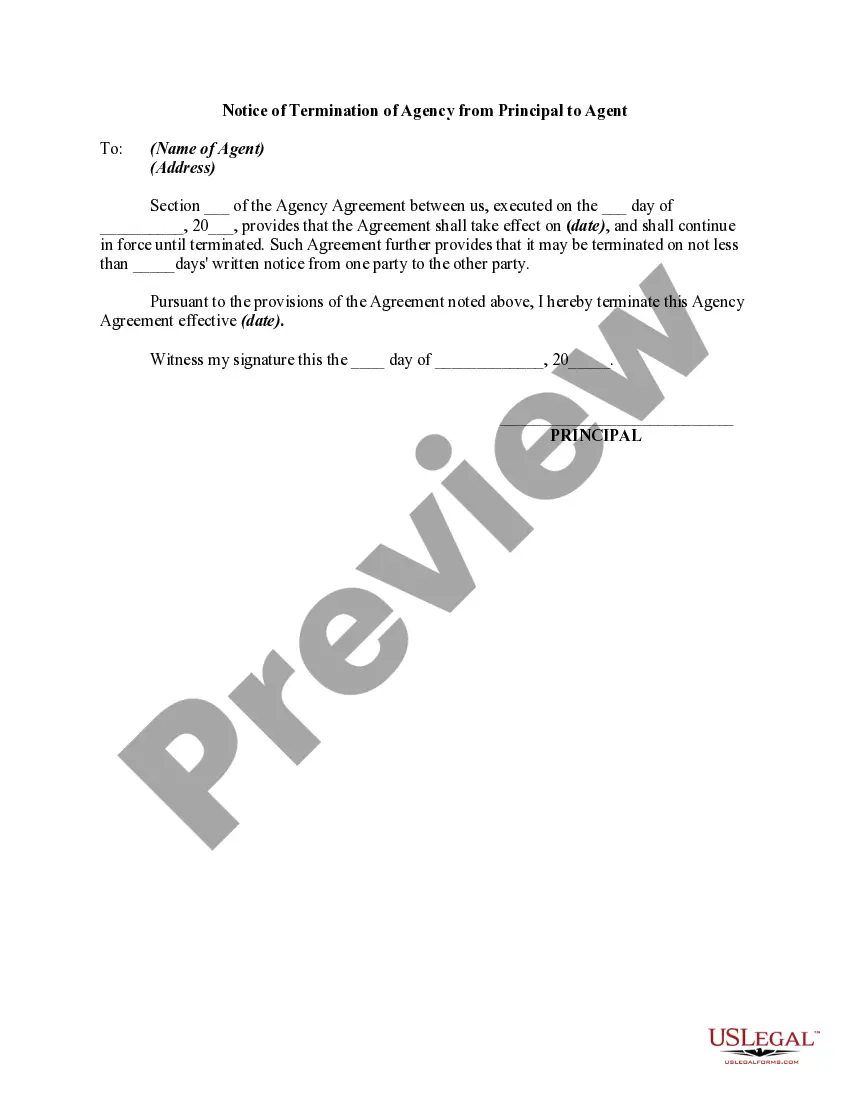
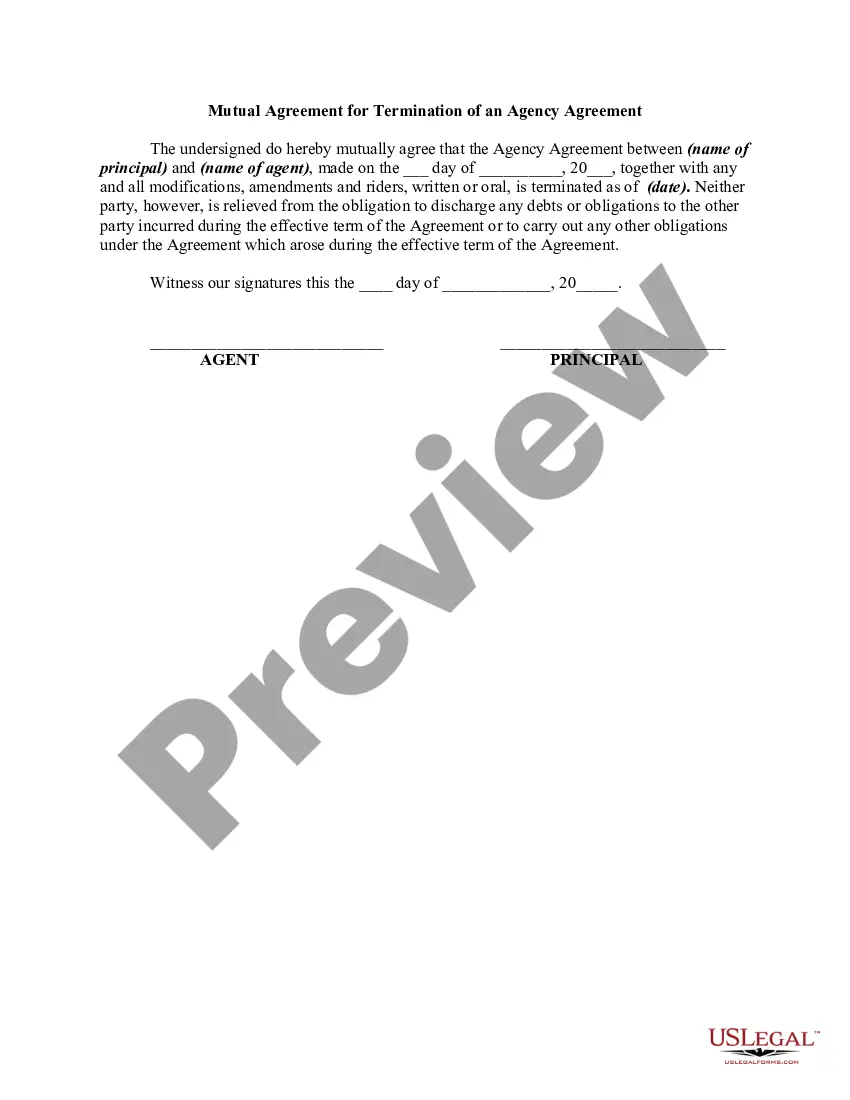
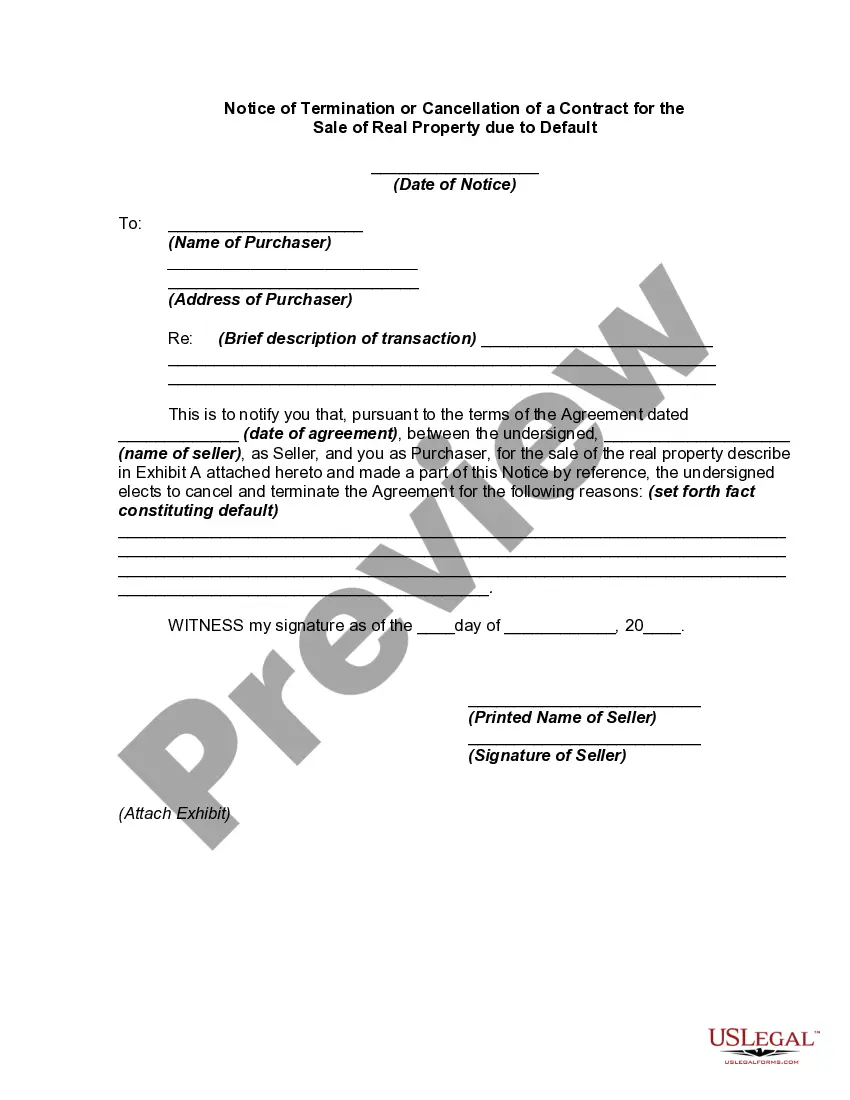
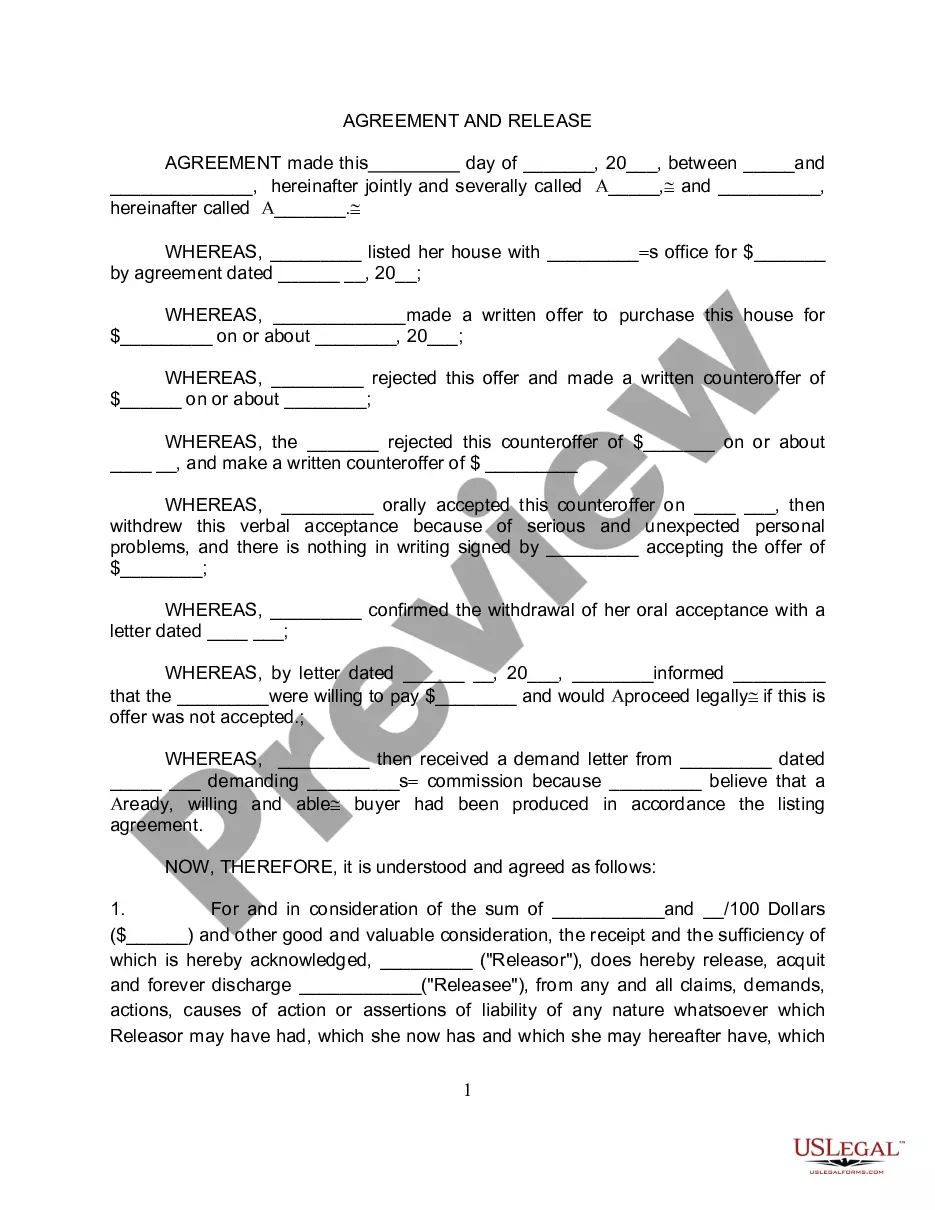
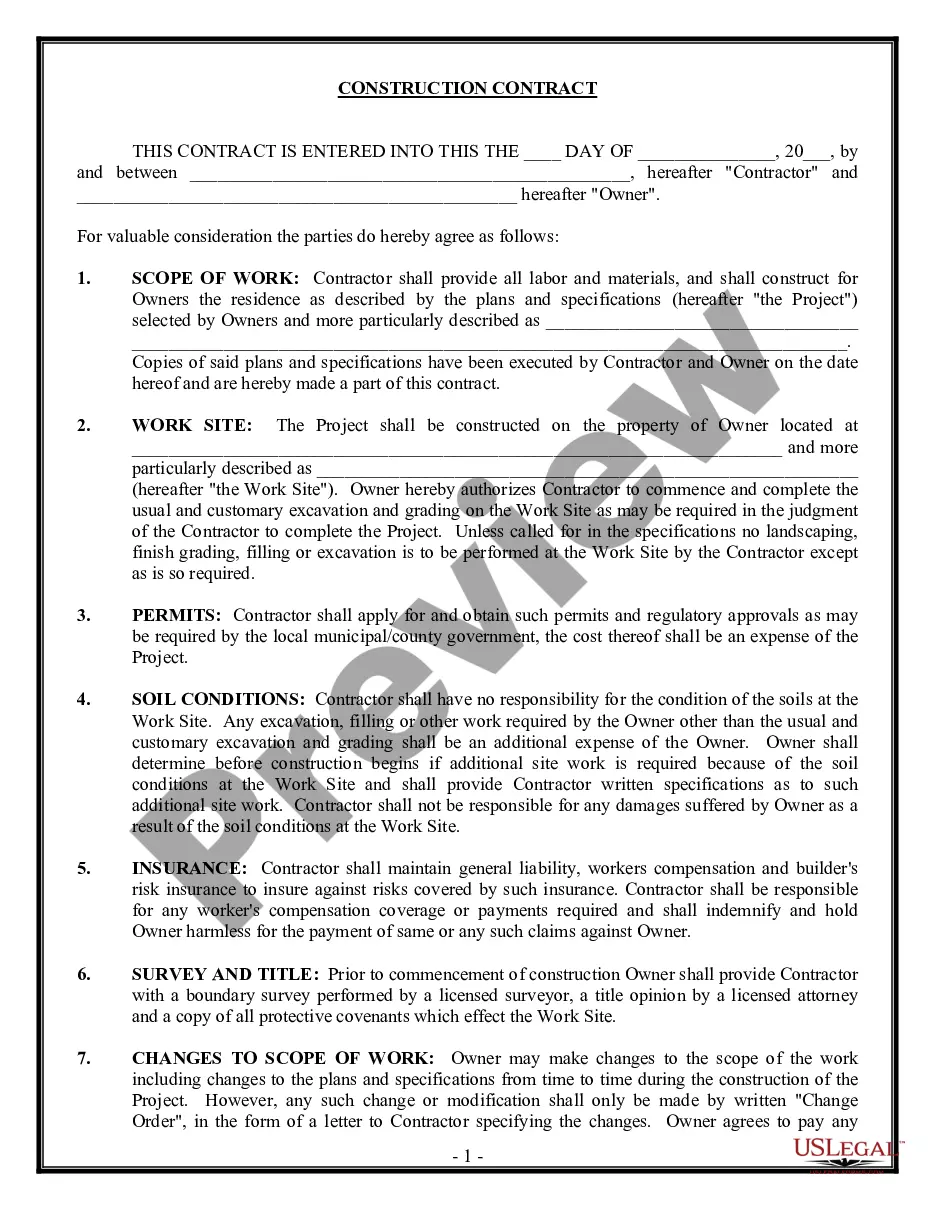
How to fill out Termination Or Cancellation Of Listing Agreement?
Acquiring legal document examples that comply with federal and state guidelines is essential, and the internet provides numerous choices.
But what's the use of spending time searching for the properly formatted Cancellation Form Fillable With Qr Code template online when the US Legal Forms digital library already compiles such documents in one location.
US Legal Forms is the premier online legal resource containing over 85,000 fillable templates prepared by attorneys for a variety of professional and personal circumstances. They are simple to navigate, with all forms categorized by state and intended use. Our experts keep current with legal updates, ensuring your documents are always up to date and compliant when you acquire a Cancellation Form Fillable With Qr Code from our site.
Click Buy Now once you’ve located the appropriate form and choose a subscription plan. Create an account or Log In and pay using PayPal or a credit card. Choose the optimal format for your Cancellation Form Fillable With Qr Code and download it. All documents you find via US Legal Forms are reusable. To re-download and complete forms you previously purchased, visit the My documents tab in your profile. Experience the most comprehensive and user-friendly legal paperwork service!
- Obtaining a Cancellation Form Fillable With Qr Code is swift and straightforward for both existing and new users.
- If you already possess an account with a valid subscription, Log In and save the document sample you require in your chosen format.
- If you are unfamiliar with our website, follow the steps outlined below.
- Examine the template using the Preview feature or through the text description to confirm it meets your needs.
- Search for another sample using the search tool at the top of the page if necessary.
Form popularity
FAQ
To politely cancel a booking, communicate directly with the service provider via phone or email. Start by thanking them for their services, state your reason for cancellation briefly, and express regret for any inconvenience. You can enhance your communication by including a cancellation form fillable with QR code, which facilitates a smooth cancellation process.
When writing cancelled letters, start with the date and recipient’s information, followed by a clear statement regarding the cancellation. Include specific details such as events, services, or bookings affected by this cancellation. Using a cancellation form fillable with QR code may also offer a structured approach, ensuring all relevant information is included.
To cancel your QR code subscription, log into your account on the service provider's website. Navigate to the subscription section, and look for cancellation options. If available, completing a cancellation form fillable with QR code can simplify the process while ensuring that all necessary details are captured accurately.
Begin your booking cancellation email with a polite greeting, mention your booking details including date and confirmation number, and state your intention to cancel. It’s helpful to express gratitude for their service and request confirmation of the cancellation. For added convenience, consider using a cancellation form fillable with QR code to make the process smoother.
A cancellation message could look like this: 'Dear Service Provider, I would like to cancel my booking scheduled for date. Due to unforeseen circumstances, I am unable to attend. Thank you for your understanding.' You can also enhance your message by attaching a cancellation form fillable with QR code for efficient processing.
To write a cancellation booking, start by clearly stating the details of your original booking, such as the date and time. Include the reason for cancellation, if appropriate, and ensure you request an acknowledgment of the cancellation. Utilizing a cancellation form fillable with QR code can help streamline this process, making it easier for the receiving party.
To add a QR code to your cancellation form fillable with QR code, first generate the QR code using an online tool. After creating the QR code, download the image. Next, upload the QR code image into your form builder, placing it where you want users to see it. This integration makes your form accessible and user-friendly.
A QR code itself cannot fill out a form, but it provides a link that directs users to your cancellation form fillable with QR code. By scanning the QR code, users can quickly access the form on their devices. From there, they can enter their information and submit it easily. This process enhances user experience and streamlines data collection.
Creating a QR code for a cancellation form fillable with a QR code is straightforward. First, finalize your form and get its URL. Use an online QR code generator to input that URL. Once generated, you can download the QR code image for use in your marketing or print materials, ensuring users can easily access your form.
Microsoft Forms does not include a built-in QR code generator, but you can still create a cancellation form fillable with QR code. After crafting your form, simply copy the link to it. Use a third-party QR code generator to convert that link into a QR code. This way, you can easily direct users to your form through a quick scan.