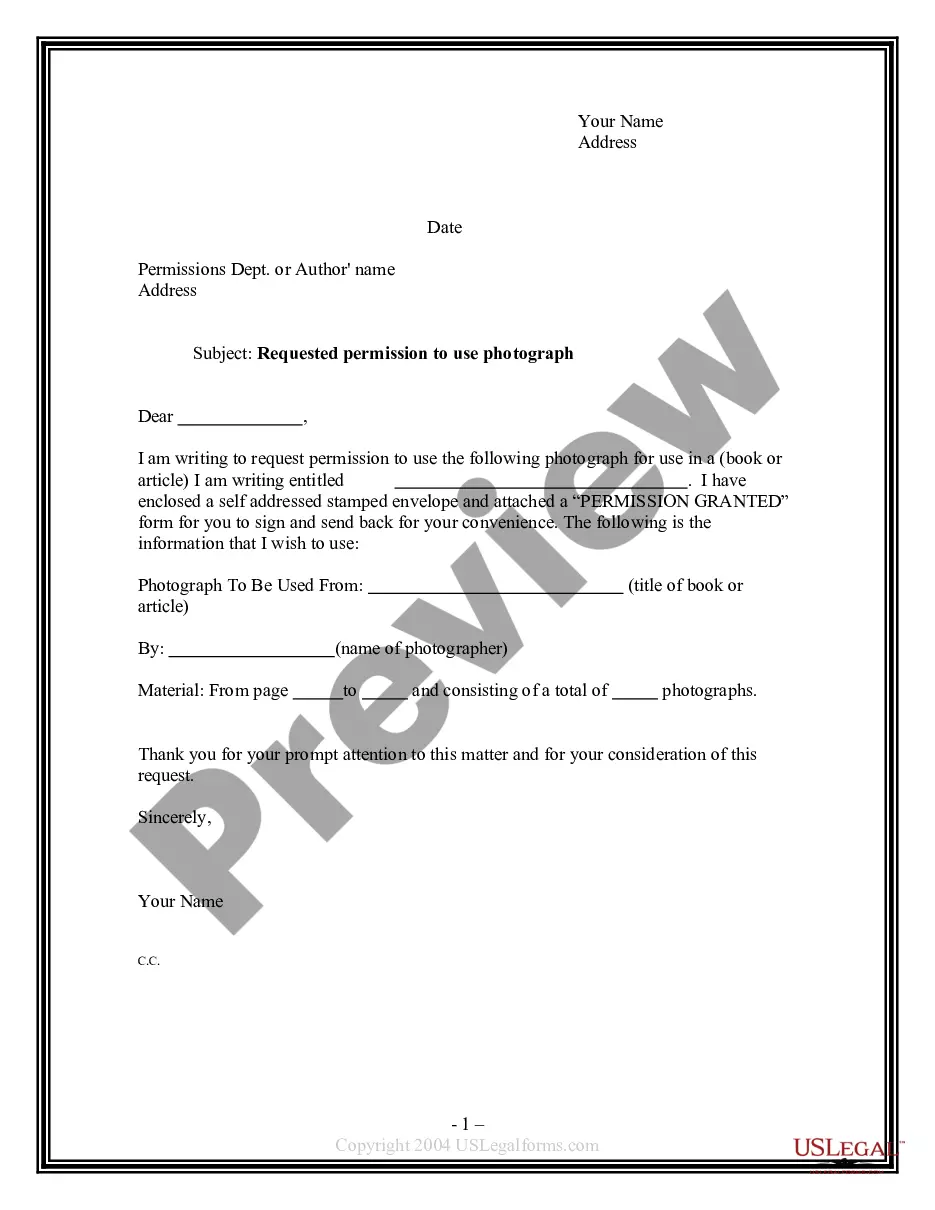
Permission Use Photographs For Your Application
Description
Get your form ready online
Our built-in tools help you complete, sign, share, and store your documents in one place.
Make edits, fill in missing information, and update formatting in US Legal Forms—just like you would in MS Word.
Download a copy, print it, send it by email, or mail it via USPS—whatever works best for your next step.
Sign and collect signatures with our SignNow integration. Send to multiple recipients, set reminders, and more. Go Premium to unlock E-Sign.
If this form requires notarization, complete it online through a secure video call—no need to meet a notary in person or wait for an appointment.
We protect your documents and personal data by following strict security and privacy standards.
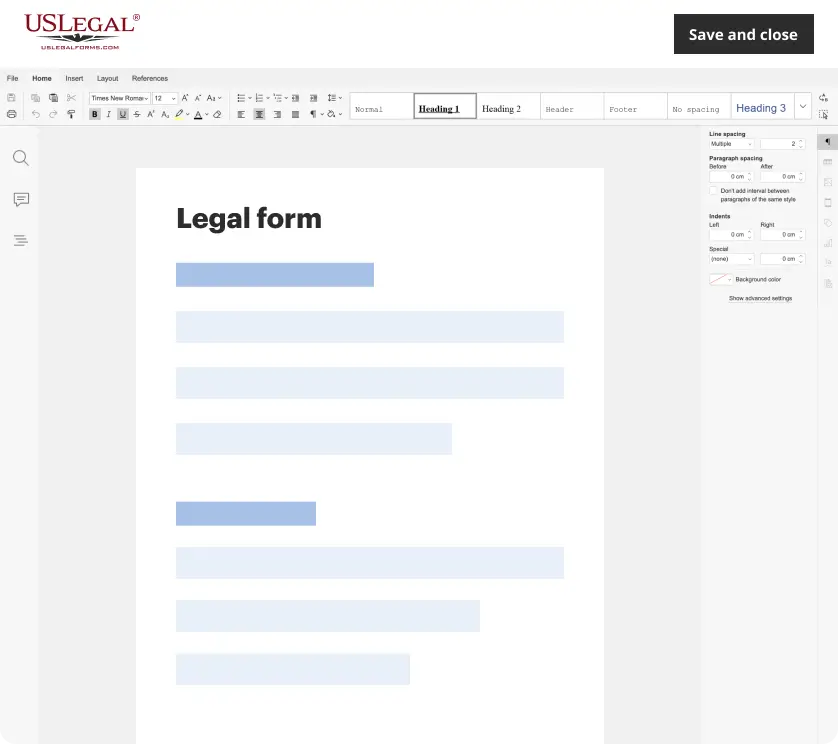
Make edits, fill in missing information, and update formatting in US Legal Forms—just like you would in MS Word.
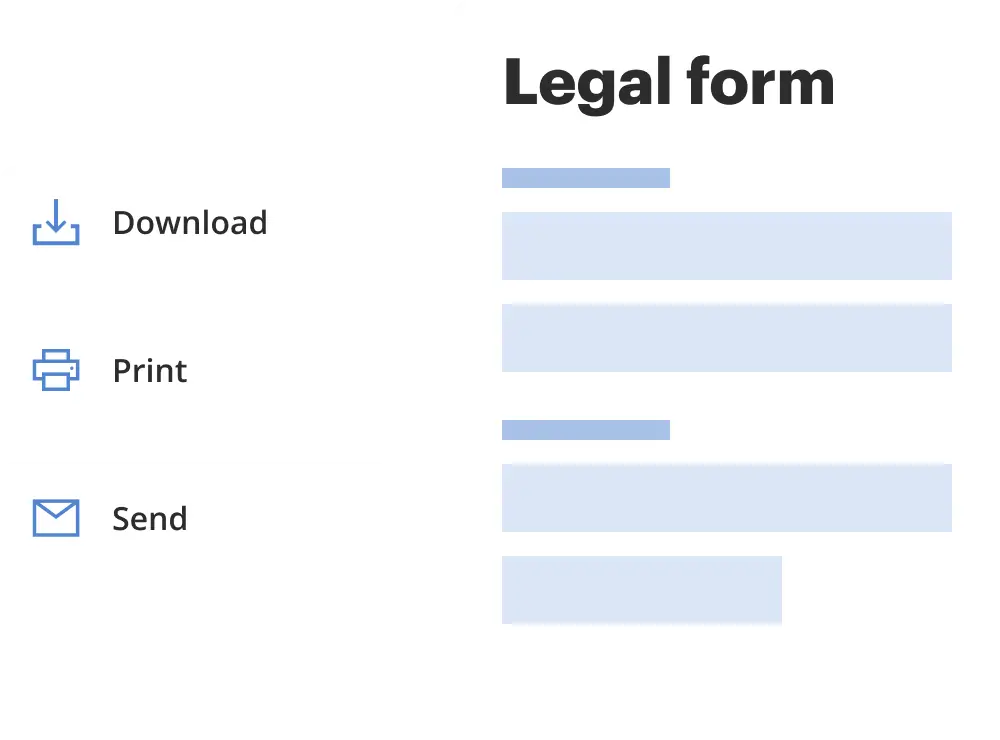
Download a copy, print it, send it by email, or mail it via USPS—whatever works best for your next step.
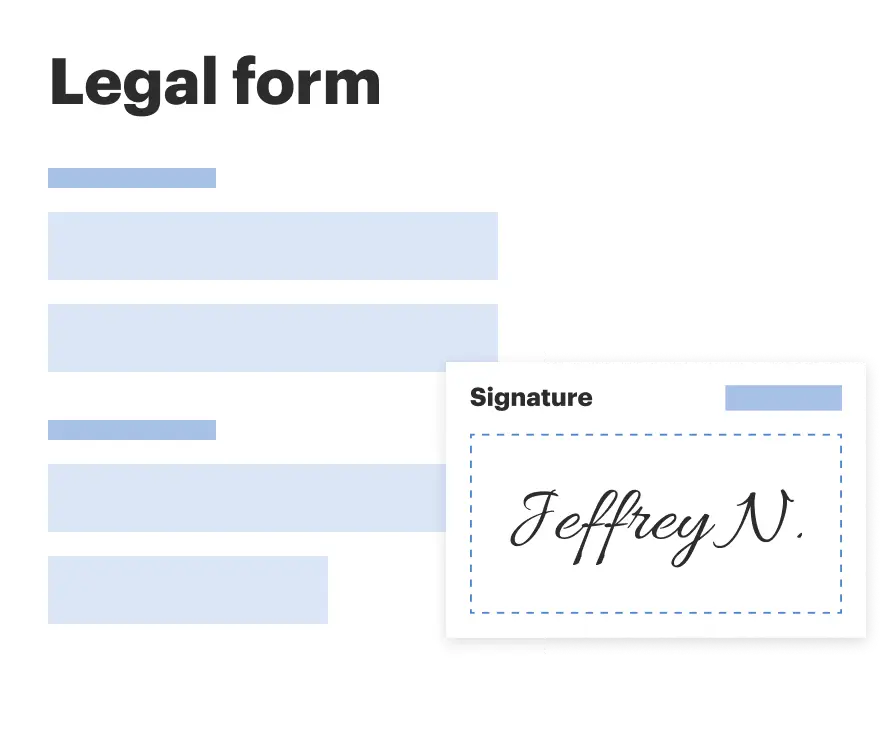
Sign and collect signatures with our SignNow integration. Send to multiple recipients, set reminders, and more. Go Premium to unlock E-Sign.
If this form requires notarization, complete it online through a secure video call—no need to meet a notary in person or wait for an appointment.
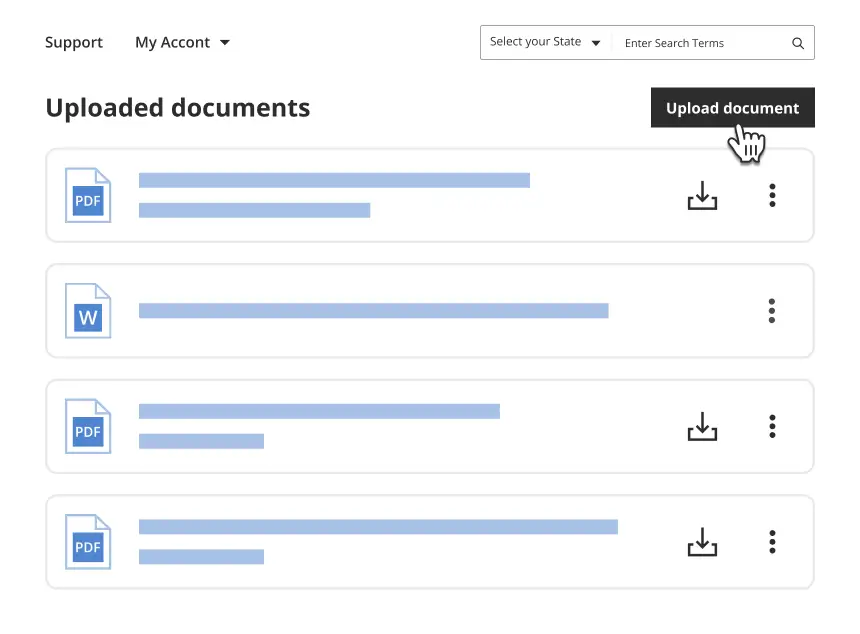
We protect your documents and personal data by following strict security and privacy standards.
Looking for another form?
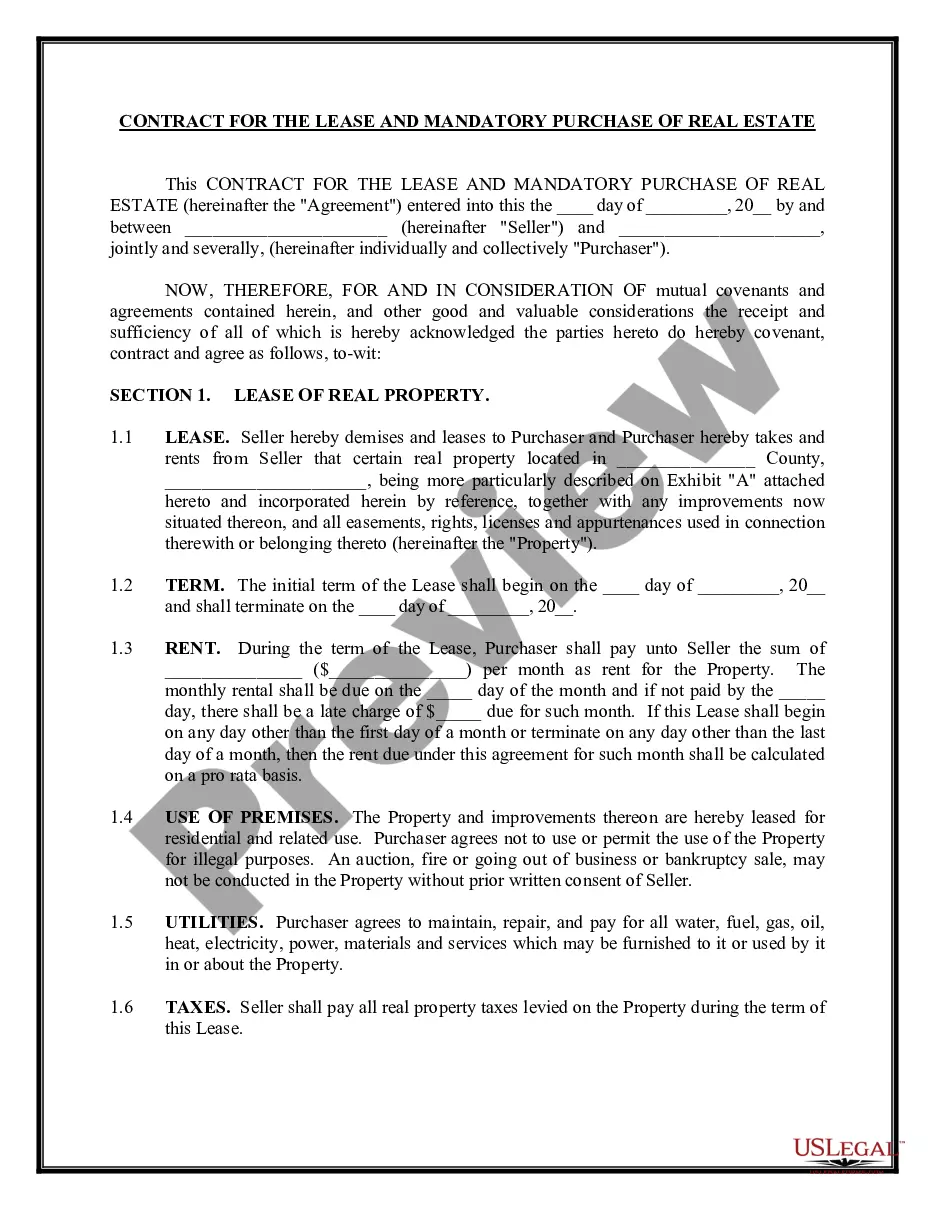
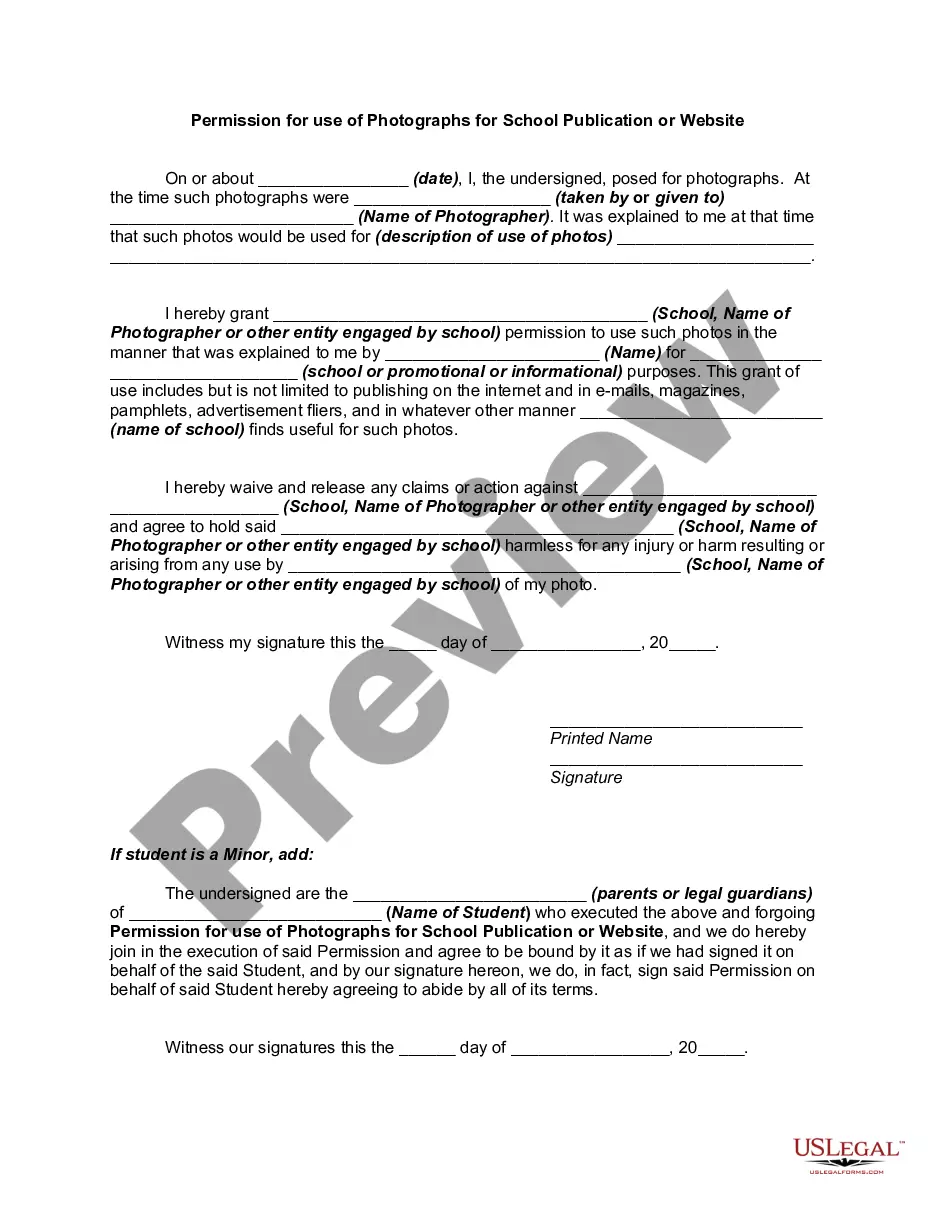
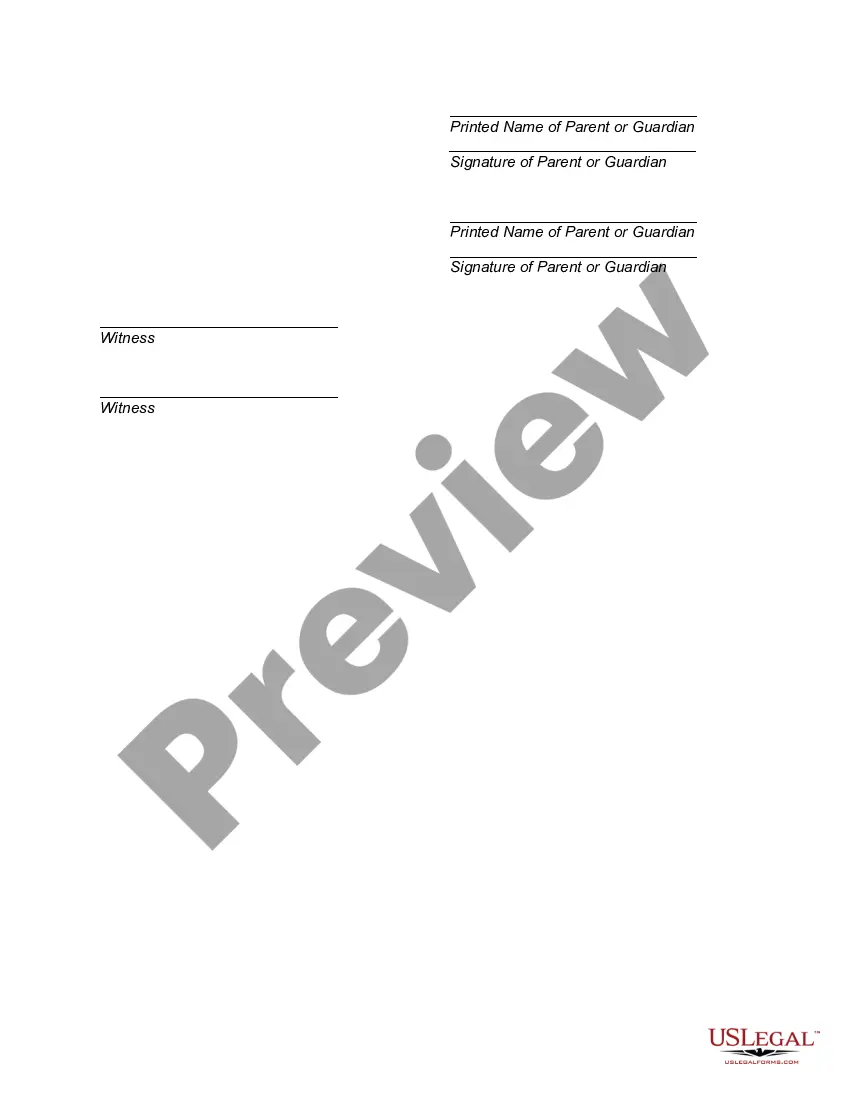
How to fill out Permission For Use Of Photographs For School Publication Or Website?
- If you are already a US Legal Forms user, log into your account and click the Download button to access the necessary template. Ensure your subscription is active; renew if required.
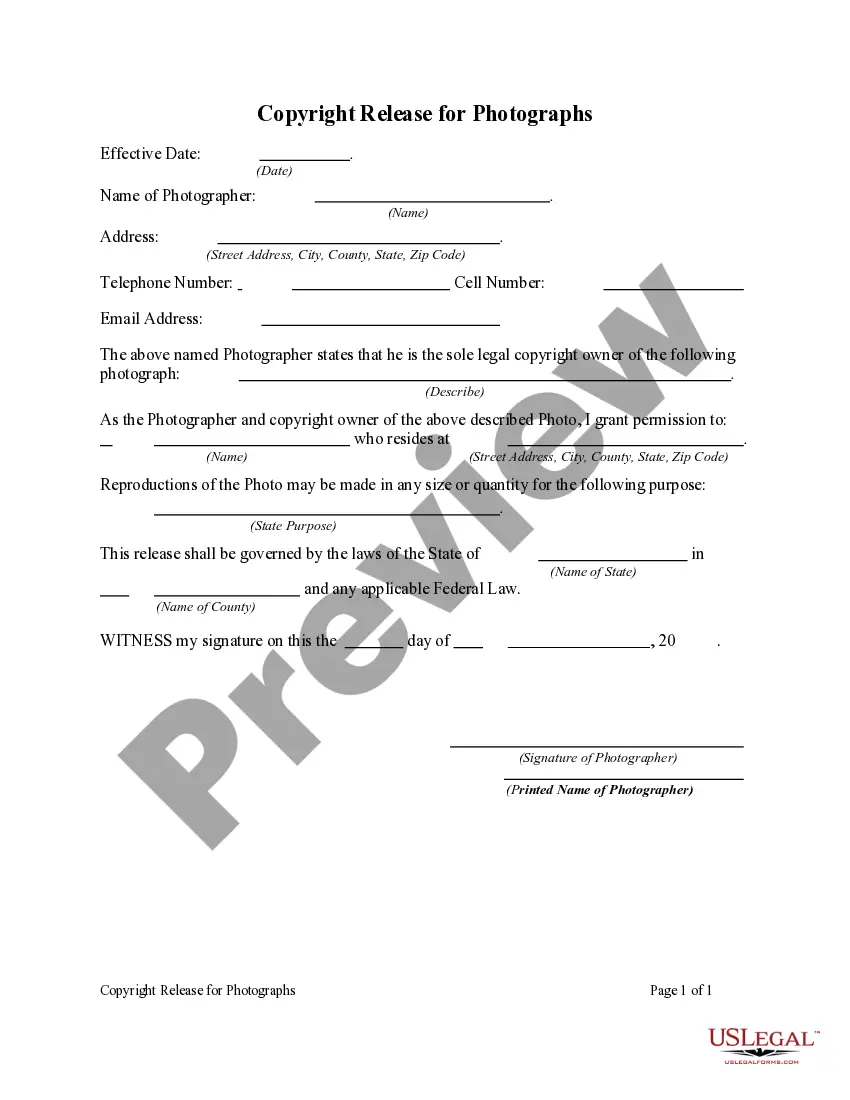
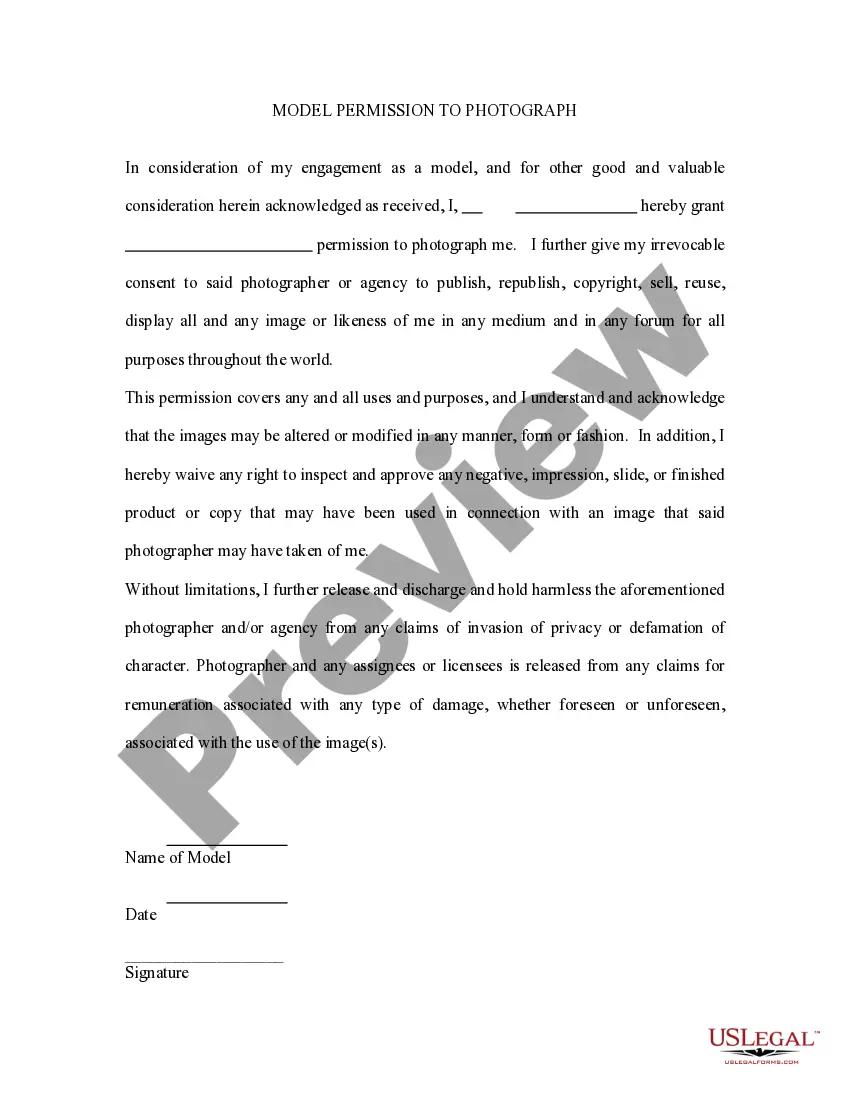
- For new users, start by browsing the Preview mode and description of the form you need. Validate that it aligns with your requirements and adheres to local laws.
- If the form doesn’t meet your needs, utilize the Search feature to find a more suitable template.
- Once you locate the appropriate document, click on the Buy Now button and select your preferred subscription plan. Registration is necessary to access the full library.
- Proceed with your purchase by entering your payment details or using PayPal for a secure transaction.
- After completing the purchase, download the template onto your device and access it anytime through the My Forms section of your profile.
In conclusion, utilizing US Legal Forms simplifies the process of obtaining permission to use photographs for your application. With a robust collection of forms and expert assistance, you can ensure your documents are impeccably prepared.
Start streamlining your legal documentation process today with US Legal Forms!
Form popularity
FAQ
If your iPhone does not let you allow apps to access your Photos, it may be due to restrictions set in your device settings. Check if Screen Time restrictions are enabled, which can limit app permissions. Resetting these settings can help you restore permission use photographs for your application smoothly.
To give an app photo permissions, head to your device's settings and locate the section dedicated to privacy. Select the Photos category to see a list of apps requesting access. Check the box or toggle for the app in question, confirming that you want to grant permission use photographs for your application.
To allow photo access on iOS, open your device's Settings, go to Privacy, and select Photos. From there, find the specific app and choose the access level you prefer, such as 'Read and Write.' This setup will ensure the app can effectively use photographs for your application.
If you cannot use Photos on your apps, it may be due to restrictions in your device's settings. Another reason could be that the app does not have the necessary permissions to access your photo library. To resolve this, ensure you have enabled permission use photographs for your application in the app's privacy settings.
To allow an app to take pictures, start by adjusting your device's settings. Navigate to the app's privacy settings and look for the photography permissions. Grant access by toggling the permission on, enabling the app to utilize the camera for capturing photographs for your application.
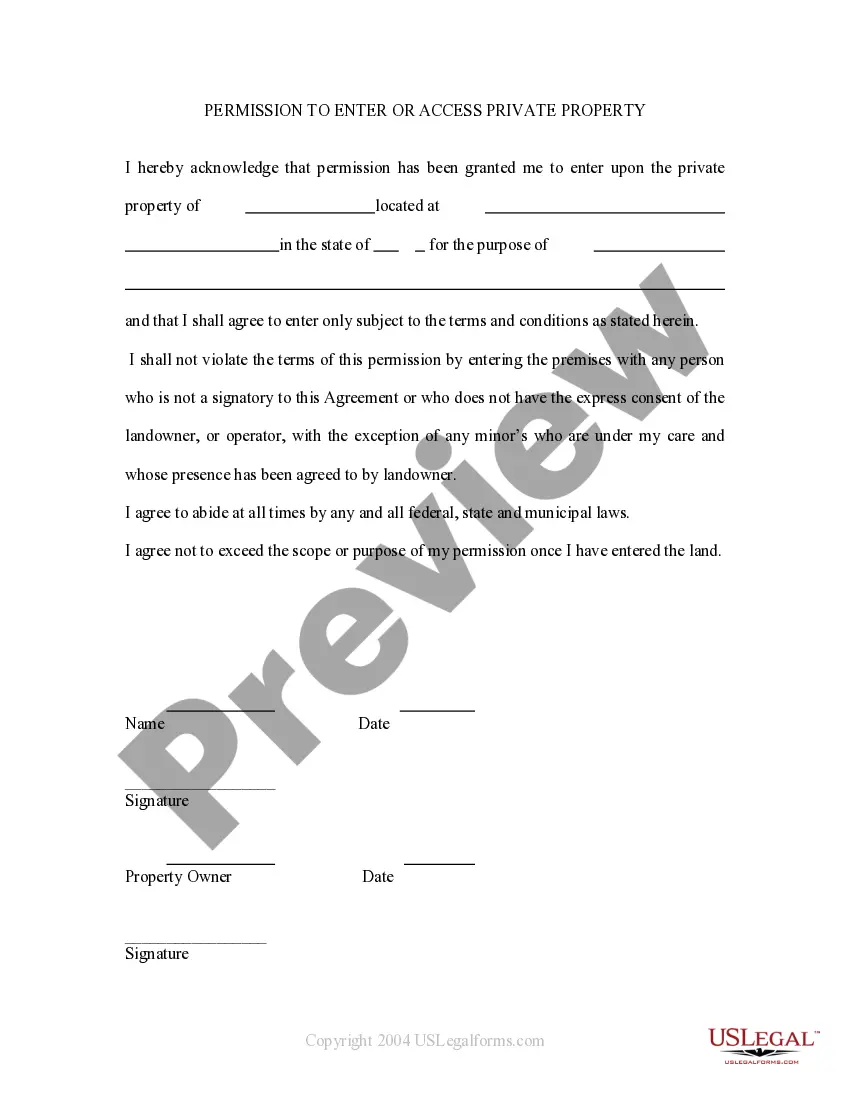
To write a photography consent form, start by clearly stating the purpose of the document. Include details about the photographs you intend to capture, how you will use them, and any other relevant information. It is essential to specify that the individual agrees to give permission to use photographs for your application. Finally, make sure to include a section for the individual's signature and date to confirm their consent.
Apps typically want to access your photos to offer personalized experiences, such as sharing memories or creating custom content. However, it's crucial to evaluate whether the app's request aligns with its functionality and if it truly benefits you. Understanding permission use photographs for your application allows you to make informed decisions about what you want to share. Prioritize your privacy while enjoying the features apps offer.
Most reputable apps cannot take pictures or access your device's camera without your explicit permission. Security measures are in place to protect users, ensuring they control access to their photos and camera. Always review the permissions requested by an app before installation to ensure they are reasonable. Understanding permission use photographs for your application can help you maintain control over your personal data.
Apps request permission to access photos for various reasons, often related to enhancing user experience. For instance, photo editing apps need this access to allow users to edit and share images seamlessly. It is important that you assess whether this permission aligns with the app’s functionalities and if it benefits you. Be mindful of the permission use photographs for your application and choose wisely.
Giving apps access to your photos can pose privacy risks, especially if the app does not have a clear use for them. Always check the app's credibility and read reviews from other users before granting this permission. Remember, permission use photographs for your application should come with transparency regarding how those photos will be used. If an app cannot provide clear information, it's best to avoid granting access.