Web Site Affiliate Service Agreement
Overview of this form
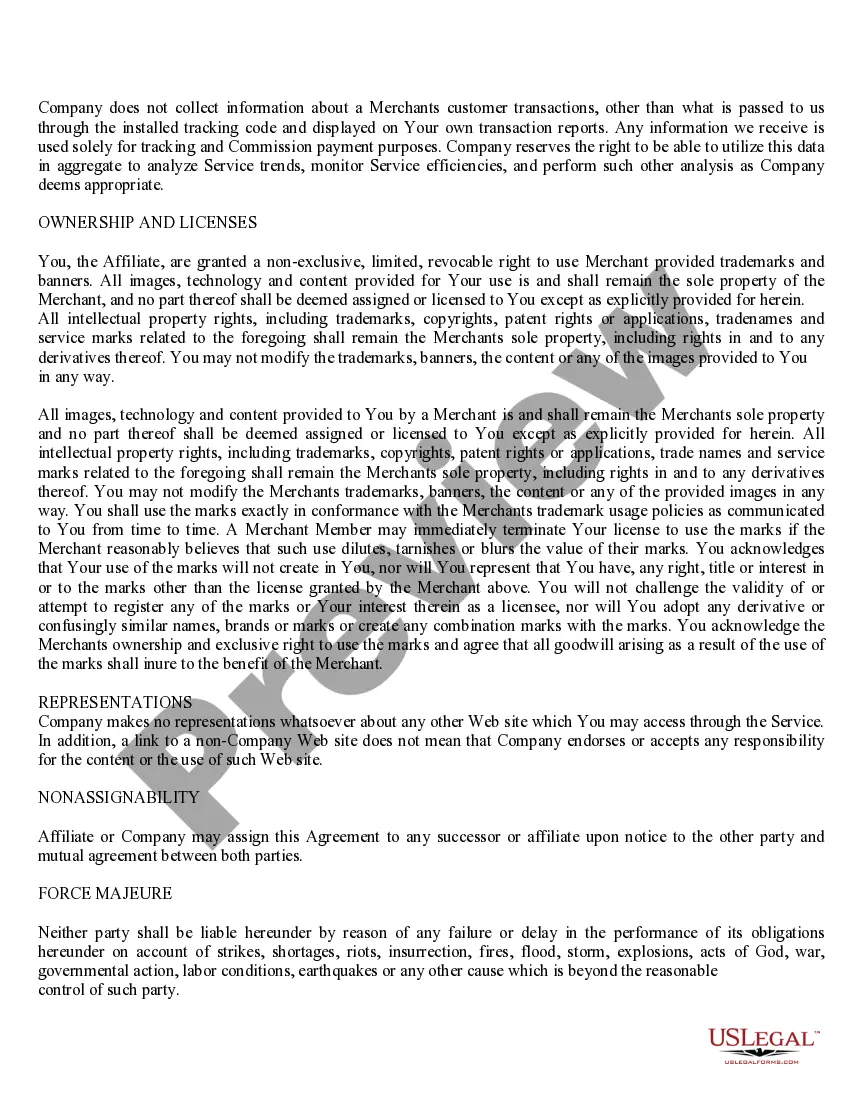
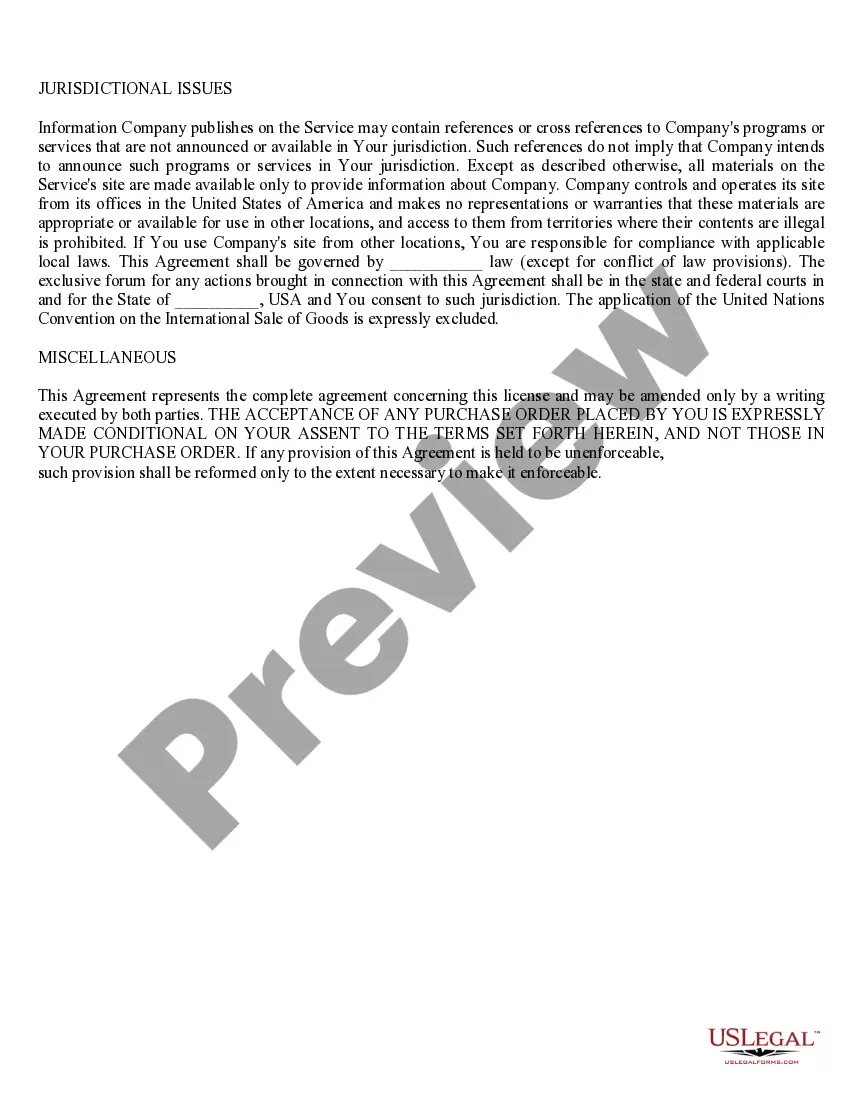
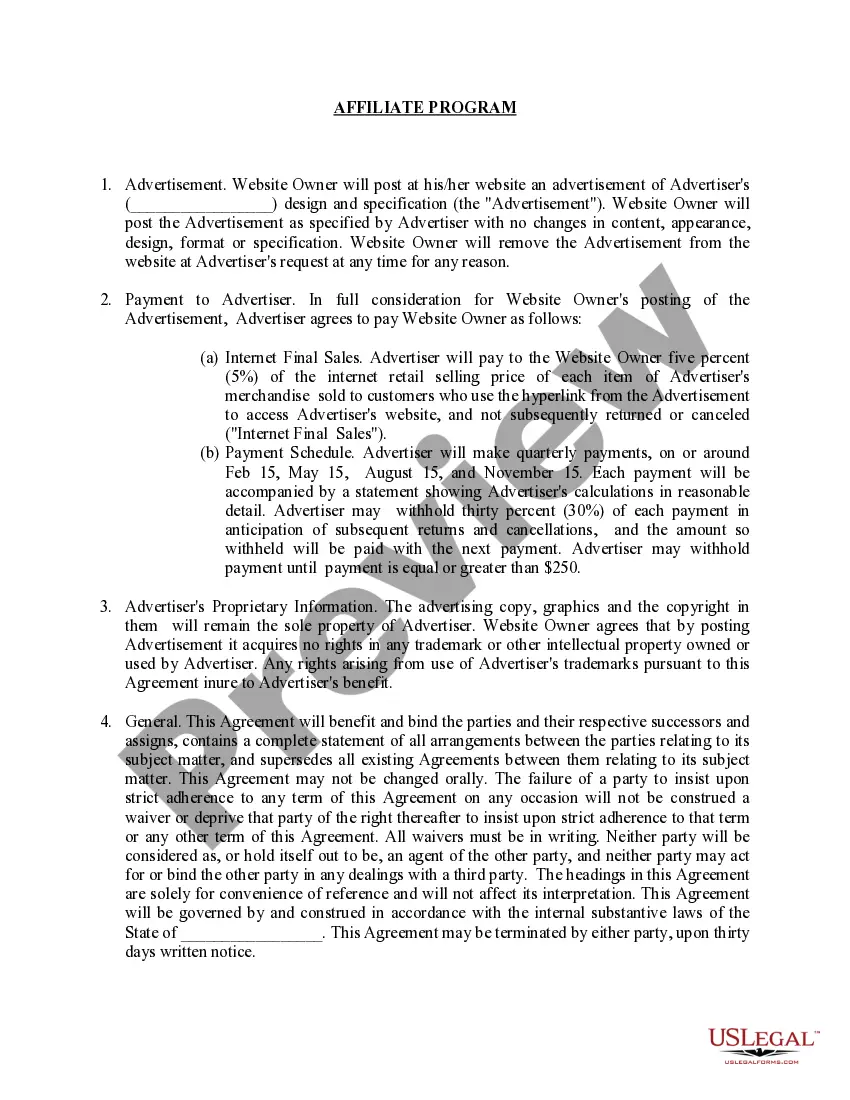
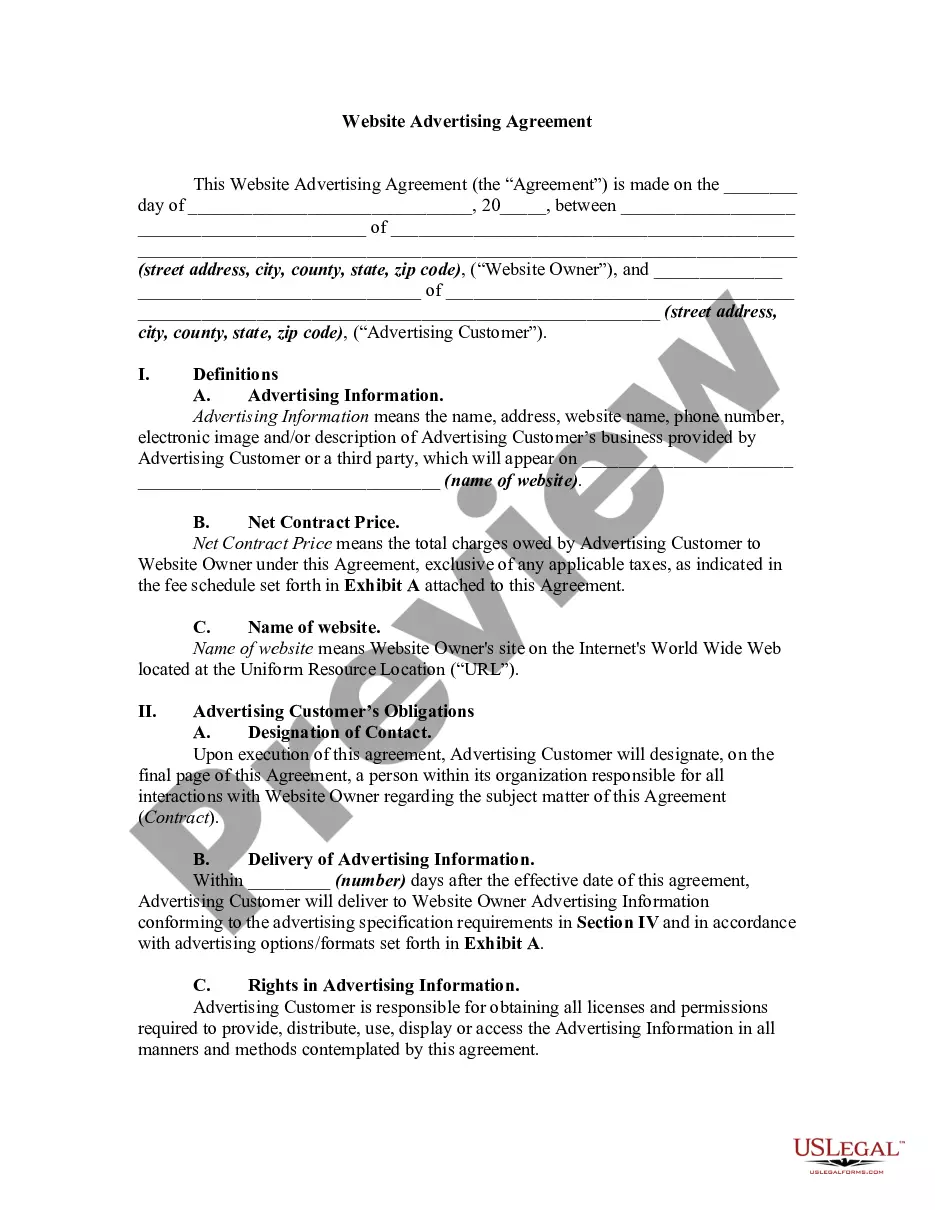
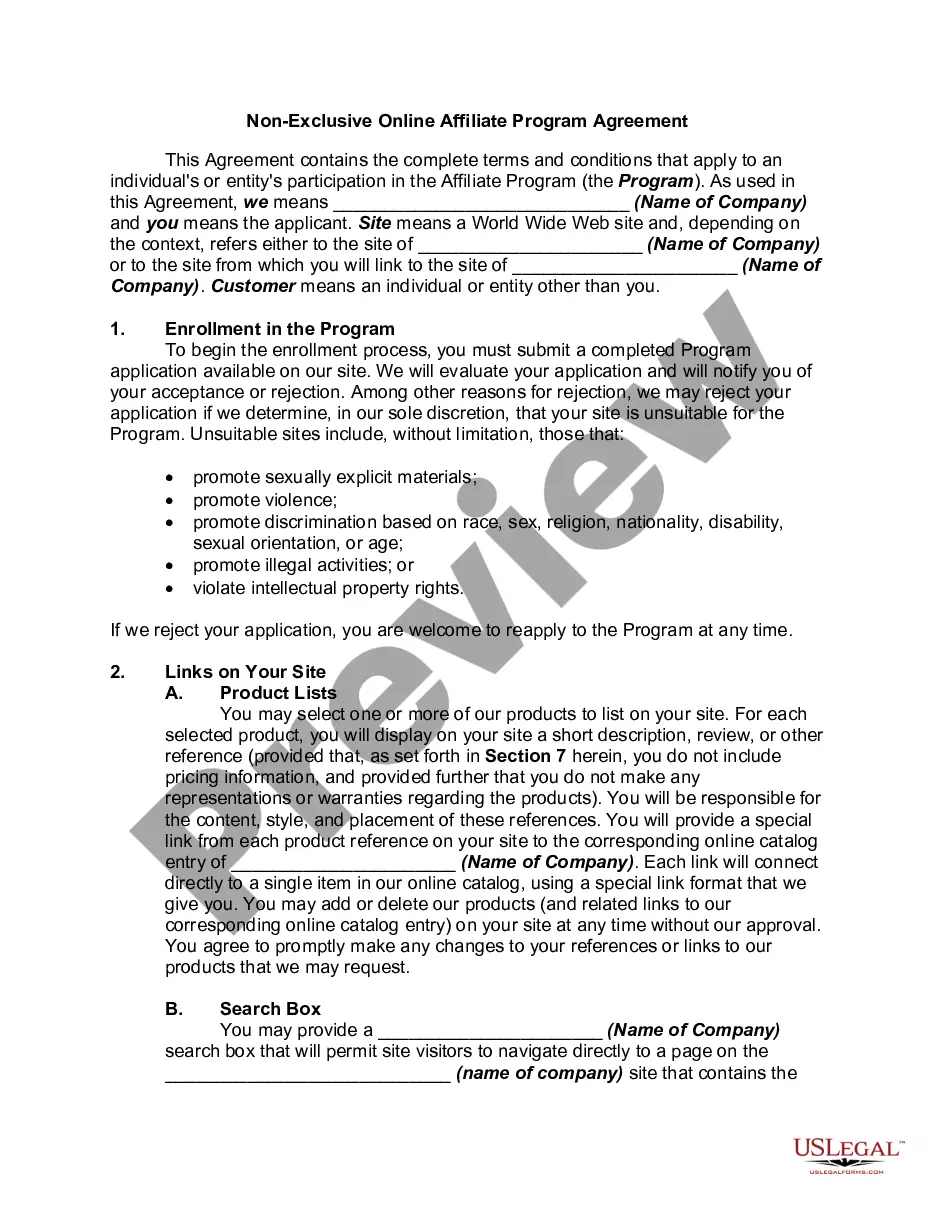
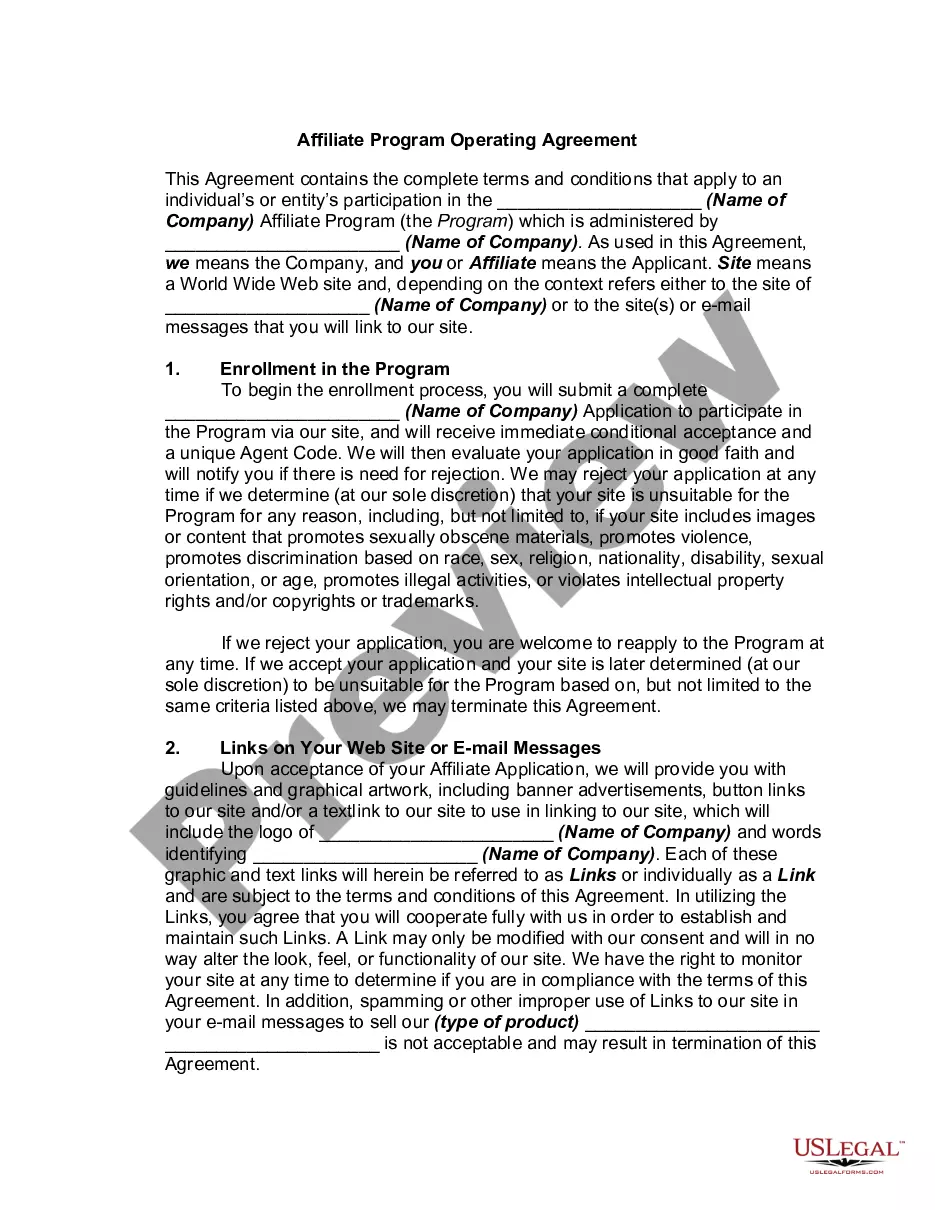
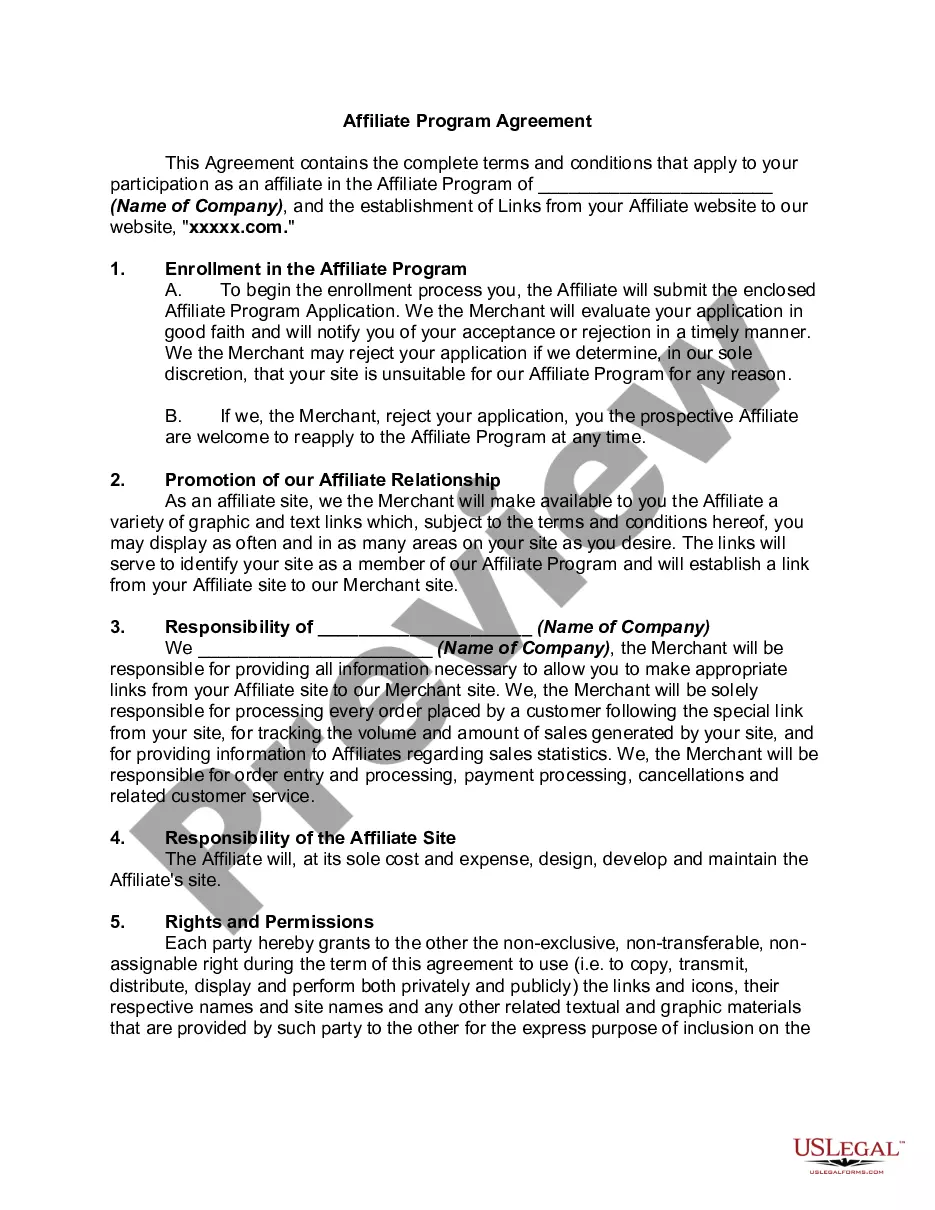
The Web Site Affiliate Service Agreement is a legal document that establishes the relationship between a company providing affiliate marketing services and its affiliates. This agreement ensures that personal and business information remains confidential and outlines the rights and responsibilities of the affiliates, including their ability to manage website links and the payment structures associated with referrals. It differs from other contracts by focusing specifically on affiliate marketing and the unique dynamics of revenue sharing between affiliates and merchants.
Main sections of this form
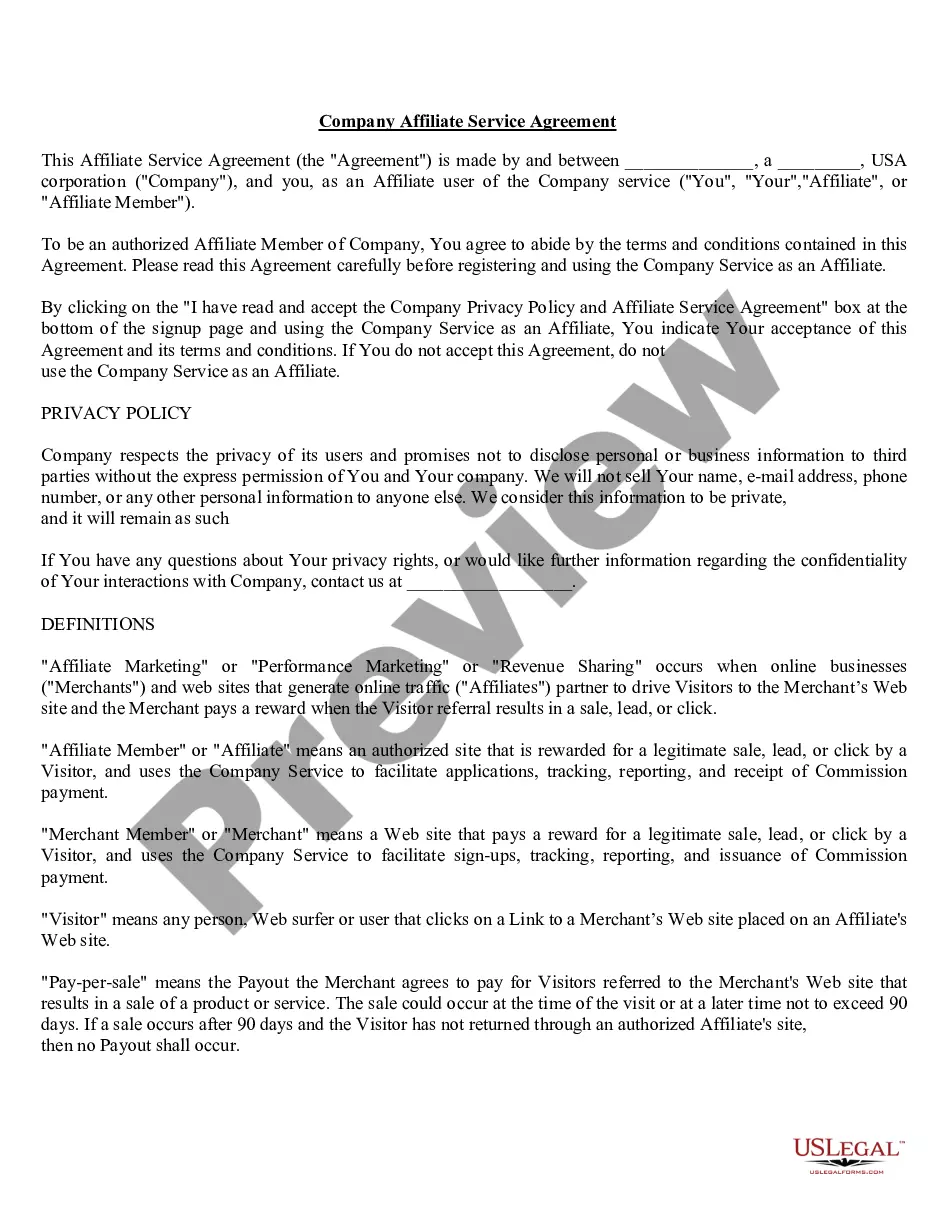
- Parties involved: Identification of the company and the affiliate.
- Privacy policy: Assurance regarding the confidentiality of personal information.
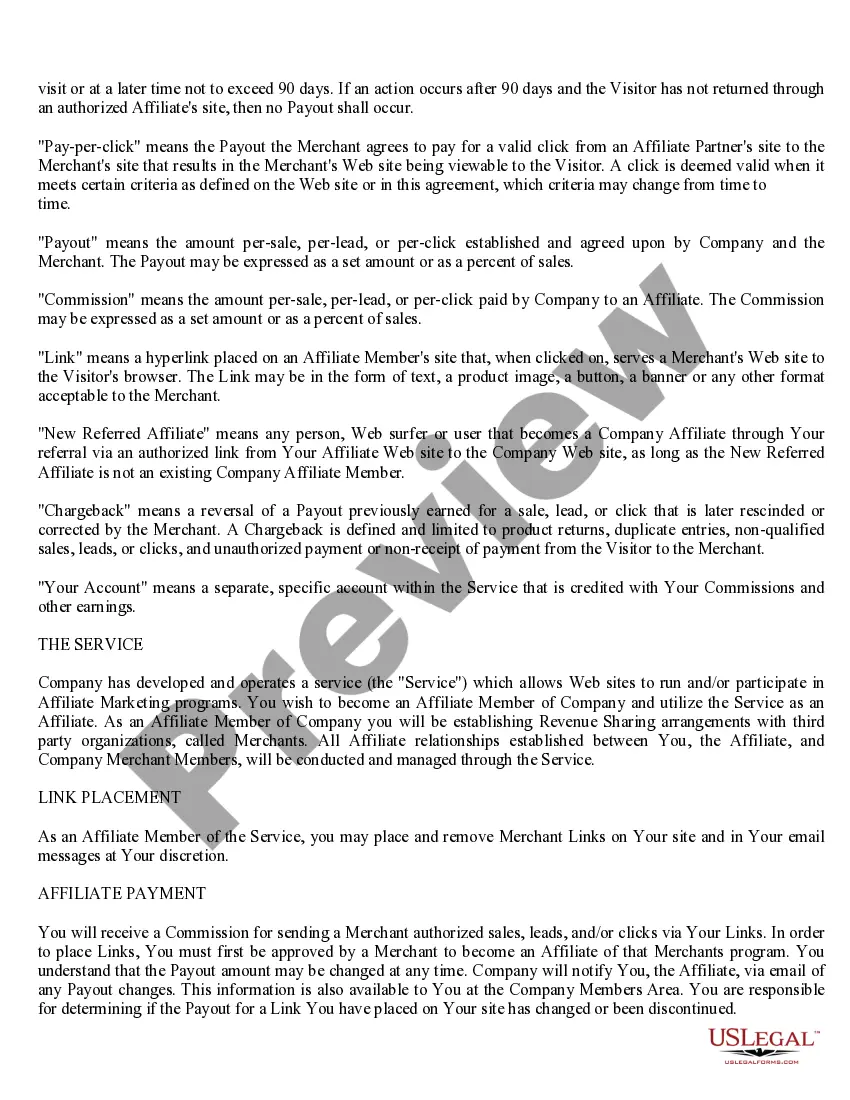
- Definitions: Clear terms for affiliates, merchants, visitors, and payment structures.
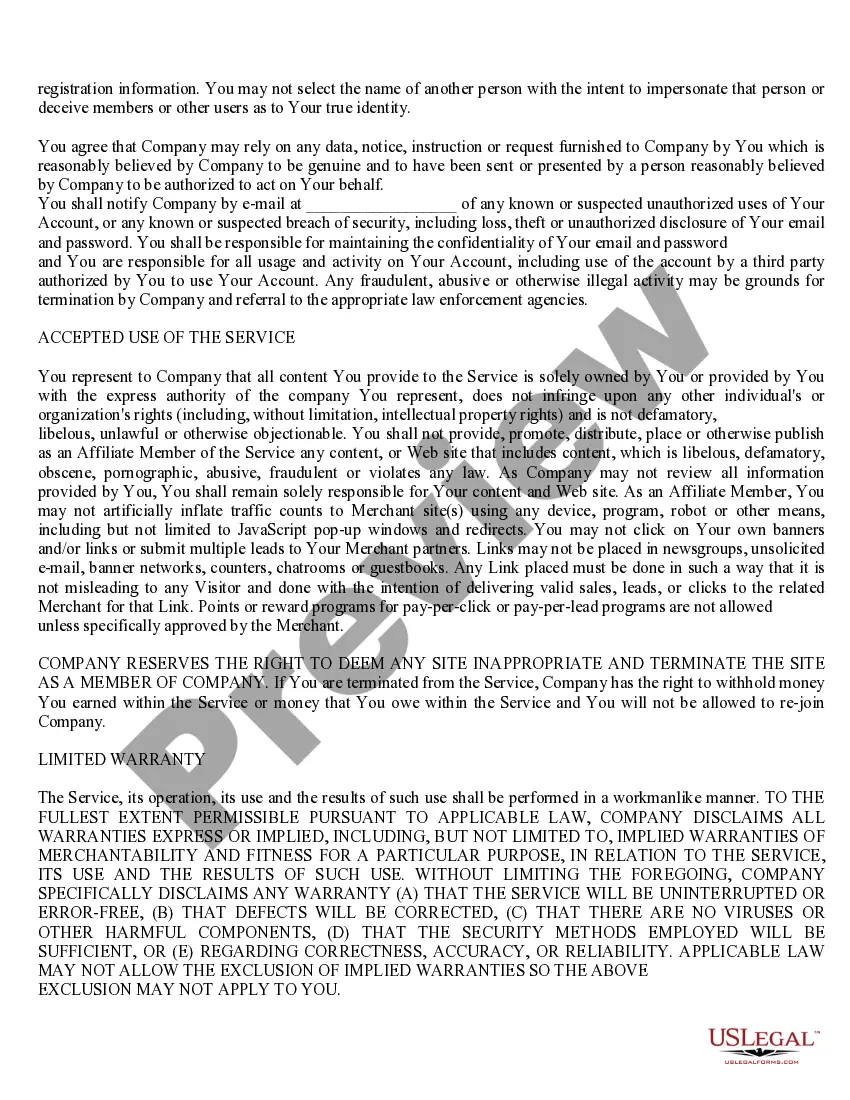
- Link placement: Guidelines for placing and removing affiliate links.
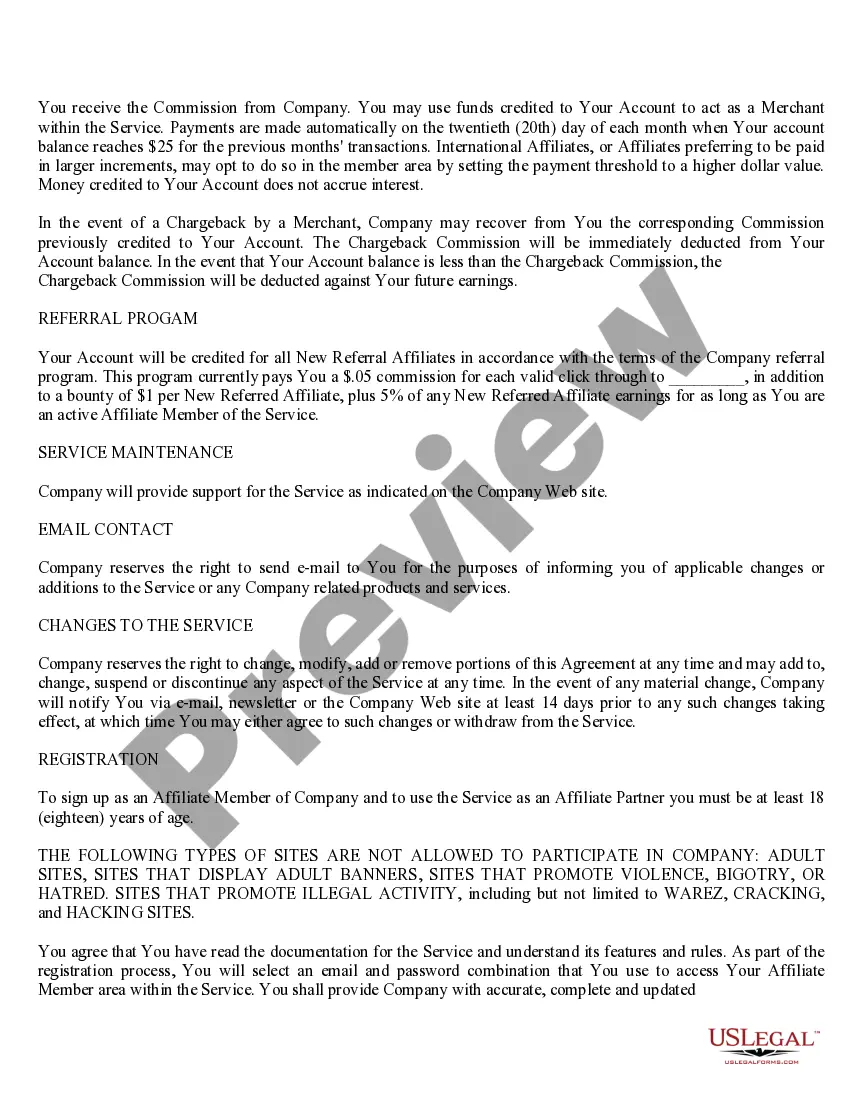
- Payment terms: Definition of commission structures, including pay-per-sale, pay-per-lead, and pay-per-click.
- Termination: Conditions under which either party can terminate the agreement.

Situations where this form applies
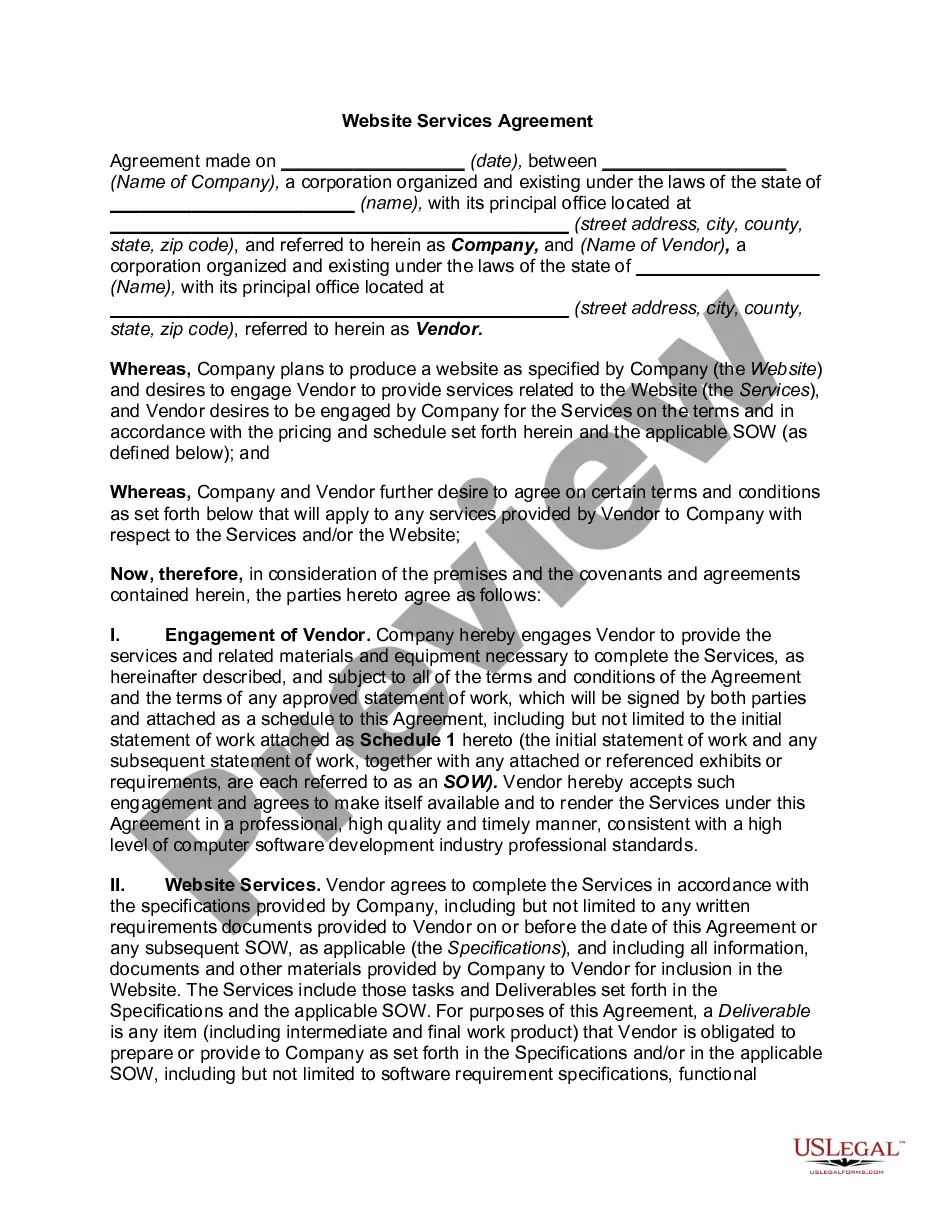
This form is used when a business wishes to engage individuals or entities as affiliates for marketing purposes. It is appropriate in scenarios where a company needs to outline compensation structures for sales generated through affiliate links, clarify the terms of privacy for affiliate partners, and establish guidelines for acceptable use of marketing content. This form is essential for managing affiliate partnerships effectively while ensuring compliance and understanding among all parties involved.
Who can use this document
- Businesses looking to create an affiliate marketing program.
- Individuals or companies interested in becoming affiliates to promote products or services.
- Marketers seeking to establish formal agreements on revenue sharing and link management.
- Website owners wanting to clarify terms of engagement with advertisers or merchants.
How to complete this form
- Identify the parties: Fill in the name and type of the company and the name of the affiliate user.
- Review the privacy policy: Ensure that you understand and agree to the confidentiality terms related to personal information.
- Define key terms: Familiarize yourself with important definitions that pertain to affiliate marketing and payment structures.
- Specify link placement: State how and where you plan to place affiliate links on your website and in email communications.
- Sign and date the agreement: Complete the document by signing and dating it to indicate acceptance of the terms.
Does this form need to be notarized?
This form usually doesn’t need to be notarized. However, local laws or specific transactions may require it. Our online notarization service, powered by Notarize, lets you complete it remotely through a secure video session, available 24/7.
Get your form ready online
Our built-in tools help you complete, sign, share, and store your documents in one place.
Make edits, fill in missing information, and update formatting in US Legal Forms—just like you would in MS Word.
Download a copy, print it, send it by email, or mail it via USPS—whatever works best for your next step.
Sign and collect signatures with our SignNow integration. Send to multiple recipients, set reminders, and more. Go Premium to unlock E-Sign.
If this form requires notarization, complete it online through a secure video call—no need to meet a notary in person or wait for an appointment.
We protect your documents and personal data by following strict security and privacy standards.
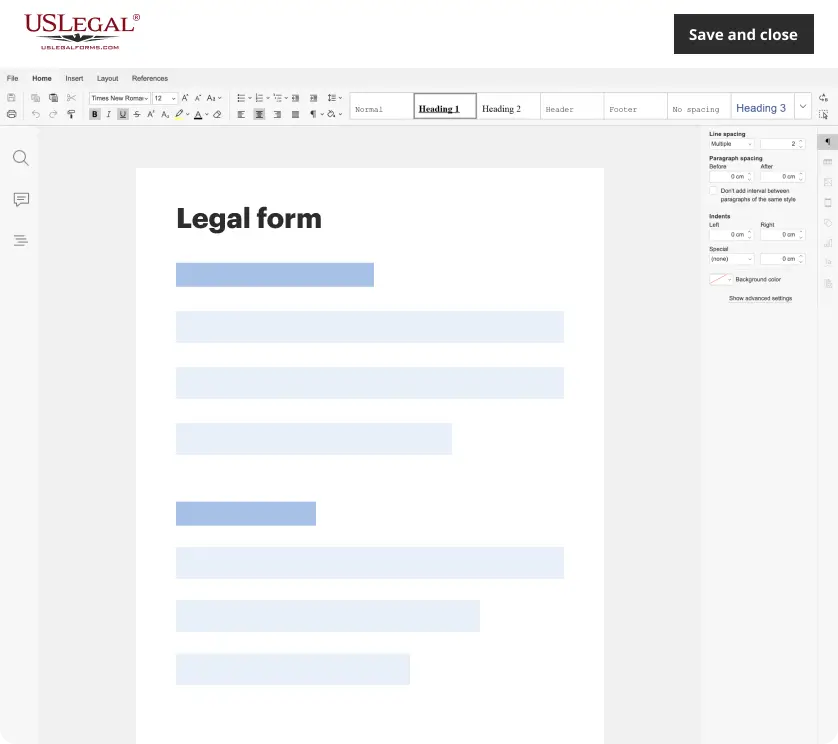
Make edits, fill in missing information, and update formatting in US Legal Forms—just like you would in MS Word.
Download a copy, print it, send it by email, or mail it via USPS—whatever works best for your next step.
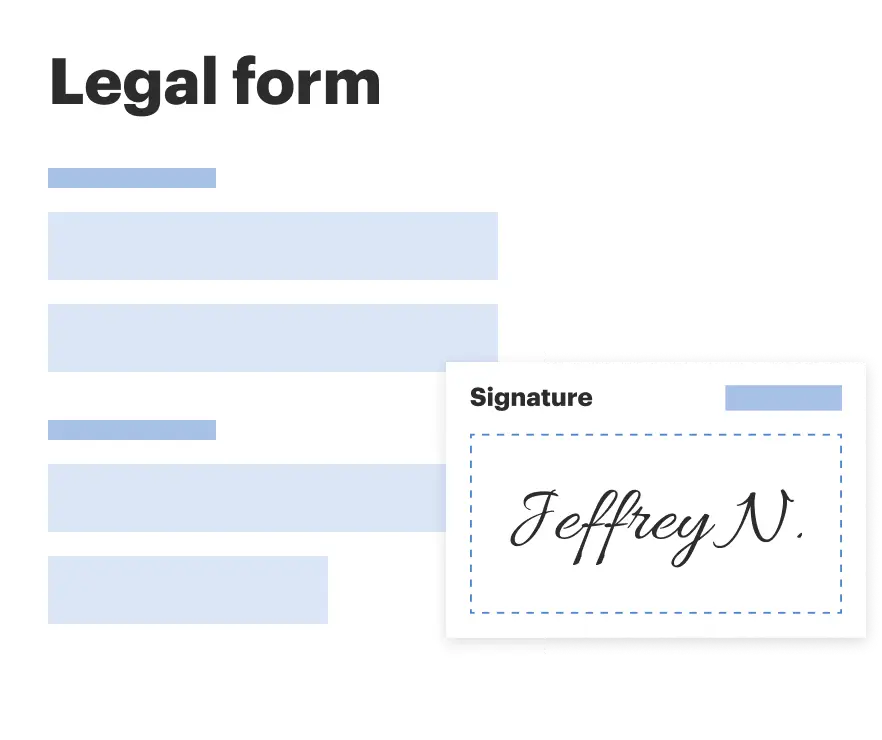
Sign and collect signatures with our SignNow integration. Send to multiple recipients, set reminders, and more. Go Premium to unlock E-Sign.
If this form requires notarization, complete it online through a secure video call—no need to meet a notary in person or wait for an appointment.
We protect your documents and personal data by following strict security and privacy standards.
Mistakes to watch out for
- Failing to read and understand the privacy policy before agreeing.
- Not clearly defining how links will be placed or removed.
- Assuming all affiliates are treated equally without understanding the commission structure.
- Neglecting to update contact information, which can affect communication and payments.
Benefits of using this form online
- Convenience: Complete and store the agreement digitally for easy access.
- Editability: Easily modify terms as necessary without the need for physical paperwork.
- Reliability: A standardized form drafted by licensed attorneys ensures legal compliance.
- Quick access: Downloadable format allows for immediate use as soon as you are ready to establish an affiliate partnership.
Legal use & context
- The agreement establishes a binding relationship between the affiliate and the company, facilitating compliance with affiliate marketing laws.
- It provides a clear outline for both parties regarding expectations and compensation.
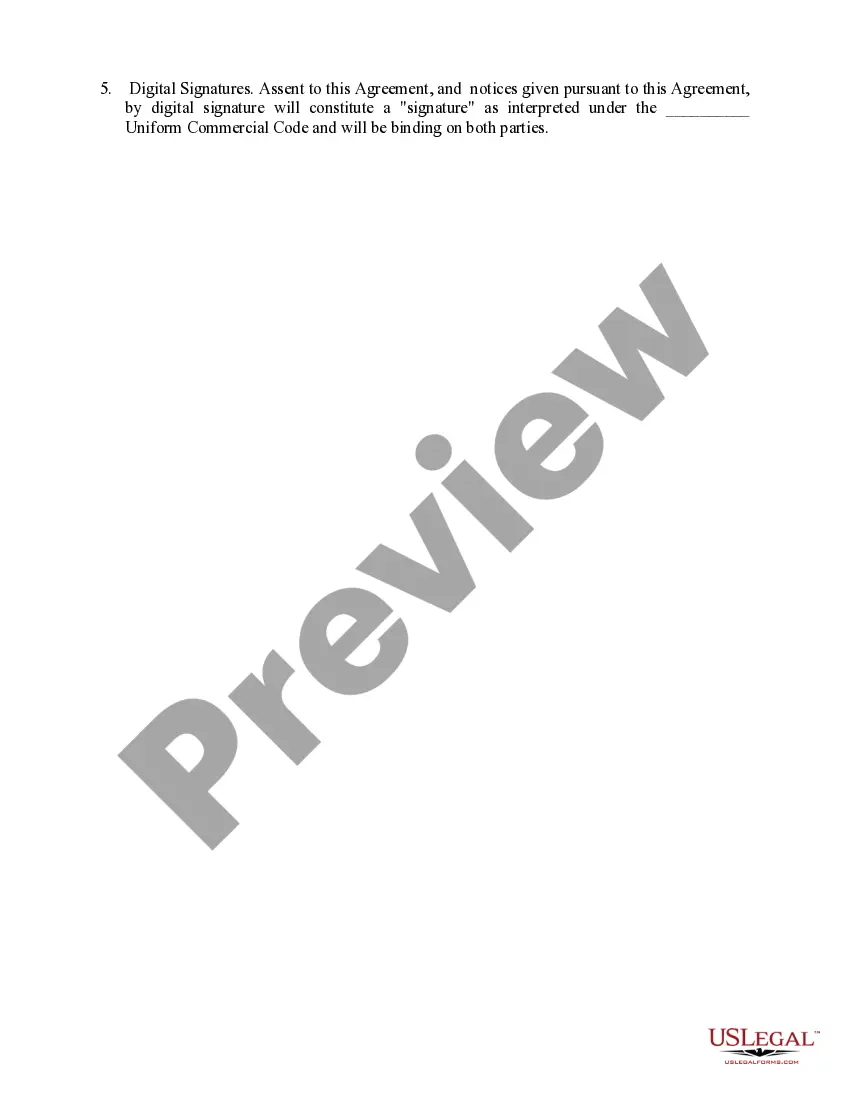
- Legally binding once signed by both parties, ensuring enforceability in case of disputes.
Main things to remember
- The Web Site Affiliate Service Agreement is necessary for anyone wishing to engage in affiliate marketing.
- Understanding payment structures and confidentiality terms is crucial for successful participation.
- Failure to comply with the agreement may result in financial loss and termination from the affiliate program.
Looking for another form?
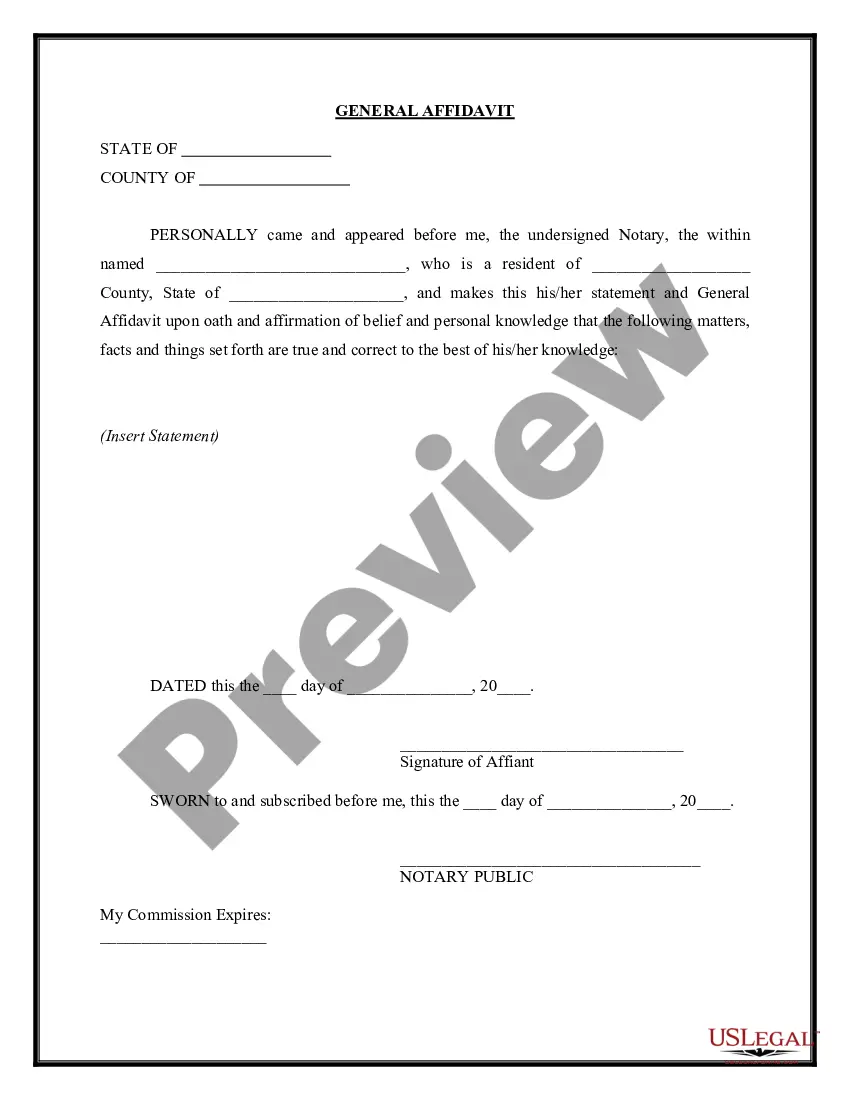
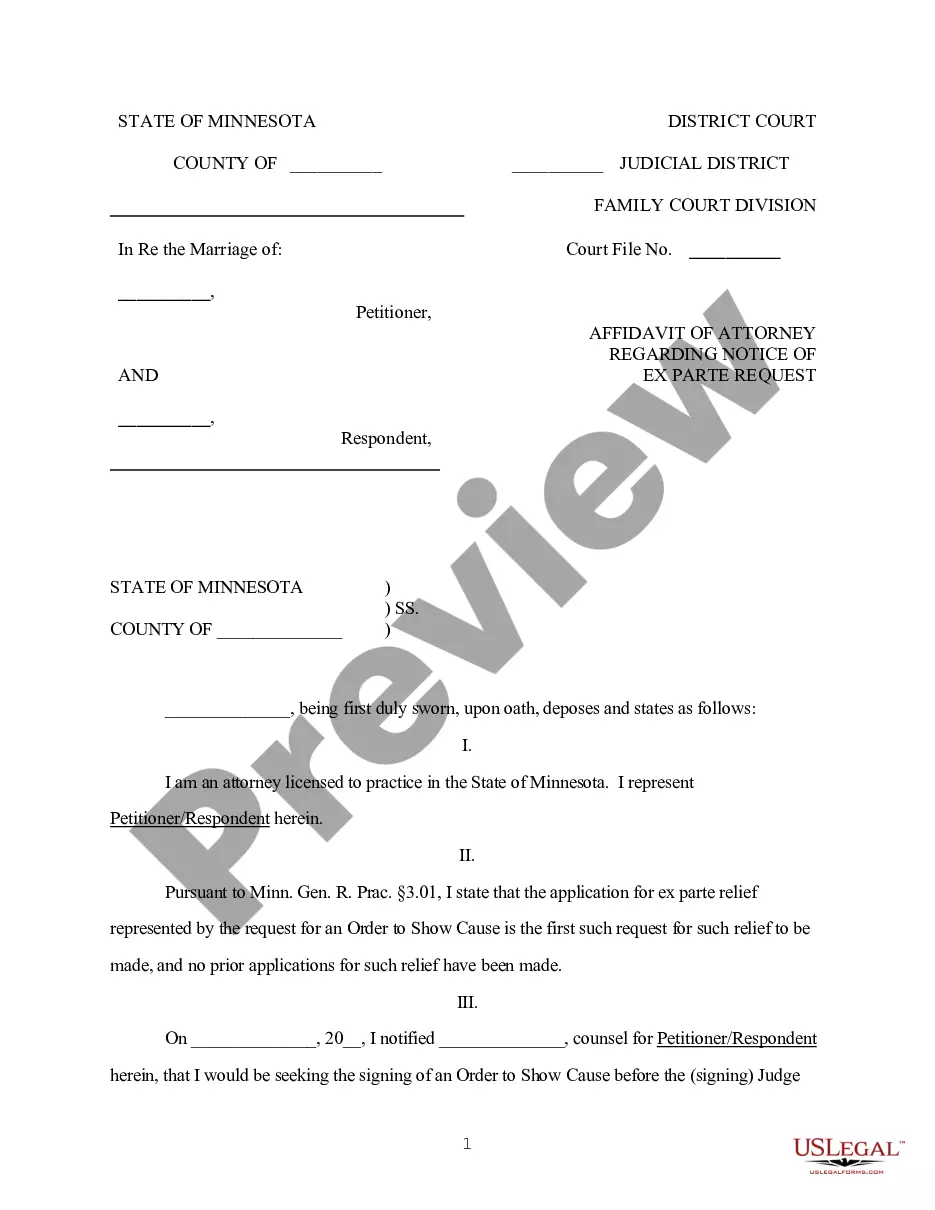
Form popularity
FAQ
USB WiFi Adapters. Check Price. USB WiFi adapters can be a great option for you to easily allow the connection. PCI-e WiFi Adapters. Check Price. The PCI-e WiFi adapters are the best for connectivity. WiFi-enabled Motherboard. Check Price. WiFi Card. Check Price.
To connect to the wireless network, open Network Connections from the Control Panel. Right click the network connection you wish to use (in this case, Wireless Network Connection). Click Connect from the pop-up menu, and Windows will connect you to the network, enabling your wireless connection.
If you want to access the internet at home, you'll need an Internet Service Provider (ISP) and a router to connect to the ISP. ISPs often provide a router with their service. This means more than one computer or device in your house can use the broadband connection at the same time.
DSL (digital subscriber line) cable broadband. fibre optic broadband. wireless or Wi-Fi broadband. satellite and mobile broadband. dedicated leased line.
Click the Start button, and then click Control Panel. In the Control Panel window, click Network and Internet. In the Network and Internet window, click Network and Sharing Center. In the Network and Sharing Center window, under Change your networking settings, click Set up a new connection or network.
In order to connect a desktop or PC to Wi-Fi, you will need to make sure your desktop has a wireless network adapter. Check for the wireless network adapter by selecting the Start button, typing device manager in the search box, and selecting Device Manager when it appears.