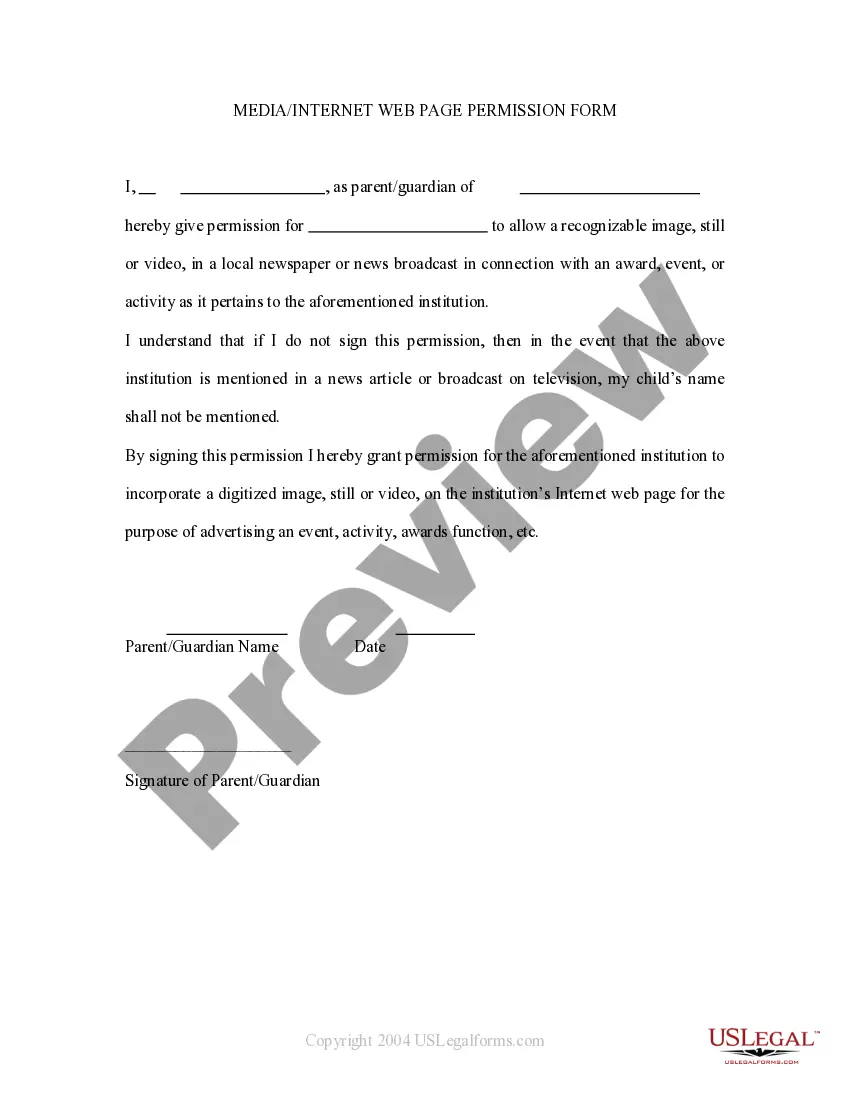
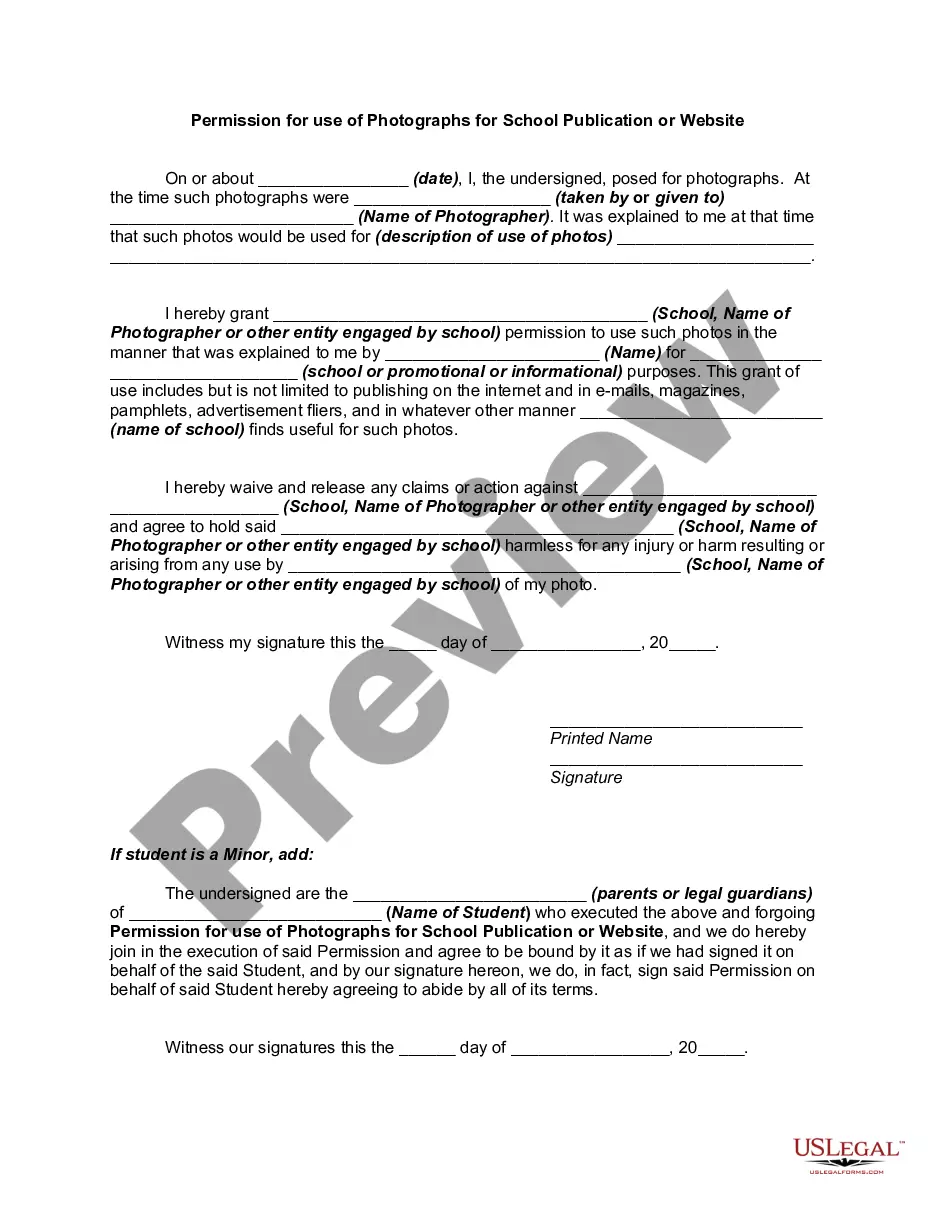
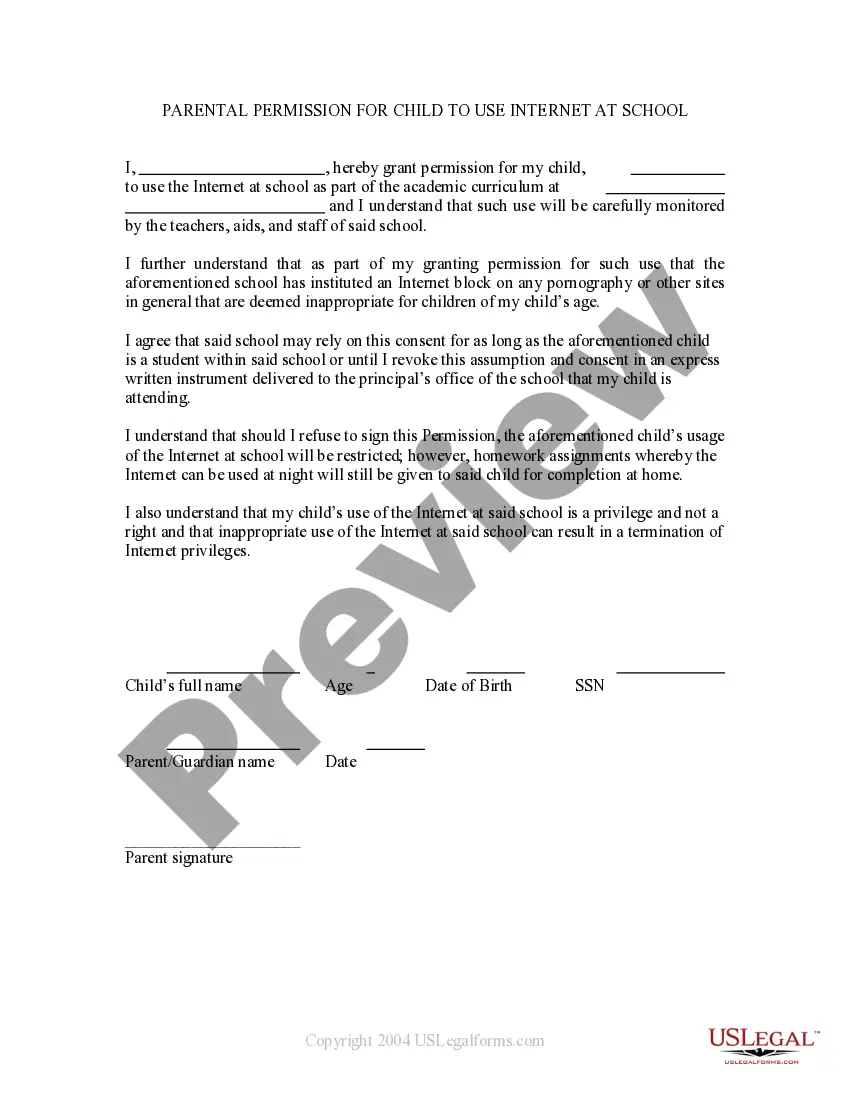
This is a permission form signed by parents allowing a child's name to be mentioned in broadcast form. If the child wins an award then permission is thereby granted to mention the child in a newspaper or on televised news. It also grants permission for the child's name to be mentioned on the school's web site.
Arkansas Media - Internet Web Page Permission Form
Category:
State:
Multi-State
Control #:
US-PRM-22
Format:
Word;
Rich Text
Instant download
Description
Get your form ready online
Our built-in tools help you complete, sign, share, and store your documents in one place.
Built-in online Word editor
Make edits, fill in missing information, and update formatting in US Legal Forms—just like you would in MS Word.
Export easily
Download a copy, print it, send it by email, or mail it via USPS—whatever works best for your next step.
E-sign your document
Sign and collect signatures with our SignNow integration. Send to multiple recipients, set reminders, and more. Go Premium to unlock E-Sign.
Notarize online 24/7
If this form requires notarization, complete it online through a secure video call—no need to meet a notary in person or wait for an appointment.
Store your document securely
We protect your documents and personal data by following strict security and privacy standards.
Make edits, fill in missing information, and update formatting in US Legal Forms—just like you would in MS Word.
Download a copy, print it, send it by email, or mail it via USPS—whatever works best for your next step.
Sign and collect signatures with our SignNow integration. Send to multiple recipients, set reminders, and more. Go Premium to unlock E-Sign.
If this form requires notarization, complete it online through a secure video call—no need to meet a notary in person or wait for an appointment.
We protect your documents and personal data by following strict security and privacy standards.
Looking for another form?

How to fill out Media - Internet Web Page Permission Form?
You can spend hours online looking for the valid document template that satisfies the state and federal requirements you need.
US Legal Forms provides thousands of legal documents that are vetted by experts.
It is easy to acquire or print the Arkansas Media - Internet Web Page Permission Form from our service.
To find another version of the form, use the Search field to locate the template that meets your needs and specifications. Once you have found the template you want, click on Acquire now to proceed. Select the pricing plan you prefer, enter your details, and register for an account on US Legal Forms. Complete the payment. You can use your credit card or PayPal account to pay for the legal form. Choose the format of the document and download it to your device. Make modifications to your document if necessary. You can complete, edit, sign, and print the Arkansas Media - Internet Web Page Permission Form. Download and print thousands of document templates using the US Legal Forms website, which offers the largest collection of legal forms. Utilize professional and state-specific templates to address your business or personal needs.
- If you already have a US Legal Forms account, you can Log In and click on the Download option.
- Then, you can complete, edit, print, or sign the Arkansas Media - Internet Web Page Permission Form.
- Every legal document template you purchase is yours permanently.
- To obtain another copy of any purchased form, go to the My documents tab and click on the corresponding option.
- If you are using the US Legal Forms website for the first time, follow the simple instructions below.
- First, ensure that you have selected the correct document template for the region/town of your choice.
- Check the form description to confirm you have chosen the right form.
- If available, use the Review option to view the document template as well.
Form popularity
FAQ
The Access Denied error appears when your browser uses different proxy settings or VPN instead of what's really set on your Windows 10 PC. Thus, when a website detects that there is something wrong with your browser cookies or your network, it blocks you and this is why you can't open it.
Google Chrome Just click the icon to the left of the web page's address in the address bar to access and view the permissions for the current website. Chrome uses the global default settings unless you choose special settings for individual websites.
1) Launch Google Chrome, click the three dots button in the upper right corner, then click Settings. 2) Scroll down to the bottom and click Advanced. 3) Under System, click Open proxy settings. 4) In the Security tab, select Restricted sites then click Sites.
Yes, it's possible that Google might block some sites for different reasons. To fix this issue, you can try the below methods. Note: Usually, a website is blocked because Google believes the website might be dangerous, and it could harm your PC or reveal your personal data.
Go to Internet Options in Control Panel and on the Security tab, click on Restricted Websites in the Internet Security Zone, and then on the button labeled Sites (See image below). Check if the URL of the website you wish to access is listed there. If yes, select the URL and click Remove.
How can I fix the Access Denied error?Disable VPN software. The Access Denied error can be due to VPN software, which you can disable.Turn off VPN extensions.Use a premium VPN service.Deselect the proxy server option.Clear browser data.Clear all data for a specific website in Firefox.Reset your browser.
Access Denied, you don't have permission to access (URL) on this server. It prevents you from opening some specific websites on your browser. There could be several reasons behind this error like the server being taken down, VPN access could be blocked on that server, etc.
How to Fix Err Network Access Denied Error in ChromeAllow Google Chrome in Windows Defender Firewall.Clear Browsing History.Disable Proxy Servers.Reset Chrome Browser.Temporarily Disable Antivirus Program.Run Troubleshooter.
Change a site's camera & microphone permissionsOpen Chrome .At the top right, click More. Settings.Click Privacy and security Site settings. Camera or Microphone.Select the option you want as your default setting. Review your blocked and allowed sites.
Change settings for a specific siteOn your computer, open Chrome.Go to a website.To the left of the web address, click the icon you want: Lock. Info. Dangerous.Click Site settings.Change a permission setting.