Attendance Sheet For Excel
Description
Get your form ready online
Our built-in tools help you complete, sign, share, and store your documents in one place.
Make edits, fill in missing information, and update formatting in US Legal Forms—just like you would in MS Word.
Download a copy, print it, send it by email, or mail it via USPS—whatever works best for your next step.
Sign and collect signatures with our SignNow integration. Send to multiple recipients, set reminders, and more. Go Premium to unlock E-Sign.
If this form requires notarization, complete it online through a secure video call—no need to meet a notary in person or wait for an appointment.
We protect your documents and personal data by following strict security and privacy standards.

Make edits, fill in missing information, and update formatting in US Legal Forms—just like you would in MS Word.

Download a copy, print it, send it by email, or mail it via USPS—whatever works best for your next step.

Sign and collect signatures with our SignNow integration. Send to multiple recipients, set reminders, and more. Go Premium to unlock E-Sign.

If this form requires notarization, complete it online through a secure video call—no need to meet a notary in person or wait for an appointment.

We protect your documents and personal data by following strict security and privacy standards.
Looking for another form?


How to fill out Employee Attendance Sheet?
- If you are an existing user, log in to your account and download the attendance sheet template directly from your dashboard. Ensure your subscription is active; renew it if necessary.
- For new users, start by browsing through the preview mode and details of the attendance sheet to ensure it fits your requirements and complies with local regulations.
- If you need a different template, utilize the Search feature to find the right attendance sheet that meets your criteria.
- Once you've selected the correct template, click on the Buy Now button and choose your desired subscription plan, then register for an account to access the library.
- Proceed to make your payment using either a credit card or your PayPal account to complete your subscription.
- After purchasing, download the attendance sheet and save it on your device. You can also find it anytime in the My Forms section of your profile.
With US Legal Forms, you gain access to a robust collection of over 85,000 legal forms that are easy to fill and edit. Get assistance from premium experts to ensure your documents are accurate and legally compliant.
Start creating your attendance sheet today and streamline your documentation process. Visit US Legal Forms now for your legal document needs!
Form popularity
FAQ
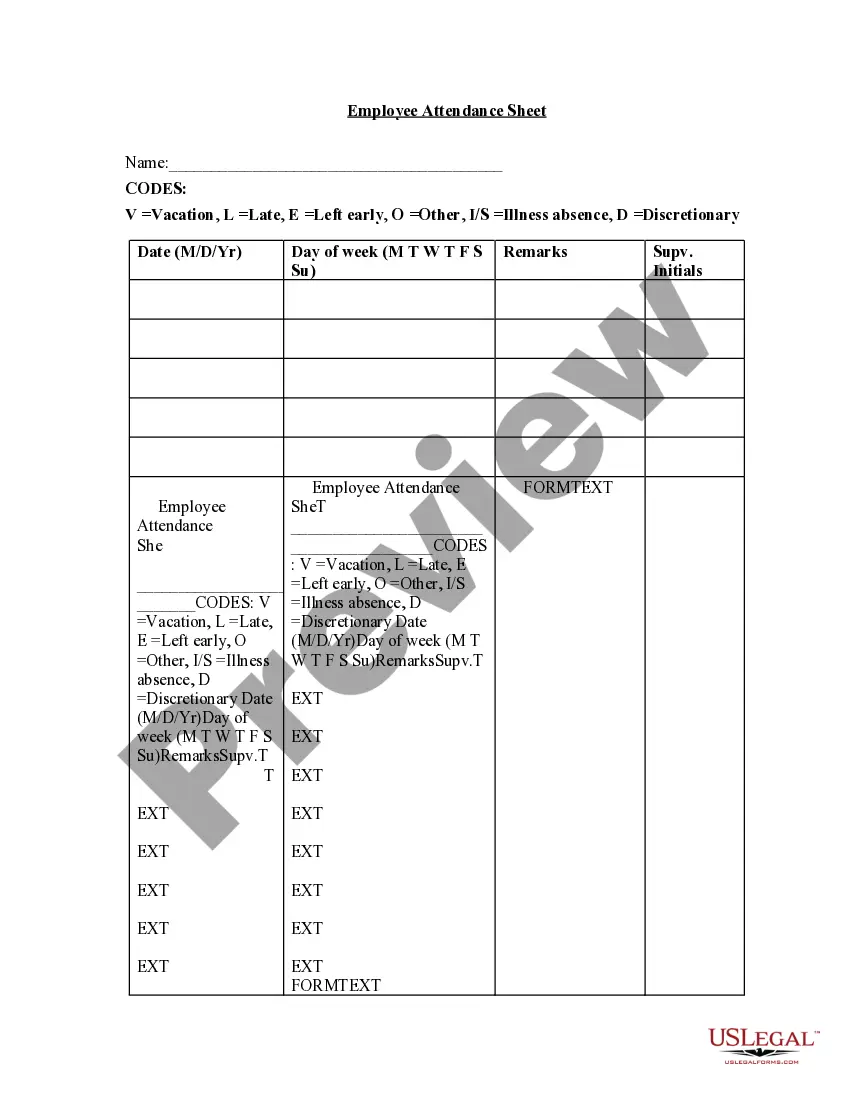
To add checkboxes in your attendance sheet for Excel, first enable the Developer tab in your Excel settings. Once you have access, select the checkbox option to insert them next to each name in the attendance list. This interactive feature allows you to quickly mark presence and absence, making your attendance tracking seamless. You can also explore templates on platforms like USLegalForms that offer ready-made solutions for your attendance sheet needs.
To create an efficient attendance sheet for Excel, start by opening a new spreadsheet. Label your columns with essential categories, such as name, date, and status. Next, you can format the cells to easily track attendance by filling in the data accordingly. This method allows you to customize the attendance sheet for Excel based on your specific needs.
To create an attendance form in Excel, you can design it using the formatting tools available. Lay out sections for the attendee's name, date, and areas for marking attendance. This structured approach will result in a user-friendly attendance sheet for Excel, making it simple to record and analyze attendance data.
Creating an attendance list can be achieved effectively in Excel. Start by setting up the document with headers like 'Attendee Name' and 'Attendance Date'. Enter the names and their corresponding attendance. Using an attendance sheet for Excel allows for easy adjustments and updates as attendance varies over time.
To make a work attendance sheet, open Excel and define your columns for employee names, dates, and attendance status. You can enhance the sheet by adding formulas to calculate absenteeism. Using an attendance sheet for Excel ensures that you maintain accurate and organized records of your team's attendance.
To create an attendance sheet in Excel step by step, follow these actions: First, open a new Excel workbook. Next, create column headers such as 'Name', 'Date', and 'Attendance'. Fill in your data accordingly and use formulas to track attendance. By doing so, you create an effective attendance sheet for Excel that simplifies monitoring attendance.
To make an attendance sheet in Word, start by selecting a table layout that suits your needs. You can add rows for names and columns for dates or attendance marks. While Word can help with basic attendance sheets, opting for an attendance sheet for Excel enables better data management and calculation capabilities.
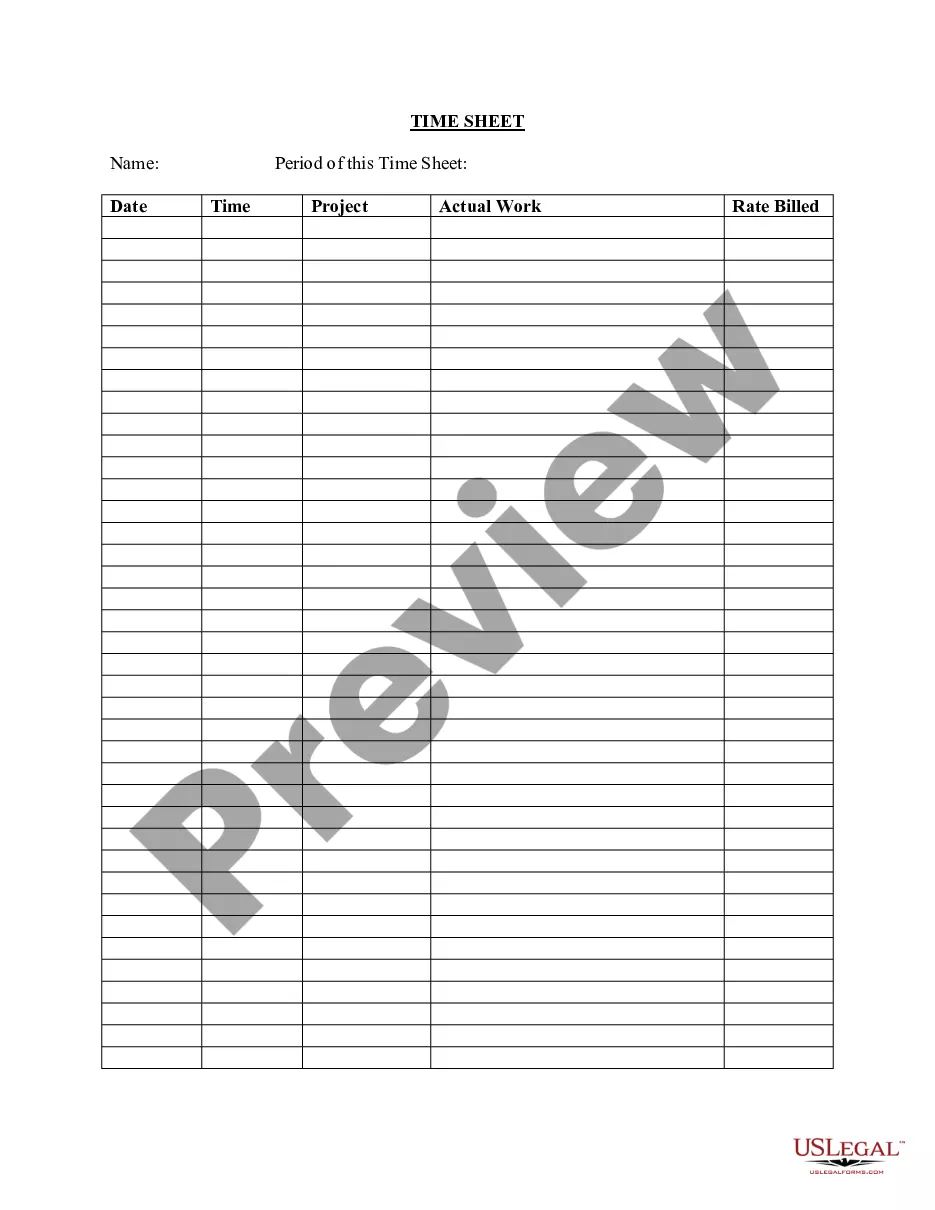
Creating a spreadsheet to track attendance involves opening Excel and setting up your columns. Label them with headings such as 'Name', 'Date', and 'Status'. Then, enter the relevant data under each heading. Using a well-structured attendance sheet for Excel helps you maintain clear records and easily review attendance patterns over time.
To count attendance in Excel, you can use the COUNT function. This formula tallies all entries for your specified range. For example, if you have a list of names in column A and their attendance marked in column B, you can use =COUNT(B1:B10) to count how many were present. This simple method makes managing your attendance sheet for Excel efficient and straightforward.
To print an attendance sheet from Excel, first ensure all your data is formatted correctly for printing. Go to the 'File' menu, select 'Print,' and choose your printing preferences. Once you are satisfied with the print preview, click the 'Print' button to finalize.