Daily Time Attendance Sheet In Excel
Description

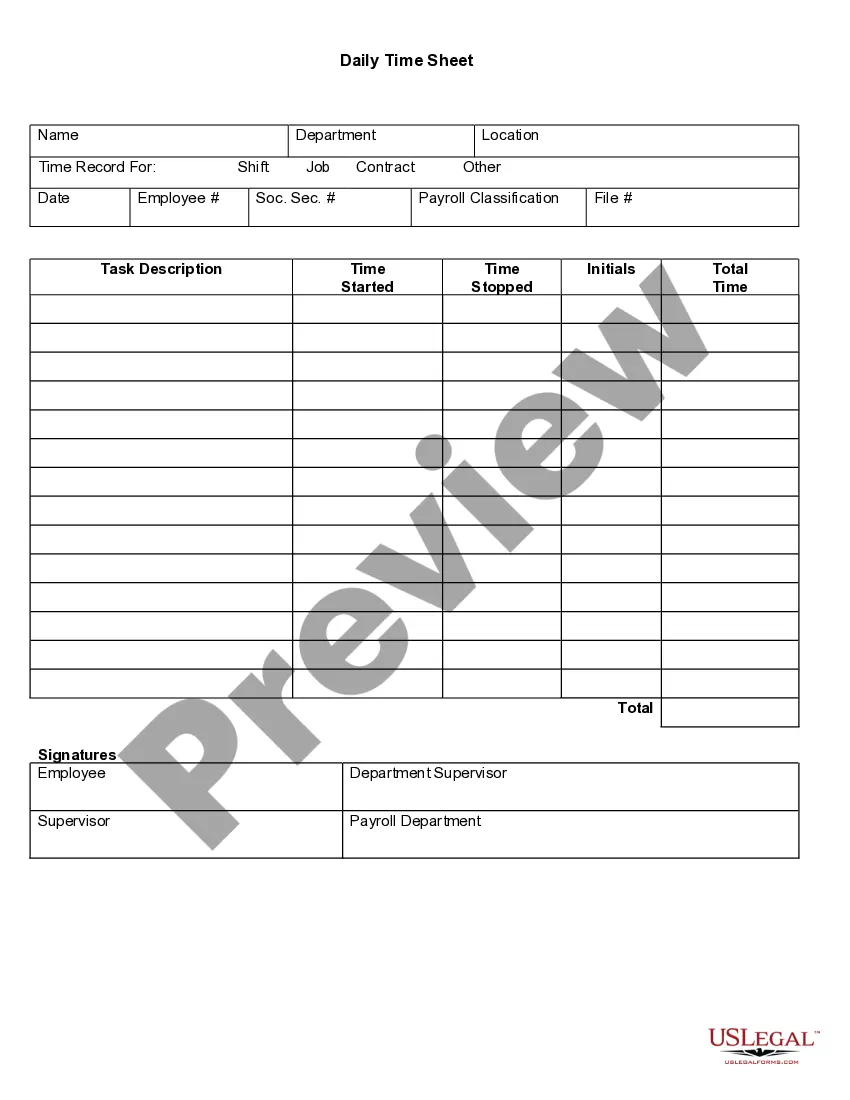
How to fill out Daily Time Sheet?
Creating legal documents from the ground up can occasionally be intimidating.
Certain situations may require extensive research and considerable expenses.
If you're seeking a simpler and more economical approach to producing a Daily Time Attendance Sheet in Excel or any other documentation without unnecessary complications, US Legal Forms is always available to assist you.
Our online repository of over 85,000 current legal forms covers nearly every aspect of your financial, legal, and personal matters. With just a few clicks, you can swiftly access state- and county-specific templates meticulously prepared by our legal professionals.
Examine the document preview and descriptions to confirm that you are viewing the correct document. Ensure that the template you select meets the standards of your state and county. Choose the appropriate subscription plan to obtain the Daily Time Attendance Sheet in Excel. Download the form, then complete, authenticate, and print it out. US Legal Forms boasts a solid reputation and over 25 years of experience. Join us today and simplify your form execution!
- Utilize our website whenever you require dependable services through which you can effortlessly locate and download the Daily Time Attendance Sheet in Excel.
- If you're familiar with our site and have previously registered with us, simply Log In to your account, choose the template, and download it or retrieve it later in the My documents section.
- Not signed up yet? No issue. Setting it up and browsing the library only takes a few minutes.
- However, before you start downloading the Daily Time Attendance Sheet in Excel, consider these suggestions.
Form popularity
FAQ
To create a daily countdown in Excel, you can use the formula =TODAY() to retrieve the current date, then subtract it from the target date. This will provide you with the number of days remaining until your event. Incorporating this feature in your daily time attendance sheet in Excel can add a dynamic element to your tracking setup. Utilizing countdowns can help keep your team motivated and focused on upcoming deadlines.
To create daily sheets in Excel, open a new spreadsheet and duplicate your attendance template for each day. You can rename each sheet with corresponding dates to keep track of your daily time attendance sheet in Excel. Utilizing Excel's 'Move or Copy' function allows you to create copies without starting from scratch, preserving all your formatting and formulas. This method makes managing daily attendance efficient and organized.
To make a daily attendance sheet in Excel, you should start a blank workbook and define columns for dates, employee names, and their attendance status. Regularly fill in this information to maintain your daily time attendance sheet in Excel. Consider adding formatted dropdown lists for attendance status to streamline data entry. This approach enhances data accuracy and facilitates better record-keeping of employee attendance patterns.
The formula for a daily timesheet in Excel typically includes calculations to sum total hours worked based on attendance marks. For example, you can use the formula =SUM(B2:B31) to add up hours from your daily time attendance sheet in Excel, where column B contains time entries. This allows you to efficiently track employee hours and manage payroll processing accurately. Implementing these formulas can significantly improve your attendance management.
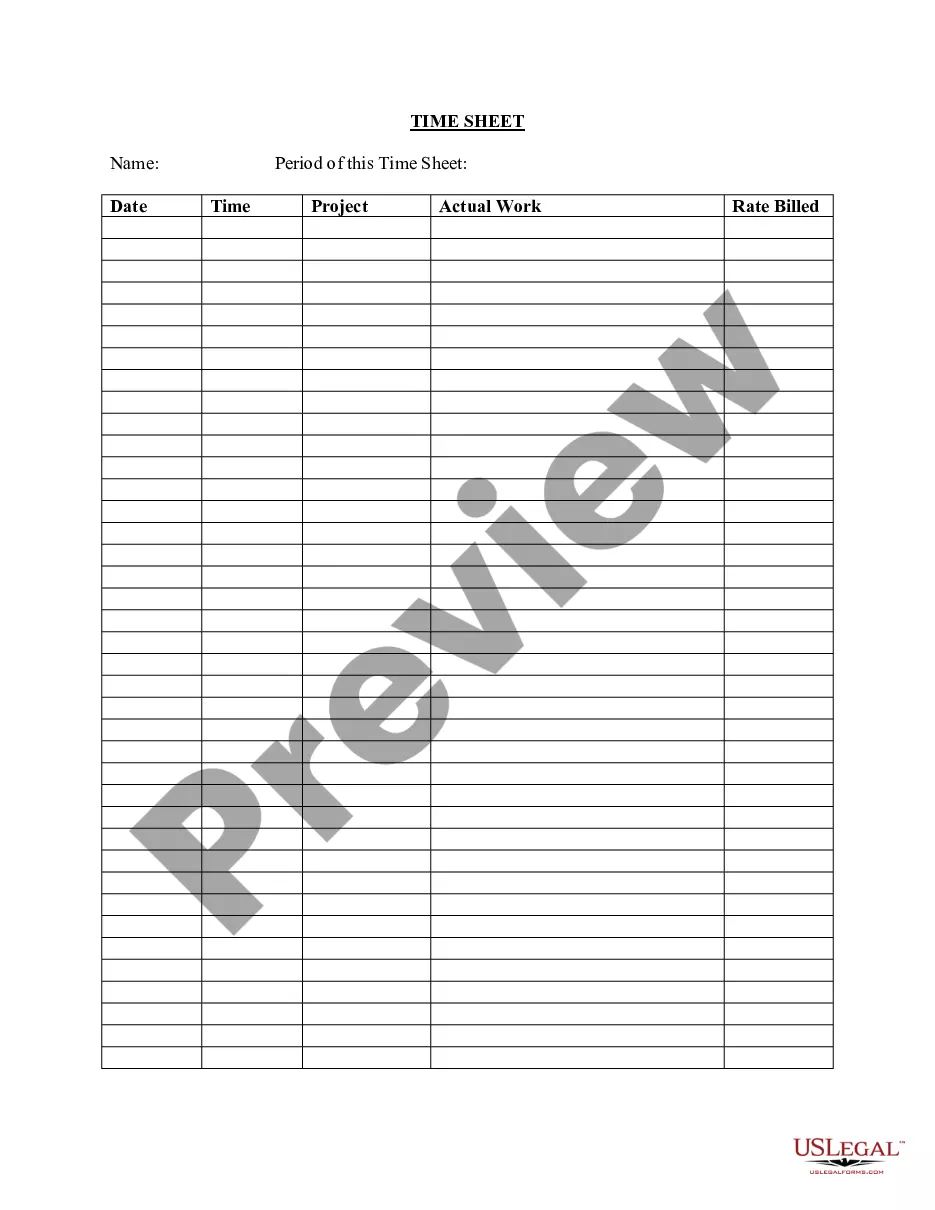
To create a daily attendance sheet in Excel, begin by opening a new workbook and labeling the first row with headings like Date, Employee Name, and Attendance Status. Fill in the relevant information for each day in the subsequent rows to maintain your daily time attendance sheet in Excel. Using Excel's table feature can help you organize your data better and apply filters for easy access. This setup keeps your attendance tracking efficient and manageable.
To autofill attendance in Excel, start by entering the date and the first few entries in your daily time attendance sheet in Excel. Use the fill handle, which is a small square at the bottom right of your selection, to drag downwards. Excel will replicate the pattern you've set, making it easy to complete the sheet with minimal effort. This feature saves time and ensures consistency across your attendance records.
Creating a daily time attendance sheet in Excel is simple. Start by opening Excel and selecting a blank workbook. You can then label the first row with relevant headings such as 'Employee Name', 'Date', 'Check-In Time', and 'Check-Out Time', ensuring clarity. Finally, format your cells for easy data entry, and consider using formulas to calculate total hours worked. This approach transforms your daily time attendance sheet in Excel into a valuable tool for tracking employee attendance.