Informant For Mac
Description



Get your form ready online
Our built-in tools help you complete, sign, share, and store your documents in one place.
Make edits, fill in missing information, and update formatting in US Legal Forms—just like you would in MS Word.
Download a copy, print it, send it by email, or mail it via USPS—whatever works best for your next step.
Sign and collect signatures with our SignNow integration. Send to multiple recipients, set reminders, and more. Go Premium to unlock E-Sign.
If this form requires notarization, complete it online through a secure video call—no need to meet a notary in person or wait for an appointment.
We protect your documents and personal data by following strict security and privacy standards.
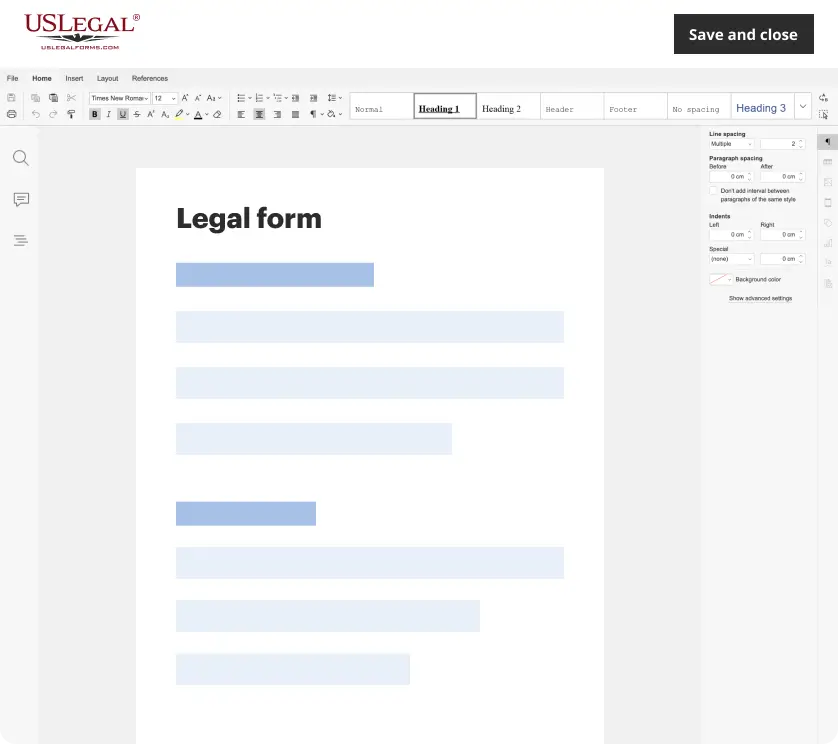
Make edits, fill in missing information, and update formatting in US Legal Forms—just like you would in MS Word.
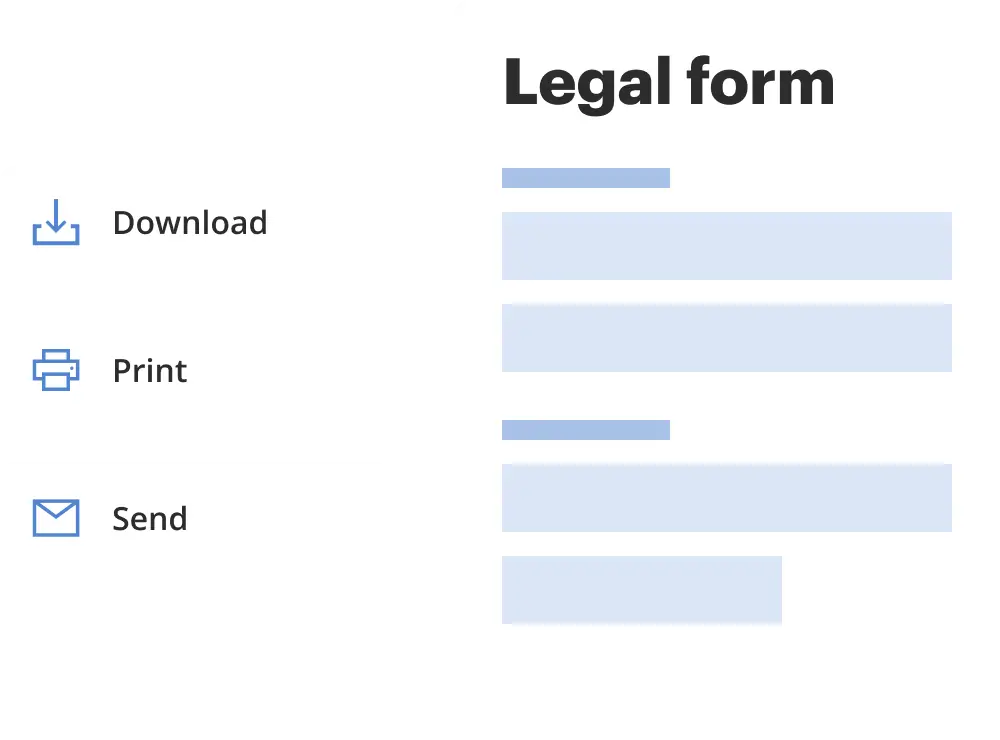
Download a copy, print it, send it by email, or mail it via USPS—whatever works best for your next step.
Sign and collect signatures with our SignNow integration. Send to multiple recipients, set reminders, and more. Go Premium to unlock E-Sign.

If this form requires notarization, complete it online through a secure video call—no need to meet a notary in person or wait for an appointment.
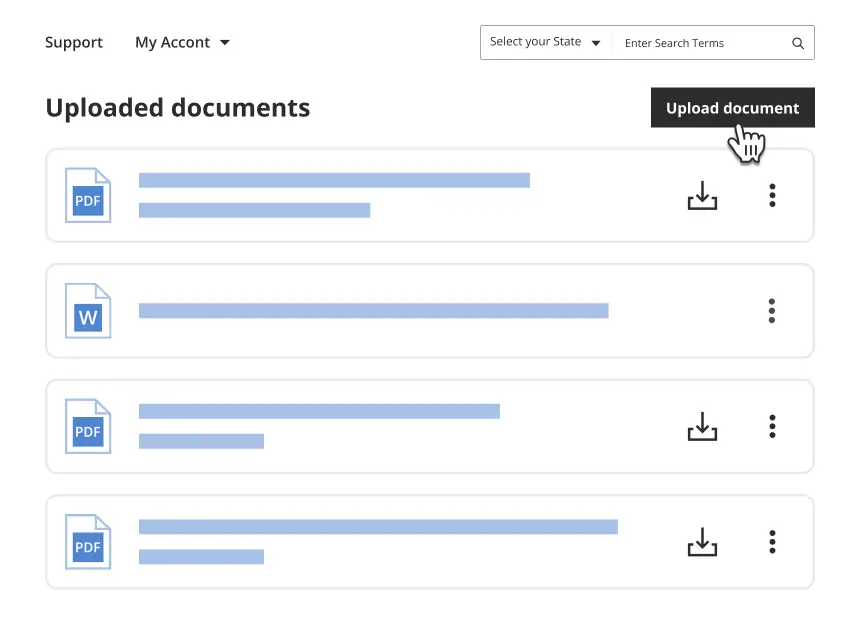
We protect your documents and personal data by following strict security and privacy standards.
Looking for another form?






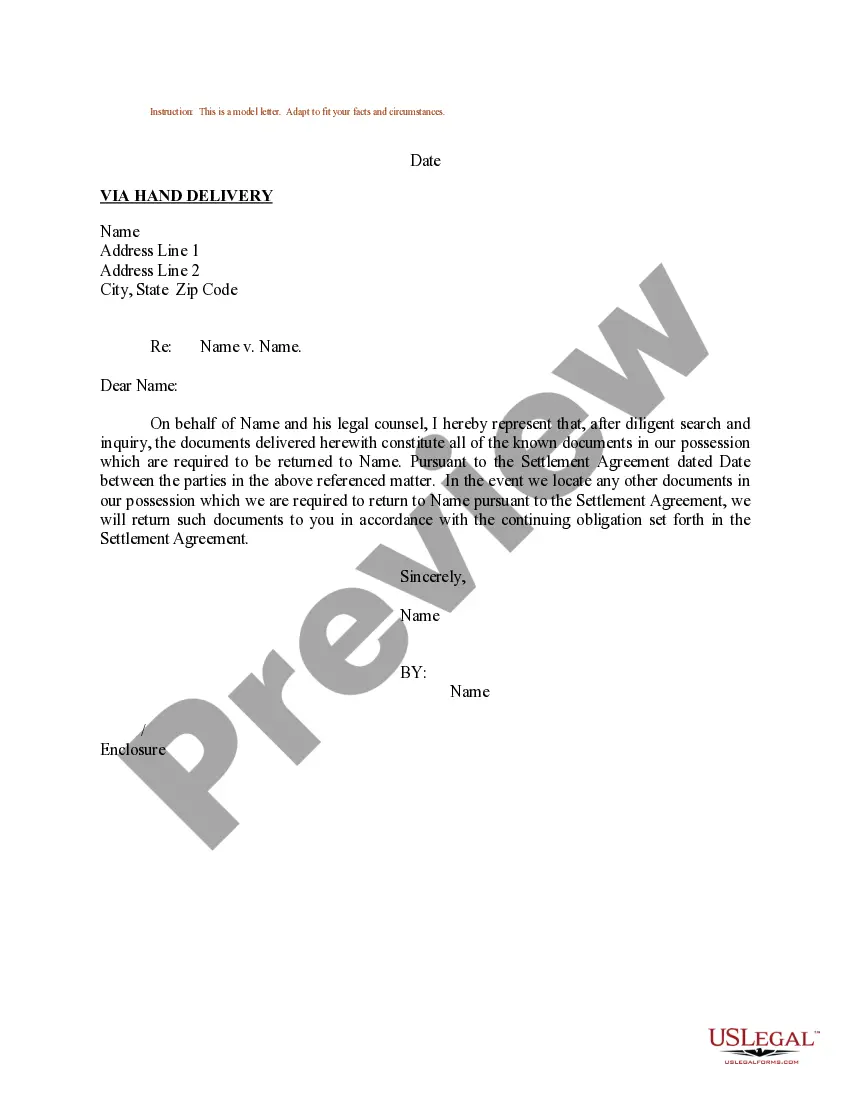



How to fill out Agreement Of Understanding With Confidential Informant?
Creating legal documents from the ground up can frequently be intimidating.
Certain situations might require extensive research and significant financial investment.
If you’re looking for a more straightforward and budget-friendly method to prepare Informant For Mac or any other document without unnecessary hassles, US Legal Forms is always accessible to you.
Our online library of over 85,000 current legal forms encompasses nearly every aspect of your financial, legal, and personal matters. With just a few clicks, you can swiftly obtain state- and county-compliant templates meticulously designed for you by our legal experts.
US Legal Forms enjoys an impeccable reputation and boasts over 25 years of experience. Join us today and transform form completion into a straightforward and efficient process!
- Utilize our website whenever you require a dependable and trustworthy service through which you can easily find and download the Informant For Mac.
- If you’re already familiar with our services and have previously set up an account with us, simply Log In to your account, choose the template and download it or re-download it anytime later in the My documents section.
- Not signed up yet? No worries. Registering takes very little time and allows you to browse the catalog.
- Before diving straight into downloading Informant For Mac, be sure to follow these guidelines.
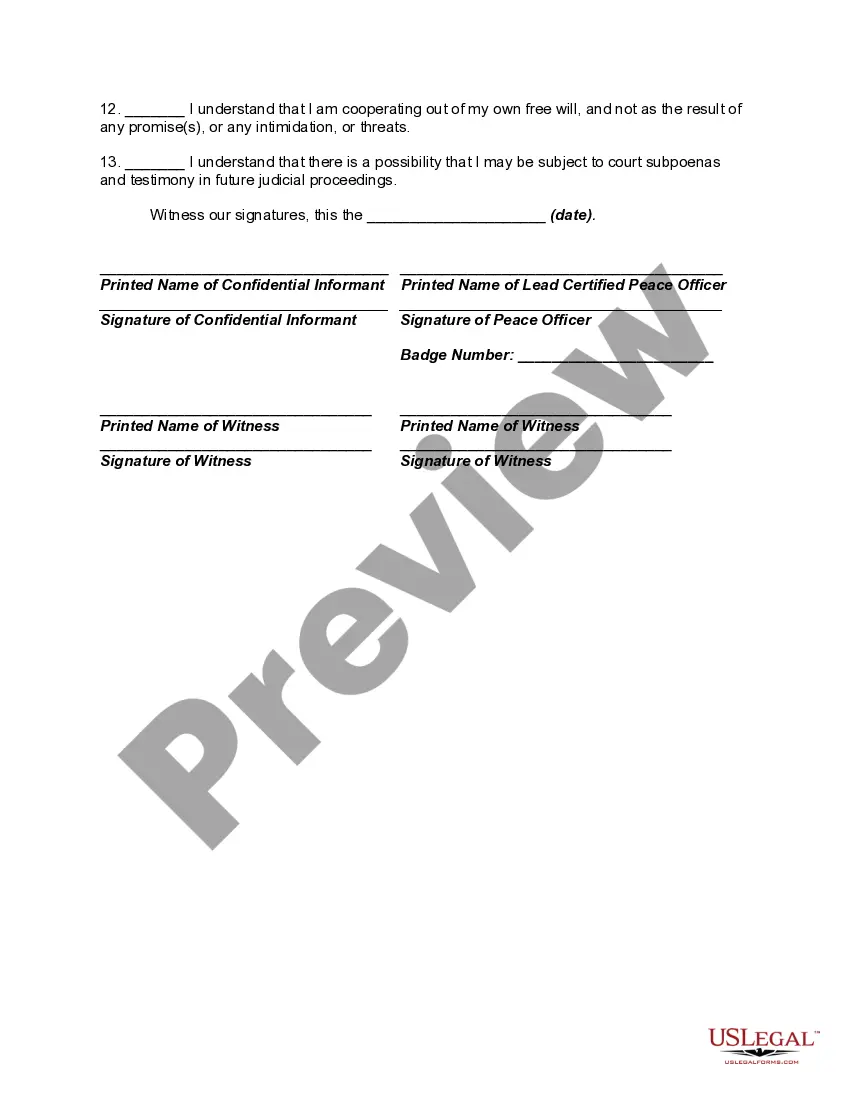
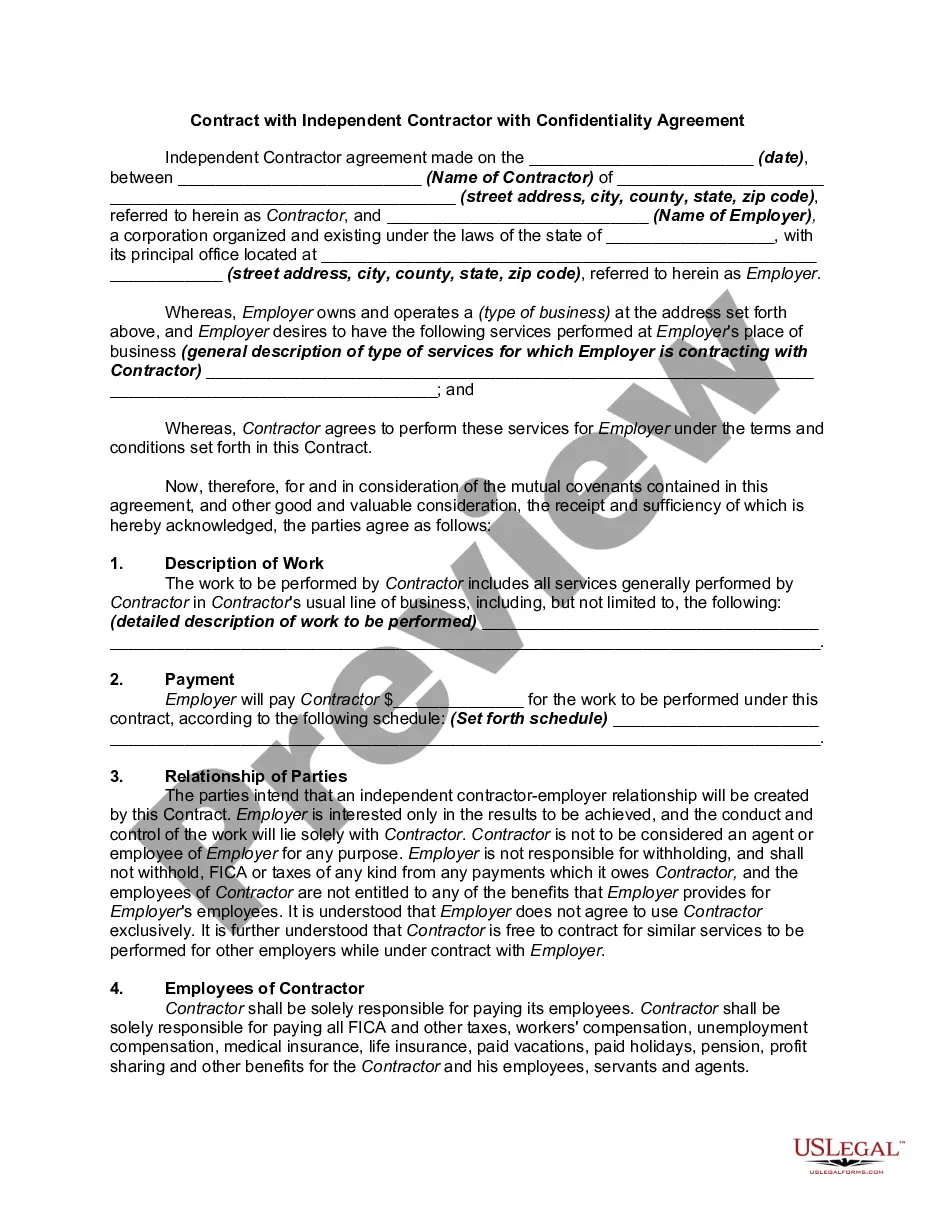
- Examine the document preview and descriptions to confirm that you have located the form you need.
Form popularity
FAQ
To allow someone access to your Apple calendar, open the Calendar app and right-click the calendar you wish to share. Select 'Share Calendar' and enter the individual's Apple ID email address. This method enables them to view or modify the calendar, maximizing collaboration through Informant for Mac.
If you need to unlock your calendar on your Mac, simply open the Calendar app and click on the locked calendar icon. You will be prompted to enter your password if it is password-protected. Once unlocked, you can manage your schedules freely, making the most of Informant for Mac's robust features.
To allow calendar access on your Mac, navigate to 'System Preferences' and select 'Security & Privacy.' From there, click on the 'Privacy' tab and find 'Calendars.' Ensure the apps you want to grant access to are checked, helping you utilize all features available in Informant for Mac without hassle.
Allowing access to your Calendar on Mac is straightforward. Open the Calendar app and go to 'Preferences.' Click on the 'Accounts' tab, then select the account you wish to manage. Adjust the settings to enable sharing, making it easy for others to connect and work with your schedule via Informant for Mac.
To get the Calendar widget on your Mac desktop, first, open the 'Notification Center' by clicking the date and time in the menu bar. Next, scroll to the 'Today' view, and click on 'Edit' at the bottom. Here, you can add the Calendar widget, allowing you easy access to your schedule right from your desktop while using Informant for Mac.
To allow access to a shared calendar on your Mac, open the Calendar app and locate the calendar you want to share. Right-click on the calendar name, select 'Share Calendar,' and then enter the email address of the person you want to share it with. This way, you enable others to view or edit the calendar, enhancing collaboration through Informant for Mac.
Yes, you can create a separate Apple Calendar by accessing the Calendar app on your Mac. Click on 'File,' then select 'New Calendar,' and customize it as needed. This helps you organize different aspects of your life distinctly. Plus, with Informant for Mac, you can manage this calendar alongside other important planning tools.
To create a new Calendar, open your Calendar app and navigate to the 'File' menu. Select 'New Calendar' and input your desired name. This feature allows you to categorize your schedules effectively. Additionally, if you use Informant for Mac, you can integrate various tasks and notes seamlessly into your new calendar.
Creating a new Calendar on your Mac is simple. Start by launching the Calendar app, and then go to 'File' and choose 'New Calendar.' Enter a name that makes sense for your organizational needs. With Informant for Mac, these calendars sync seamlessly, ensuring that all your events are easily accessible.
To make a new calendar on your Mac, open the Calendar app and look for the 'File' menu at the top left. Next, select 'New Calendar' from the dropdown options. This action will prompt you to choose a name for your calendar, allowing you to stay organized. With Informant for Mac, you can easily manage this calendar along with your other scheduling tools.