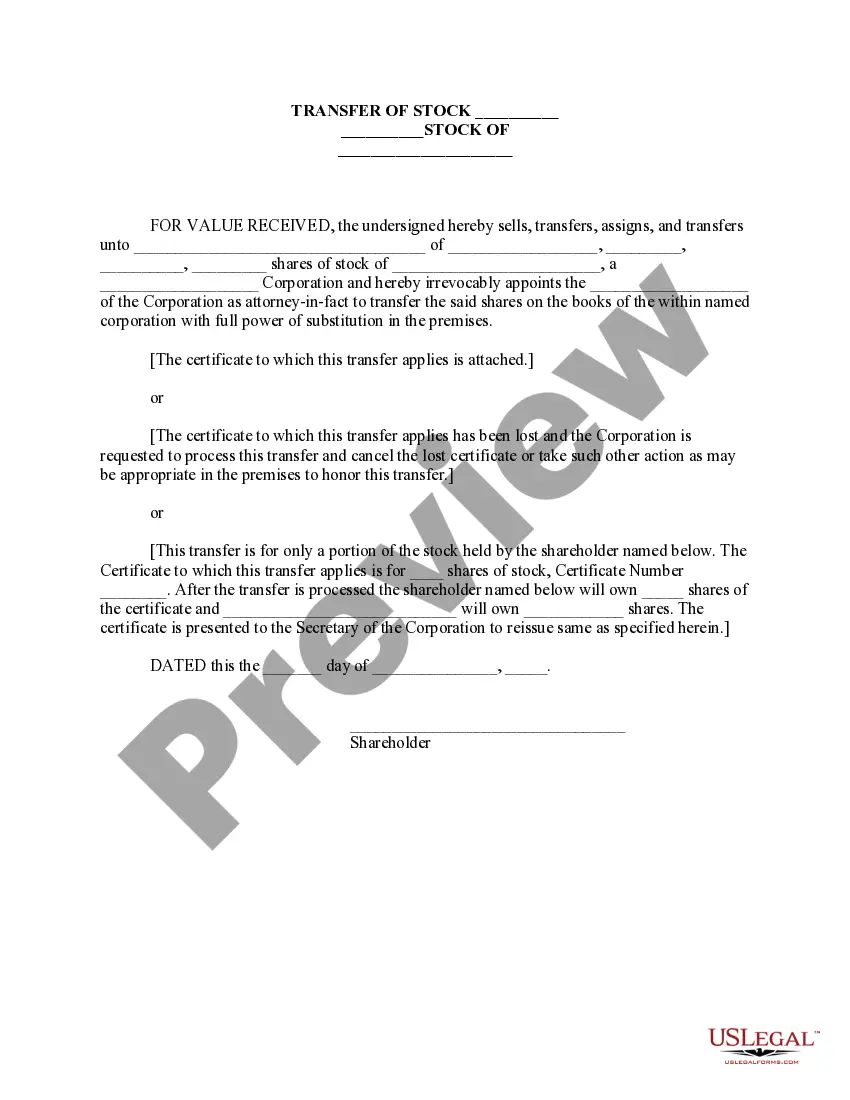
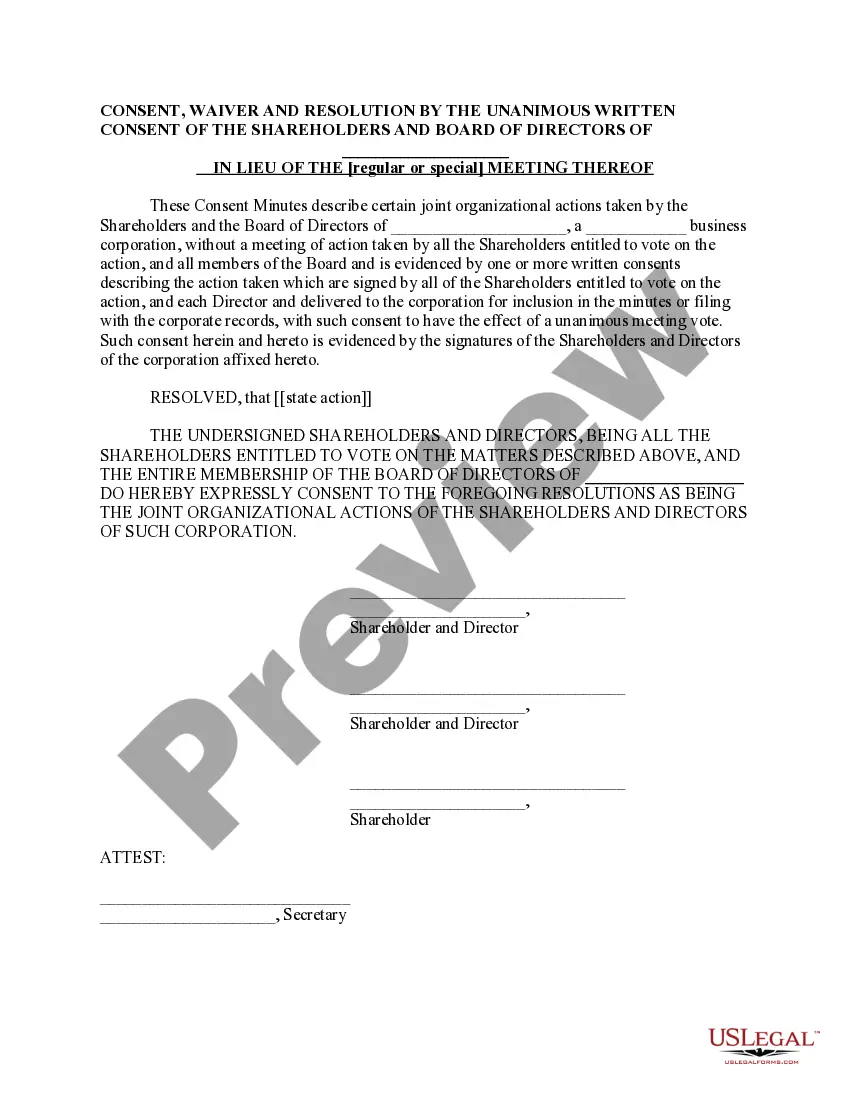
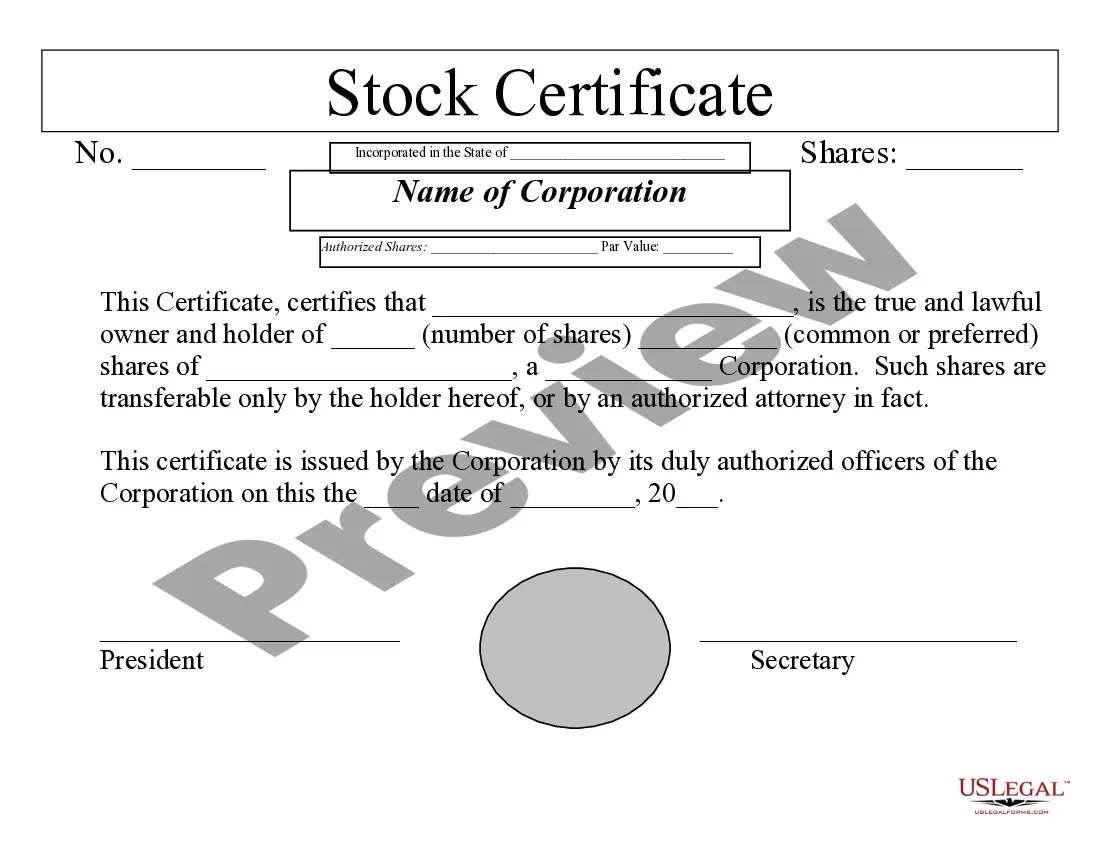
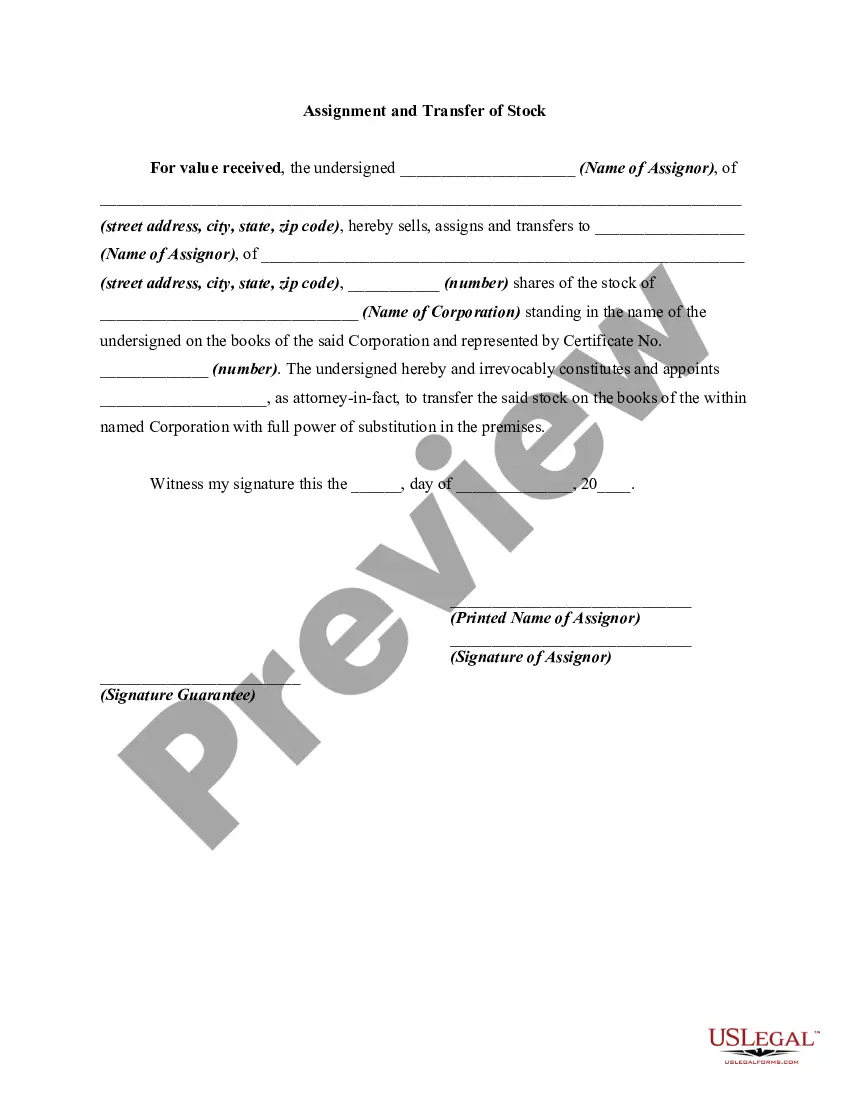
Corporation Document Without Comments
Description
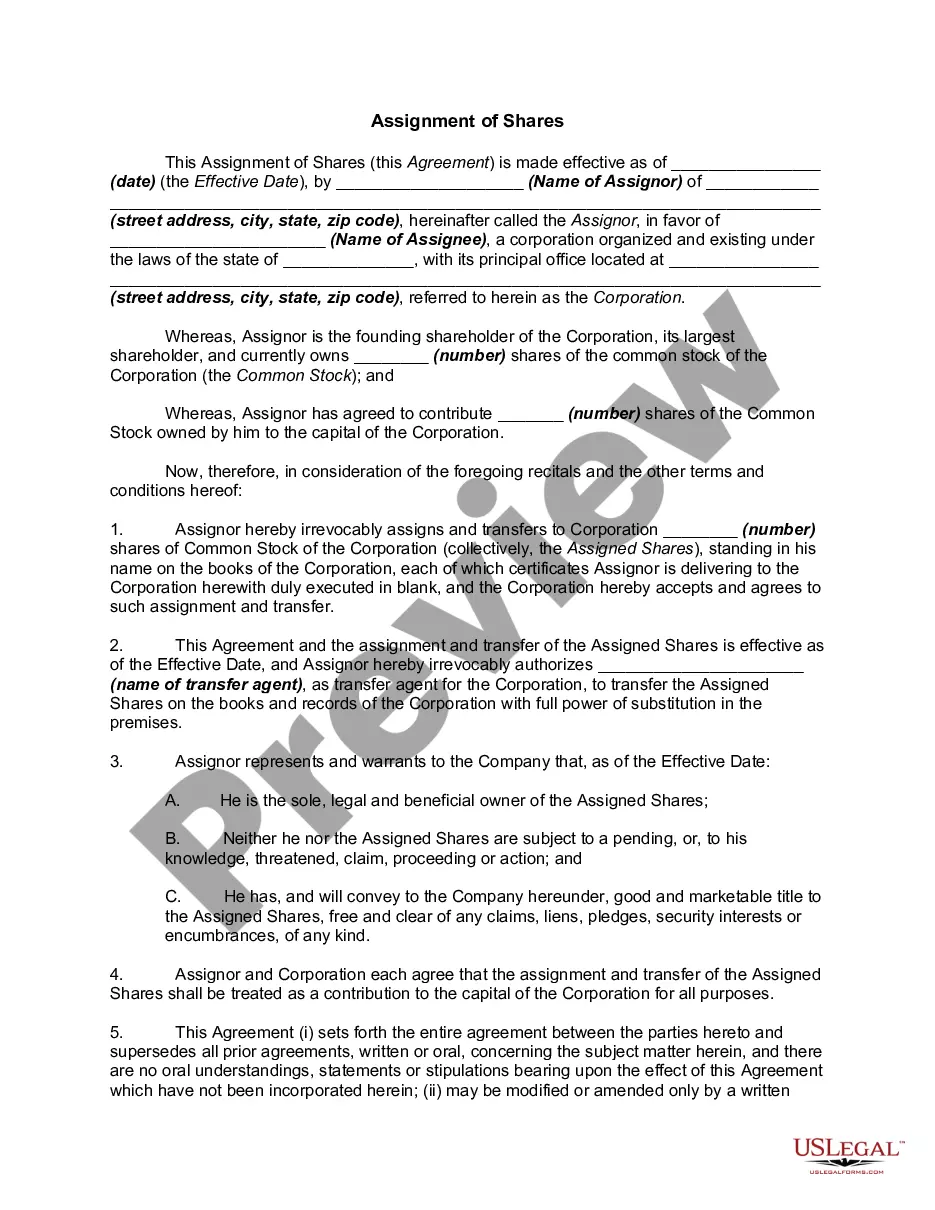
Get your form ready online
Our built-in tools help you complete, sign, share, and store your documents in one place.
Make edits, fill in missing information, and update formatting in US Legal Forms—just like you would in MS Word.
Download a copy, print it, send it by email, or mail it via USPS—whatever works best for your next step.
Sign and collect signatures with our SignNow integration. Send to multiple recipients, set reminders, and more. Go Premium to unlock E-Sign.
If this form requires notarization, complete it online through a secure video call—no need to meet a notary in person or wait for an appointment.
We protect your documents and personal data by following strict security and privacy standards.
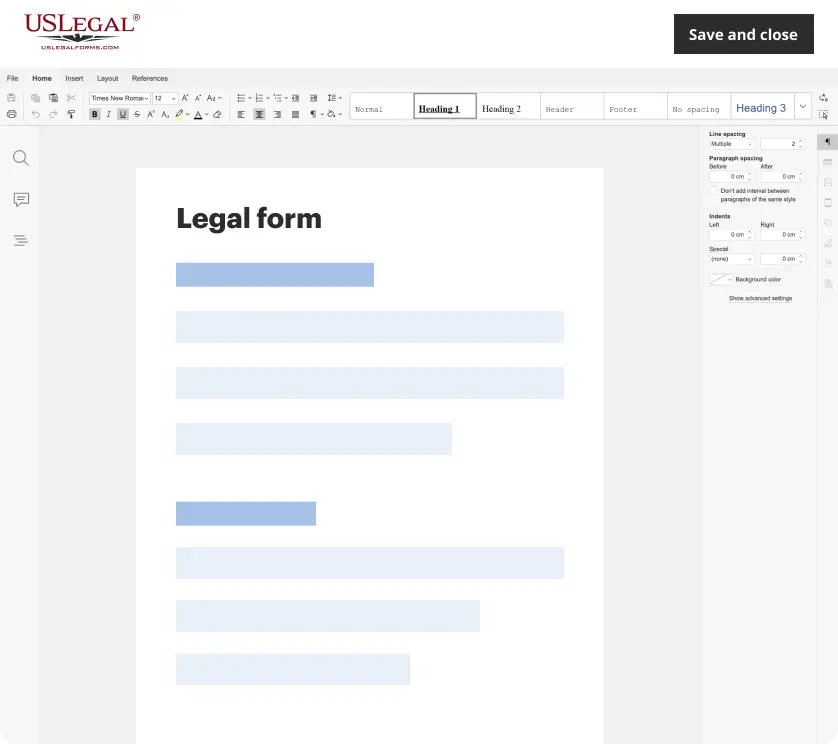
Make edits, fill in missing information, and update formatting in US Legal Forms—just like you would in MS Word.
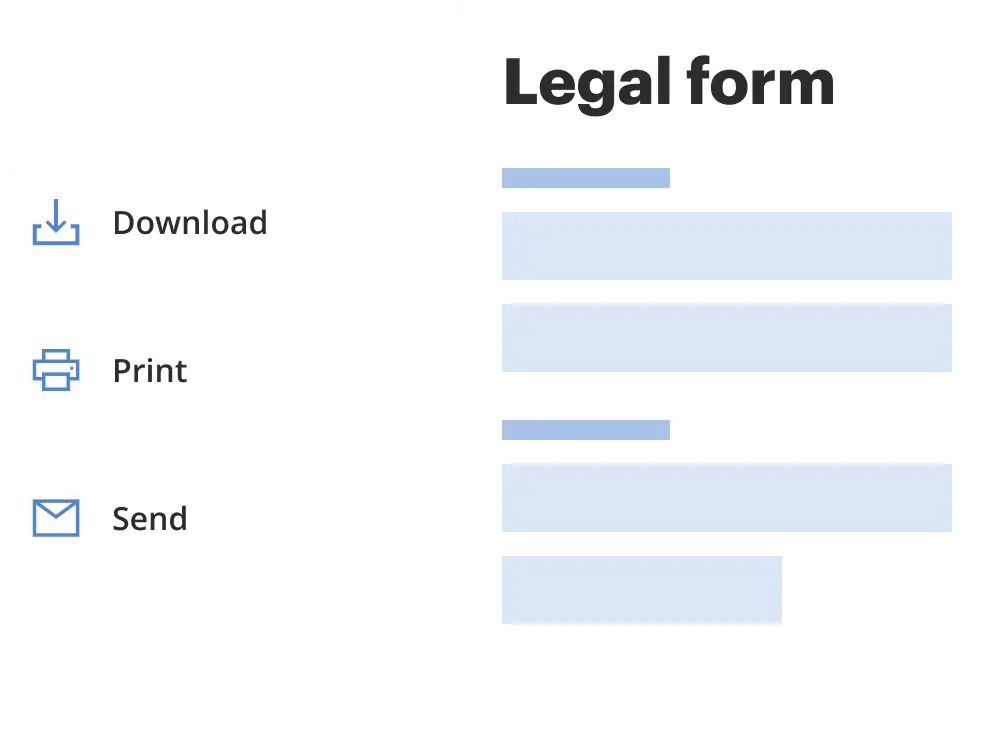
Download a copy, print it, send it by email, or mail it via USPS—whatever works best for your next step.
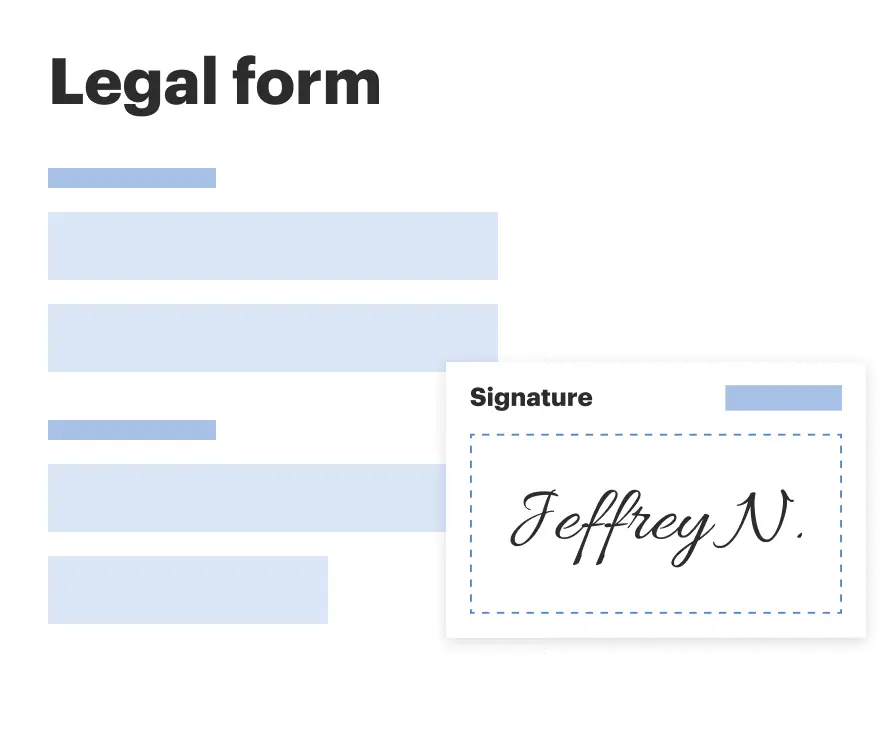
Sign and collect signatures with our SignNow integration. Send to multiple recipients, set reminders, and more. Go Premium to unlock E-Sign.

If this form requires notarization, complete it online through a secure video call—no need to meet a notary in person or wait for an appointment.
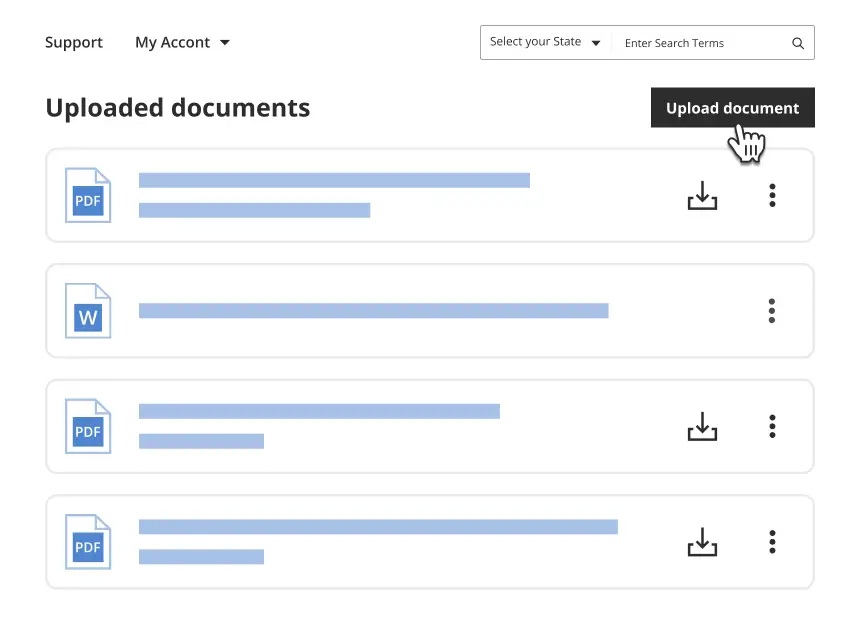
We protect your documents and personal data by following strict security and privacy standards.
Looking for another form?
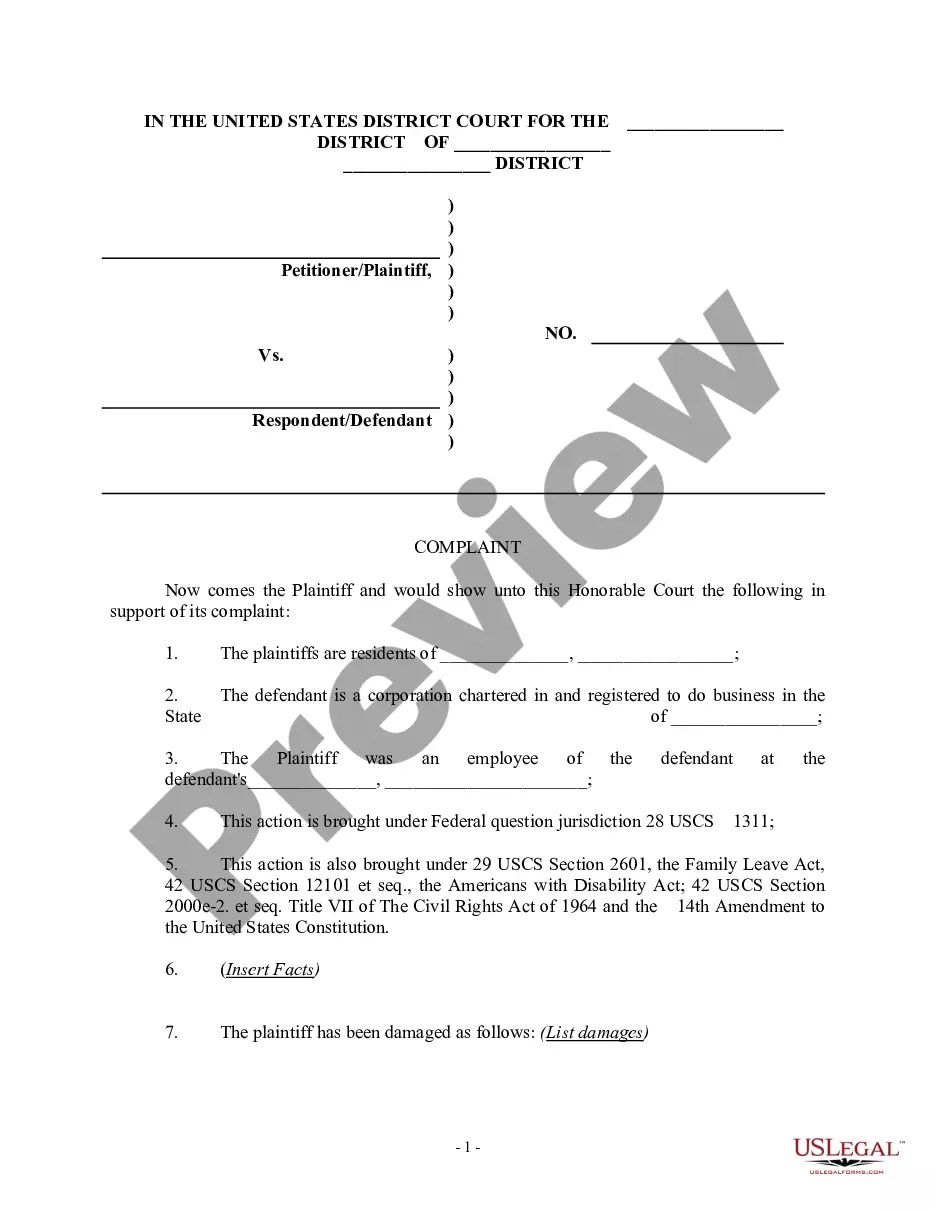
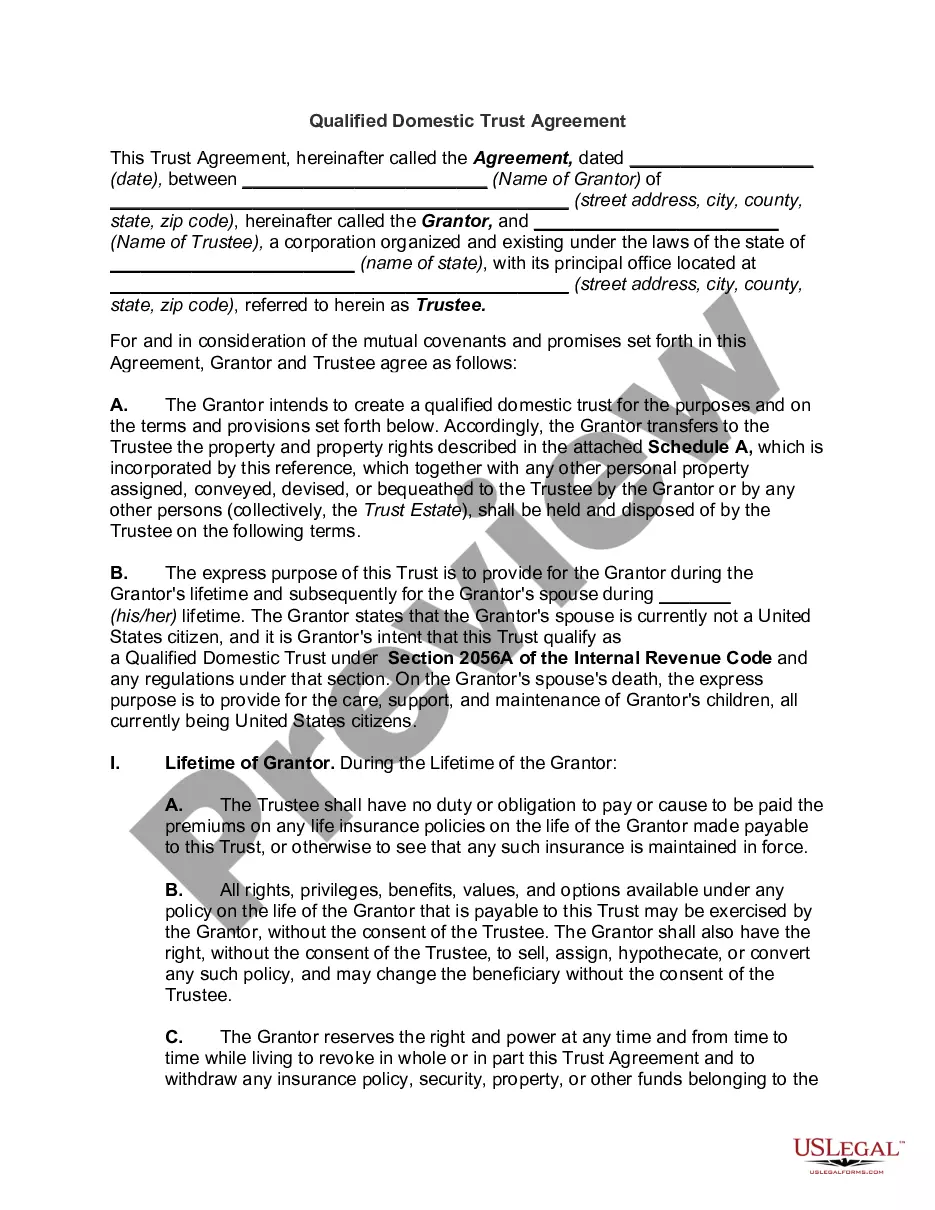
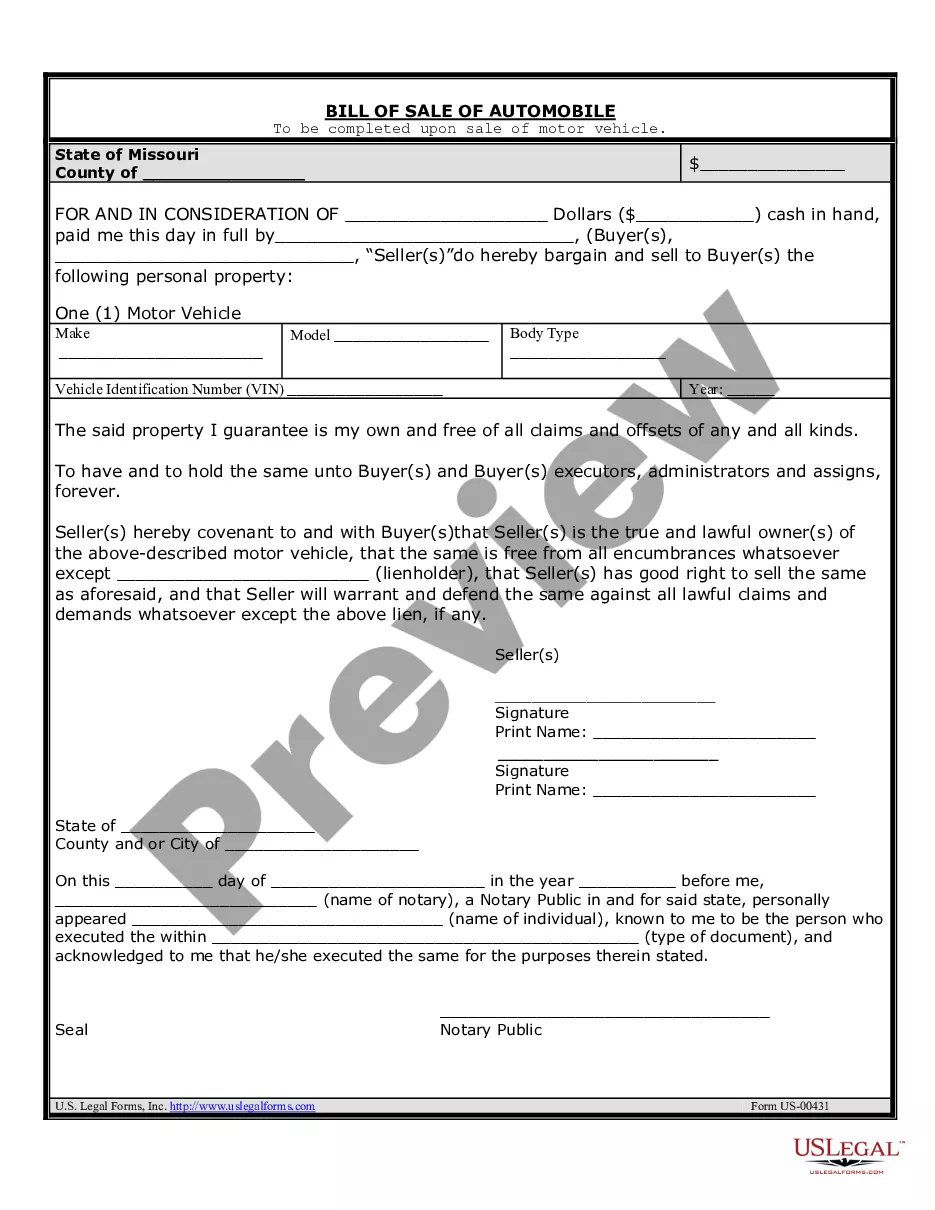
How to fill out Corporation - Transfer Of Stock?
The Corporation Document Without Comments you see on this page is a reusable formal template drafted by professional lawyers in accordance with federal and local laws. For more than 25 years, US Legal Forms has provided people, businesses, and attorneys with more than 85,000 verified, state-specific forms for any business and personal occasion. It’s the fastest, easiest and most reliable way to obtain the paperwork you need, as the service guarantees the highest level of data security and anti-malware protection.
Obtaining this Corporation Document Without Comments will take you only a few simple steps:
- Browse for the document you need and check it. Look through the sample you searched and preview it or check the form description to confirm it satisfies your requirements. If it does not, utilize the search option to get the appropriate one. Click Buy Now once you have found the template you need.
- Sign up and log in. Opt for the pricing plan that suits you and register for an account. Use PayPal or a credit card to make a quick payment. If you already have an account, log in and check your subscription to proceed.
- Get the fillable template. Pick the format you want for your Corporation Document Without Comments (PDF, DOCX, RTF) and download the sample on your device.
- Complete and sign the paperwork. Print out the template to complete it manually. Alternatively, utilize an online multi-functional PDF editor to quickly and precisely fill out and sign your form with a eSignature.
- Download your paperwork one more time. Utilize the same document again whenever needed. Open the My Forms tab in your profile to redownload any previously downloaded forms.
Subscribe to US Legal Forms to have verified legal templates for all of life’s scenarios at your disposal.
Form popularity
FAQ
There are two ways you can delete or remove comments from a Word document: To delete a single comment in the document, right-click the comment, and choose Delete Comment. To delete all the comments in the document, go to the Review tab, click the down-arrow on Delete, and choose Delete All Comments in Document.
Go to File > Options > Trust Center > Trust Center Settings > Privacy Options. Under the "Document-specific settings" heading, uncheck the box for "Make hidden markup visible when opening or saving". (Despite the heading, this option applies to all documents you open.)
If you don't want to permanently delete your comments, but you also don't want to have any on display, you can hide all your comments in Word: Click Review to show all the options. Under Tracking, click Show Markup. Click on comments to deselect and hide your comments.
To review changes one at a time, click Review then Accept or Reject. To finalize the document all at once, click Accept All Changes or Reject All Changes. On the Review tab, in the Comments group, click the arrow below Delete, then click Delete All Comments in Document.
Remove tracked changes Click at the beginning of the document. On the Review tab, go to Changes. Select Accept or Reject. As you accept or reject changes, Word will move to the next change. Repeat until you've removed all changes in the document.