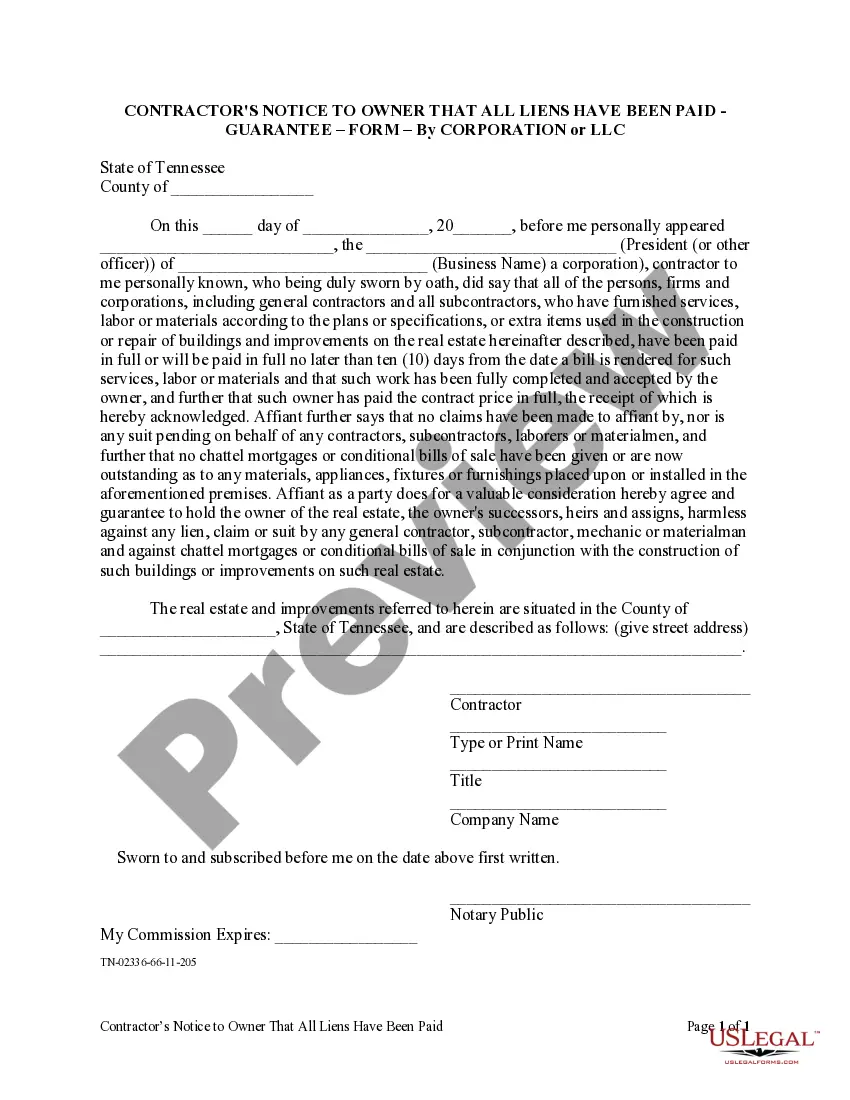
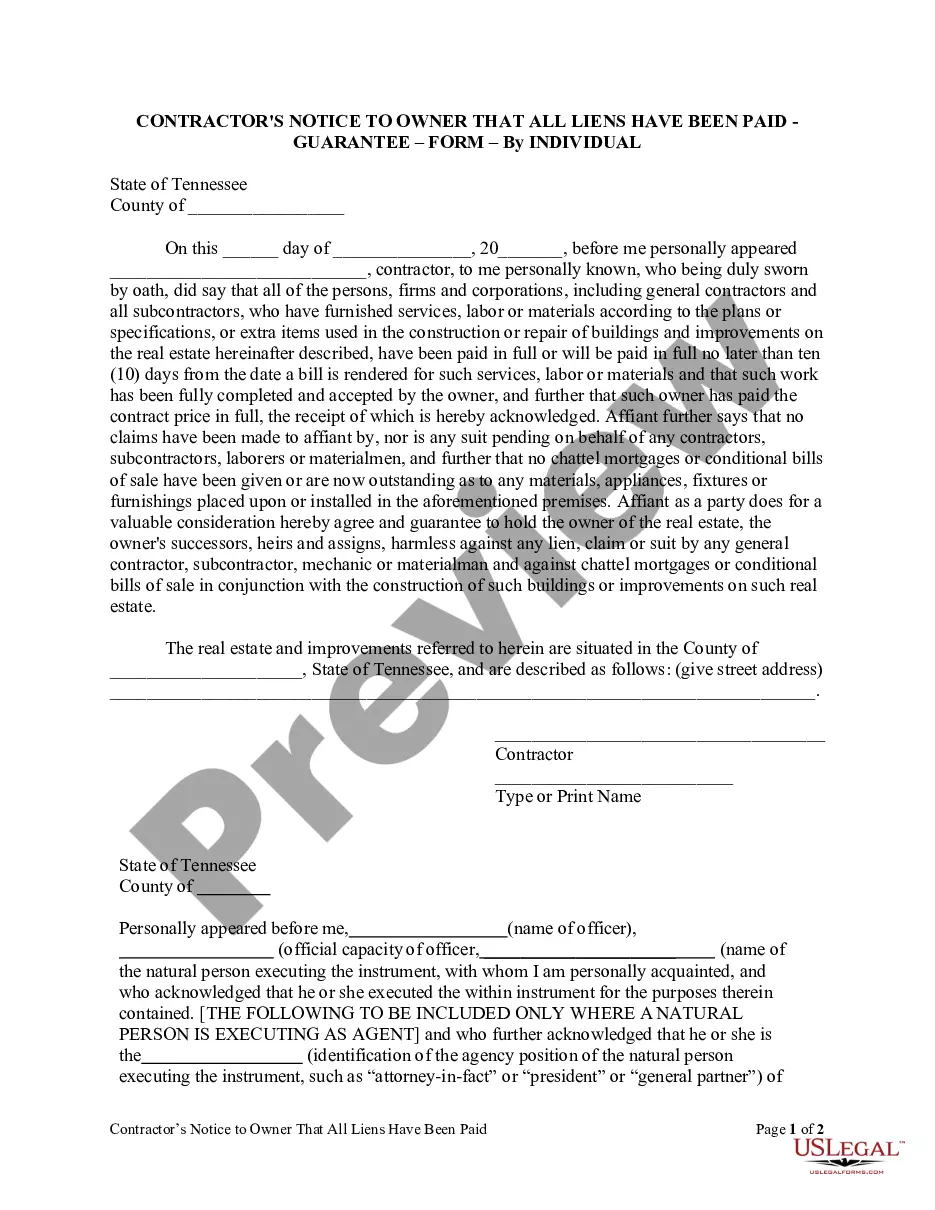
Owner Any Paid With The Help Of
Description
Get your form ready online
Our built-in tools help you complete, sign, share, and store your documents in one place.
Make edits, fill in missing information, and update formatting in US Legal Forms—just like you would in MS Word.
Download a copy, print it, send it by email, or mail it via USPS—whatever works best for your next step.
Sign and collect signatures with our SignNow integration. Send to multiple recipients, set reminders, and more. Go Premium to unlock E-Sign.
If this form requires notarization, complete it online through a secure video call—no need to meet a notary in person or wait for an appointment.
We protect your documents and personal data by following strict security and privacy standards.
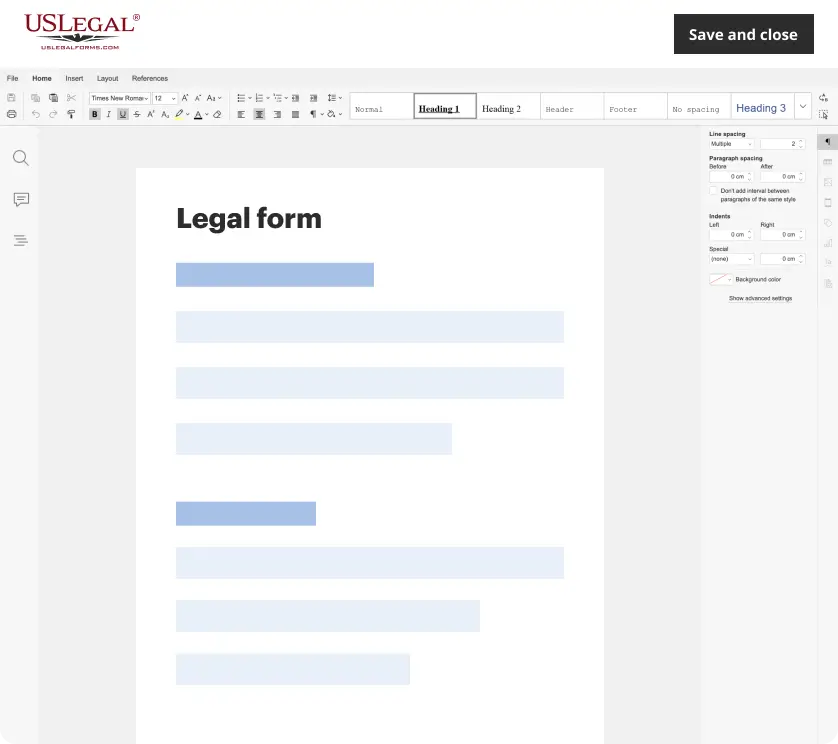
Make edits, fill in missing information, and update formatting in US Legal Forms—just like you would in MS Word.
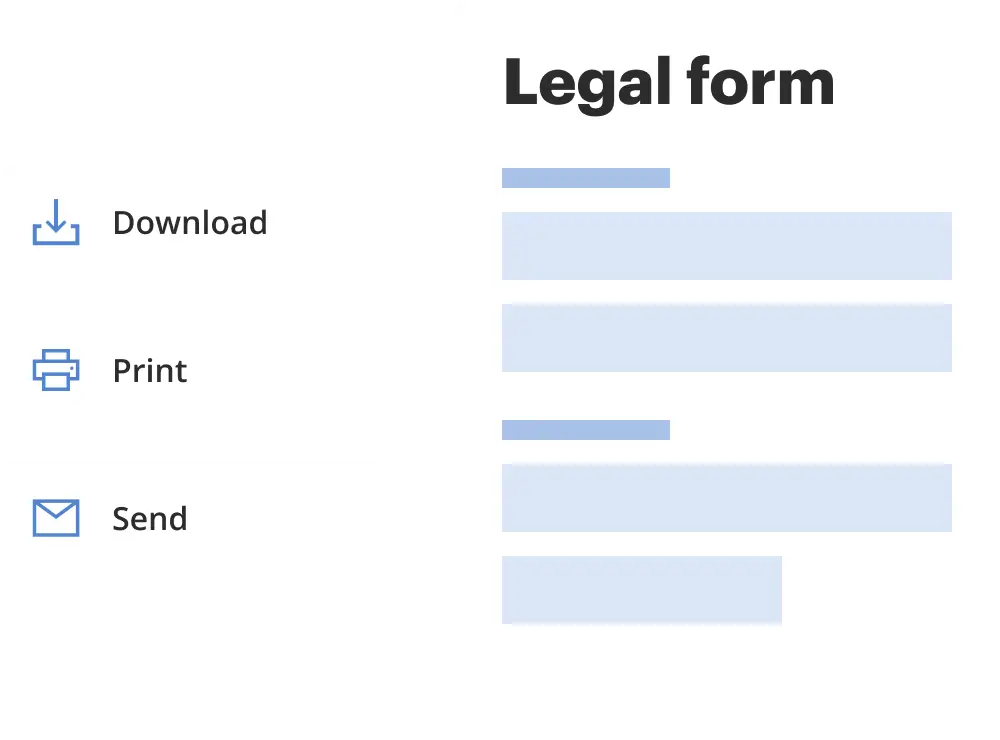
Download a copy, print it, send it by email, or mail it via USPS—whatever works best for your next step.
Sign and collect signatures with our SignNow integration. Send to multiple recipients, set reminders, and more. Go Premium to unlock E-Sign.
If this form requires notarization, complete it online through a secure video call—no need to meet a notary in person or wait for an appointment.
We protect your documents and personal data by following strict security and privacy standards.
Looking for another form?
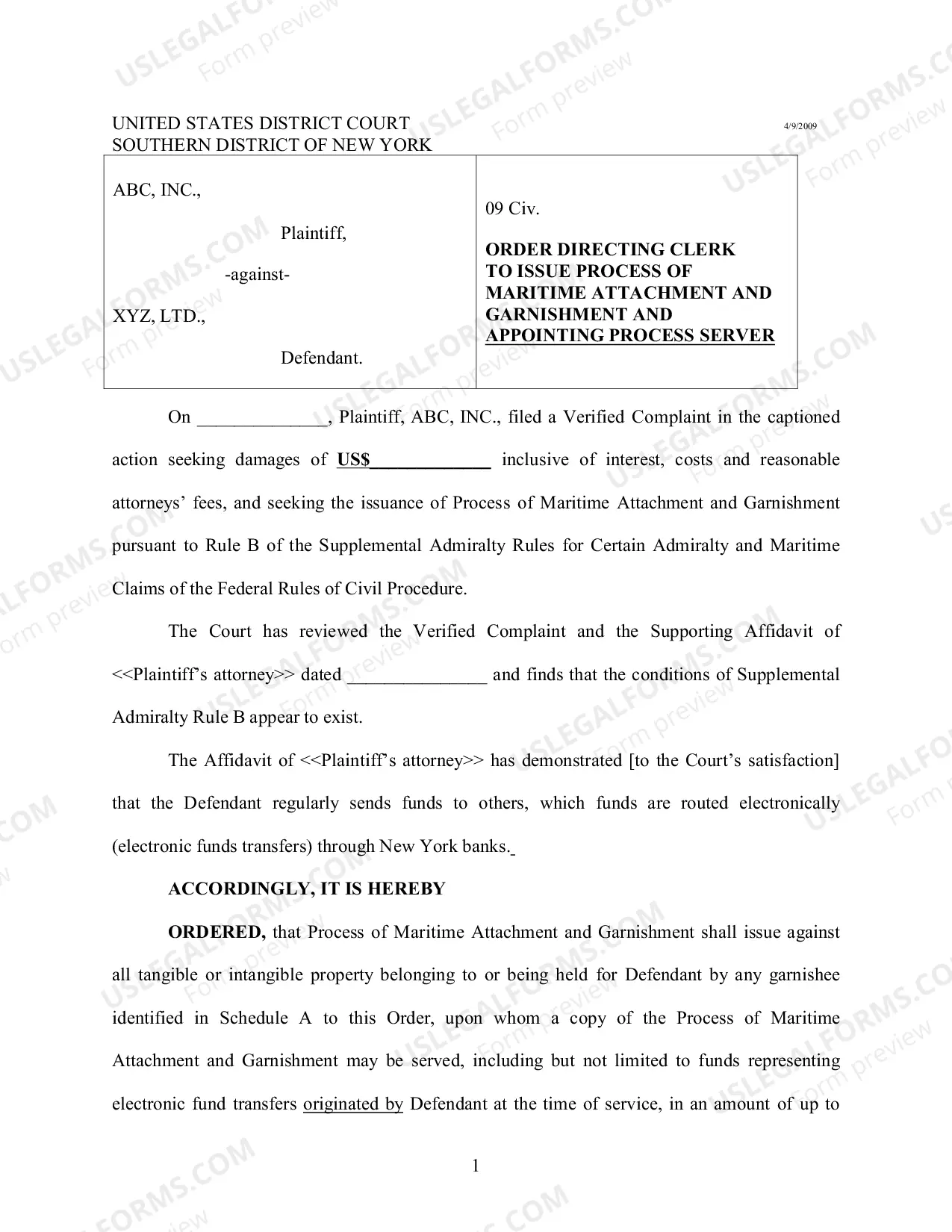
How to fill out Tennessee Contractor's Notice To Owner That All Liens Paid In Full - Corporation?
- Review the available templates in preview mode. Confirm that the selected form aligns with your requirements and complies with local jurisdiction regulations.
- Search for alternative templates if your chosen option has discrepancies. Utilize the Search function to find a suitable document and proceed when you're ready.
- Purchase the selected document. Click on the Buy Now button and select your preferred subscription plan. Create an account to unlock access to the extensive library.
- Complete your transaction. Enter your payment details via credit card or PayPal to finalize your subscription and access premium content.
- Download your selected form. Save it to your device for immediate use, and it will be accessible anytime from the My Forms section of your account.
By following these straightforward steps, you can easily acquire the legal documents you need. With US Legal Forms’ extensive library of over 85,000 forms, users can ensure they find the perfect match for their requirements.
Start navigating the complexities of legal documentation today! Sign up for US Legal Forms and experience hassle-free access to an array of legal resources tailored to your needs.
Form popularity
FAQ
Yes, owner draws do count as income but are treated differently for tax purposes. They are not subject to self-employment taxes initially, unlike salary payments. However, these draws reduce the overall equity in the business. For assistance in managing your finances, consider utilizing US Legal Forms, which offers resources on how to document and track your draws accurately.
When an owner pays himself, it is typically referred to as an owner's draw or salary. The term used often depends on the business structure. For sole proprietors, it is commonly called an owner's draw, while owners of corporations often use salary. Understanding these terms can help you manage your finances effectively.
Deciding whether to take an owner's draw or salary depends on various factors. An owner's draw allows you to withdraw profits from your business as needed, providing flexibility for personal expenses. On the other hand, a salary creates consistency and ensures tax withholding. Consult US Legal Forms for documents and guidelines that clarify the implications of both methods for your business.
Take ownership permission allows a user to claim ownership of files or folders that they do not initially control. Securing this permission enables you to manage and adjust access settings freely, enhancing your control over the files and folders in your environment. This feature is especially useful for managing shared resources efficiently.
To see the creator of a folder, right-click on the folder and select 'Properties.' Navigate to the 'Details' tab. The owner's name, often the creator of the folder, typically appears, which helps you understand who originally set up the directory and manage permissions accordingly.
The owner of a file is the user account that holds primary control over that file, which can include permission to edit, delete, or transfer ownership. This detail is critical in file management, especially in shared environments. Finding out who the owner is allows you to efficiently collaborate and share resources as needed.
To see the owner of a file, right-click on the file and choose 'Properties.' Then, go to the 'Security' tab and click on 'Advanced.' Here, you will find the owner's name prominently displayed, which empowers you to understand access and make informed decisions regarding file management.
To find the owner of a file, right-click on the file, select 'Properties,' and then navigate to the 'Security' tab. From there, click on 'Advanced,' where you will see the current owner listed at the top. Knowing who the owner is can help you understand access rights and make decisions transferring ownership if needed.