Recording
About this form
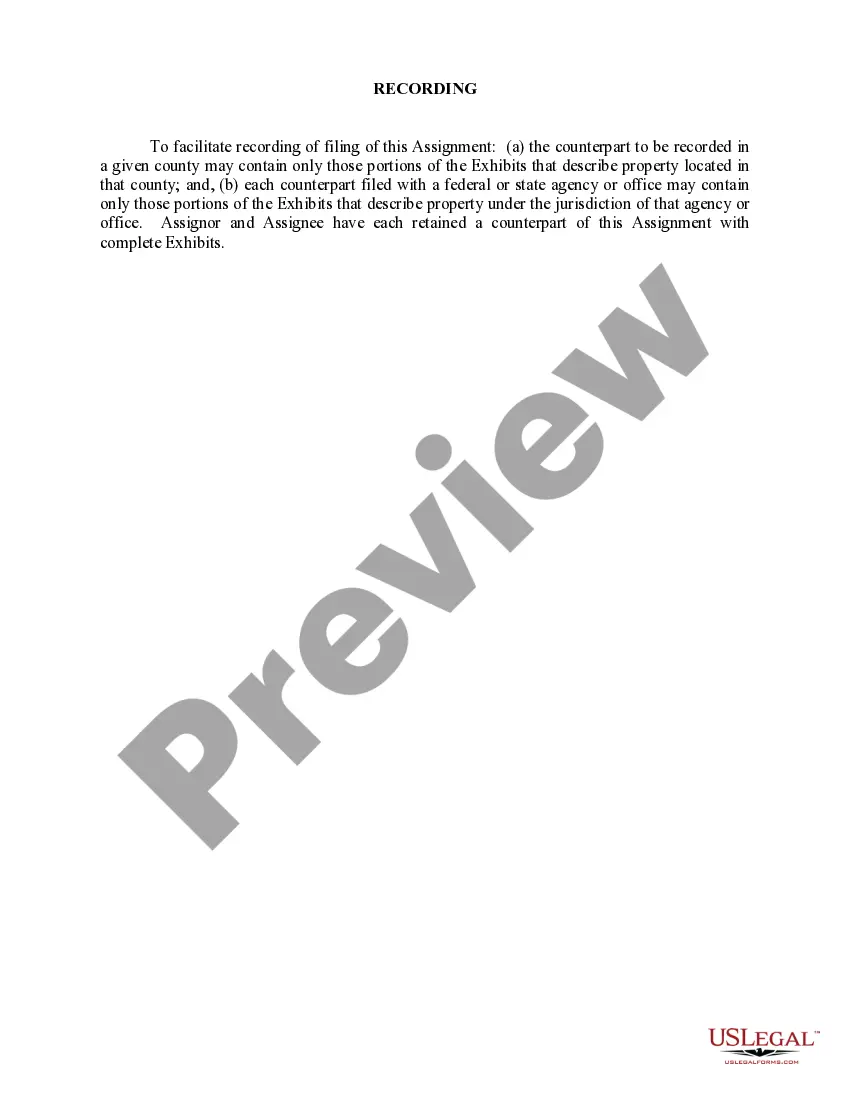
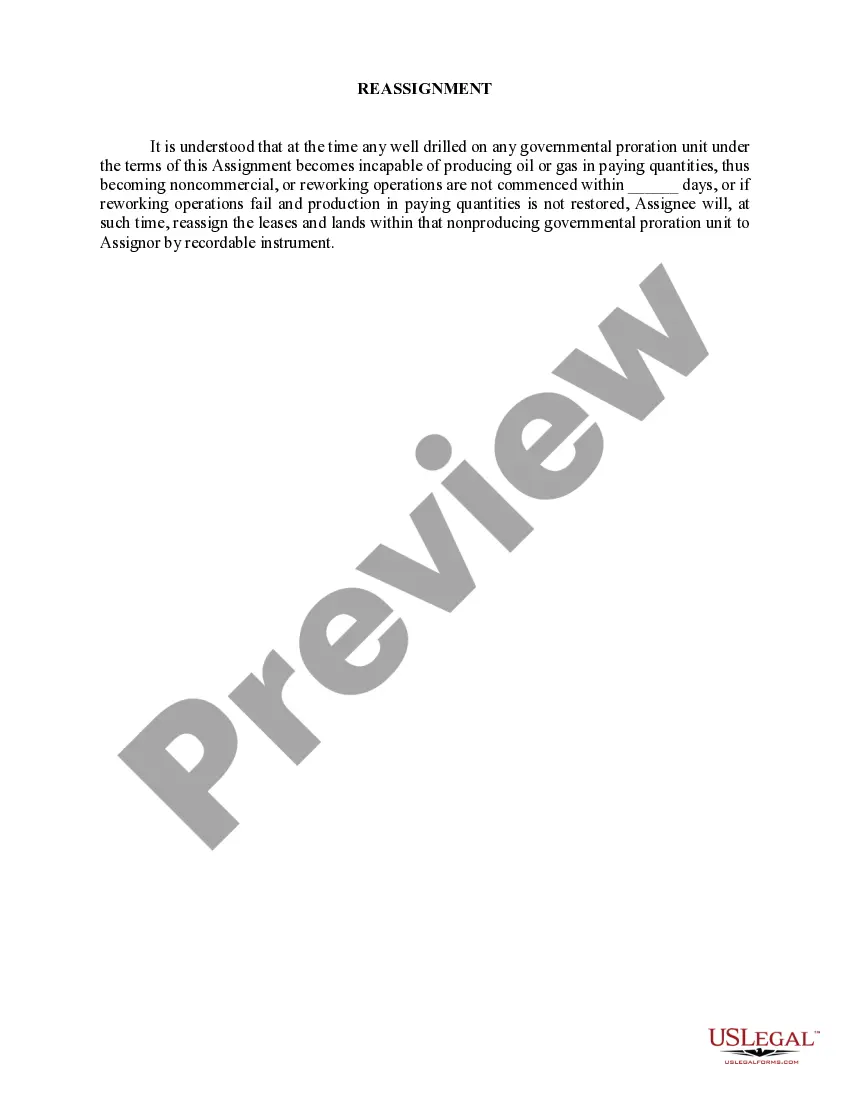
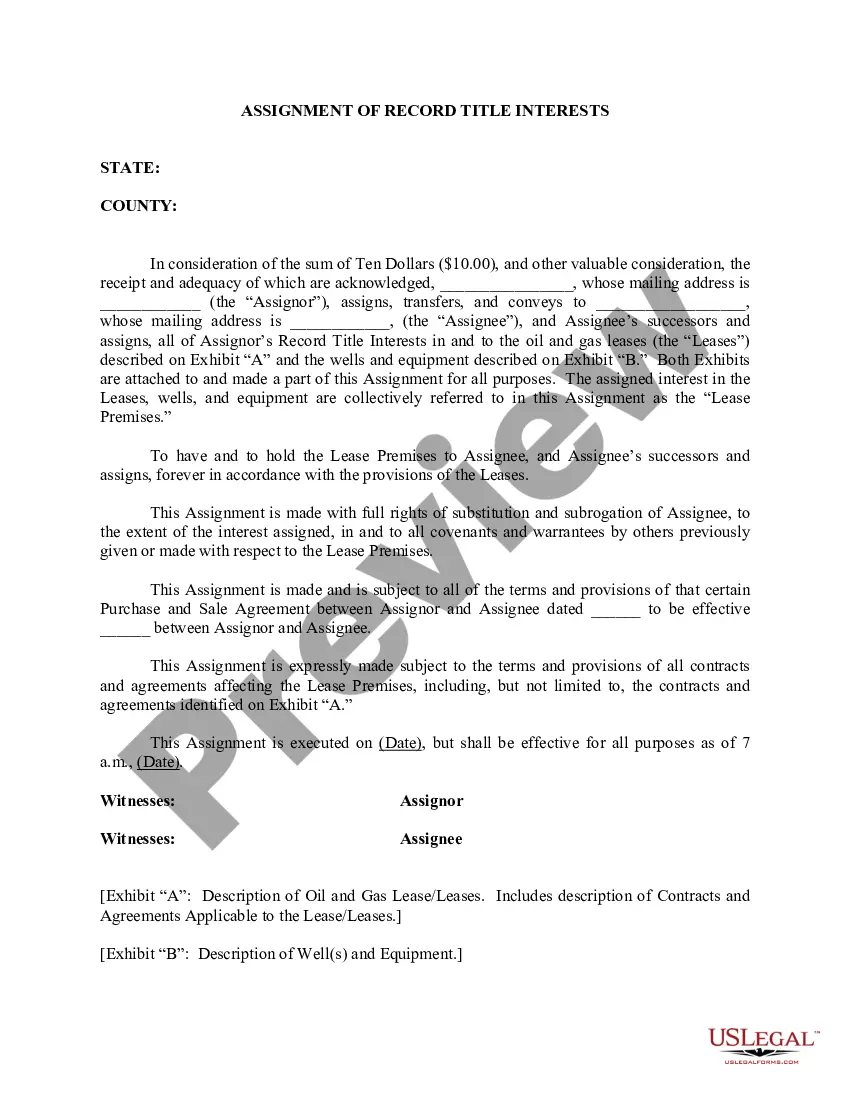
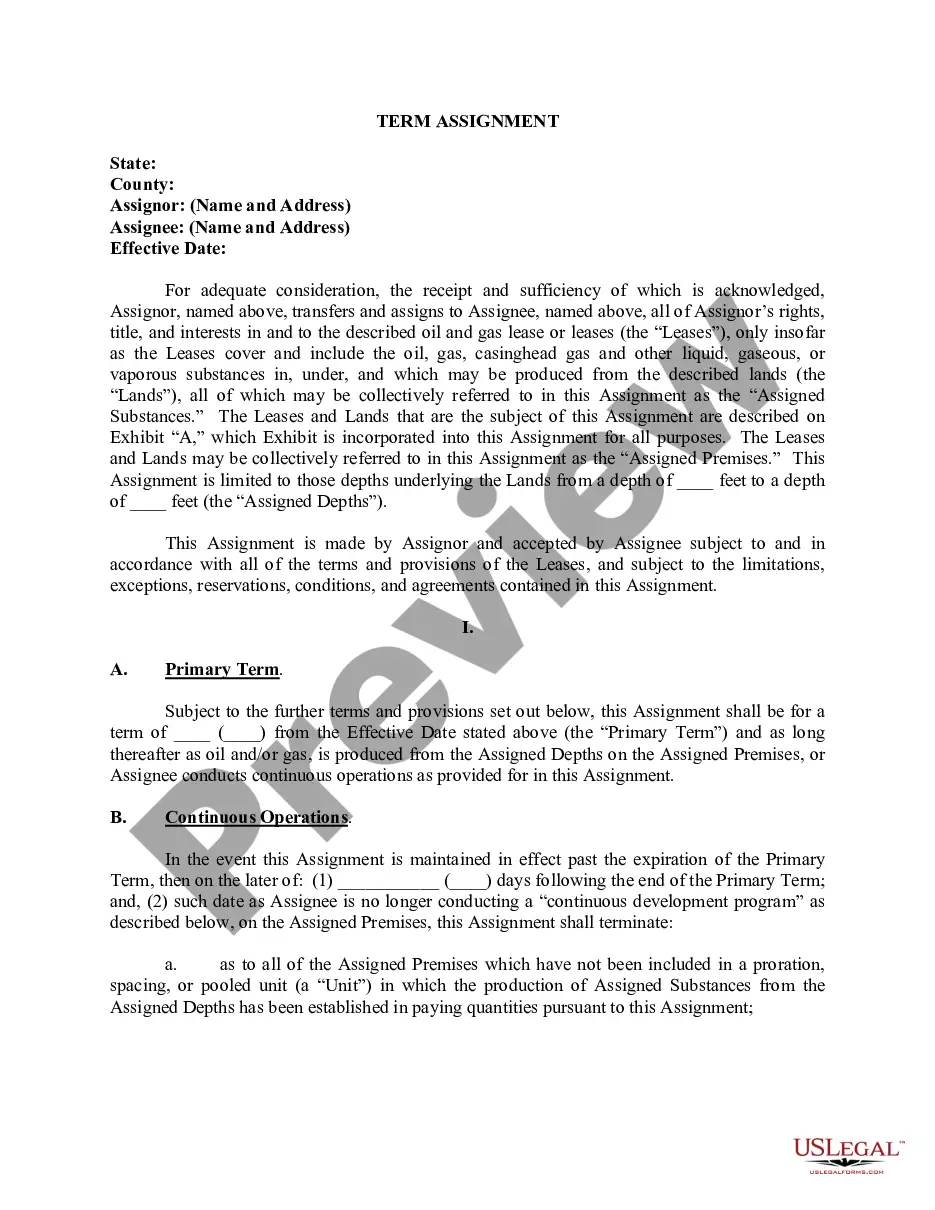
The Recording form provides essential instructions for the process of recording assignments related to property. It is distinct from other legal forms as it specifically guides users on how to file counterparts of the Assignment in various jurisdictions, including necessary exclusions based on geographic and jurisdictional details.
Main sections of this form
- Instructions on how to record filings in specific counties.
- Guidance for including only relevant excerpts of Exhibits for different jurisdictions.
- Clarification of retention responsibilities for both Assignor and Assignee.
Common use cases
This form is used when an assignment related to property is made and needs to be officially recorded. It is crucial during real estate transactions, transfers of title, or any situation where legal recognition of the property assignment is necessary.
Who should use this form
- Individuals or entities involved in property assignments.
- Assignees and Assignors looking to formalize a property assignment.
- Legal professionals assisting clients with property transactions.
How to prepare this document
- Identify the parties involved, including the Assignor and Assignee.
- Specify the property being assigned by referencing the appropriate Exhibits.
- Fill in the required county information for the recording.
- Sign and date the Assignment in accordance with state legal requirements.
Notarization requirements for this form
This form does not typically require notarization to be legally valid. However, some jurisdictions or document types may still require it. US Legal Forms provides secure online notarization powered by Notarize, available 24/7 for added convenience.
Get your form ready online
Our built-in tools help you complete, sign, share, and store your documents in one place.
Make edits, fill in missing information, and update formatting in US Legal Forms—just like you would in MS Word.
Download a copy, print it, send it by email, or mail it via USPS—whatever works best for your next step.
Sign and collect signatures with our SignNow integration. Send to multiple recipients, set reminders, and more. Go Premium to unlock E-Sign.
If this form requires notarization, complete it online through a secure video call—no need to meet a notary in person or wait for an appointment.
We protect your documents and personal data by following strict security and privacy standards.

Make edits, fill in missing information, and update formatting in US Legal Forms—just like you would in MS Word.

Download a copy, print it, send it by email, or mail it via USPS—whatever works best for your next step.

Sign and collect signatures with our SignNow integration. Send to multiple recipients, set reminders, and more. Go Premium to unlock E-Sign.

If this form requires notarization, complete it online through a secure video call—no need to meet a notary in person or wait for an appointment.

We protect your documents and personal data by following strict security and privacy standards.
Common mistakes
- Including irrelevant portions of the Exhibits that do not pertain to the specific county.
- Not retaining a complete copy of the Assignment and Exhibits for personal records.
- Failing to check local recording laws that may require additional documentation.
Why use this form online
- Easy access to download and print the form whenever needed.
- Ability to edit the form to fit specific circumstances before printing.
- Relieves the hassle of finding a local attorney for templated legal documents.
Legal use & context
- Recording the Assignment is essential for legal protection of property interests.
- Failure to record may result in disputes or challenges to ownership claims.
- Proper documentation enhances enforceability in legal matters.
Summary of main points
- This form is key for recording property assignments.
- Ensure compliance with local jurisdiction requirements.
- Avoid common mistakes by carefully following the instructions provided.
Looking for another form?




Form popularity
FAQ
Open the Zoom app on your iPhone or Android device and join a meeting. From the menu that appears, select "Record to the Cloud" (iOS) or "Record" (Android). The meeting will begin to record, and a "Recording..." icon will appear in the top-right corner.
1 Swipe down to access your Quick Panel and select Screen Recorder. 2 Choose your preferred Sound settings then tap on Start recording. 3 Choose your preferred Sound settings then tap on Start recording. 4 Choose between a range of options at the top of the screen to add in your Screen Recording.
Steps to record sound on Samsung mobile phone To start recording sound on Samsung phone, simply touch the round Record button at the bottom of this app, tap on this button again, your voice recording will be saved on Samsung phone. During the recording process, you will get the voice recording controls at the bottom.
Recording is the process of capturing data or translating information to a recording format stored on some storage medium, which is often referred to as a record or, if an auditory medium, a recording.
Samsung Voice Recorder is an app that lets you record sound on any Samsung device.In fact, this app usually comes pre-installed on all Samsung devices. Recording audio with Samsung Voice Recorder is simple. All you have to do is tap a button to start recording and then tap it again to make it stop.
Look for a voice recording app on your device. Because of this, there is no standard voice recorder app for Android like there is for iOS. Your device may have an app installed already, or you may have to download one yourself. Look for apps labeled "Recorder," "Voice Recorder," "Memo," "Notes," etc.
Open the App Drawer by swiping up from the bottom of your screen. 2. If you don't immediately see the Voice Recorder app, you may need to open a folder that will likely have the phone's name as its label (Samsung, e.g.). Do so, then tap the Voice Recorder app.
On your Android device, open the Voice app and tap the menu, then settings. Under calls, turn on incoming call options. When you want to record a call using Google Voice, simply answer the call to your Google Voice number and tap 4 to start recording.