Permission To Use Photo With Lightroom
Description
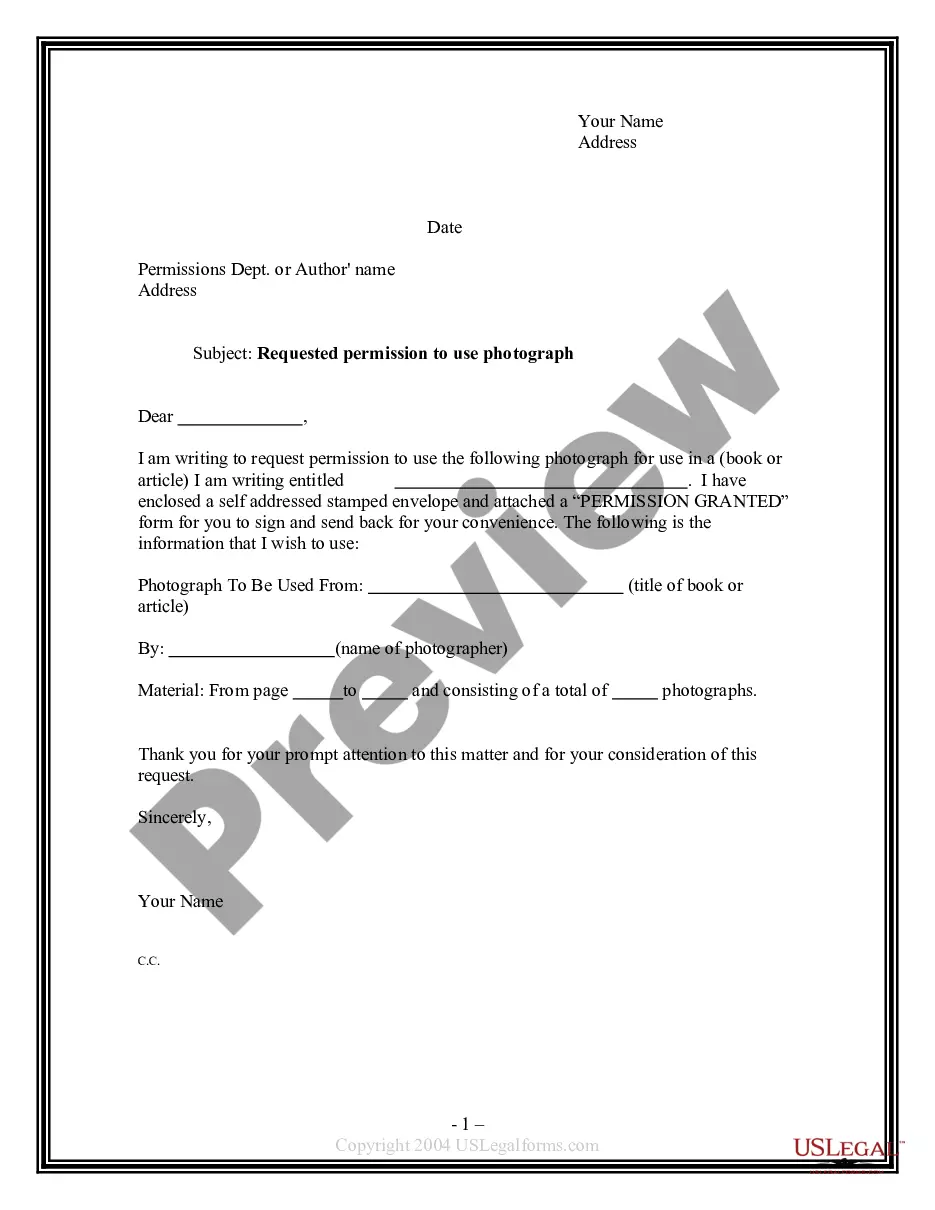
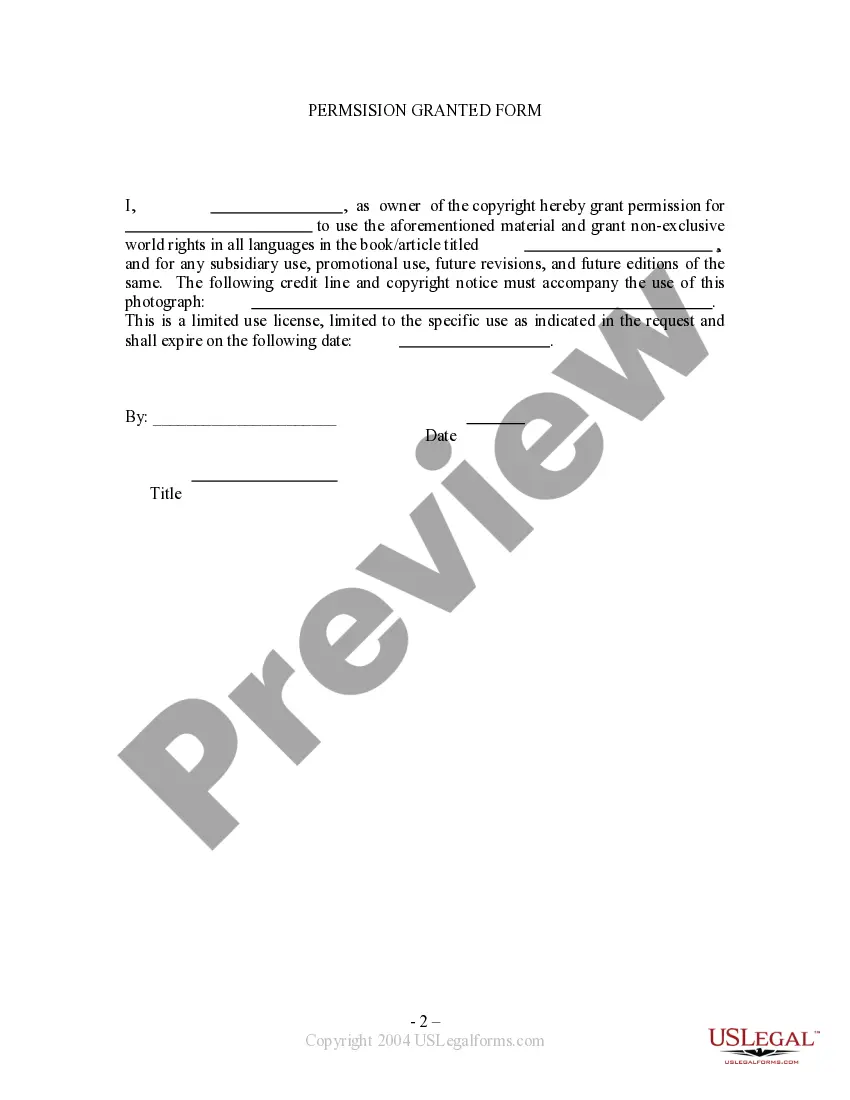
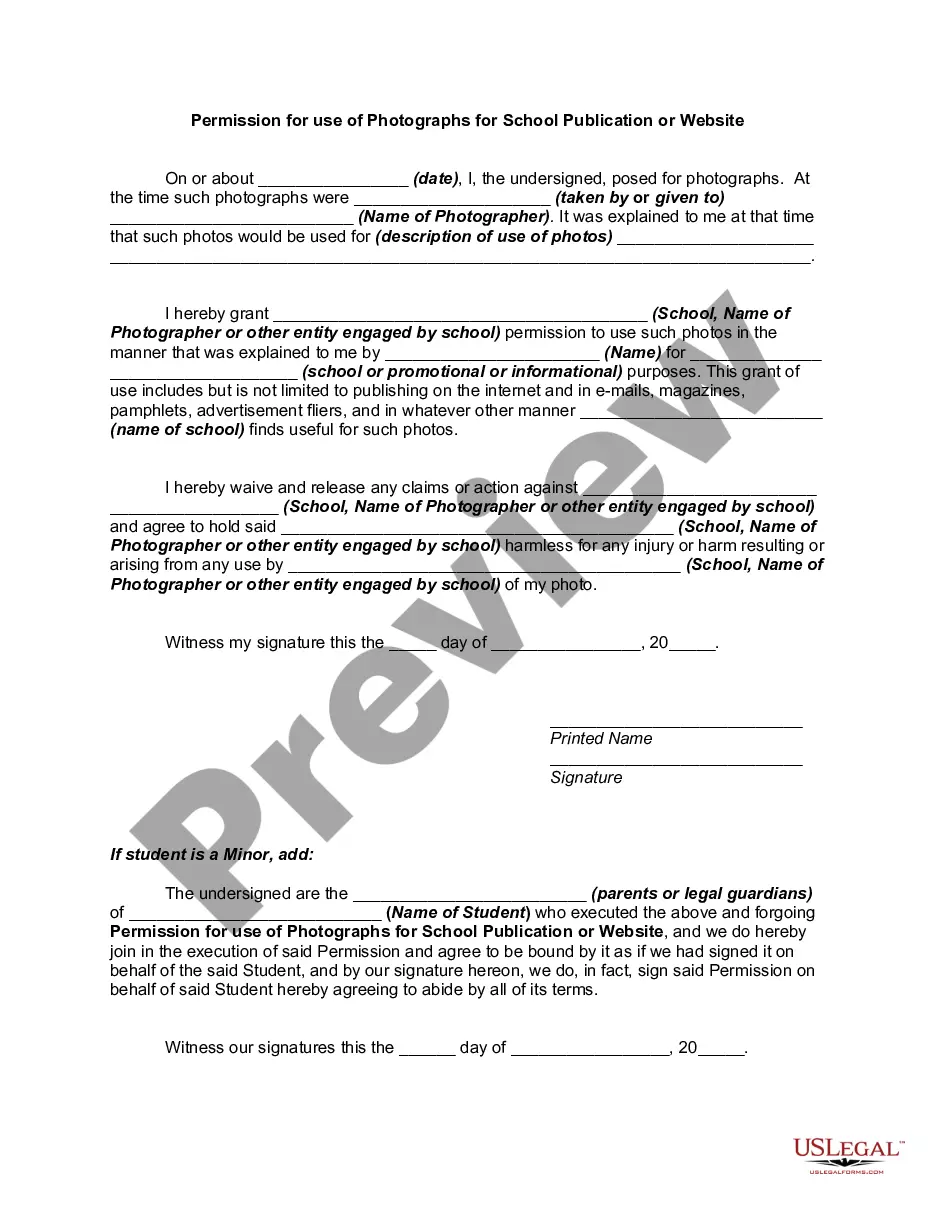
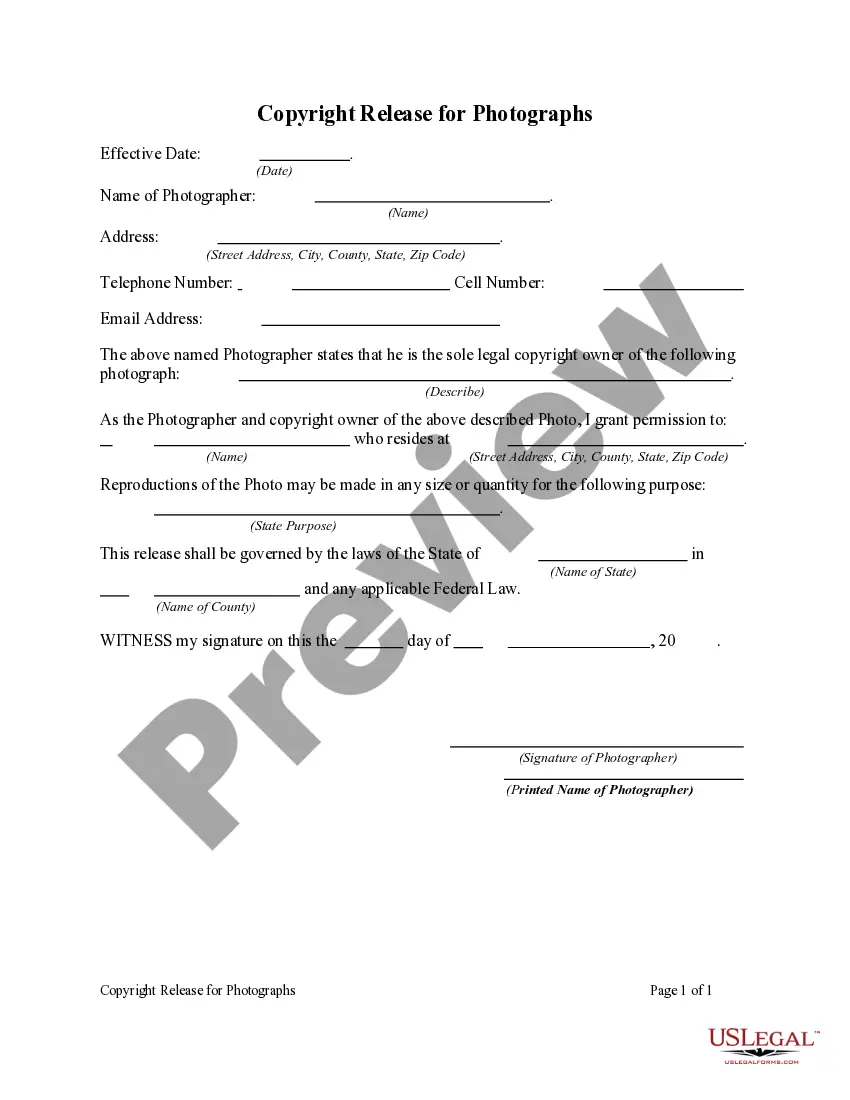
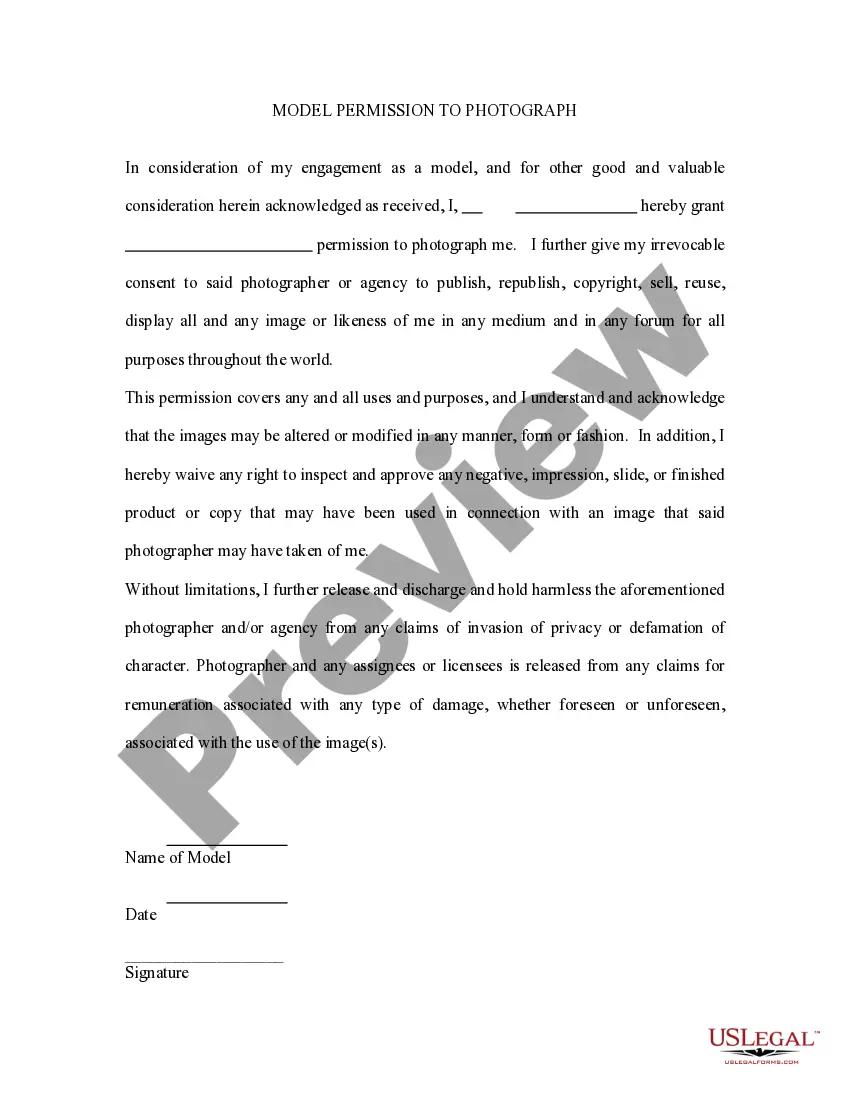
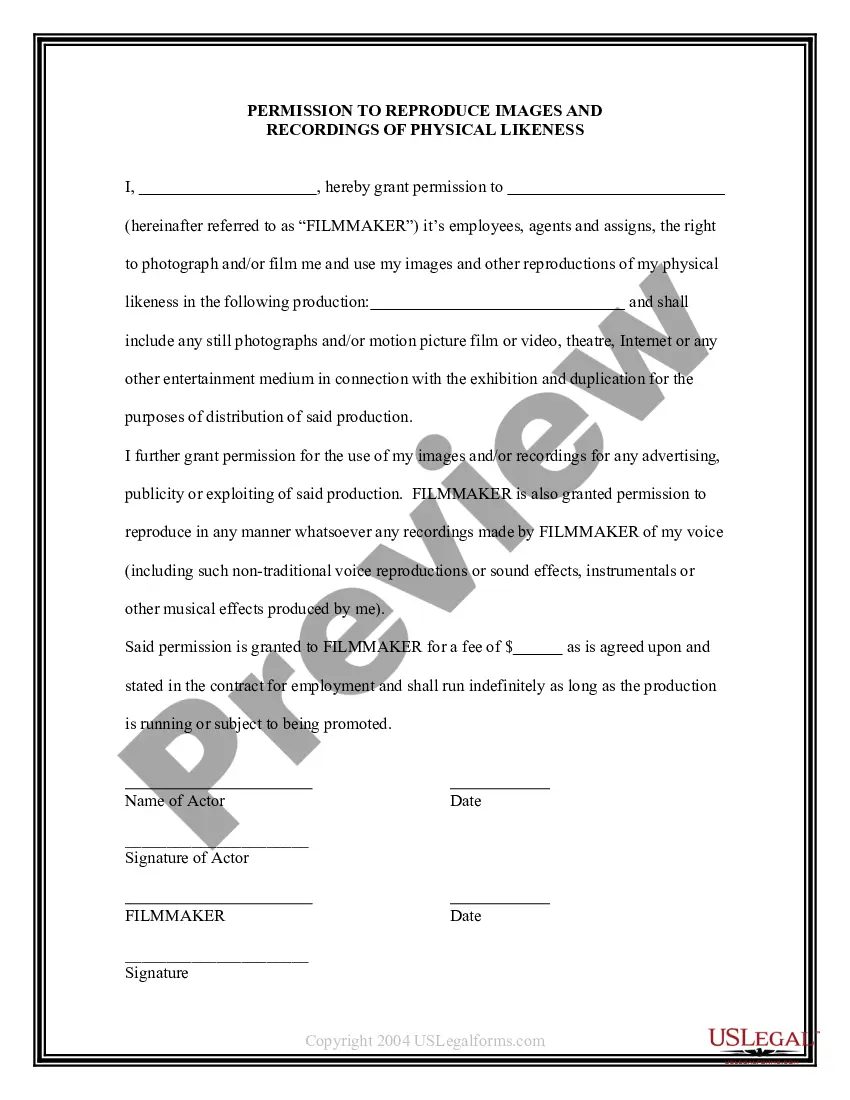
Get your form ready online
Our built-in tools help you complete, sign, share, and store your documents in one place.
Make edits, fill in missing information, and update formatting in US Legal Forms—just like you would in MS Word.
Download a copy, print it, send it by email, or mail it via USPS—whatever works best for your next step.
Sign and collect signatures with our SignNow integration. Send to multiple recipients, set reminders, and more. Go Premium to unlock E-Sign.
If this form requires notarization, complete it online through a secure video call—no need to meet a notary in person or wait for an appointment.
We protect your documents and personal data by following strict security and privacy standards.
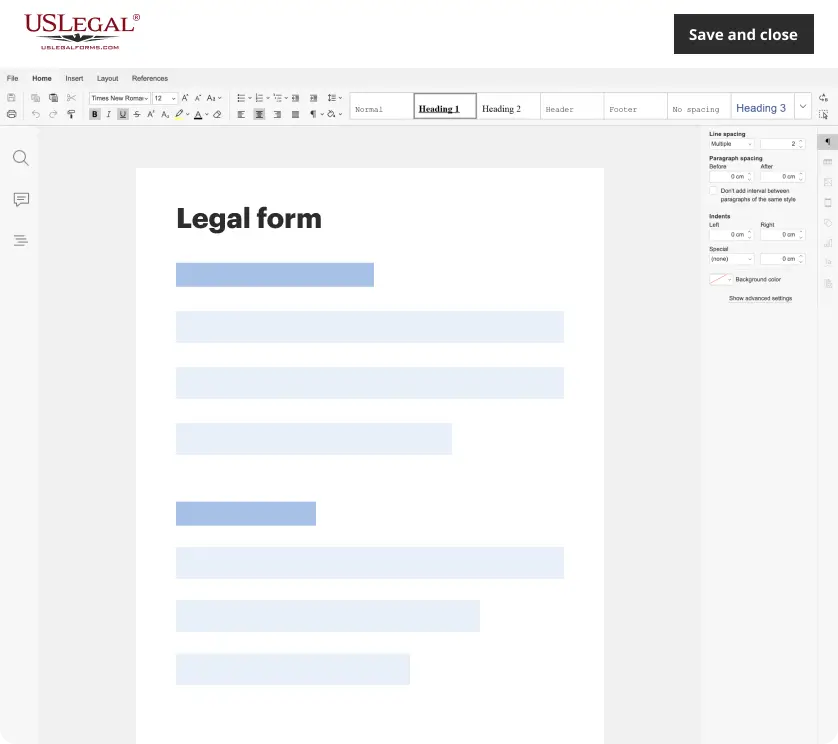
Make edits, fill in missing information, and update formatting in US Legal Forms—just like you would in MS Word.
Download a copy, print it, send it by email, or mail it via USPS—whatever works best for your next step.

Sign and collect signatures with our SignNow integration. Send to multiple recipients, set reminders, and more. Go Premium to unlock E-Sign.
If this form requires notarization, complete it online through a secure video call—no need to meet a notary in person or wait for an appointment.
We protect your documents and personal data by following strict security and privacy standards.
Looking for another form?
How to fill out Requested Permission To Use Photograph?
Accessing legal document samples that adhere to national and local regulations is essential, and the web provides a multitude of choices to select from.
However, what’s the purpose of squandering time searching for the appropriate Permission To Use Photo With Lightroom sample online when the US Legal Forms digital library already has such templates collected in one area.
US Legal Forms is the largest online legal repository with more than 85,000 editable templates created by lawyers for any business and personal situation. They are simple to navigate with all documents organized by state and intended use. Our specialists keep up with legal updates, so you can always ensure your documentation is current and compliant when acquiring a Permission To Use Photo With Lightroom from our site.
- If you already possess an account with an active subscription, Log In and save the template you need in the appropriate format.
- Review the template using the Preview feature or via the text outline to confirm it satisfies your requirements.
- Search for another sample using the search function at the top of the page if needed.
- Click Buy Now once you’ve located the appropriate form and choose a subscription plan.
- Create an account or sign in, and proceed with a payment via PayPal or credit card.
Form popularity
FAQ
To add copyright to a photo using Lightroom, first select the image you want to edit. Then, navigate to the metadata panel on the right side of the screen. Here, you can fill in the copyright information, including your name and year of publication. This process ensures that you have the proper permission to use the photo with Lightroom, protecting your creative rights.
If Lightroom indicates that your files are not writable, it often relates to file permissions or storage issues. Ensure you have appropriate permission to use photo with Lightroom, and check if your storage device allows write access. If needed, changing the file location or settings can also help.
Files may not import into Lightroom for several reasons, including format incompatibility or incorrect file permissions. Make sure you have permission to use photo with Lightroom, and try re-importing your files after checking their formats. If problems persist, exploring the import settings might help.
To copyright your photos in Lightroom, add copyright information in the metadata of your images. Open the Library module, select your photo, and fill in the copyright fields. This process not only helps protect your work but also ensures you grant permission to use photo with Lightroom as needed.
Lightroom may not read your raw files if the software does not support the specific camera model or file format. To resolve this, ensure you have the latest updates that include the necessary camera support. Grant permission to use photo with Lightroom to access these files seamlessly.
Lightroom may corrupt files due to improper imports or lack of sufficient permissions. Always ensure you have permission to use photo with Lightroom by importing files correctly. If your files frequently become corrupt, consider checking your hardware and storage for issues.
If Lightroom is not allowing you to edit, it could be due to permissions or file format issues. Ensure that you have the necessary permission to use photo with Lightroom. Additionally, check if the file is damaged or in a format that Lightroom does not support, which may prevent you from editing.
To allow photo access in Lightroom, navigate to your system preferences. Search for privacy settings, find Lightroom, and enable photo access. This step ensures that Lightroom can access your photos, granting you permission to use photo with Lightroom for seamless editing and organization.
To import photos directly into Lightroom, click on the Import button located in the Library module. A dialog will appear, allowing you to select the source of your images, such as your hard drive or a memory card. After you select your photos, you can choose settings for how you want to organize them. Always make sure you have the permission to use the photo with Lightroom to avoid any legal issues.
To access photos in Lightroom, open the application on your device. You will see a Library module where you can find your imported images. If you have imported photos from your computer or mobile device, you can browse them easily. Remember, if you want permission to use a photo with Lightroom, ensure that the images you access are either your own or that you have the proper rights.