Memorandum Of Understanding Template For Project
Description
Get your form ready online
Our built-in tools help you complete, sign, share, and store your documents in one place.
Make edits, fill in missing information, and update formatting in US Legal Forms—just like you would in MS Word.
Download a copy, print it, send it by email, or mail it via USPS—whatever works best for your next step.
Sign and collect signatures with our SignNow integration. Send to multiple recipients, set reminders, and more. Go Premium to unlock E-Sign.
If this form requires notarization, complete it online through a secure video call—no need to meet a notary in person or wait for an appointment.
We protect your documents and personal data by following strict security and privacy standards.
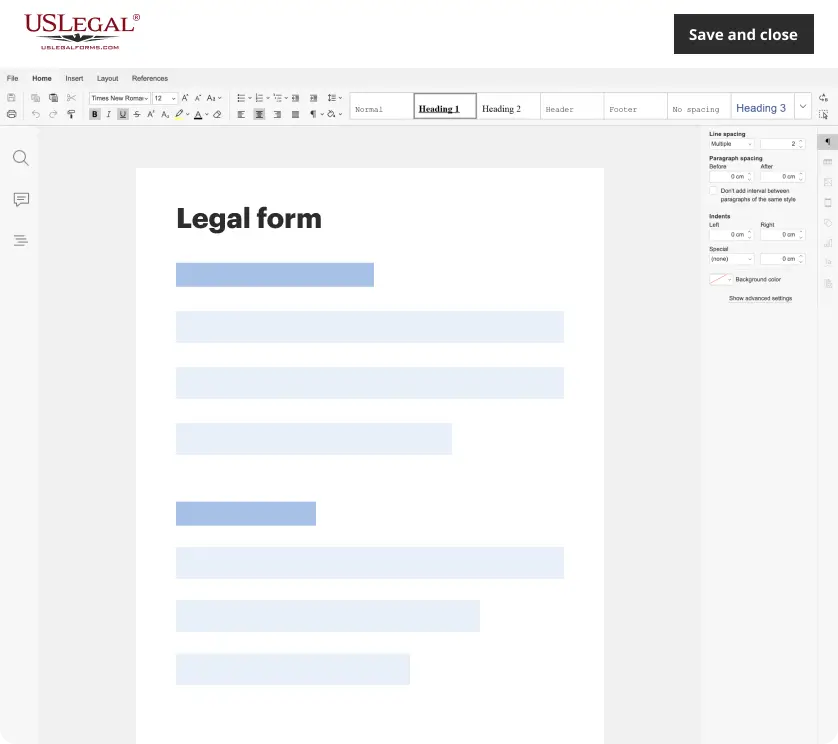
Make edits, fill in missing information, and update formatting in US Legal Forms—just like you would in MS Word.
Download a copy, print it, send it by email, or mail it via USPS—whatever works best for your next step.
Sign and collect signatures with our SignNow integration. Send to multiple recipients, set reminders, and more. Go Premium to unlock E-Sign.
If this form requires notarization, complete it online through a secure video call—no need to meet a notary in person or wait for an appointment.
We protect your documents and personal data by following strict security and privacy standards.
Looking for another form?
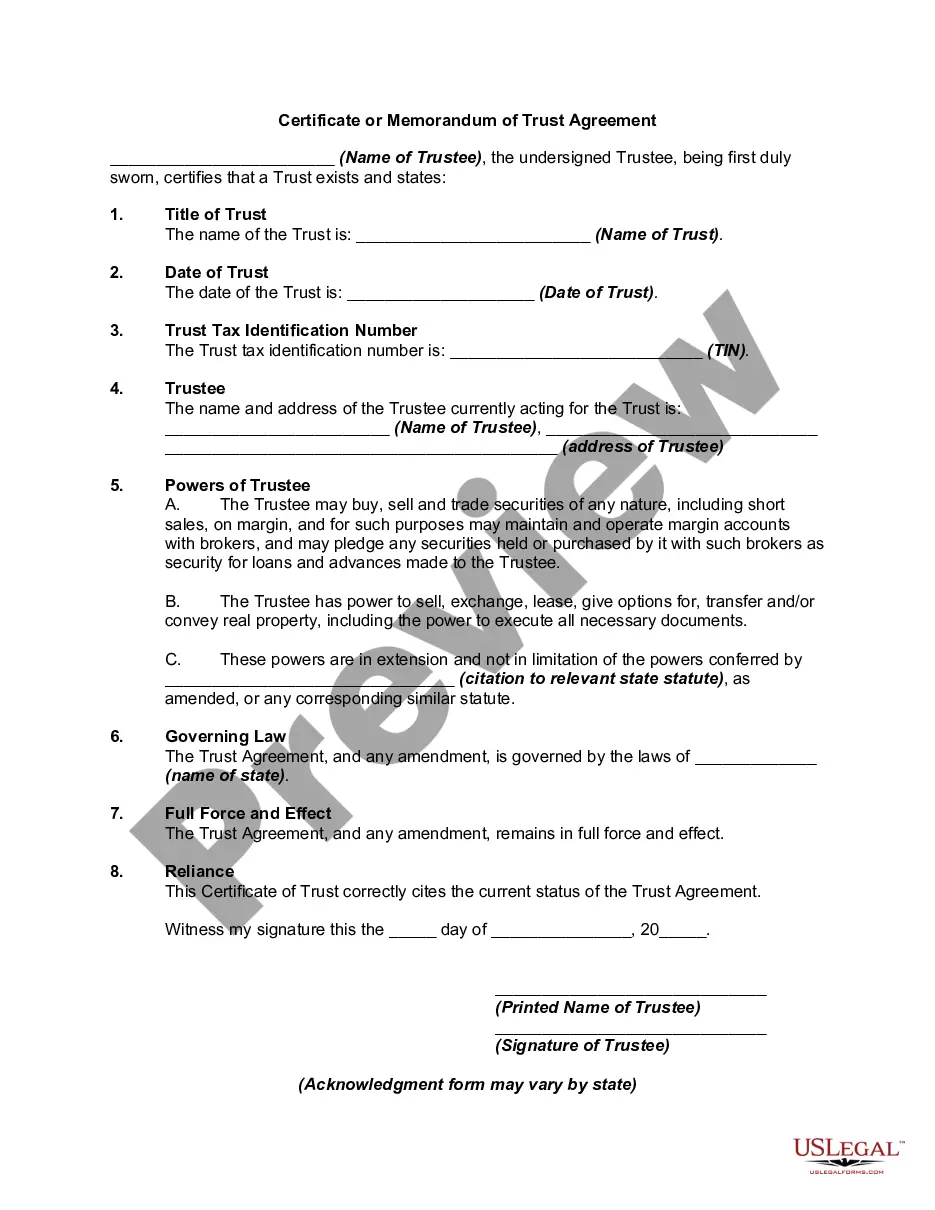
How to fill out Certificate Or Memorandum Of Trust Agreement?
Obtaining legal document examples that comply with federal and local regulations is essential, and the web provides various alternatives to select from.
However, what is the use of spending time searching for the suitable Memorandum Of Understanding Template For Project sample online when the US Legal Forms digital library already compiles such templates in one location.
US Legal Forms is the largest online legal repository featuring over 85,000 editable templates crafted by lawyers for diverse business and personal situations.
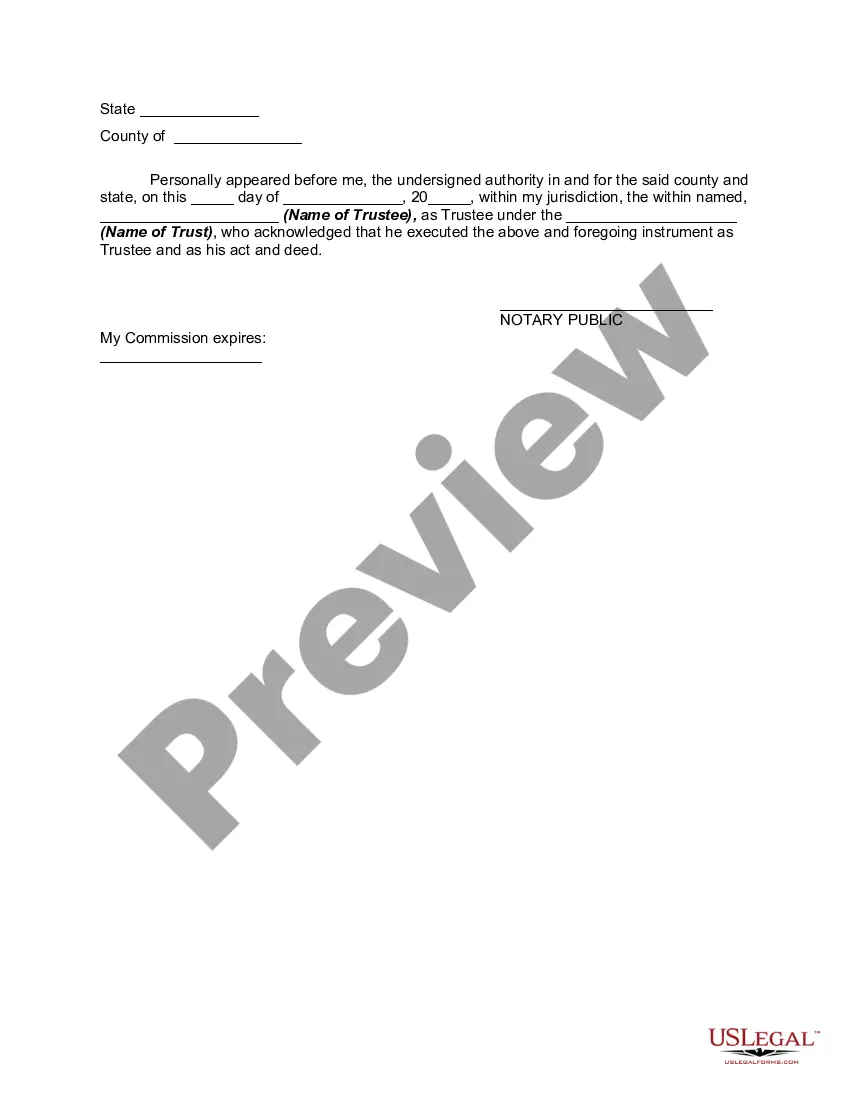
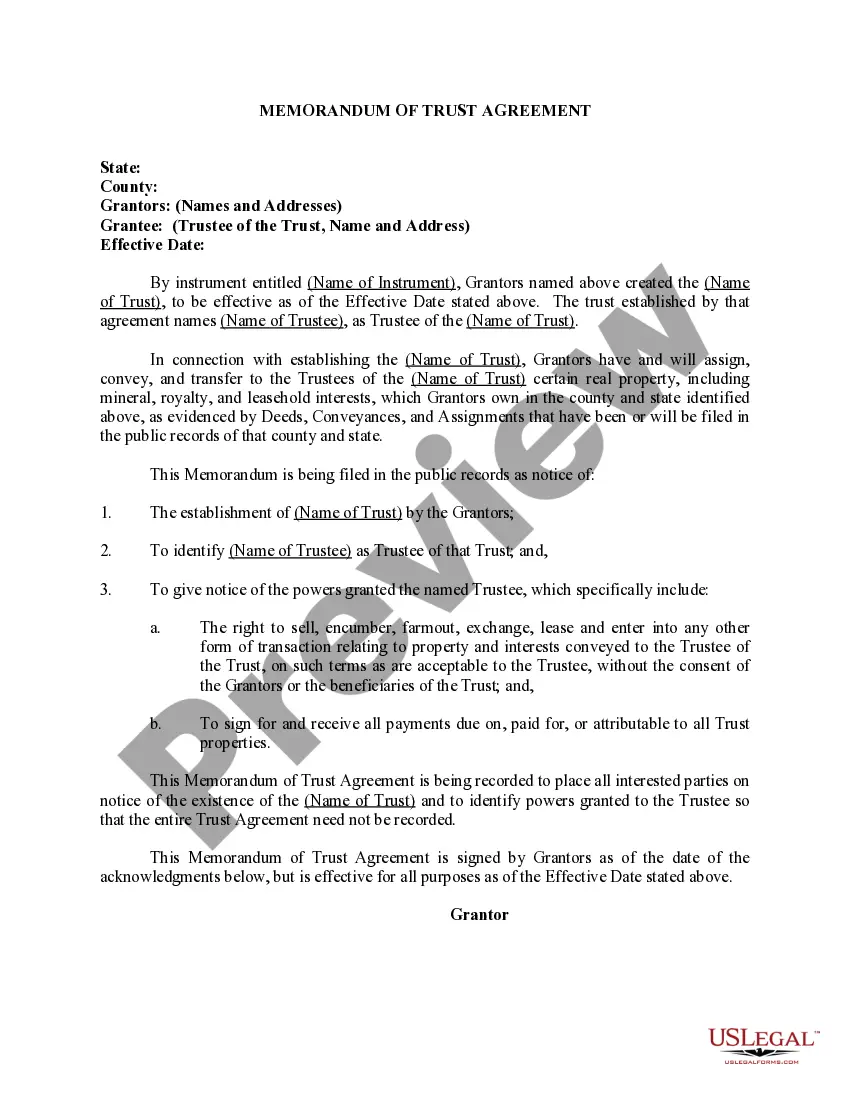
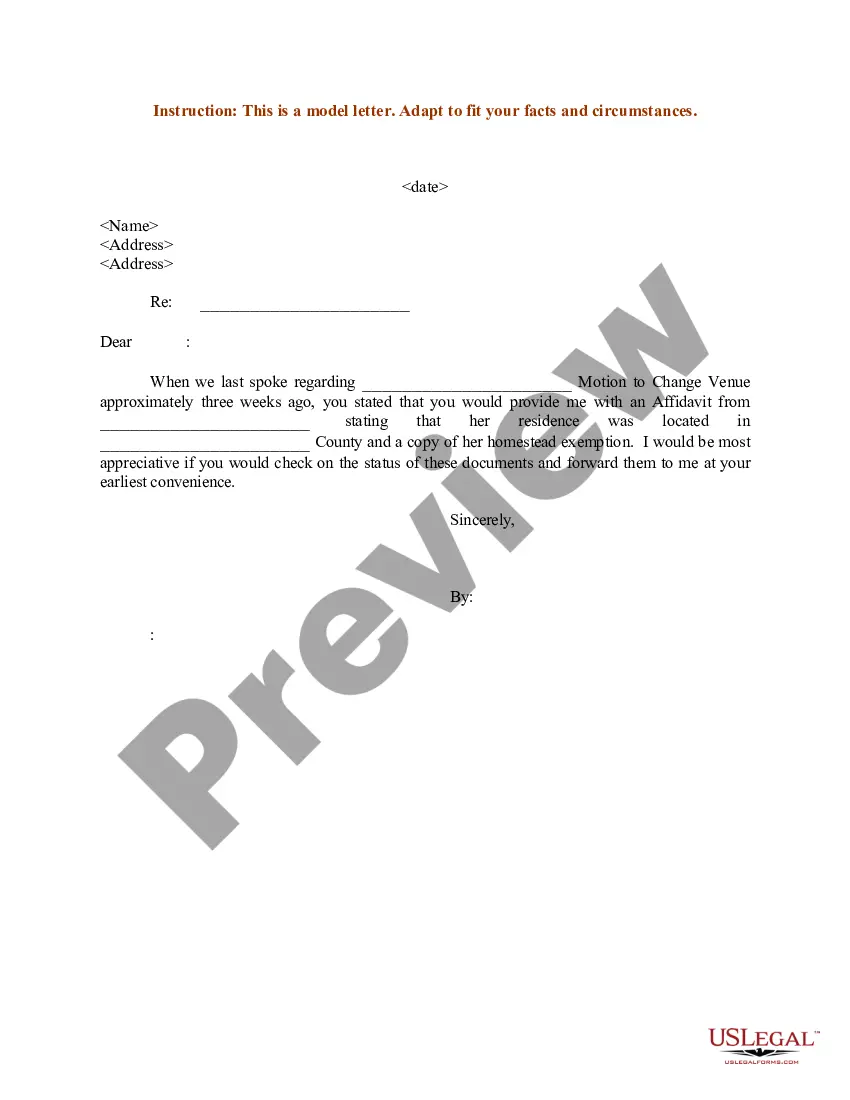
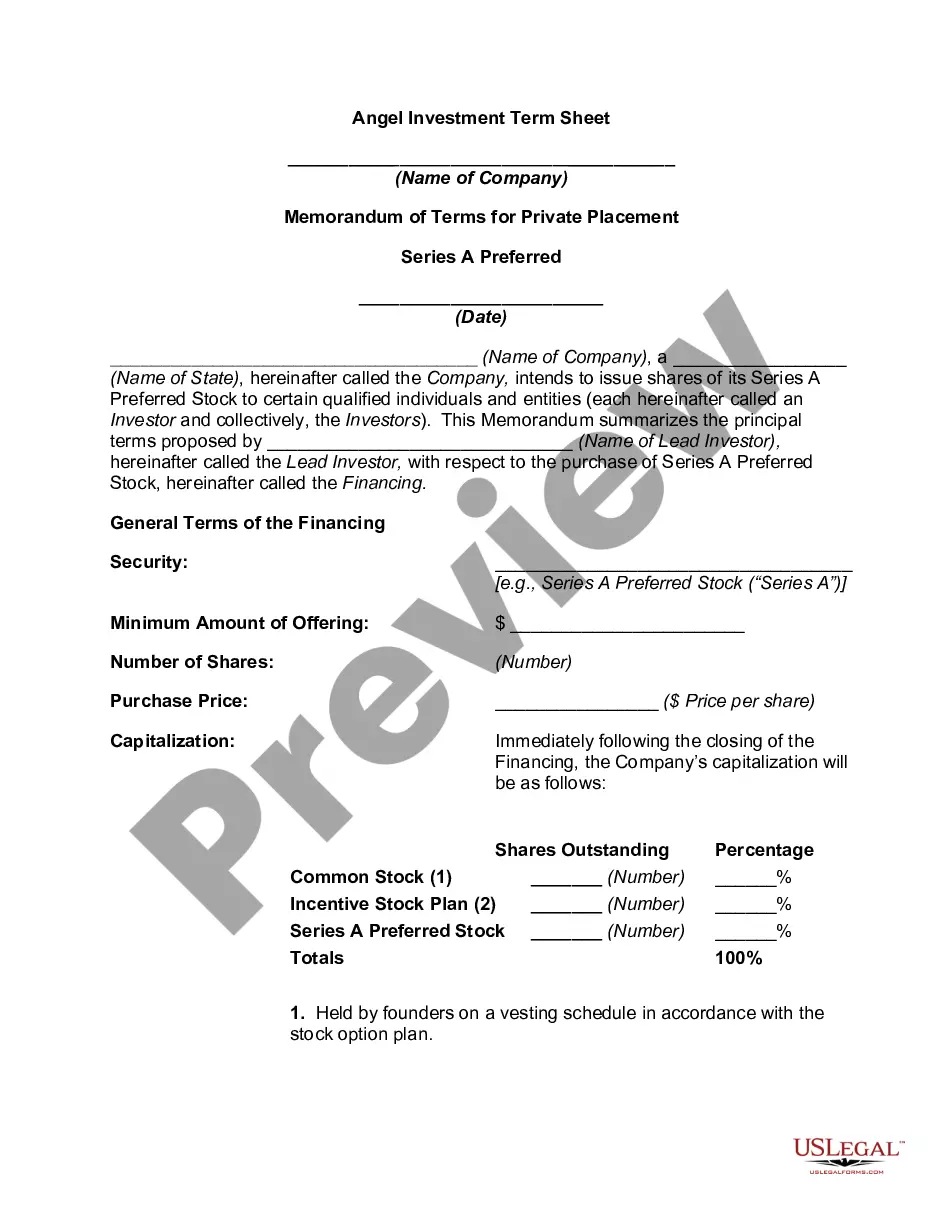
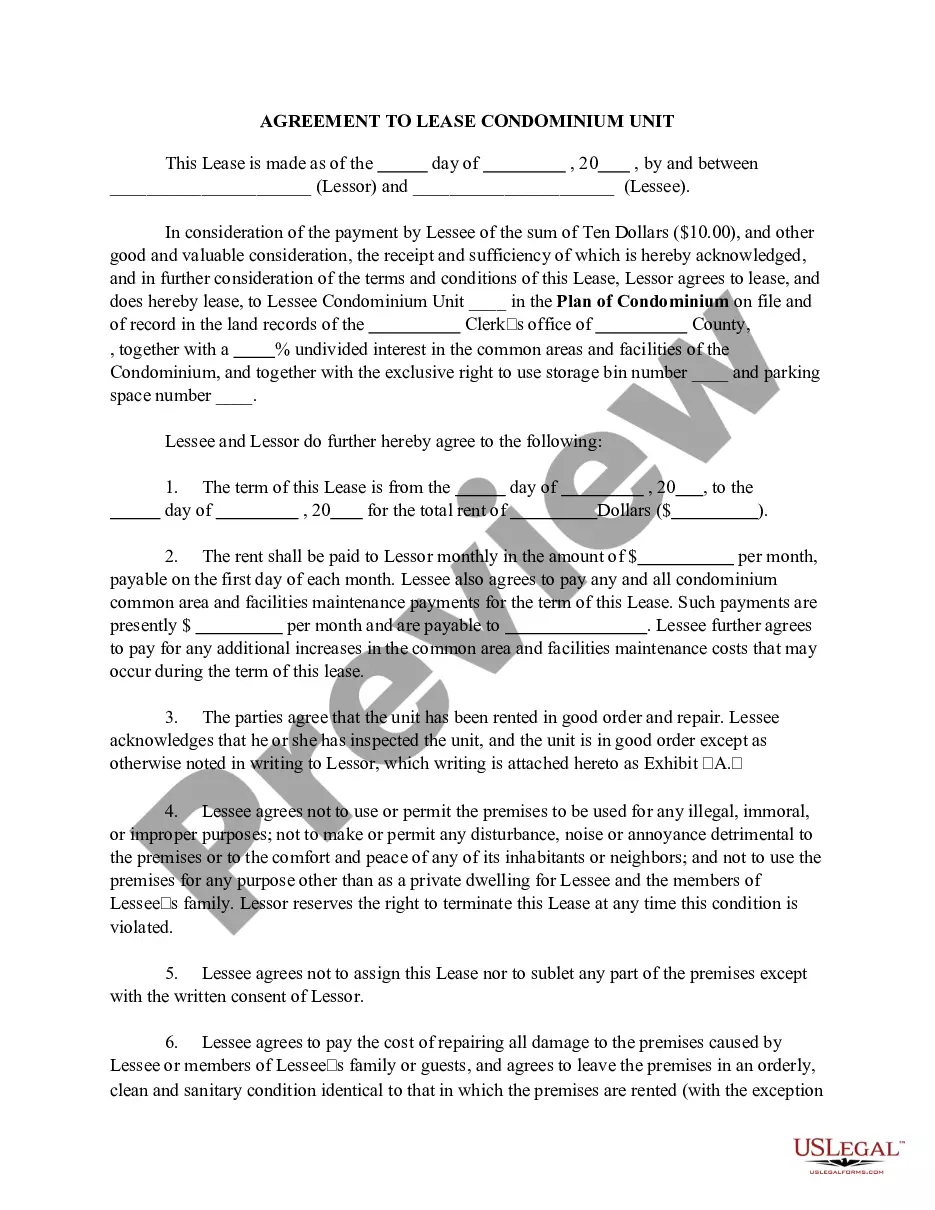
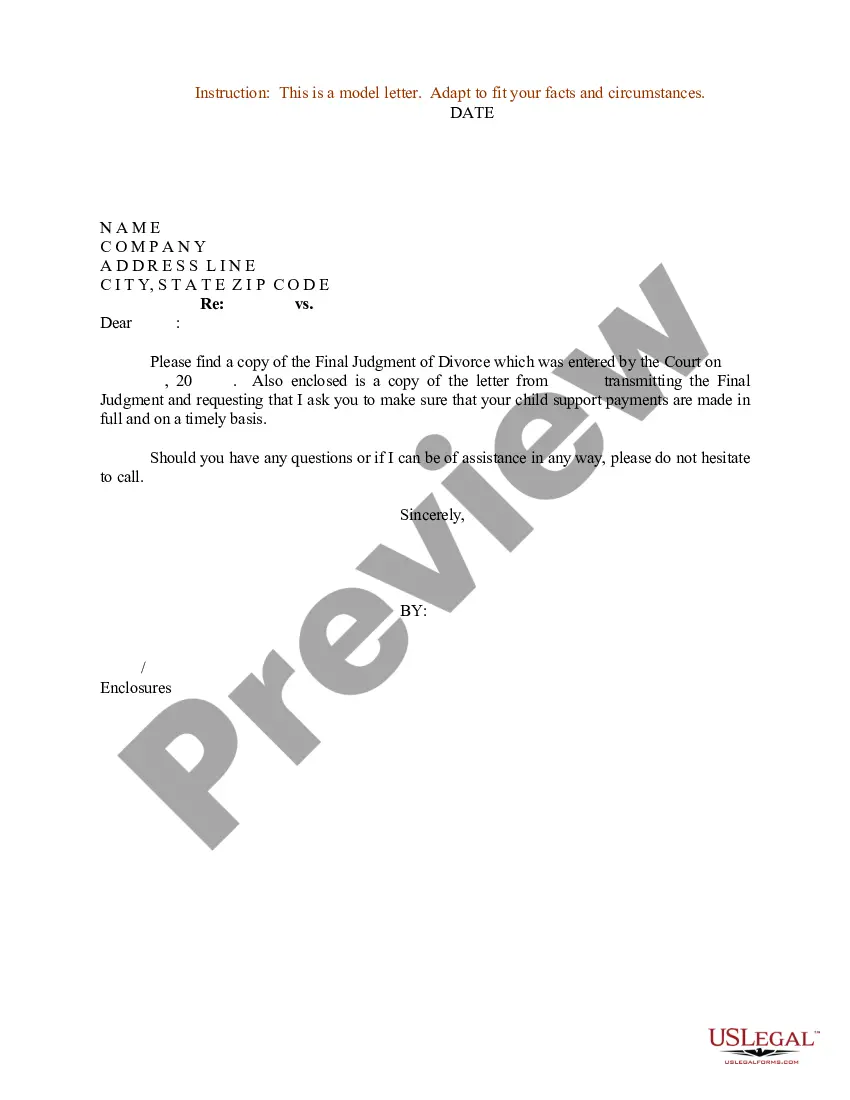
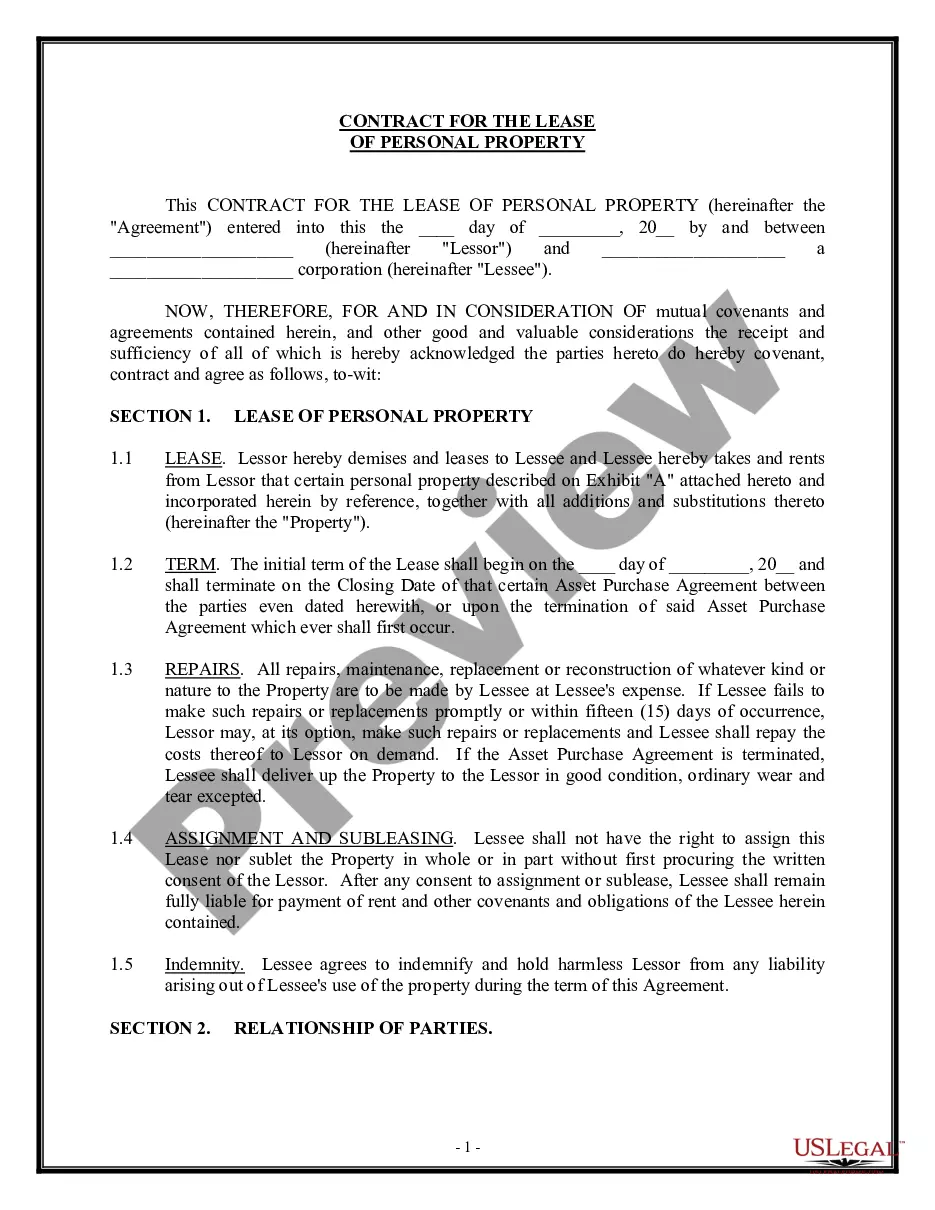
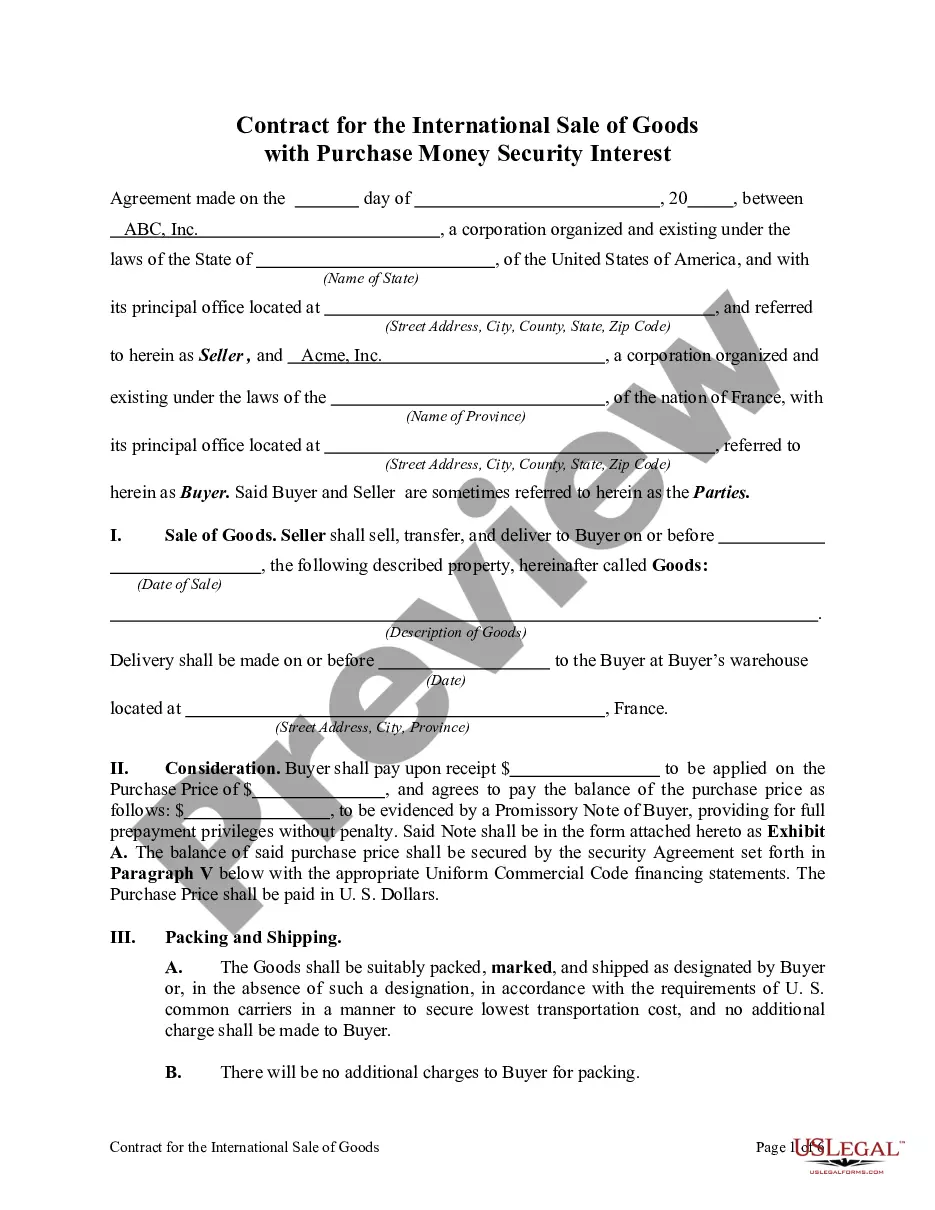
Review the template using the Preview option or through the text description to ensure it suits your requirements.
- They are easy to navigate with all documents categorized by state and intended use.
- Our experts keep up with legal updates, ensuring that your documents are current and compliant when acquiring a Memorandum Of Understanding Template For Project from our platform.
- Acquiring a Memorandum Of Understanding Template For Project is fast and straightforward for both existing and new users.
- If you have an account with an active subscription, Log In and retrieve the document sample you need in the desired format.
- If you are unfamiliar with our website, follow the guidelines below.
Form popularity
FAQ
For a file stored in OneDrive or a SharePoint Online library, you can go back to an earlier version of the file and restore it. Open the file you want to restore and go to File > Info. If the file has previous versions, you'll see a button named Version History. Select it to see the list of versions.
In the Version History dialog, hover next to the version you want, and to get a list of options, on the right side, select the down arrow. Select Restore. To restore the current version as the latest version, select OK. Note: SharePoint doesn't remove the earlier version you just restored.
You can see the version history of a modern page or news post and compare versions in SharePoint, including comparing changes visually on the page. You can see when a page was changed and who changed it. You can also see when properties (information about the file) were changed.
Conclusion To restore a deleted SharePoint site, do this: Go to the SharePoint Admin Center. Navigate to the ?Deleted Sites? section. You will see a list of recently deleted sites. Pick the one you want to recover. Click ?Restore? to start the recovery process. SharePoint will restore it to the original location.
If you accidentally deleted a webpart or changed the layout while editing the page, you can easily go back to the previous state by clicking the undo button at the top beside the save button. Clicking the undo button will revert the accidentally made changes to the previous state.
Navigate to the folder that used to contain the file or folder, right-click it, and then select Restore previous versions. If the folder was at the top level of a drive, for example C:\, right-click the drive, and then select Restore previous versions.
Restore a previous version in SharePoint Right click on the space between the item or document name and date, and from the menu, select Version History. To see Version History, you may need to scroll the menu. If you don't see Version History, in the dialog, select the ... (ellipses), and then select Version History.
Restore an app from your account Sign in to Power Apps. Select Apps from the left-pane. Select your app. Note. ... Select Details. Select Versions. Select the app version that you want to restore. Select Restore. Note. ... Confirm by selecting Restore again. New version is created.