Architecture Contract Template For Revit 2019
Description
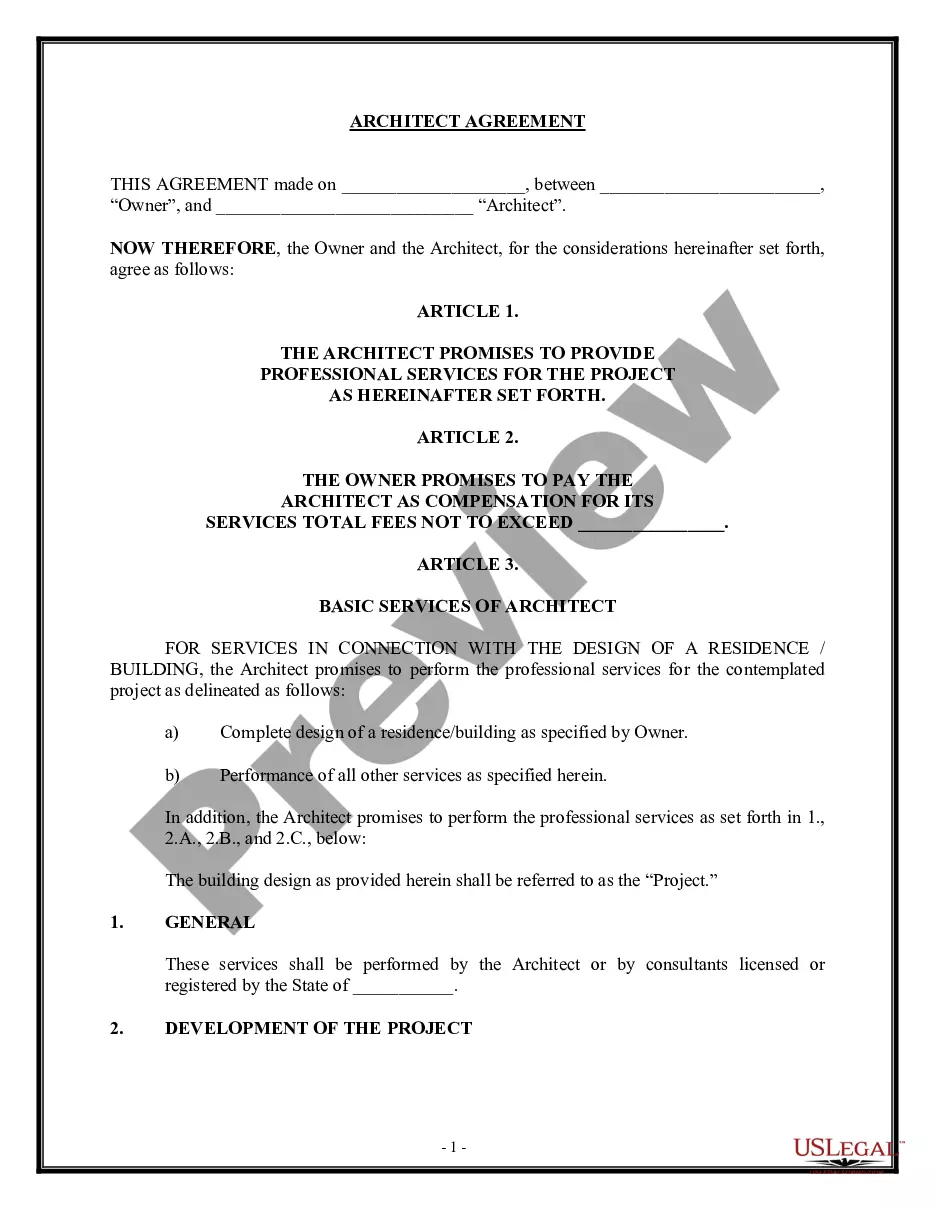
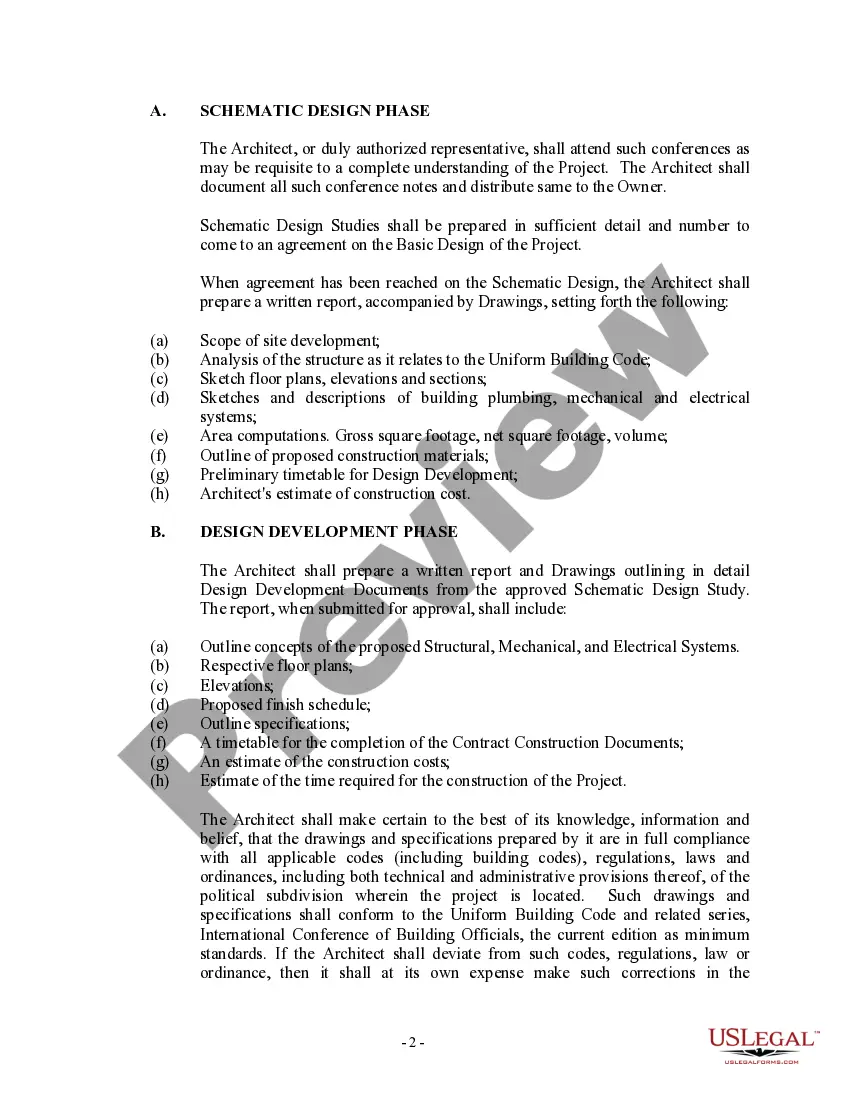
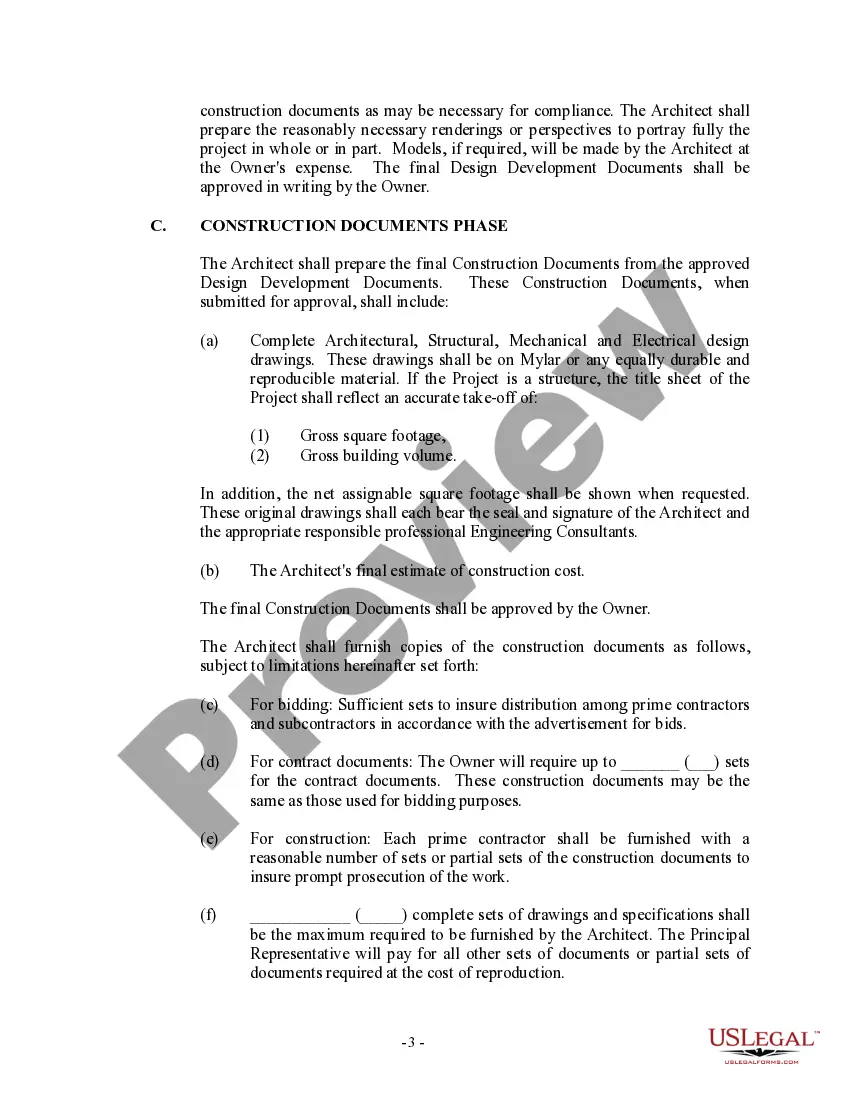
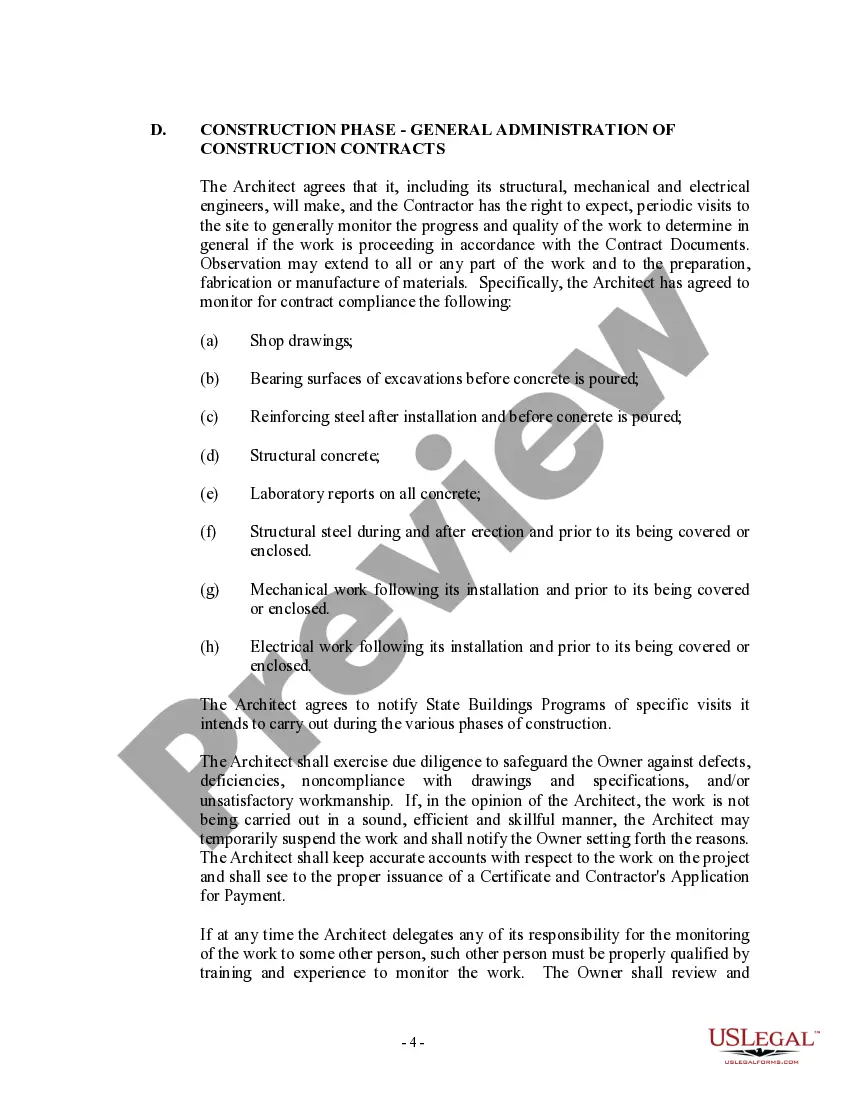
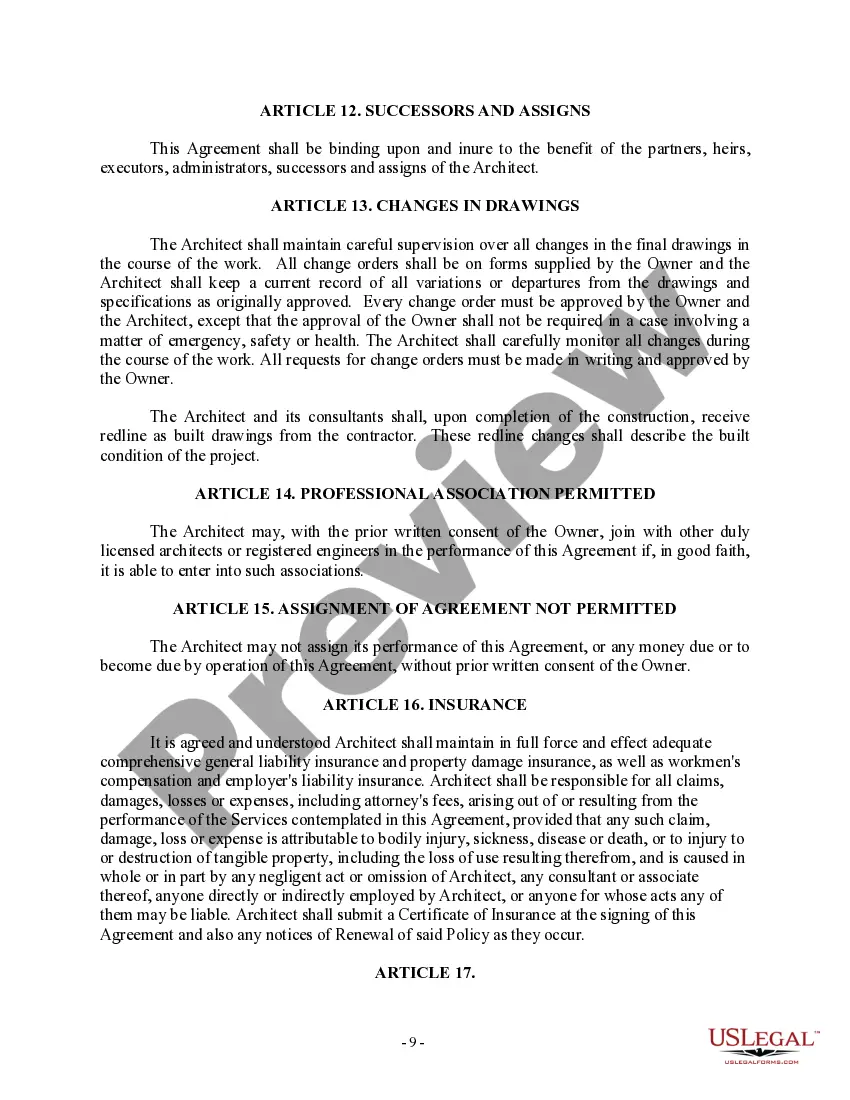
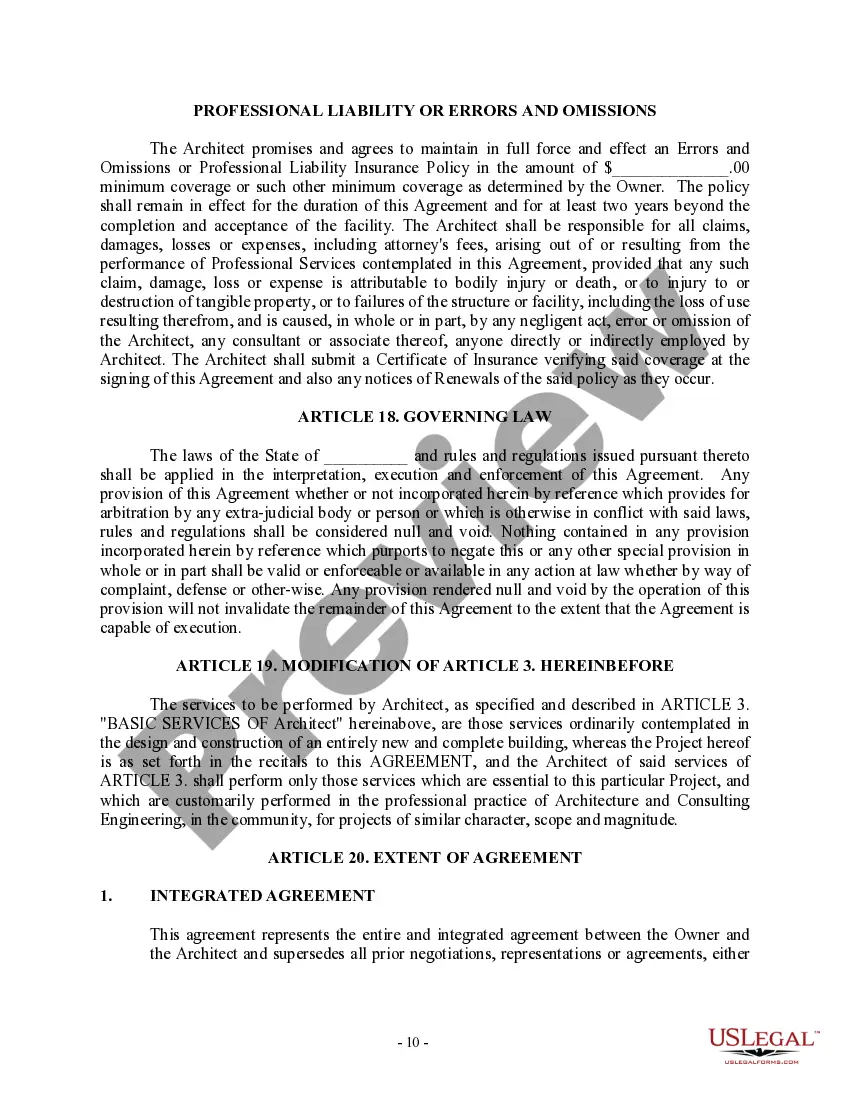

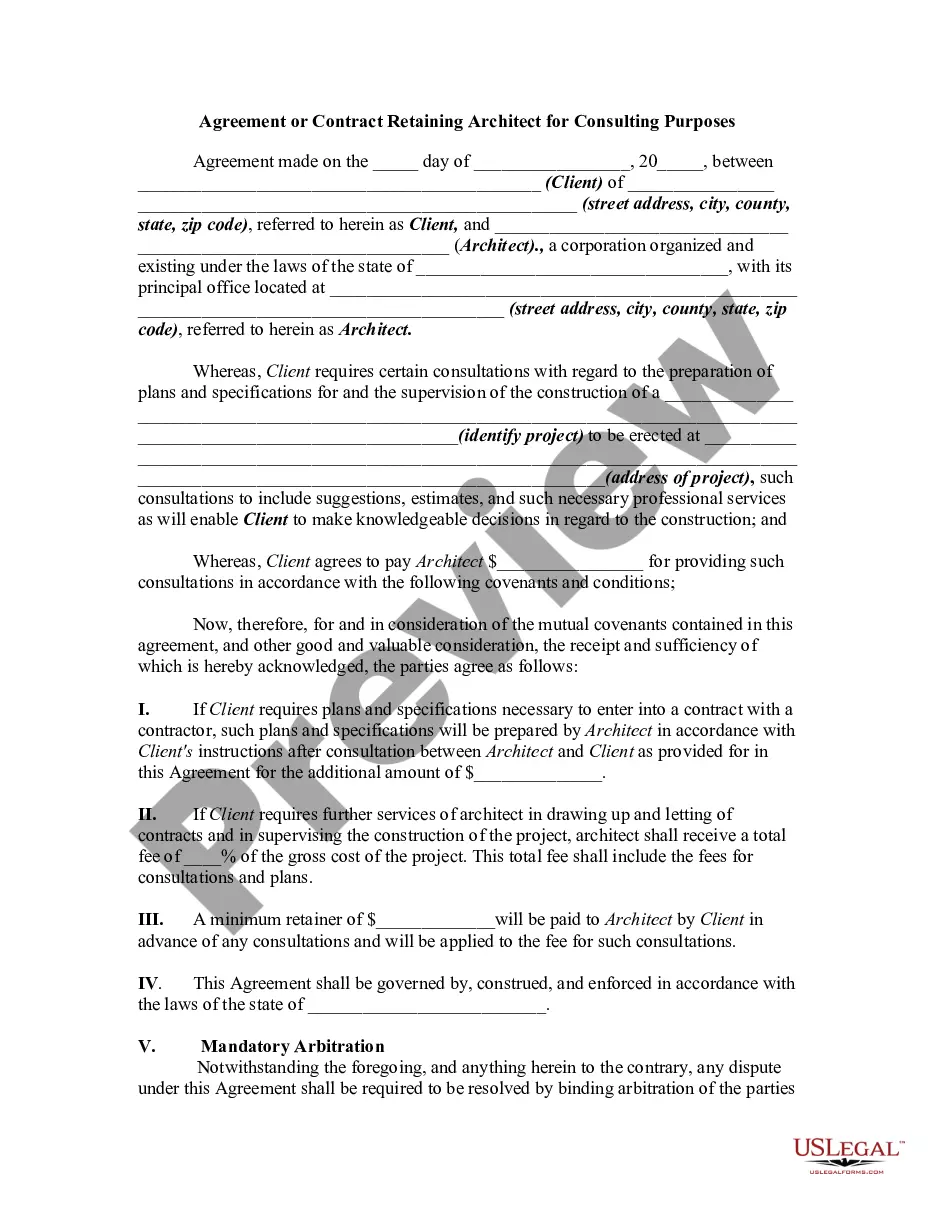
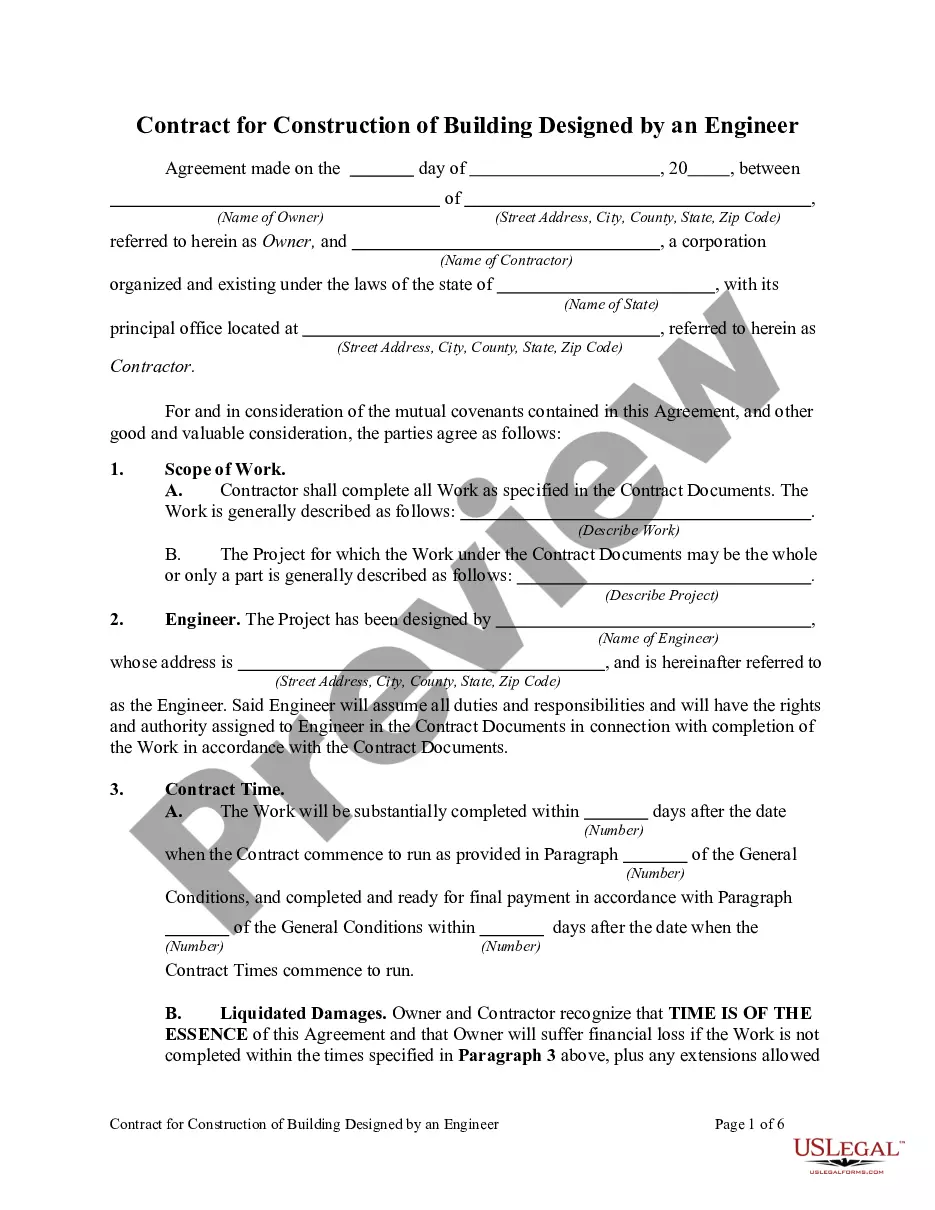
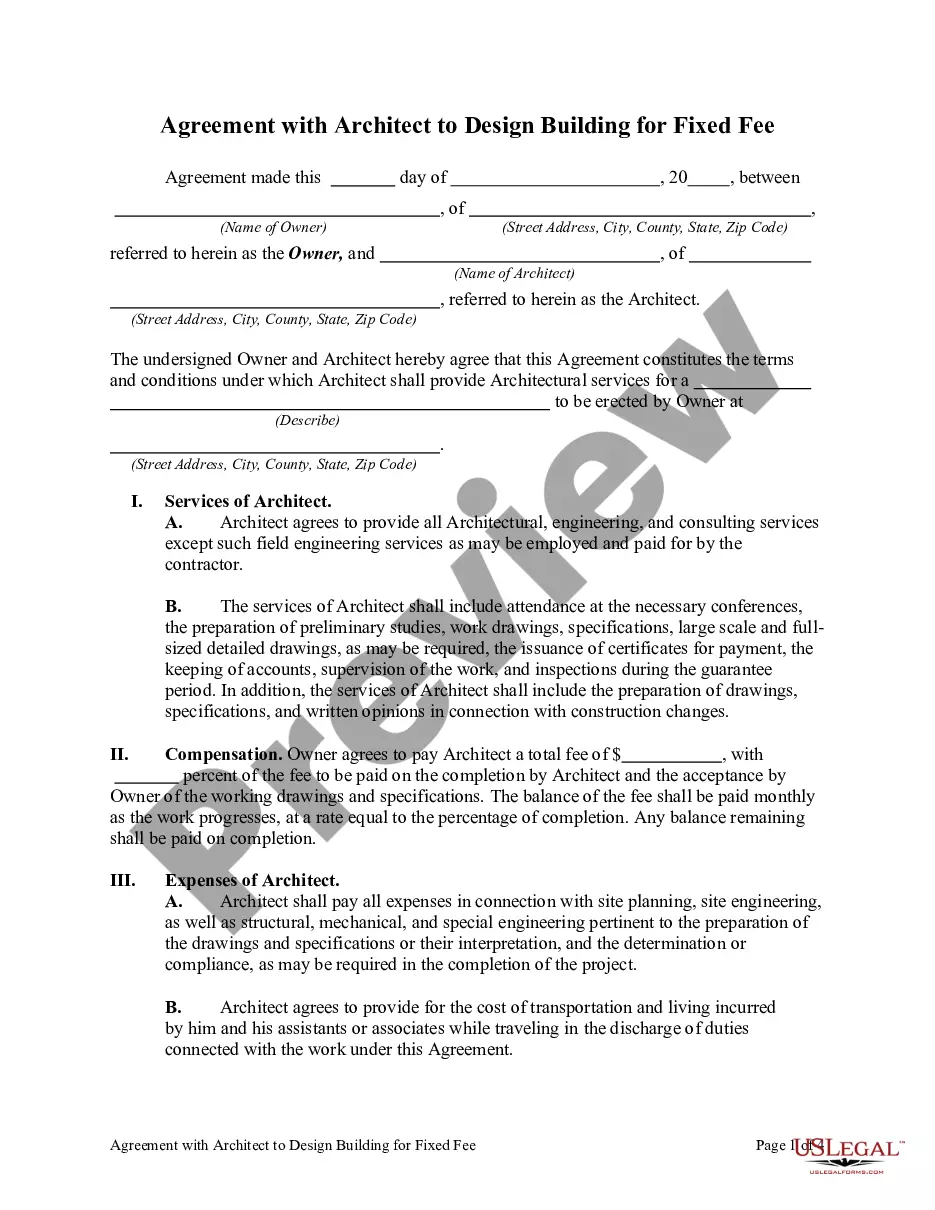
Get your form ready online
Our built-in tools help you complete, sign, share, and store your documents in one place.
Make edits, fill in missing information, and update formatting in US Legal Forms—just like you would in MS Word.
Download a copy, print it, send it by email, or mail it via USPS—whatever works best for your next step.
Sign and collect signatures with our SignNow integration. Send to multiple recipients, set reminders, and more. Go Premium to unlock E-Sign.
If this form requires notarization, complete it online through a secure video call—no need to meet a notary in person or wait for an appointment.
We protect your documents and personal data by following strict security and privacy standards.

Make edits, fill in missing information, and update formatting in US Legal Forms—just like you would in MS Word.

Download a copy, print it, send it by email, or mail it via USPS—whatever works best for your next step.

Sign and collect signatures with our SignNow integration. Send to multiple recipients, set reminders, and more. Go Premium to unlock E-Sign.

If this form requires notarization, complete it online through a secure video call—no need to meet a notary in person or wait for an appointment.

We protect your documents and personal data by following strict security and privacy standards.
Looking for another form?
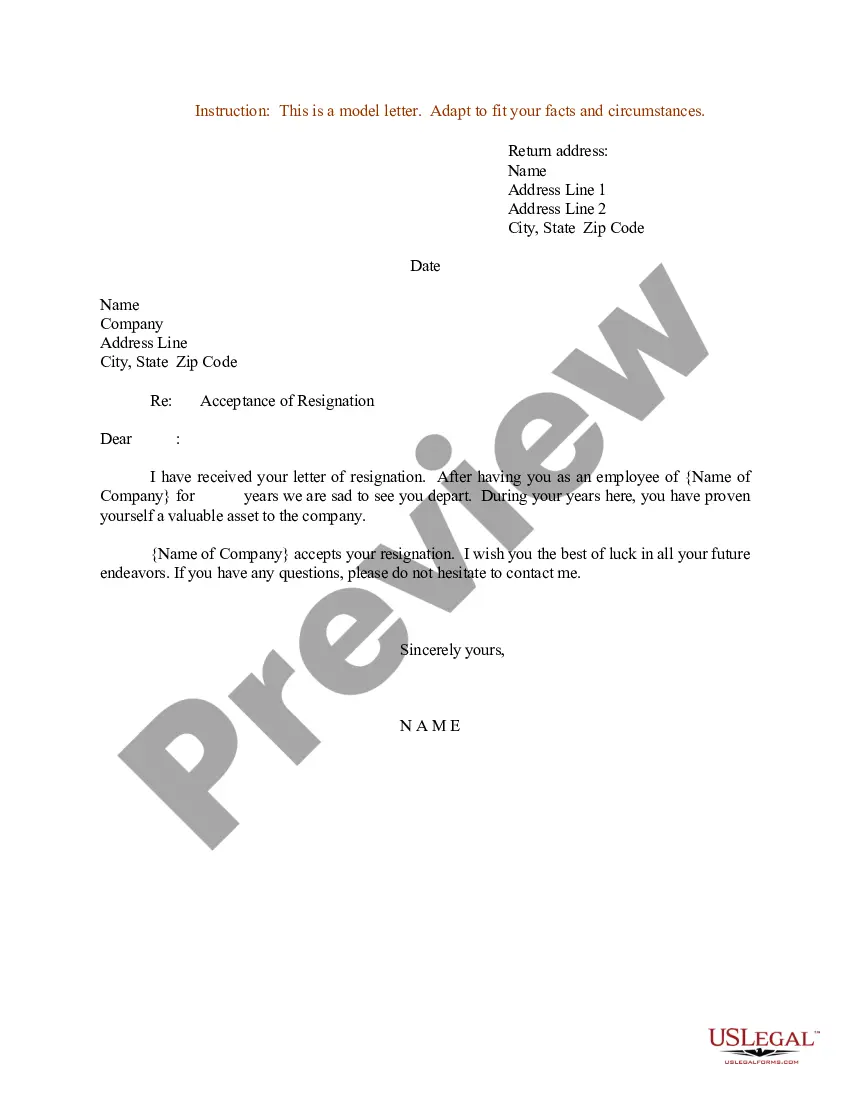
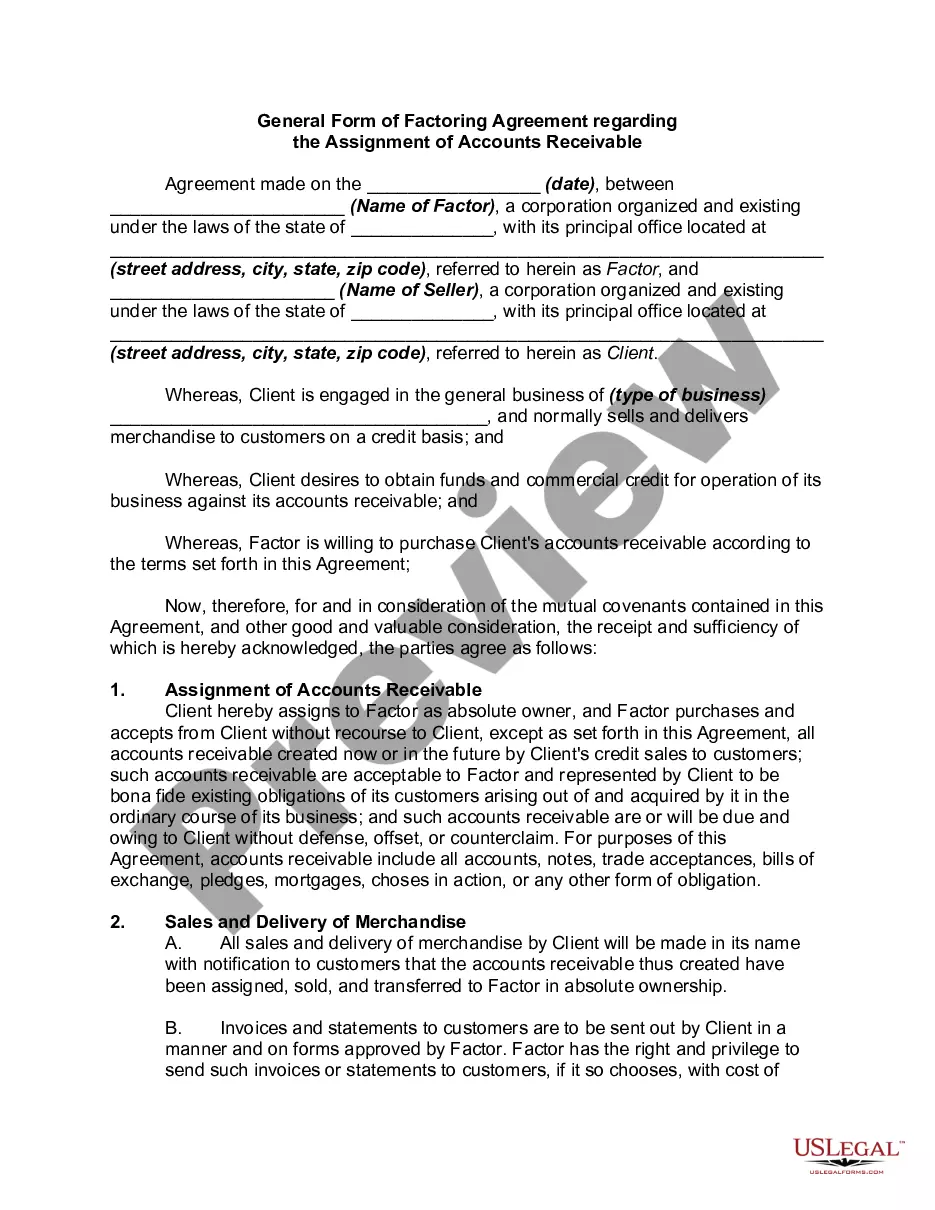
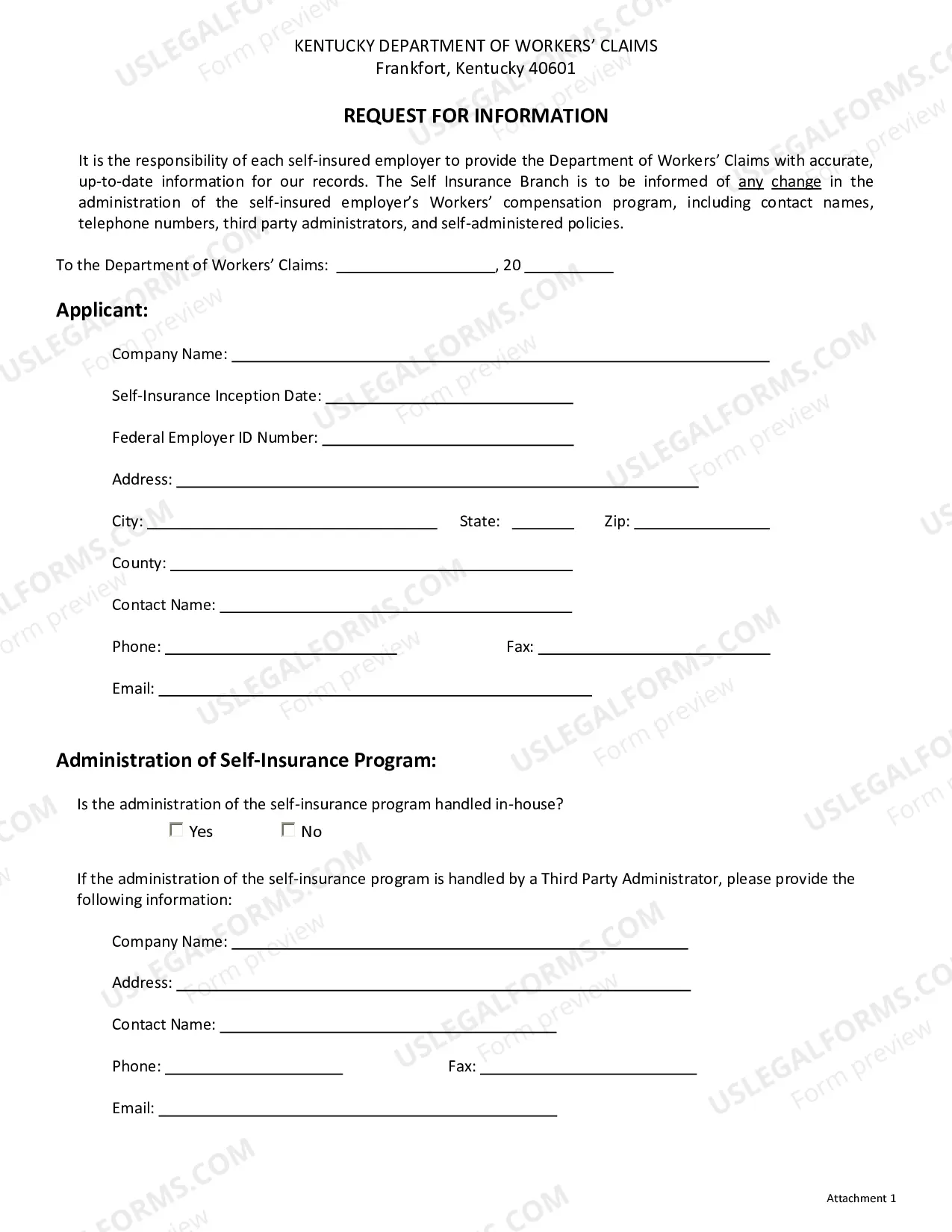
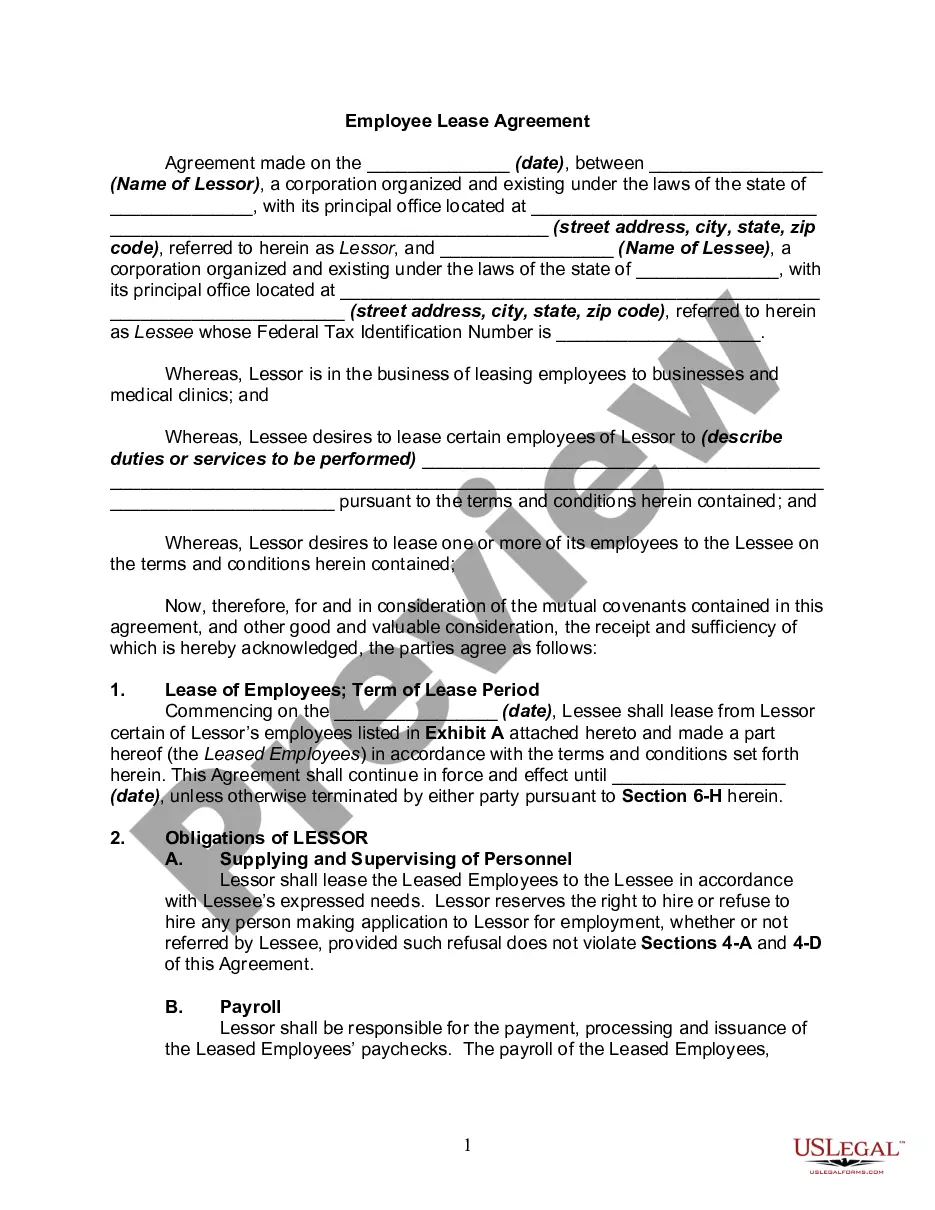
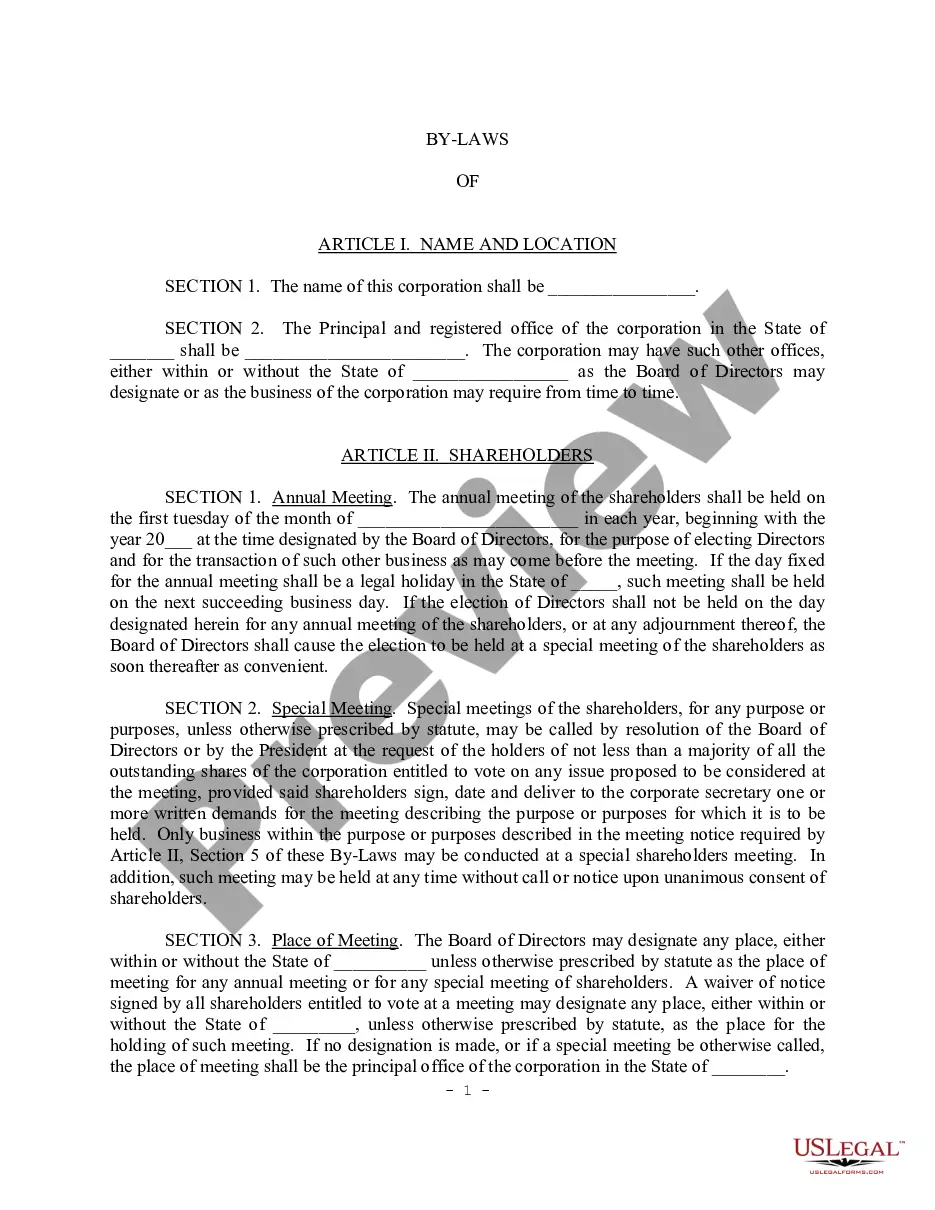

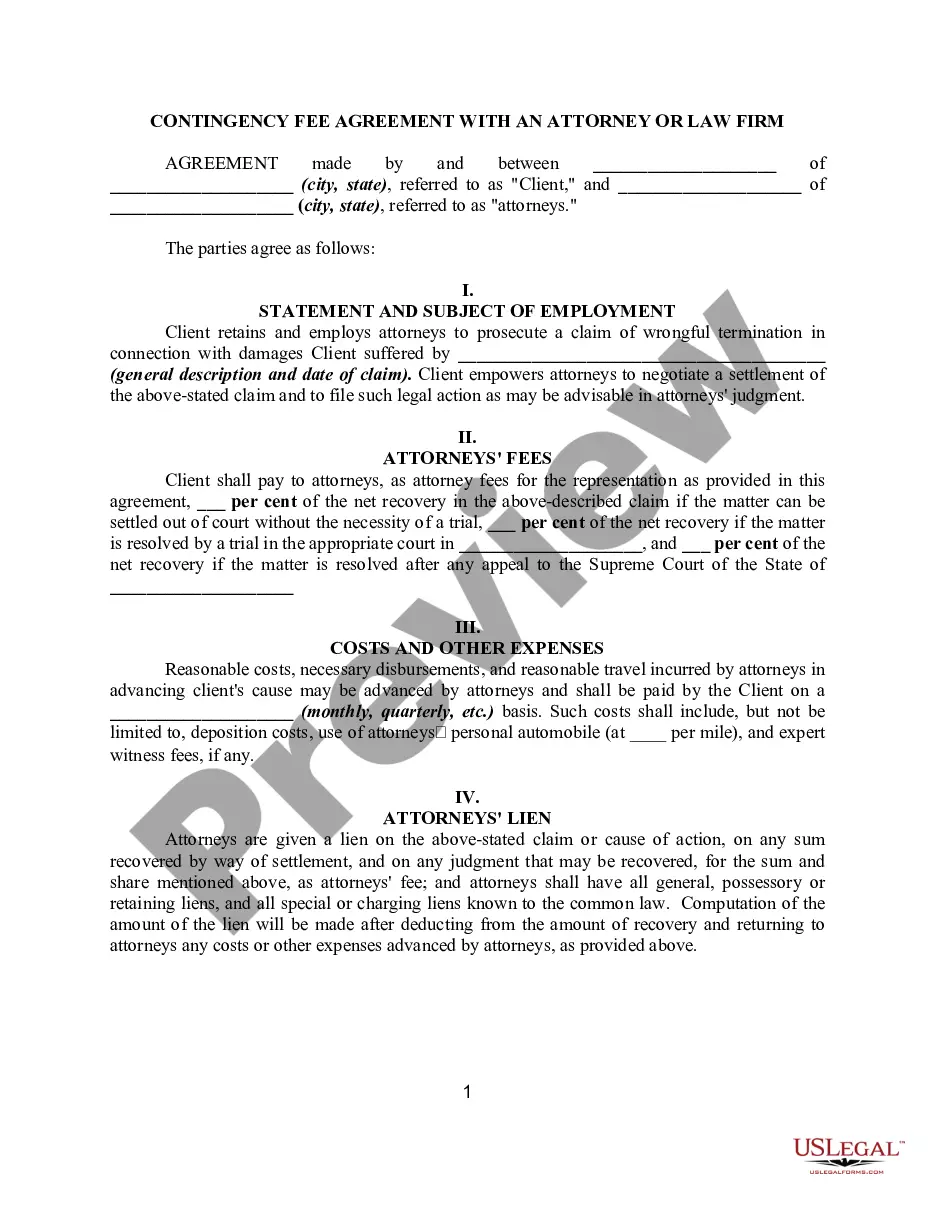
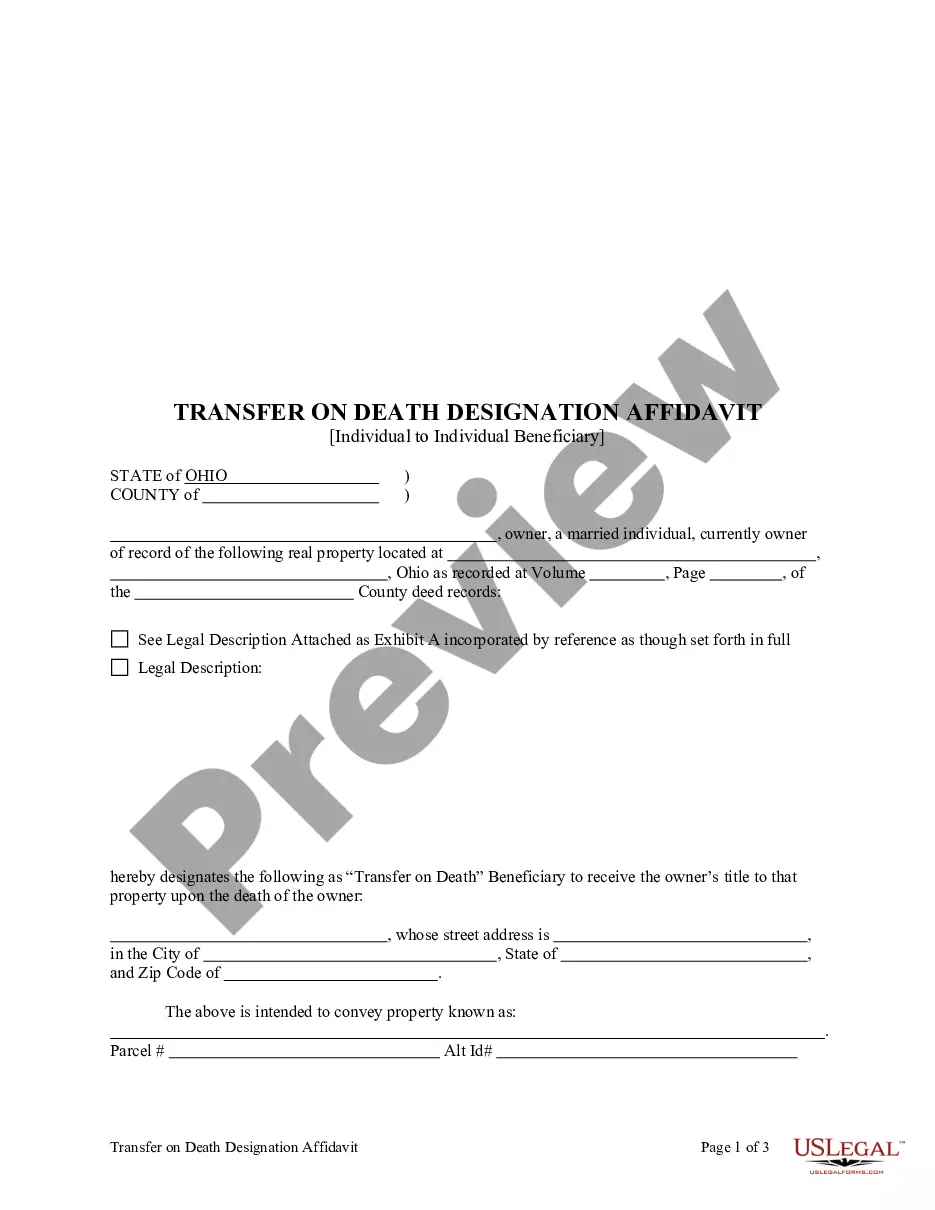
How to fill out Architect Contract For Design?
Legal administration can be overwhelming, even for seasoned professionals.
When you are looking for an Architecture Contract Template For Revit 2019 and lack the time to dedicate to finding the correct and current version, the process can be daunting.
US Legal Forms accommodates any needs you may have, from personal to business paperwork, all in one location.
Leverage advanced tools to complete and manage your Architecture Contract Template For Revit 2019.
Here are the steps to follow after obtaining the form you need: Confirm this is the correct form by previewing it and reviewing its details. Ensure that the template is valid in your state or county. Click Buy Now when you are ready. Choose a monthly subscription plan. Locate the format you require, and Download, complete, sign, print, and send your documents. Enjoy the US Legal Forms online library, supported by 25 years of expertise and reliability. Turn your routine document management into a straightforward and user-friendly process today.
- Access a valuable resource library of articles, tutorials, handbooks, and materials pertinent to your situation and requirements.
- Save time and effort searching for the documents you require, and utilize US Legal Forms’ sophisticated search and Review tool to find Architecture Contract Template For Revit 2019 and obtain it.
- If you have a monthly subscription, Log In to your US Legal Forms account, search for the form, and retrieve it.
- Check the My documents tab to view the documents you have previously downloaded and manage your folders as you prefer.
- If this is your first experience with US Legal Forms, create an account and gain unrestricted access to all features of the platform.
- A comprehensive online form library can be a transformative solution for anyone looking to handle these situations efficiently.
- US Legal Forms stands as a frontrunner in online legal documents, offering over 85,000 state-specific legal forms accessible to you at any time.
- With US Legal Forms, you can access legal and business forms specific to your state or county.
Form popularity
FAQ
We can conclude that the architectural template is aimed more at projecting, while the construction template is aimed at following the construction process in a deeper way.
The default location for templates will be within the path C:\ProgramData\Autodesk\RVT ####\Templates. Enable Hidden Items in File Explorer to see the ProgramData folder: View hidden files and folders in Windows. If the desired path does not exist, it can be set up in Windows explorer. If using a custom Revit.
Open Revit. Go to the Revit Options > File Locations. Click the Green + sign, and enter the desired default project template (The default Architectural template file is named Default. rte).
The default location for templates will be within the path C:\ProgramData\Autodesk\RVT ####\Templates. Enable Hidden Items in File Explorer to see the ProgramData folder: View hidden files and folders in Windows. If the desired path does not exist, it can be set up in Windows explorer. If using a custom Revit.
Autodesk Revit 2019 Content Download the desired content executable to a local location. Launch the content executable from the saved local location. Specify the desired content location (Default destination folder ?C:\Program Data\Autodesk\RVT 2019?) and choose Extract.