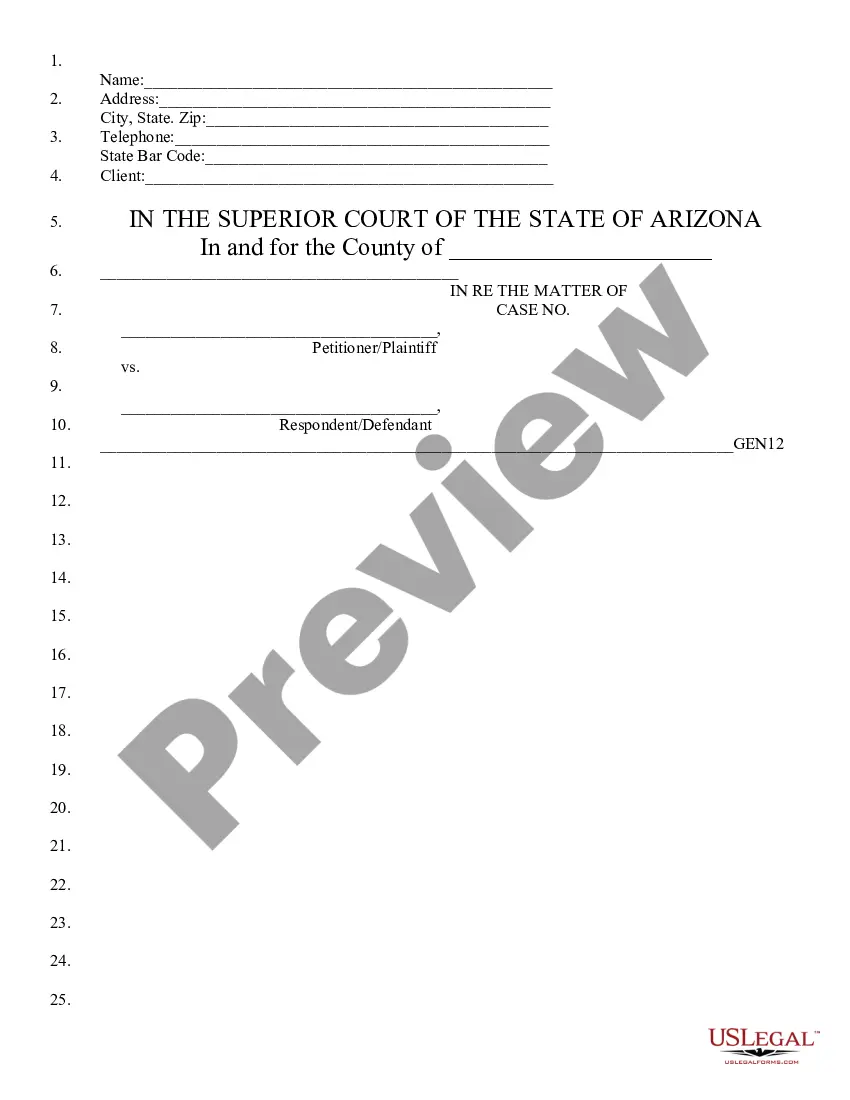
Mississippi Inventory, Petition to Approve Expenses and Monthly Allowances, and for Other Relief
What this document covers
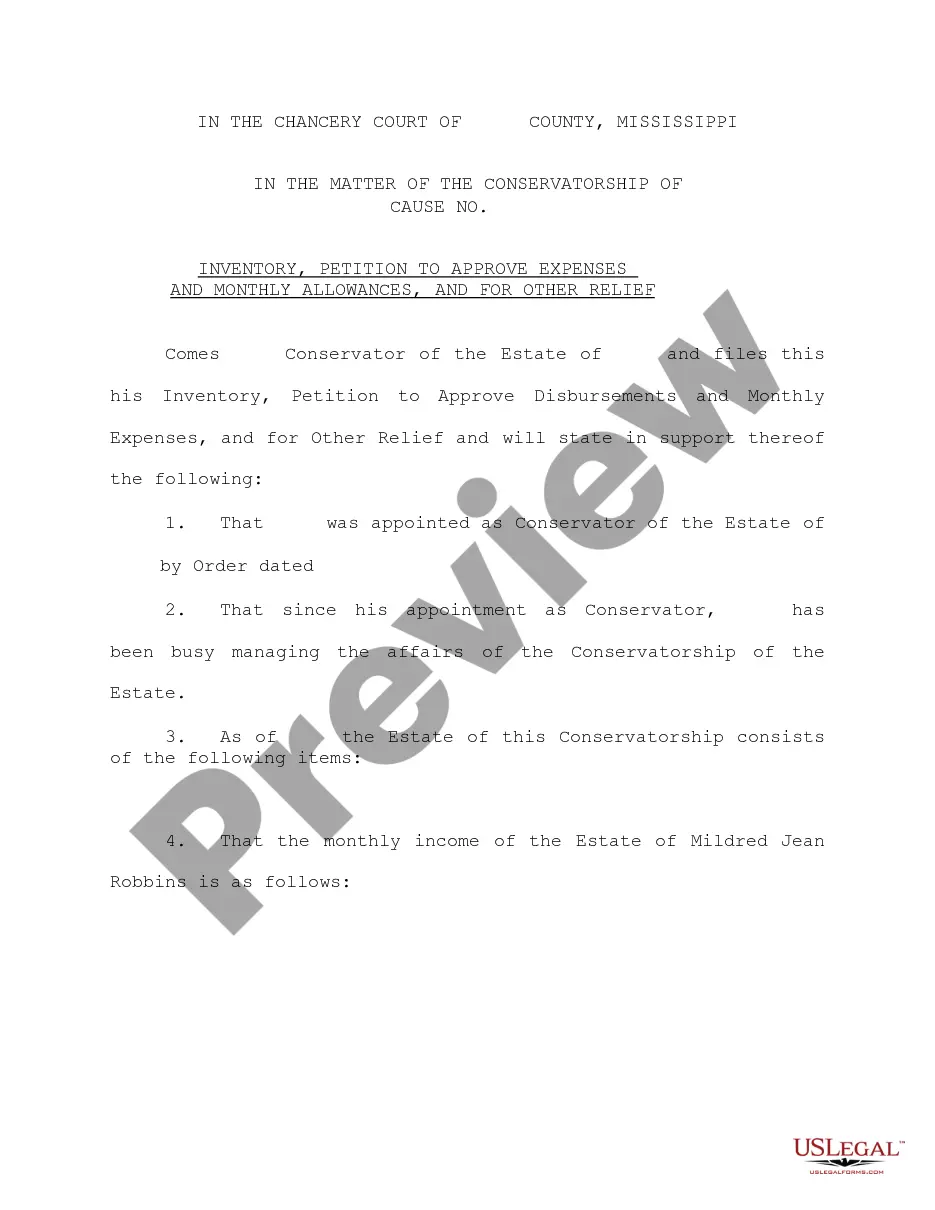
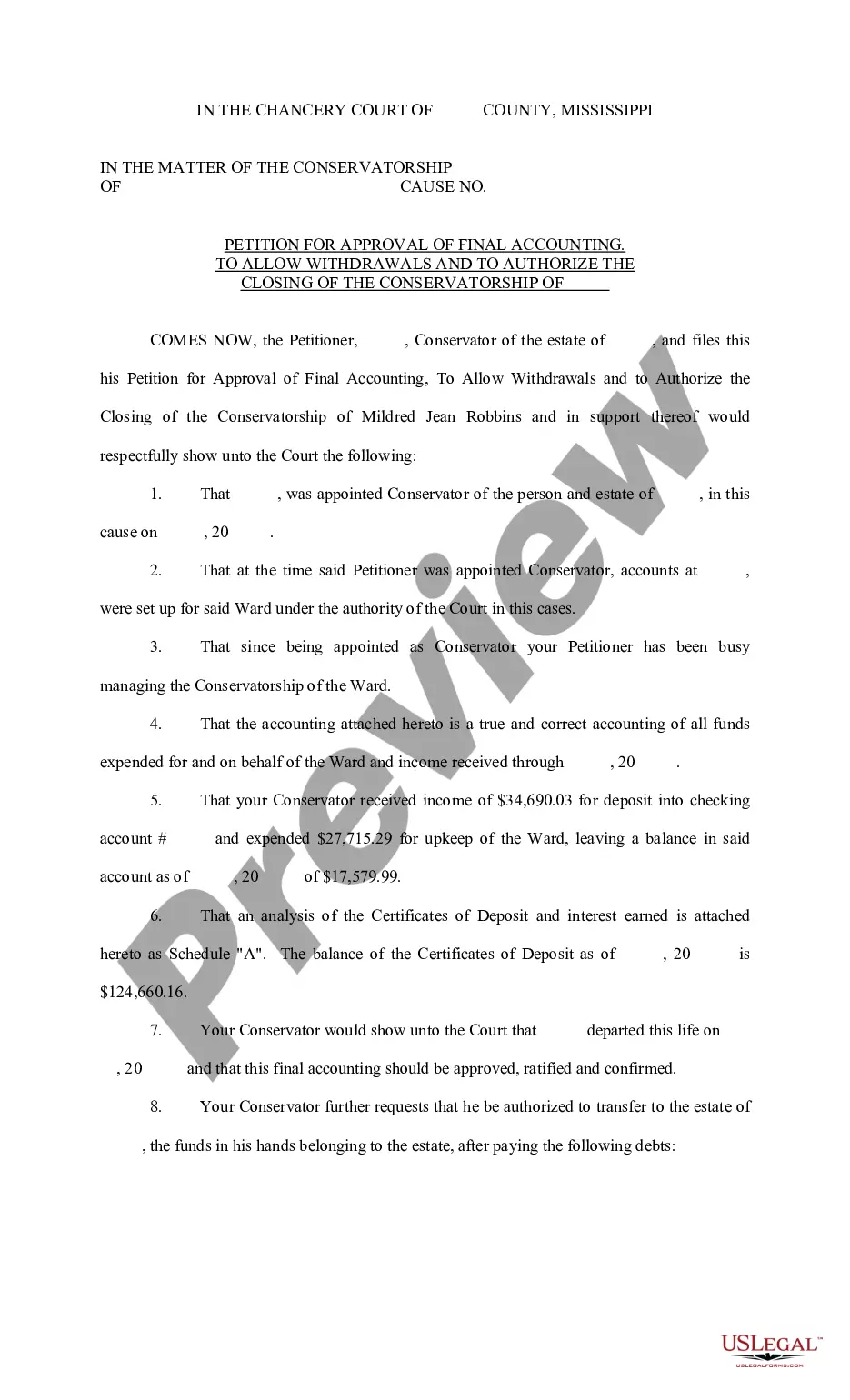
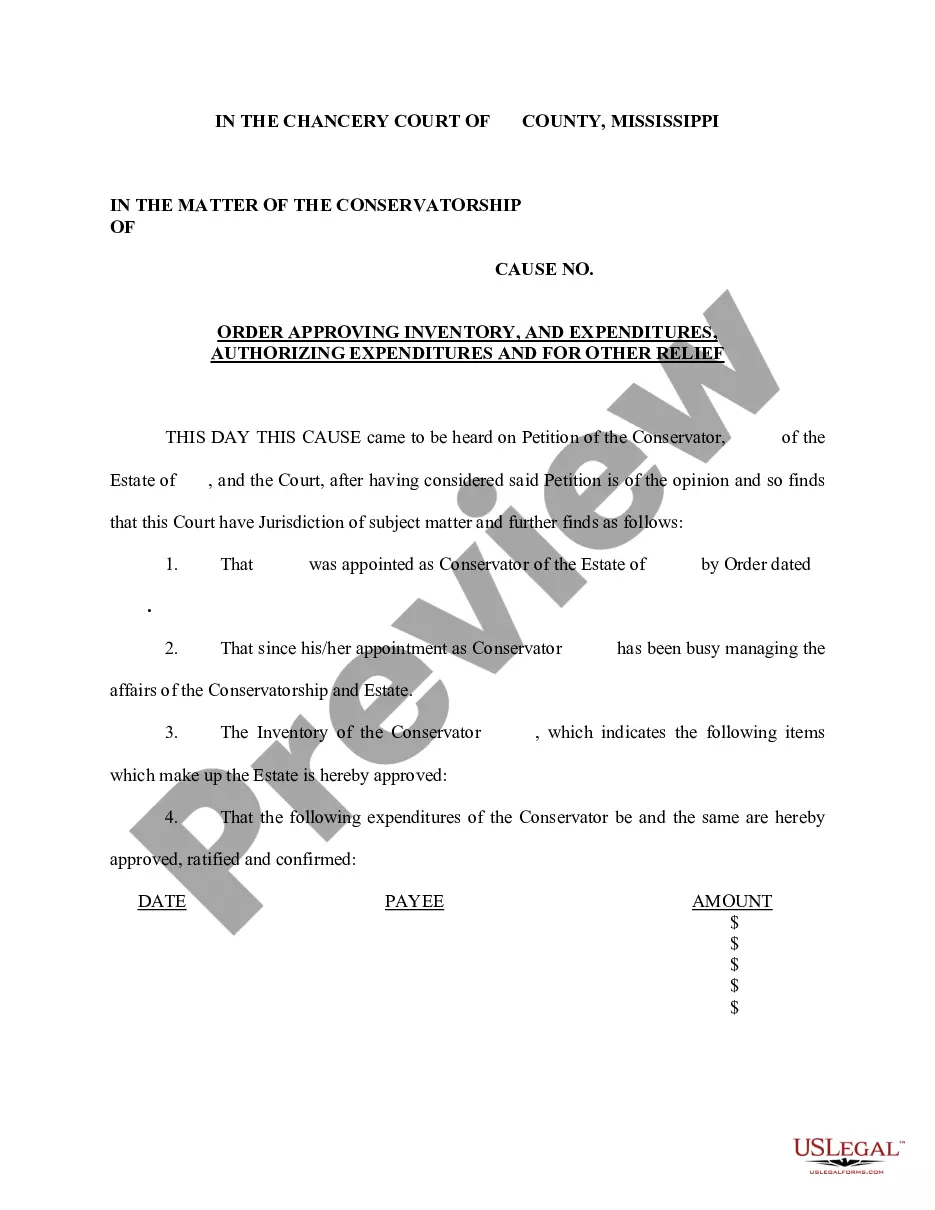
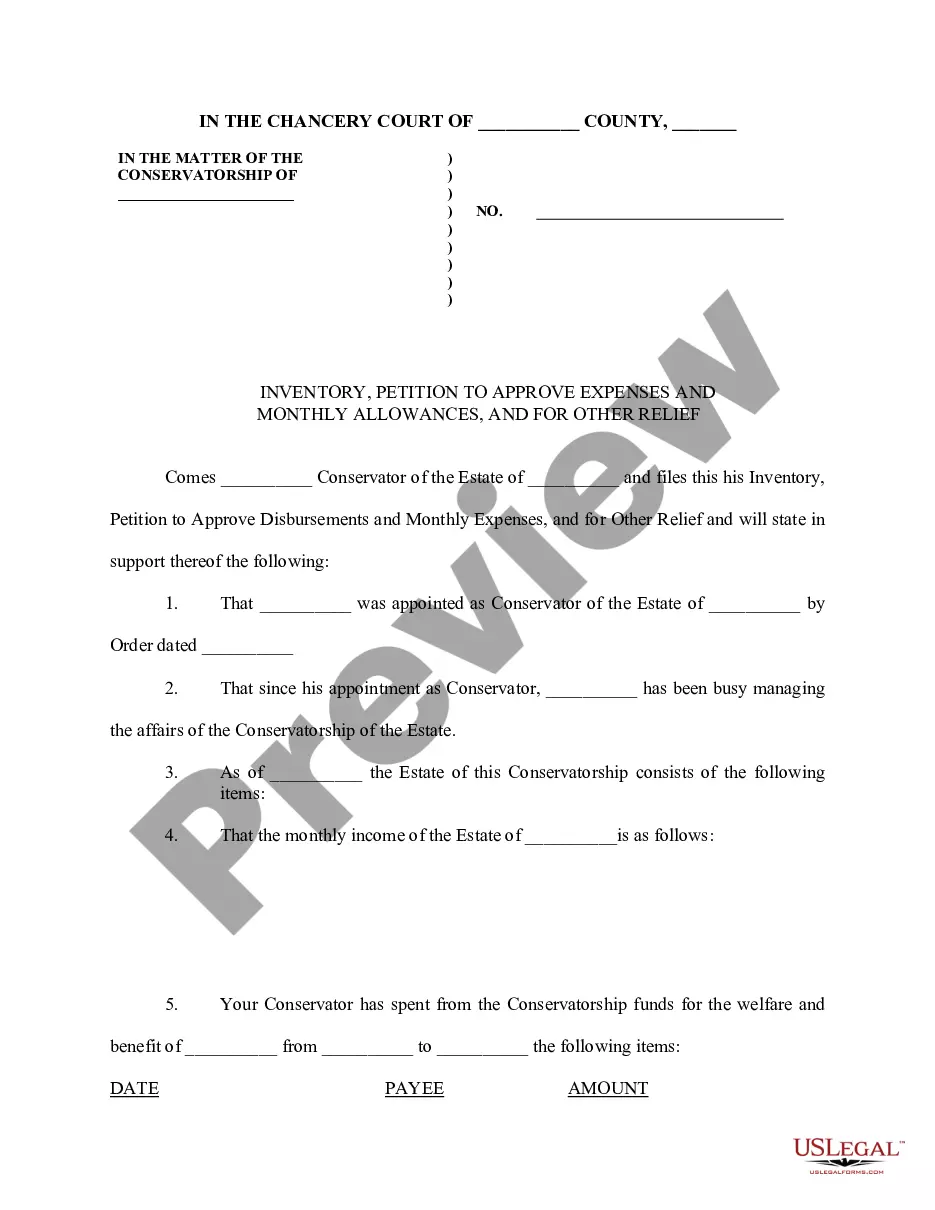
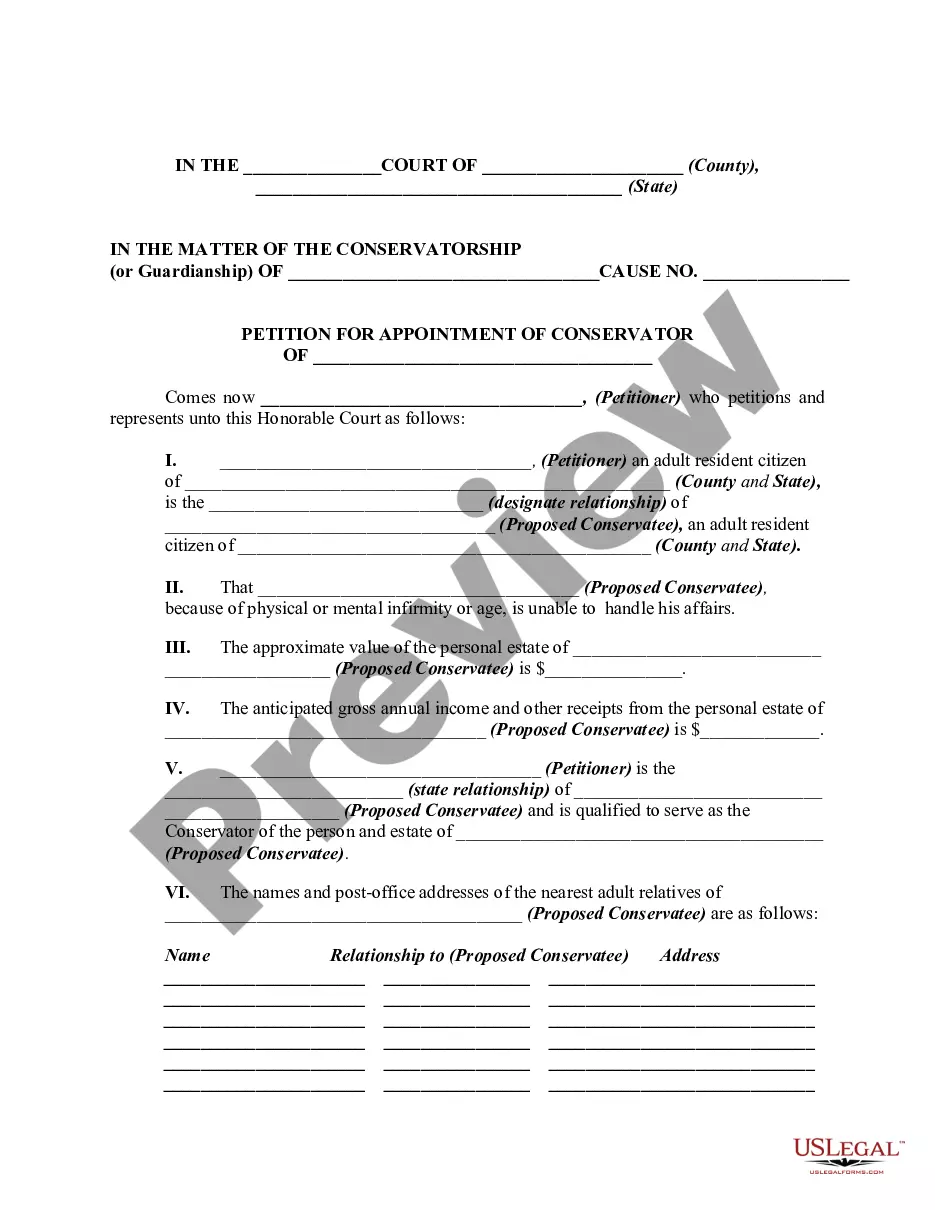
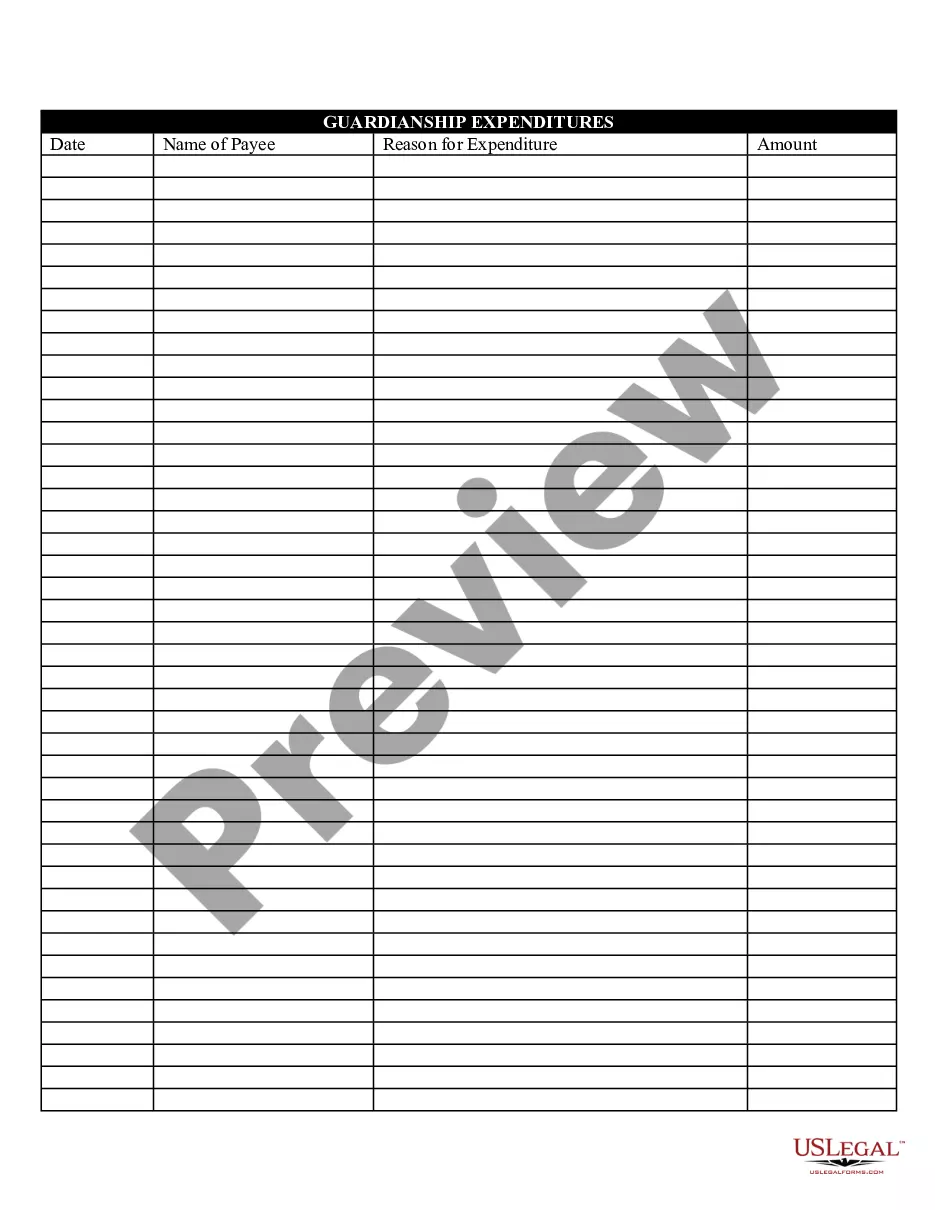
The Inventory, Petition to Approve Expenses and Monthly Allowances, and for Other Relief is a legal document filed by the conservator with the court. This form serves to detail the inventory of the estate being managed and outlines the monthly expenses associated with that estate. Unlike other forms, this petition also requests court approval for specific expenditures made on behalf of the estate, highlighting its importance in ensuring financial accountability and transparency in conservatorship matters.
What’s included in this form
- Detailed inventory of the estate managed by the conservator.
- Monthly income information for the estate, reflecting its financial status.
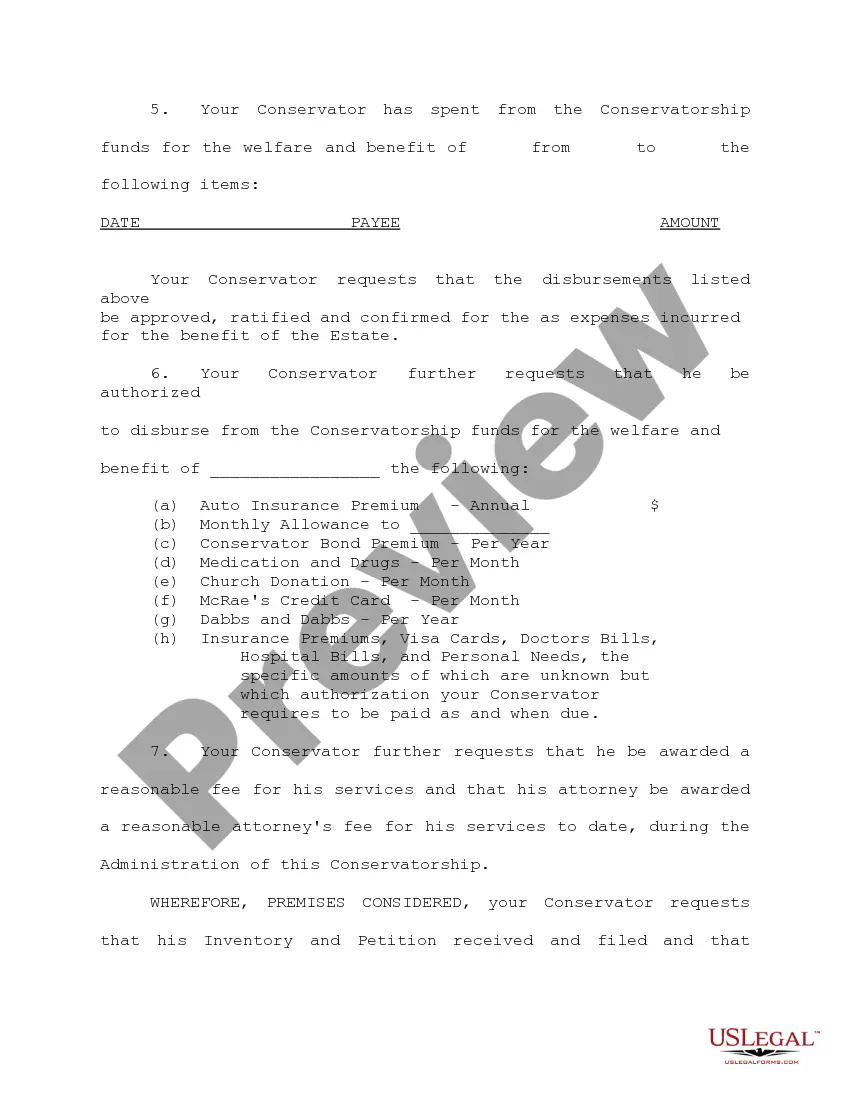
- Request for authorization to disburse funds for specific expenses, such as insurance and medical needs.
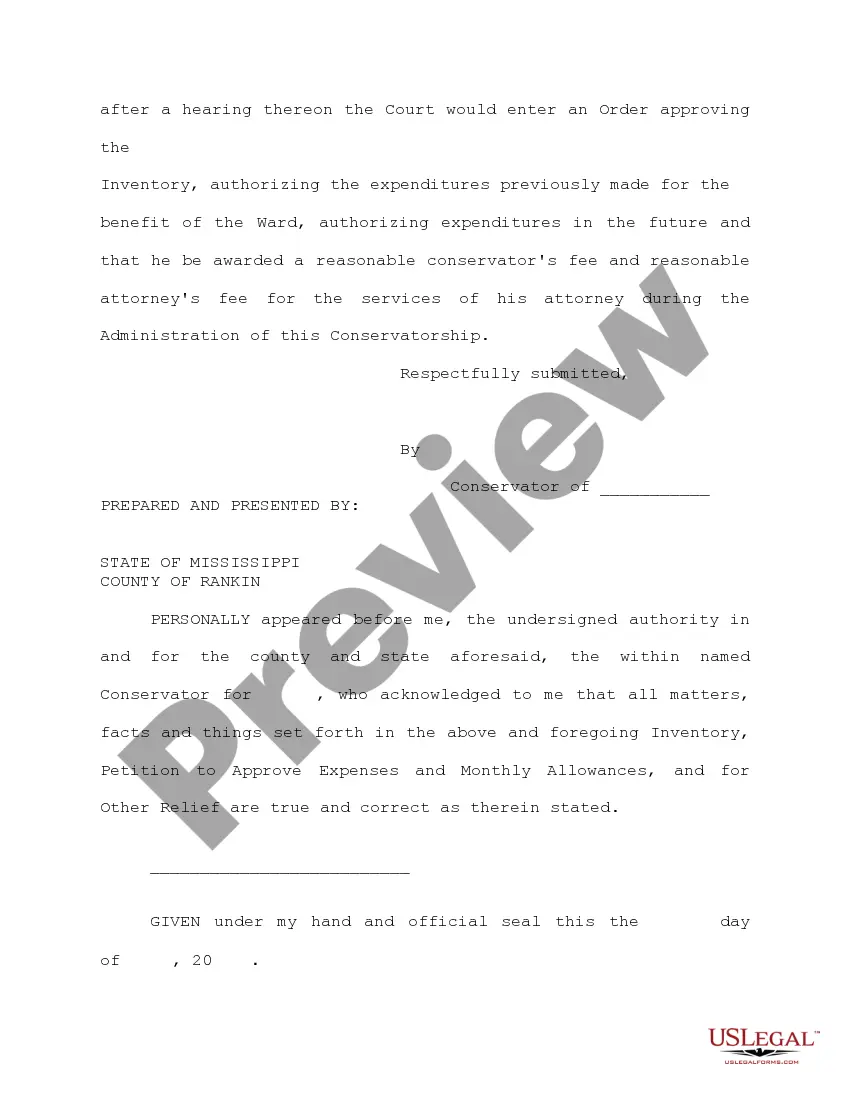
- Proposal for a reasonable fee for the conservator's services and attorney fees.
- Formal request for court approval of the listed expenses and future disbursements.

When to use this form
This form is necessary when a conservator must report on the state of the finances of the estate they manage. Use this form if you need to seek court approval for current and future expenditures, ensuring that all financial actions are ratified and compliant with legal requirements. It is commonly used during the administration of a conservatorship to maintain clarity and oversight in managing the estate's budget.
Who this form is for
- Conservators appointed to manage an estate on behalf of individuals who are unable to do so themselves.
- Attorneys representing conservators in ensuring financial obligations are approved by the court.
- Family members acting as conservators and looking to manage the estate's finances legally and responsibly.
How to prepare this document
- Identify the parties involved, including the conservator and the estate beneficiary.
- Provide a detailed inventory of the estate, listing all assets and their values.
- Specify monthly expenses and other extraordinary expenses for which approval is being requested.
- Request a reasonable fee for the conservator's services and specify attorney fees if applicable.
- Ensure that all required signatures and dates are correctly filled in before submission.
Does this form need to be notarized?
This document requires notarization to meet legal standards. US Legal Forms provides secure online notarization powered by Notarize, allowing you to complete the process through a verified video call, available 24/7.
Get your form ready online
Our built-in tools help you complete, sign, share, and store your documents in one place.
Make edits, fill in missing information, and update formatting in US Legal Forms—just like you would in MS Word.
Download a copy, print it, send it by email, or mail it via USPS—whatever works best for your next step.
Sign and collect signatures with our SignNow integration. Send to multiple recipients, set reminders, and more. Go Premium to unlock E-Sign.
If this form requires notarization, complete it online through a secure video call—no need to meet a notary in person or wait for an appointment.
We protect your documents and personal data by following strict security and privacy standards.
Make edits, fill in missing information, and update formatting in US Legal Forms—just like you would in MS Word.
Download a copy, print it, send it by email, or mail it via USPS—whatever works best for your next step.
Sign and collect signatures with our SignNow integration. Send to multiple recipients, set reminders, and more. Go Premium to unlock E-Sign.

If this form requires notarization, complete it online through a secure video call—no need to meet a notary in person or wait for an appointment.
We protect your documents and personal data by following strict security and privacy standards.
Mistakes to watch out for
- Failing to provide a complete inventory of the estate, which can lead to court rejection.
- Omitting necessary details for monthly expenses or failing to justify extraordinary expenditures.
- Not signing the form or having required parties' signatures missing.
Why use this form online
- Convenient access to the form anytime, allowing for timely submission.
- Editable templates ensure that you can fill in your specific details accurately.
- Reliable resources from licensed attorneys to guide you through the process.
Quick recap
- The form serves as a formal request for court approval of expenses related to a conservatorship.
- It is essential to disclose all financial activities for transparency.
- Compliance with state-specific regulations is crucial for the valid submission of this form.
Looking for another form?

Form popularity
FAQ
Use the Details dropdown and select Approval Flow. Each approval step indicates whose approval is needed (such as manager, SpeedType, officer, etc.) Approvers with names that are not faded can be changed. To add an additional approver, use the plus signs to the right of the approver field.
Use your verified email address to send the email. Receipt images can either be attached to the email or embedded in the email content. Send the email to receipts@concur.com. Enter your delegator's verified email address in the Subject line of the email.
Response #6: The approving manager should be responsible for the legitimacy of the expense. AP should be responsible for ensuring the documentation of the expense is proper.
Approved and in Accounting Review All approvals have been done and expense report is in queue for final back office review and approval. Cannot be modified except to attach additional receipts. Employee or delegate can recall.
To approve this expense report as is, click Approve. If you have questions and want to deny this expense report, click Send Back to Employee. If you want to approve this expense report and add an additional approver, click Approve & Forward.
As a best practice, an Officer of the Board should periodically review the expense reports and credit card activity of the Organization's CEO.
Sort the receipts in the order listed in the expense report. Review the first receipt to make sure it is legitimate and not questionable. Review all the receipts to make sure that all expense claims abide by the company's policy guidelines.
To approve this expense report as is, click Approve. If you have questions and want to deny this expense report, click Send Back to Employee. If you want to approve this expense report and add an additional approver, click Approve & Forward.