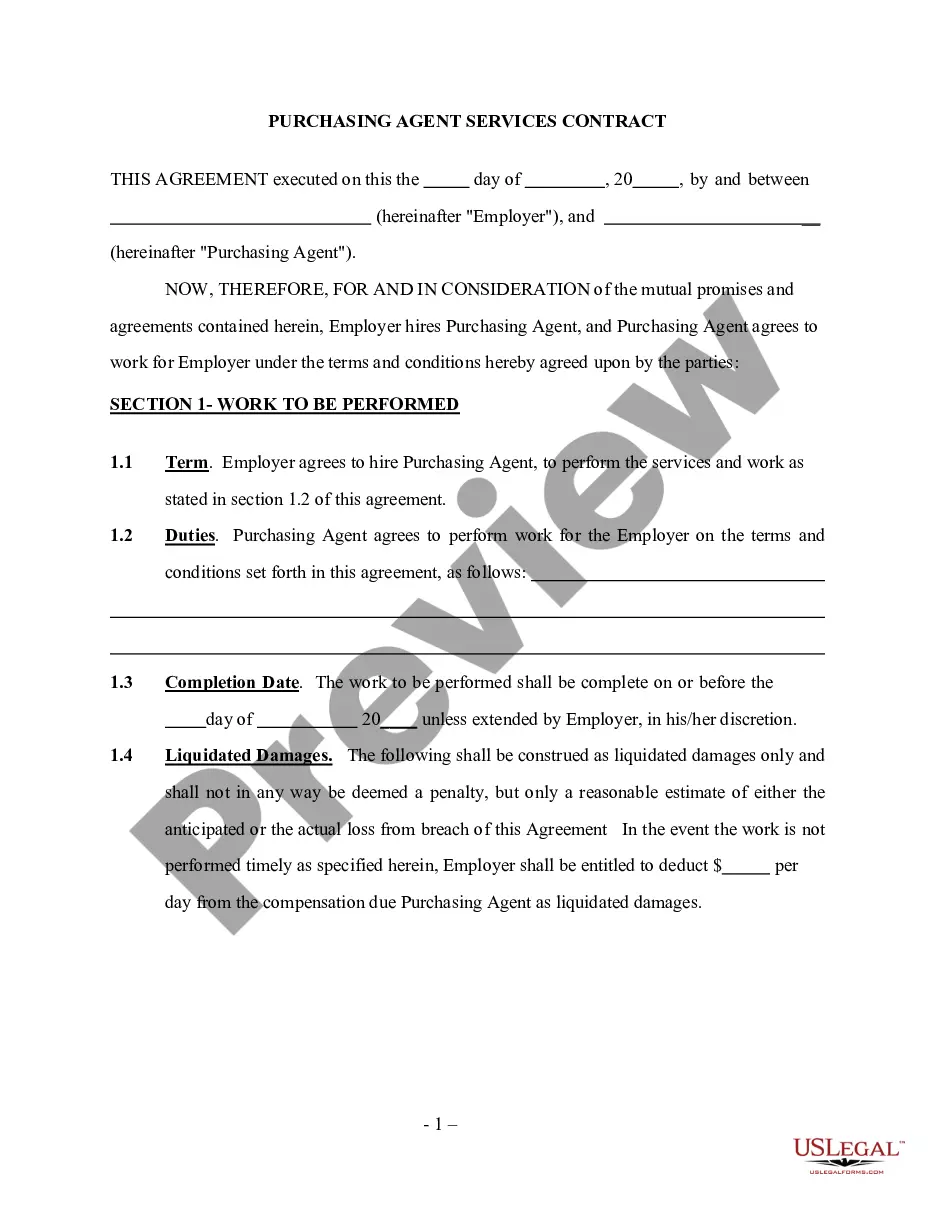
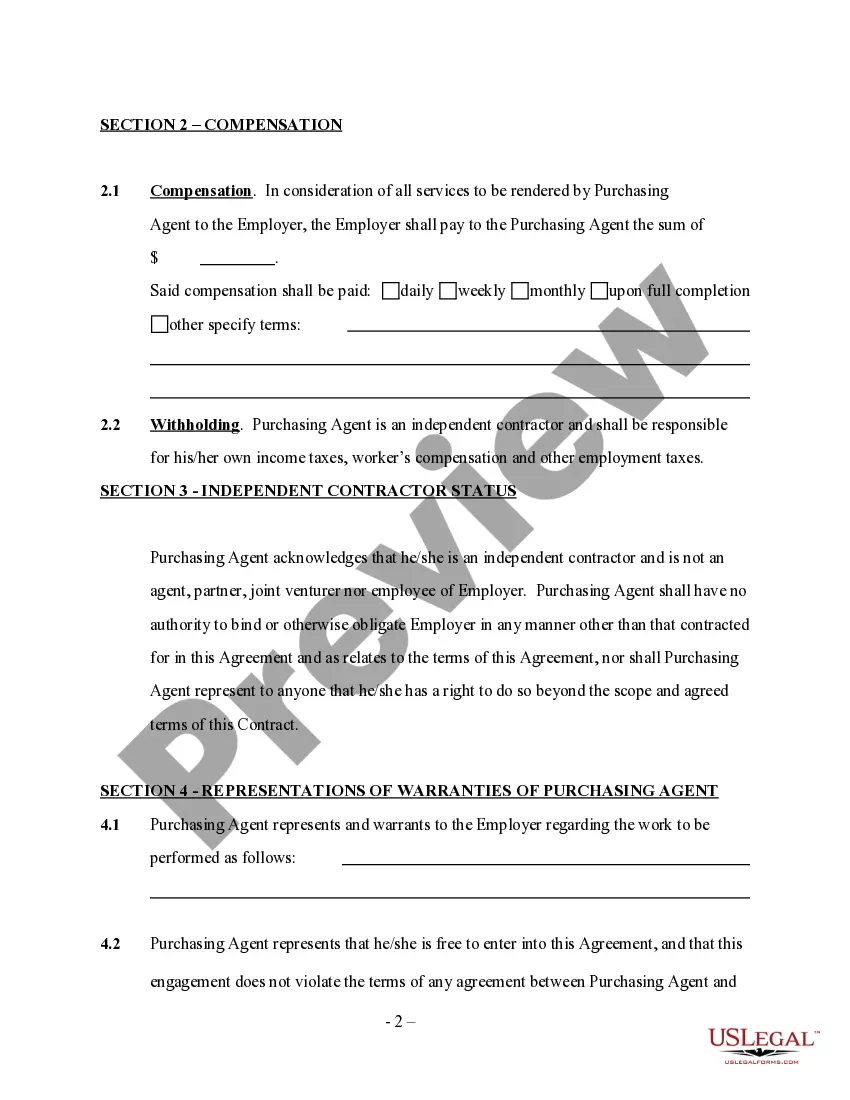
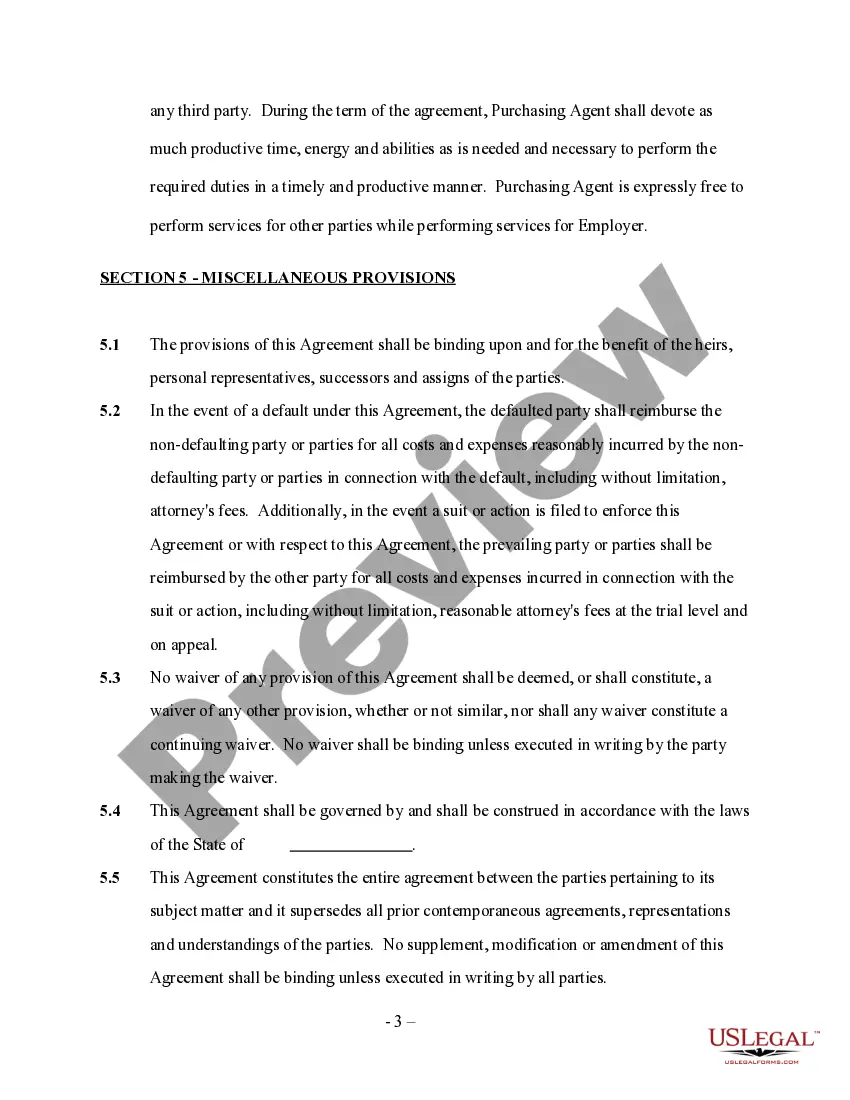
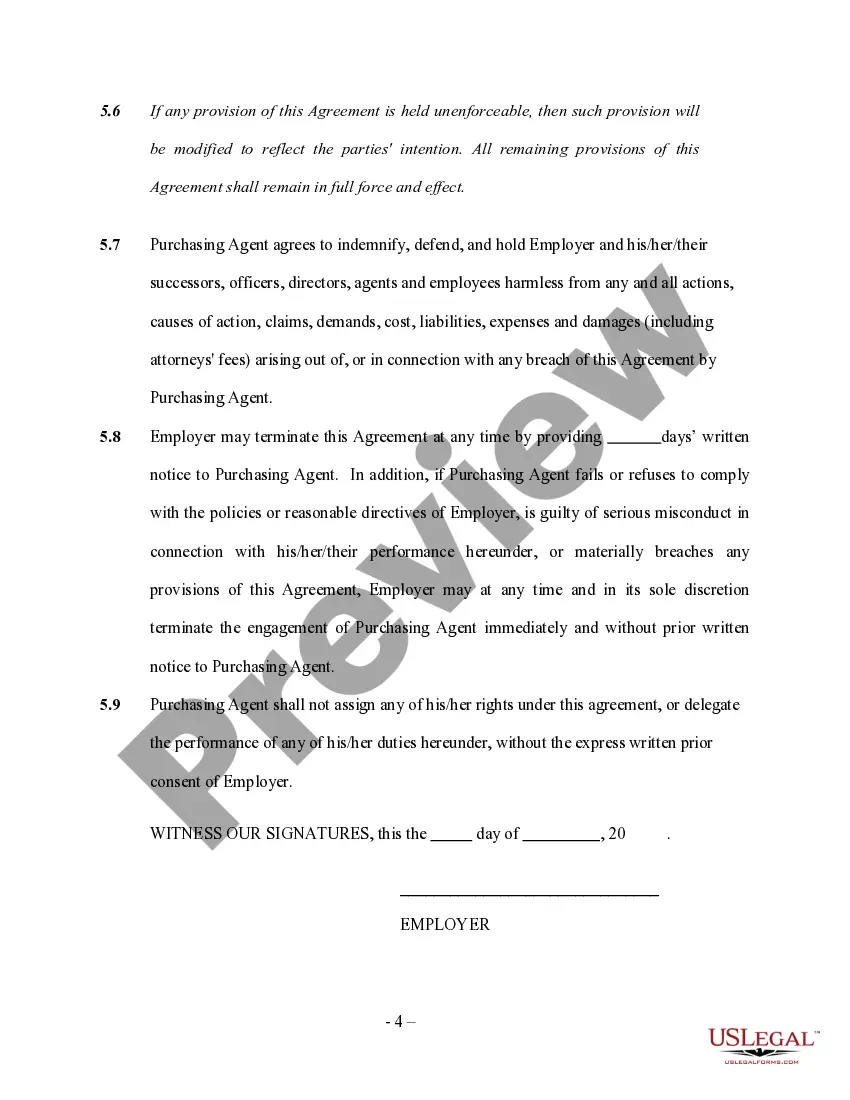
Purchasing Agent Contract With Sap
Description
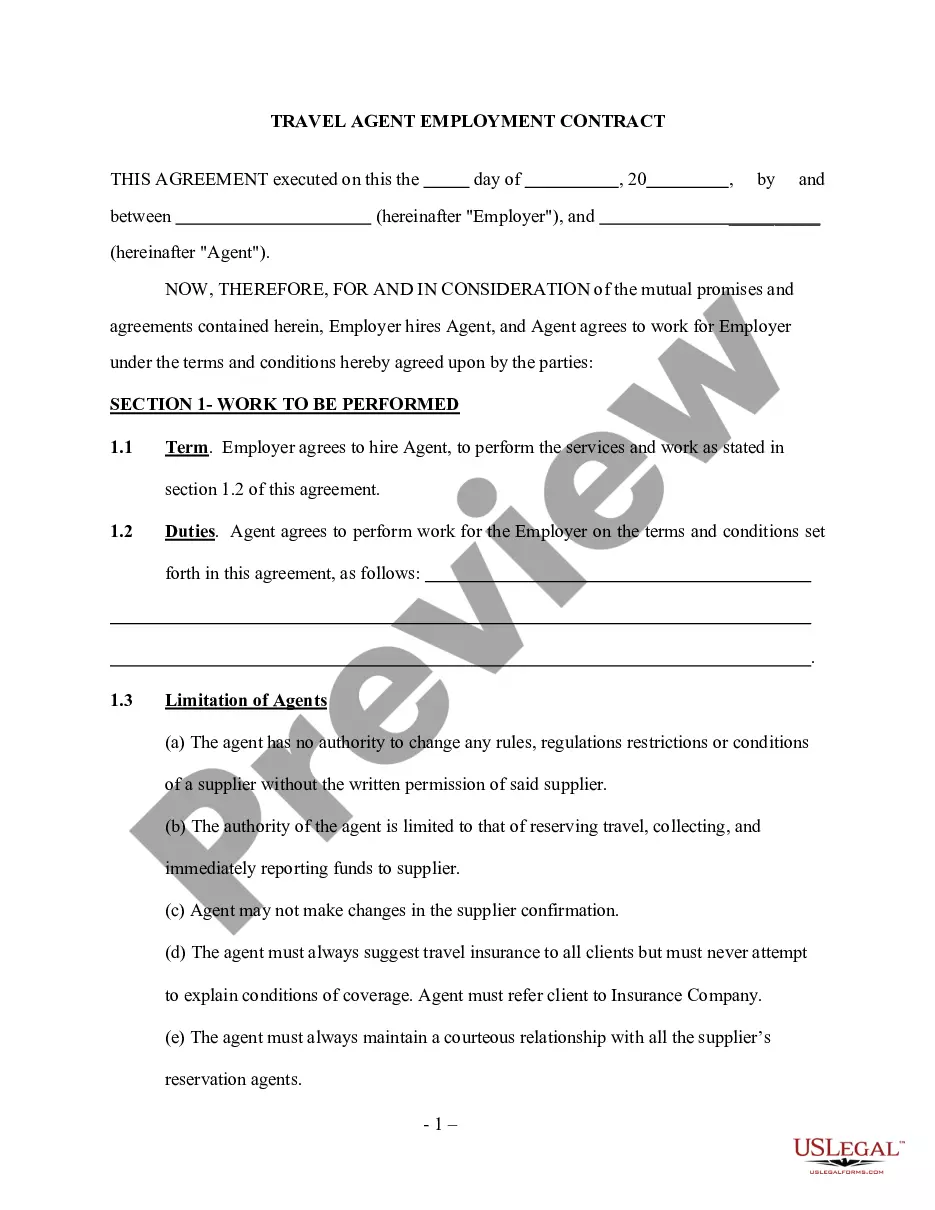
Get your form ready online
Our built-in tools help you complete, sign, share, and store your documents in one place.
Make edits, fill in missing information, and update formatting in US Legal Forms—just like you would in MS Word.
Download a copy, print it, send it by email, or mail it via USPS—whatever works best for your next step.
Sign and collect signatures with our SignNow integration. Send to multiple recipients, set reminders, and more. Go Premium to unlock E-Sign.
If this form requires notarization, complete it online through a secure video call—no need to meet a notary in person or wait for an appointment.
We protect your documents and personal data by following strict security and privacy standards.

Make edits, fill in missing information, and update formatting in US Legal Forms—just like you would in MS Word.

Download a copy, print it, send it by email, or mail it via USPS—whatever works best for your next step.

Sign and collect signatures with our SignNow integration. Send to multiple recipients, set reminders, and more. Go Premium to unlock E-Sign.

If this form requires notarization, complete it online through a secure video call—no need to meet a notary in person or wait for an appointment.

We protect your documents and personal data by following strict security and privacy standards.
Looking for another form?
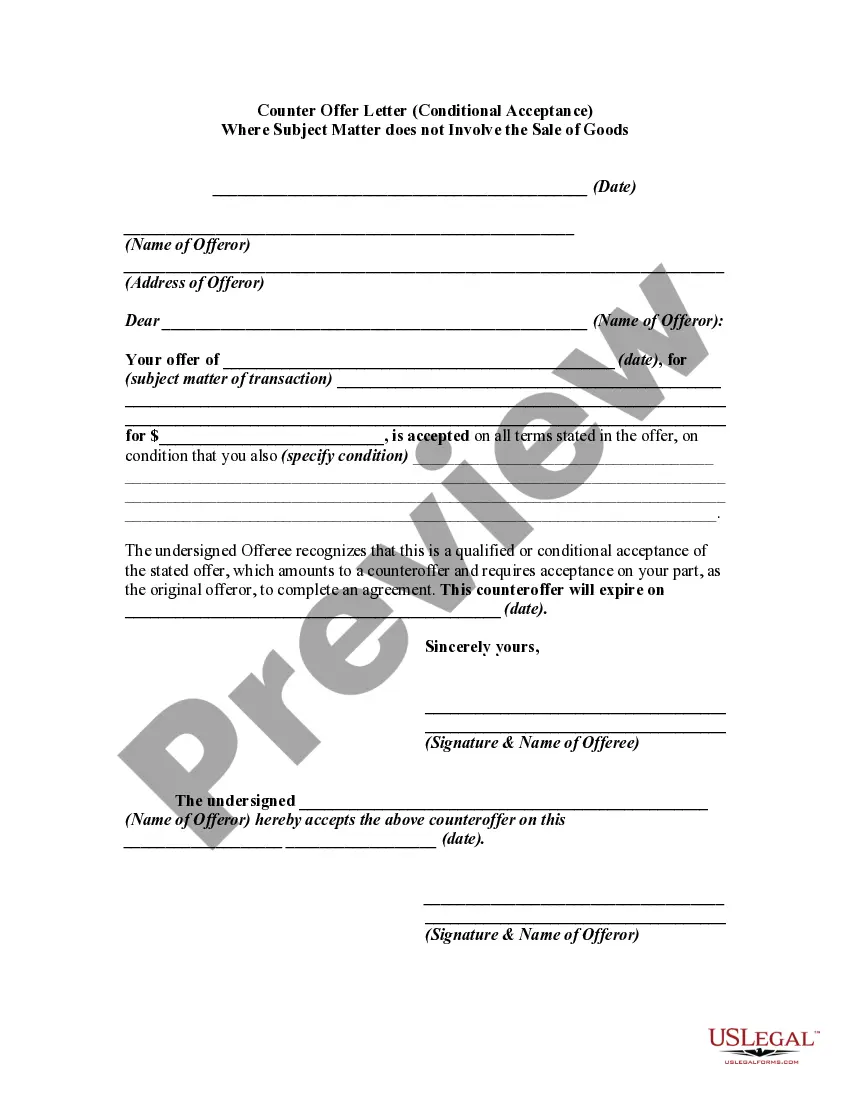
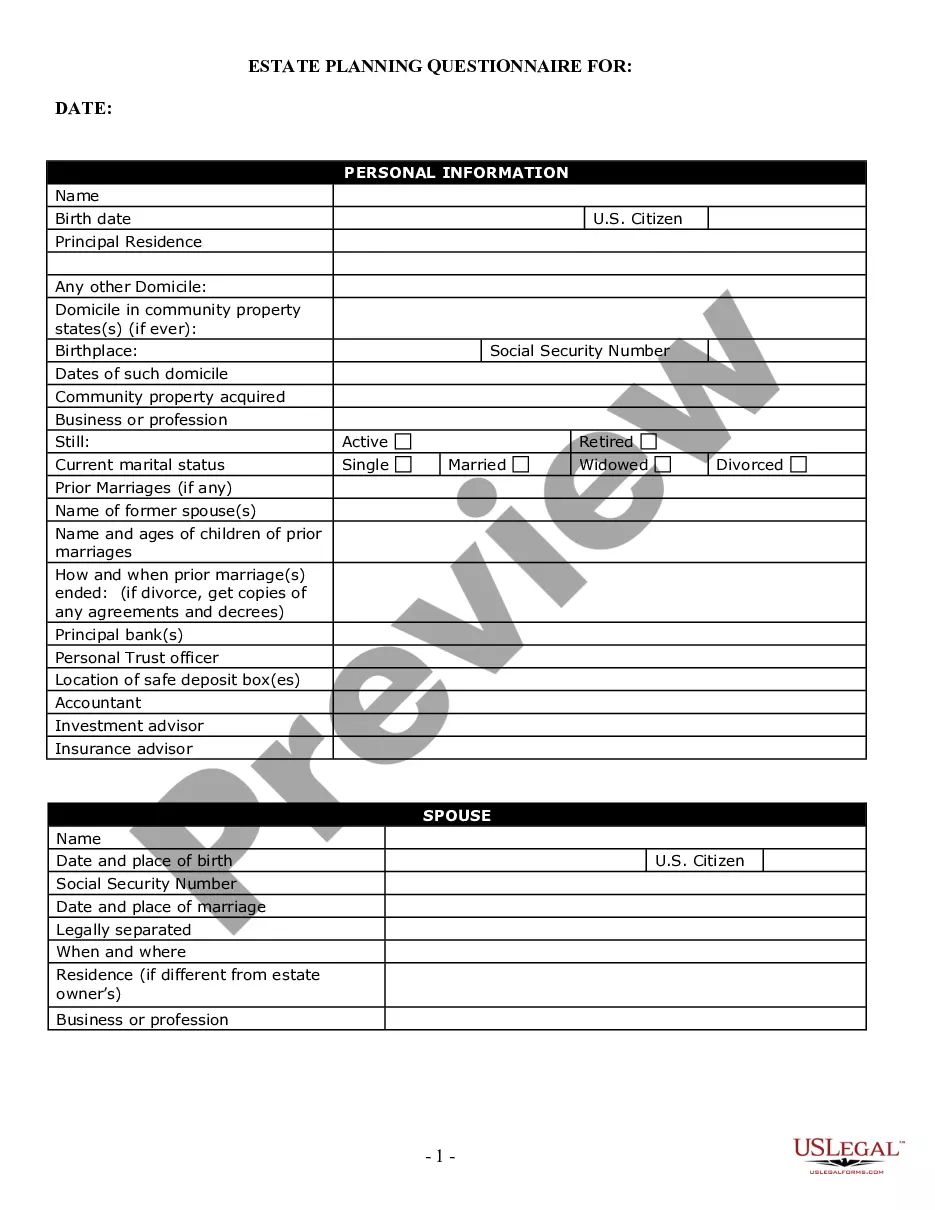

How to fill out Self-Employed Purchasing Agent Services Contract?
Regardless of whether for commercial reasons or personal affairs, everyone must address legal issues at some stage in their existence.
Filling out legal documents requires meticulous care, starting with selecting the appropriate form template.
Once it is saved, you can complete the form using editing software or print it to fill it out manually. With a vast US Legal Forms catalog available, you won't need to waste time searching for the appropriate template online. Take advantage of the library’s user-friendly navigation to find the ideal template for any situation.
- For example, if you choose an incorrect version of a Purchasing Agent Contract With Sap, it will be rejected once submitted.
- Thus, it is crucial to find a reliable provider of legal documents like US Legal Forms.
- To acquire a Purchasing Agent Contract With Sap template, follow these straightforward steps.
- Locate the template you require by utilizing the search bar or catalog browsing.
- Review the form’s details to confirm it corresponds with your situation, state, and area.
- Click on the form’s preview to examine it.
- If it is not the correct form, return to the search feature to locate the Purchasing Agent Contract With Sap template you need.
- Obtain the file once it satisfies your criteria.
- If you possess a US Legal Forms account, click Log in to access previously saved documents in My documents.
- If you lack an account, you can download the form by clicking Buy now.
- Select the appropriate pricing option.
- Fill out the account registration form.
- Choose your payment method: a credit card or PayPal account.
- Select the file format you prefer and download the Purchasing Agent Contract With Sap.
Form popularity
FAQ
A contract is a longer-term purchase agreement, known in the SAP System as an "outline agreement", against which materials or services can be released (ordered) as and when required over a predefined validity period.
Procedure Select Setup Document Setup Contract Document Types . On the Contract Document Type page, choose Create. On the Creating: Contract Document Type page, enter the desired data. ... Choose Lookup for the Configurable Phase Definition field and select the phase configuration you created.
Creating a Purchasing Contract Go to Sourcing and Contracting, Common Tasks, New Contract. Enter Supplier, Contract Description, Currency, Validity dates, Purchasing Unit, Buyer Responsible, Company, Target Value, Incoterms, Incoterms Location, and Payment Terms. Click on items tab, click add row.
An outline purchase agreement that contains special conditions that are negotiated between a purchaser and a seller which covers the supply of goods or the performance of services. A Purchasing Contract is valid for a specified period of time.
Procedure Log into your SAP Ariba solution. On the dashboard, click Create Contract Request. Under What would you like to create?, click Contract Request. Start defining your contract header details, or click a link in the contract wizard to move to a different page. Note.