Trust Funds For Child
Description
Get your form ready online
Our built-in tools help you complete, sign, share, and store your documents in one place.
Make edits, fill in missing information, and update formatting in US Legal Forms—just like you would in MS Word.
Download a copy, print it, send it by email, or mail it via USPS—whatever works best for your next step.
Sign and collect signatures with our SignNow integration. Send to multiple recipients, set reminders, and more. Go Premium to unlock E-Sign.
If this form requires notarization, complete it online through a secure video call—no need to meet a notary in person or wait for an appointment.
We protect your documents and personal data by following strict security and privacy standards.

Make edits, fill in missing information, and update formatting in US Legal Forms—just like you would in MS Word.

Download a copy, print it, send it by email, or mail it via USPS—whatever works best for your next step.

Sign and collect signatures with our SignNow integration. Send to multiple recipients, set reminders, and more. Go Premium to unlock E-Sign.

If this form requires notarization, complete it online through a secure video call—no need to meet a notary in person or wait for an appointment.

We protect your documents and personal data by following strict security and privacy standards.
Looking for another form?
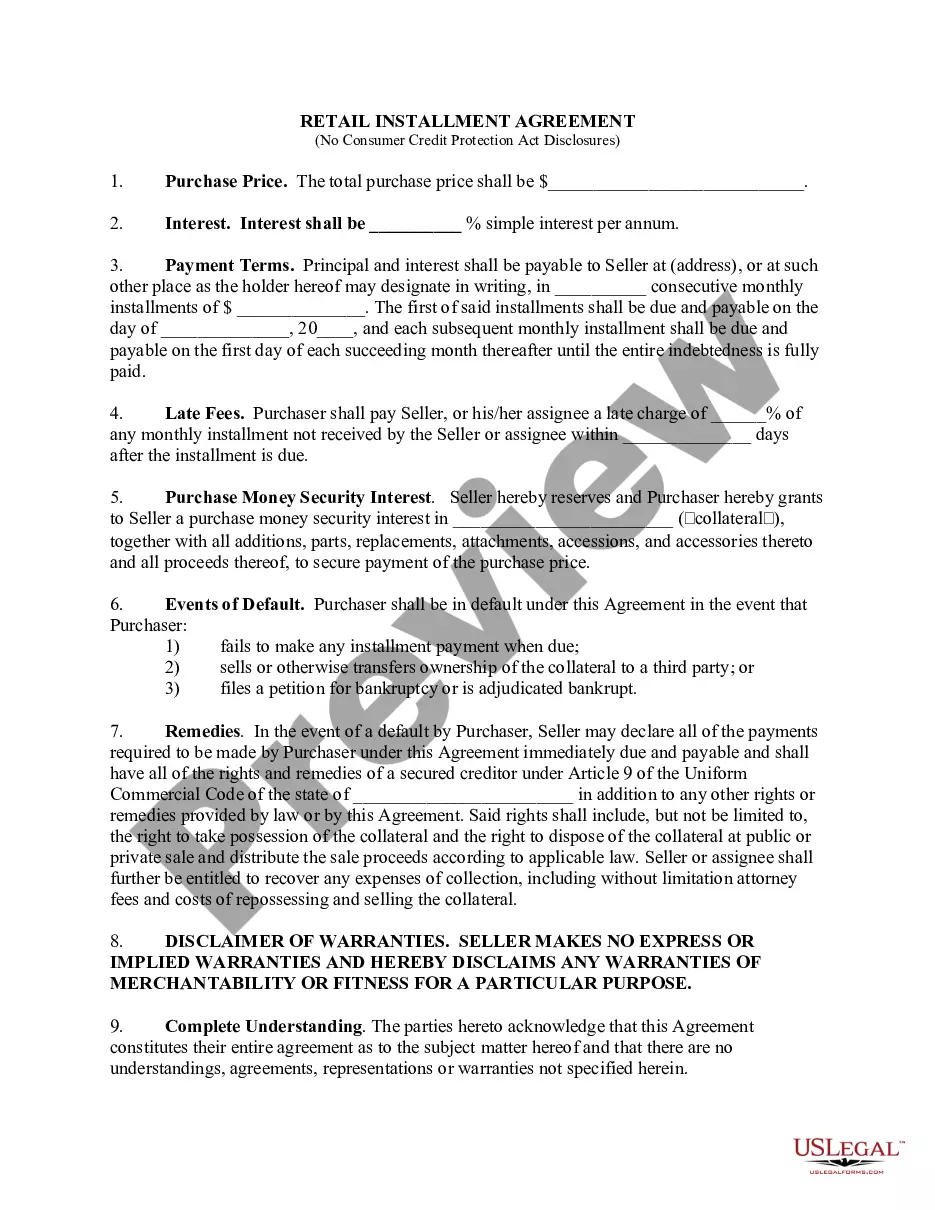
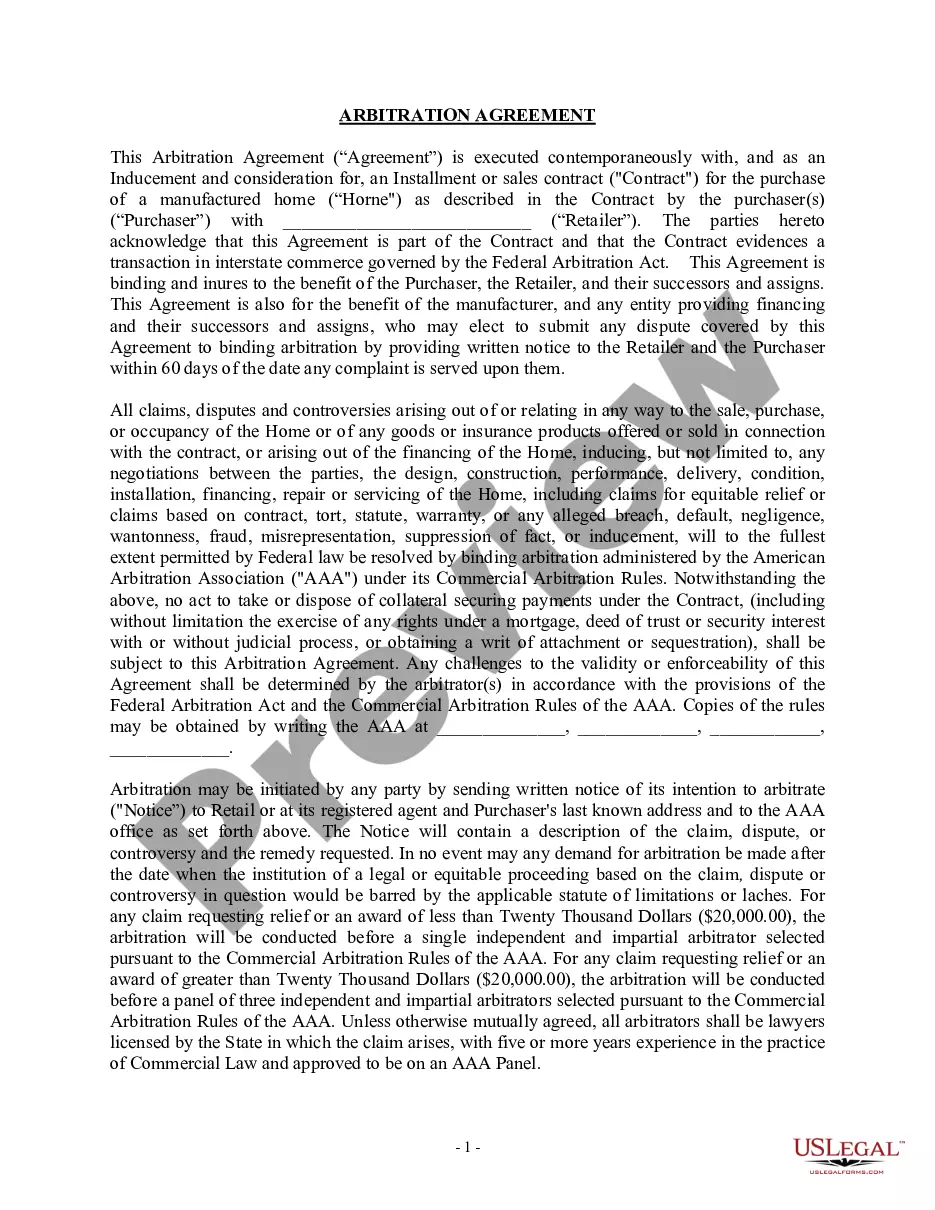
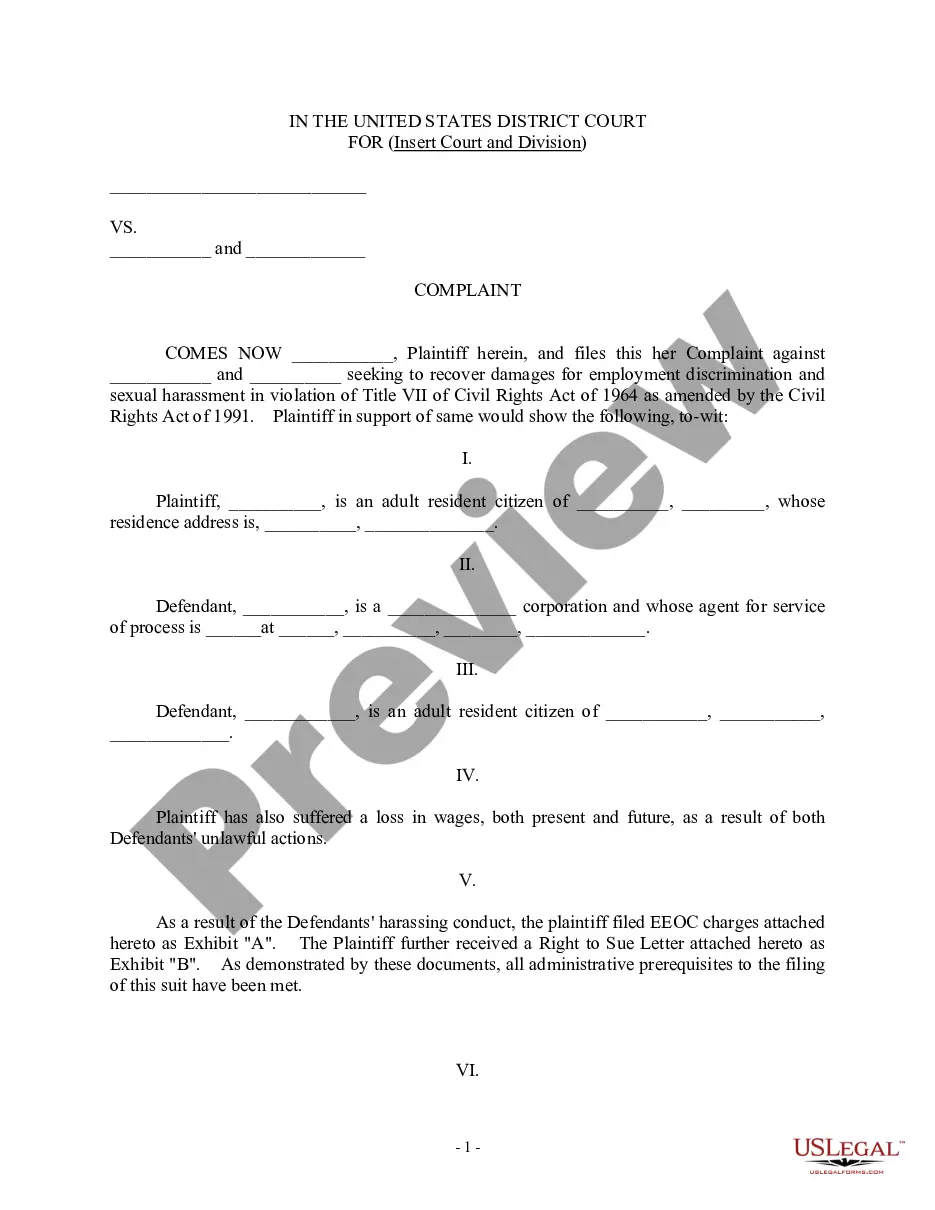
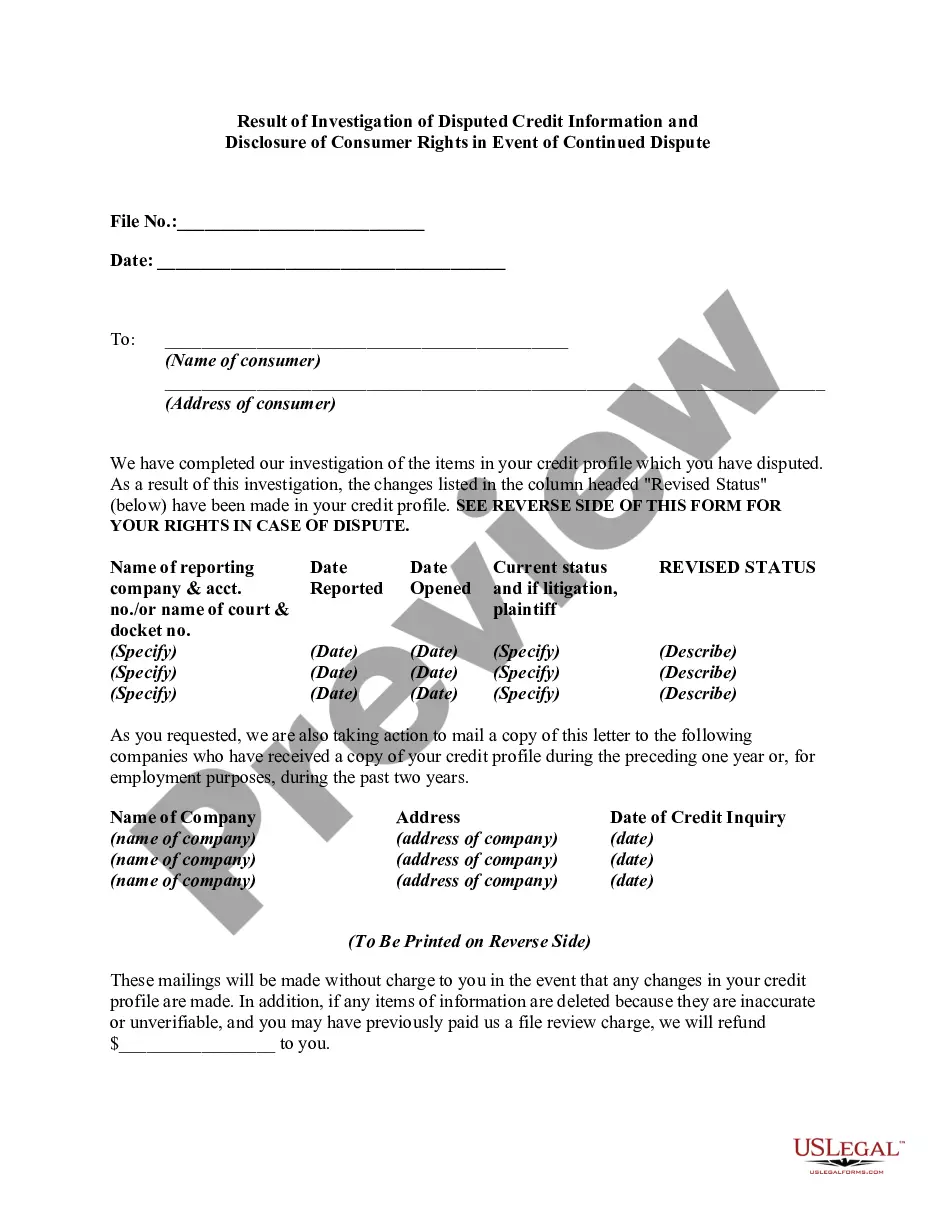

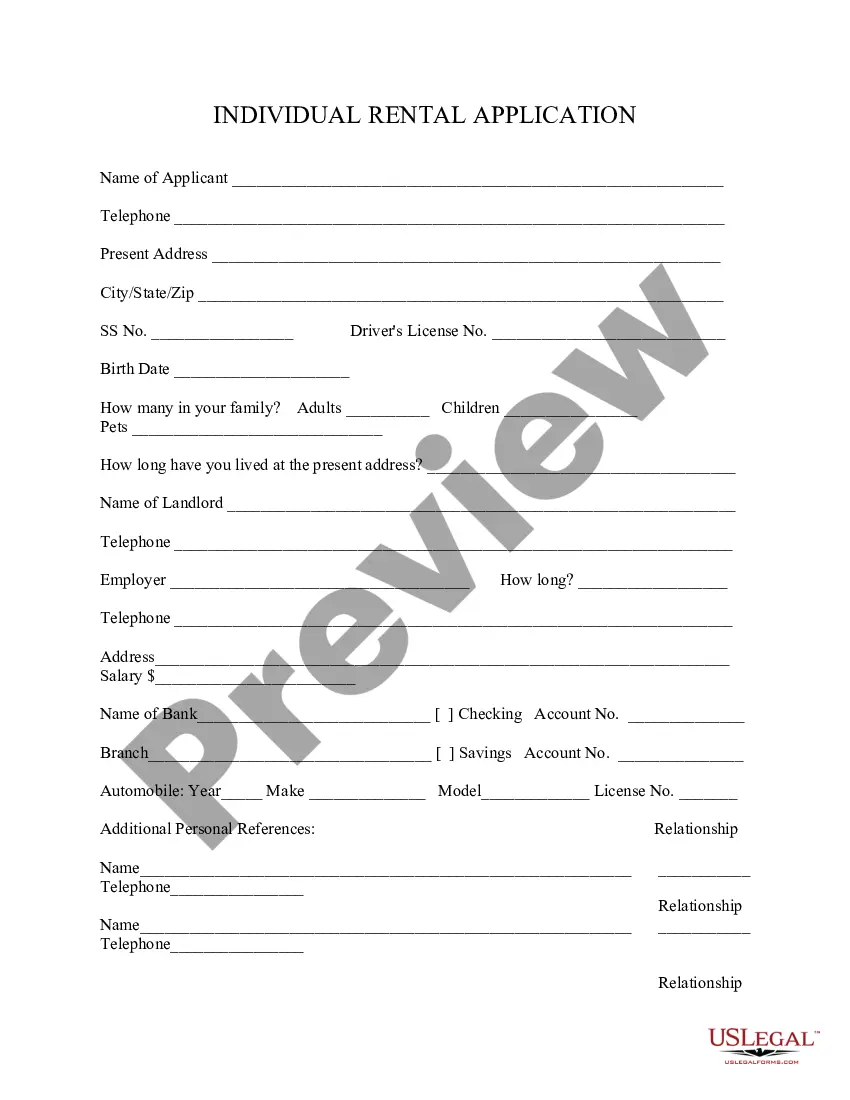
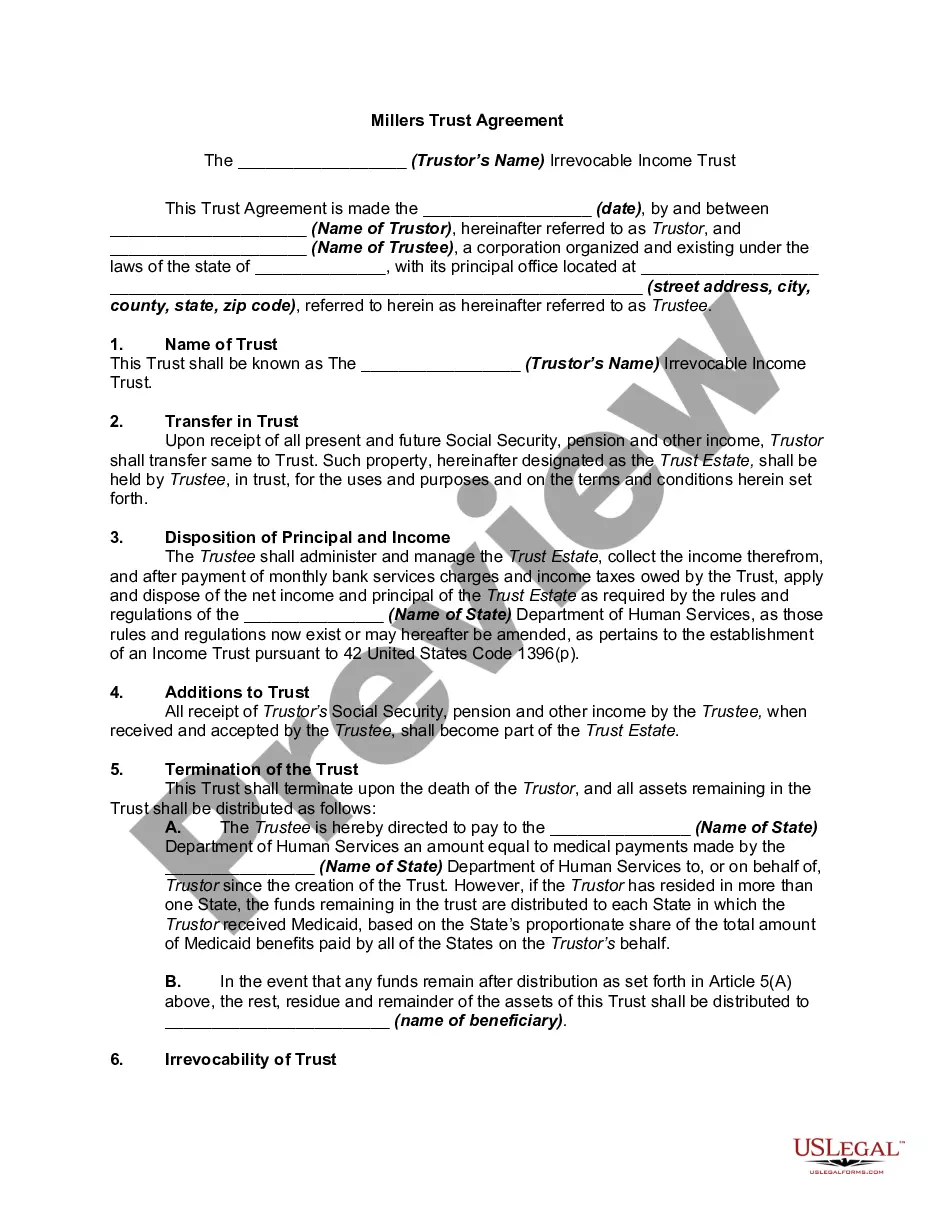
How to fill out Qualified Income Miller Trust?
Locating a reliable source for obtaining the latest and suitable legal templates is a significant part of navigating bureaucracy.
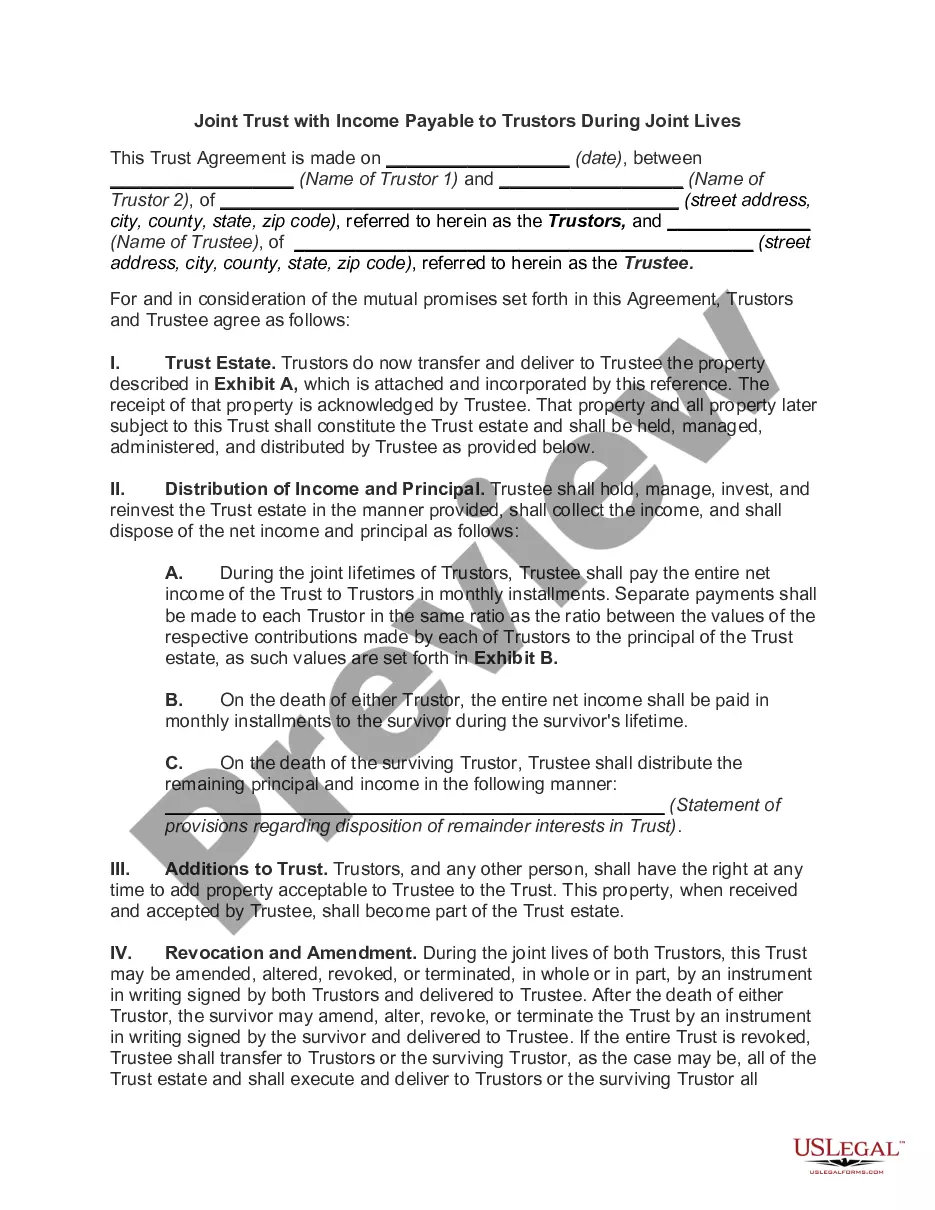
Identifying the appropriate legal paperwork requires precision and meticulousness, which is why it is essential to obtain examples of Trust Funds For Child solely from trustworthy outlets, such as US Legal Forms. An incorrect template will squander your time and stall your current situation.
Remove the hassle connected with your legal paperwork. Browse the vast collection of US Legal Forms to discover legal templates, evaluate their suitability for your needs, and download them right away.
- Use the catalog navigation or search bar to locate your document.
- Review the form’s details to ensure it meets the prerequisites of your state and region.
- Preview the form, if possible, to confirm it is indeed the one you wish to use.
- Return to your search and seek out the accurate document if the Trust Funds For Child does not meet your criteria.
- Once you are certain about the form’s applicability, download it.
- If you are a registered user, click Log in to verify and access your selected templates in My documents.
- If you haven't created an account yet, click Buy now to acquire the template.
- Choose the pricing option that suits your requirements.
- Proceed to the registration process to finalize your purchase.
- Complete your transaction by selecting a payment method (credit card or PayPal).
- Choose the file format for downloading Trust Funds For Child.
- Once you have the document on your device, you can edit it using the editor or print it out to fill it manually.
Form popularity
FAQ
If you don't see Version History, in the dialog, select the ... (ellipses), and then select Version History. In the Version History dialog, hover your mouse over the date link on an earlier version, and to show the menu, select the down arrow.
How to Recover Overwritten Word Documents with AutoRecover Launch Microsoft Word, and navigate to "File" > "Info". Click on the "Manage Document" option and choose "Recover Unsaved Documents". In the new window that pops up, select the file you'd like to recover from the list of available options and click on Open.
Click on the FILE tab and choose Info on the left-hand pane. Next to the Manage Versions button you'll see all autosaved versions of your document. Excel automatically saves versions of the workbook at specified intervals, but only if you've made changes to your spreadsheet between these intervals.
Restore Previous Versions (PC) ? In Windows, if you right-click on a file, and go to ?Properties,? you will see an option titled ?Previous Versions.? This option can help you revert to a version of your file before the overwrite occurred, allowing you to get your data back.
Restore Previous Versions (PC) ? In Windows, if you right-click on a file, and go to ?Properties,? you will see an option titled ?Previous Versions.? This option can help you revert to a version of your file before the overwrite occurred, allowing you to get your data back.
Recover an earlier version of a Word file Open the file you were working on. Click File > Info. Under Manage Documents, select the file labeled (when I closed without saving). In the bar at the top of the file, select Restore to overwrite any previously saved versions.
Click File > Info. Under Manage Documents, select the file labeled (when I closed without saving). In the bar at the top of the file, select Restore to overwrite any previously saved versions. Tip: You can also compare versions by selecting Compare instead of Restore.
As mentioned earlier, the error ?there are no previous versions available? usually appears when you have not turned on File History. To fix that error, you need to enable File History to make a backup of your files using File History first.