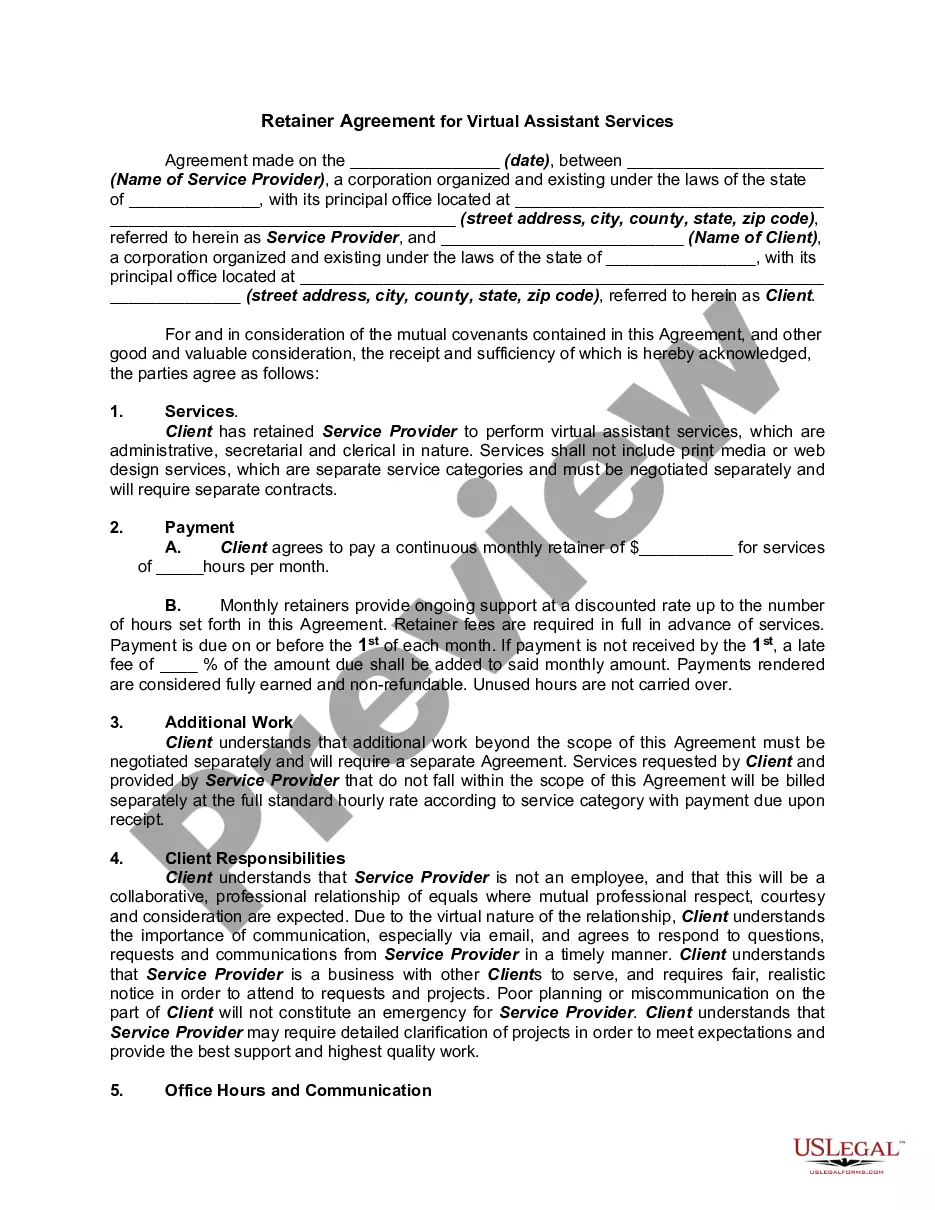
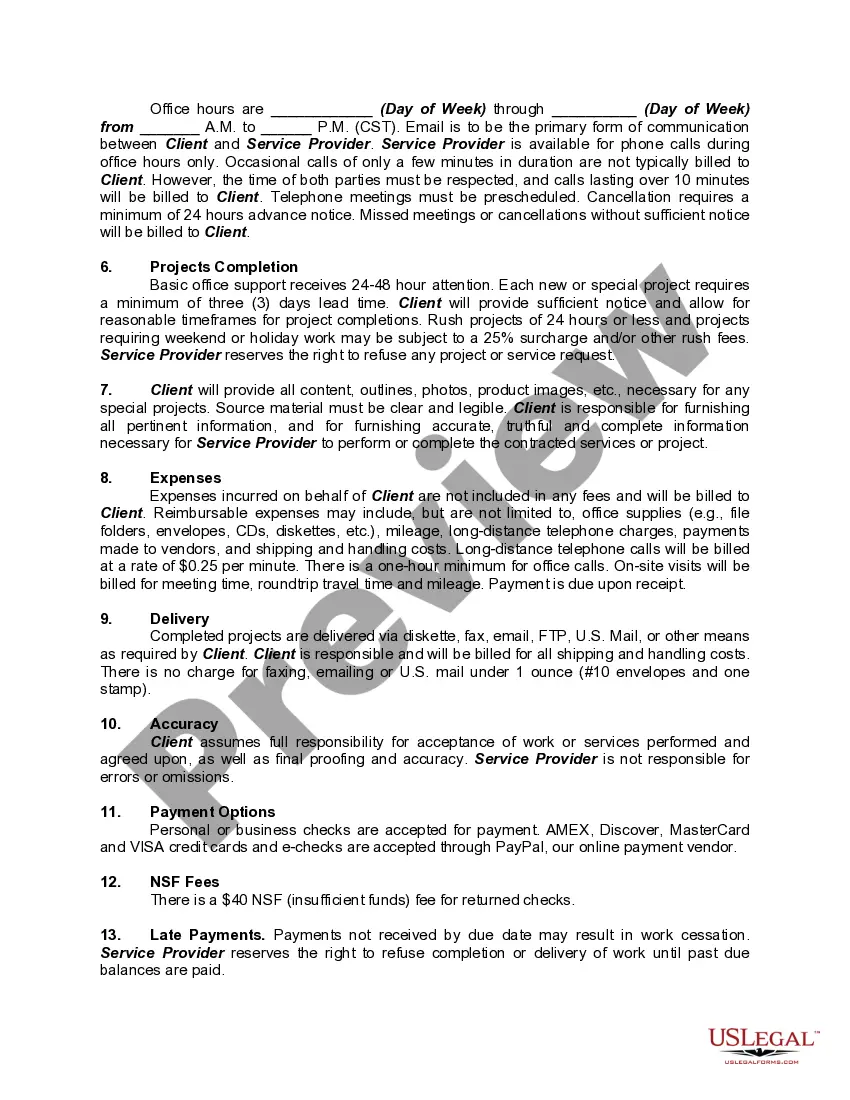
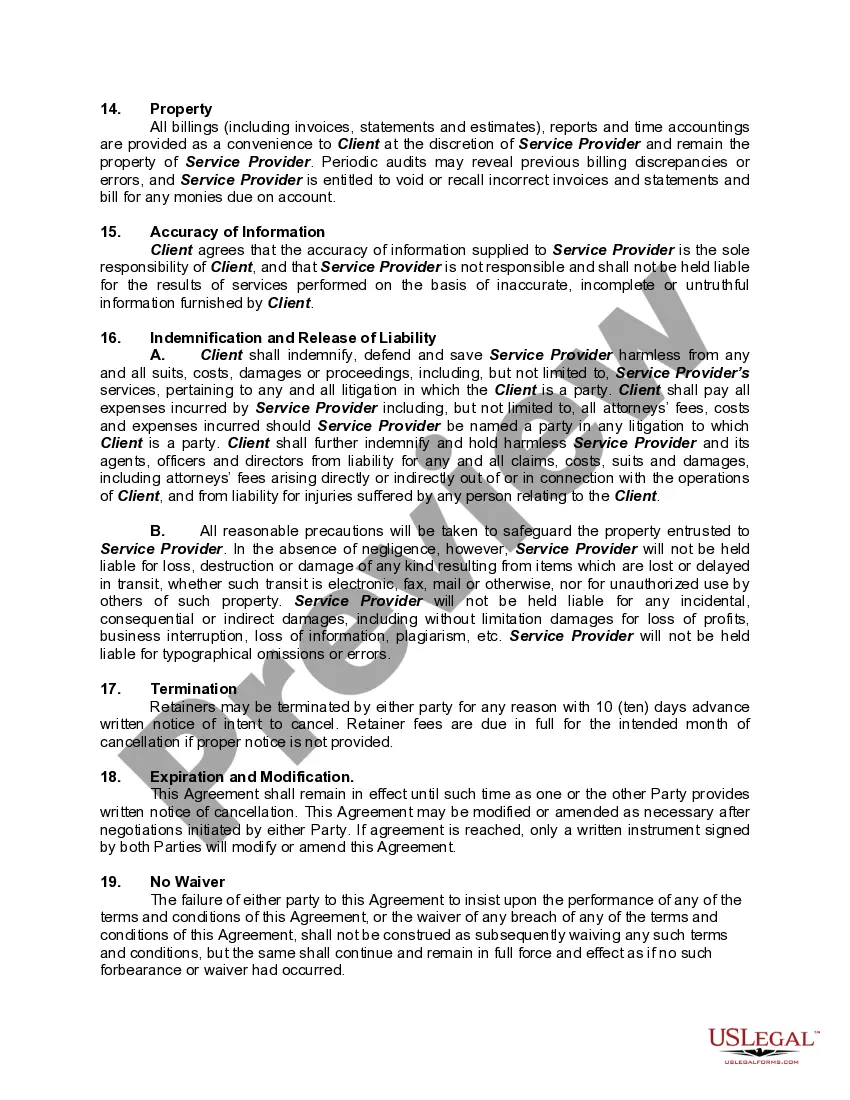
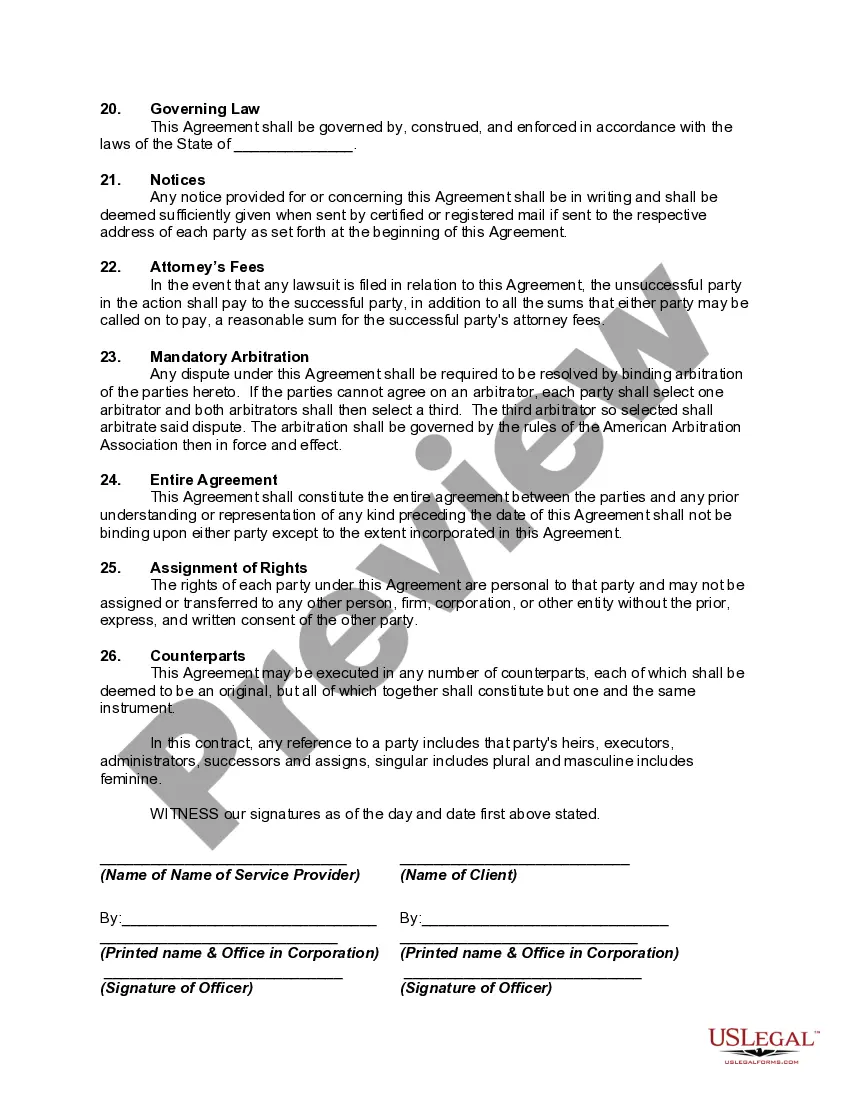
Virtual Assistant Contract For Amazon
Description
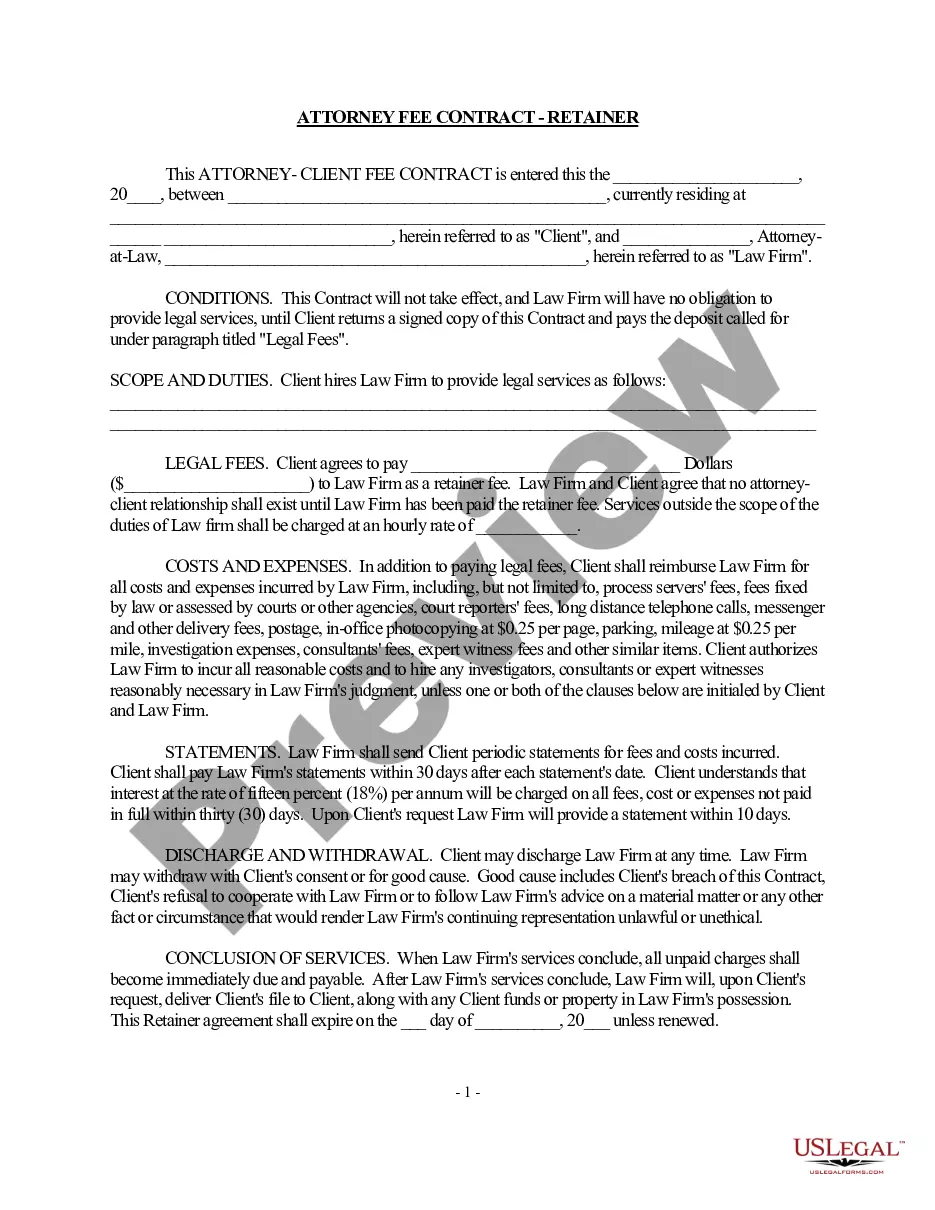
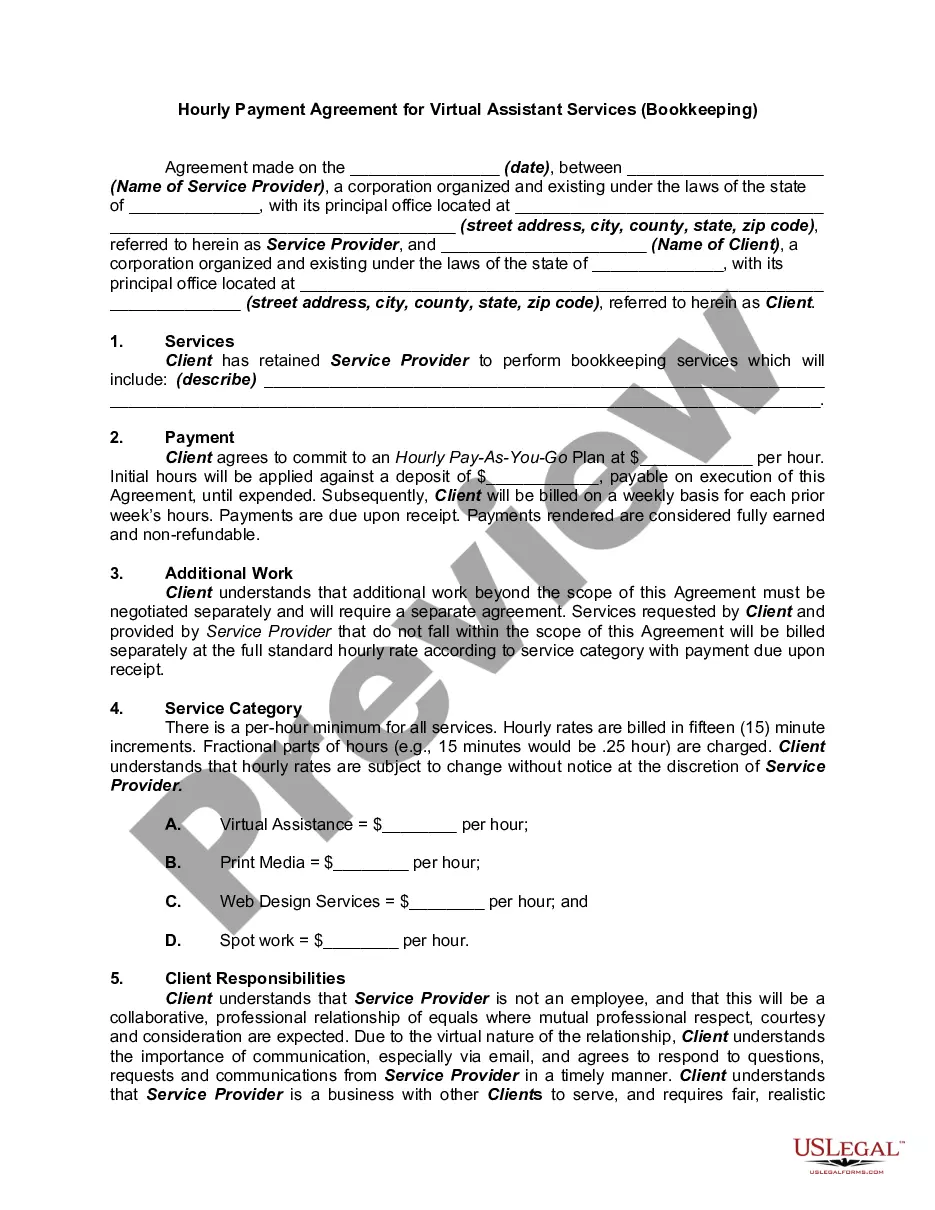
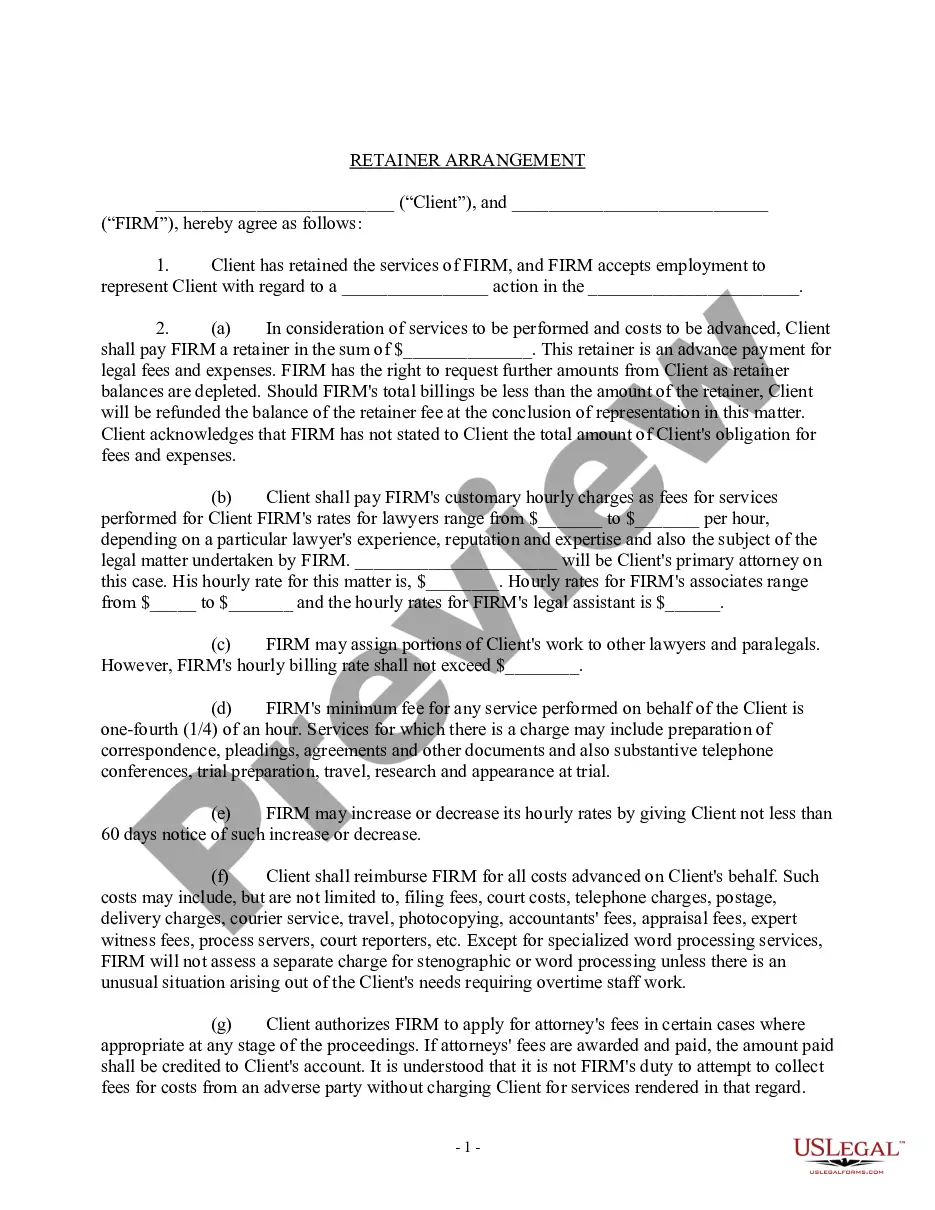
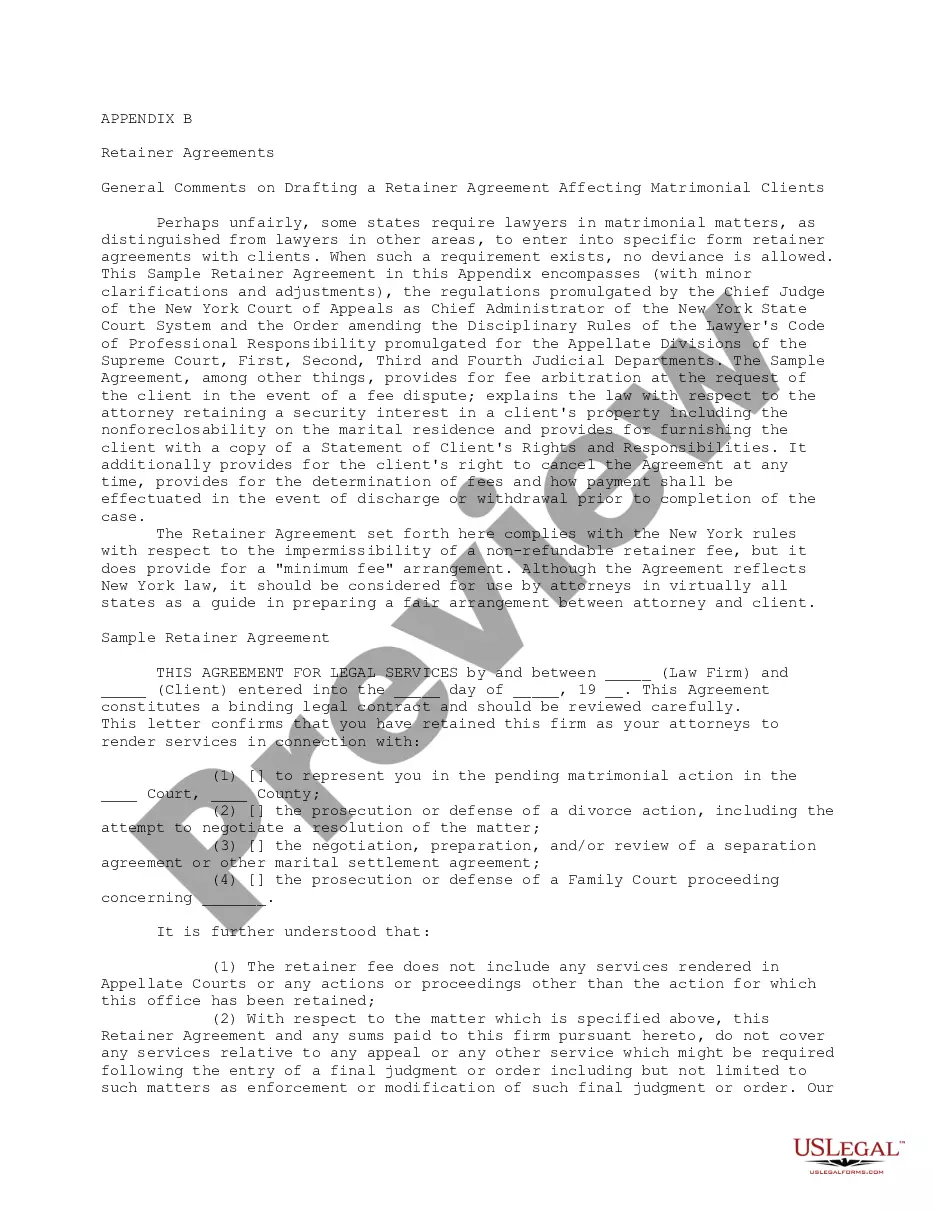
Get your form ready online
Our built-in tools help you complete, sign, share, and store your documents in one place.
Make edits, fill in missing information, and update formatting in US Legal Forms—just like you would in MS Word.
Download a copy, print it, send it by email, or mail it via USPS—whatever works best for your next step.
Sign and collect signatures with our SignNow integration. Send to multiple recipients, set reminders, and more. Go Premium to unlock E-Sign.
If this form requires notarization, complete it online through a secure video call—no need to meet a notary in person or wait for an appointment.
We protect your documents and personal data by following strict security and privacy standards.
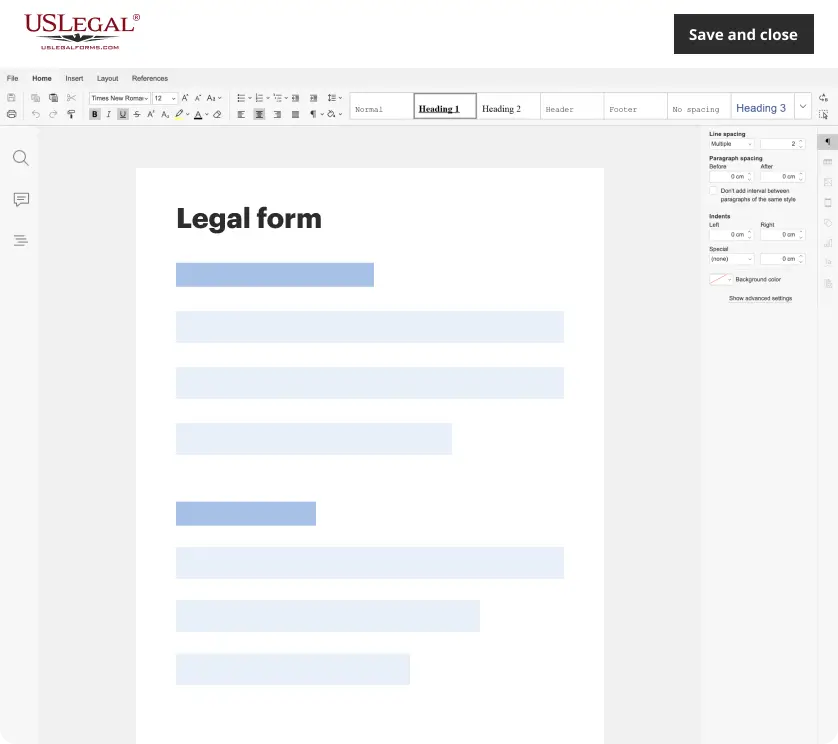
Make edits, fill in missing information, and update formatting in US Legal Forms—just like you would in MS Word.
Download a copy, print it, send it by email, or mail it via USPS—whatever works best for your next step.
Sign and collect signatures with our SignNow integration. Send to multiple recipients, set reminders, and more. Go Premium to unlock E-Sign.
If this form requires notarization, complete it online through a secure video call—no need to meet a notary in person or wait for an appointment.
We protect your documents and personal data by following strict security and privacy standards.
Looking for another form?

How to fill out Retainer Agreement For Virtual Assistant Services?
It’s well known that you cannot transform into a legal authority in an instant, nor can you efficiently understand how to swiftly compose a Virtual Assistant Agreement For Amazon without possessing a specialized background.
Drafting legal documents is a lengthy process that demands specific education and expertise. So why not entrust the creation of the Virtual Assistant Agreement For Amazon to the professionals.
With US Legal Forms, one of the most extensive legal template collections, you can discover everything from court documentation to templates for internal business correspondence. We understand how vital compliance and adherence to federal and state laws and regulations are.
Select Buy now. After the payment is processed, you can download the Virtual Assistant Agreement For Amazon, complete it, print it, and send or mail it to the relevant individuals or organizations.
You can access your documents again from the My documents section at any time. If you’re already a customer, you can simply Log In, and locate and download the template from the same section.
Regardless of the objective of your paperwork—whether financial, legal, or personal—our platform has everything you need. Try US Legal Forms today!
- Initiate your experience on our platform and acquire the form you require in just a few minutes.
- Find the form you need by utilizing the search bar located at the top of the page.
- Review it (if this option is accessible) and examine the accompanying description to verify if the Virtual Assistant Agreement For Amazon meets your needs.
- Start your search again if you're in need of a different form.
- Create a free account and choose a subscription plan to purchase the template.
Form popularity
FAQ
Restore Previous Versions (PC) ? In Windows, if you right-click on a file, and go to ?Properties,? you will see an option titled ?Previous Versions.? This option can help you revert to a version of your file before the overwrite occurred, allowing you to get your data back.
I'm afraid to inform you that version history feature for Microsoft Forms is not yet available but this feature is currently up for a vote for a possible future implementation. You may check on this link for more information: ...
Forms History lets you see if changes have been made to a Google Form, create back-up versions, and access previous copies. Use Forms History if: 1) You would like to see if someone has modified a Google Form. 2) You want to create and access back-up copies of Google Forms.
Restore files using the Previous Versions tool in Windows Open Windows Explorer and open the folder that contained the overwritten file. From anywhere within the folder, right-click and select Properties. Select the Previous Versions tab. Look at the list of versions, each with a date, and look for the version you want.
Navigate to the folder that used to contain the file or folder, right-click it, and then select Restore previous versions. If the folder was at the top level of a drive, for example C:\, right-click the drive, and then select Restore previous versions.
Click File > Info. Under Manage Documents, select the file labeled (when I closed without saving). In the bar at the top of the file, select Restore to overwrite any previously saved versions. Tip: You can also compare versions by selecting Compare instead of Restore.
Enable Previous Versions from Restore Point Open Start. Search for Create a restore point and click the top result to open the System Protection settings. Select the drive with files to restore previous versions. Click the Configure button. Select the ?Turn on system protection? option. Click the Apply button.
How do I recover an overwritten file in Windows 10? Right-click Start and click Settings. Click Update & Security. Click Backup. Click Go to Backup and Restore (Windows 7). Click Restore my files. Click Browse for files and select the file. Click Restore.