Loan Statement Format In Excel
Description
Get your form ready online
Our built-in tools help you complete, sign, share, and store your documents in one place.
Make edits, fill in missing information, and update formatting in US Legal Forms—just like you would in MS Word.
Download a copy, print it, send it by email, or mail it via USPS—whatever works best for your next step.
Sign and collect signatures with our SignNow integration. Send to multiple recipients, set reminders, and more. Go Premium to unlock E-Sign.
If this form requires notarization, complete it online through a secure video call—no need to meet a notary in person or wait for an appointment.
We protect your documents and personal data by following strict security and privacy standards.
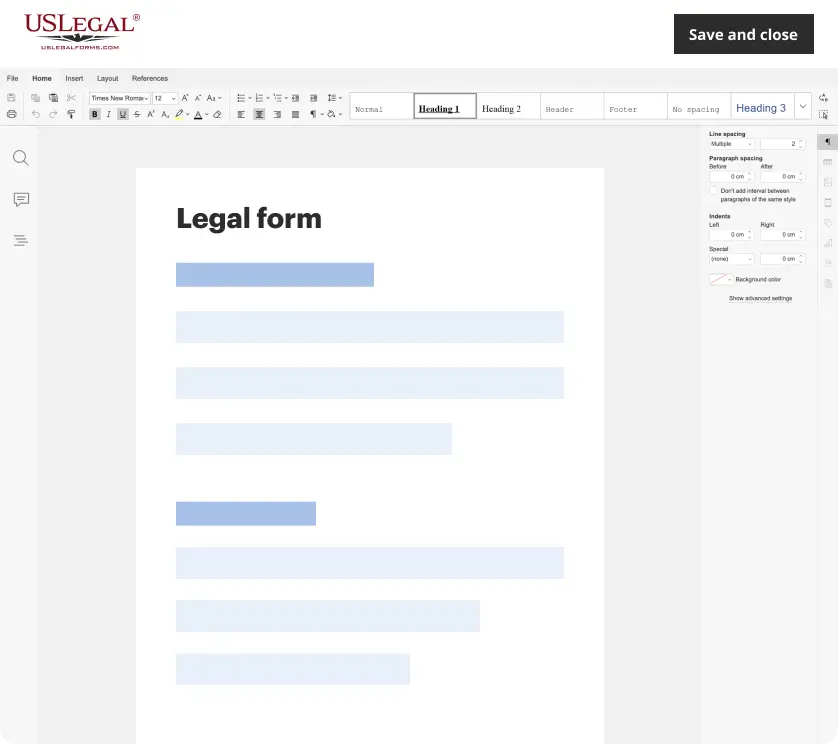
Make edits, fill in missing information, and update formatting in US Legal Forms—just like you would in MS Word.
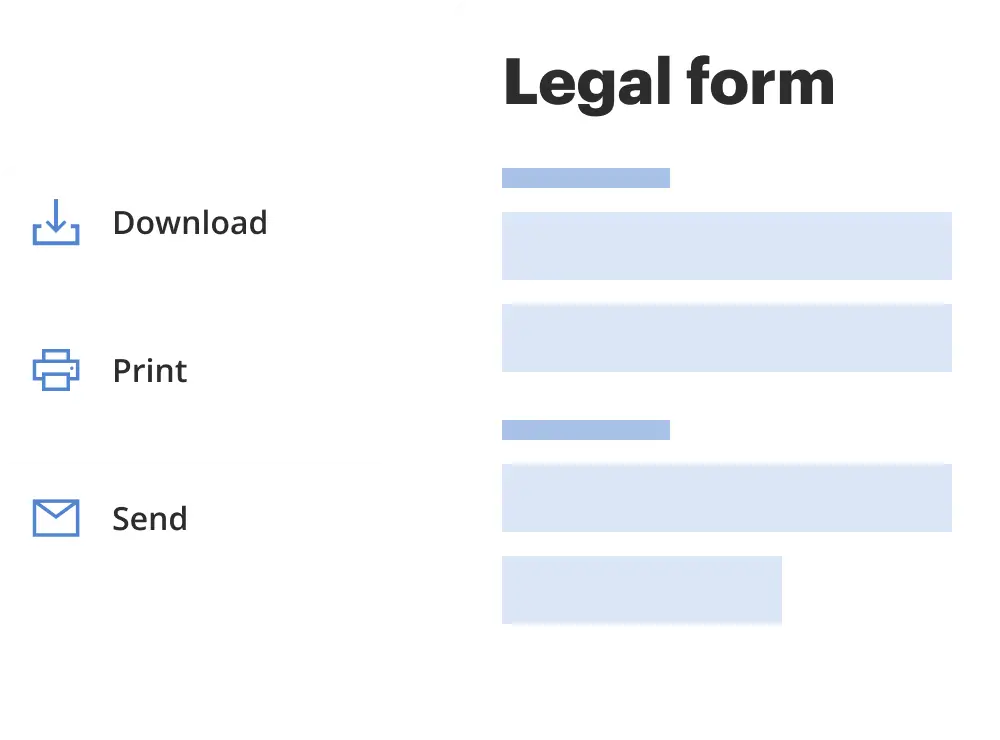
Download a copy, print it, send it by email, or mail it via USPS—whatever works best for your next step.
Sign and collect signatures with our SignNow integration. Send to multiple recipients, set reminders, and more. Go Premium to unlock E-Sign.

If this form requires notarization, complete it online through a secure video call—no need to meet a notary in person or wait for an appointment.
We protect your documents and personal data by following strict security and privacy standards.
Looking for another form?
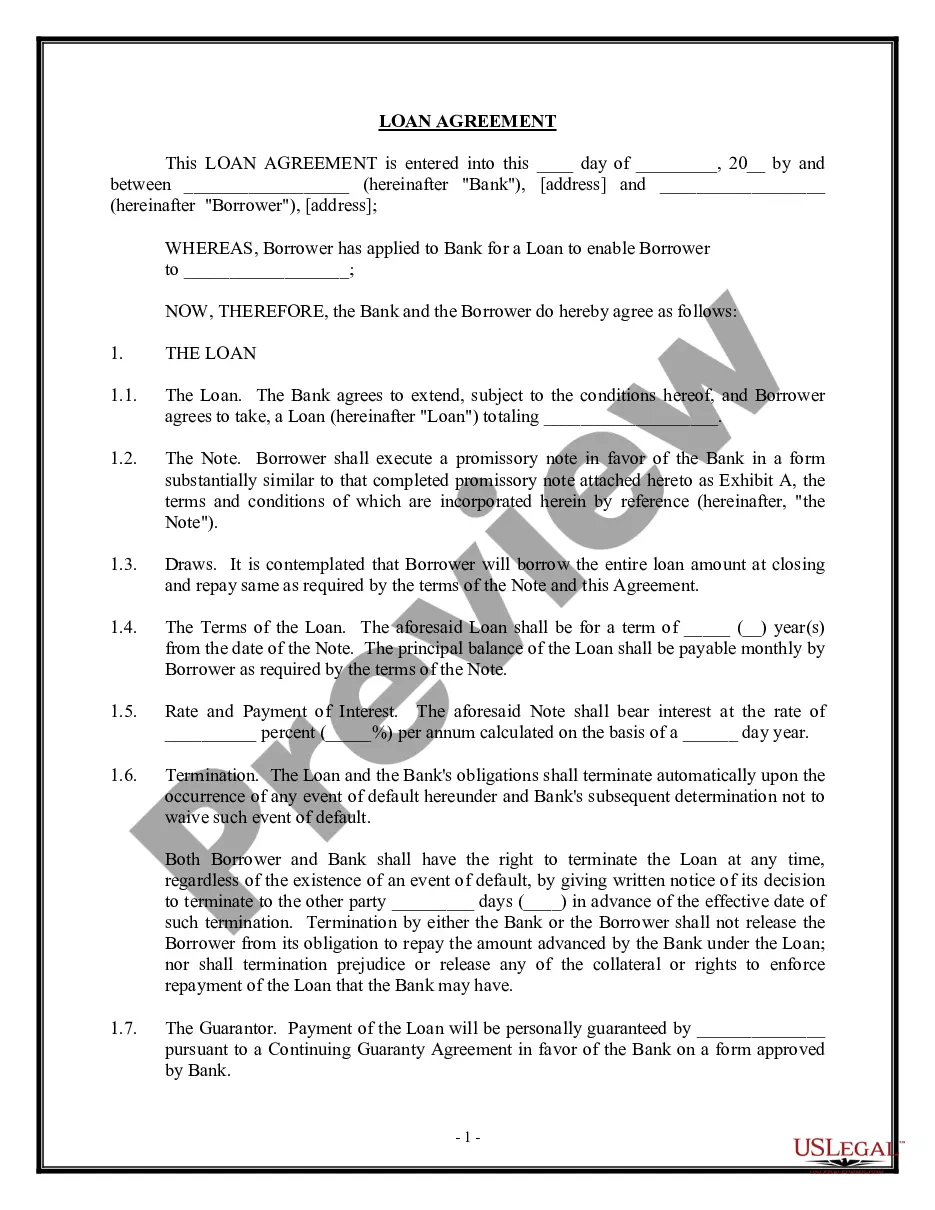
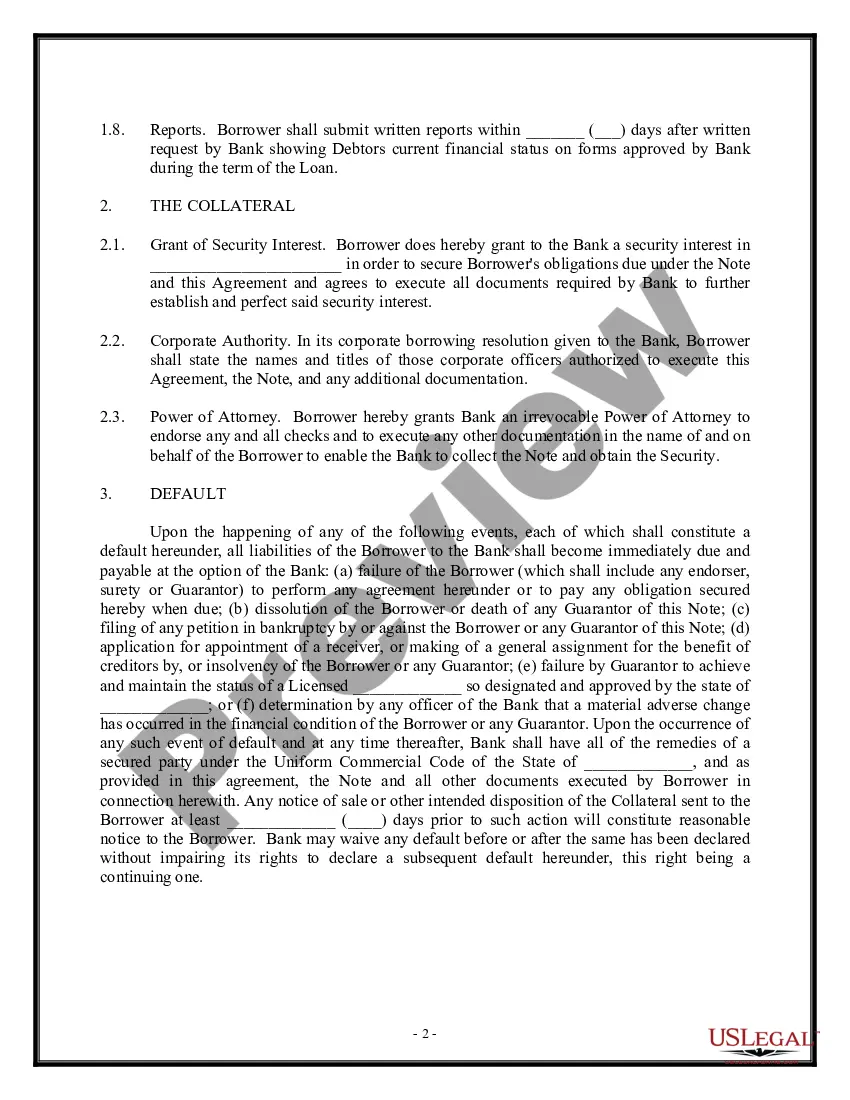
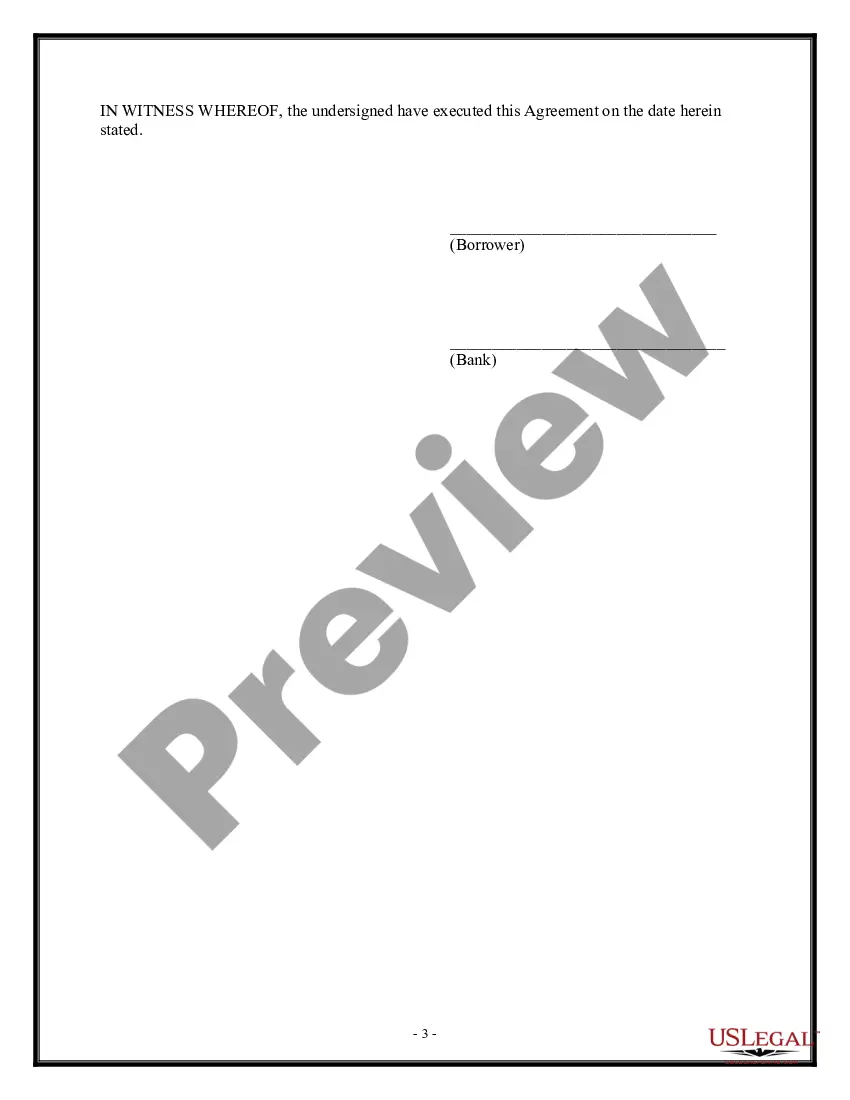
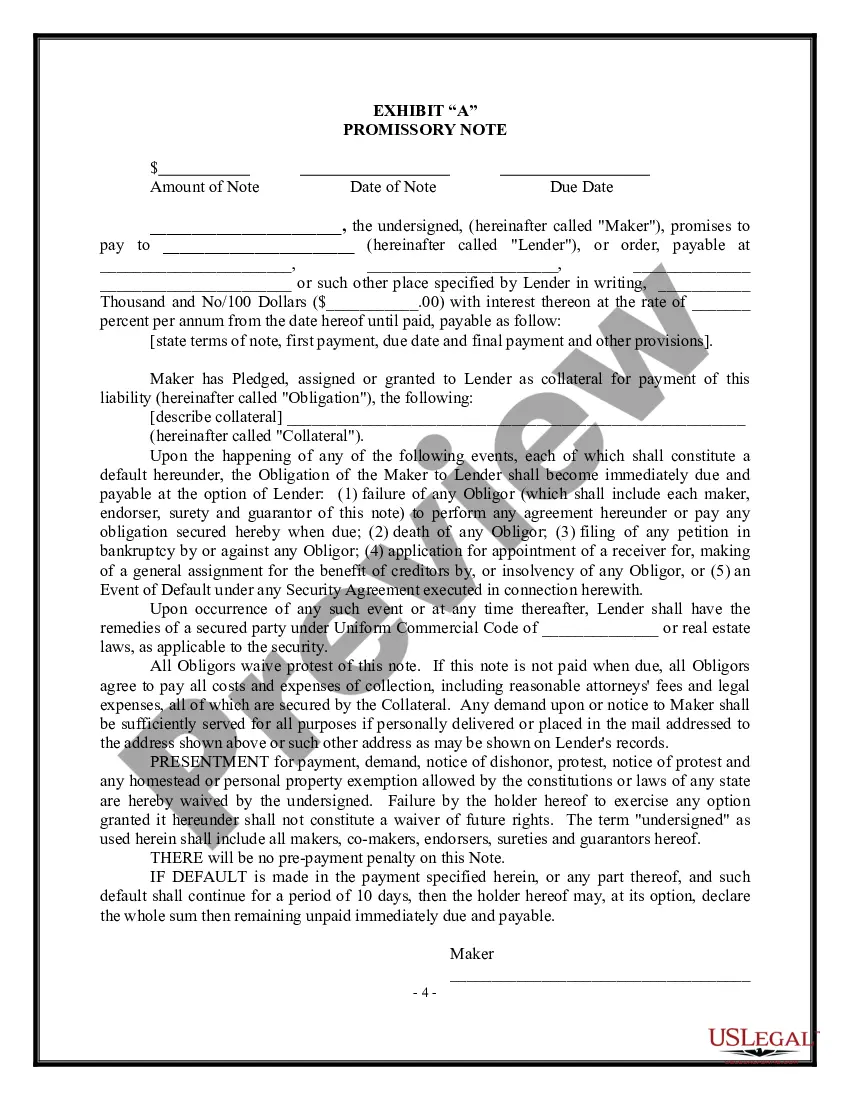
How to fill out Loan Agreement - Short Form?
Engaging with legal documentation and protocols may be a lengthy addition to the day.
Loan Statement Format In Excel and similar forms frequently necessitate that you locate them and find your way to fill them out accurately.
Consequently, if you are managing financial, legal, or personal issues, utilizing a comprehensive and easy-to-use online collection of forms readily available will significantly help.
US Legal Forms is the premier online resource for legal templates, boasting over 85,000 state-specific forms and many resources designed to simplify your paperwork process.
Simply Log In to your account, search for Loan Statement Format In Excel, and download it immediately from the My documents section. You can also access forms you have downloaded previously.
- Explore the collection of relevant documents available to you with just one click.
- US Legal Forms provides state- and county-specific forms accessible anytime for download.
- Protect your document management routines with a top-quality service that enables you to assemble any form in moments without any additional or concealed fees.
Form popularity
FAQ
The formula for calculating loans in Excel typically uses the PMT function, which computes the payment for a loan based on constant payments and a constant interest rate. For example, the formula PMT(rate, nper, pv) includes rate as the interest rate per period, nper as the total number of payments, and pv as the present value of the loan. This formula forms the core of the loan statement format in Excel, allowing users to build financial schedules accurately.
To make a loan statement in Excel, begin by setting up a spreadsheet with columns for the date, payment amount, interest, principal, and remaining balance. Input your loan details to automate calculations for each category using formulas. By following a consistent loan statement format in Excel, you ensure clarity in tracking payments and understanding your loan balance. Consider using templates from uslegalforms to guide you in this process.
To create a loan chart in Excel, start by inputting your loan data, including the loan amount, interest rate, and loan term. Next, use Excel's charting tools to select the data range and choose a chart type, such as a line or bar chart, that best represents your loan information. Adjust the chart elements, like titles and labels, to enhance clarity. The loan statement format in Excel can be integrated to provide a comprehensive visual of your loan over time.
To create a loan statement format in Excel, start by opening a new Excel spreadsheet. You should establish columns for essential information like loan amount, interest rate, payment due dates, and payment history. Next, input the relevant data into these columns to track your loan details effectively. Finally, you can enhance your statement with formulas to calculate total interest and remaining balance, making it easier to manage your finances.
To input financial statements into Excel, start by gathering your data from relevant sources, like accounting software or bank statements. After that, you can enter this data into Excel manually or copy it directly into the cells. The loan statement format in Excel helps in structuring the data effectively, enabling you to perform calculations and generate reports easily. Utilizing templates can also simplify this process and enhance accuracy.
To convert a bank statement to Excel format, first download your bank statement in CSV or PDF format. If it's a PDF, utilize a PDF converter tool that can convert the document into an Excel spreadsheet. Once converted, you can organize the data in loan statement format in Excel, allowing for better financial analysis and management. Remember to save your document regularly to avoid losing your work.
It's a record of every transaction that has been carried out on your loan account ? from the disbursal date to the loan closure date. Your loan statement also contains information, such as your next EMI due date, the principal outstanding, and more.
Through net banking Most of the banks under its net banking facility provides the 'loan' section through which a customer can view the details of loans availed by them. Click on 'loan' and you can download the e-statement on your computer or simply view your personal loan statement online.
In the EMI cell, input the formula: =PMT (B2/12, B3, B1) B2 refers to the cell containing the annual interest rate, B3 to the cell with the loan tenure, and B1 to the cell with the loan amount. Excel will calculate and display the EMI amount for the given loan details.
You loan statement will have all the basics of your loan for that month, such as your monthly payment, your remaining principal balance, interest rate, and due date. Basically, it's a snapshot of the progress of your loan.