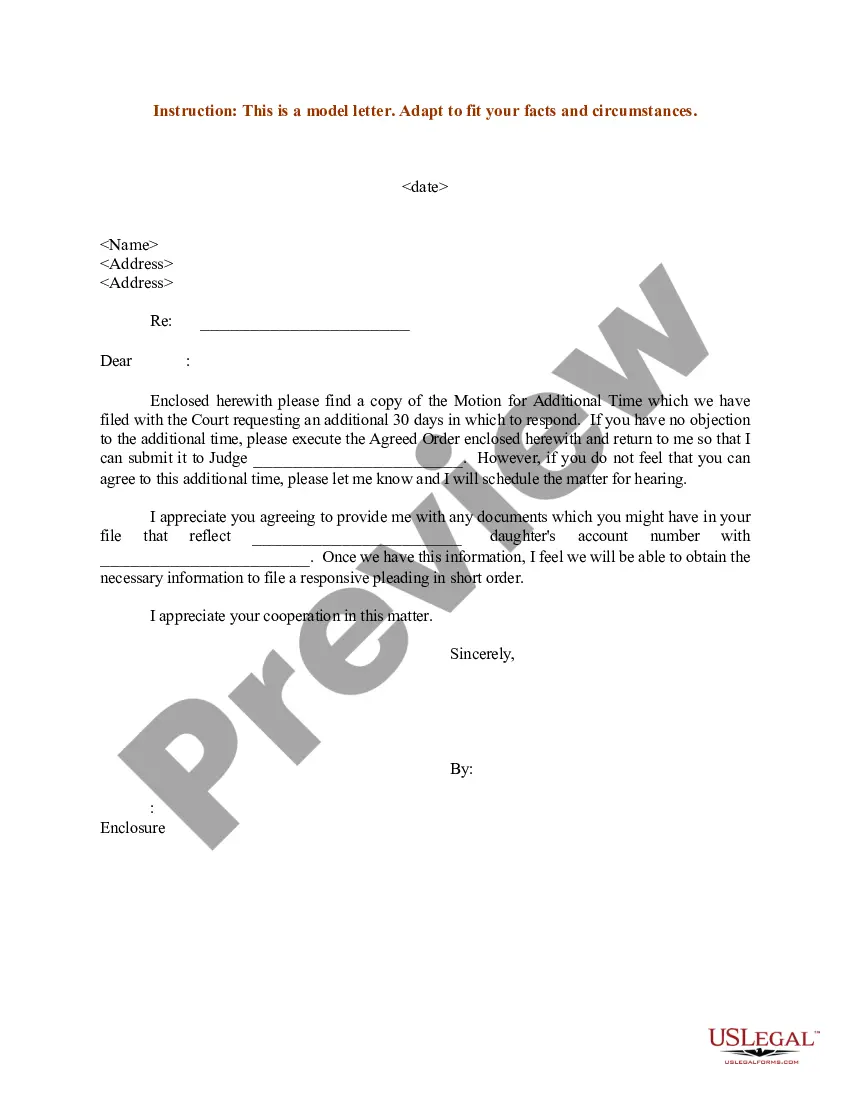
Sample Email Templates For Customer Service In Santa Clara
Description
Get your form ready online
Our built-in tools help you complete, sign, share, and store your documents in one place.
Make edits, fill in missing information, and update formatting in US Legal Forms—just like you would in MS Word.
Download a copy, print it, send it by email, or mail it via USPS—whatever works best for your next step.
Sign and collect signatures with our SignNow integration. Send to multiple recipients, set reminders, and more. Go Premium to unlock E-Sign.
If this form requires notarization, complete it online through a secure video call—no need to meet a notary in person or wait for an appointment.
We protect your documents and personal data by following strict security and privacy standards.

Make edits, fill in missing information, and update formatting in US Legal Forms—just like you would in MS Word.

Download a copy, print it, send it by email, or mail it via USPS—whatever works best for your next step.

Sign and collect signatures with our SignNow integration. Send to multiple recipients, set reminders, and more. Go Premium to unlock E-Sign.

If this form requires notarization, complete it online through a secure video call—no need to meet a notary in person or wait for an appointment.

We protect your documents and personal data by following strict security and privacy standards.
Looking for another form?


Form popularity
FAQ
Tips on how to write customer service emails Use the customer's name. Beginning your email with the customer's name can make it more personal and sincere. Read the message carefully. Be conversational. Use employees' names. Represent the brand. Keep it professional. Empathize with the customer.
Insert a template On your computer, open Gmail. At the top left, click Compose. At the bottom of the compose window, click More options. Templates. Under “Insert template,” choose a template. Compose the rest of your message. Click Send.
How to Create a Basic Email Template in Salesforce Lightning Experience Go to the App Launcher and navigate to Email Templates. Select New Email Template. Enter a Name and Description for your new template and choose which Folder to store it in. Enter the subject and body of your email template.
Subject line: Customer name, technical support available Dear Customer name, I just wanted to make sure you benefit from our 24/7 assistance with any technical issues you may be experiencing. If you're experiencing any difficulties or have questions about our product, please don't hesitate to reach out.
Enhance customer service emails using templates to save time, reduce errors, and ensure consistency. Templates cover various scenarios like angry or happy customer responses and refund emails, improving efficiency and maintaining brand voice.
Here's how you can do it: Start by composing a new message or replying to an existing one. Head over to the Message tab. Click the More options button (…) in the top menu, and then pick My Templates under Add-ins.
In a message you are composing or replying to, navigate to the Message tab. Click the More options button and select My Templates from the dropdown menu. In the pane, click on the template you want to use.
Important: You can only turn on and use message templates from Gmail on your computer. On your computer, open Gmail. At the top right, click Settings. See all settings. At the top, click Advanced. Next to “Templates,” click Enable. At the bottom, click Save Changes.
C:\appdata\roaming\microsoft\templates For more information on how to send an email message using a template, see Send an email message based on a template.
Open your Outlook email client. Click New Items → More Items → Choose Form. In the Choose Form dialog box, in Look In, click User Templates in File System. This will open in the default templates folder.