Meeting Minutes Corporate Sample For Google Docs In Queens
Description
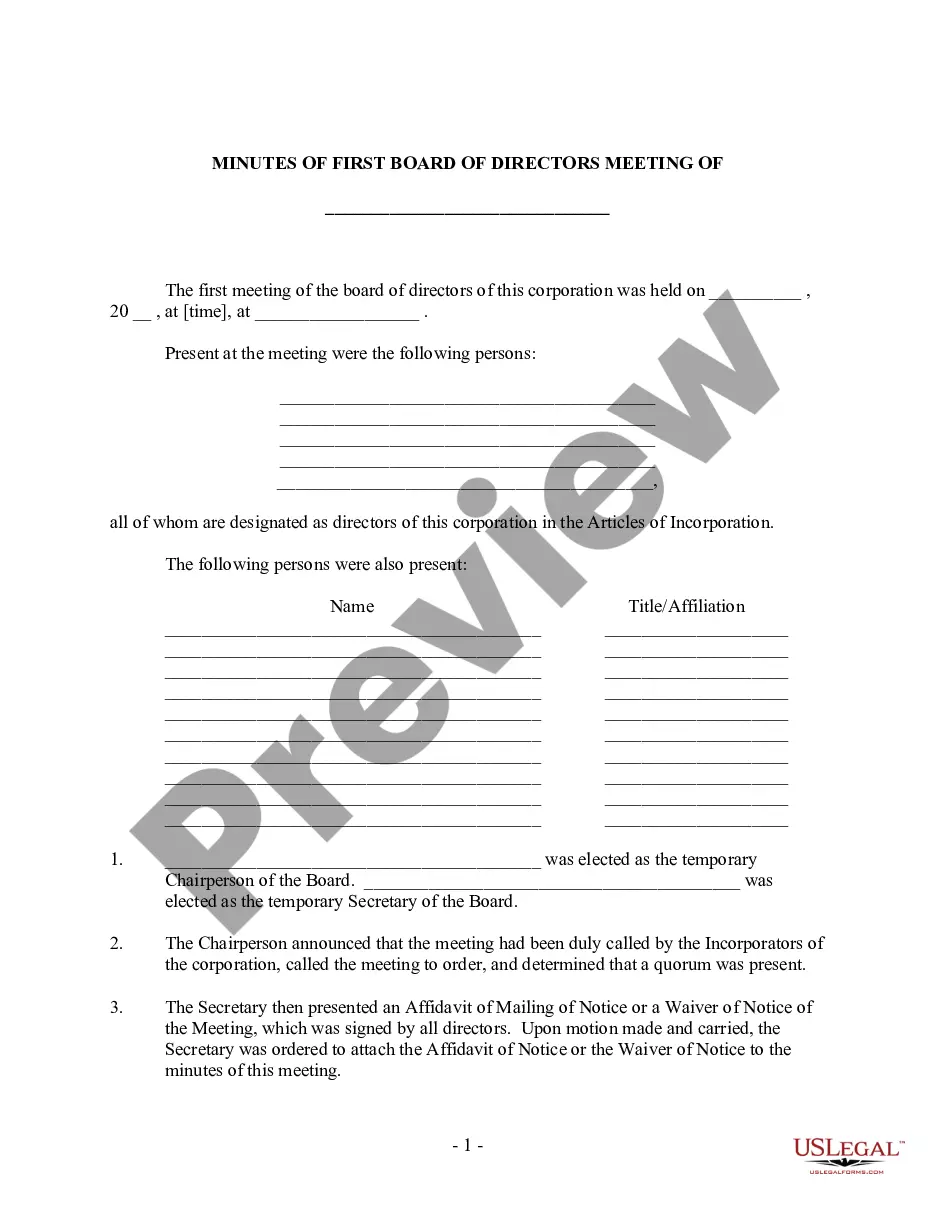
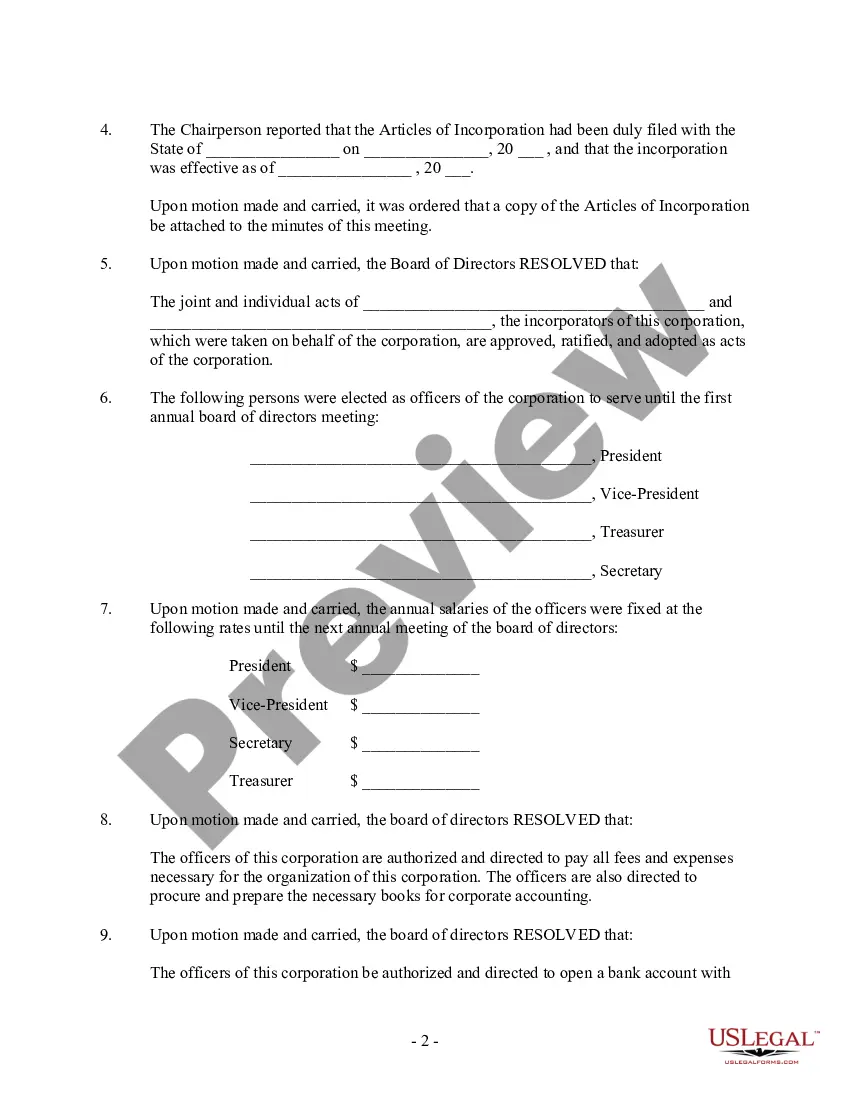
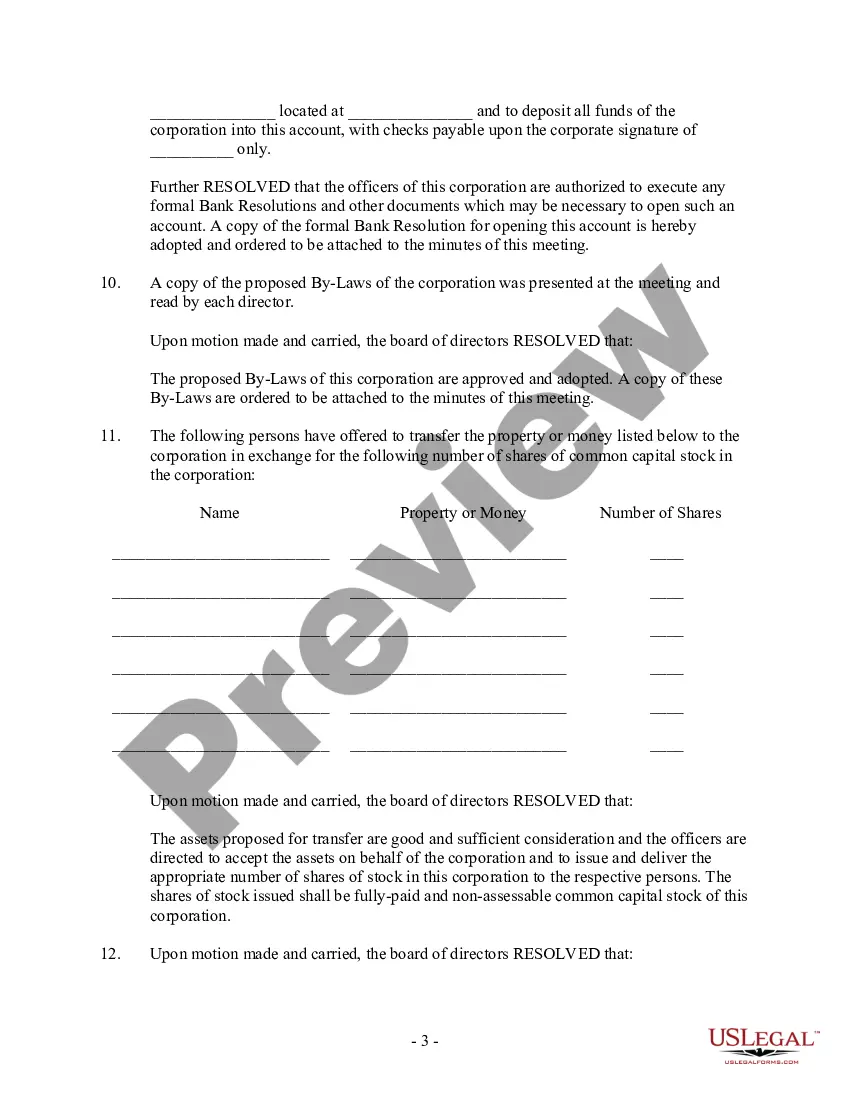
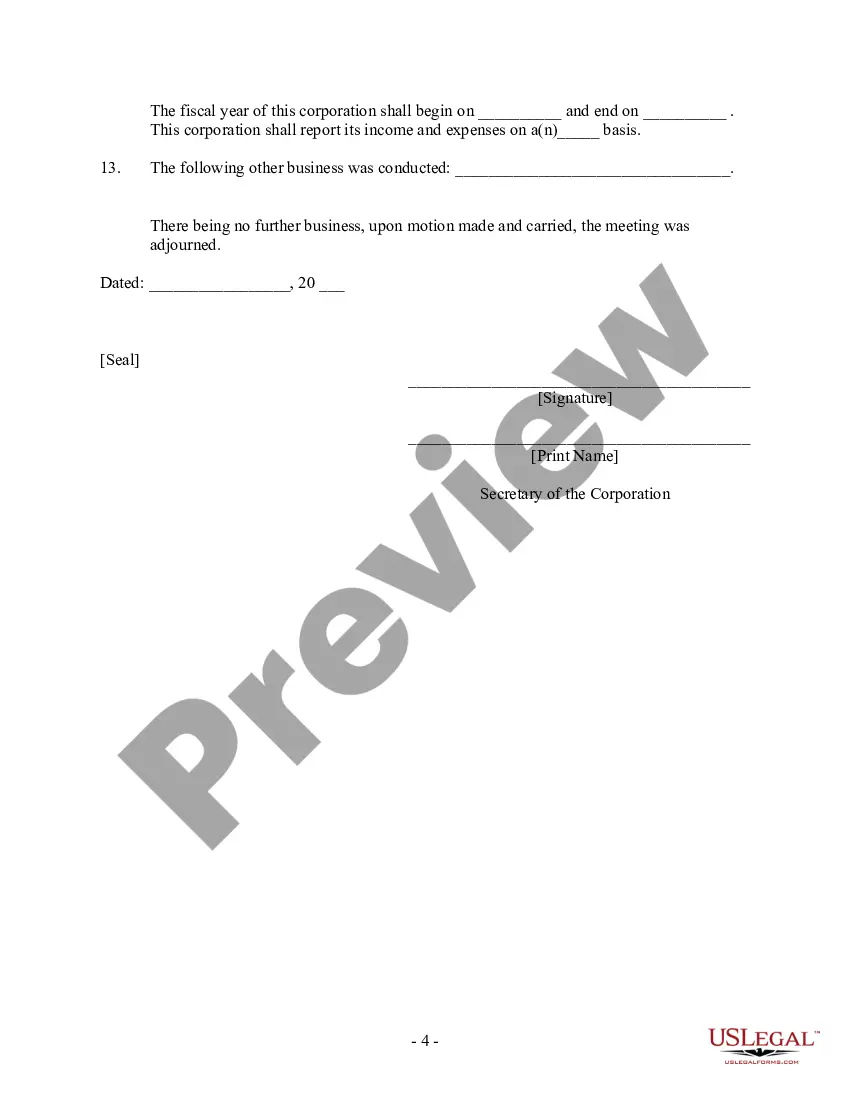
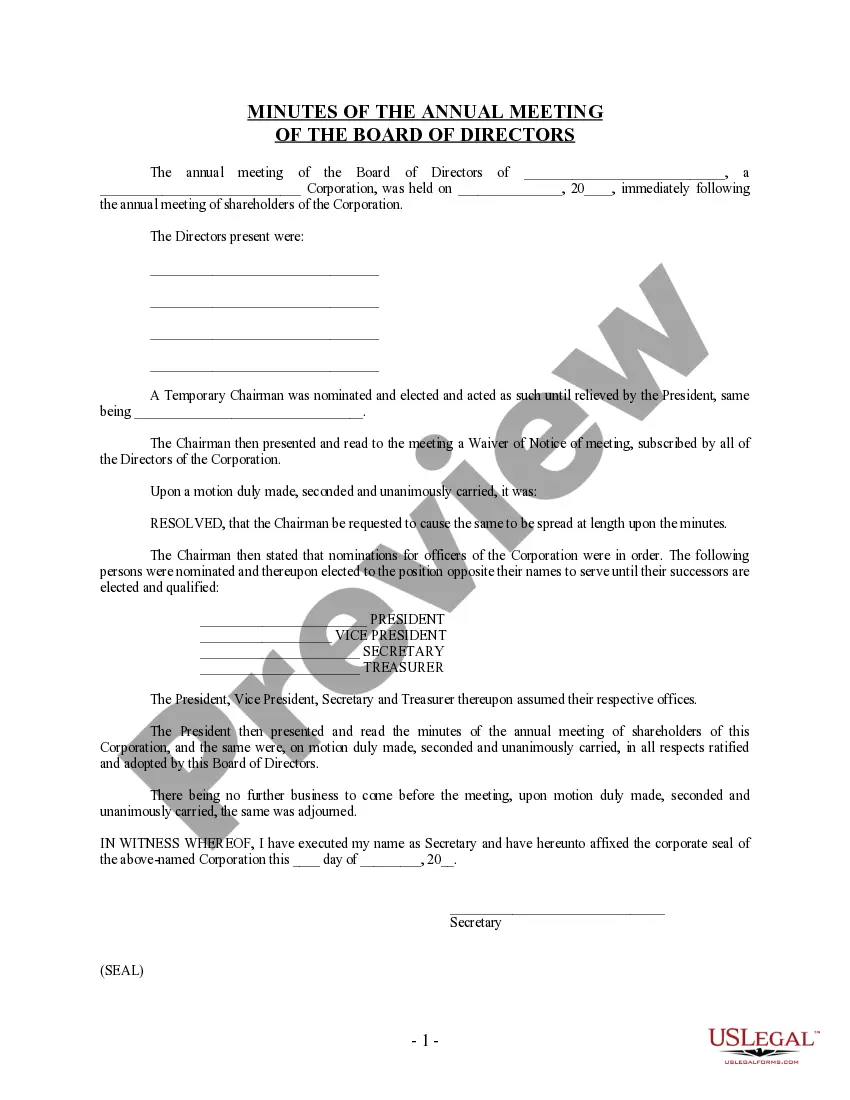
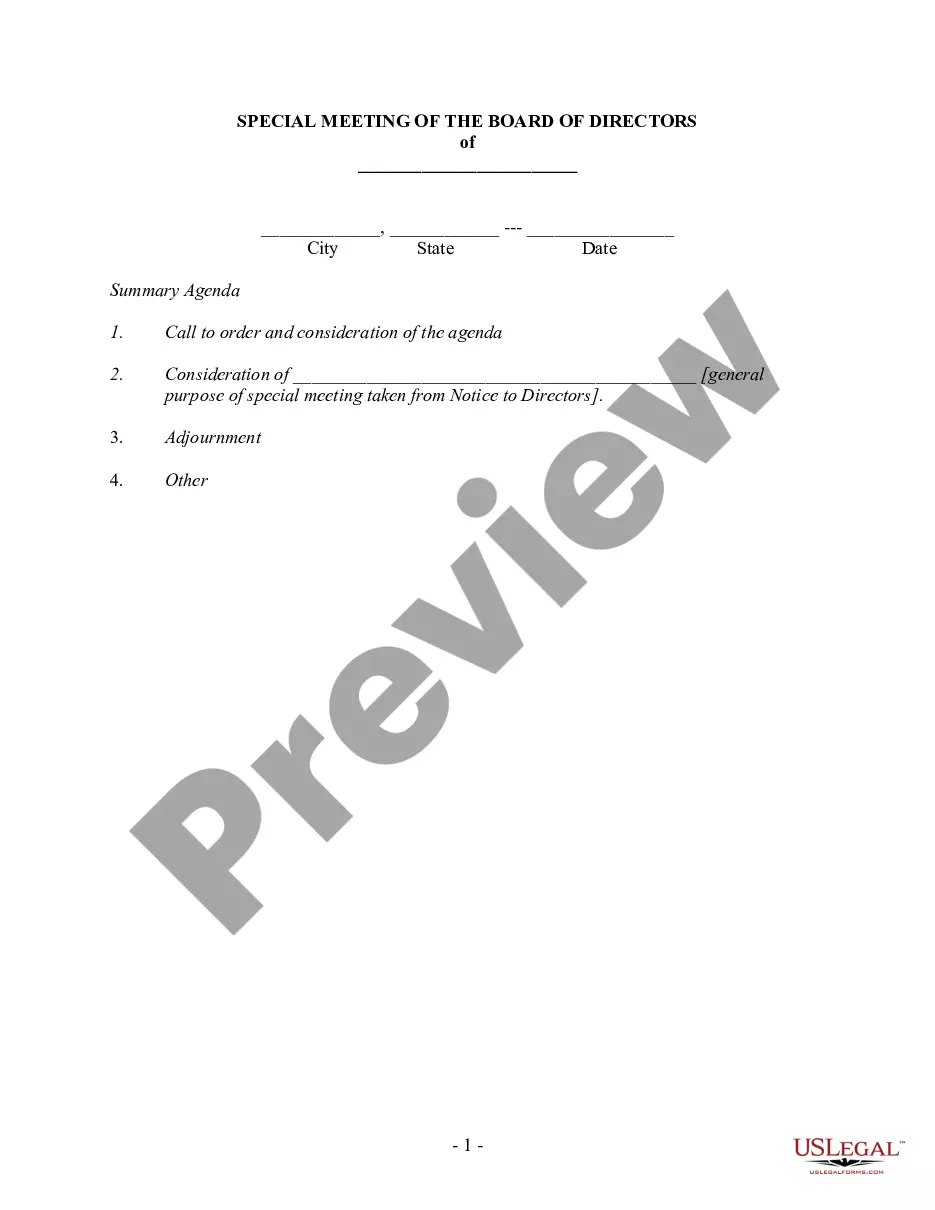
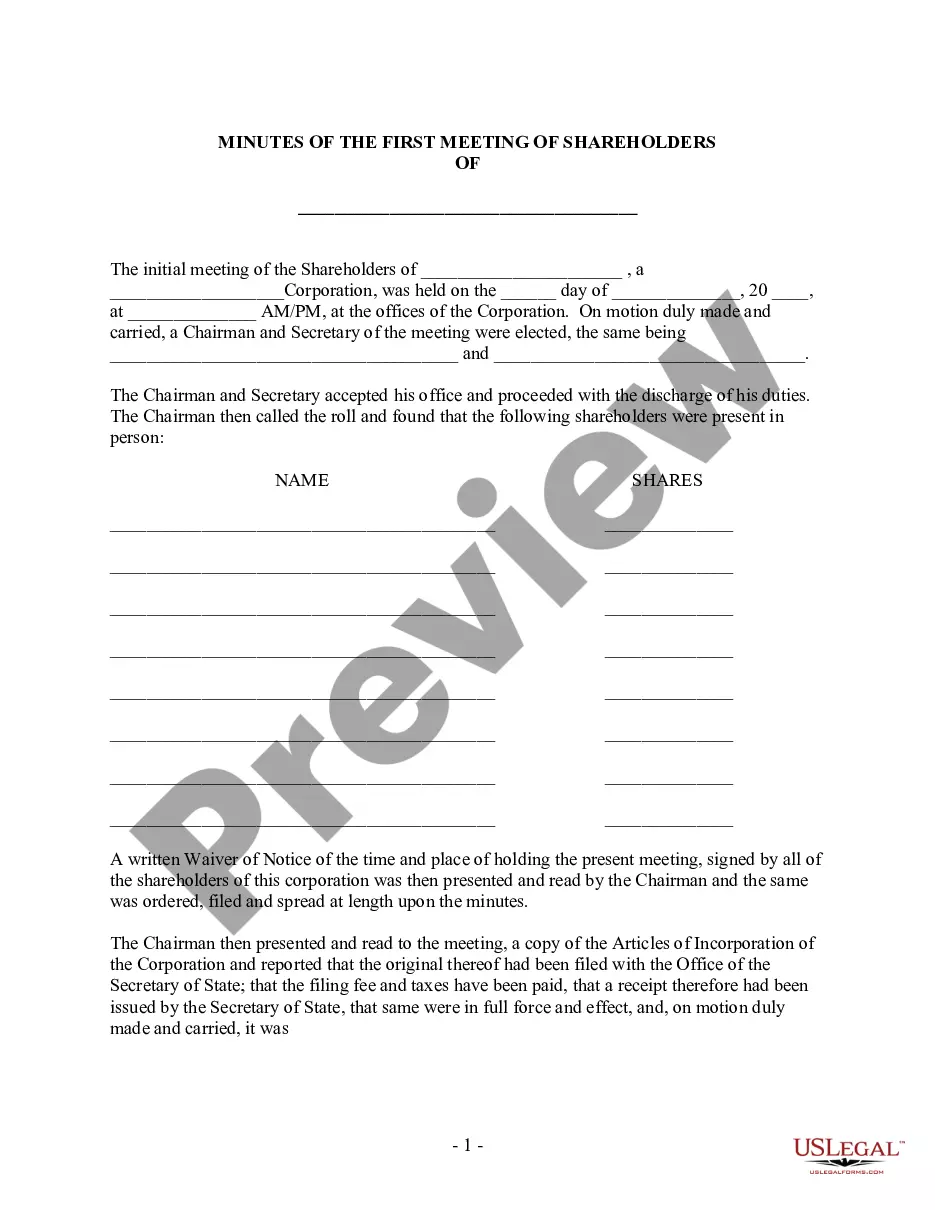
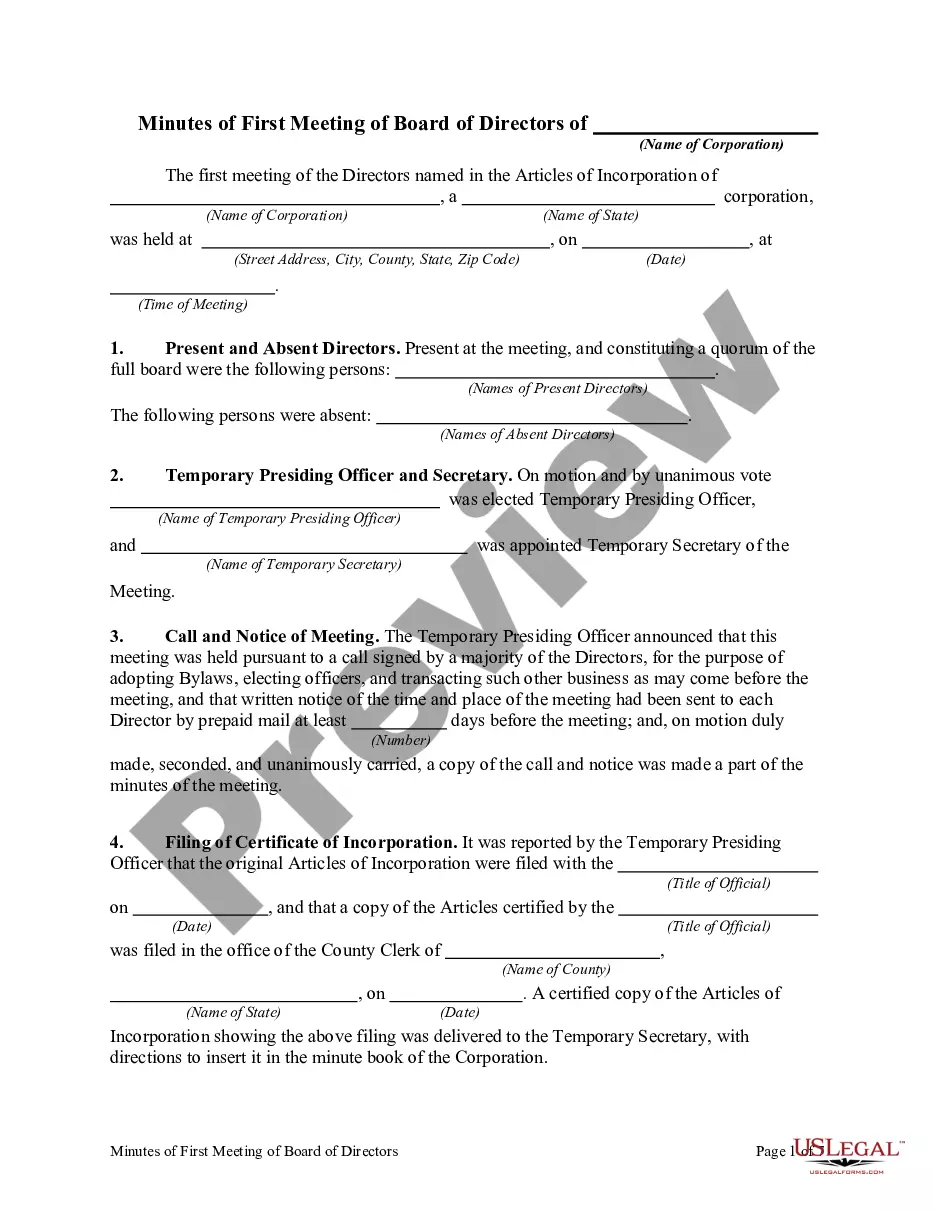
Get your form ready online
Our built-in tools help you complete, sign, share, and store your documents in one place.
Make edits, fill in missing information, and update formatting in US Legal Forms—just like you would in MS Word.
Download a copy, print it, send it by email, or mail it via USPS—whatever works best for your next step.
Sign and collect signatures with our SignNow integration. Send to multiple recipients, set reminders, and more. Go Premium to unlock E-Sign.
If this form requires notarization, complete it online through a secure video call—no need to meet a notary in person or wait for an appointment.
We protect your documents and personal data by following strict security and privacy standards.
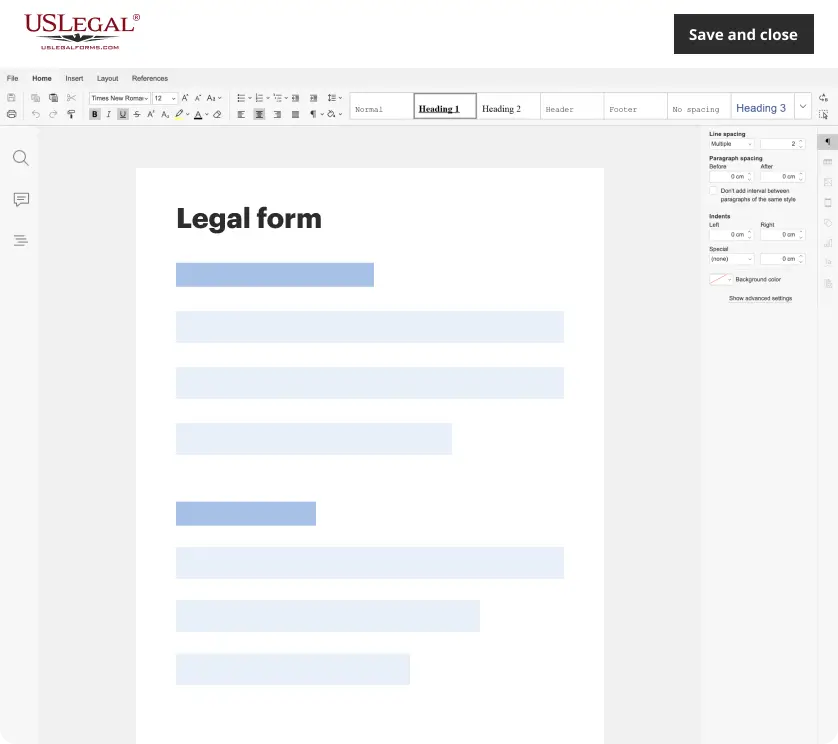
Make edits, fill in missing information, and update formatting in US Legal Forms—just like you would in MS Word.
Download a copy, print it, send it by email, or mail it via USPS—whatever works best for your next step.
Sign and collect signatures with our SignNow integration. Send to multiple recipients, set reminders, and more. Go Premium to unlock E-Sign.

If this form requires notarization, complete it online through a secure video call—no need to meet a notary in person or wait for an appointment.
We protect your documents and personal data by following strict security and privacy standards.
Looking for another form?
Form popularity
FAQ
The format for a meeting depends on the meeting type and style. While there is no set format for meeting minutes, templates provide guidelines for essential information that should be included in your documentation.
Add a note to a document On your computer, open a document or presentation in Google Docs or Google Slides. In the side panel, find the note you want to add. Click and drag the note to your document.
Google Docs note-taking templates are pre-built layouts that simplify how you capture and manage information. Instead of starting from scratch, these digital tools give you a ready-to-use format for recording, organizing, and retrieving your notes.
Google Docs note-taking templates are pre-built layouts that simplify how you capture and manage information. Instead of starting from scratch, these digital tools give you a ready-to-use format for recording, organizing, and retrieving your notes.
Using Google Docs enables access to a host of innovative features that make note-taking more efficient. These features include custom shortcuts, translations, keyboard shortcuts, and spelling and grammar check. However, the most helpful feature for note-taking in the modern workplace is voice-typing.
Add meeting notes to events from Google Docs On your computer, open a new or existing Google Doc you want to add to an event. In the doc, type “@”. In the pop-up menu, click Meeting notes. Search for an event. Tip: You can type "next" to select the next meeting on your calendar. Select an event.
Open any document in Google Docs and click the Notebook icon. Click Add to Notebook. Choose the notebook where you want to save the document and click Add to Notebook.
Here's a simple template you can refer to next time you need to take meeting minutes: Organization Name. Meeting Minutes. Date: Opening: The meeting was called to order at Time by Name at Location. Present: List of all present members Absent. Approval of Agenda. Approval of Minutes:
Meeting Minutes Template: Organization Name. Meeting Minutes. Date: Opening: The meeting was called to order at Time by Name at Location. Present: List of all present members Absent: List of any members who were not present Approval of Agenda: The agenda was reviewed and approved. Approval of Minutes:
Here's how to set up a meeting notes template in Google Docs: Open a new or existing Google Doc on your computer. Type “@” in the Doc. Select “Meeting notes” from the “Building Blocks” section. A drop-down of events from your Google Calendar will appear. Click the event you want to take notes for.