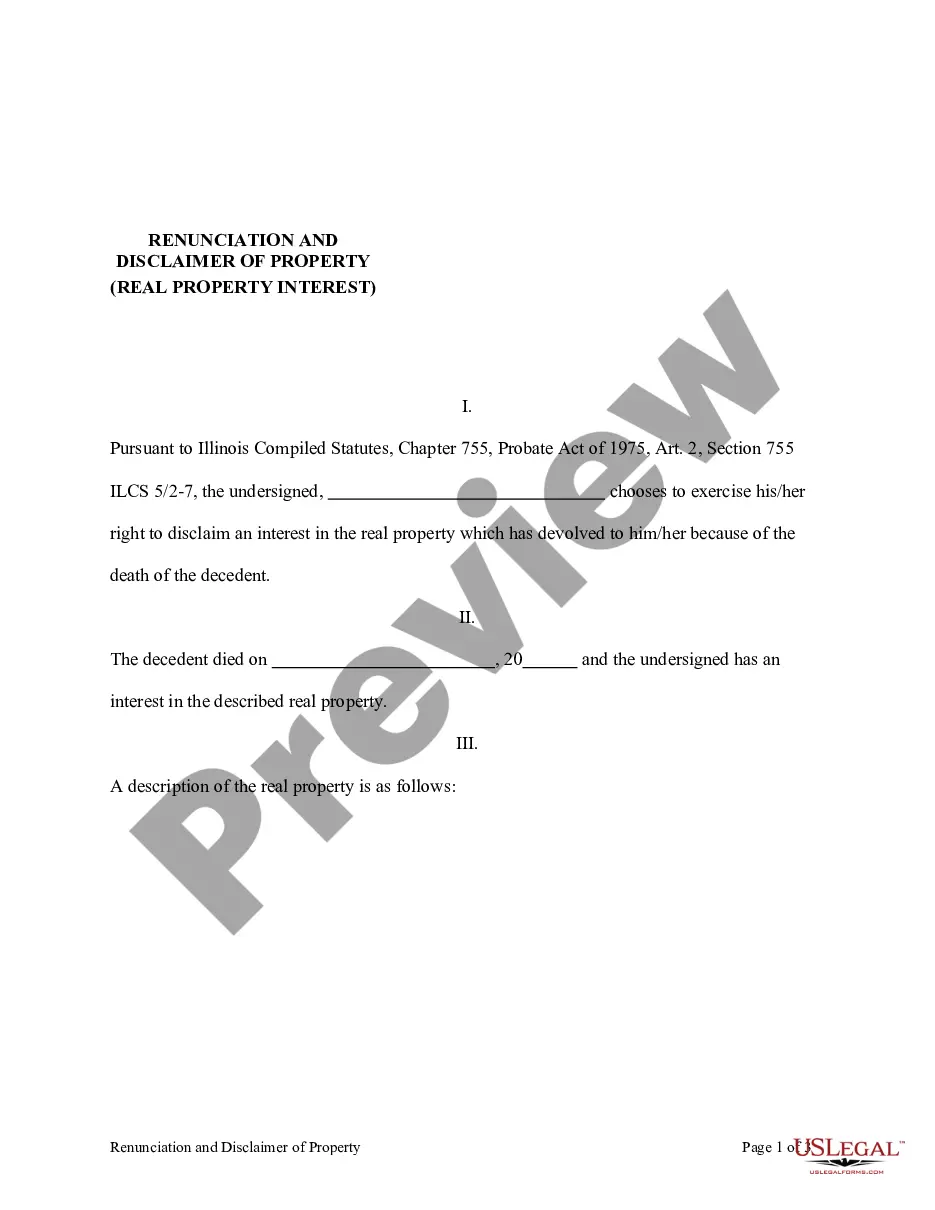
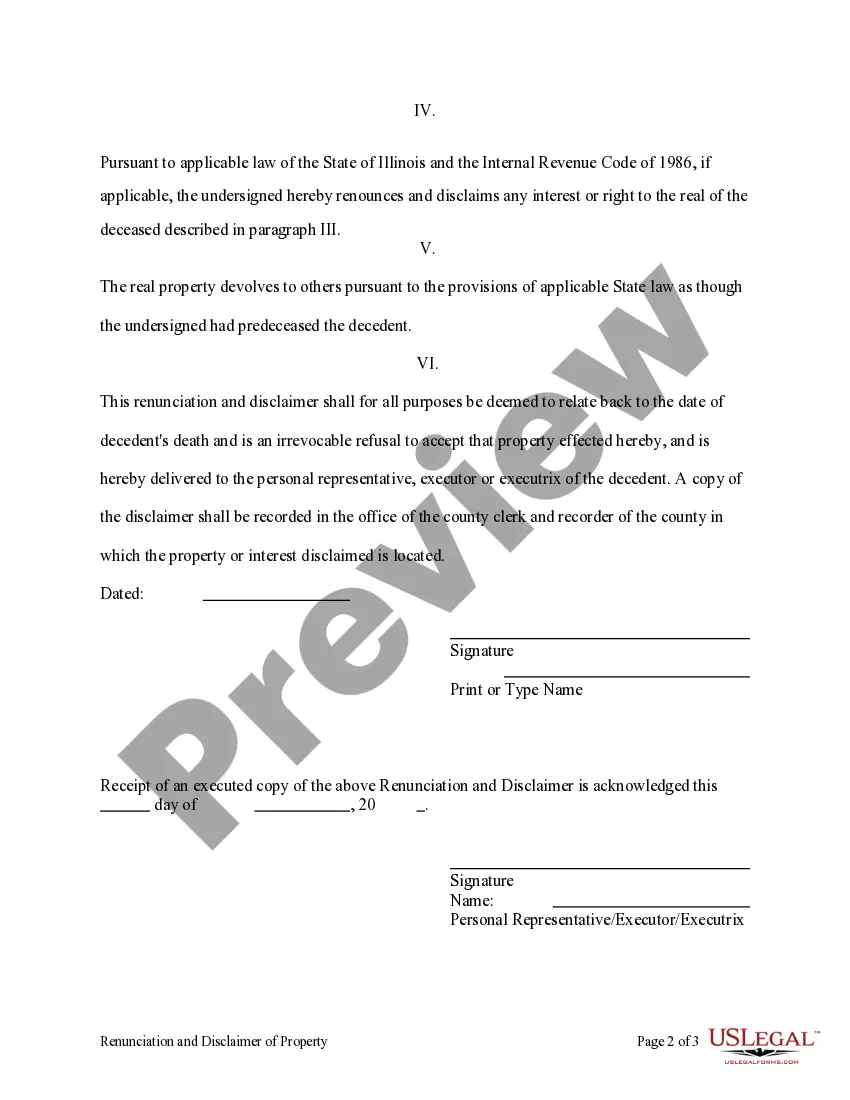
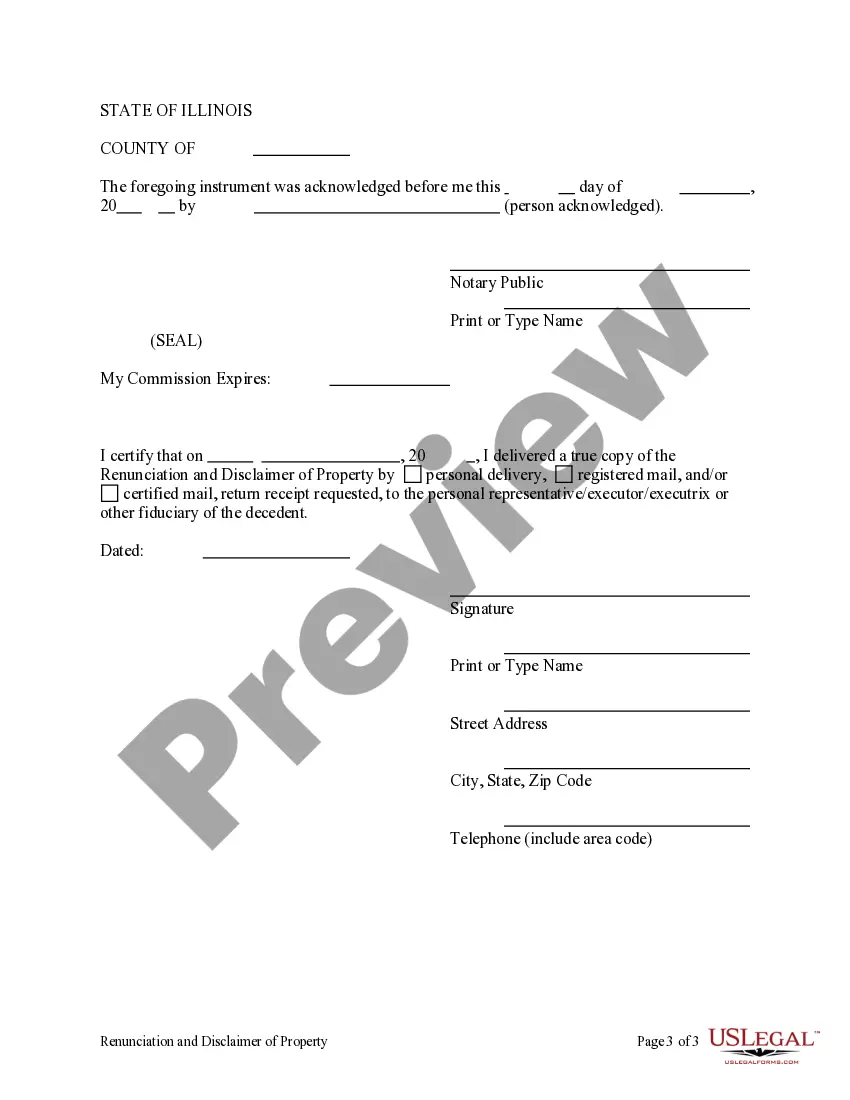
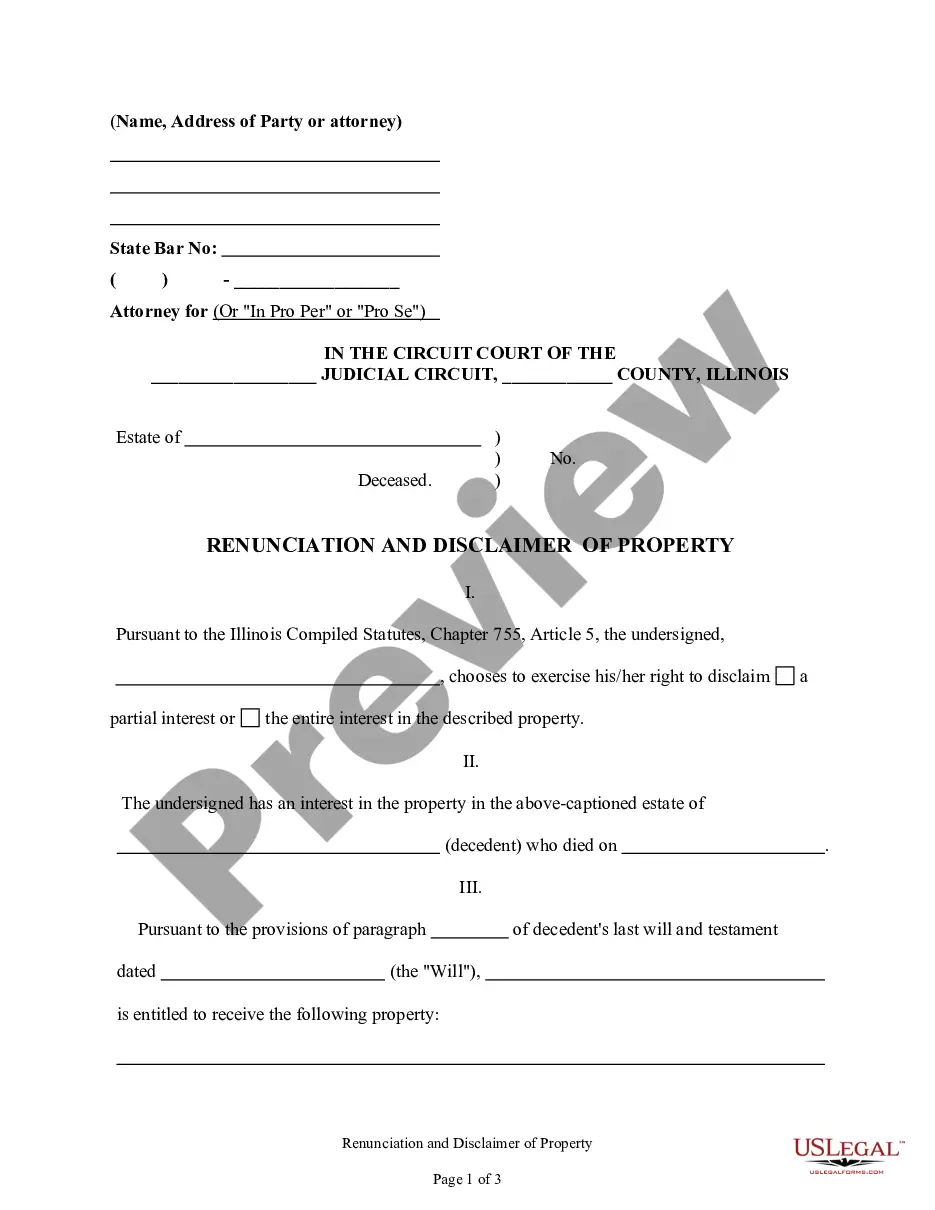
This form is a Renunciation and Disclaimer of a Real Property Interest by the beneficiary. The beneficiary has gained an interest in the described real property due to the death of the decedent. Pursuant to the Illinois Compiled Statutes, Chapter 75, Article 2, the beneficiary has chosen to disclaim his/her interest in the real property. The real property will devolve to others as though the beneficiary predeceased the decedent. The form also contains a state specific acknowledgment and a certificate to verify delivery.
755 Chmod
68 downloads
Description
Free preview
Get your form ready online
Our built-in tools help you complete, sign, share, and store your documents in one place.
Built-in online Word editor
Make edits, fill in missing information, and update formatting in US Legal Forms—just like you would in MS Word.
Export easily
Download a copy, print it, send it by email, or mail it via USPS—whatever works best for your next step.
E-sign your document
Sign and collect signatures with our SignNow integration. Send to multiple recipients, set reminders, and more. Go Premium to unlock E-Sign.
Notarize online 24/7
If this form requires notarization, complete it online through a secure video call—no need to meet a notary in person or wait for an appointment.
Store your document securely
We protect your documents and personal data by following strict security and privacy standards.

Make edits, fill in missing information, and update formatting in US Legal Forms—just like you would in MS Word.

Download a copy, print it, send it by email, or mail it via USPS—whatever works best for your next step.

Sign and collect signatures with our SignNow integration. Send to multiple recipients, set reminders, and more. Go Premium to unlock E-Sign.

If this form requires notarization, complete it online through a secure video call—no need to meet a notary in person or wait for an appointment.

We protect your documents and personal data by following strict security and privacy standards.
Looking for another form?


How to fill out Illinois Renunciation And Disclaimer Of Real Property Interest?
- Log in to your US Legal Forms account to access your previously used resources. Ensure your subscription is active before proceeding.
- For first-time users, begin by reviewing the Preview mode and form descriptions to select the appropriate document that aligns with your requirements and local regulations.
- If needed, utilize the Search function to locate alternative templates if you find discrepancies in the initial selection.
- Once you've identified the right document, click on the Buy Now button and choose a suitable subscription plan. You will need to create an account to gain access.
- Complete your purchase by entering your payment details, either through a credit card or PayPal.
- After successful payment, download your form directly to your device. You can find it later in the My Forms section of your account.
By using US Legal Forms, you can efficiently create legally sound documents. The platform offers a robust selection of over 85,000 fillable forms to cater to your specific needs.
Don’t hesitate—start your journey with US Legal Forms today and empower yourself with the tools for legal success!
Form popularity
FAQ
To use the chmod command, access your terminal and specify the desired permissions followed by the file or directory name. For instance, you might type 'chmod 755 filename' to set specific permissions. If you're unsure about managing file permissions, consider using platforms like uslegalforms, which assist you with user-friendly guidance and templates for your file management needs.
Chmod 755 and 777 are commands used in Unix-based systems to set permissions for files and directories. Chmod 755 allows the owner full control, while others can only read and execute. On the other hand, chmod 777 grants total access to everyone, which can be risky. Understanding these commands helps you manage your files securely.
To give 777 permission to a file, you can use the chmod command in your terminal. Simply type 'chmod 777 filename', replacing 'filename' with your target file. This command provides read, write, and execute permissions for everyone. However, be careful when using 777 since it allows any user complete control over the file.
To use the 755 chmod command, start by opening your terminal. Type 'chmod 755 filename' where 'filename' is the file or directory you want to modify. This command sets read and execute permissions for everyone but grants write permission only to the owner. It’s a commonly used method to secure files while allowing others to access them.
Giving 775 permissions in Linux is simple. Use the command 'chmod 775 filename', replacing 'filename' with your actual file name. This grants the owner and group full access to read, write, and execute while allowing others only to read and execute. Knowing how to properly adjust permissions is essential, and platforms like US Legal Forms can help you navigate specific use cases.
To run chmod 755, open your terminal and type 'chmod 755 filename', ensuring to replace 'filename' with the name of your target file. Press Enter, and the command executes, changing the file's permissions to 755. Make sure you have appropriate permissions yourself to change the file settings. Running this command helps you manage file access effectively.
When you set 755 permissions, they appear as 'rwxr-xr-x' when you check using the 'ls -l' command. This string indicates that the owner has read, write, and execute access, while the group and others have read and execute access without the write privilege. This configuration is common for script files and directories. Using 755 chmod helps you maintain security while allowing necessary access.
To give 755 permissions to a file, use the command 'chmod 755 filename', replacing 'filename' with your actual file name. This command grants the file owner full permissions while allowing everyone else to read and execute the file. After executing the command, you can verify the changes by using 'ls -l filename', which will show you the updated permissions. Ensuring proper permissions is crucial for securing your files.
The difference between 775 and 755 permissions lies in the access granted to the group category. With 775 permissions, both the user and the group have read, write, and execute rights, while others only have read and execute privileges. In contrast, 755 permissions provide read and execute access for the group but restrict write access. Thus, 755 chmod offers a more limited set of permissions for group members.
To use the chmod 775 command in Linux, you begin with the 'chmod' keyword followed by '775'. This sets the permissions for the file or directory to allow read, write, and execute access for the owner and group, while giving read and execute access to others. For example, the command 'chmod 775 filename' will apply these permissions to the specified file. Ensure you have the appropriate permissions to make these changes.