Arizona Specific Form Application With Database Example
Description
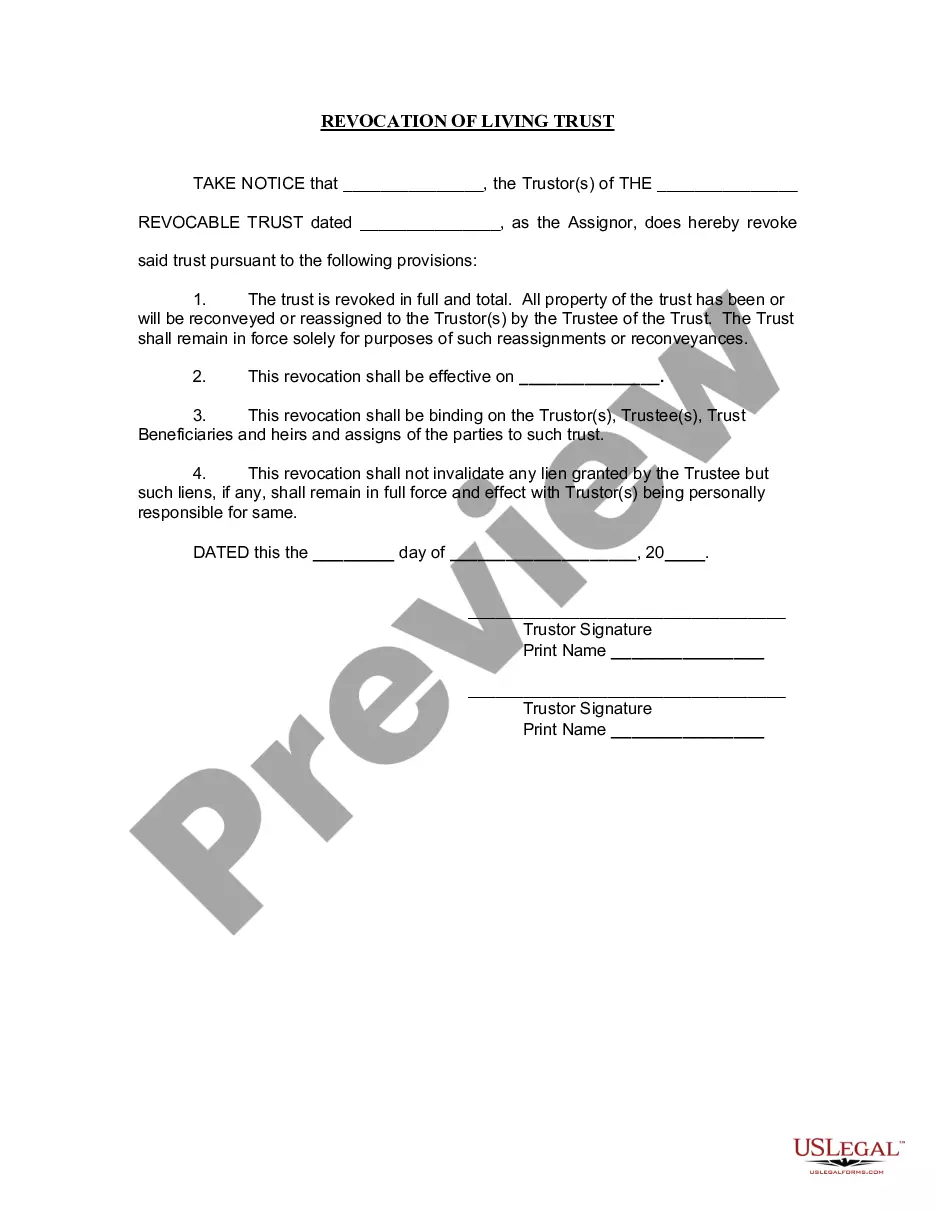
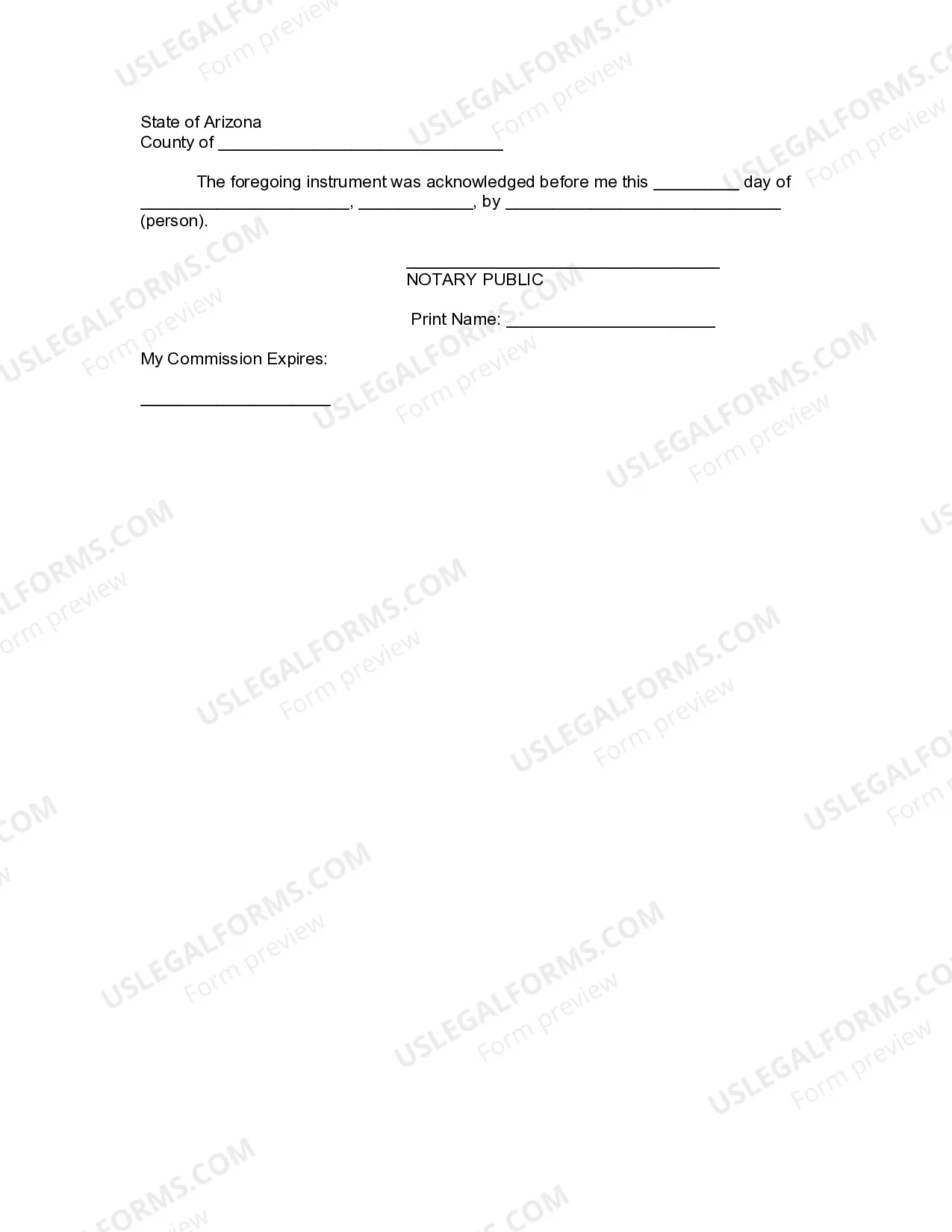
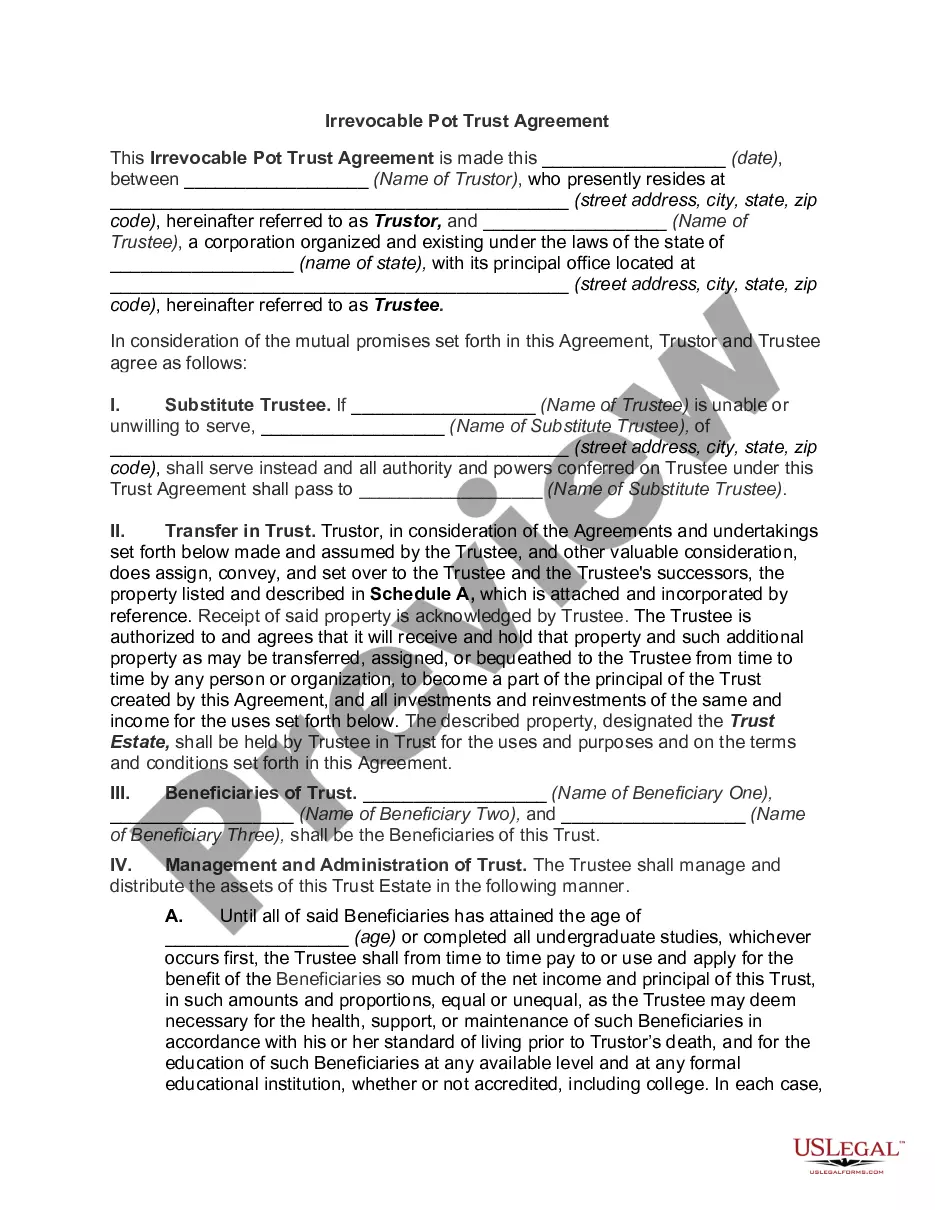
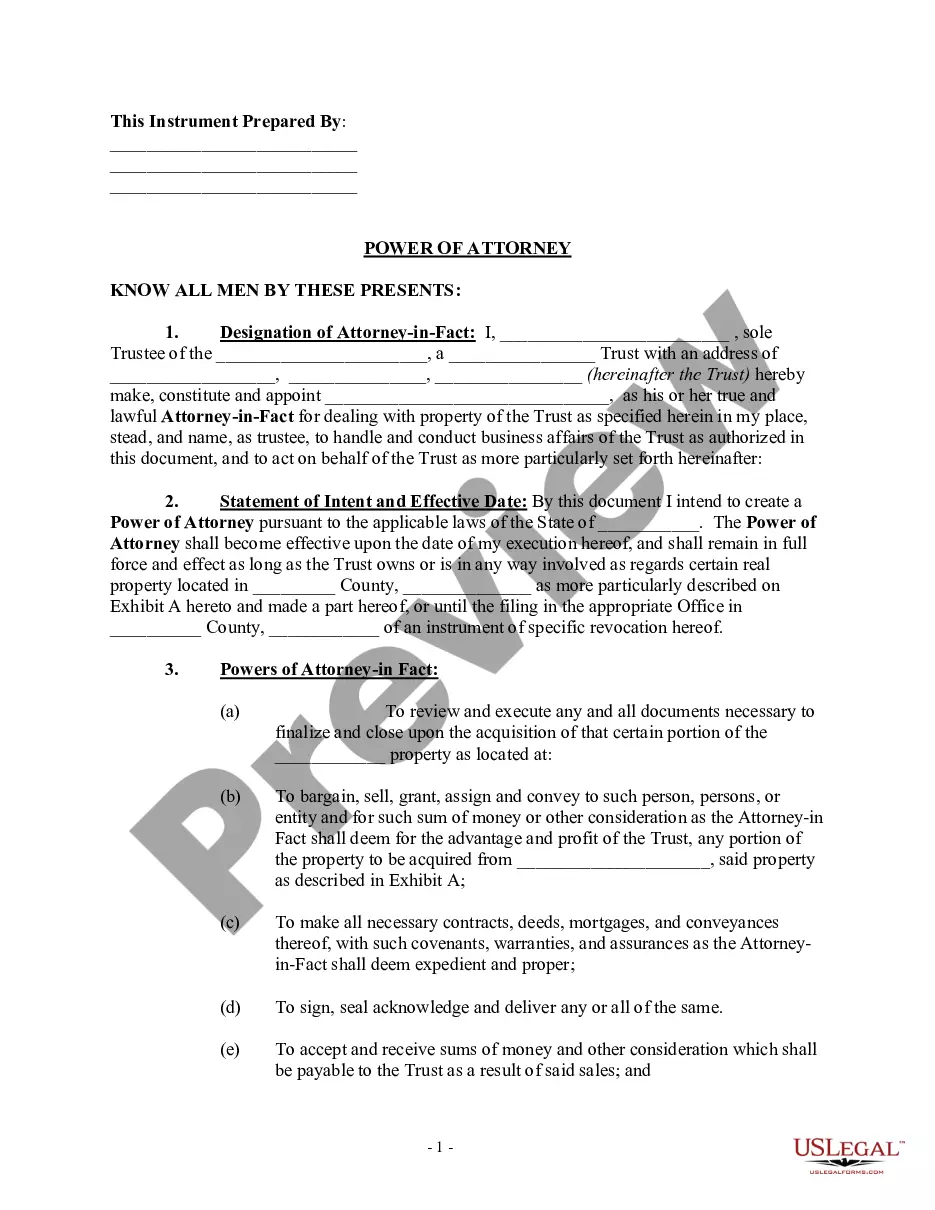
Get your form ready online
Our built-in tools help you complete, sign, share, and store your documents in one place.
Make edits, fill in missing information, and update formatting in US Legal Forms—just like you would in MS Word.
Download a copy, print it, send it by email, or mail it via USPS—whatever works best for your next step.
Sign and collect signatures with our SignNow integration. Send to multiple recipients, set reminders, and more. Go Premium to unlock E-Sign.
If this form requires notarization, complete it online through a secure video call—no need to meet a notary in person or wait for an appointment.
We protect your documents and personal data by following strict security and privacy standards.

Make edits, fill in missing information, and update formatting in US Legal Forms—just like you would in MS Word.

Download a copy, print it, send it by email, or mail it via USPS—whatever works best for your next step.

Sign and collect signatures with our SignNow integration. Send to multiple recipients, set reminders, and more. Go Premium to unlock E-Sign.

If this form requires notarization, complete it online through a secure video call—no need to meet a notary in person or wait for an appointment.

We protect your documents and personal data by following strict security and privacy standards.
Looking for another form?
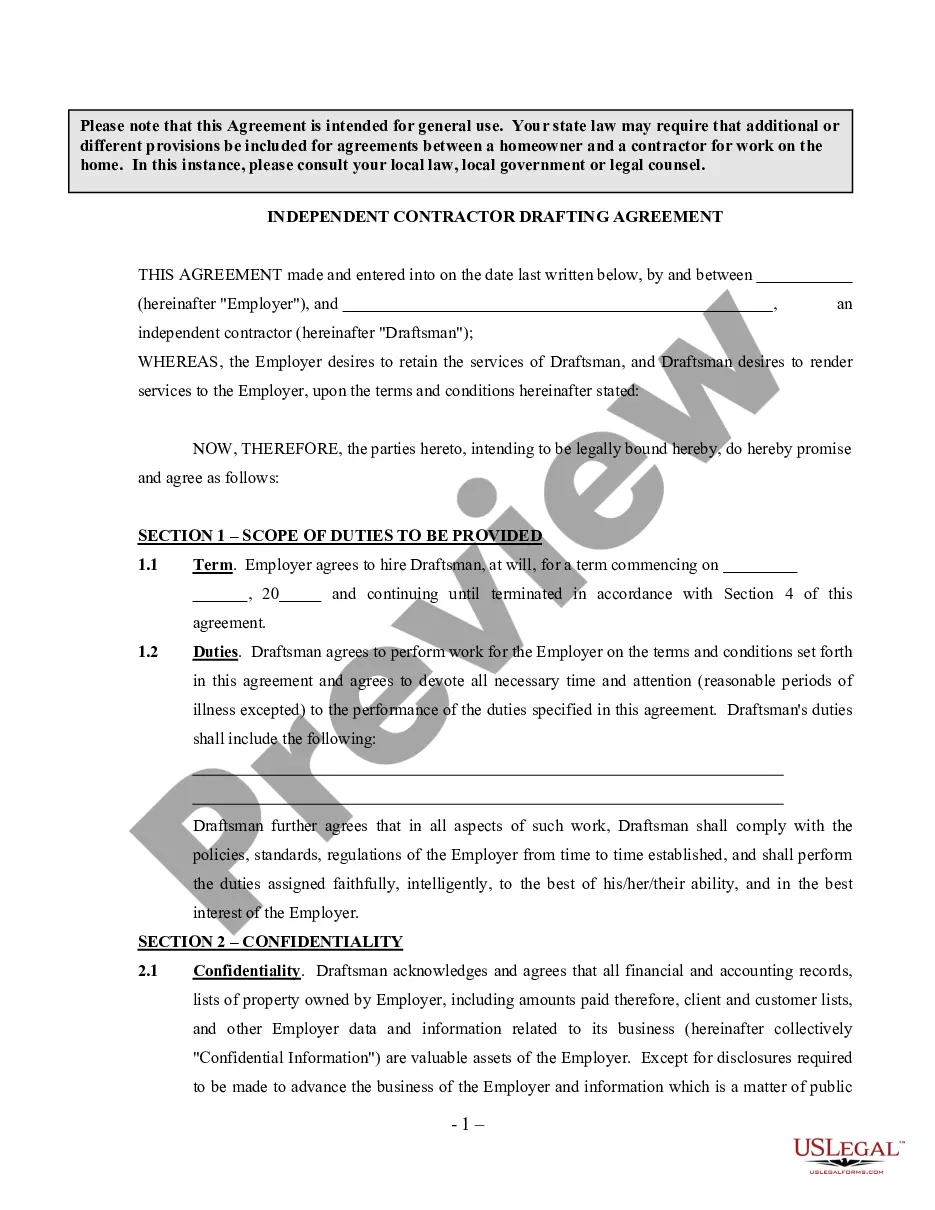
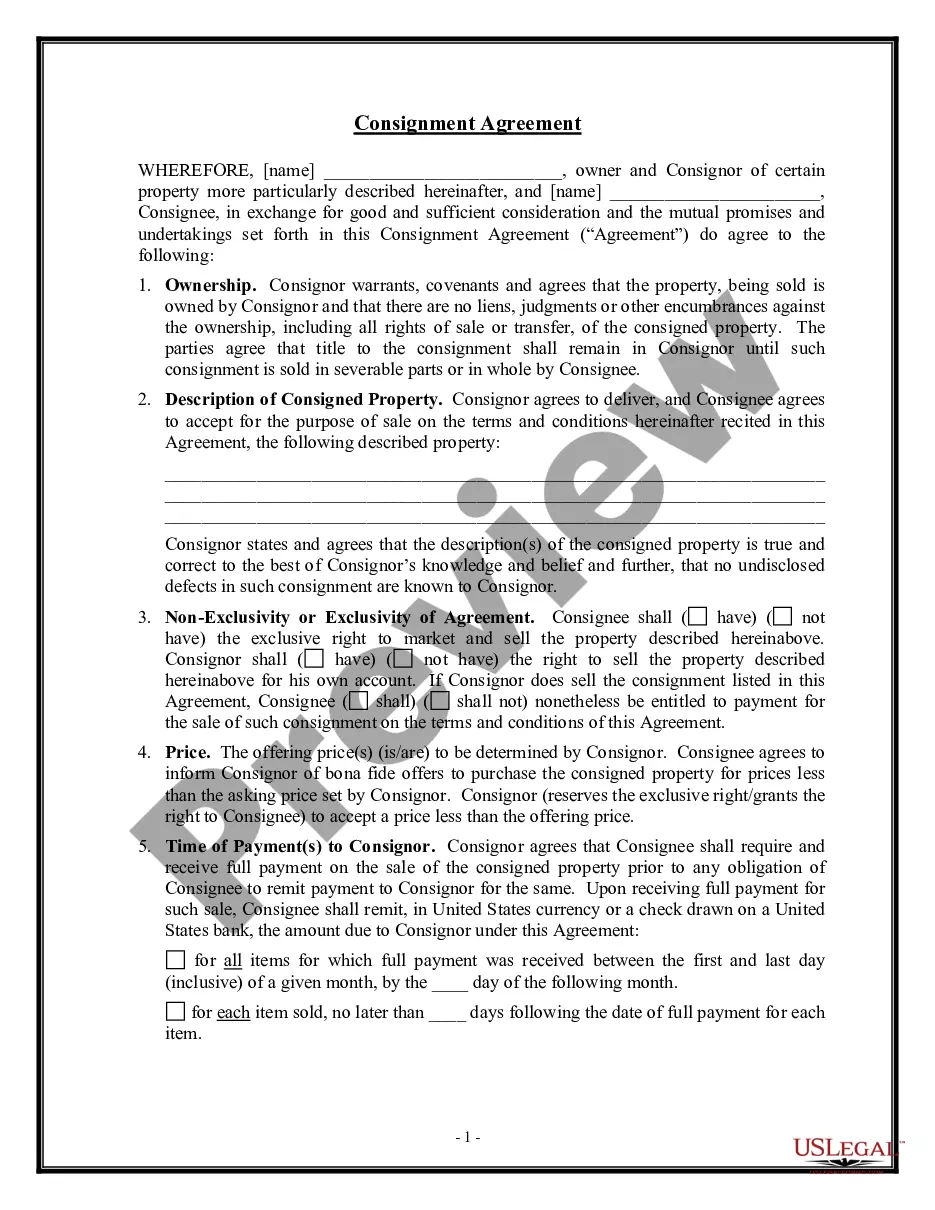
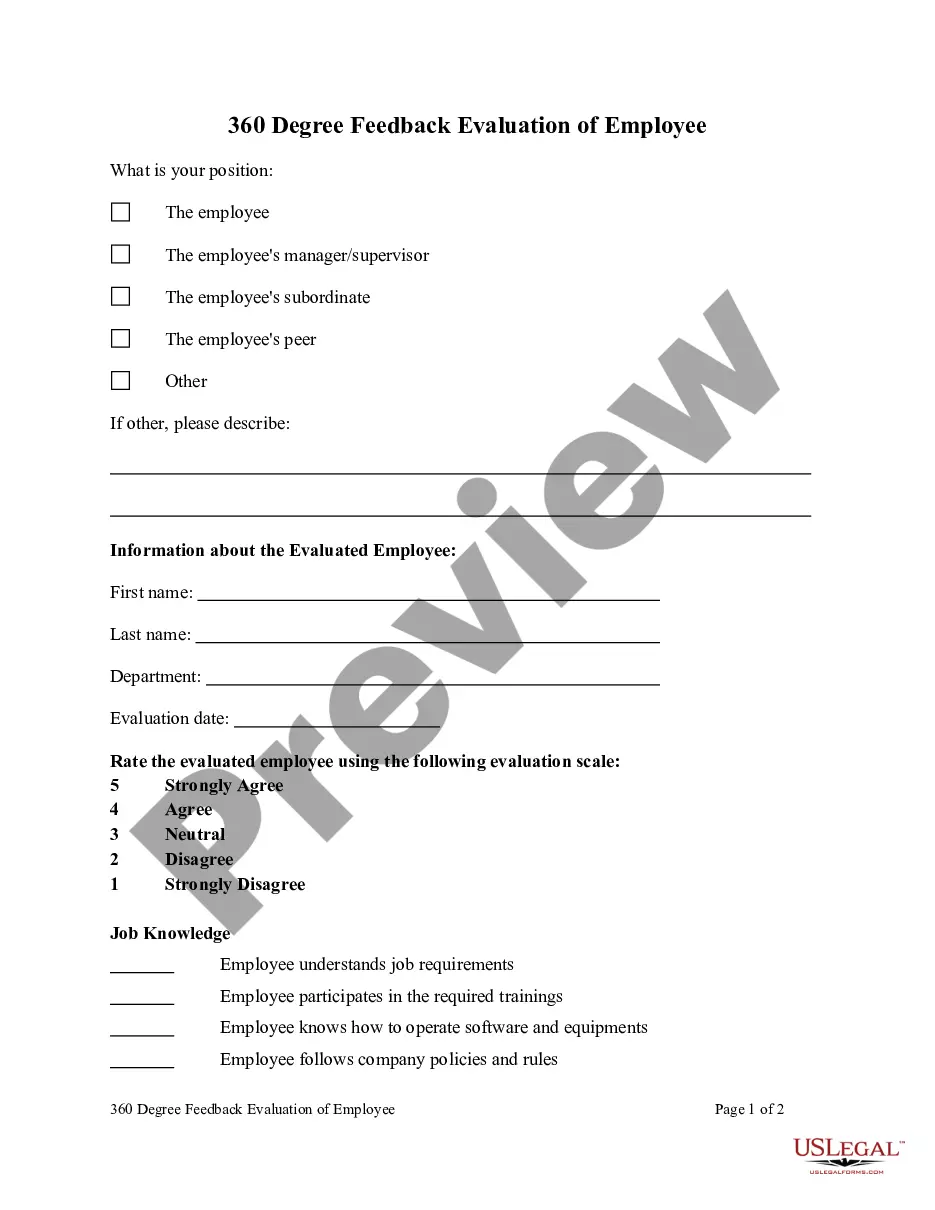

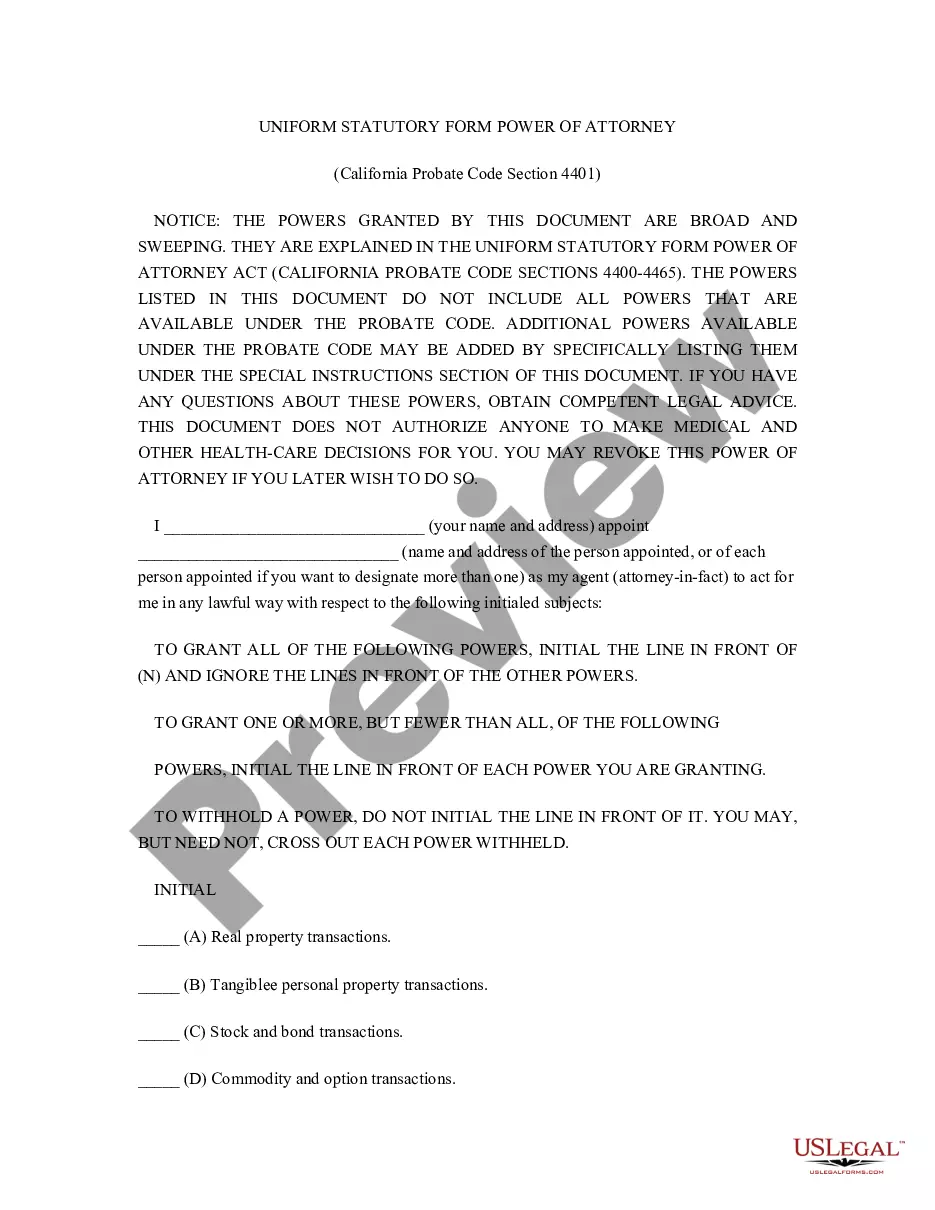

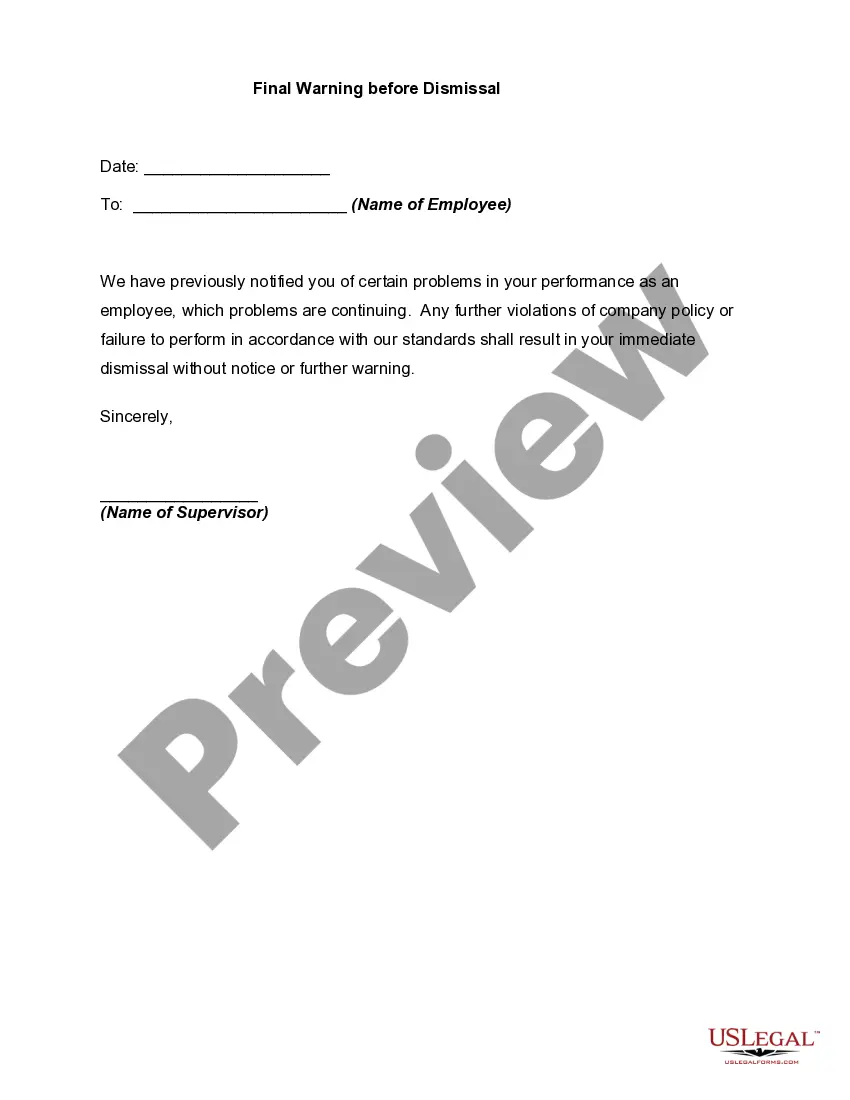
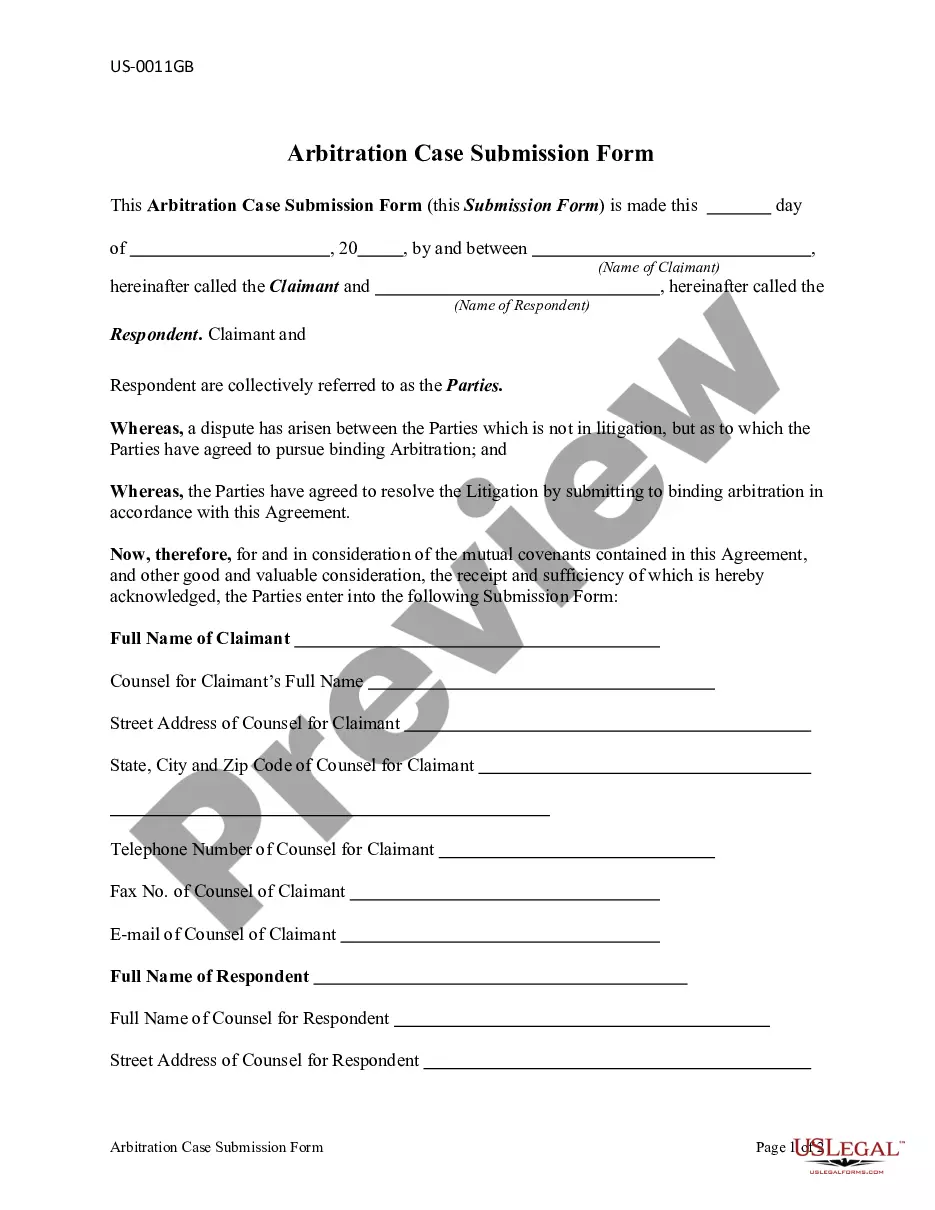
How to fill out Arizona Revocation Of Living Trust?
It’s obvious that you can’t become a legal expert overnight, nor can you learn how to quickly draft Arizona Specific Form Application With Database Example without the need of a specialized background. Creating legal forms is a time-consuming venture requiring a certain education and skills. So why not leave the preparation of the Arizona Specific Form Application With Database Example to the specialists?
With US Legal Forms, one of the most comprehensive legal document libraries, you can access anything from court documents to templates for in-office communication. We understand how important compliance and adherence to federal and local laws and regulations are. That’s why, on our platform, all templates are location specific and up to date.
Here’s start off with our platform and get the document you need in mere minutes:
- Find the form you need with the search bar at the top of the page.
- Preview it (if this option provided) and check the supporting description to figure out whether Arizona Specific Form Application With Database Example is what you’re looking for.
- Start your search over if you need a different template.
- Register for a free account and choose a subscription option to purchase the form.
- Choose Buy now. Once the transaction is complete, you can get the Arizona Specific Form Application With Database Example, complete it, print it, and send or mail it to the necessary individuals or entities.
You can re-access your forms from the My Forms tab at any time. If you’re an existing client, you can simply log in, and locate and download the template from the same tab.
No matter the purpose of your paperwork-whether it’s financial and legal, or personal-our platform has you covered. Try US Legal Forms now!
Form popularity
FAQ
It's a three step process to deploy an ASP.NET web application with SQL Server as the database and ADO.NET as the data access framework. Step 1 : Deploy web application. The first step is to deploye the web application itself. ... Step 2 : Create SQL Server in Azure. ... Step 3 : Create the database objects and seed data.
It's a three step process to deploy an ASP.NET web application with SQL Server as the database and ADO.NET as the data access framework. Step 1 : Deploy web application. The first step is to deploye the web application itself. ... Step 2 : Create SQL Server in Azure. ... Step 3 : Create the database objects and seed data.
Connect the database to your static web app In the Settings section, select Database connection. Under the Production section, select the Link existing database link. Select your database type from the dropdown list. Select your Azure subscription from the dropdown list.
Use the Import Data-tier Application Wizard Connect to the instance of SQL Server, whether on-premises or in SQL Database. In Object Explorer, right-click on Databases, and then select the Import Data-tier Application menu item to launch the wizard. Complete the wizard dialogs: Introduction Page. Import Settings Page.
How to connect to a SQL Server database On the Database menu, click New Connection. ... On the Database Connection Properties > General tab, specify the connection details: ... (Optional) On the Advanced tab, configure additional connection properties: ... (Optional) To verify the connection, click Test Connection.