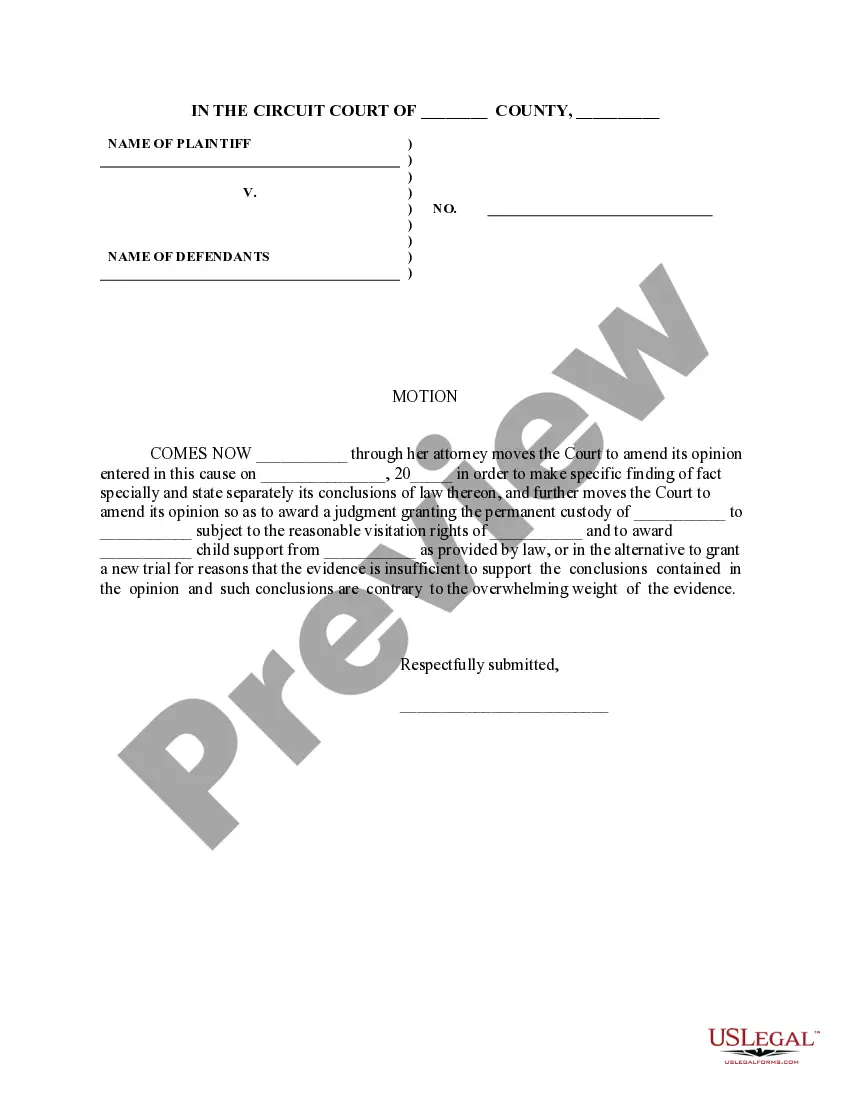
Finding Fact Sample Formula
Description
Get your form ready online
Our built-in tools help you complete, sign, share, and store your documents in one place.
Make edits, fill in missing information, and update formatting in US Legal Forms—just like you would in MS Word.
Download a copy, print it, send it by email, or mail it via USPS—whatever works best for your next step.
Sign and collect signatures with our SignNow integration. Send to multiple recipients, set reminders, and more. Go Premium to unlock E-Sign.
If this form requires notarization, complete it online through a secure video call—no need to meet a notary in person or wait for an appointment.
We protect your documents and personal data by following strict security and privacy standards.

Make edits, fill in missing information, and update formatting in US Legal Forms—just like you would in MS Word.

Download a copy, print it, send it by email, or mail it via USPS—whatever works best for your next step.

Sign and collect signatures with our SignNow integration. Send to multiple recipients, set reminders, and more. Go Premium to unlock E-Sign.

If this form requires notarization, complete it online through a secure video call—no need to meet a notary in person or wait for an appointment.

We protect your documents and personal data by following strict security and privacy standards.
Looking for another form?



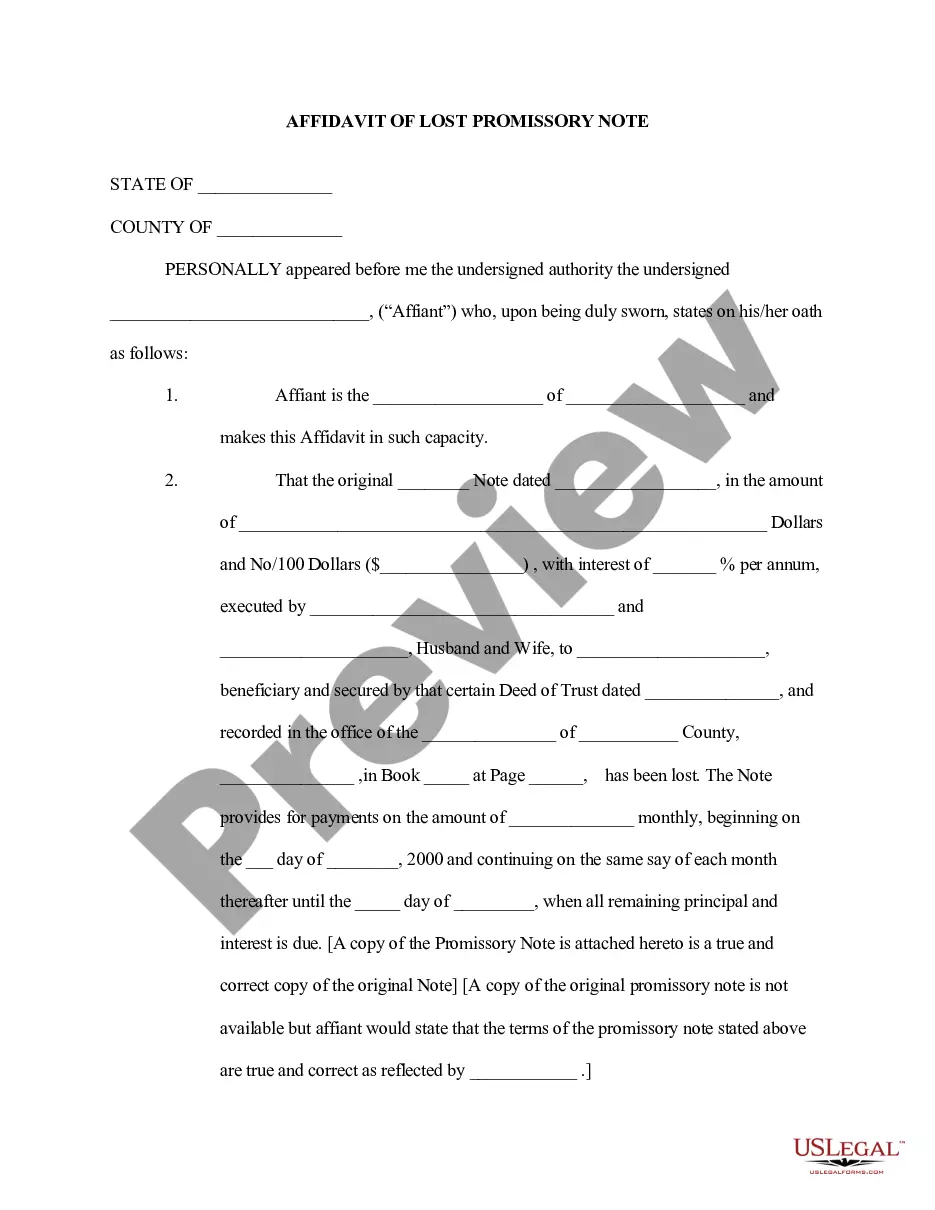
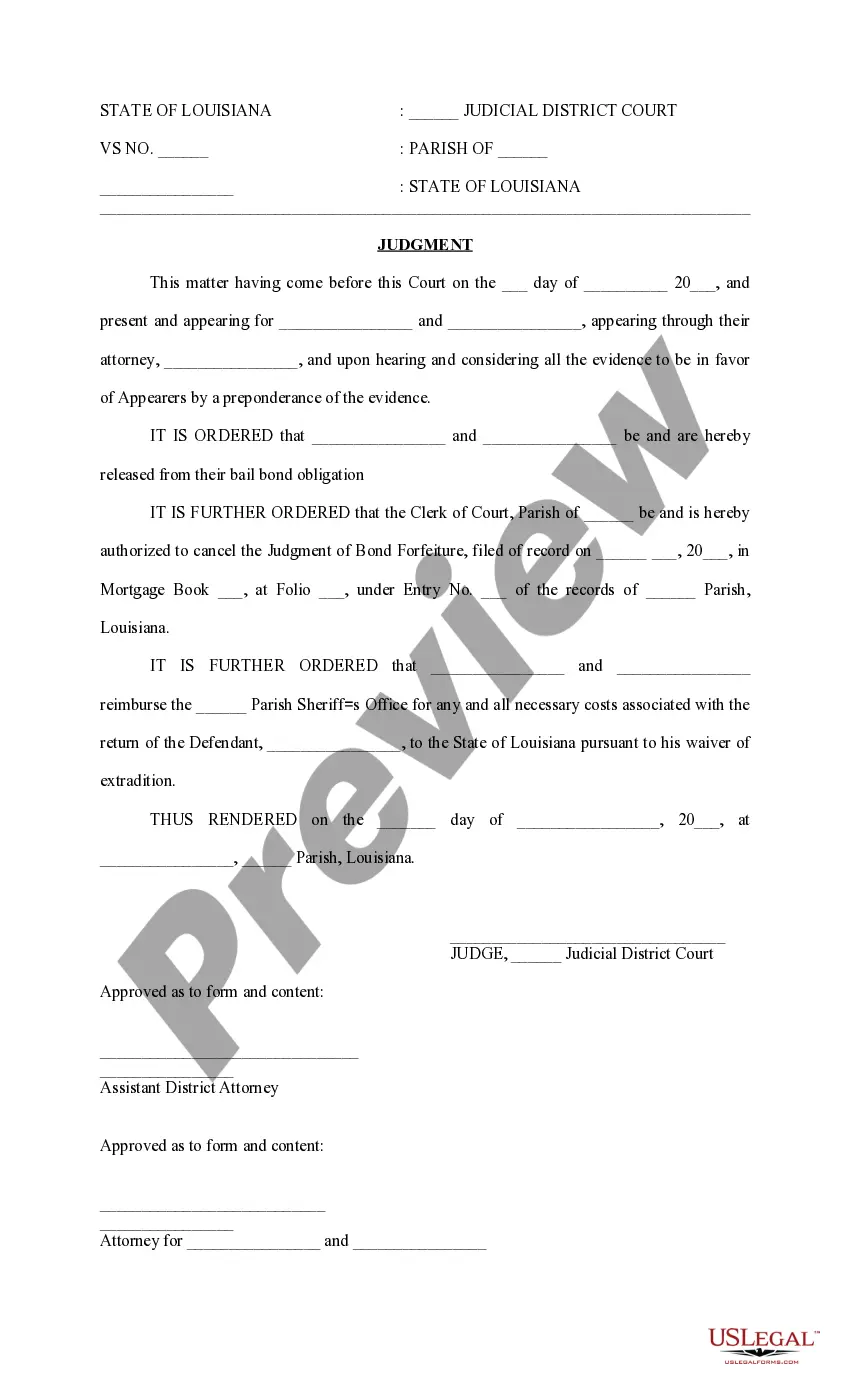
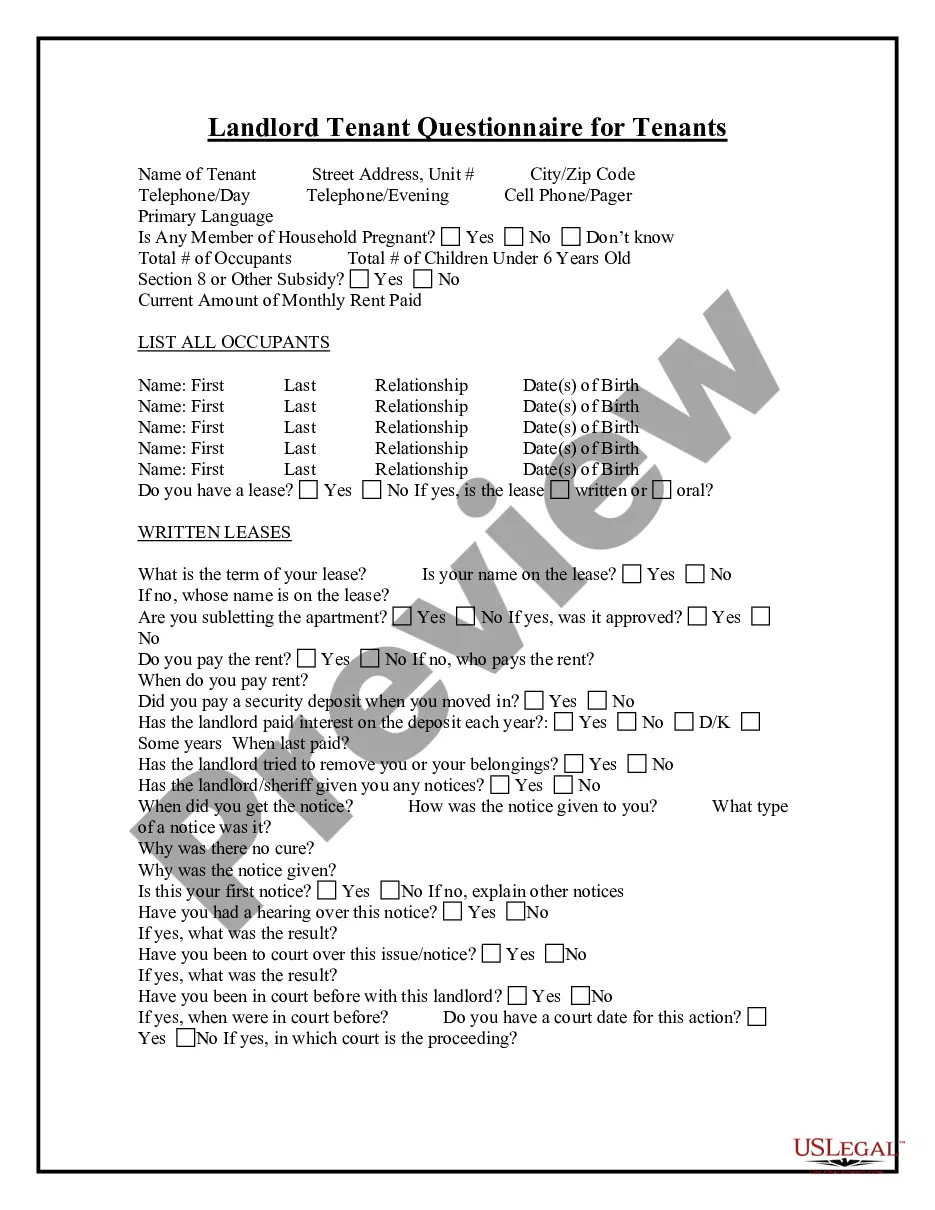
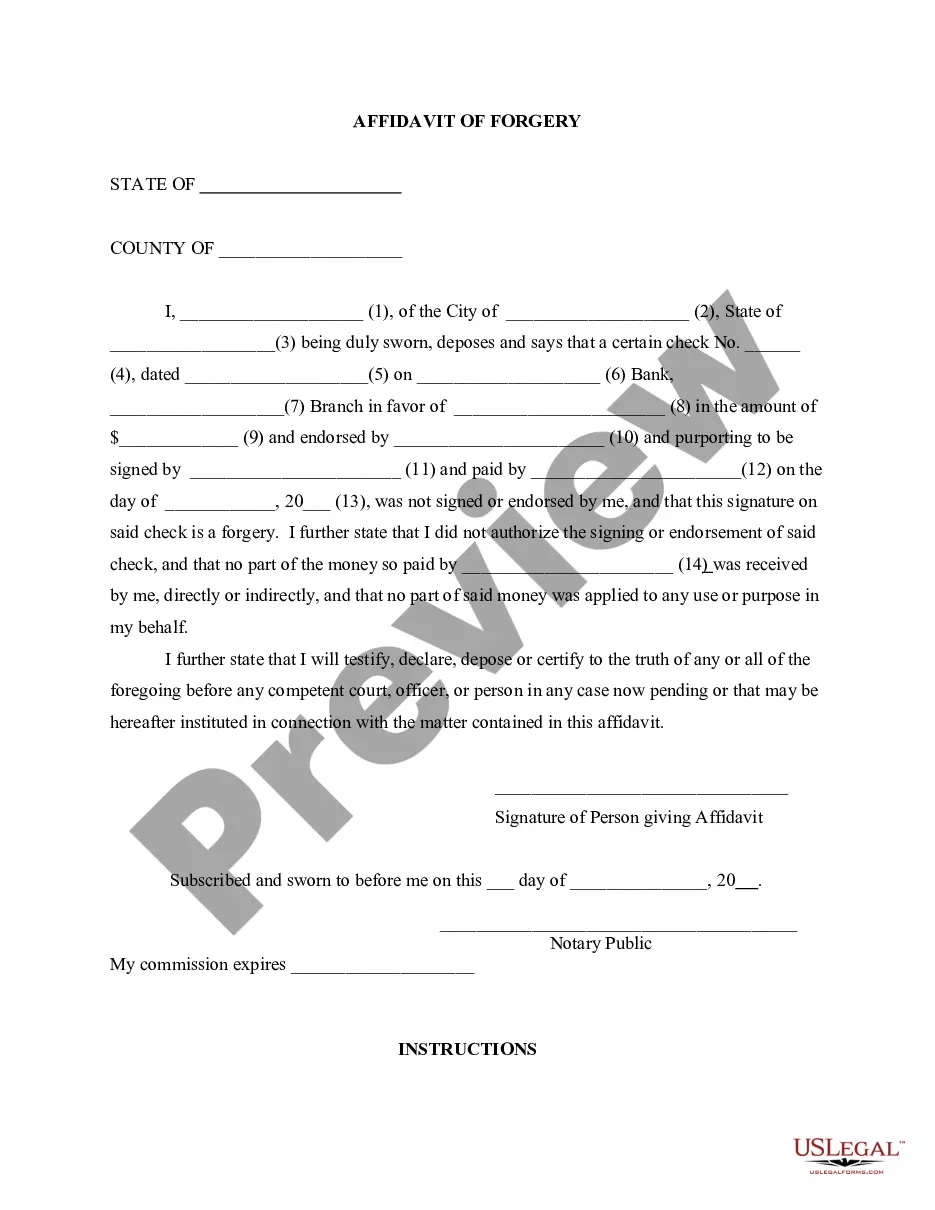
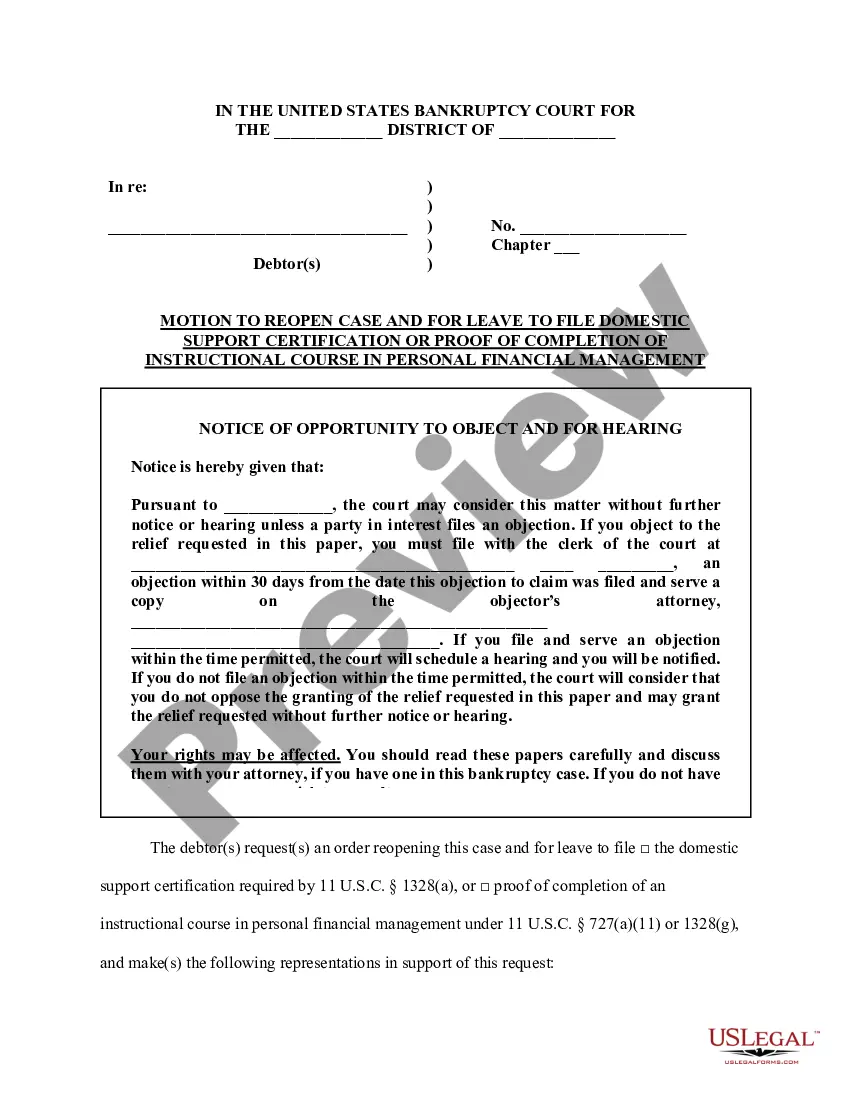
How to fill out Motion To Make Specific Findings Of Fact And State Conclusions Of Law - Domestic Relations?
Finding a reliable resource to access the latest and pertinent legal forms is a significant part of navigating bureaucracy.
Selecting the appropriate legal documents requires accuracy and meticulousness, which is why it's crucial to obtain the Finding Fact Sample Formula only from trustworthy sources, such as US Legal Forms.
Once you have the form on your device, you can modify it using the editor or print it to fill it out by hand. Alleviate the burden associated with your legal paperwork. Explore the extensive US Legal Forms catalog to discover legal templates, assess their relevance to your situation, and download them instantly.
- Use the library navigation or search bar to find your sample.
- Review the form's details to confirm it meets the criteria of your state and locality.
- Check the form preview, if provided, to make sure the template is indeed what you need.
- Continue searching to locate the correct document if the Finding Fact Sample Formula doesn't fulfill your requirements.
- Once you are certain of the document's pertinence, download it.
- If you are an authenticated user, click Log in to verify and access your chosen templates in My documents.
- If you haven’t created an account yet, click Buy now to purchase the template.
- Choose the pricing option that fits your needs.
- Proceed with the registration to complete your purchase.
- Conclude your transaction by selecting a payment method (credit card or PayPal).
- Choose the document format for downloading the Finding Fact Sample Formula.
Form popularity
FAQ
To calculate a sample size in Excel, use the formula: n = (Z^2 p (1 - p)) / E^2, where Z is the Z-score, p is the estimated proportion, and E is the margin of error. Input these values into separate cells and apply this formula in a new cell to get your result. This calculation is crucial when you need reliable data for studies, helping you utilize the finding fact sample formula effectively. If you need templates or additional guidance, consider exploring US Legal Forms for resources that simplify this process.
To write a find formula in Excel, start by using the 'FIND' function followed by the text you want to locate and the text string where you want to search. The basic syntax is FIND(find_text, within_text, start_num). This formula helps you pinpoint specific text in a cell, making it easier for you to manage your data. Mastering this formula is essential for effectively applying the finding fact sample formula in your work.
To create a find formula in Excel, you can use the FINDB function, which enables you to locate specific text within another text. Simply input the text to find, along with the text within which you're searching. Understanding how to create this formula can significantly streamline your data analysis process. Moreover, utilizing resources on finding fact sample formulas can provide you with insightful examples to enhance your learning.
To investigate a formula in Excel, start by selecting the cell containing the formula. Use the formula bar to review its structure and components. This process allows you to identify any issues or adjustments needed. If you are still struggling, consider leveraging resources on finding fact sample formulas to better understand how to work with different functions effectively.
The FACT 5 function in Excel returns the factorial of the number 5. Essentially, it calculates the product of all positive integers from 1 to 5. Knowing how to utilize the FACT function is helpful when finding fact sample formulas. You can easily integrate such functions within your spreadsheets to enhance your data management capabilities.
To utilize the FACT formula in Excel, type =FACT(number) in a cell, replacing 'number' with your desired integer. This function calculates the factorial, which is valuable in statistical calculations, including permutations and combinations. Mastering the FACT formula is a step towards efficiently using the finding fact sample formula in Excel.
Fischer's formula for sample size calculates the necessary sample size to achieve a certain level of confidence. It is particularly relevant in studies where the accuracy of findings is crucial. Knowing this formula is useful as it allows you to apply the finding fact sample formula effectively in your research endeavors.
The formula for a sample typically involves dividing the total population size by the desired sample size. This ratio helps researchers determine how to select subjects or items from a larger group. Understanding this concept is essential when applying the finding fact sample formula in statistical analyses.
In Excel, pressing Ctrl + F5 refreshes the active worksheet. This shortcut allows you to quickly reload information and ensure your data stays accurate. Regularly using this command can improve your workflow, especially when dealing with large datasets while using the finding fact sample formula.
To insert a checkbox in Excel, go to the Developer tab and select 'Insert,' then choose the checkbox option under 'Form Controls.' Alternatively, if you want a simple checkmark symbol, you can enter ALT + 0252 or use the Insert > Symbol feature to find a checkmark. This simple method enhances your spreadsheet's interactivity while working with your finding fact sample formula.