Option Exchange 18 For Pc
Description

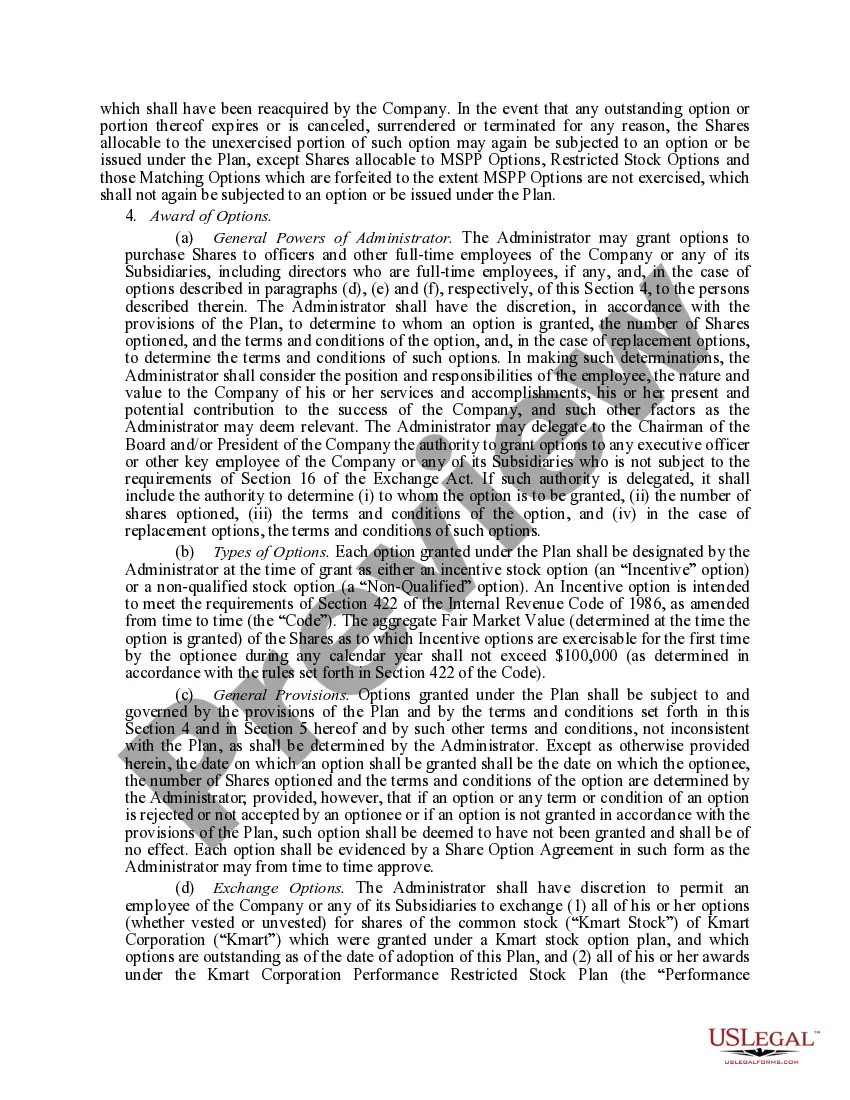
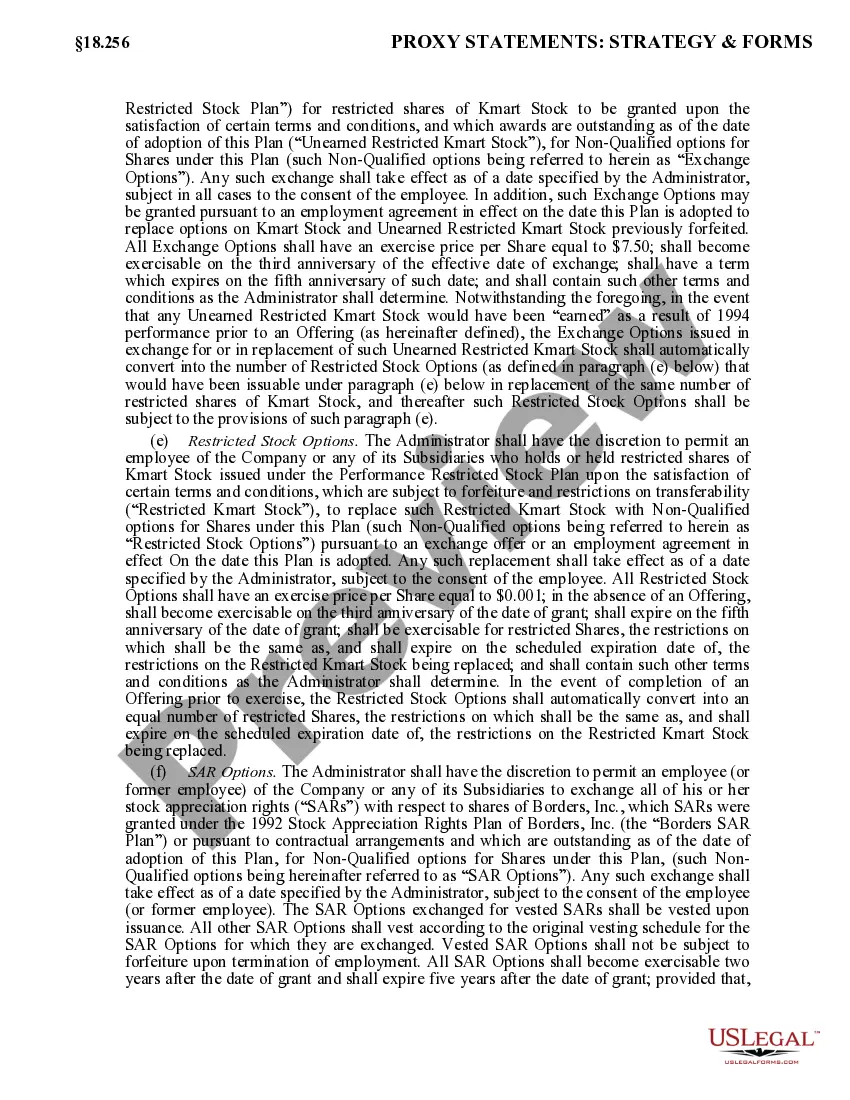
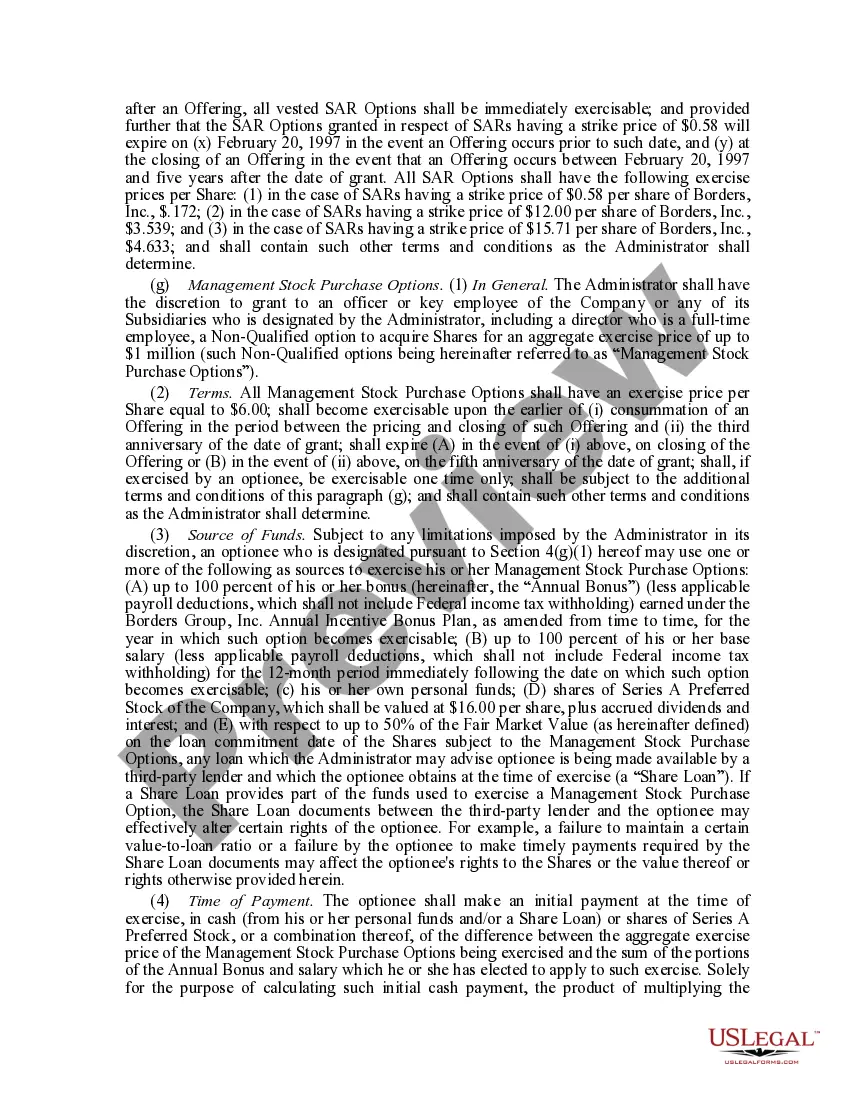
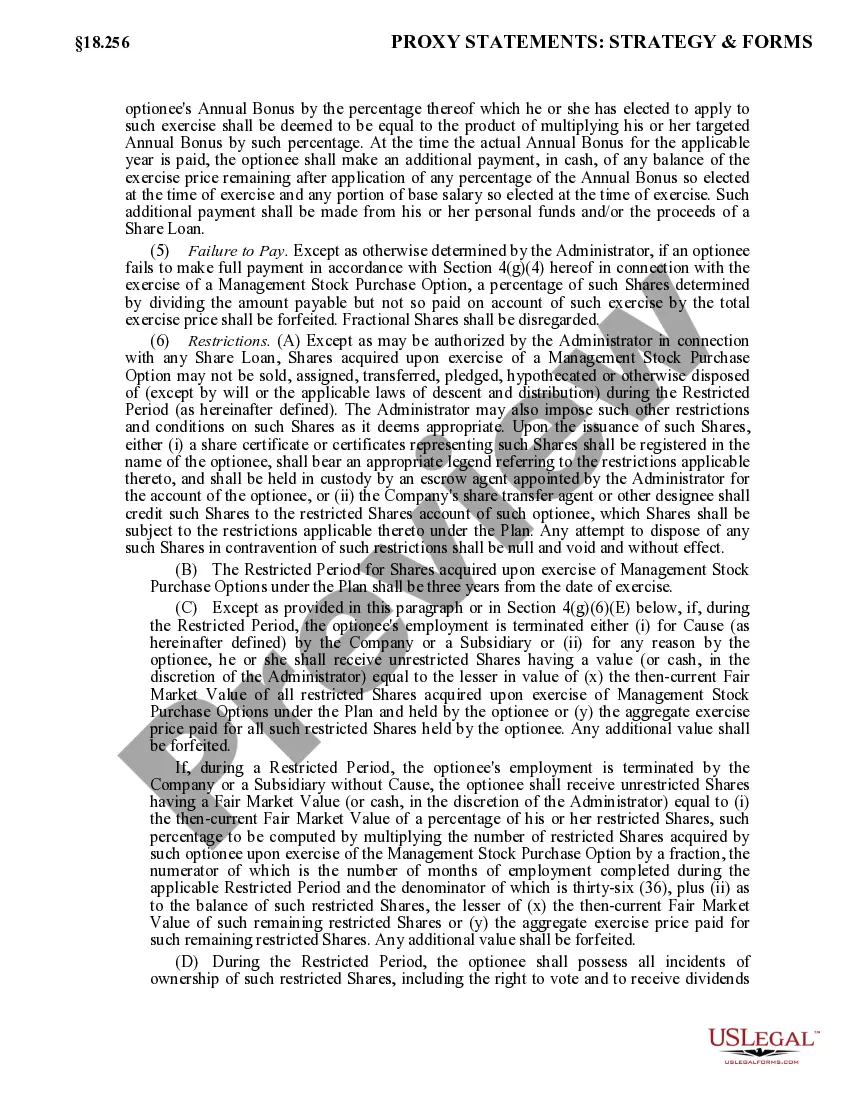

Get your form ready online
Our built-in tools help you complete, sign, share, and store your documents in one place.
Make edits, fill in missing information, and update formatting in US Legal Forms—just like you would in MS Word.
Download a copy, print it, send it by email, or mail it via USPS—whatever works best for your next step.
Sign and collect signatures with our SignNow integration. Send to multiple recipients, set reminders, and more. Go Premium to unlock E-Sign.
If this form requires notarization, complete it online through a secure video call—no need to meet a notary in person or wait for an appointment.
We protect your documents and personal data by following strict security and privacy standards.
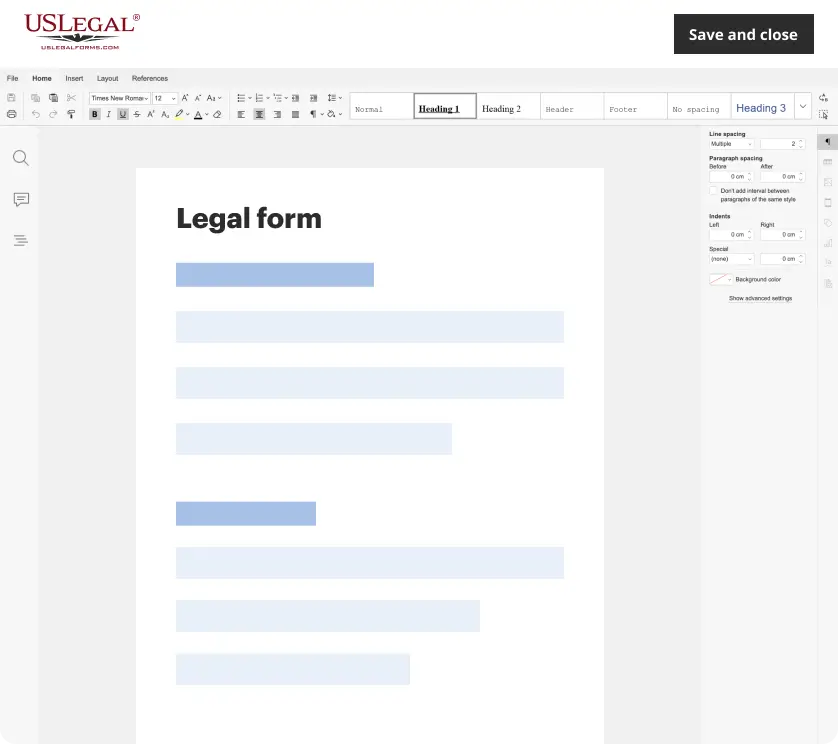
Make edits, fill in missing information, and update formatting in US Legal Forms—just like you would in MS Word.
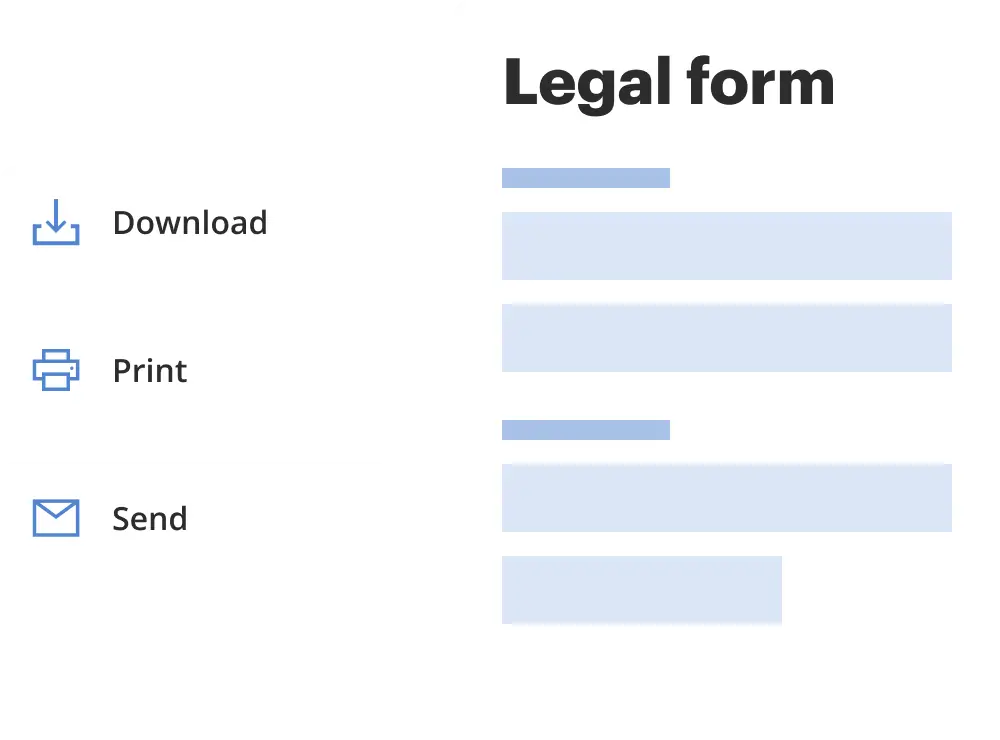
Download a copy, print it, send it by email, or mail it via USPS—whatever works best for your next step.
Sign and collect signatures with our SignNow integration. Send to multiple recipients, set reminders, and more. Go Premium to unlock E-Sign.

If this form requires notarization, complete it online through a secure video call—no need to meet a notary in person or wait for an appointment.
We protect your documents and personal data by following strict security and privacy standards.
Looking for another form?
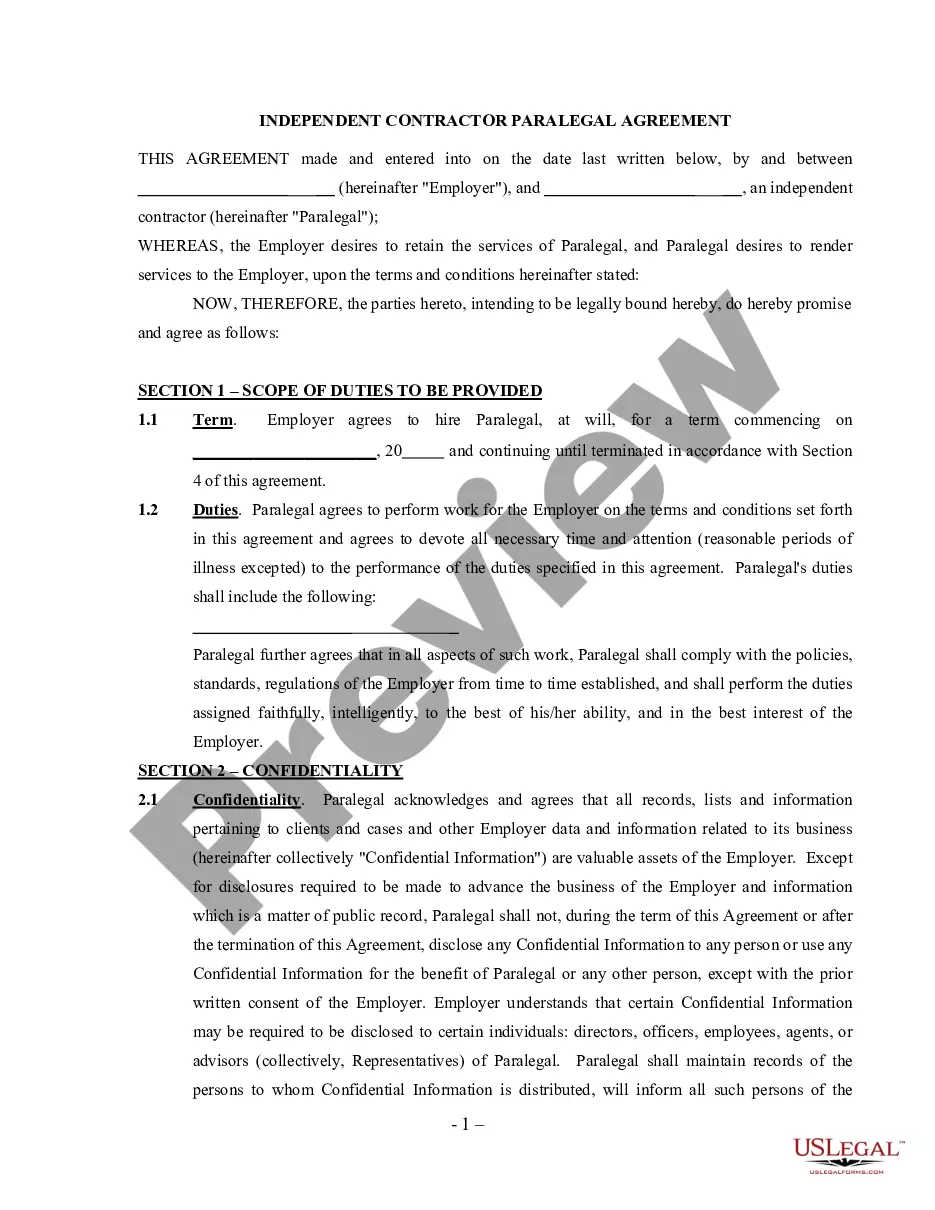
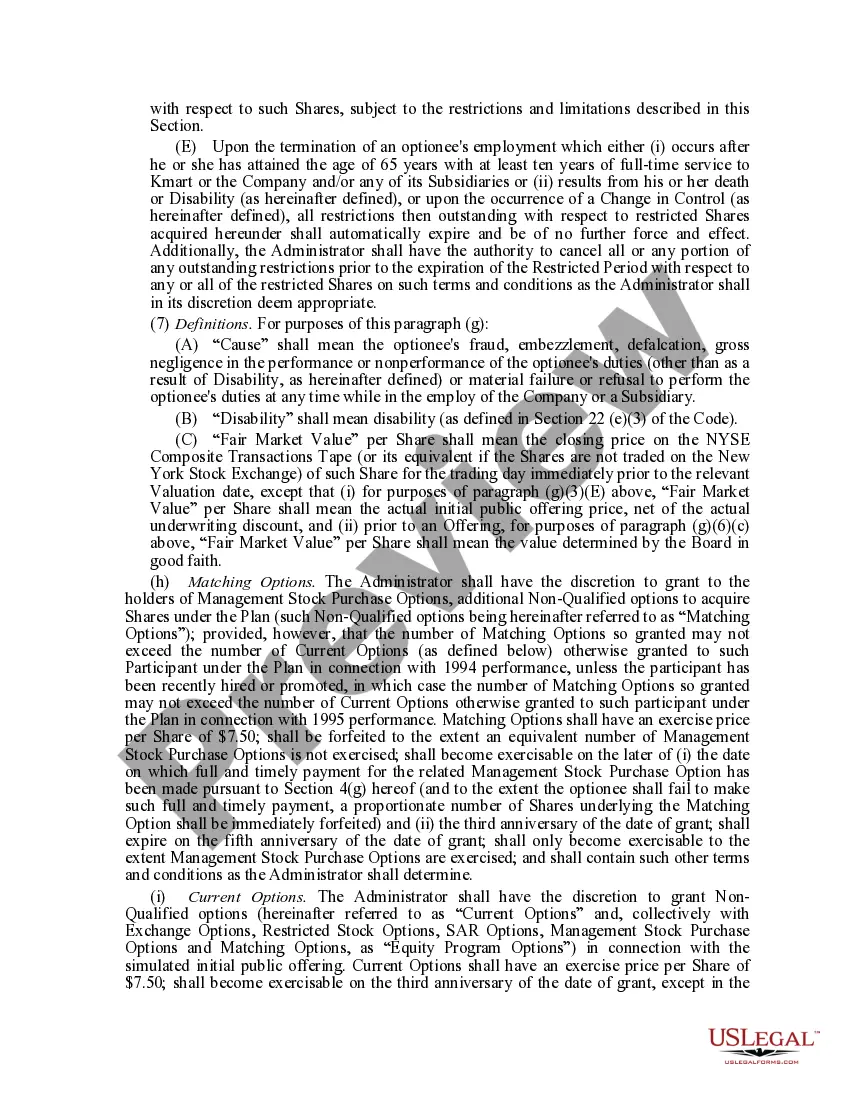
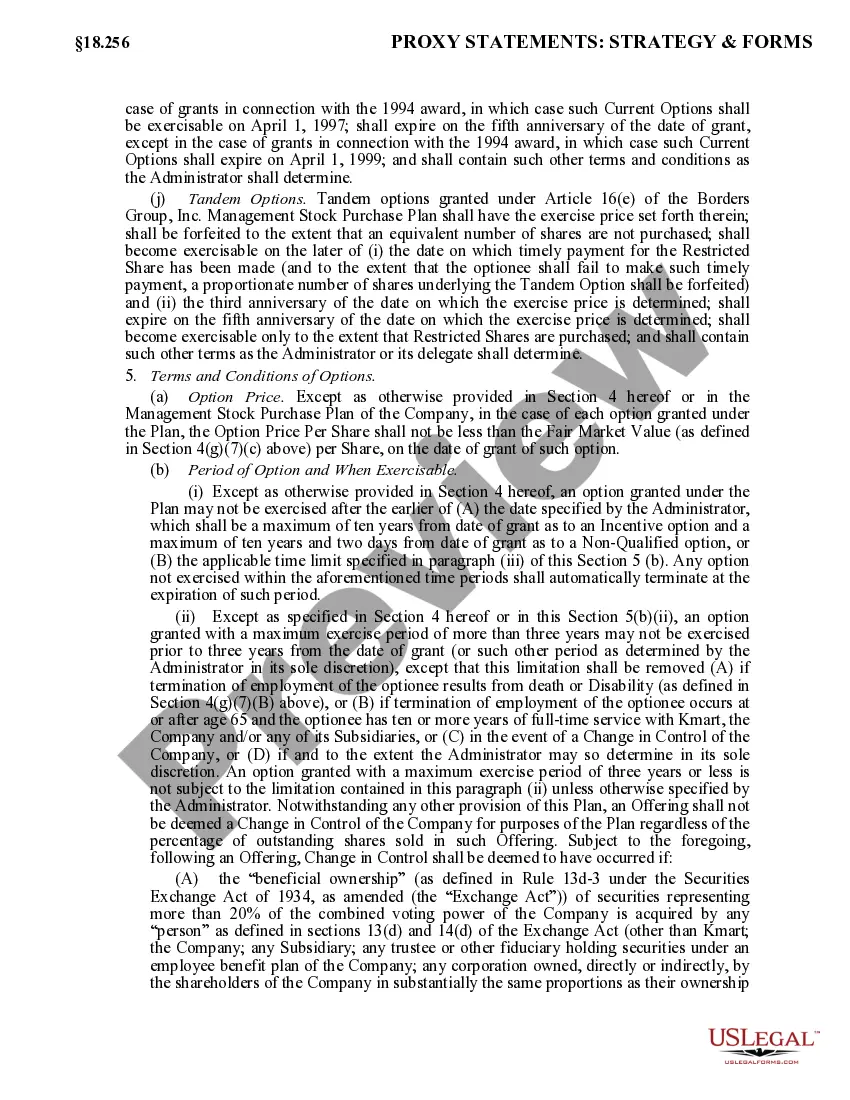
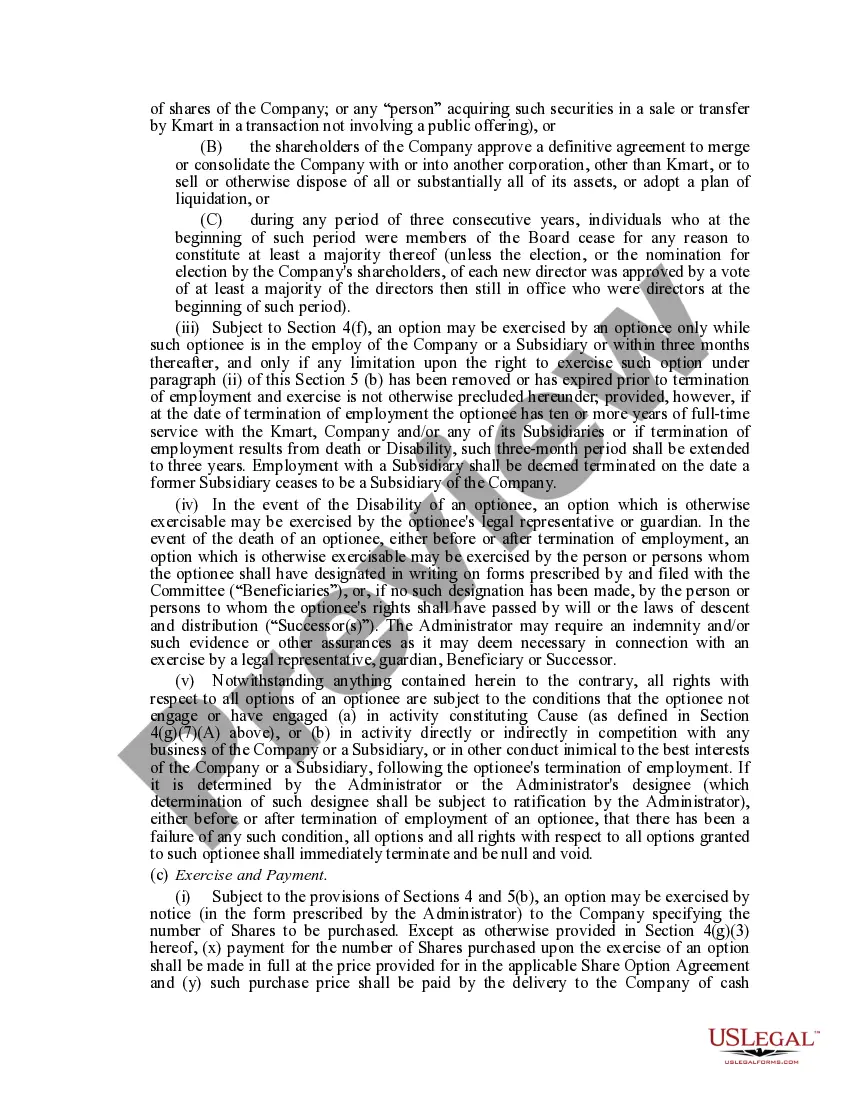
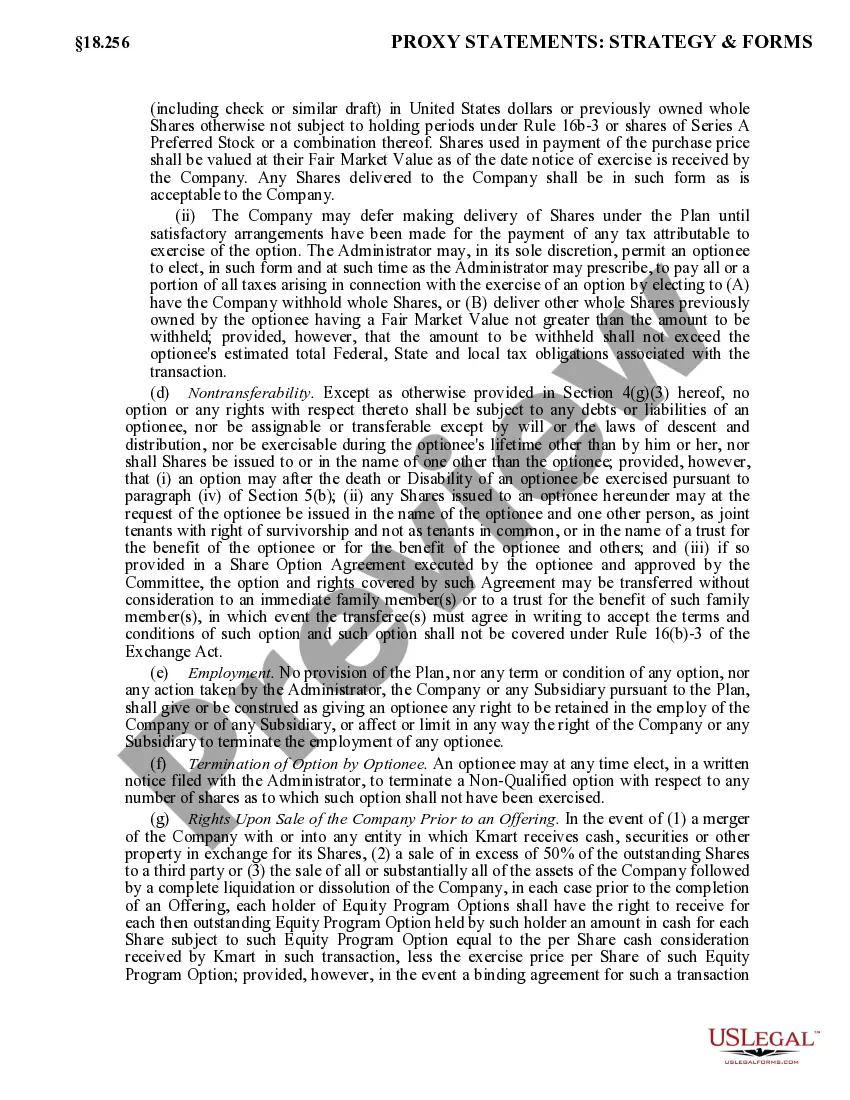
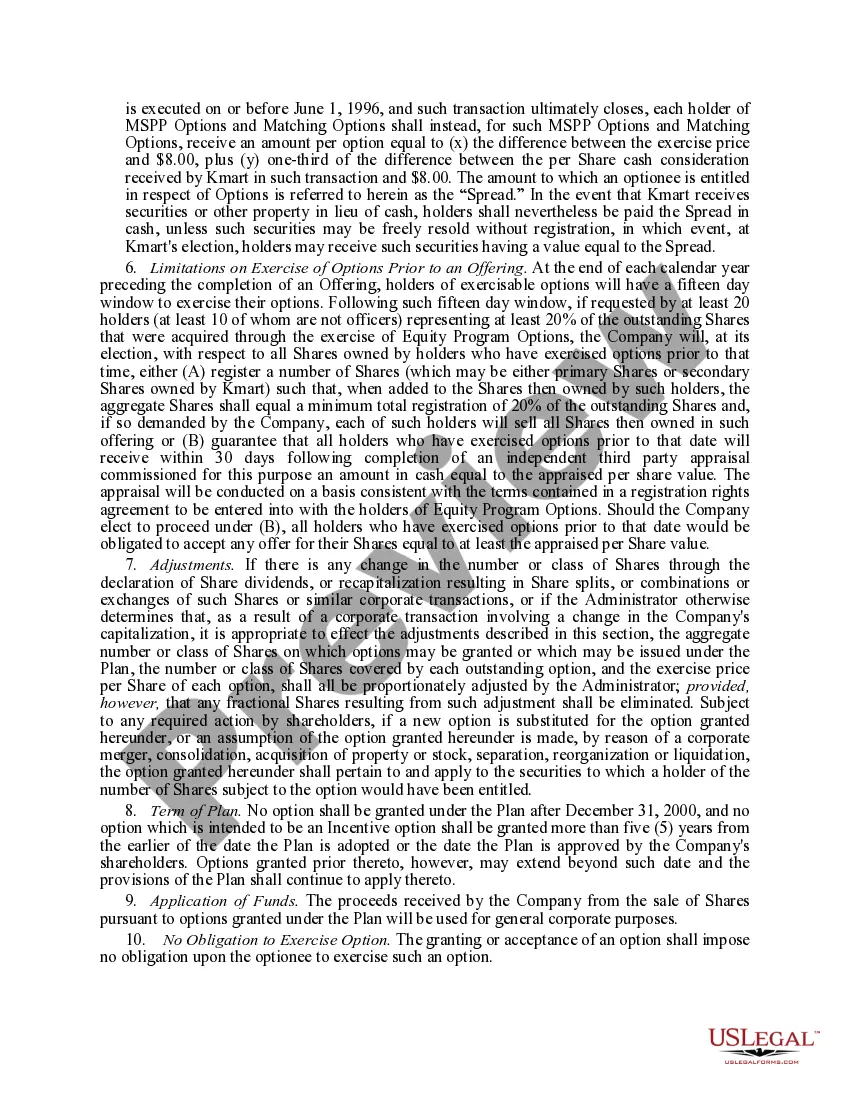
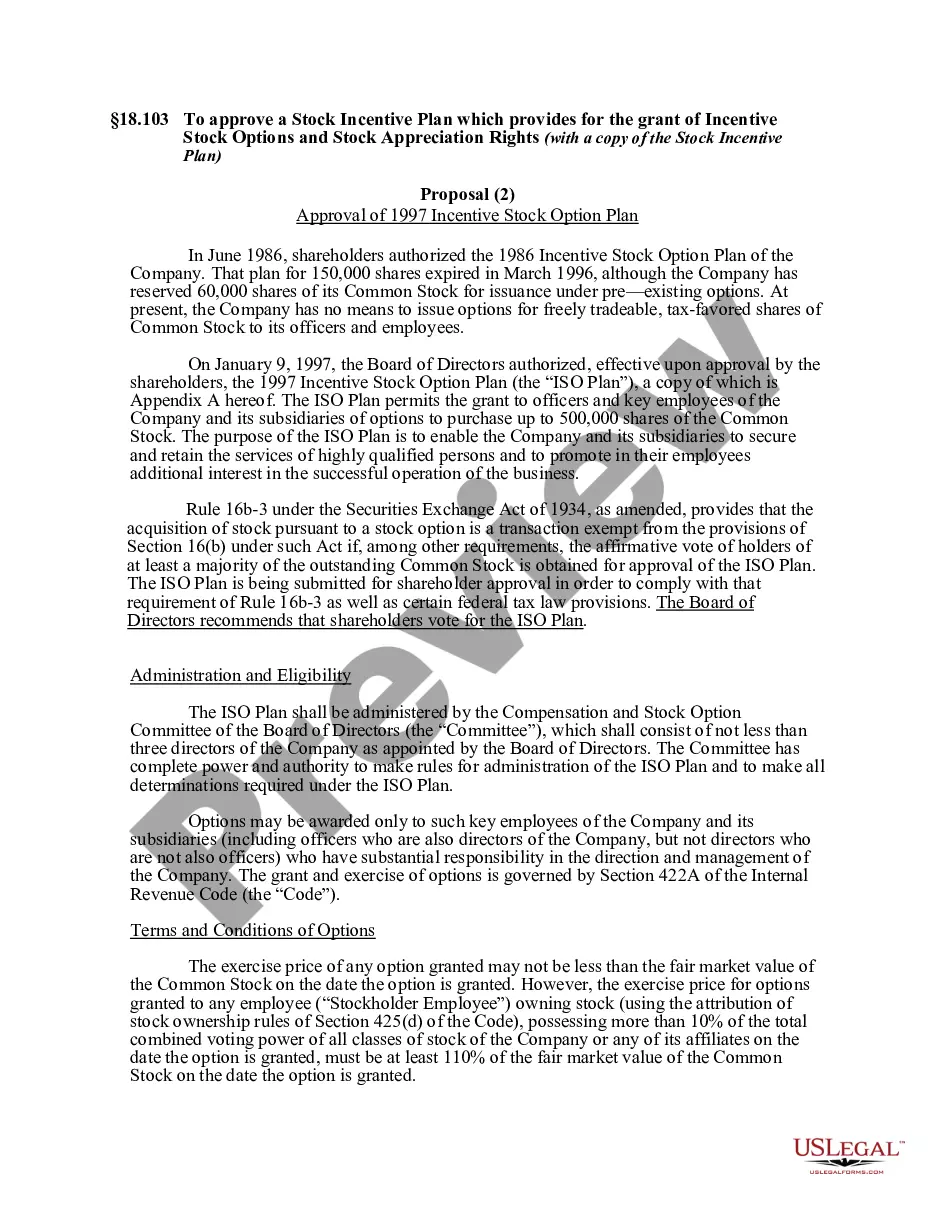
How to fill out Stock Option Plan Stock Option Plan Which Provides For Grant Of Incentive Stock Options, Nonqualified Stock Options, And Exchange Options?
- If you're a returning user, log in to your account and locate the required form in your profile. Ensure your subscription is active; renew it if necessary.
- For first-time users, start by browsing the extensive collection and use Preview mode to check the form that fits your specific legal situation.
- If your needs change or you spot discrepancies, utilize the Search tab at the top to find alternative templates that suit your requirements.
- Proceed to purchase the document by selecting the Buy Now button and choosing your desired subscription plan, which requires account registration.
- Make your payment securely using your credit card or PayPal to complete your subscription.
- Download the chosen form onto your device from the My Forms section, making it accessible for future use.
By following these simple steps, you can conveniently access the required legal forms with confidence in their legality and accuracy.
Maximize your legal documentation experience with US Legal Forms today—get started and unlock the benefits!
Form popularity
FAQ
To Outlook Exchange effectively, first, make sure that your Outlook account is correctly configured with your Exchange server settings. Familiarize yourself with the available features such as calendaring and email sharing. Using option exchange 18 for PC can streamline these tasks and improve your overall communication experience.
You can easily get your Exchange version by accessing the Exchange Management Shell and executing specific commands. These commands will provide you with detailed version information. This is particularly helpful when ensuring compatibility with the option exchange 18 for PC features.
To Exchange on Windows Server, start by installing the Microsoft Exchange Server software on your Windows system. Configure the server settings, and ensure that your organization’s domain is correctly set up. Once accomplished, you can manage user accounts and apply the option exchange 18 for PC interface for streamlined email communications.
Outlook is primarily a personal information manager, while Outlook Exchange serves as a powerful email client that connects to Exchange servers. The Exchange version includes advanced features such as shared calendars, contacts, and task management capabilities. Consequently, users benefit from improved collaboration and communication in a business environment with option exchange 18 for PC.
Setting up Outlook Exchange involves launching the Outlook application and clicking on 'Add Account' within the File menu. You will need to input your email address and password, and Outlook will guide you through connecting to your Exchange mailbox. Ensure that your settings correspond to option exchange 18 for PC for a successful setup.
You can download Outlook Exchange by visiting the Microsoft Office website or your Microsoft Store. Look for the appropriate version that suits your needs, ensuring it aligns with option exchange 18 for PC. Select the download link, follow the prompts, and install it on your device for seamless integration.
To find your Microsoft Exchange Server settings, you typically start by checking the Account Settings in Outlook. Open Outlook, navigate to File, then Account Settings, and select the account you wish to review. Here, you will locate the server settings that you need for connecting or configuring options, including the option exchange 18 for PC.
To find your Exchange email settings, open Outlook, go to 'File', and select 'Account Settings'. In the 'Account Settings' window, you can see the list of your accounts and the corresponding settings. If you need further guidance or assistance in locating precise settings, consider using services like USLegalForms, which can help streamline the process for Option exchange 18 for PC.
To setup your Exchange email on your computer, open Outlook and click on 'File', followed by 'Account Settings'. Choose 'New', select 'Email Account', and provide your details including your email address and password. Once you complete these steps and click 'Next', you will have full access to your Exchange account, including all tools found in Option exchange 18 for PC.
To start Microsoft Exchange, ensure that you have Outlook installed on your computer. Open Outlook, and you can begin using your Exchange email account. After entering your account information during the initial setup, Outlook automatically connects to Microsoft Exchange, providing you with the features of Option exchange 18 for PC without any complicated processes.