Tally Assignment Account With Inventory
Description

Get your form ready online
Our built-in tools help you complete, sign, share, and store your documents in one place.
Make edits, fill in missing information, and update formatting in US Legal Forms—just like you would in MS Word.
Download a copy, print it, send it by email, or mail it via USPS—whatever works best for your next step.
Sign and collect signatures with our SignNow integration. Send to multiple recipients, set reminders, and more. Go Premium to unlock E-Sign.
If this form requires notarization, complete it online through a secure video call—no need to meet a notary in person or wait for an appointment.
We protect your documents and personal data by following strict security and privacy standards.

Make edits, fill in missing information, and update formatting in US Legal Forms—just like you would in MS Word.

Download a copy, print it, send it by email, or mail it via USPS—whatever works best for your next step.

Sign and collect signatures with our SignNow integration. Send to multiple recipients, set reminders, and more. Go Premium to unlock E-Sign.

If this form requires notarization, complete it online through a secure video call—no need to meet a notary in person or wait for an appointment.

We protect your documents and personal data by following strict security and privacy standards.
Looking for another form?

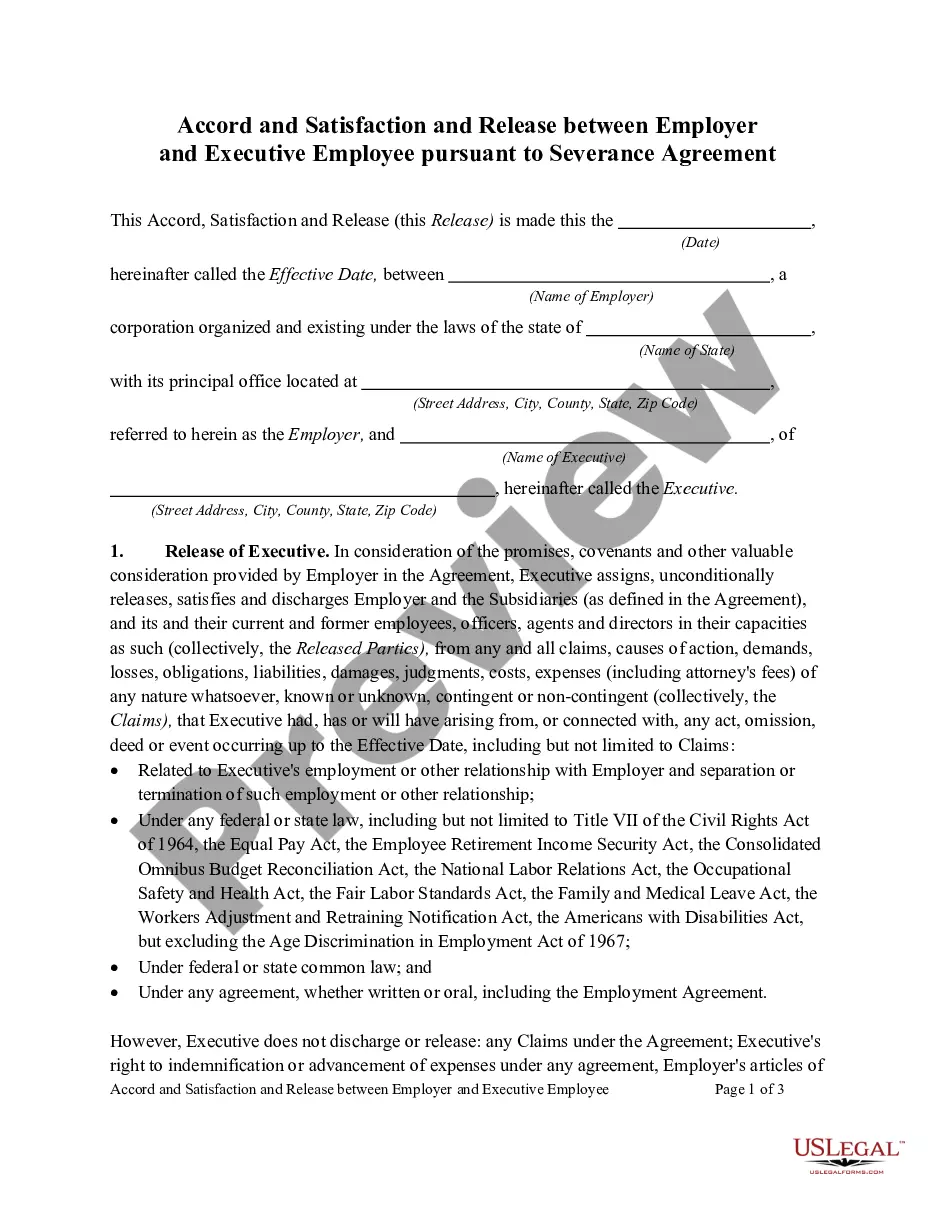


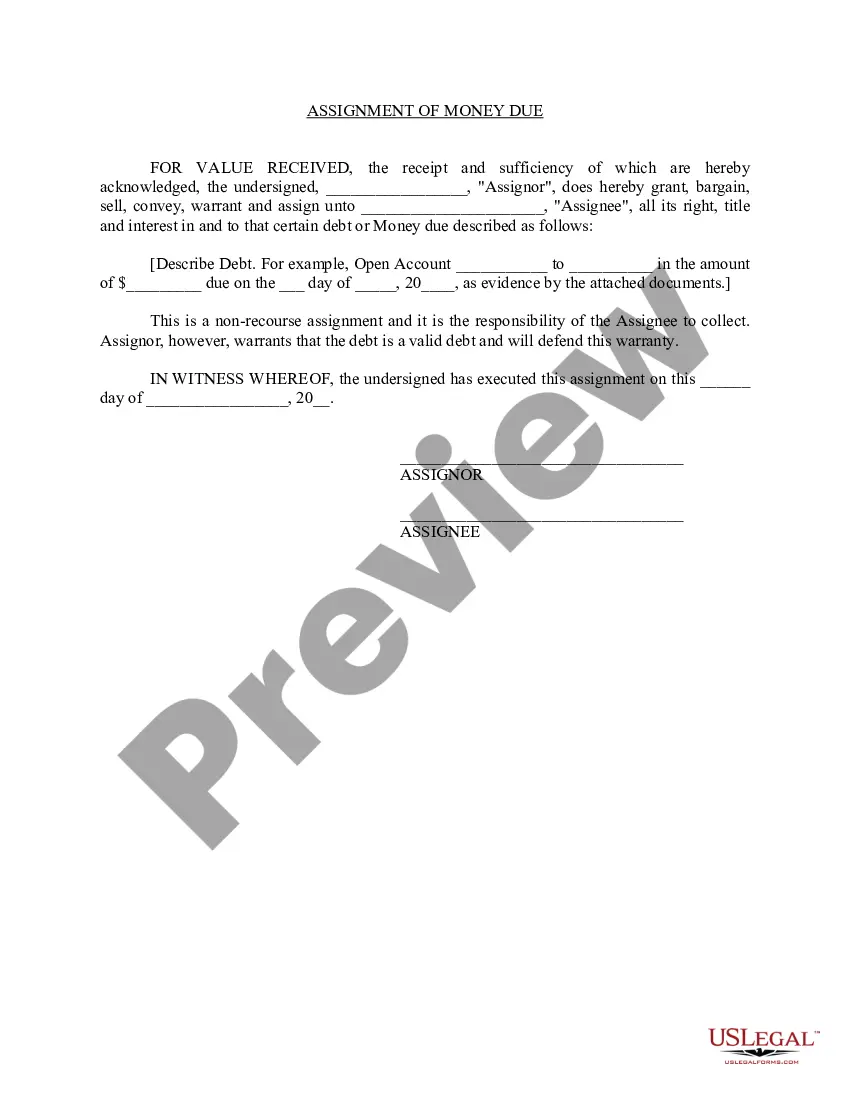

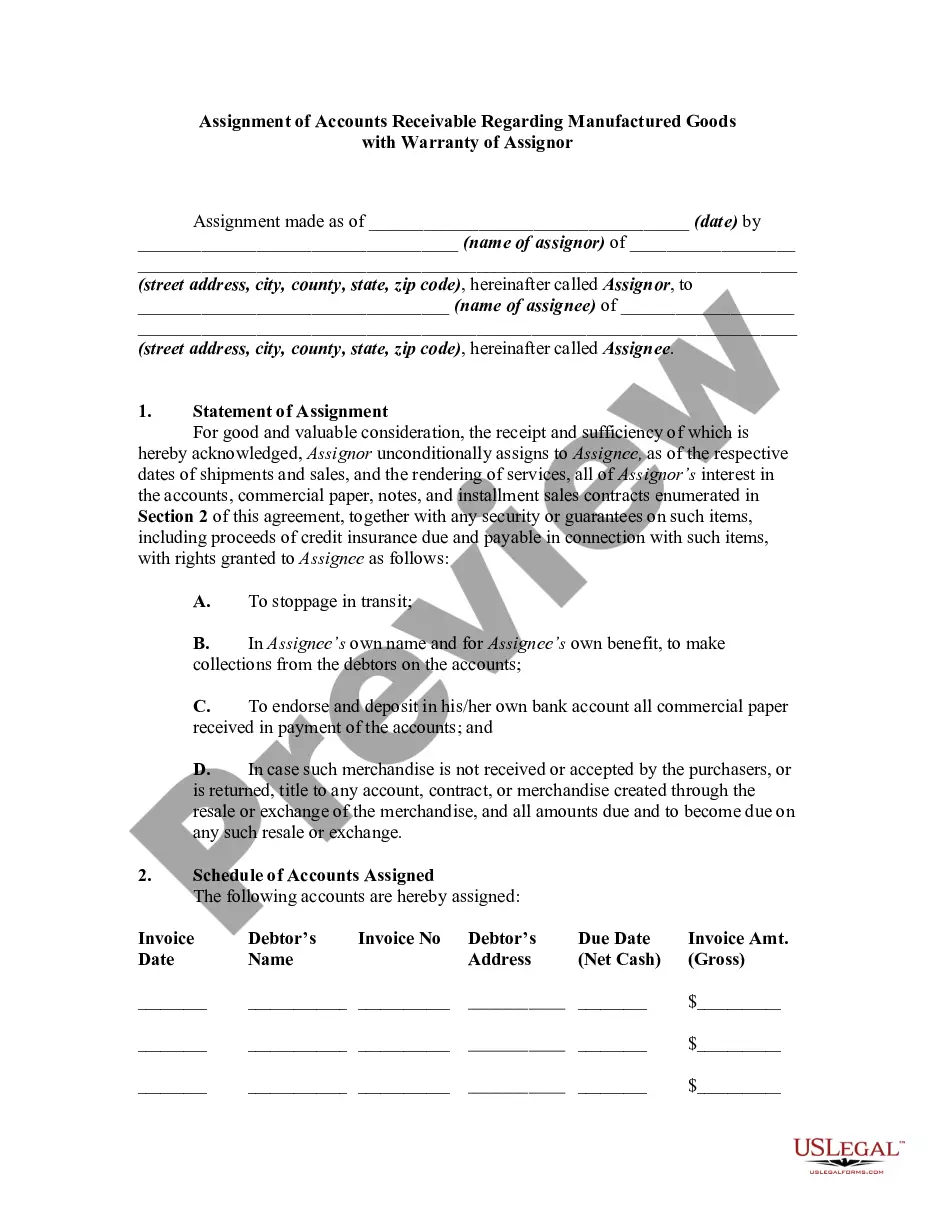
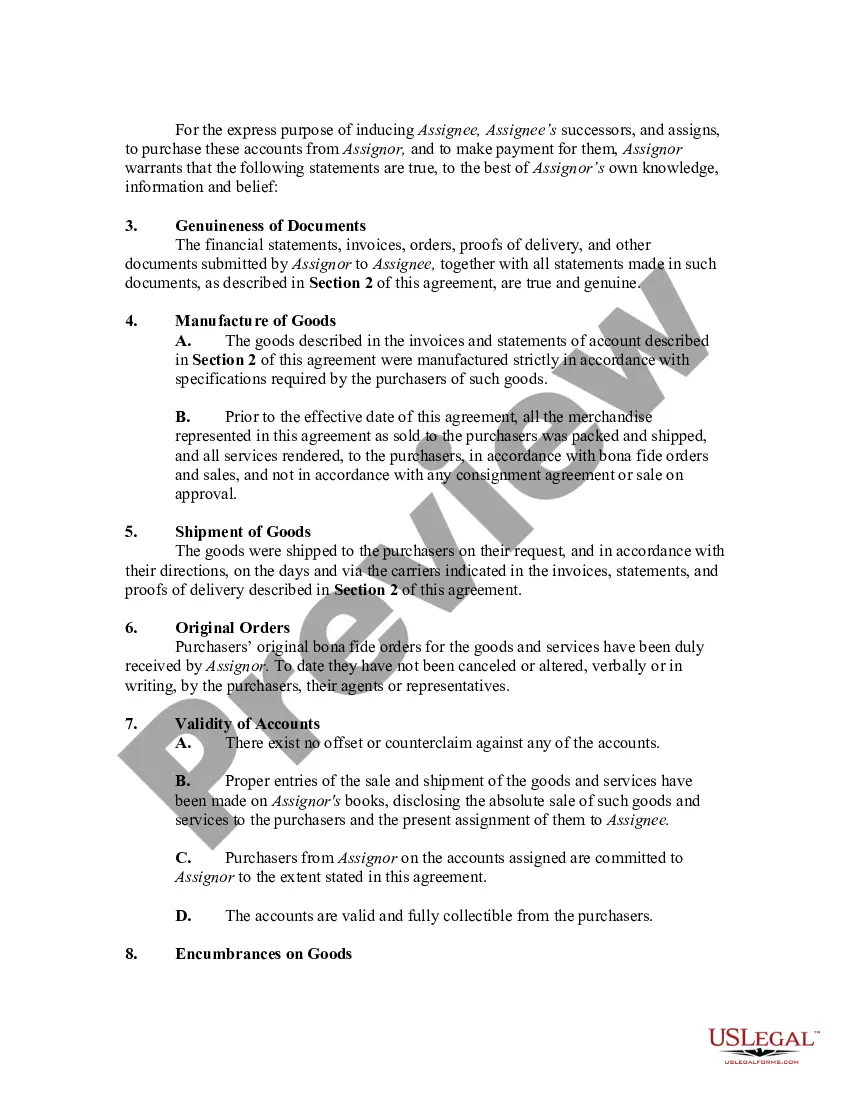
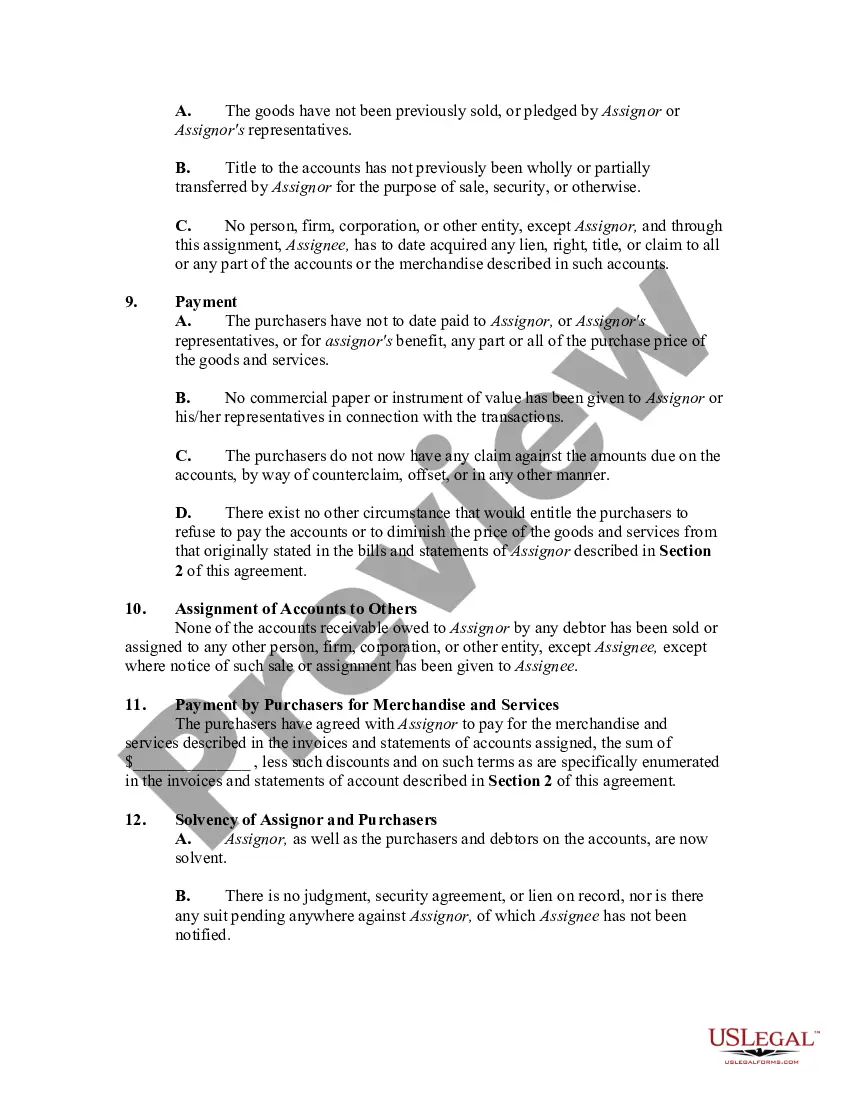
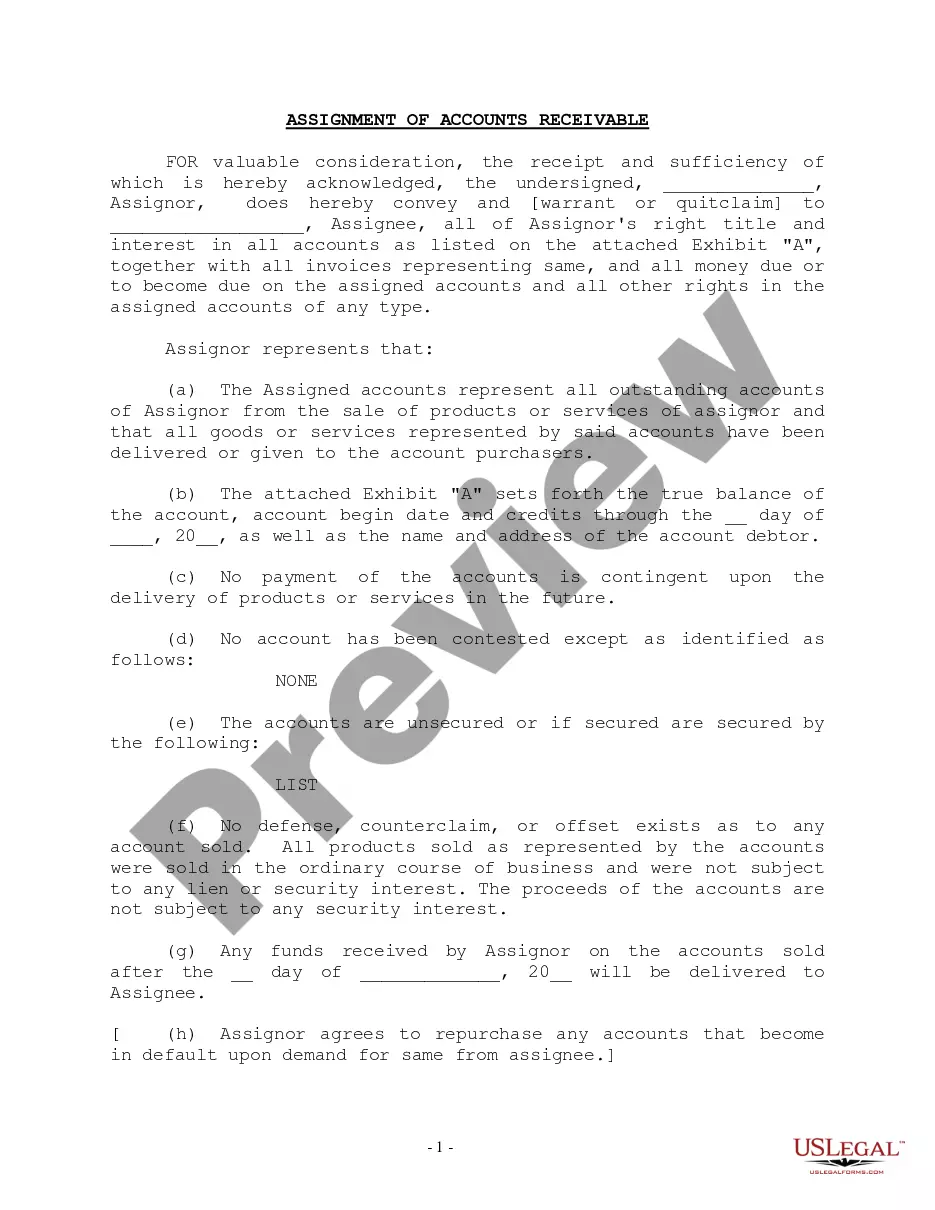
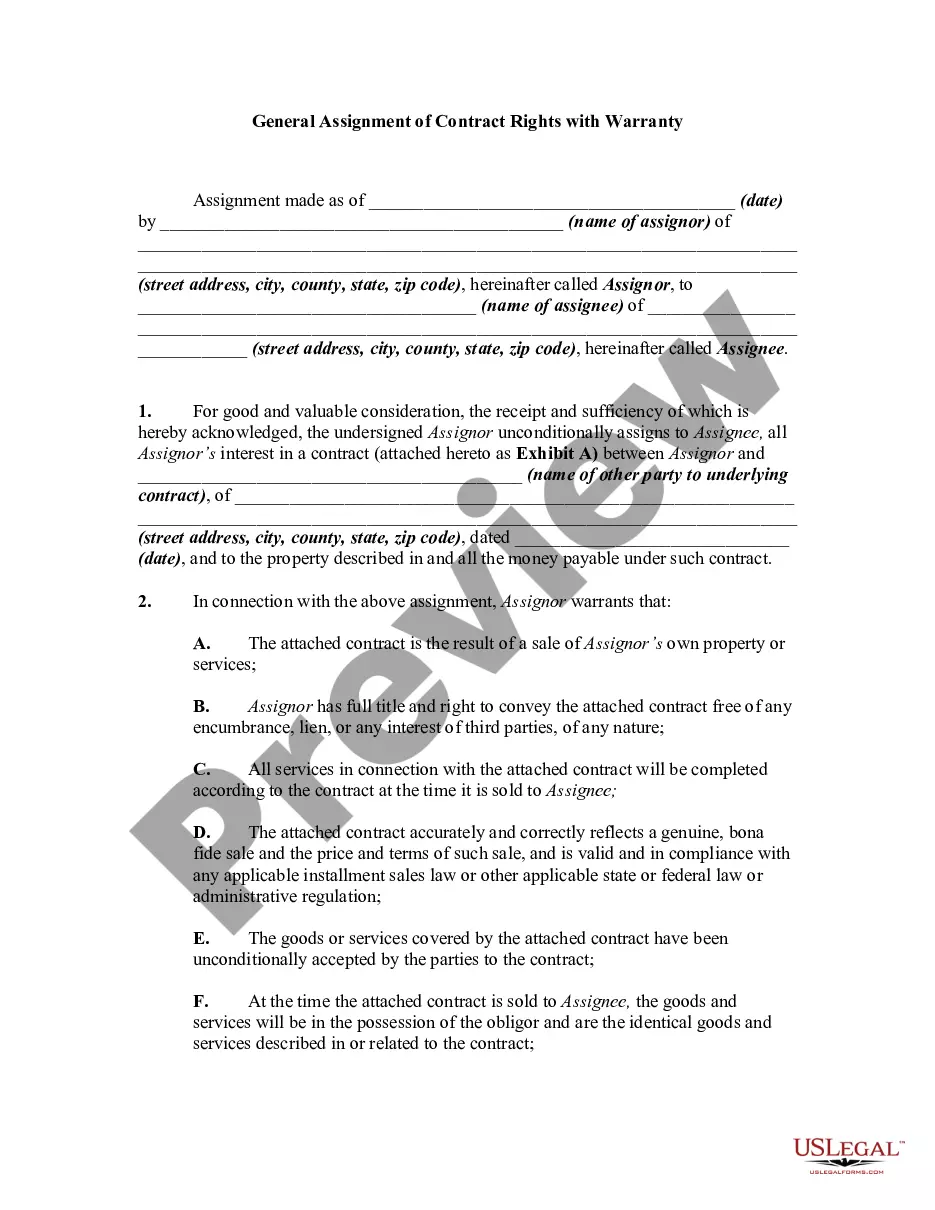
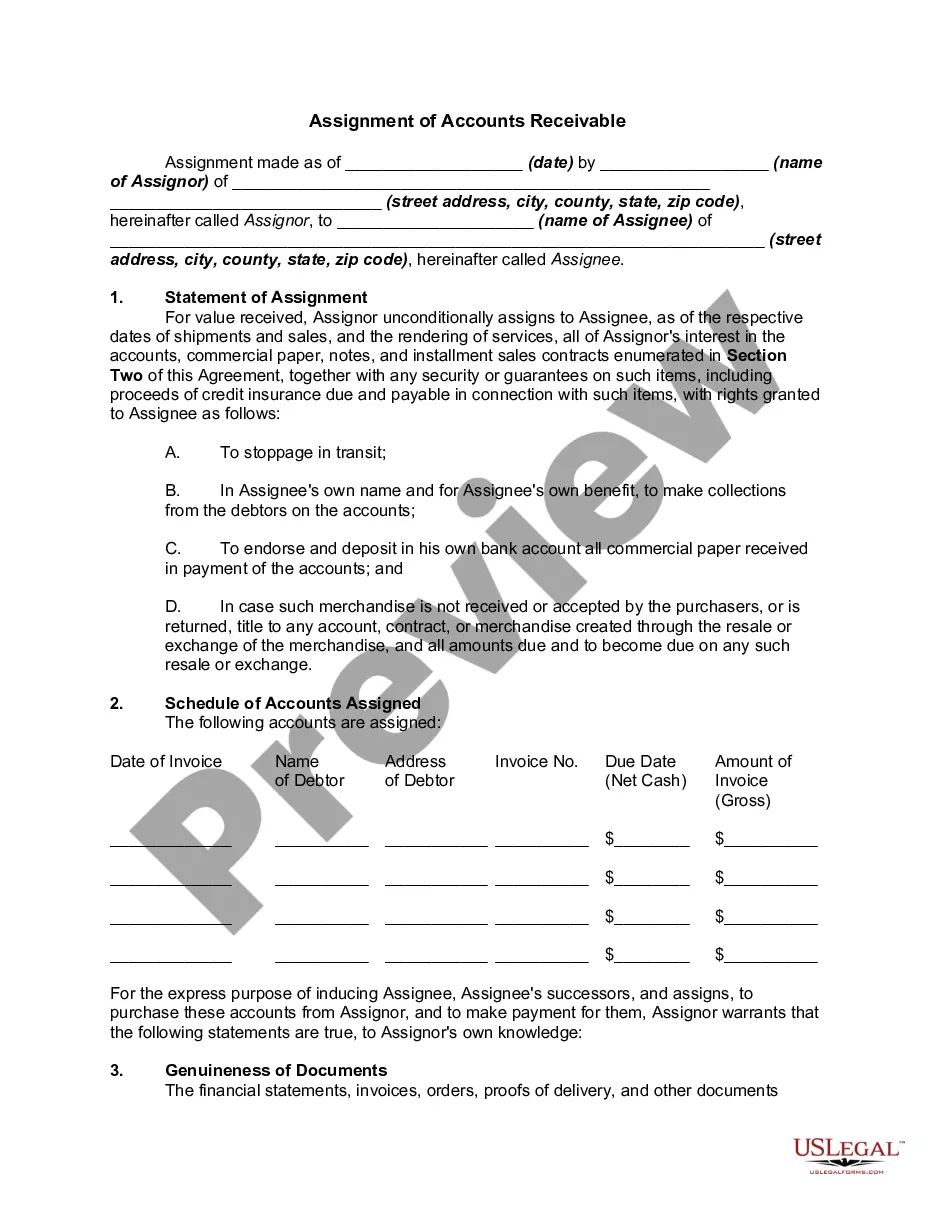
How to fill out Assignment Of Accounts Receivable Regarding Manufactured Goods With Warranty Of Assignor?
Regardless of whether it is for commercial reasons or personal issues, everyone must confront legal matters at some stage in their life.
Filling out legal documents requires meticulous focus, beginning with selecting the appropriate form template.
With an extensive US Legal Forms catalog available, you don’t need to waste time searching for the correct template online. Utilize the library’s straightforward navigation to find the right form for any situation.
- For instance, if you choose an incorrect version of the Tally Assignment Account With Inventory, it will be denied when submitted.
- Thus, it is essential to have a reliable source of legal documents such as US Legal Forms.
- If you need to obtain a Tally Assignment Account With Inventory template, follow these straightforward steps.
- Locate the template you require by utilizing the search bar or catalog navigation.
- Review the form’s details to ensure it aligns with your circumstance, state, and county.
- Click on the form’s preview to examine it.
- If it is the incorrect document, return to the search option to find the Tally Assignment Account With Inventory example you need.
- Download the file when it fits your specifications.
- If you possess a US Legal Forms account, simply click Log in to retrieve previously stored documents in My documents.
- If you do not have an account yet, you may acquire the form by clicking Buy now.
- Select the appropriate pricing choice.
- Complete the account registration form.
- Choose your payment method: use a credit card or PayPal account.
- Select the document format you desire and download the Tally Assignment Account With Inventory.
- Once saved, you can fill out the form with editing software or print it and fill it out manually.
Form popularity
FAQ
Press Alt+G (Go To) > type or select Chart of Accounts and press Enter > select Stock Item and press Enter. Alternatively, press Alt+G (Go To) > Alter Master > Type or select Stock Item and press Enter. Type or select the name of the Stock Item and press Enter. The Stock Item Alteration screen appears.
Create multiple stock items in one-go Go to Gateway of Tally > Inventory Info. > ... Select a Stock Group or All Items from List of Groups to create the Stock Item. Enter the Name of the Stock Item. Select the group and Units . ... Enter the opening quantity, rate per unit. ... Press Enter to save.
The process of inventory management is as follows. Step 1: Order inventory. ... Step 2: Monitor and store inventory. ... Step 3: Check inventory levels. ... Step 4: Customers place orders. ... Step 5: Send orders to customers. ... Step 6: Update inventory level. ... Step 7: Restock inventory.
Inventory means stock; the trader's sells are called goods. Inventories include the purchases, sales of stock or stock movements. The closing stock of a particular year becomes the opening stock of the next year.
Note: The Inventory Info. menu is displayed in the Gateway of Tally , if you set Maintain Accounts only to No in the F11 > F1: Accounting Features screen. By using F11: Features , you can enable the various settings under inventory features which determine the information to be entered during transaction entries.