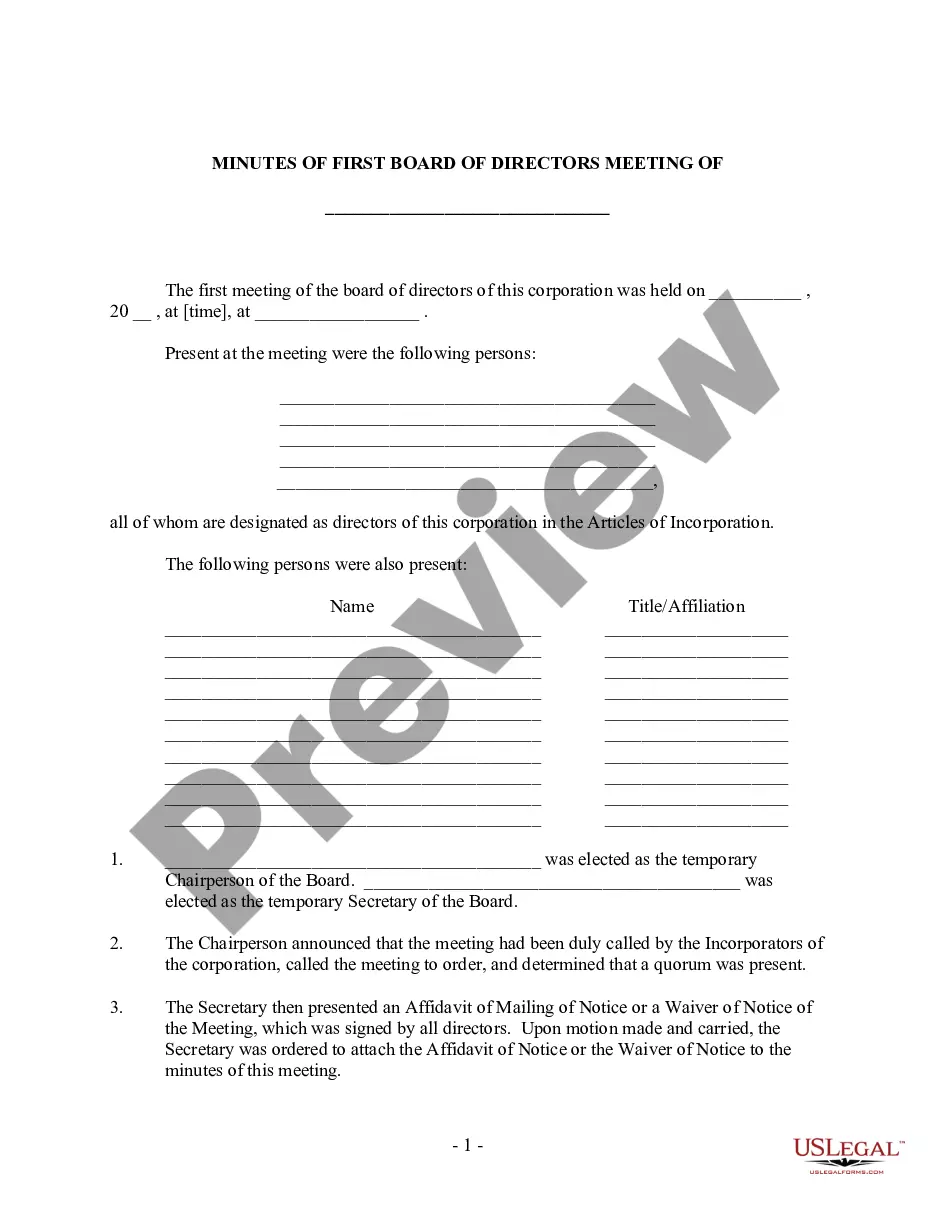
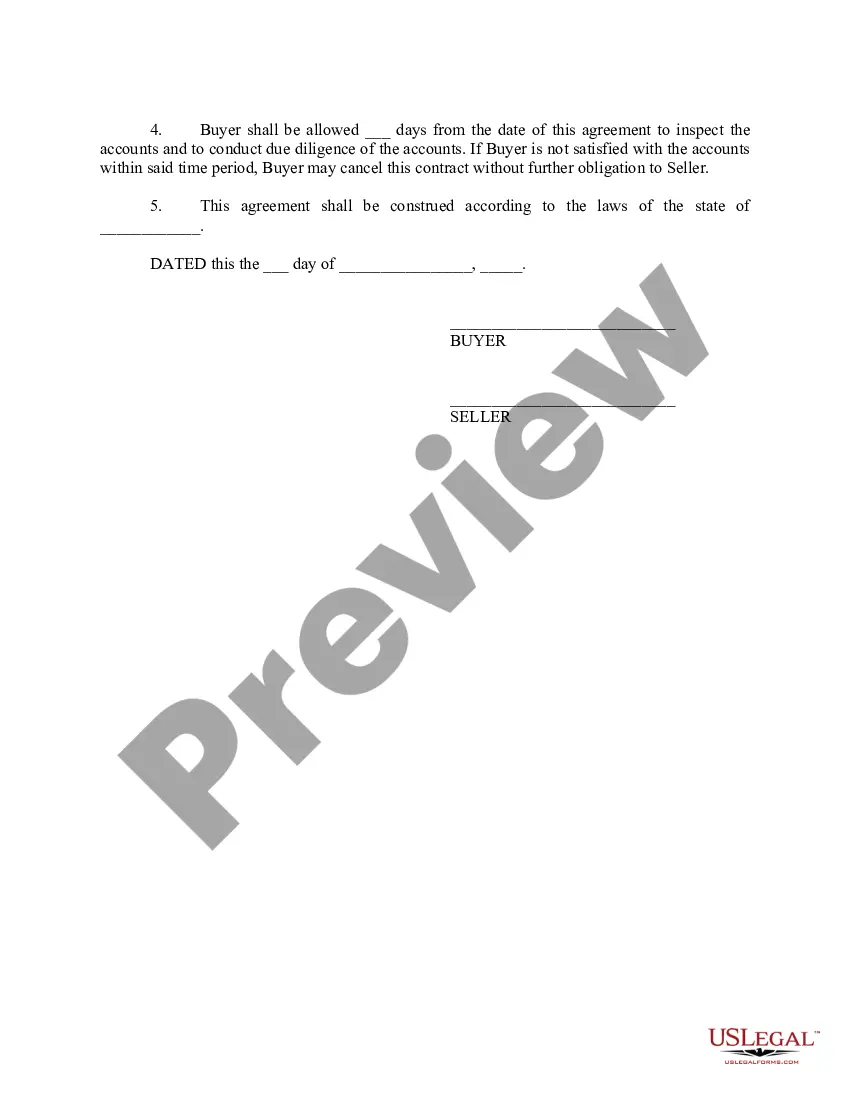
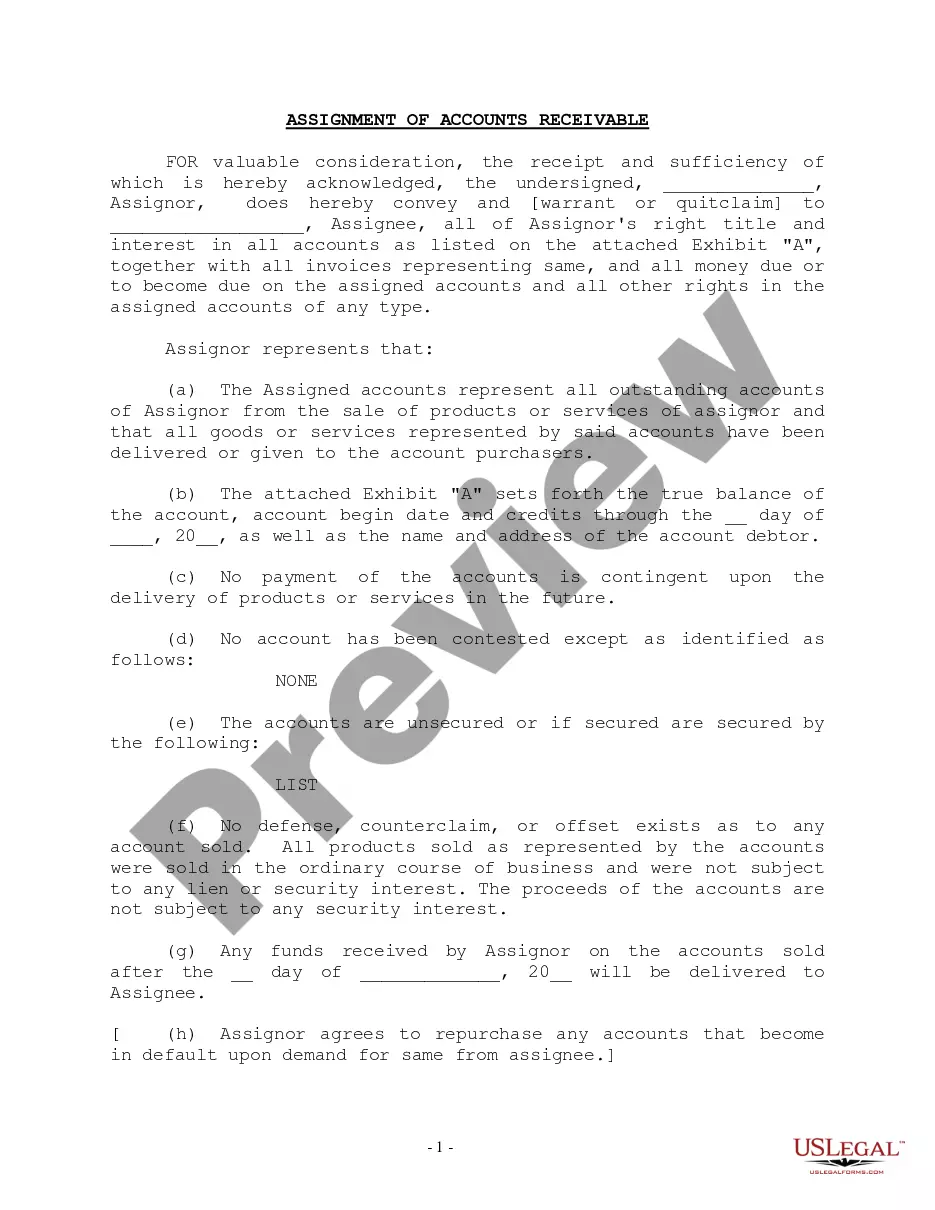
Accounts Receivable Contract With Aging Excel Template In Nevada
Description
Get your form ready online
Our built-in tools help you complete, sign, share, and store your documents in one place.
Make edits, fill in missing information, and update formatting in US Legal Forms—just like you would in MS Word.
Download a copy, print it, send it by email, or mail it via USPS—whatever works best for your next step.
Sign and collect signatures with our SignNow integration. Send to multiple recipients, set reminders, and more. Go Premium to unlock E-Sign.
If this form requires notarization, complete it online through a secure video call—no need to meet a notary in person or wait for an appointment.
We protect your documents and personal data by following strict security and privacy standards.
Make edits, fill in missing information, and update formatting in US Legal Forms—just like you would in MS Word.
Download a copy, print it, send it by email, or mail it via USPS—whatever works best for your next step.
Sign and collect signatures with our SignNow integration. Send to multiple recipients, set reminders, and more. Go Premium to unlock E-Sign.
If this form requires notarization, complete it online through a secure video call—no need to meet a notary in person or wait for an appointment.
We protect your documents and personal data by following strict security and privacy standards.
Looking for another form?

Form popularity
FAQ
Aging Report Cheat Sheet Label the following cells: A1: Customer. B1: Order # C1: Date. D1: Amount Due. Enter in the corresponding information for your customers and their orders underneath the headlines. Add additional headers for each column as: E1: Days Outstanding. F1: Not Due. G1: 0-30 Days. H1: 31-60 days.
You might want to categorize the receivables into 30-day buckets. The formula in D4 will show 30 for any invoices that are between 30 and 59 days old. The formula is =INT(C6/30)30 .
To group ages into buckets like this, right-click any value in the Age field and choose Group from the menu. When the Grouping dialog box appears, set an interval that makes sense for your data. In this case, I'll group by 10 years. When you click OK, you'll see your data neatly grouped by age range.
How to Create an Accounts Receivable Aging Report? Step 1: Review all the outstanding invoices. Step 2: Segregate all the invoices using the aging schedule and the due amount. Step 3: After getting the list of customers with overdue bills, categorize them based on the total due amount and the number of days outstanding.
To calculate age in Excel, you can use functions like DATEDIF or YEARFRAC. These functions allow you to determine the difference between a person's birth date and the current date.
To create an aging report, follow these steps: Review all outstanding invoices. Categorize invoices by aging periods (e.g., 0-30 days, 31-60 days, etc.). Segment customers based on overdue amounts and days outstanding to compile the final report.
Aging Report Cheat Sheet Label the following cells: A1: Customer. B1: Order # C1: Date. D1: Amount Due. Enter in the corresponding information for your customers and their orders underneath the headlines. Add additional headers for each column as: E1: Days Outstanding. F1: Not Due. G1: 0-30 Days. H1: 31-60 days.
Creating and using accounts receivable aging reports Compile invoices. Set time intervals for categorization (e.g., 0–30 days, 31–60 days). Categorize invoices by the length of time they have been unpaid. Calculate customer balances for each category. Calculate total balances for each category.
The simplest and most accurate formula to calculate age in Excel is =DATEDIF(birth_date,as_of_date,"y"). This returns the number of years rounded down.
Using the INT Function for Age Calculation. The INT function rounds numbers down to the nearest whole number, which is ideal for calculating age in years. =INT(YEAR(TODAY()) - YEAR(A1)) This formula calculates the number of full years between a birthdate (in A1) and the current year.