Checklist Template For Powerpoint
Description
Get your form ready online
Our built-in tools help you complete, sign, share, and store your documents in one place.
Make edits, fill in missing information, and update formatting in US Legal Forms—just like you would in MS Word.
Download a copy, print it, send it by email, or mail it via USPS—whatever works best for your next step.
Sign and collect signatures with our SignNow integration. Send to multiple recipients, set reminders, and more. Go Premium to unlock E-Sign.
If this form requires notarization, complete it online through a secure video call—no need to meet a notary in person or wait for an appointment.
We protect your documents and personal data by following strict security and privacy standards.

Make edits, fill in missing information, and update formatting in US Legal Forms—just like you would in MS Word.

Download a copy, print it, send it by email, or mail it via USPS—whatever works best for your next step.

Sign and collect signatures with our SignNow integration. Send to multiple recipients, set reminders, and more. Go Premium to unlock E-Sign.

If this form requires notarization, complete it online through a secure video call—no need to meet a notary in person or wait for an appointment.

We protect your documents and personal data by following strict security and privacy standards.
Looking for another form?



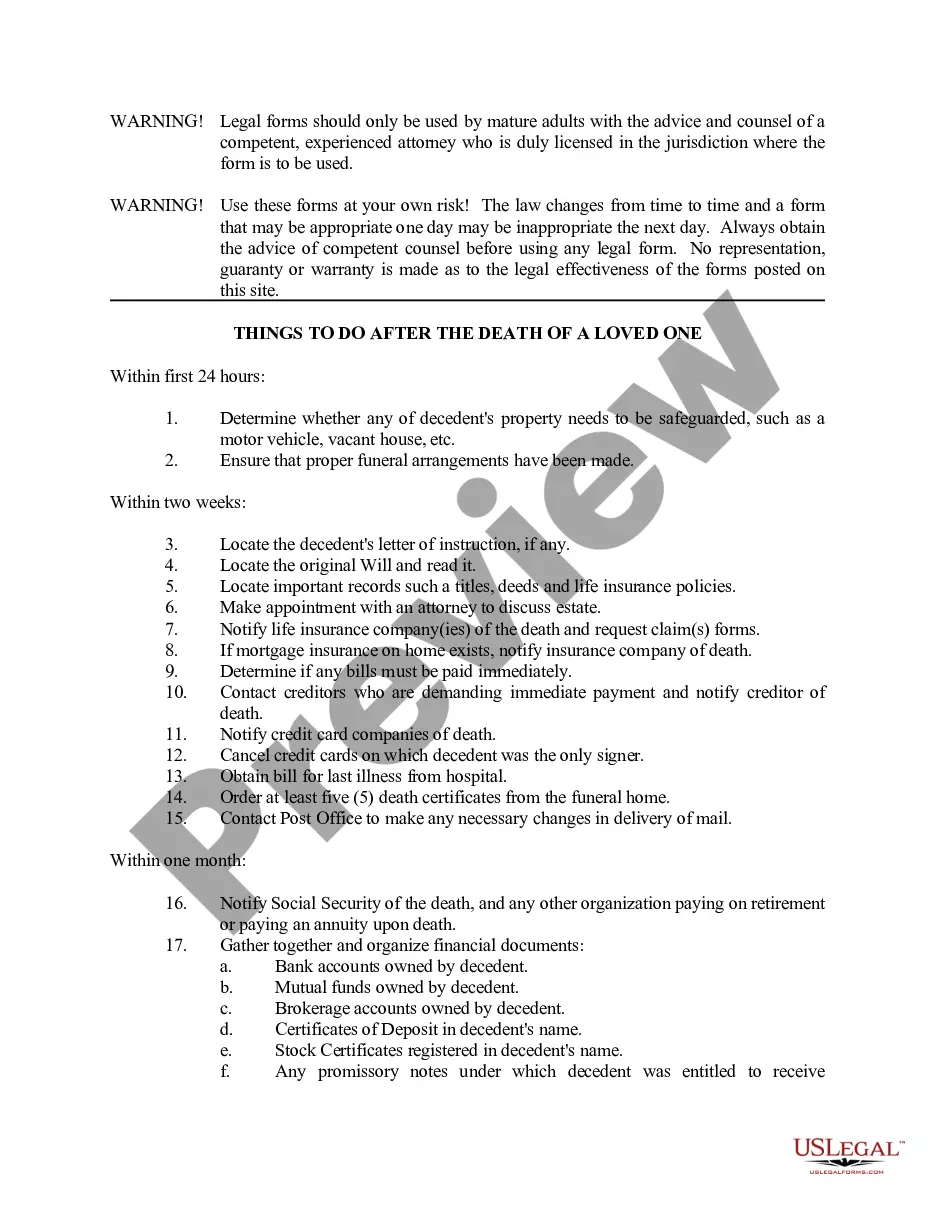
How to fill out Death To Do List - Checklist?
It’s a well-known fact that you can’t become a legal specialist in a day, nor can you learn how to swiftly create a Checklist Template For Powerpoint without a dedicated background.
Drafting legal documents is a lengthy process that necessitates a certain level of education and expertise. So why not entrust the development of the Checklist Template For Powerpoint to the experts.
With US Legal Forms, which boasts one of the most extensive collections of legal templates, you can discover documents ranging from court filings to templates for internal communication.
You can regain access to your documents from the My documents section whenever you wish. If you’re an existing client, you can easily Log In, and find and download the template from the same section.
Regardless of the aim of your paperwork—be it financial, legal, or personal—our website has you well covered. Give US Legal Forms a try today!
- Recognize the document you require by utilizing the search bar at the top of the page.
- Examine it (if this option is offered) and review the accompanying description to determine if Checklist Template For Powerpoint is what you need.
- Initiate your search anew if you require a different document.
- Create a free account and select a subscription plan to purchase the document.
- Click Buy now. Once the purchase is finalized, you can acquire the Checklist Template For Powerpoint, fill it out, print it, and deliver or send it via mail to the appropriate parties or institutions.
Form popularity
FAQ
Making PowerPoint a full form involves designing a presentation that can collect data or feedback. You can utilize text boxes, dropdowns, and checkboxes to format this effectively. Opting for a checklist template for PowerPoint can give you a head start, providing a structured layout for collecting and organizing responses.
Yes, PowerPoint allows you to insert editable text fields to make your presentations interactive. You can use the 'Text Box' feature to add fields that users can fill in during or after your presentation. Incorporating a checklist template for PowerPoint with editable fields can enhance user engagement and interaction, making your presentation more effective.
Microsoft PowerPoint | Add a Form to your PowerPoint Slides - YouTube YouTube Start of suggested clip End of suggested clip If you select one you have the option to insert it or edit. It this list is pulled from microsoftMoreIf you select one you have the option to insert it or edit. It this list is pulled from microsoft form so it could be empty if you've never used forms.
To add a checkbox to your PowerPoint slide: Go to the ?Insert? tab and select the ?Shapes? option. Select the checkbox shape option and draw it on your slide. Resize the checkbox to the desired size. Move the checkbox to the desired location on your slide. That's it! You now have a checkbox on your slide.
Follow these steps to get started: Enable the Developer Tab: Go to File > Options > Customize Ribbon. ... Insert Checkbox from the Developer Tab (add GIF: Check Boxes Edit) Click and drag it to place it where you want it to be. Change text: Right-click the Checkbox, Go to Checkbox Object, then choose Edit.
Create a new form or quiz Sign in to Microsoft 365 with your school or work credentials. Open your PowerPoint presentation and choose the slide in which you want to insert a form or quiz. On the Insert tab, select Forms. ... A Forms panel will open and dock on the right side of your PowerPoint presentation.
Insert a text box Open the slide you want to add the box to. On the ribbon, select the Insert tab, then select. Text Box. On the slide, click and drag to draw the text box in the position and size you want.