Shared Utility Agreement With Google Workspace
Description
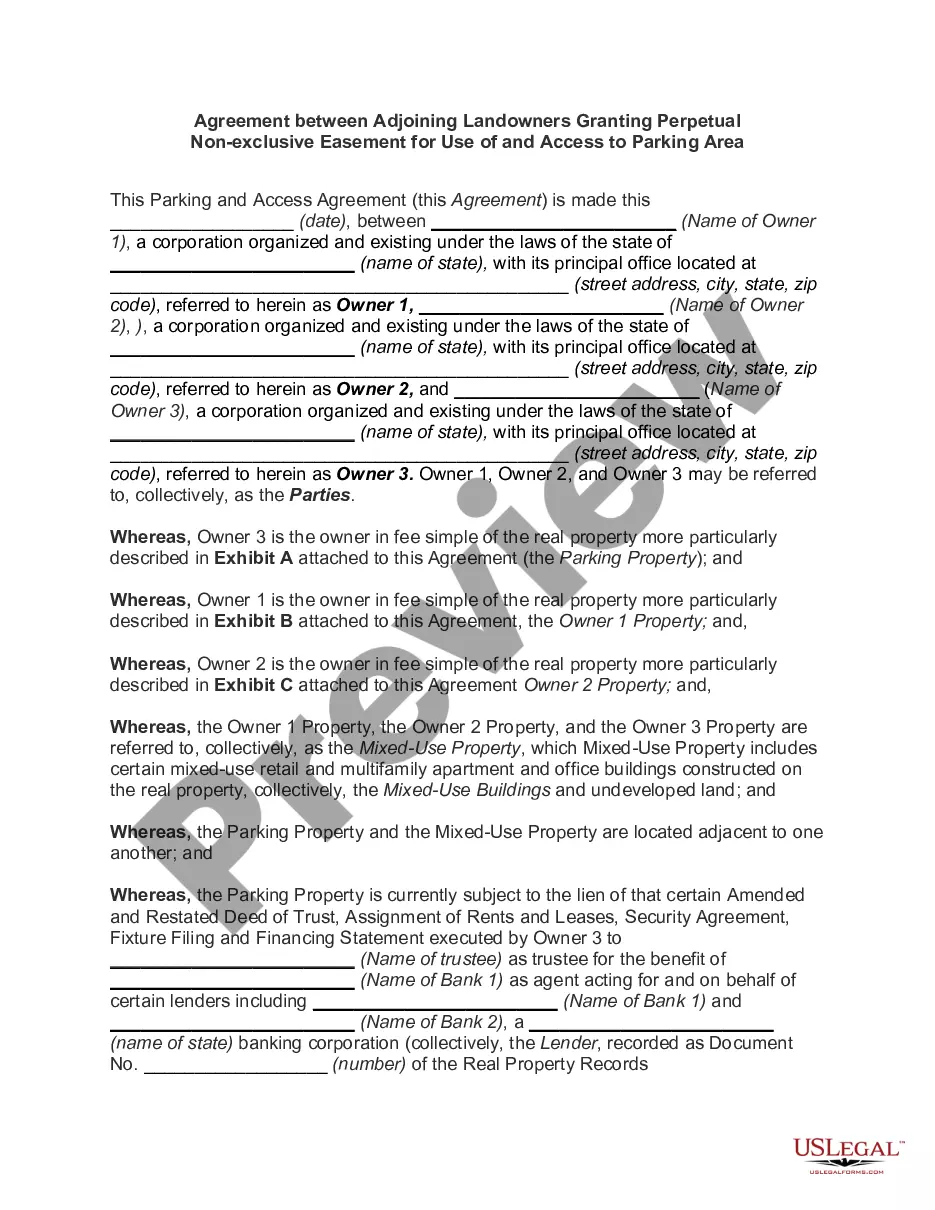
Get your form ready online
Our built-in tools help you complete, sign, share, and store your documents in one place.
Make edits, fill in missing information, and update formatting in US Legal Forms—just like you would in MS Word.
Download a copy, print it, send it by email, or mail it via USPS—whatever works best for your next step.
Sign and collect signatures with our SignNow integration. Send to multiple recipients, set reminders, and more. Go Premium to unlock E-Sign.
If this form requires notarization, complete it online through a secure video call—no need to meet a notary in person or wait for an appointment.
We protect your documents and personal data by following strict security and privacy standards.

Make edits, fill in missing information, and update formatting in US Legal Forms—just like you would in MS Word.

Download a copy, print it, send it by email, or mail it via USPS—whatever works best for your next step.

Sign and collect signatures with our SignNow integration. Send to multiple recipients, set reminders, and more. Go Premium to unlock E-Sign.

If this form requires notarization, complete it online through a secure video call—no need to meet a notary in person or wait for an appointment.

We protect your documents and personal data by following strict security and privacy standards.
Looking for another form?

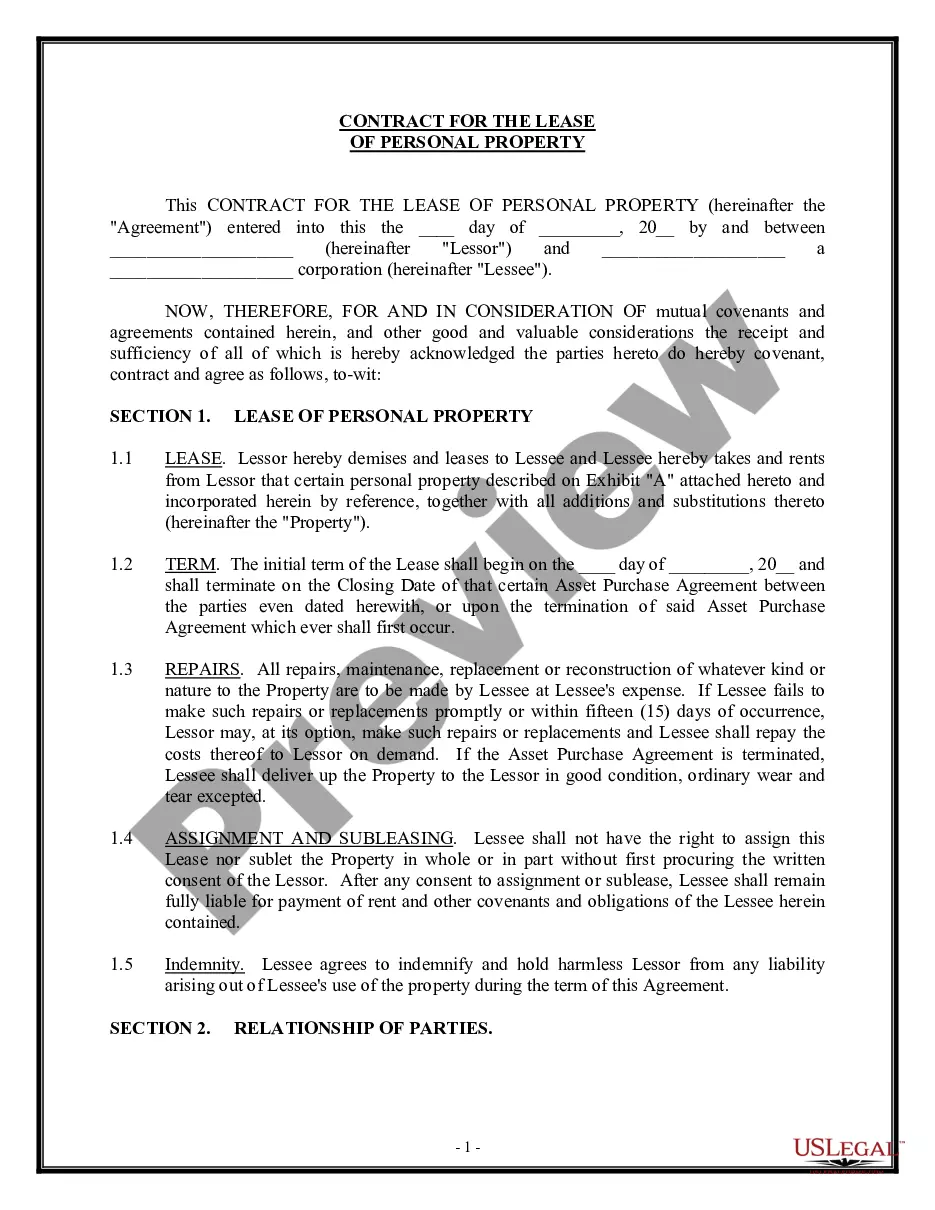
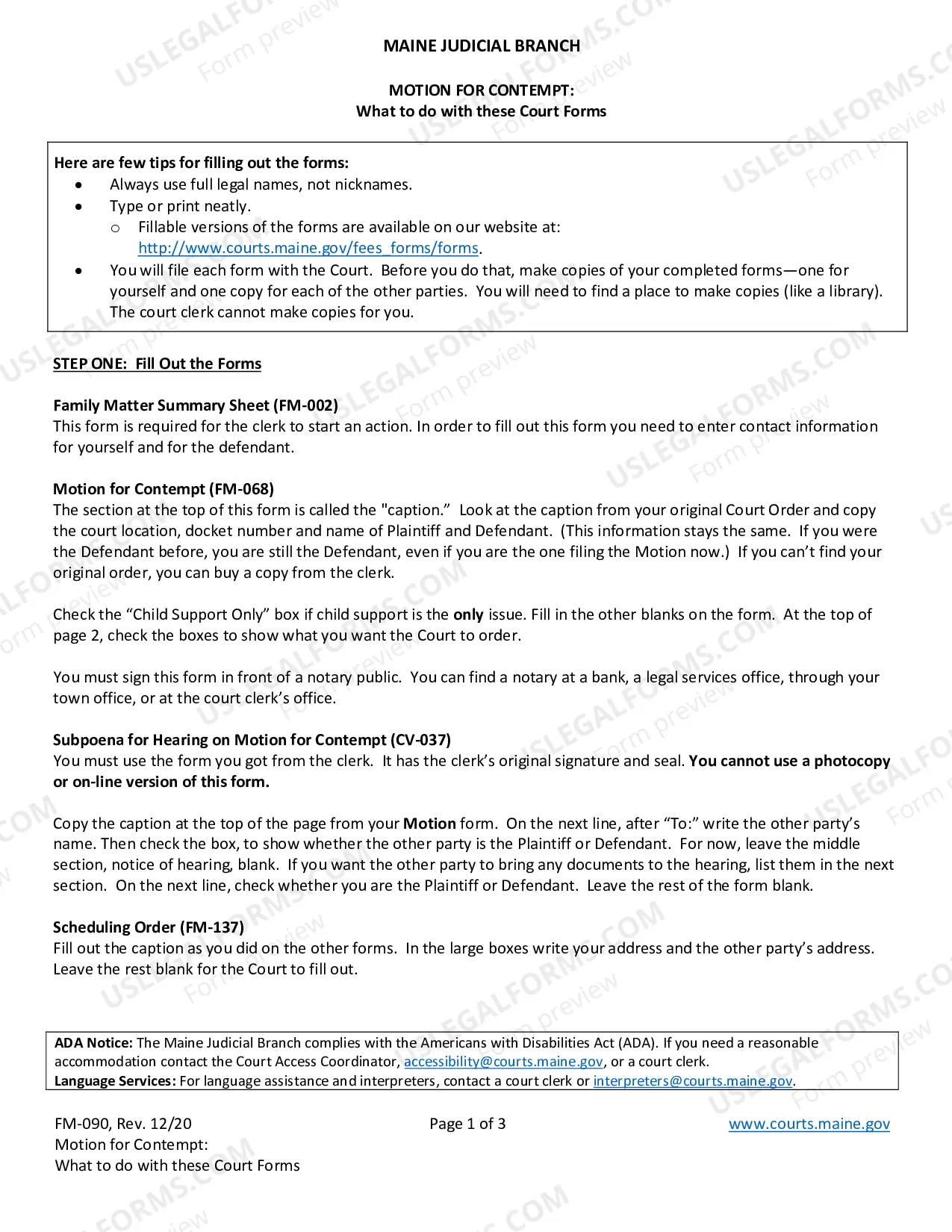
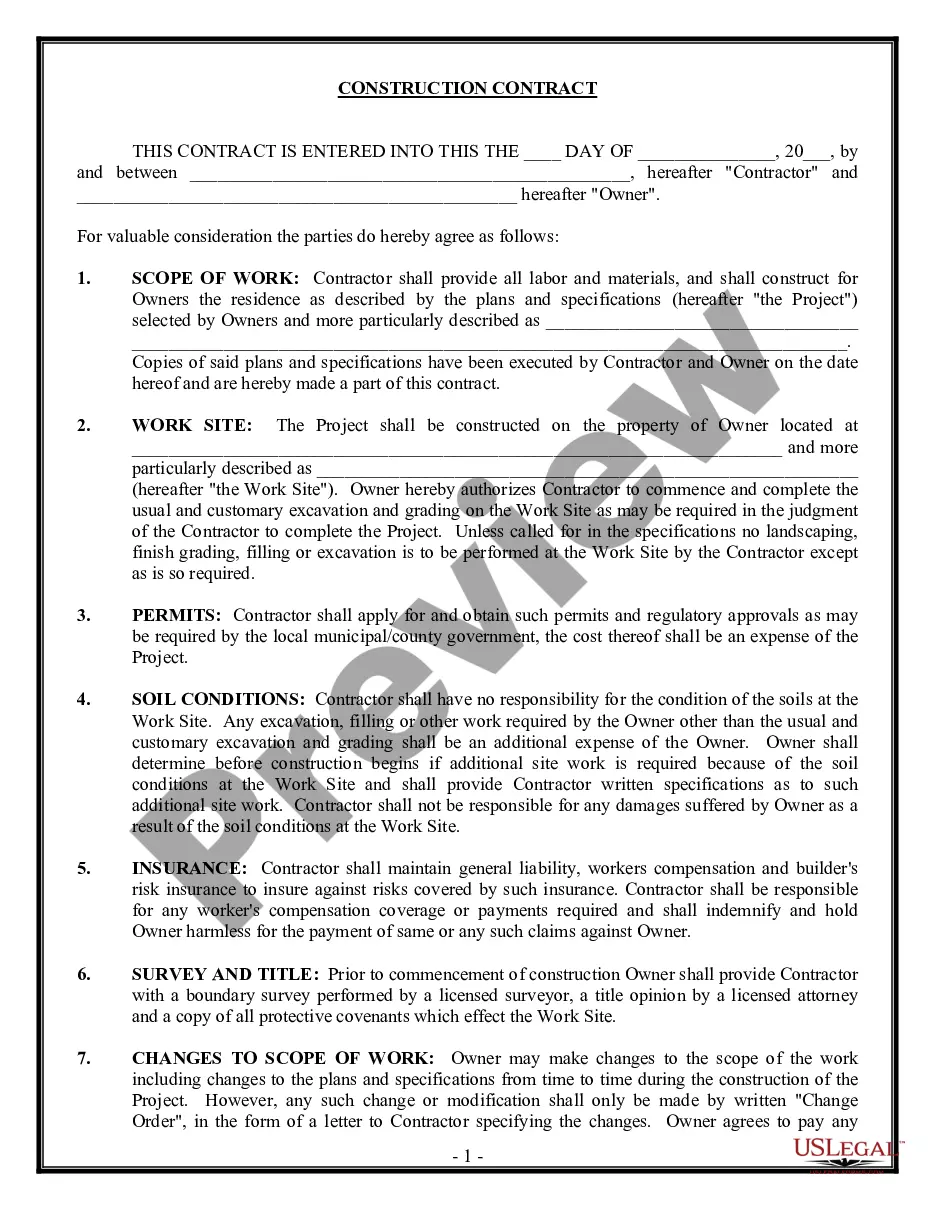

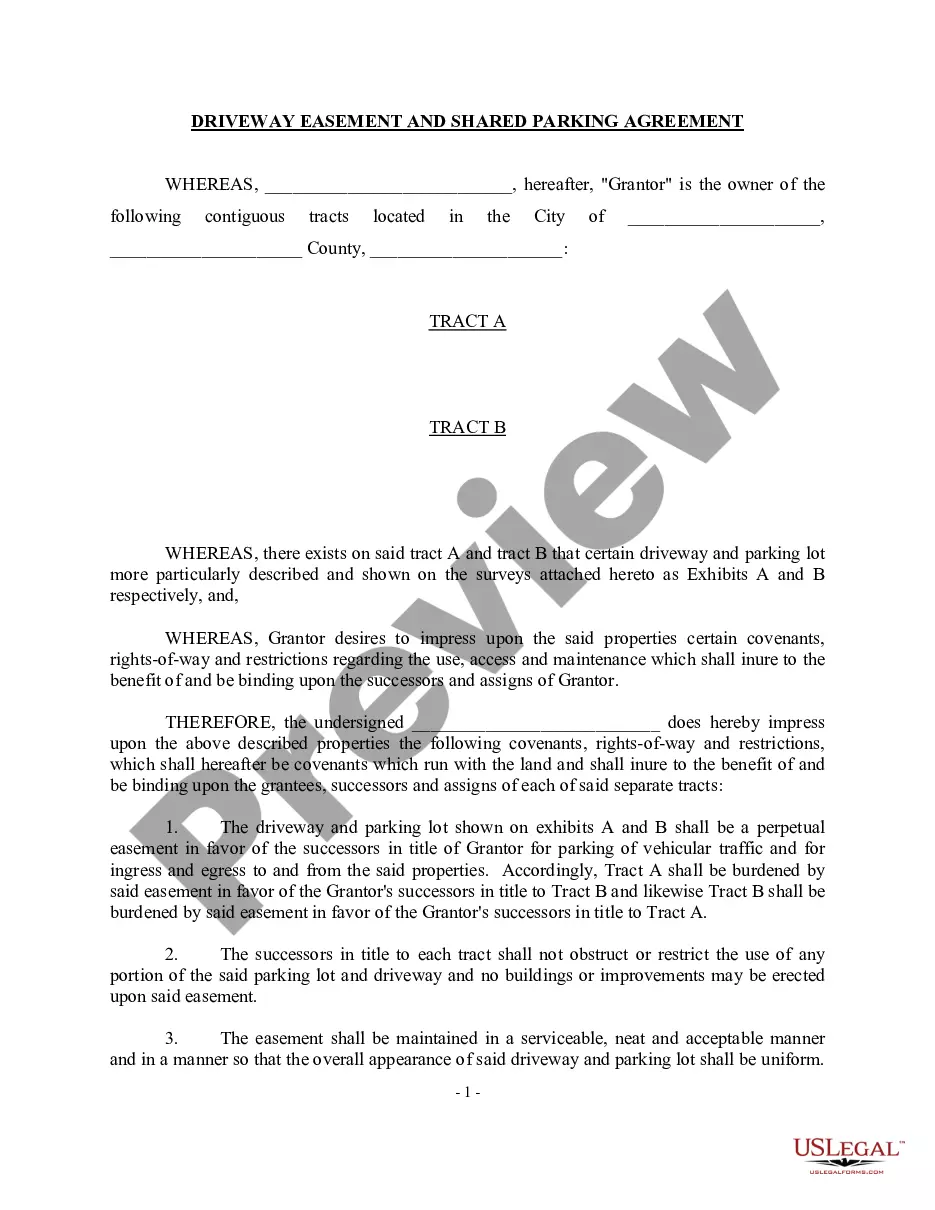
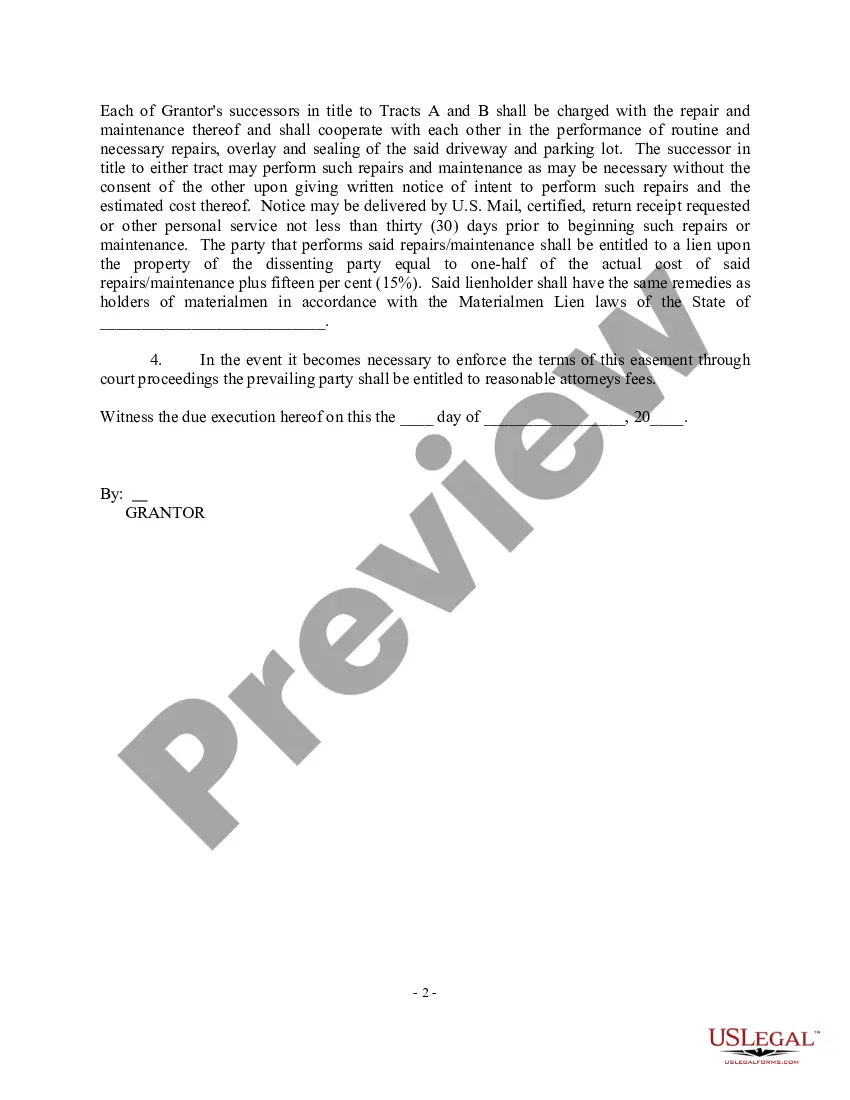
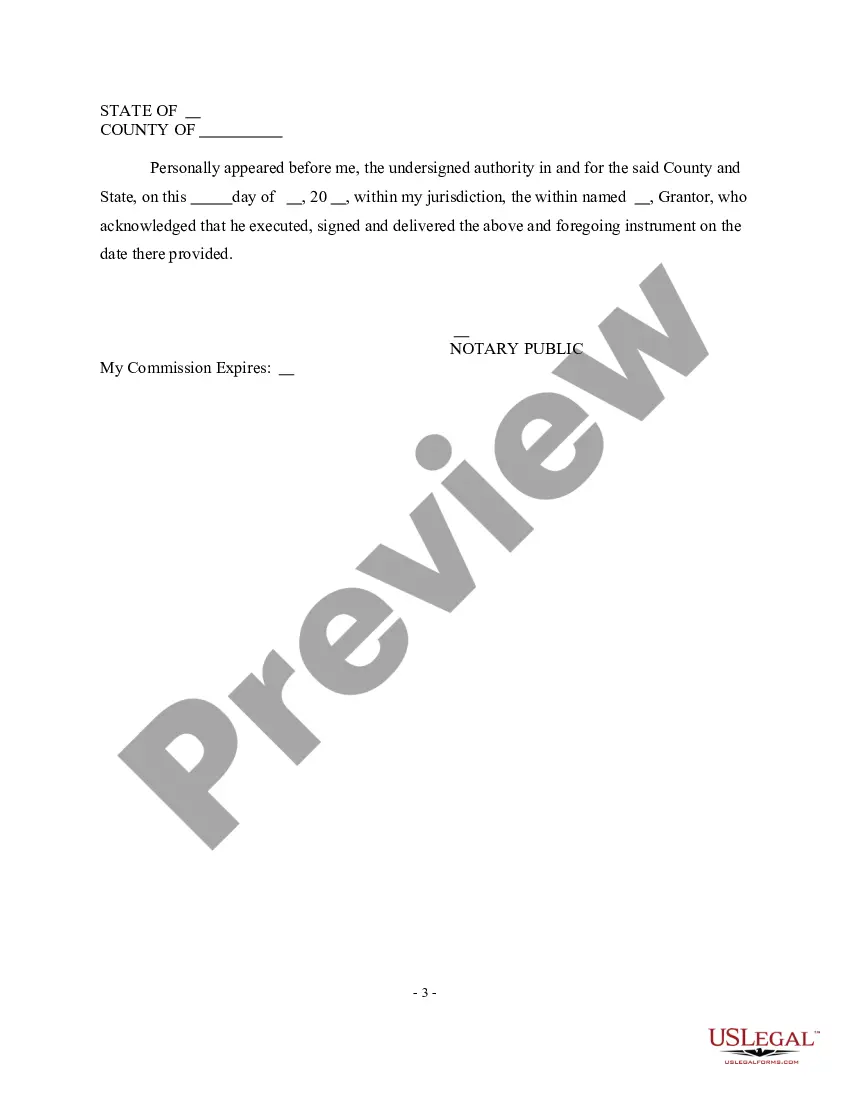
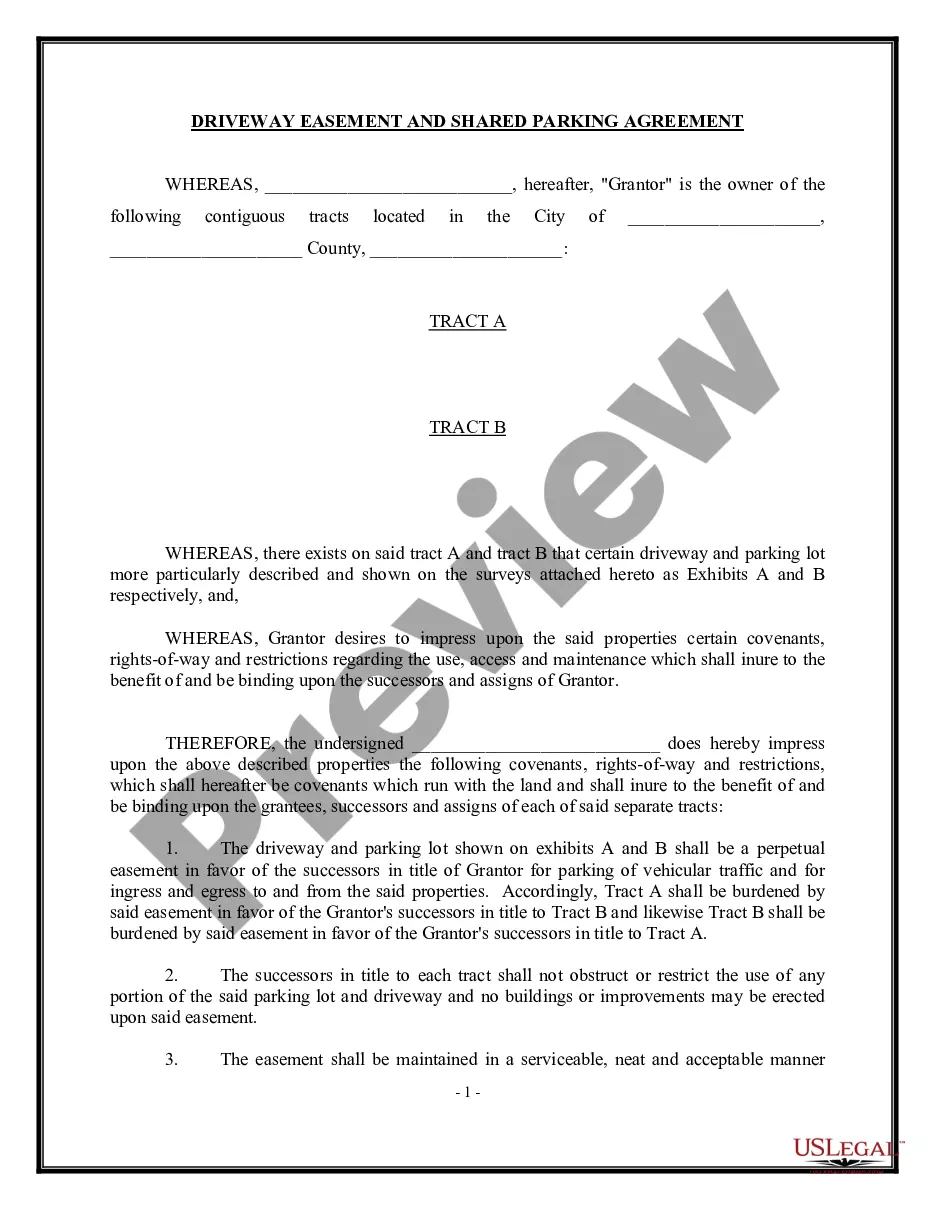
How to fill out Driveway Easement And Shared Parking Agreement?
Creating legal documents from the ground up can frequently feel daunting.
Some situations may require extensive research and considerable financial investment.
If you are looking for a more straightforward and economical method of drafting the Shared Utility Agreement With Google Workspace or any other forms without unnecessary complications, US Legal Forms is always available to assist you.
Our online repository of over 85,000 current legal documents encompasses nearly every aspect of your financial, legal, and personal matters.
However, before proceeding to download the Shared Utility Agreement With Google Workspace, keep these suggestions in mind: Review the document preview and details to ensure you have located the necessary form. Verify if the template you select meets the specifications of your state and county. Choose the appropriate subscription plan to acquire the Shared Utility Agreement With Google Workspace. Download the form, then complete it, sign it, and print it out. US Legal Forms prides itself on a solid reputation and over 25 years of experience. Join us today and simplify your document preparation process!
- With just a few clicks, you can quickly access templates specific to your state and county, meticulously crafted by our legal professionals.
- Utilize our website whenever you require trustworthy and dependable services to efficiently find and download the Shared Utility Agreement With Google Workspace.
- If you are a returning user and have already created an account with us, simply Log In, find the form, and download it or re-download it anytime from the My documents section.
- Don’t have an account? No problem. It takes minimal time to register and explore the library.
Form popularity
FAQ
Yes, Google Workspace for Nonprofits does provide access to shared drives. This feature allows teams to store, access, and collaborate on files more efficiently. By utilizing shared drives under a shared utility agreement with Google Workspace, organizations can manage resources seamlessly. Simplifying this process enhances teamwork and ensures that everyone stays aligned.
To get your Google Workspace bill, sign in to your Google Admin console and navigate to the 'Billing' section. Here, you can view your current subscription details and download your invoice. This process is straightforward and helps you manage your payments effectively under your shared utility agreement with Google Workspace. Staying on top of your billing ensures that your services remain uninterrupted.
To set up Google shared documents, start by accessing Google Drive and selecting the document you wish to share. Click on the 'Share' button and enter the email addresses of the individuals you want to collaborate with. You can assign different permissions according to how you want others to interact with the document. This method works seamlessly within a shared utility agreement with Google Workspace, enhancing team collaboration.
Setting up a Business Associate Agreement (BAA) with Google Workspace starts with reviewing Google’s HIPAA compliance page. You must then access the Admin Console, where you can find the option to accept the BAA. Completing this setup ensures that your organization can securely manage protected health information while using various tools, including those necessary for a shared utility agreement with Google Workspace.
To add a Business Associate Agreement (BAA) to Google Workspace, you must first contact Google or access your Admin Console. In the console, navigate to the 'Account' section and follow the prompts to accept the terms of the BAA. This step is essential for organizations that manage health information and want to maintain compliance while using a shared utility agreement with Google Workspace.
Configuring Google Workspace for HIPAA compliance involves a few steps. You'll need to sign a Business Associate Agreement (BAA) with Google, which outlines data responsibilities. After that, ensure you use the services that are included in the BAA, such as Google Drive and Google Docs. This compliance is crucial when handling sensitive information in a shared utility agreement with Google Workspace.
To create a Google Doc that others can fill out, start by opening Google Docs and selecting 'Blank' or a suitable template. Next, you can format the document, add questions, or prompts as needed. Remember to enable 'Edit access' or 'Comment access' for users, which allows them to fill in the document. A shared utility agreement with Google Workspace can streamline collaboration by ensuring all parties can easily contribute.
The Google Drive file sharing permission system is vital for effective collaboration within teams. It allows you to control who can view, comment, or edit documents and files, promoting a secure working environment. By setting these permissions, teams can freely share insights and documents, fostering communication. Integrating a shared utility agreement with Google Workspace narrows down these functionalities, optimizing your team's workflow.
To set up shared drives in Google Workspace, go to Google Drive and click on 'Shared drives.' Then select 'Create a shared drive' and enter a name. After that, you can add members and assign appropriate access permissions. This structure not only promotes collaboration but also aligns with a shared utility agreement with Google Workspace, supporting your organization’s needs effectively.
The primary difference between 'My Drive' and 'Shared drives' in Google Workspace lies in ownership and access. 'My Drive' contains files owned by an individual, while 'Shared drives' are owned collectively by the team, ensuring that files remain accessible even if a member leaves. Understanding this distinction can enhance your team's productivity. Utilizing a shared utility agreement with Google Workspace facilitates seamless file management across your organization.