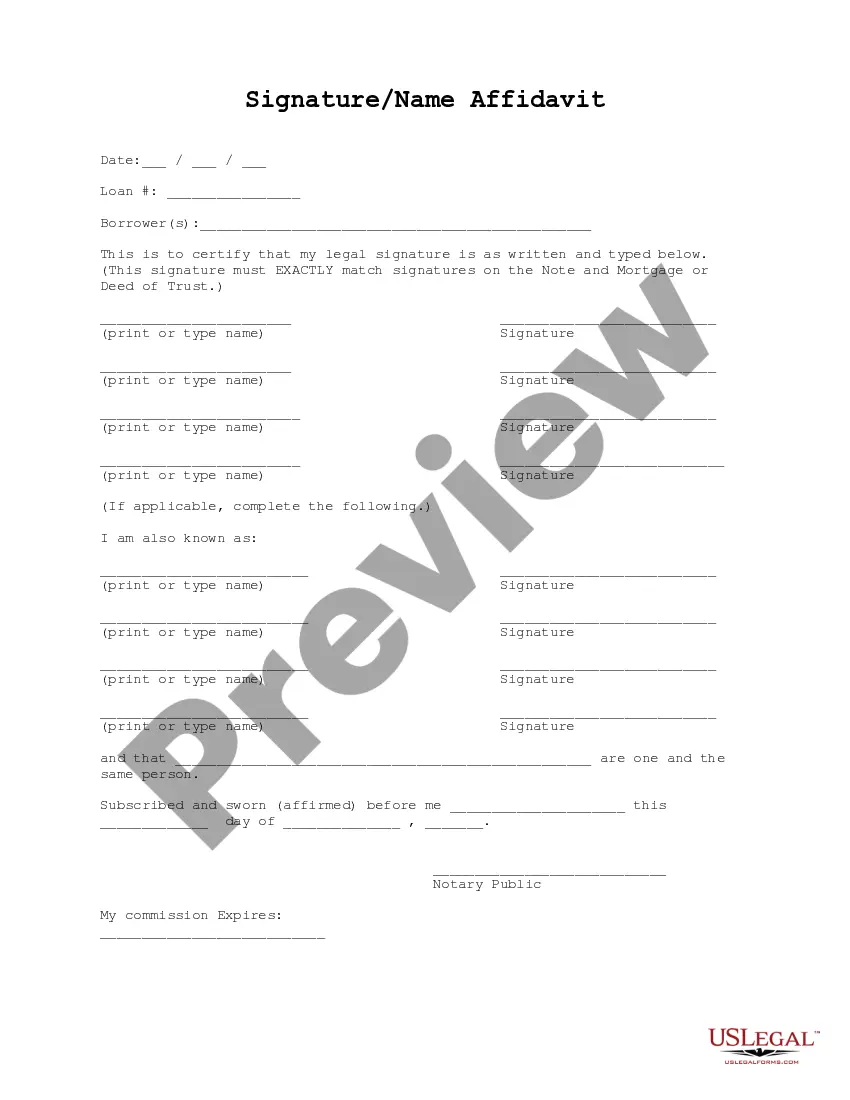
Signature Name Form For Email
Description
Get your form ready online
Our built-in tools help you complete, sign, share, and store your documents in one place.
Make edits, fill in missing information, and update formatting in US Legal Forms—just like you would in MS Word.
Download a copy, print it, send it by email, or mail it via USPS—whatever works best for your next step.
Sign and collect signatures with our SignNow integration. Send to multiple recipients, set reminders, and more. Go Premium to unlock E-Sign.
If this form requires notarization, complete it online through a secure video call—no need to meet a notary in person or wait for an appointment.
We protect your documents and personal data by following strict security and privacy standards.

Make edits, fill in missing information, and update formatting in US Legal Forms—just like you would in MS Word.

Download a copy, print it, send it by email, or mail it via USPS—whatever works best for your next step.

Sign and collect signatures with our SignNow integration. Send to multiple recipients, set reminders, and more. Go Premium to unlock E-Sign.

If this form requires notarization, complete it online through a secure video call—no need to meet a notary in person or wait for an appointment.

We protect your documents and personal data by following strict security and privacy standards.
Looking for another form?

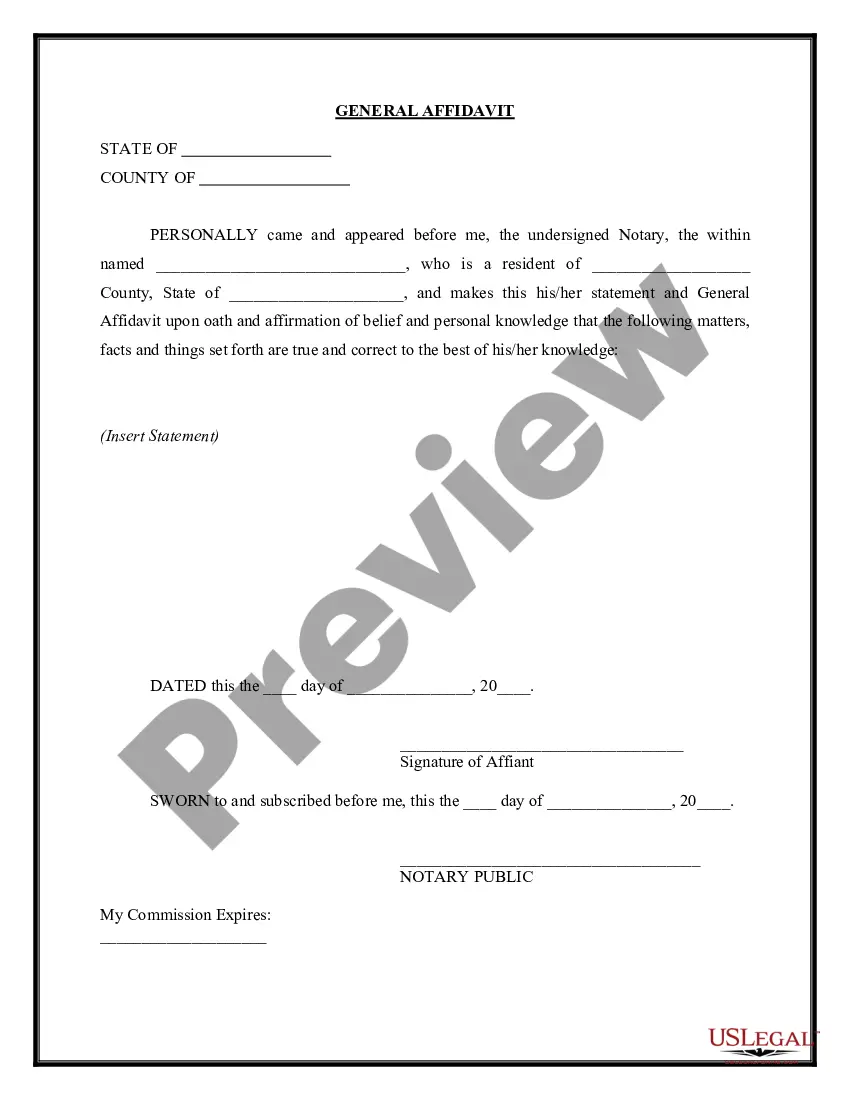
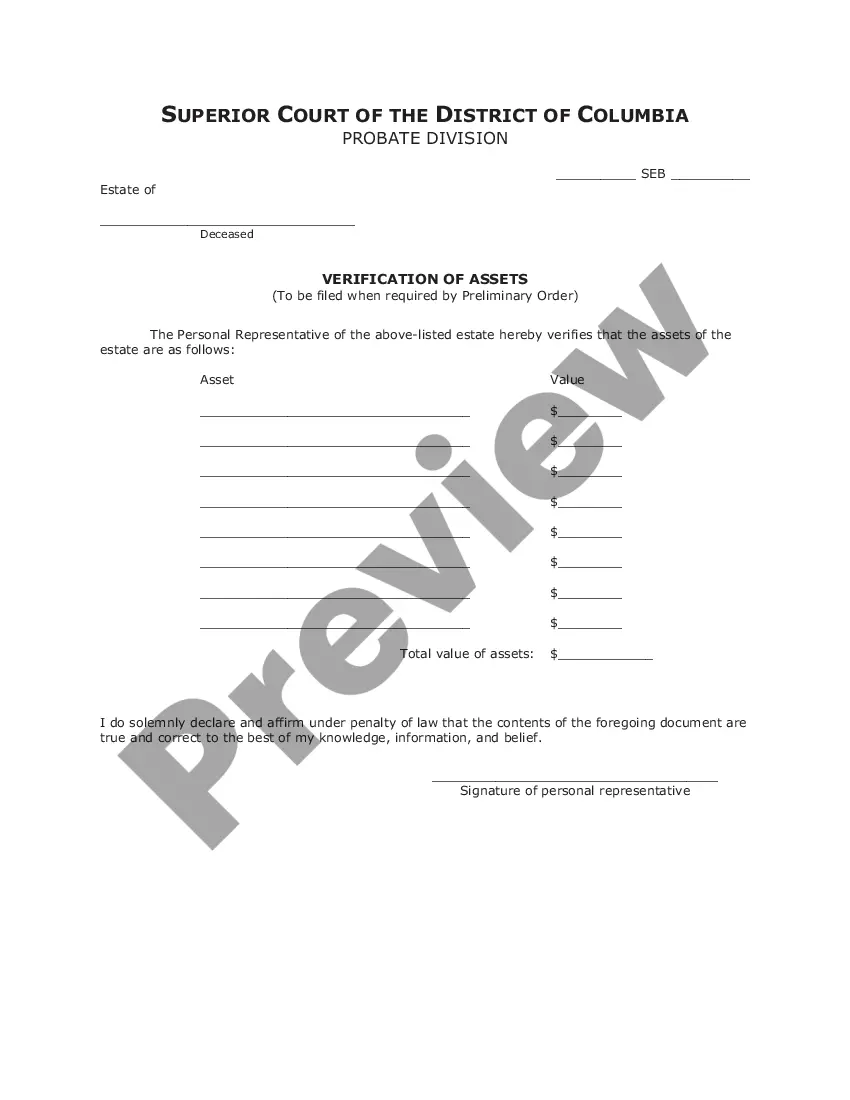


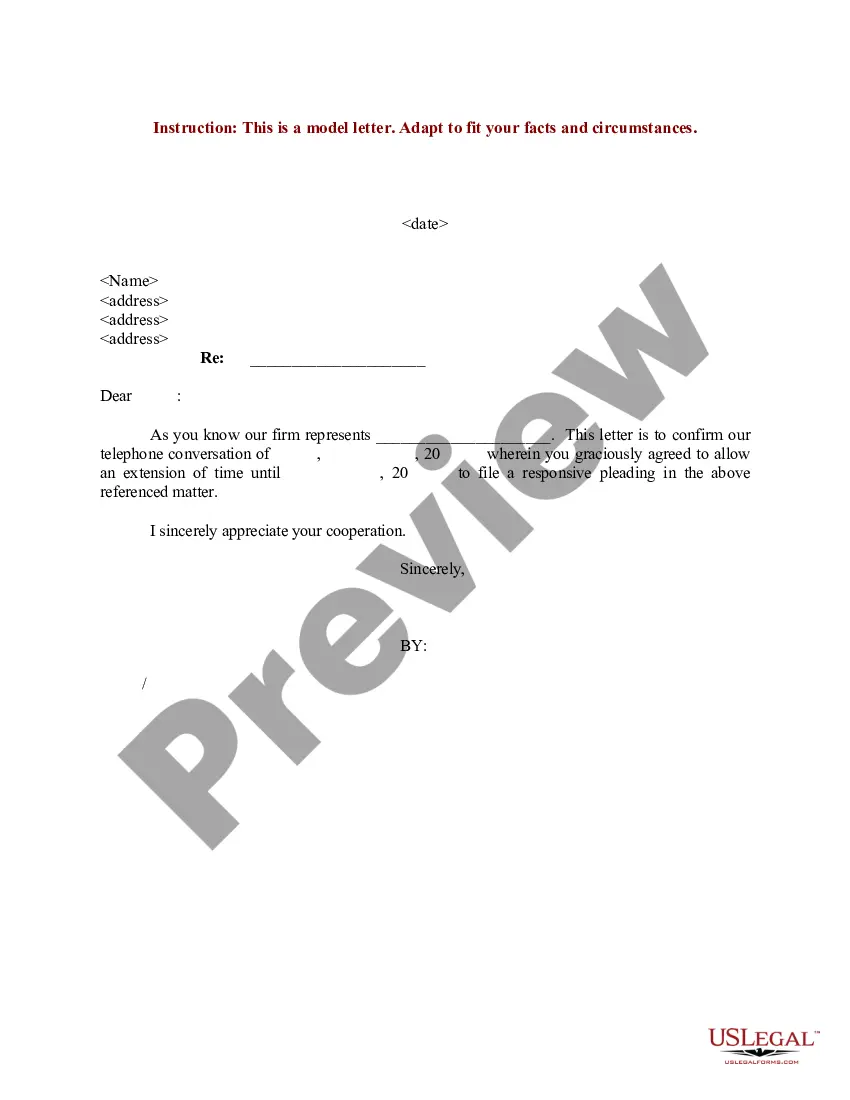
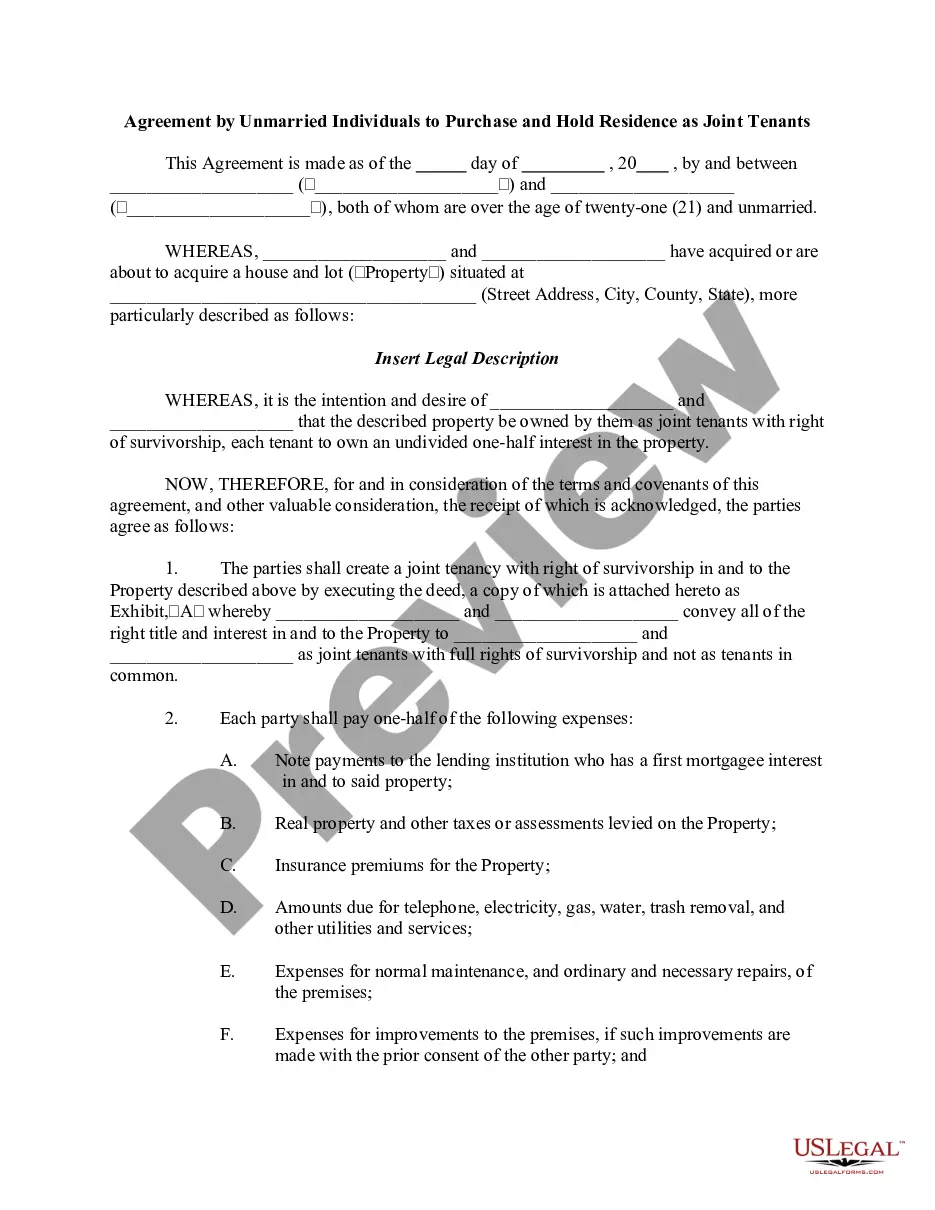
How to fill out Signature And Name Affidavit?
It’s widely known that you cannot instantly become a legal authority, nor can you swiftly learn how to draft the Signature Name Form For Email without a specialized background.
Drafting legal documents is an extensive undertaking that necessitates specific education and expertise.
So why not entrust the creation of the Signature Name Form For Email to the professionals.
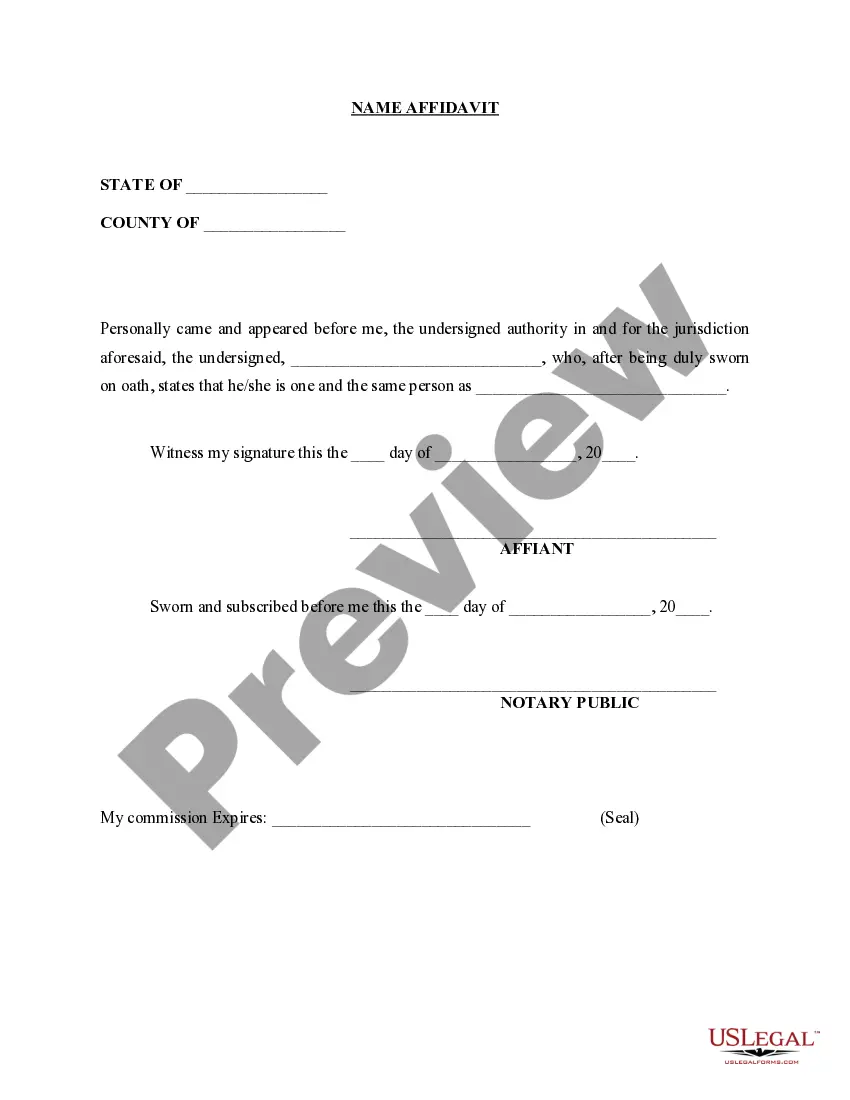
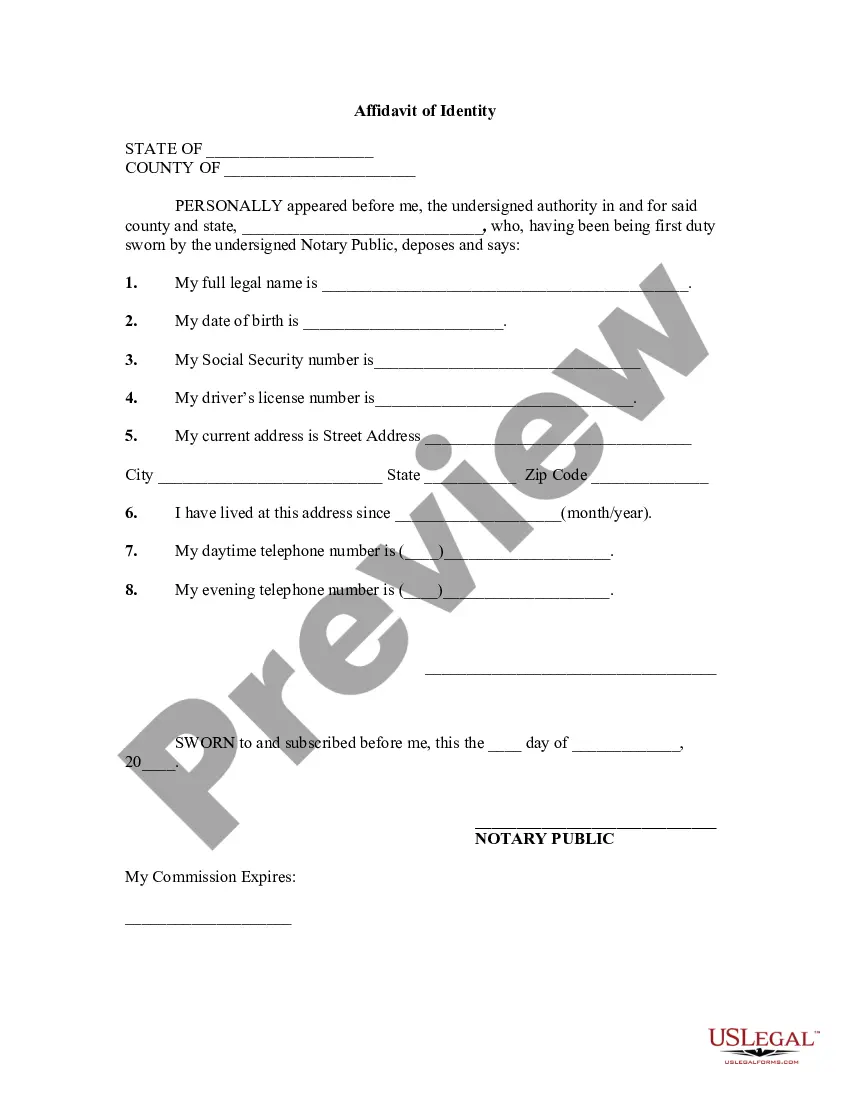
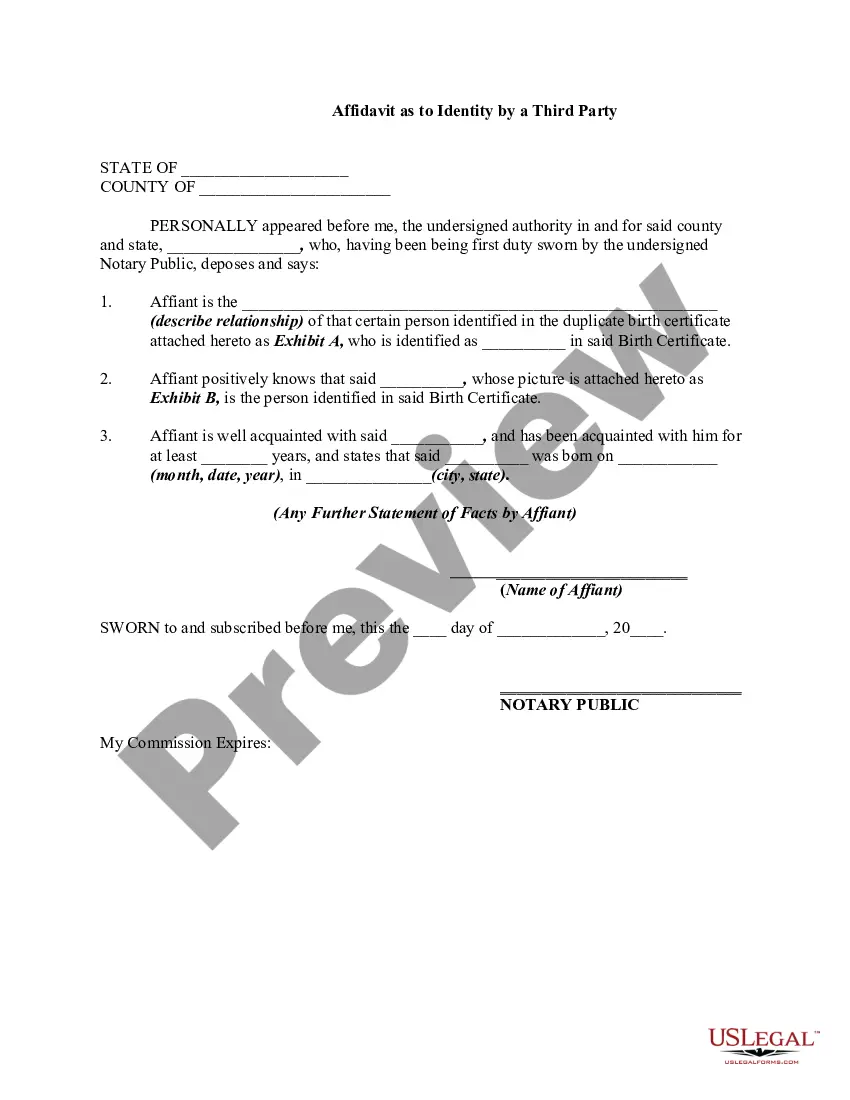
Preview it (if this option is available) and review the supporting description to determine if the Signature Name Form For Email is what you are looking for.
If you need a different template, restart your search. Create a free account and choose a subscription plan to buy the template. Click Buy now. After completing the payment, you can download the Signature Name Form For Email, fill it out, print it, and send or mail it to the designated recipients or organizations.
- With US Legal Forms, one of the most extensive legal document repositories, you can find everything from court documents to templates for internal communication.
- We understand how crucial it is to comply with federal and state laws and regulations.
- That’s why, on our platform, all templates are tailored to specific locations and are current.
- Begin with our website and obtain the form you need in just a few minutes.
- Locate the document you require using the search bar at the top of the page.
Form popularity
FAQ
Creating a name signature for email is a straightforward process. First, you can use an online signature name form for email to design your signature easily. Once you have crafted your signature, you can access the settings in your email client to insert it. Finally, save your changes, and your name signature will automatically appear in all future emails, ensuring a professional touch.
Creating an email signature file can enhance your professional communication. Start by drafting your signature name form for email using a text editor. Include your name, title, and any other relevant information. Once you finalize it, save the file and upload it to your email settings, ensuring it represents you well in every correspondence.
In Outlook, you can add your name at the bottom of your email by creating a signature. Navigate to File, then Options, and select Mail. In the Mail settings, click on Signatures, create a new signature using your signature name form for email, and save your changes. Your name will now appear at the bottom of your emails.
To put a name signature in your email, you need to create a signature in your email settings. Go to your email provider's settings, find the signature section, and paste your signature name form for email. This way, every email you send will include your signature automatically, making your correspondence look professional.
Creating an electronic signature form is straightforward with the right tools. You can use platforms like US Legal Forms that offer easy-to-use templates. Simply select the signature name form for email template, fill in your details, and customize it to your needs. Once completed, you can save and share your electronic signature form effortlessly.
Add new text to a PDF using a PC. Open your file in the Acrobat PDF Editor. Select Fill & Sign on the right side of the screen. Choose the Add Text tool, which looks like an upper-case ?A? next to a lower-case ?b.? Click anywhere in the PDF where you'd like to add text and start typing.
Tap the file to open the document. If prompted, open the document in the Files app, then tap Save. , then tap the text box to enter text using the onscreen keyboard. To fill out another line, tap it, then enter text.
How To Sign and Fill Out a PDF in Gmail - YouTube YouTube Start of suggested clip End of suggested clip And. If I want to sign something like down here I can use this drawing tool and draw a signatureMoreAnd. If I want to sign something like down here I can use this drawing tool and draw a signature like. So that's my real signature. Or you can use this sign tool. So it has zero save signatures.
How to fill and sign a PDF form: Open a PDF document in Acrobat. Click the ?Fill & Sign? tool in the right pane. Fill out your form: Complete form filling by clicking a text field and typing or adding a text box. ... Sign your form: Click ?Sign? in the toolbar at the top of the page.
You can include up to 10,000 characters in your signature. Open Gmail. At the top right, click Settings. See all settings. In the 'Signature' section, add the text of your signature to the box. ... At the bottom of the page, click Save changes.