Special Trust Trustor Download For Mac
Description
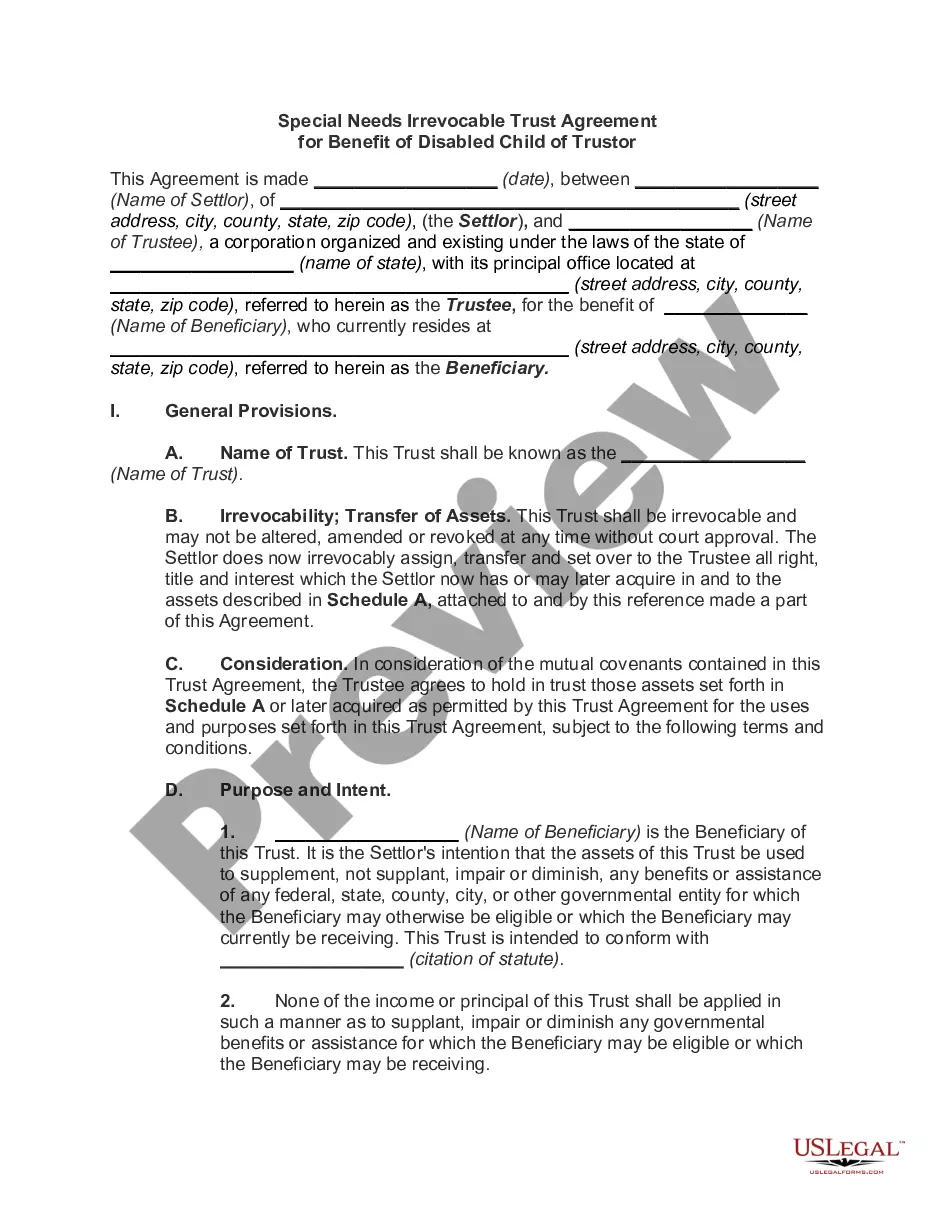
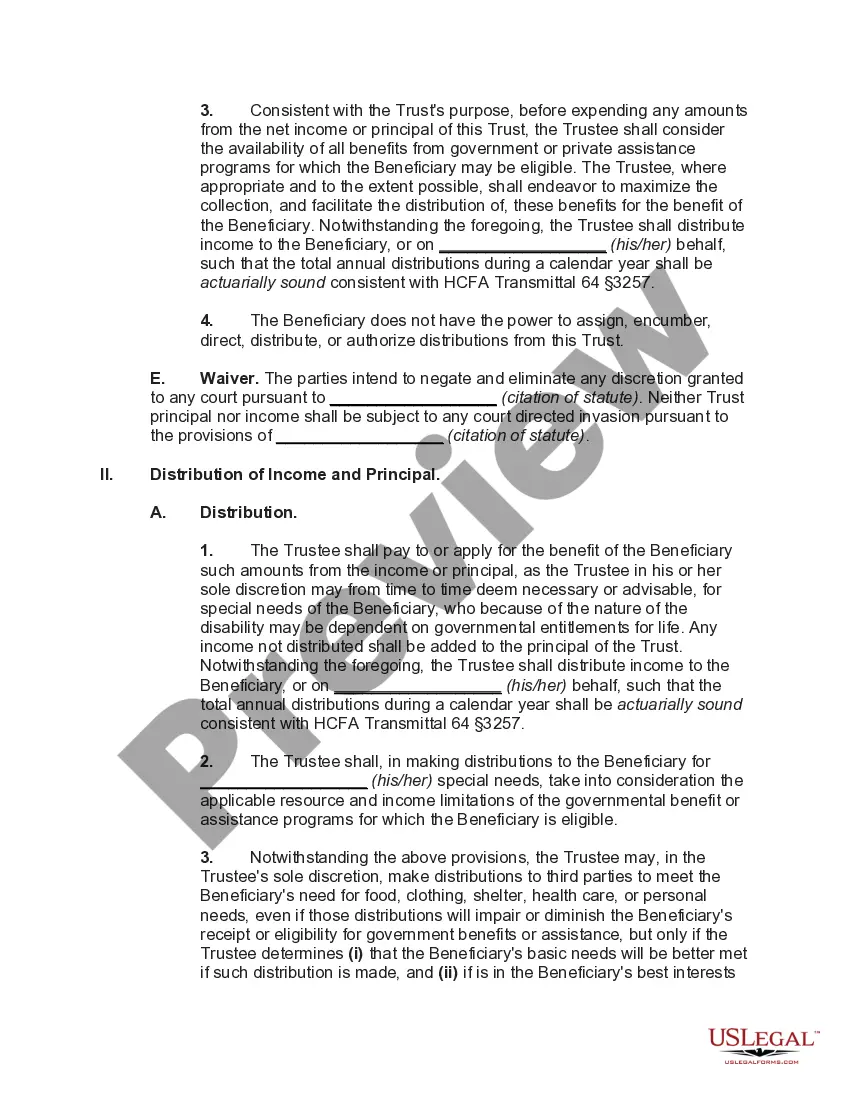
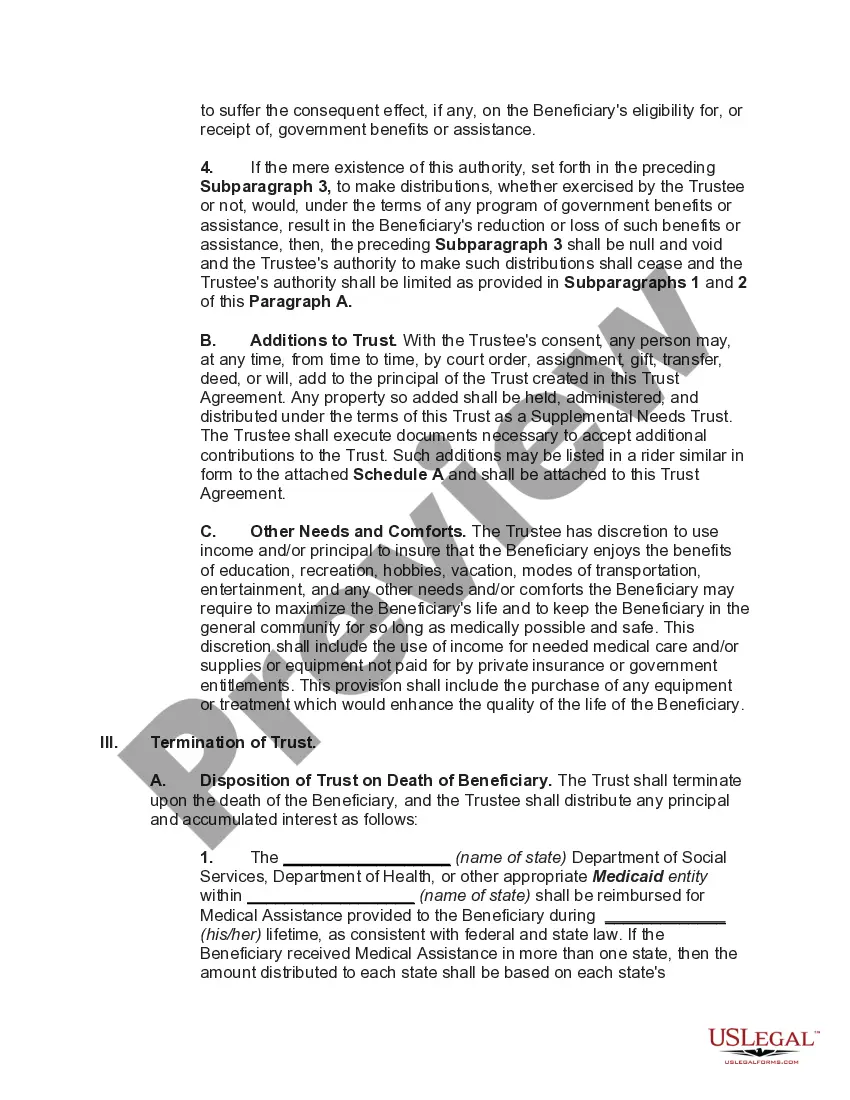
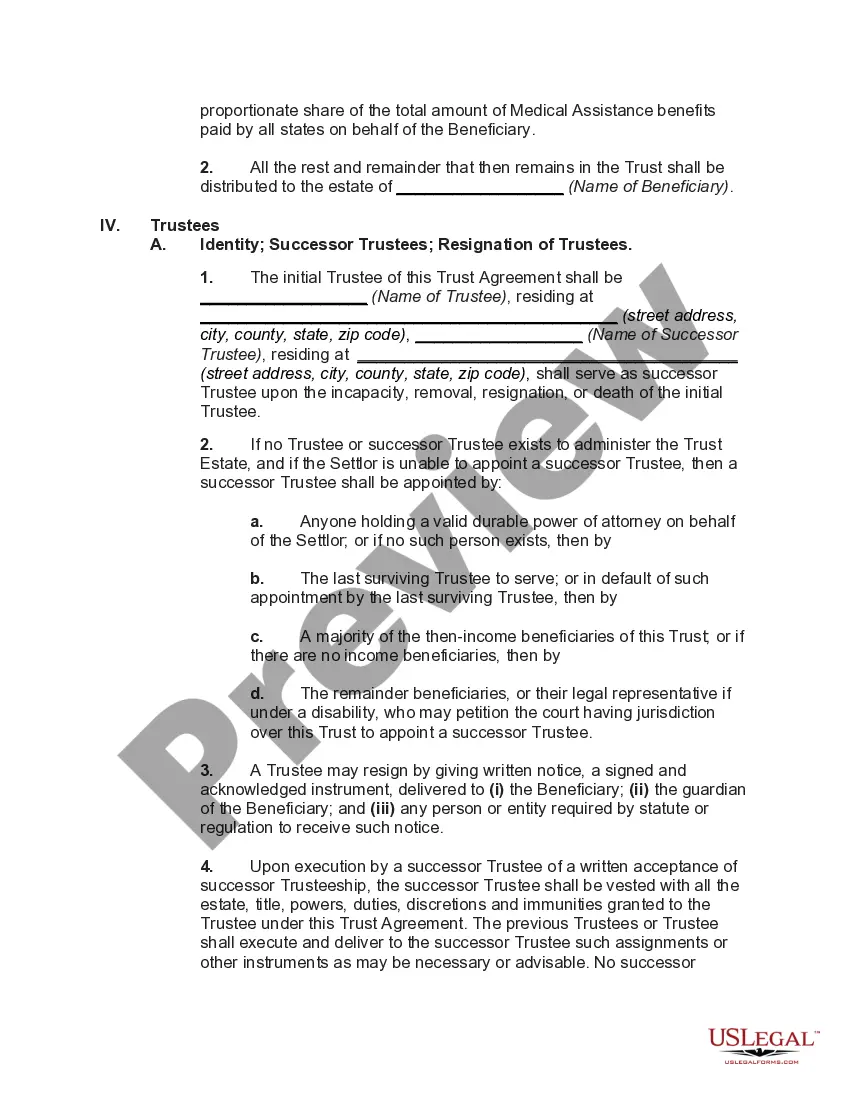
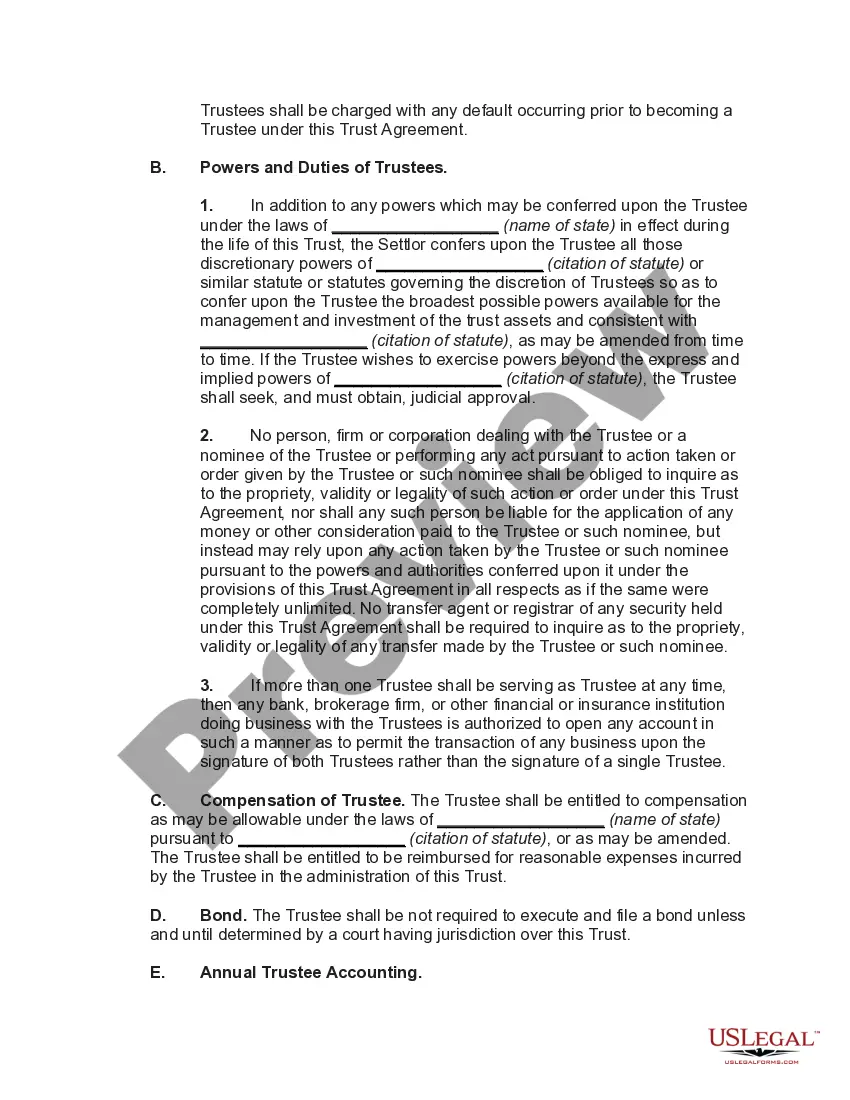
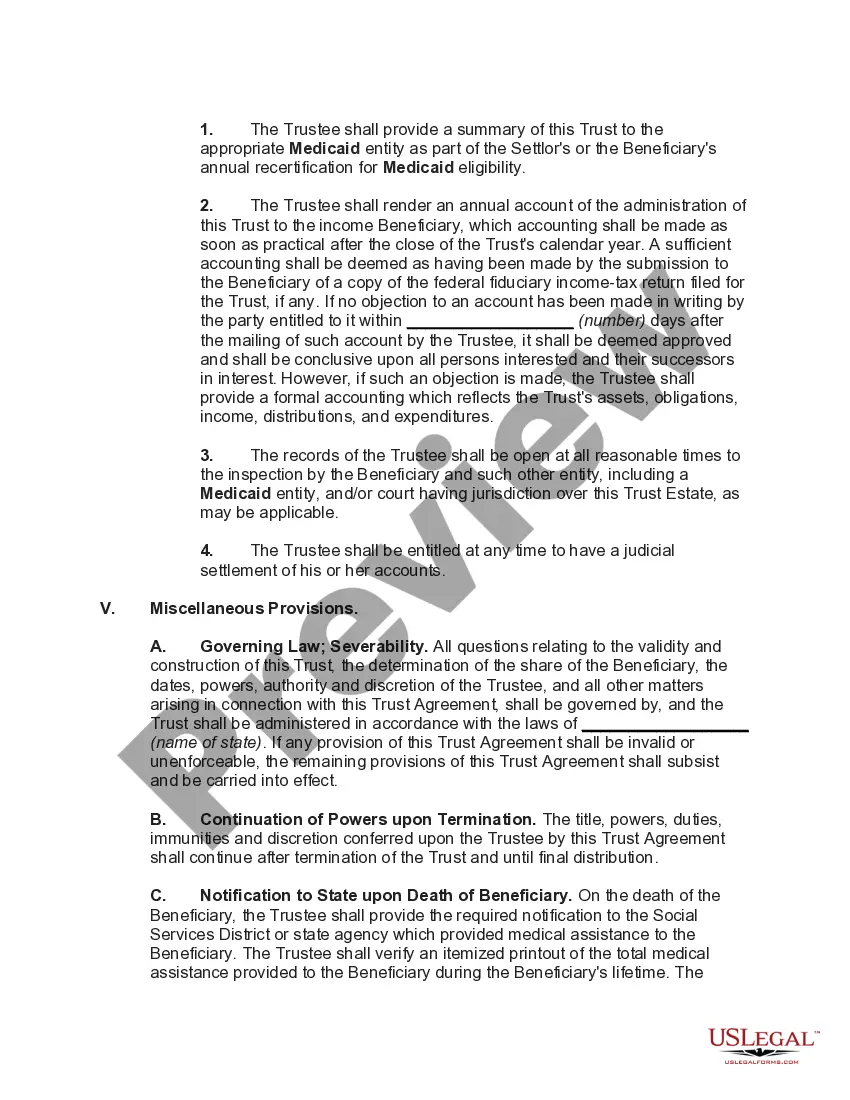
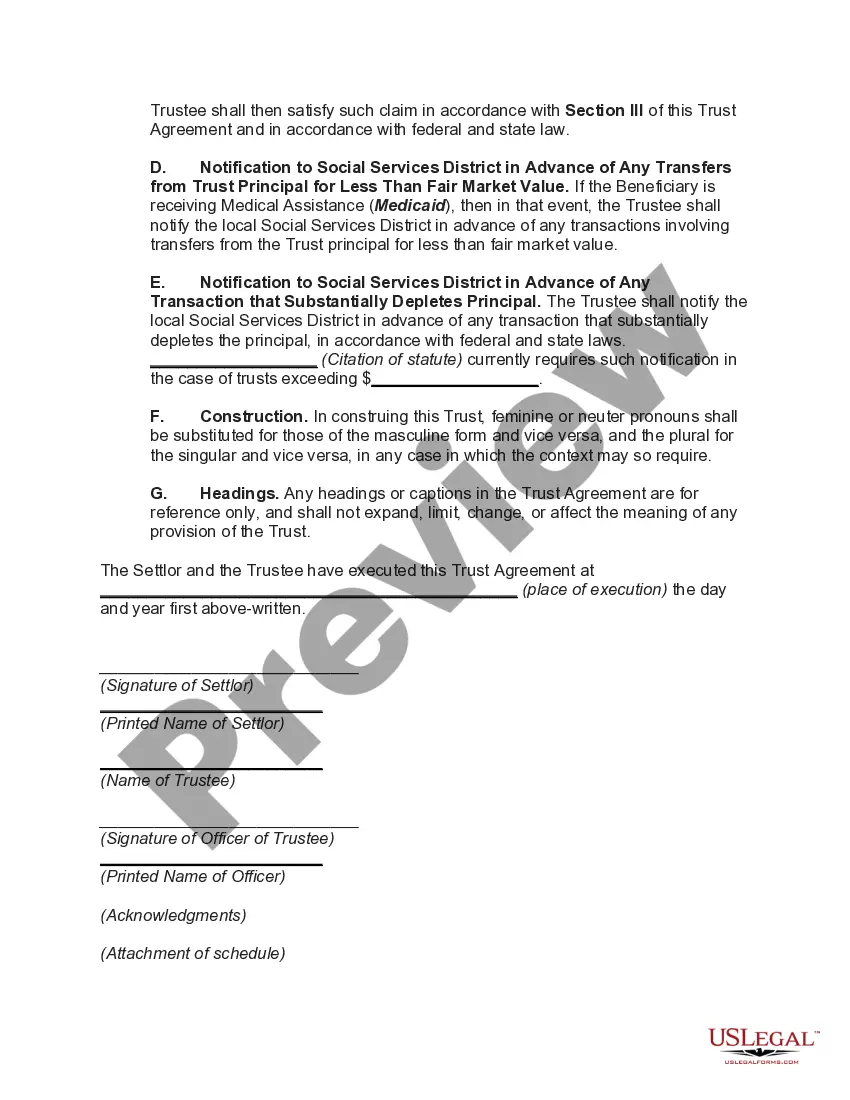
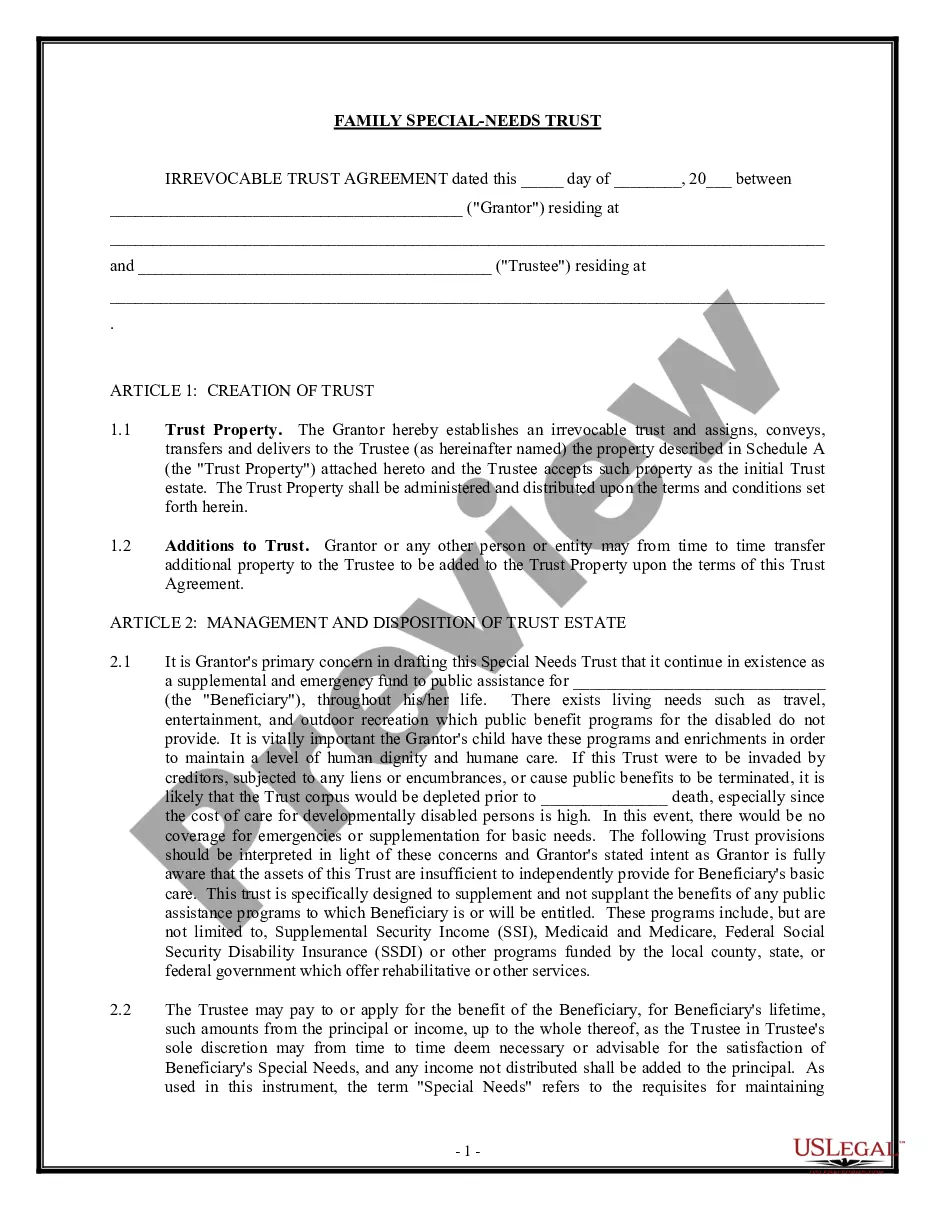
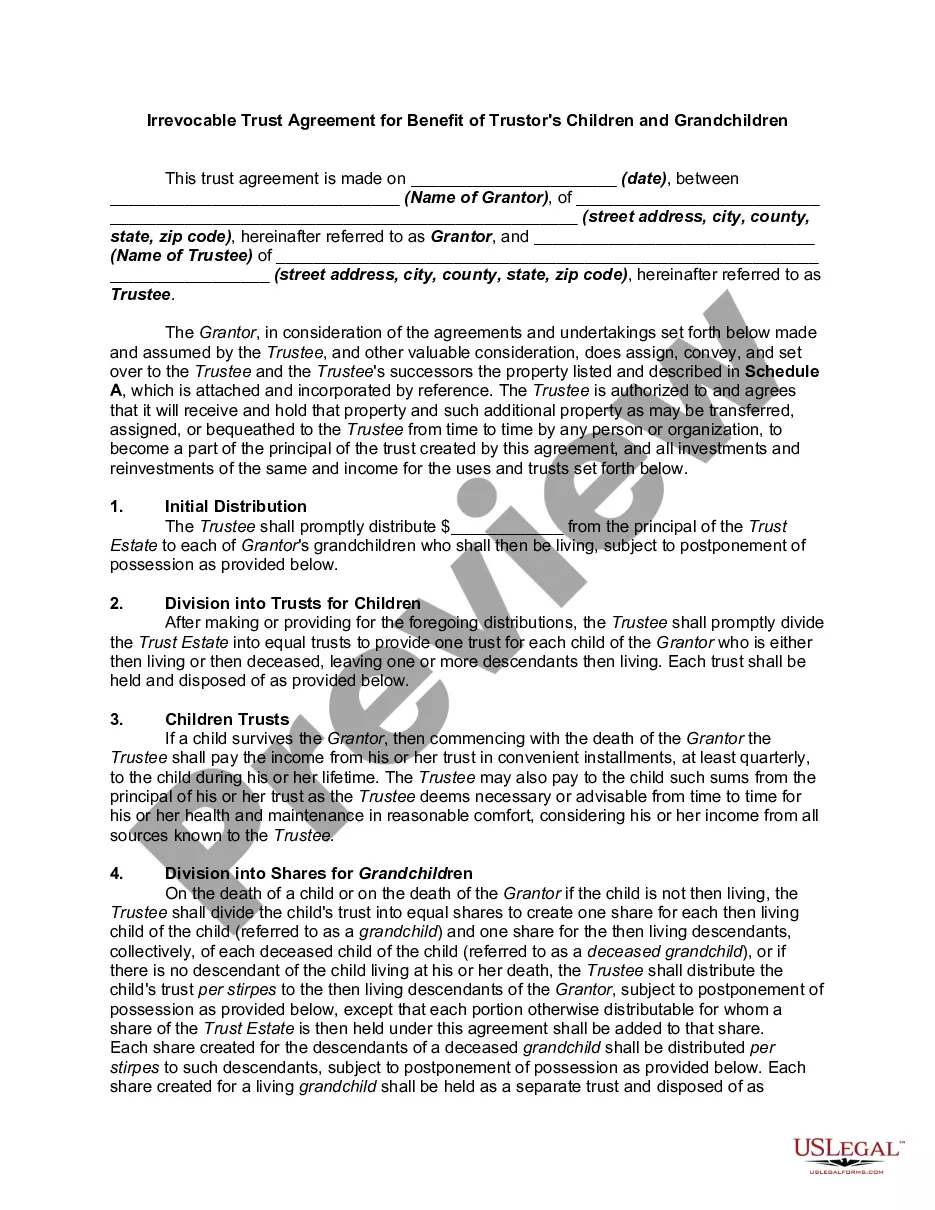
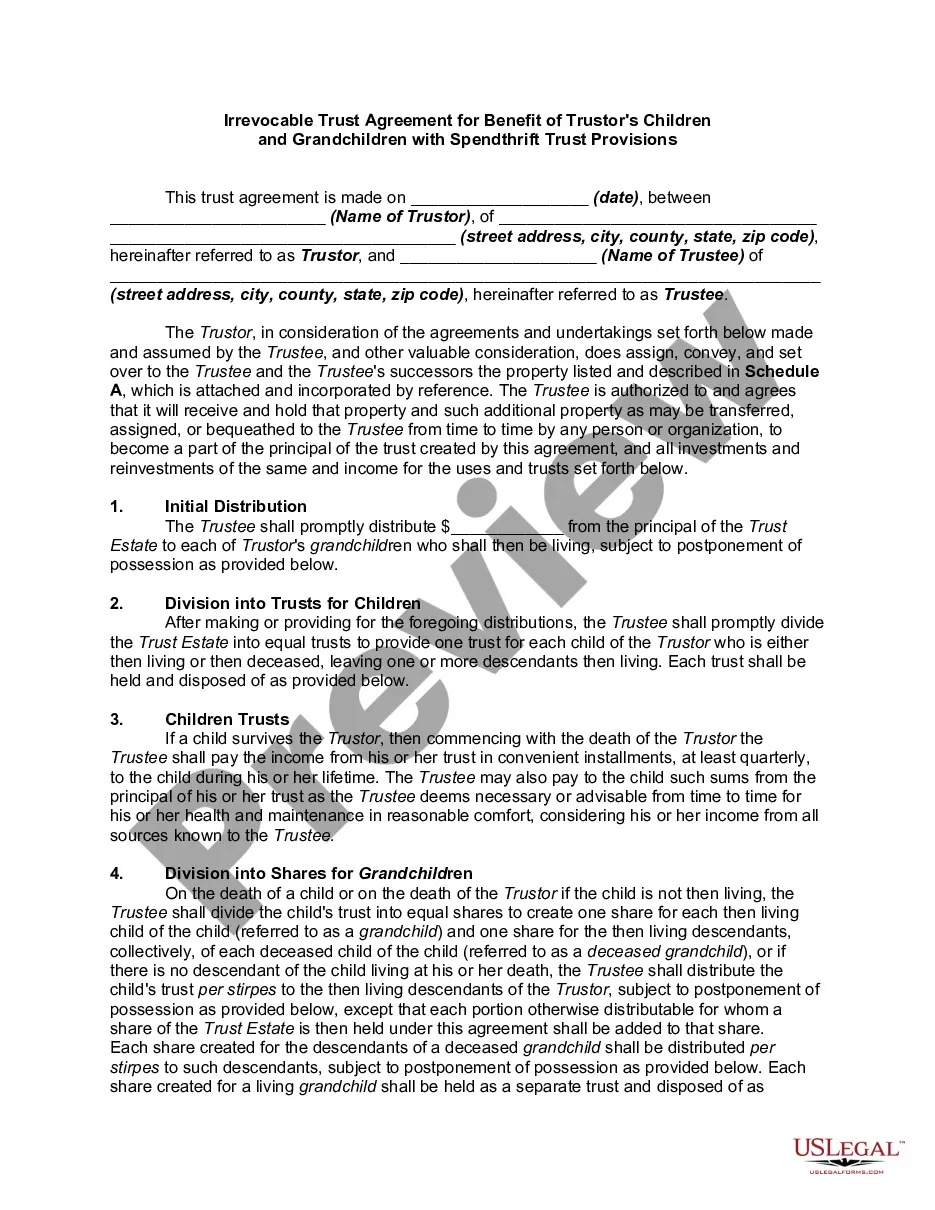
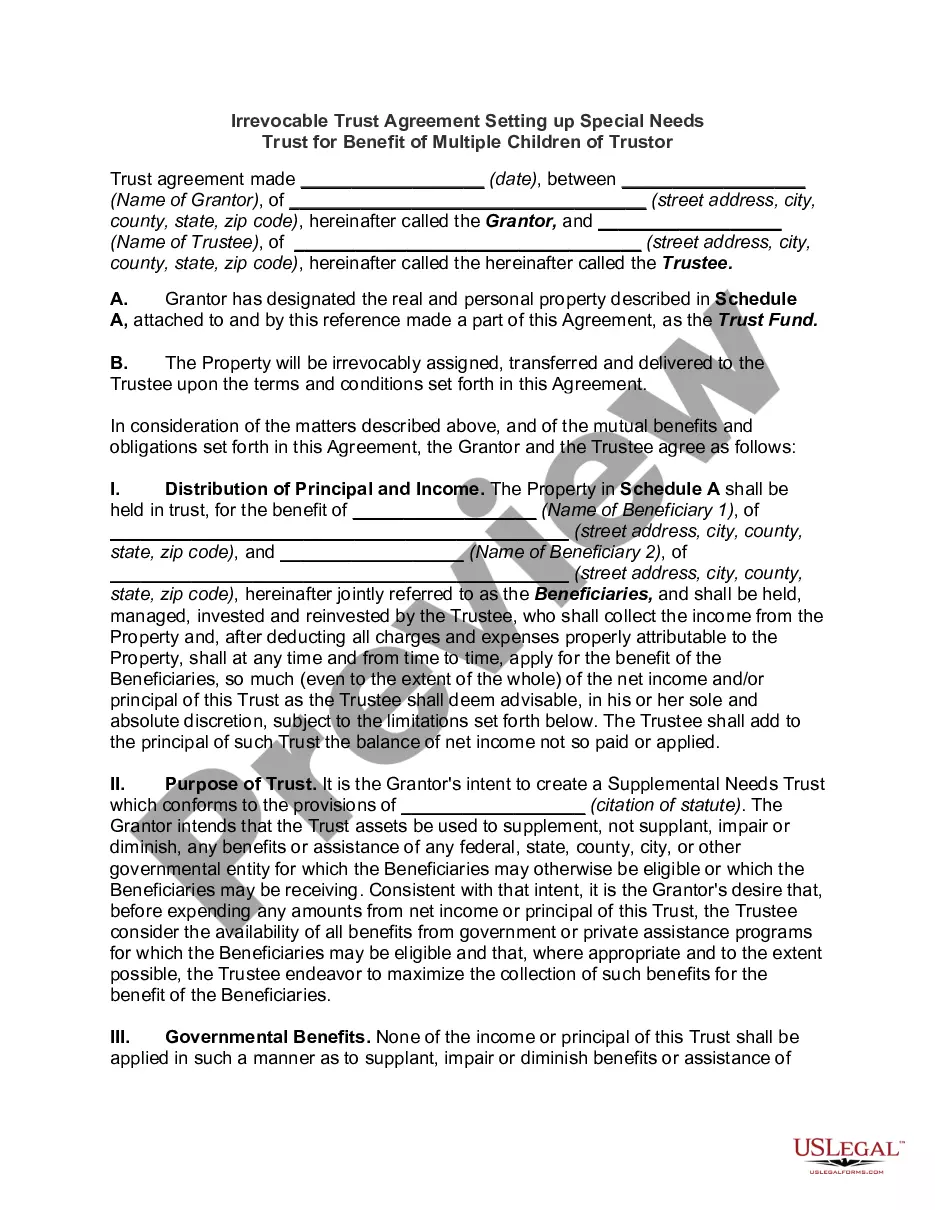
Get your form ready online
Our built-in tools help you complete, sign, share, and store your documents in one place.
Make edits, fill in missing information, and update formatting in US Legal Forms—just like you would in MS Word.
Download a copy, print it, send it by email, or mail it via USPS—whatever works best for your next step.
Sign and collect signatures with our SignNow integration. Send to multiple recipients, set reminders, and more. Go Premium to unlock E-Sign.
If this form requires notarization, complete it online through a secure video call—no need to meet a notary in person or wait for an appointment.
We protect your documents and personal data by following strict security and privacy standards.
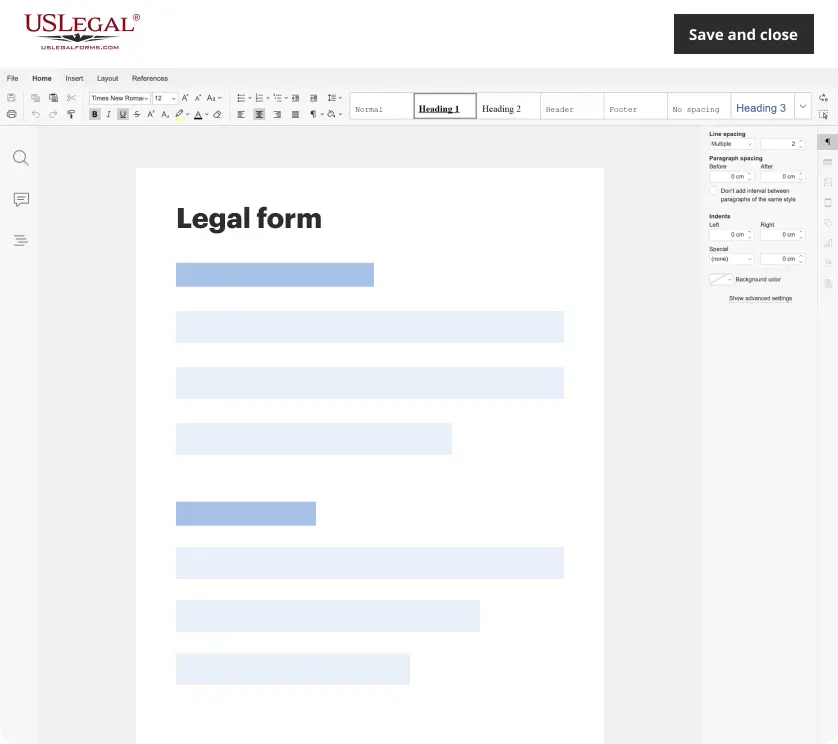
Make edits, fill in missing information, and update formatting in US Legal Forms—just like you would in MS Word.
Download a copy, print it, send it by email, or mail it via USPS—whatever works best for your next step.
Sign and collect signatures with our SignNow integration. Send to multiple recipients, set reminders, and more. Go Premium to unlock E-Sign.

If this form requires notarization, complete it online through a secure video call—no need to meet a notary in person or wait for an appointment.
We protect your documents and personal data by following strict security and privacy standards.
Looking for another form?
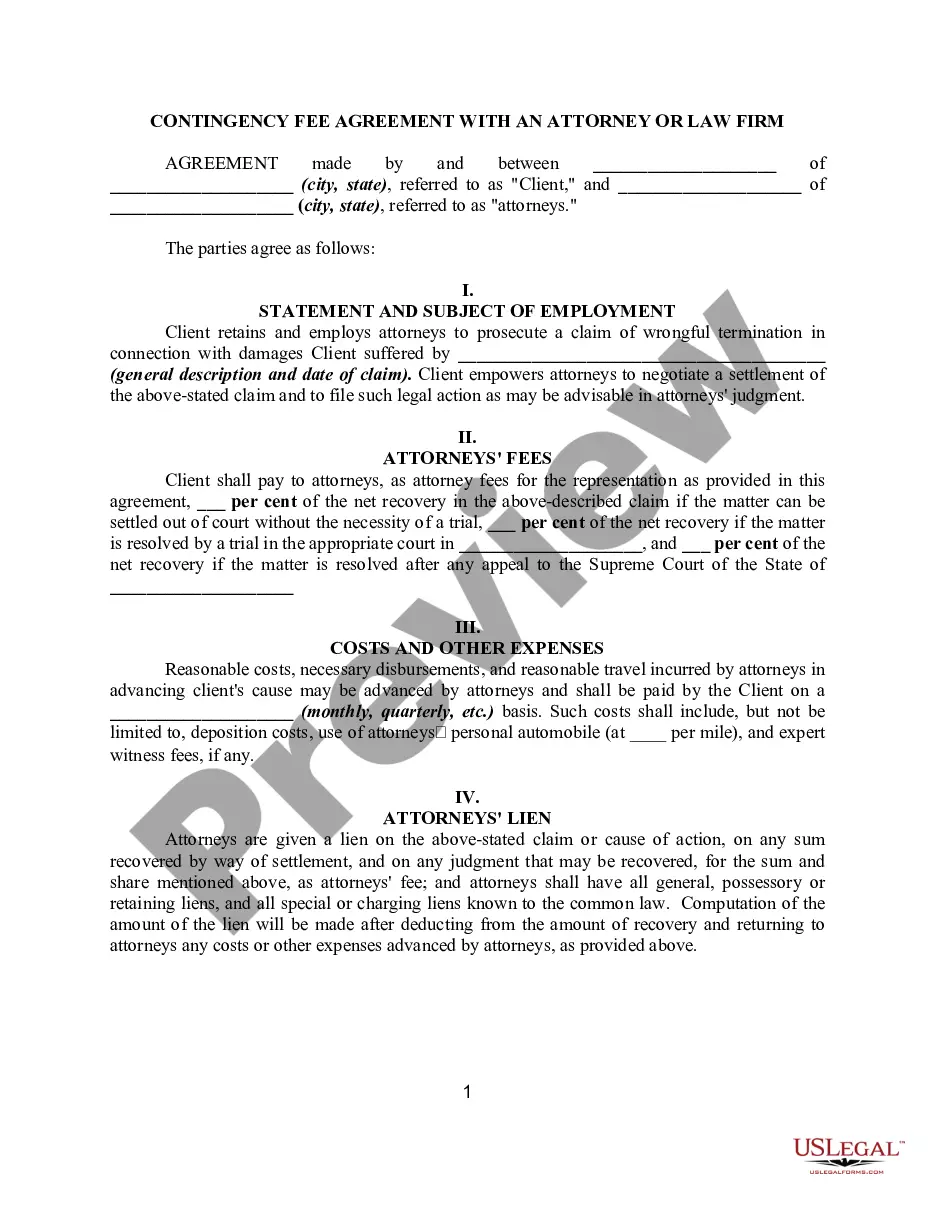






How to fill out Special Needs Irrevocable Trust Agreement For Benefit Of Disabled Child Of Trustor?
- If you’re a returning user, log in to your account to access the download button. Ensure your subscription is up-to-date; if it's expired, renew your plan accordingly.
- For first-time users, begin by browsing the document library. Check the preview and description to confirm you've selected the appropriate form that aligns with your local jurisdiction.
- Should you not find the right document, utilize the Search bar at the top to locate the correct template. Once found, move on to the next step.
- Proceed to purchase the document. Click the Buy Now button and select your preferred subscription plan. You'll need to create an account to access the full library.
- Complete your purchase by entering your payment information, either via credit card or PayPal.
- Download the form directly to your Mac for completion. You can also retrieve it anytime from the My Forms section of your profile.
US Legal Forms is designed to empower users by offering a robust collection of forms and the support of premium experts to ensure each document is legally sound. This easy-to-use service stands out with more forms available at similar costs compared to competitors.
In conclusion, obtaining your Special Trust Trustor download for Mac is a straightforward process. Take advantage of US Legal Forms' extensive offerings and expert support to meet your legal needs today!
Form popularity
FAQ
To add an SSL certificate on your Mac, start by launching Keychain Access and selecting the certificate file you wish to add. Use the 'File' menu to import it into your system’s keychain. This process is essential to enable secure connections for applications you might download, such as the Special trust trustor for Mac, enhancing your overall security.
Creating a new SSL certificate on your Mac is straightforward. Use the Keychain Access app to navigate to the 'Certificate Assistant' and choose to create a new certificate. Follow the prompts to finalize your certificate, ensuring that it can be effectively used during processes like the Special trust trustor download for Mac, reinforcing the security of your downloads.
To allow downloads from unidentified developers on your Mac, open 'System Preferences' and navigate to 'Security & Privacy.' There, under the 'General' tab, you can modify your settings to accept applications downloaded from 'Anywhere.' This step is crucial when you download the Special trust trustor for Mac to ensure you do not face restrictions during the installation process.
Adding an SSL certificate typically involves generating a new certificate signing request and submitting it to a certificate authority. Once you receive the SSL certificate, you will need to install it on your server or local environment. For users exploring the Special trust trustor download for Mac, ensure your SSL setup is seamless to maintain security during file transfers and downloads.
To add an SSL certificate on your Mac, first open the Keychain Access application. Then, navigate to the 'File' menu and choose 'Import Items' to select your SSL certificate file. This process ensures the certificate is properly recognized by your system, allowing smooth functionality like the Special trust trustor download for Mac. Finally, remember to adjust any settings in your web server to utilize the newly added certificate.
You can indeed download the trust wallet on a Mac. This process is straightforward and provides you with secure access to your digital assets. When you search for the special trust trustor download for mac, you will find the latest version of the trust wallet optimized for Mac systems. Utilizing uslegalforms can further enhance your experience by providing essential documents tailored to your needs.
To change your download settings on a Mac, go to Safari and open Preferences. Under the General tab, you’ll find options for where to save downloaded files and how to handle them. By adjusting these settings, you can streamline your downloading process, especially for important files like the Special trust trustor download for mac.
To trust a download on your Mac, you need to open the Security & Privacy settings under System Preferences. If a file is blocked, you will see an option to allow it. Click 'Open Anyway' next to the message regarding the file, allowing you to proceed with your essential downloads, including the Special trust trustor download for mac.
To make your Mac trust downloads, first confirm that you are allowing applications from identified developers in System Preferences, under Security & Privacy. Additionally, ensure that your software is up to date, which can prevent issues when downloading trusted files. This process helps ensure that downloads like the Special trust trustor download for mac are handled securely.
If you encounter untrusted software on your Mac, navigate to System Preferences, then Security & Privacy. Here, you can see identified developers and select 'Allow Anyway' for the application you wish to trust. This process can be particularly useful when working with the Special trust trustor download for mac, ensuring a smooth installation.