Special Trust Disabled Draft With Copilot
Description
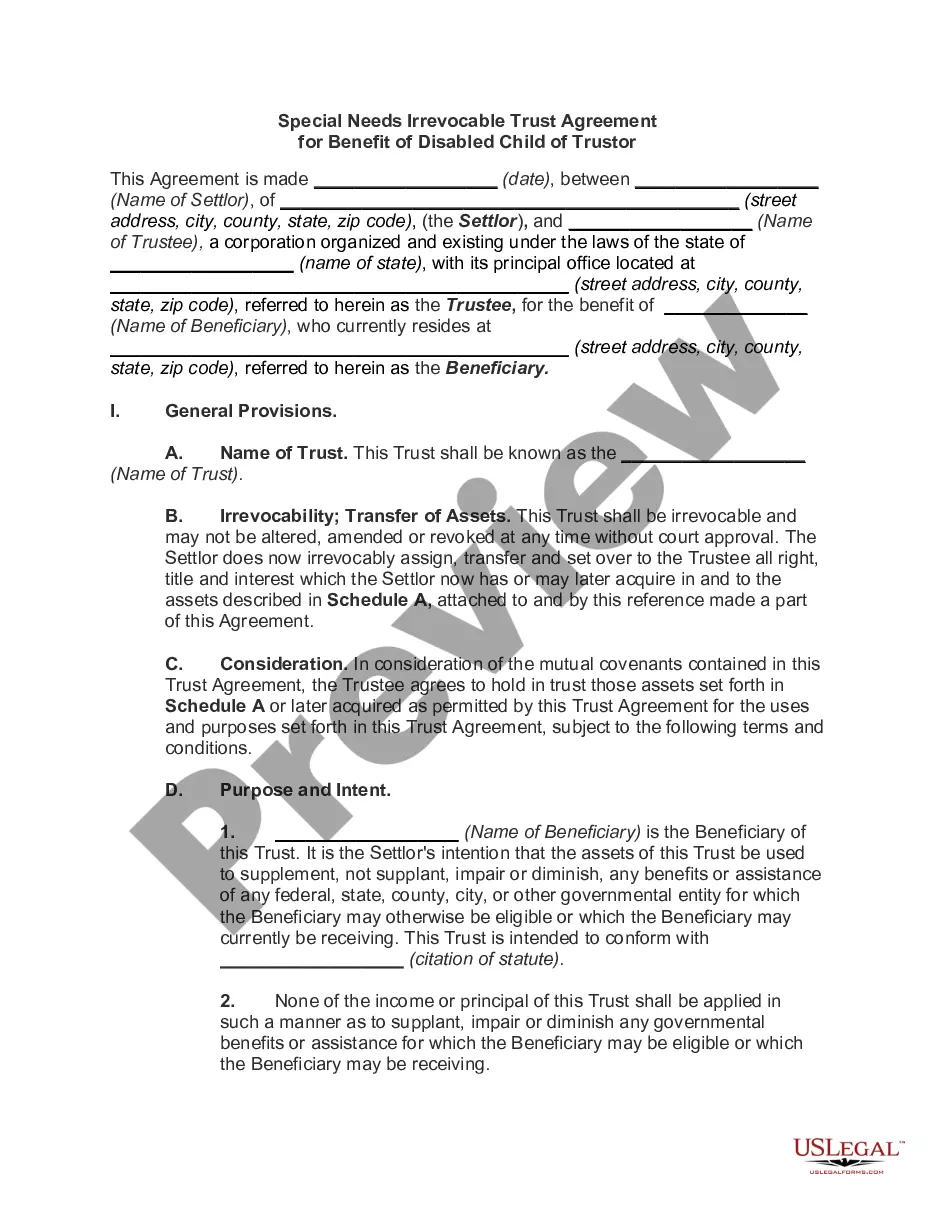
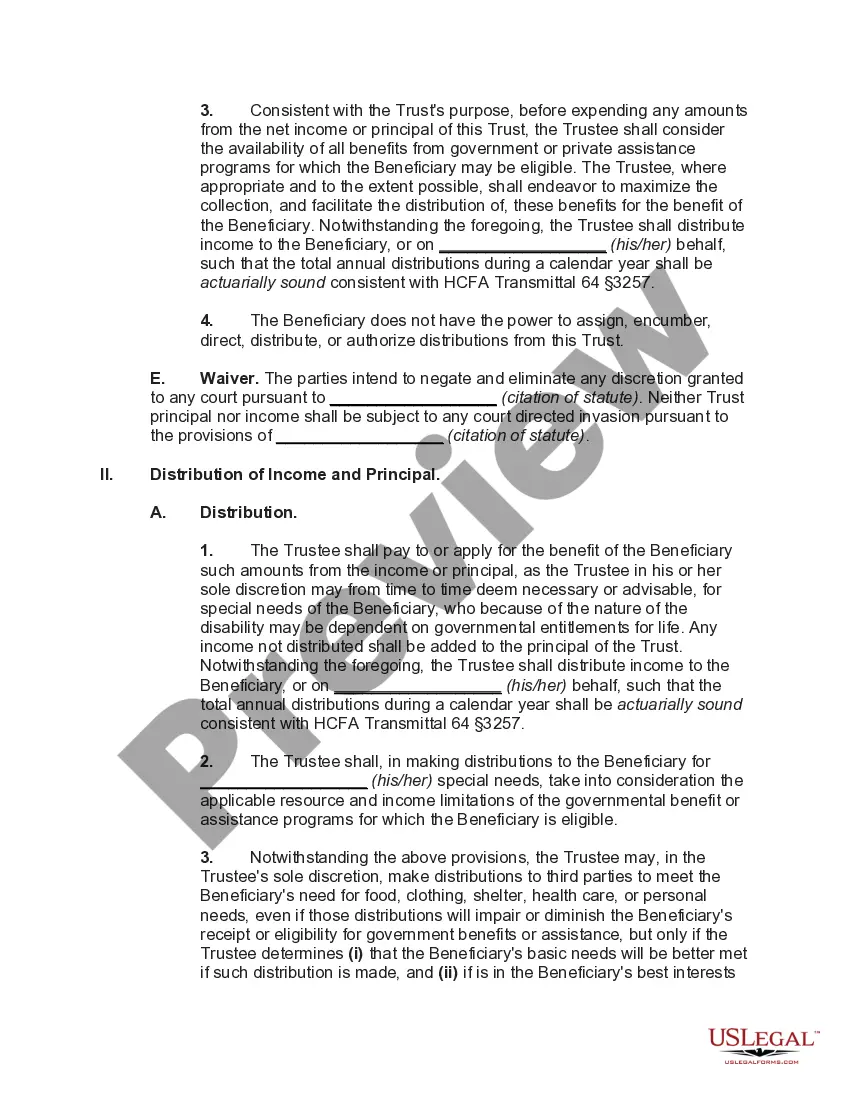
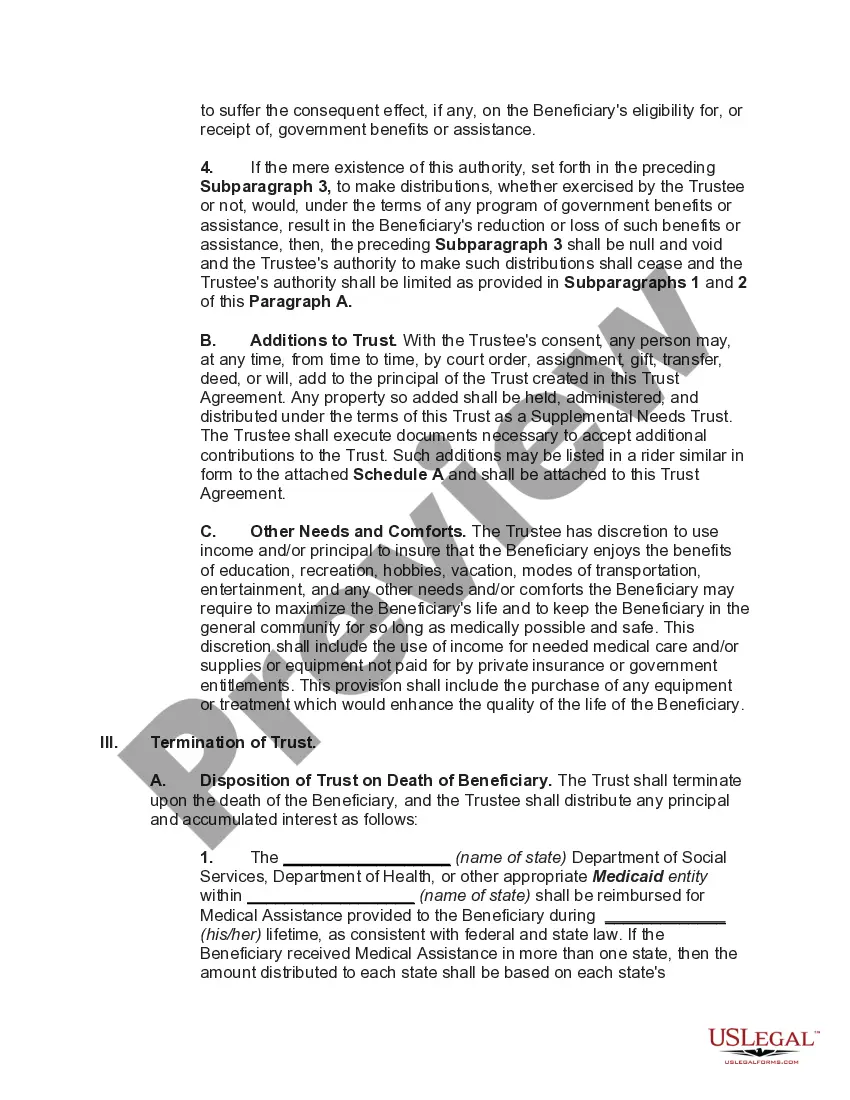
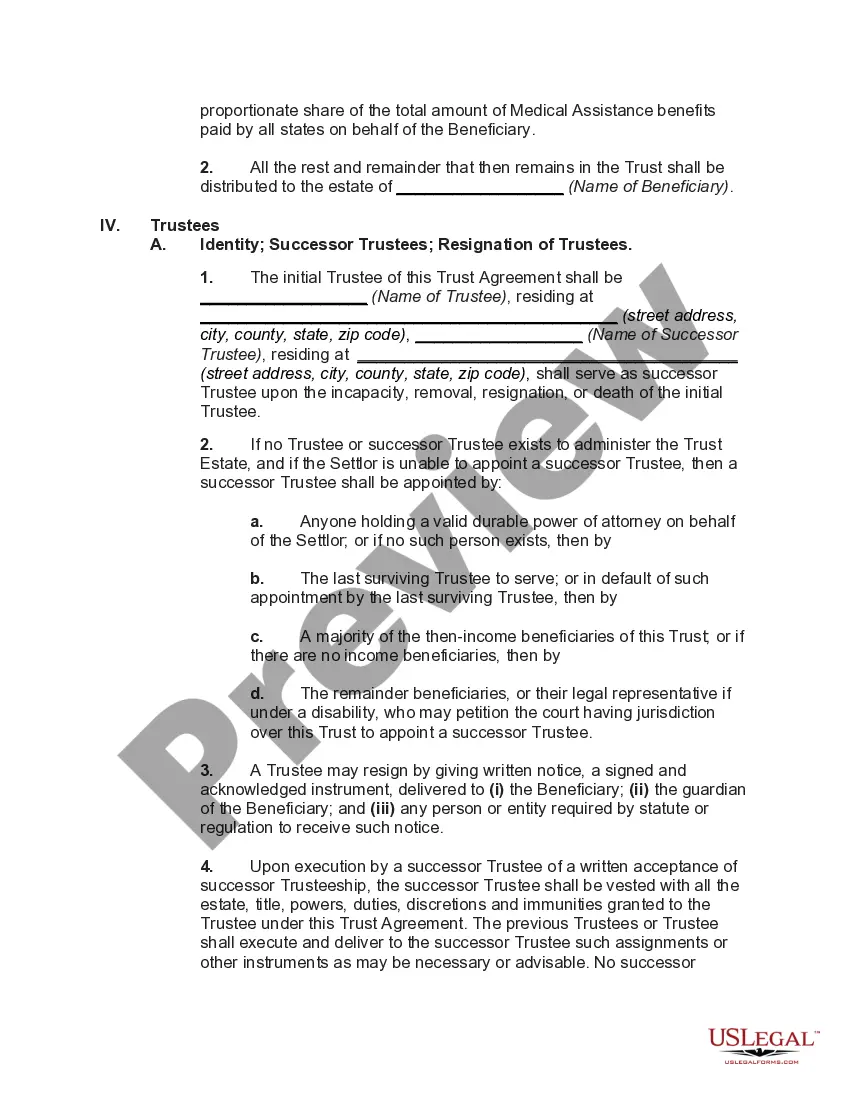
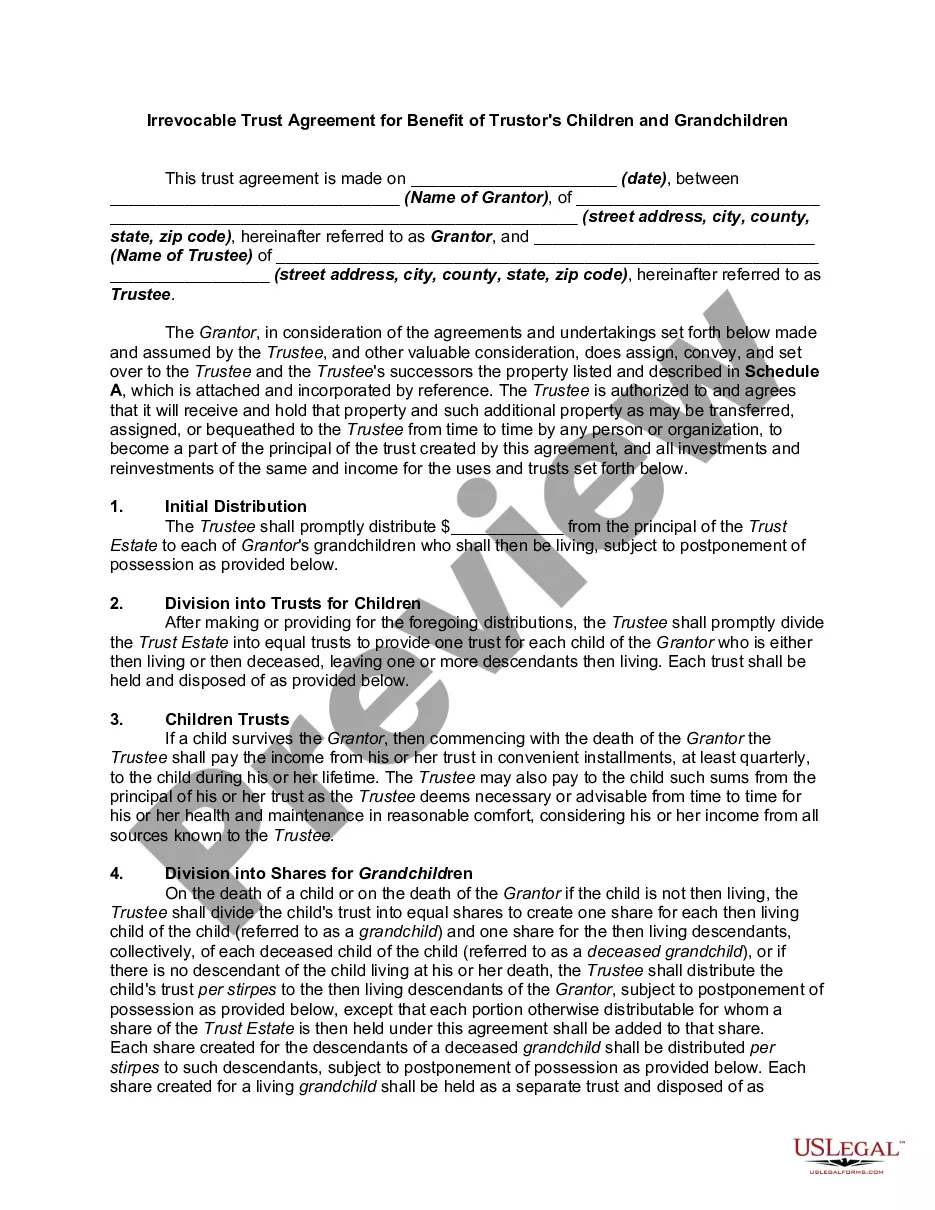
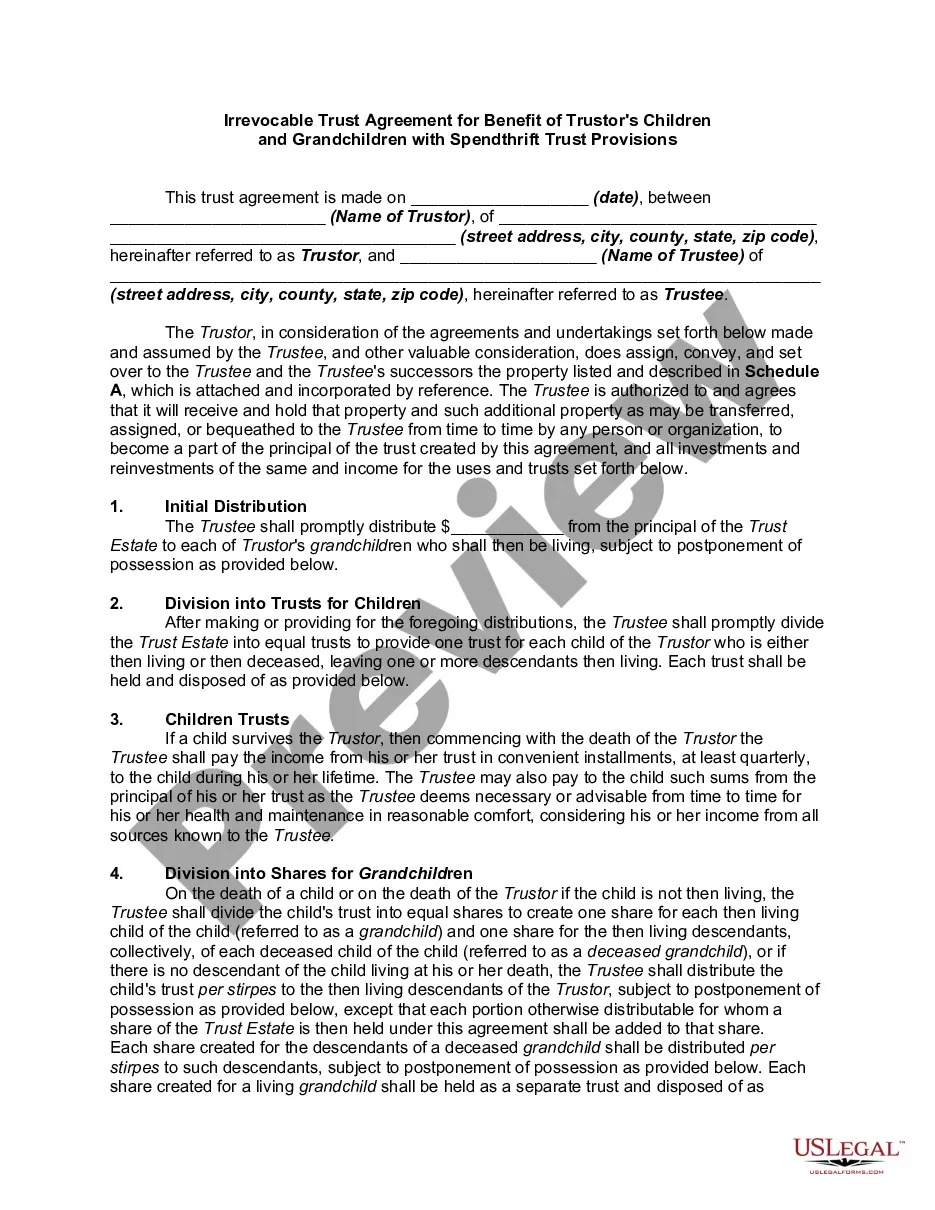
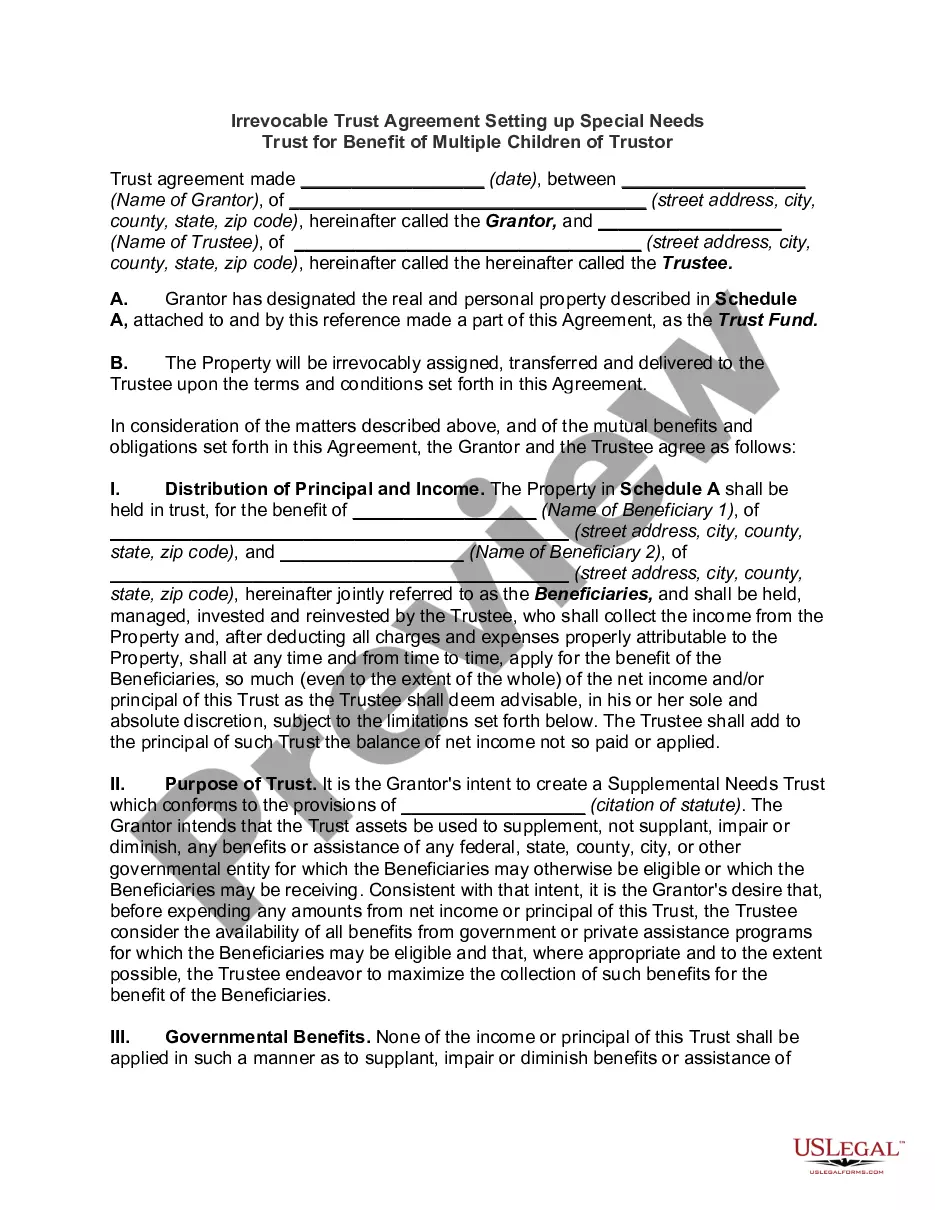
Get your form ready online
Our built-in tools help you complete, sign, share, and store your documents in one place.
Make edits, fill in missing information, and update formatting in US Legal Forms—just like you would in MS Word.
Download a copy, print it, send it by email, or mail it via USPS—whatever works best for your next step.
Sign and collect signatures with our SignNow integration. Send to multiple recipients, set reminders, and more. Go Premium to unlock E-Sign.
If this form requires notarization, complete it online through a secure video call—no need to meet a notary in person or wait for an appointment.
We protect your documents and personal data by following strict security and privacy standards.

Make edits, fill in missing information, and update formatting in US Legal Forms—just like you would in MS Word.

Download a copy, print it, send it by email, or mail it via USPS—whatever works best for your next step.

Sign and collect signatures with our SignNow integration. Send to multiple recipients, set reminders, and more. Go Premium to unlock E-Sign.

If this form requires notarization, complete it online through a secure video call—no need to meet a notary in person or wait for an appointment.

We protect your documents and personal data by following strict security and privacy standards.
Looking for another form?



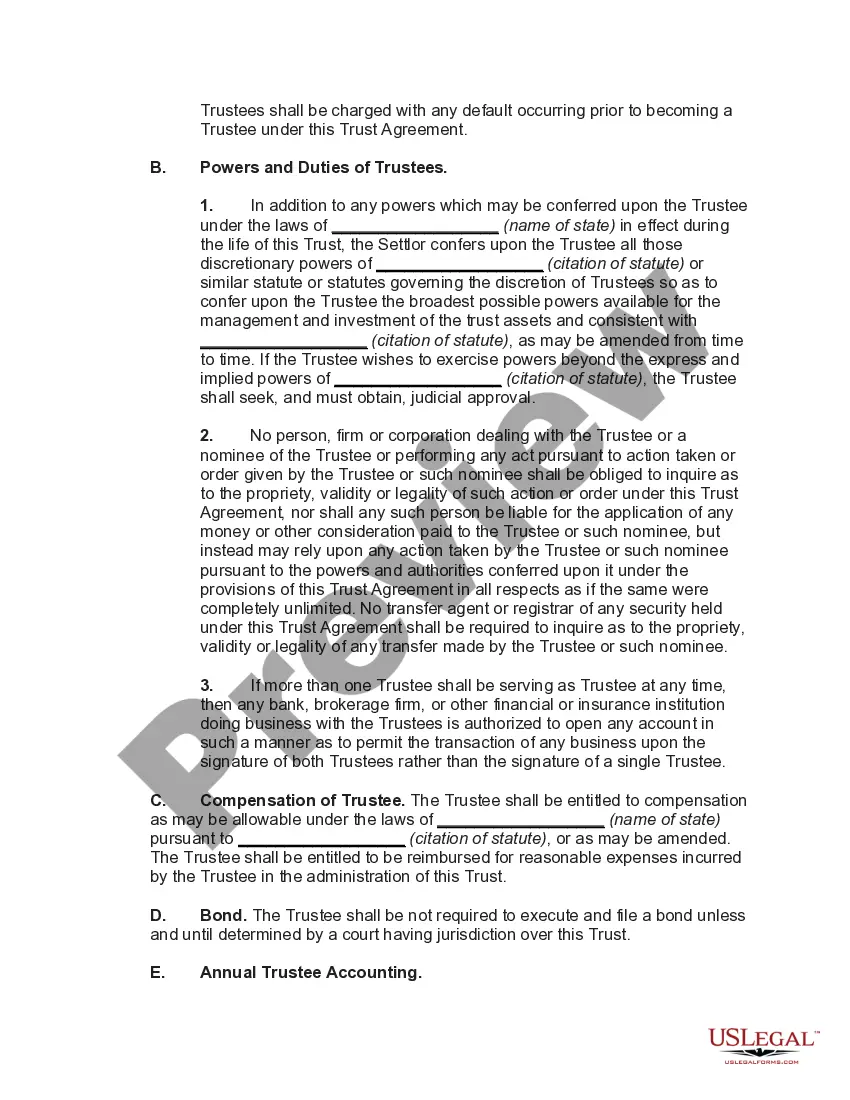
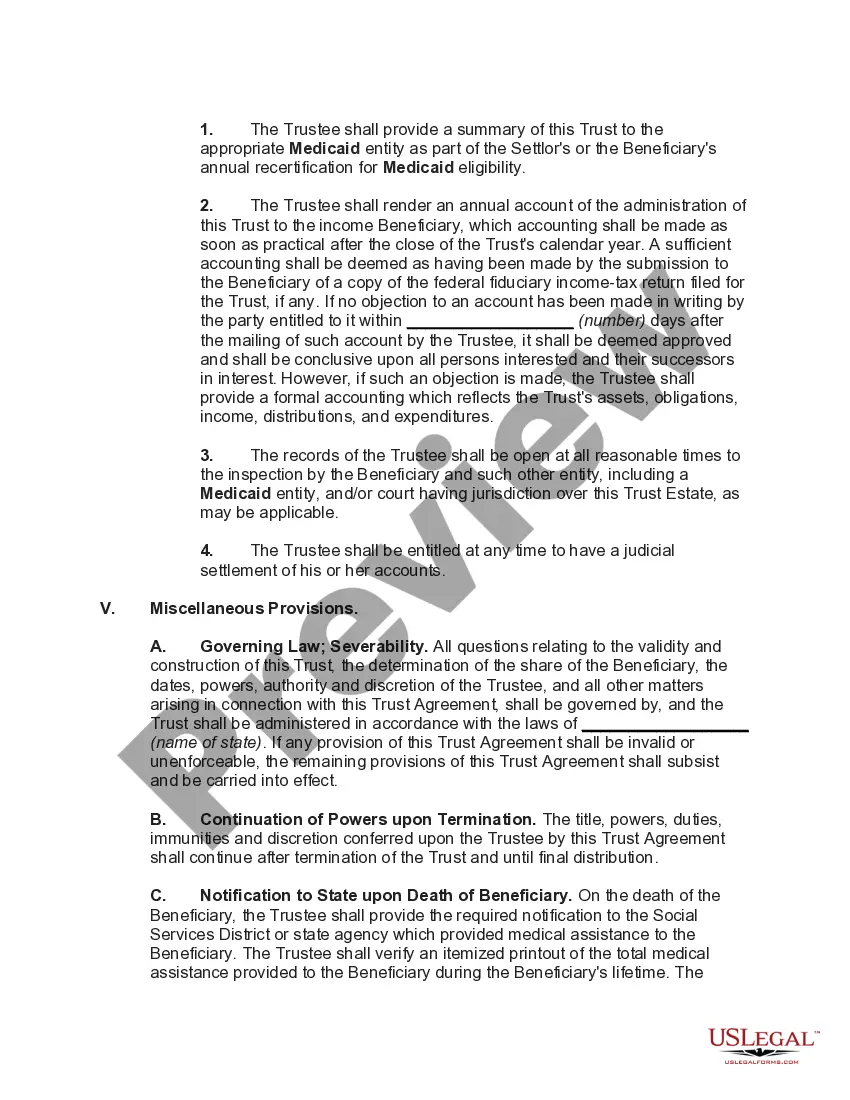
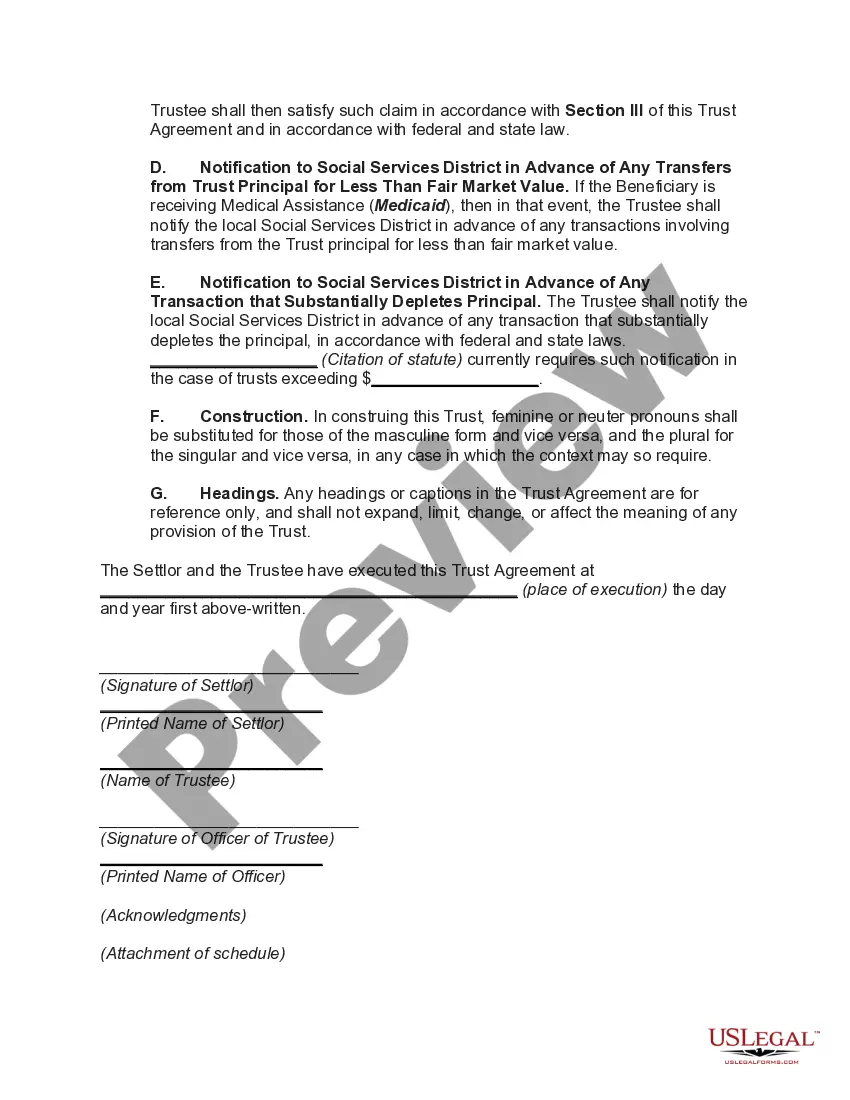
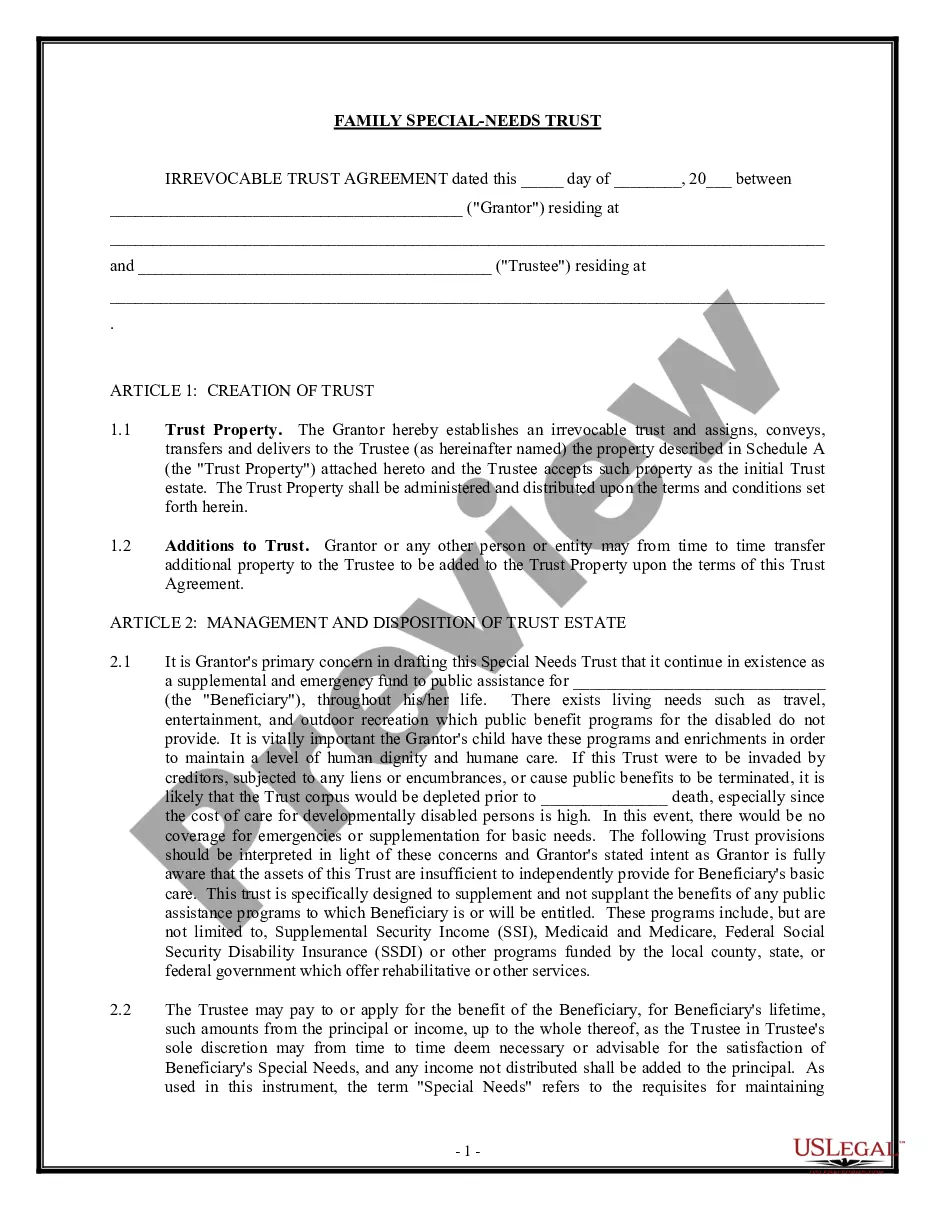
How to fill out Special Needs Irrevocable Trust Agreement For Benefit Of Disabled Child Of Trustor?
- Visit the US Legal Forms website and log into your account. Ensure your subscription is active; if not, take a moment to renew it directly.
- Browse through the form collection and utilize the Preview mode to familiarize yourself with the special trust disabled draft template that meets your needs.
- If you don’t find the exact template, utilize the Search function for more relevant results tailored to your jurisdiction.
- Once you've found your necessary document, click on the Buy Now button. Choose the subscription plan that best suits your needs, and create an account to access the extensive library.
- Proceed to make your payment via credit card or PayPal to finalize your subscription.
- After purchase, download your form directly to your device, and access it anytime through the My Forms section in your profile.
With US Legal Forms, you benefit from a robust collection of forms, helping you quickly generate legally sound documents. The platform also connects you with legal experts for additional guidance, ensuring accuracy in your forms.
Now that you understand how to obtain your special trust disabled draft, start your legal journey with US Legal Forms today and experience our comprehensive solutions!
Form popularity
FAQ
When we refer to 'copilot protected' in the context of a special trust disabled draft with copilot, we mean that this feature offers an additional layer of security and guidance throughout the document preparation process. This protection ensures that your draft complies with current regulations and provides you with real-time suggestions, making it easier to create a precise and legally sound document. By utilizing the copilot tool on the US Legal Forms platform, you benefit from user-friendly assistance, making the complex task of drafting a special trust simpler and more reliable.
Removing draft mode in Word is straightforward. Simply go to the 'File' menu, click on 'Options', and then select 'Advanced'. Under the 'Show document content' section, you can uncheck the box that indicates draft mode is active. This adjustment helps maintain a clean document appearance without distractions, aligning with the special trust disabled draft with copilot objectives.
To turn off the draft mode in Power Apps with Copilot, start by opening your app in edit mode. From the settings menu, locate the option for featuring draft mode, and turn it off. This will allow your app to operate without draft interruptions, promoting a smoother user experience that reflects the principles behind special trust disabled draft with copilot.
Getting rid of the draft created with Copilot in Word requires a few simple steps. First, open your document and access the 'Editing' pane. You can either clear the draft content or finalize your edits. By doing so, you eliminate any unnecessary drafts while ensuring compliance with the special trust disabled draft with copilot regulations.
To remove a draft created with Copilot in Word, begin by navigating to the document containing the draft. Look for the 'Review' tab and select 'Restrict Editing'. From here, you can disable features that allow editing and remove the draft. This action will help you maintain your document integrity while ensuring that the special trust disabled draft with copilot is effectively managed.
Applying zero trust principles to Microsoft Copilot for Microsoft 365 involves ensuring that all users and devices are authenticated and authorized before accessing resources. Implementing strong identity verification measures and continuously monitoring user behavior are essential aspects. Additionally, you should limit access to sensitive information based on user roles and data sensitivity. By following these steps, you create a secure environment that aligns with the special trust disabled draft with copilot concept.
Removing a draft with Copilot in Word is simple. Open the document you wish to edit and locate the draft version you want to delete. Using the document management tools, select the draft and choose delete or remove. This process ensures you maintain a clean workspace, allowing you to focus on your special trust disabled drafts with Copilot without distractions.
To enable draft with Copilot in Outlook, ensure your software version supports this feature. Navigate to the settings menu and look for Copilot options under your tools. Once enabled, you can easily draft emails with added assistance, particularly for special trust disabled drafts with Copilot, enhancing clarity and effectiveness in your communication.
When drafting with Copilot and referencing a file, start by attaching the file you need. Then, type commands or questions related to the file in the Copilot interface. The AI can provide insights, summaries, or content based on the referenced material, making it easier to create informed special trust disabled drafts with Copilot. This feature enhances your productivity by streamlining your drafting process.
Enabling the draft folder in Outlook is a straightforward process. You need to navigate to the Folder pane and ensure that the Drafts folder is visible. If not, you can adjust your settings in the folder options. With your drafts organized, you can efficiently manage your special trust disabled drafts with Copilot for better email communication.