Recording With Teams
Description

Get your form ready online
Our built-in tools help you complete, sign, share, and store your documents in one place.
Make edits, fill in missing information, and update formatting in US Legal Forms—just like you would in MS Word.
Download a copy, print it, send it by email, or mail it via USPS—whatever works best for your next step.
Sign and collect signatures with our SignNow integration. Send to multiple recipients, set reminders, and more. Go Premium to unlock E-Sign.
If this form requires notarization, complete it online through a secure video call—no need to meet a notary in person or wait for an appointment.
We protect your documents and personal data by following strict security and privacy standards.
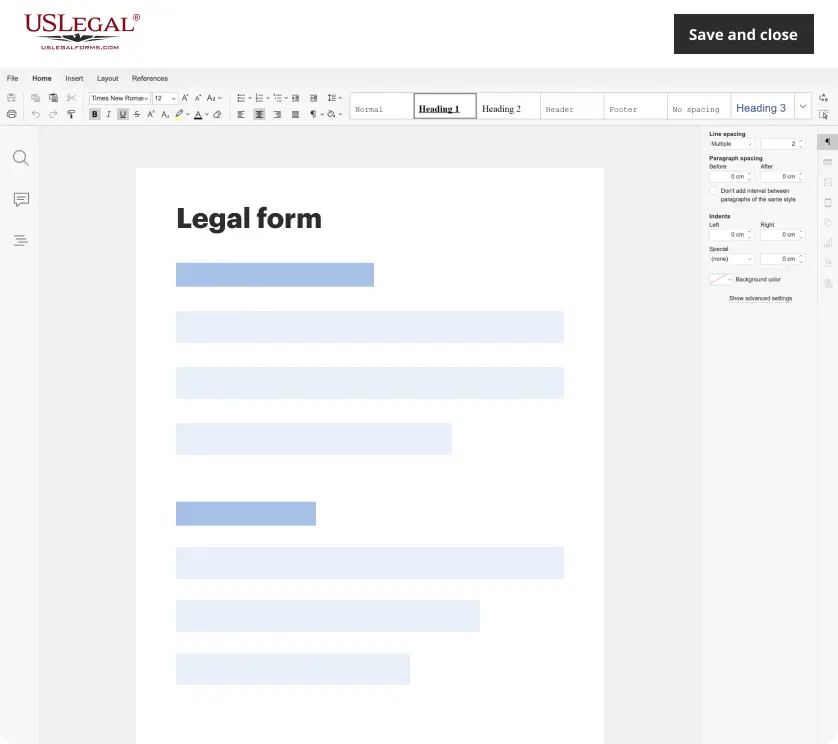
Make edits, fill in missing information, and update formatting in US Legal Forms—just like you would in MS Word.
Download a copy, print it, send it by email, or mail it via USPS—whatever works best for your next step.
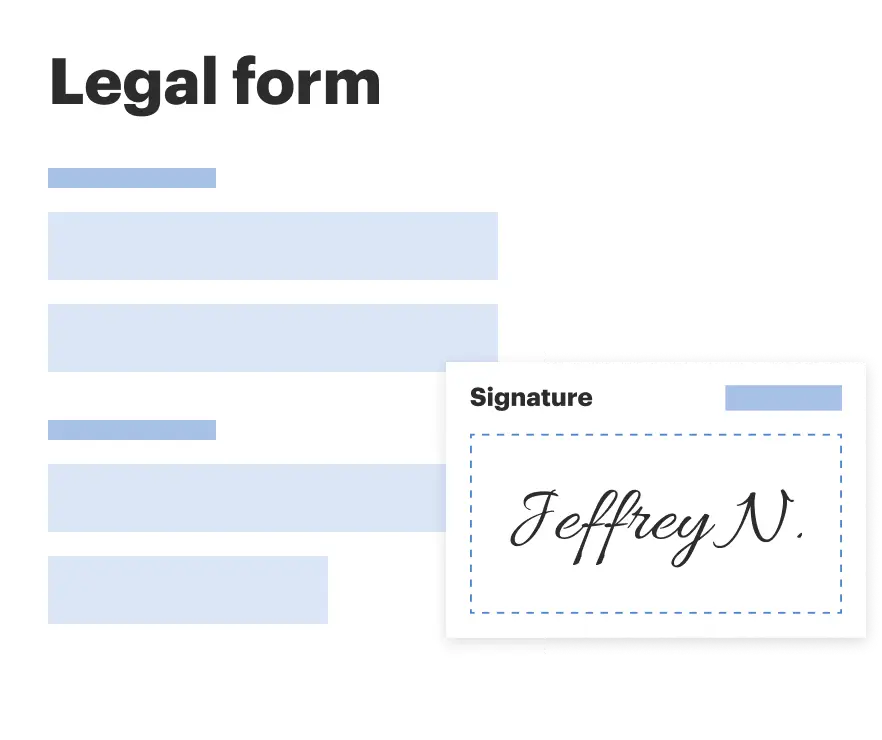
Sign and collect signatures with our SignNow integration. Send to multiple recipients, set reminders, and more. Go Premium to unlock E-Sign.
If this form requires notarization, complete it online through a secure video call—no need to meet a notary in person or wait for an appointment.
We protect your documents and personal data by following strict security and privacy standards.
Looking for another form?
How to fill out Sample Letter For Warranty Deed - Recordation In Courthouse?
The Recording With Teams you observe on this page is a reusable legal template crafted by professional attorneys in accordance with federal and local statutes and regulations.
For over 25 years, US Legal Forms has supplied individuals, businesses, and lawyers with more than 85,000 authenticated, state-specific forms for any business and personal event. It’s the quickest, simplest, and most dependable method to acquire the documents you require, as the service ensures bank-level data security and anti-malware safeguards.
Choose the format you prefer for your Recording With Teams (PDF, Word, RTF) and download the sample onto your device.
- Browse for the document you require and examine it.
- Look through the sample you searched and preview it or review the form description to ensure it meets your requirements. If it does not, make use of the search bar to locate the correct one. Click Buy Now when you have found the template you need.
- Subscribe and Log In.
- Select the pricing plan that fits you and create an account. Use PayPal or a credit card to make a quick payment. If you already possess an account, Log In and check your subscription to proceed.
- Obtain the fillable template.
Form popularity
FAQ
Using Teams to transcribe a recording is straightforward. After your recording with Teams is done, navigate to the meeting recording in Microsoft Stream. From there, you can enable transcription features, allowing you to generate a written document of the recorded audio. This transcription can enhance accessibility and provide a useful tool for those who prefer reading over listening.
To record yourself in Microsoft Teams, start by initiating or joining a meeting. Once you are in the meeting, click on 'More actions,' then select 'Start recording.' This allows Teams to capture both audio and video of your session. After your recording with Teams is complete, you can access it later for review or sharing, providing a valuable resource for future reference.
To finish recording with Teams, simply click on the 'More actions' button, represented by three dots, in the meeting controls. From the drop-down menu, select 'Stop recording.' This action will end your recording session, and Teams will automatically save the recording to Microsoft Stream or OneDrive, depending on your organization's settings. Make sure to notify participants that the recording has concluded, as this ensures transparency and respect for privacy.
Saving your MS Teams recording is straightforward. Once your meeting concludes, the recording gets stored in either Microsoft Stream or OneDrive, allowing you to access it later. You can find the recording in the meeting chat or in the relevant Teams channel. For additional assistance with managing your recordings, consider exploring resources on the US Legal Forms platform to streamline your process.
To save a Microsoft Teams recording, first, ensure the meeting is recorded. After the meeting ends, the recording will automatically be processed and saved to Microsoft Stream or OneDrive, depending on your organization's settings. You can access the recording in the chat or the meeting details. If you need to share the recording, you can easily do so by generating a shareable link.
Yes, you can record with Microsoft Teams, which is a straightforward process. Simply start your meeting, and select the recording option to begin capturing audio and video. This feature is particularly useful for training sessions, brainstorming meetings, or important discussions that require follow-up. By using US Legal Forms, you can ensure that your documentation is thorough and easily accessible.
You can record a Teams meeting even if you are not the host, provided your organization allows it. It's essential to check your permissions before attempting to record. This flexibility enables team members to capture discussions and presentations without relying solely on the host. Recording with Teams empowers everyone to contribute to better documentation of meetings.
When you record with Teams, the recordings are automatically saved to Microsoft Stream or OneDrive, depending on your organization’s settings. This makes it easy for participants to access and review the recordings later. You can also share these recordings with others, ensuring that valuable insights are never lost. Utilizing a platform like US Legal Forms can help you manage and document these recordings effectively.
Yes, Microsoft Teams does allow you to record meetings and presentations. This feature is beneficial for keeping a record of important discussions, ensuring that everyone stays informed. Recording with Teams helps you revisit key points and share the information with those who could not attend. You can easily start a recording directly within the app during your meeting.