Purchase Receipt On Sage
Description
Get your form ready online
Our built-in tools help you complete, sign, share, and store your documents in one place.
Make edits, fill in missing information, and update formatting in US Legal Forms—just like you would in MS Word.
Download a copy, print it, send it by email, or mail it via USPS—whatever works best for your next step.
Sign and collect signatures with our SignNow integration. Send to multiple recipients, set reminders, and more. Go Premium to unlock E-Sign.
If this form requires notarization, complete it online through a secure video call—no need to meet a notary in person or wait for an appointment.
We protect your documents and personal data by following strict security and privacy standards.

Make edits, fill in missing information, and update formatting in US Legal Forms—just like you would in MS Word.

Download a copy, print it, send it by email, or mail it via USPS—whatever works best for your next step.

Sign and collect signatures with our SignNow integration. Send to multiple recipients, set reminders, and more. Go Premium to unlock E-Sign.

If this form requires notarization, complete it online through a secure video call—no need to meet a notary in person or wait for an appointment.

We protect your documents and personal data by following strict security and privacy standards.
Looking for another form?




How to fill out Sales Receipt?
Handling legal documents and processes can be a lengthy addition to your entire day.
Purchase Receipt On Sage and similar forms usually require you to search for them and comprehend how to fill them out accurately.
Consequently, whether you are managing financial, legal, or personal issues, possessing a thorough and user-friendly online directory of forms when you need them will be very beneficial.
US Legal Forms is the premier online platform for legal templates, offering over 85,000 state-specific documents and an assortment of tools to help you complete your paperwork with ease.
Simply Log In to your account, find Purchase Receipt On Sage, and download it instantly from the My documents tab. You can also access previously saved forms.
- Browse the collection of relevant documents accessible to you with just one click.
- US Legal Forms provides state- and county-specific forms available at any time for download.
- Safeguard your document management processes by utilizing a superior service that enables you to create any form within minutes without additional or hidden fees.
Form popularity
FAQ
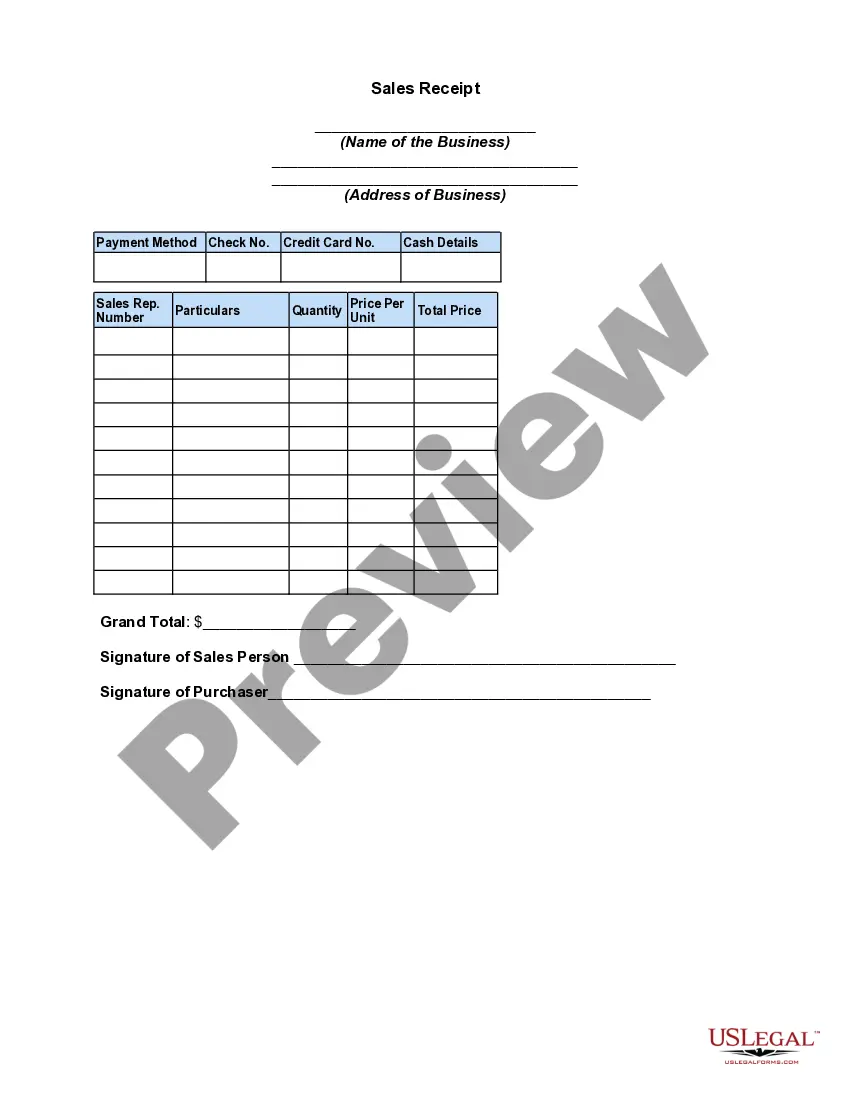
To put receipts on Sage, you first need to gather your purchase documents and ensure they are organized. Next, log into your Sage account and navigate to the receipts section within your accounting module. Once there, use the upload feature to add your purchase receipt on Sage by selecting the file from your device. Make sure to double-check the details for accuracy before saving, ensuring your financial records are up-to-date and precise.
To enter a purchase receipt on Sage, start by accessing the purchase module within the software. You will need to choose the option to create a new receipt and then input the relevant details, including the vendor's information, item descriptions, quantities, and amounts. Make sure to save the entry once you've confirmed all details are accurate. This process streamlines your accounting records and enhances your overall financial management.
Creating a receipt on Sage is a straightforward process that begins in the receipts module. Simply select the option to create a new receipt, then enter your details including the payment method and relevant transaction information. Once you've reviewed everything for accuracy, save your purchase receipt on Sage for future reference. This feature not only streamlines your accounting tasks but also helps maintain a clear financial overview.
You can easily capture receipts in Sage by using its built-in features designed for this task. Start by navigating to the section that handles receipts, then input the necessary details such as amounts, dates, and related accounts. Once you've entered this information, save the purchase receipt on Sage to keep your financial records accurate and organized. This process simplifies your bookkeeping and ensures that all your expenses are properly documented.
Supplier purchase receipt (refund) Open: Suppliers > Enter Transactions > Purchase Receipt. Open: Cash Book > Enter Transactions > Purchase Receipt. Note: Use either of the Purchase Receipt options in the menu, there is no difference between them. Open: Suppliers > Enter Transactions > Purchase Receipt.
Sage 50 Accounts (UK) - Purchase orders - YouTube YouTube Start of suggested clip End of suggested clip So that defaults to the current programmed it will just accept that for this example. And then weMoreSo that defaults to the current programmed it will just accept that for this example. And then we need to specify the supplier that were ordering. From. So we can select them from the drop down.
Open: Purchase Order Processing > Order Processing > Record Purchase Invoices. Enter the invoice details: Supplier Account: Select the supplier account and the required purchase orders. Invoice date: Enter an invoice date.
To help you keep track of money coming in and manage your cash flow it's important that you record your customer receipts in Sage 50 Accounts. Go to Bank accounts or Customers then click Customer receipt. Complete the Customer Receipt window as follows: Bank Details - Read more > Account Ref. ... Click Save then click Close.
How to Record a Bill or Purchase Invoice Supplier: The name of your supplier. ... ID: A unique number for your records. Supplier Inv. ... Date: The date on the purchase invoice. Qty: The quantity of goods or services provided (e.g. 15 kilograms or 8 hours) Description: A description of the goods or services provided.