Blank Template
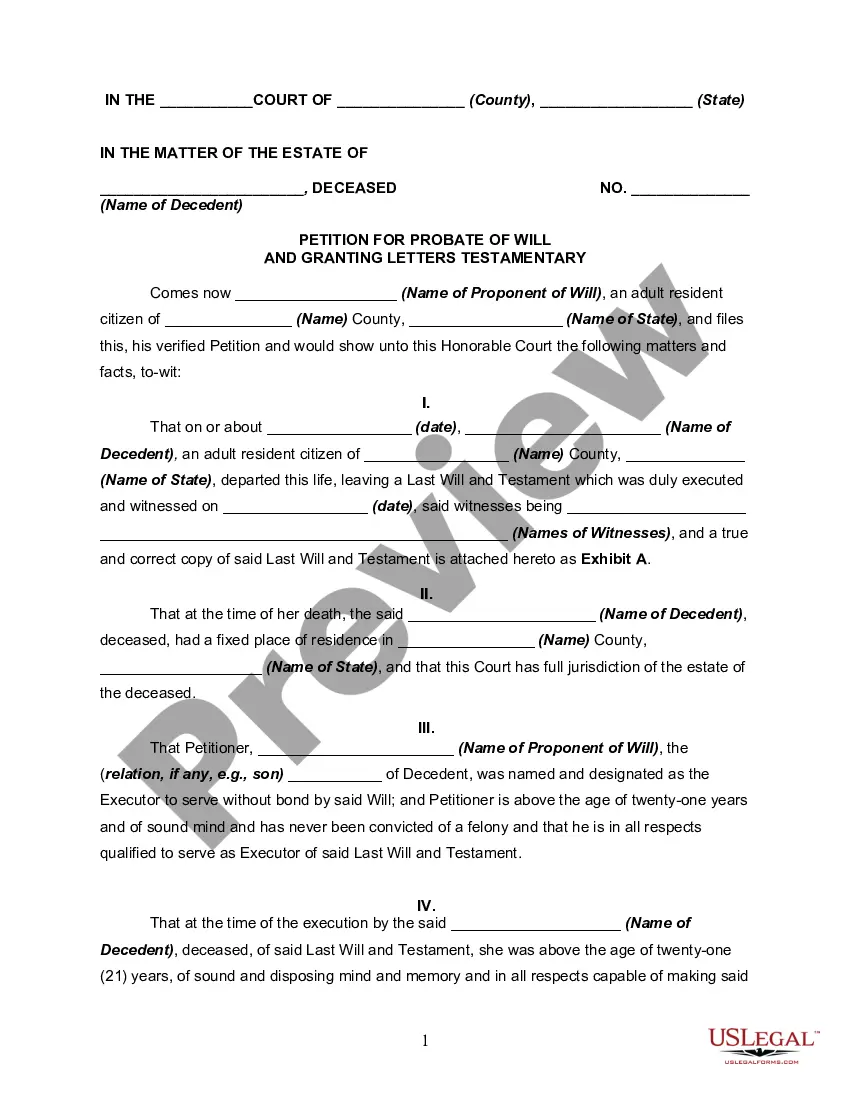
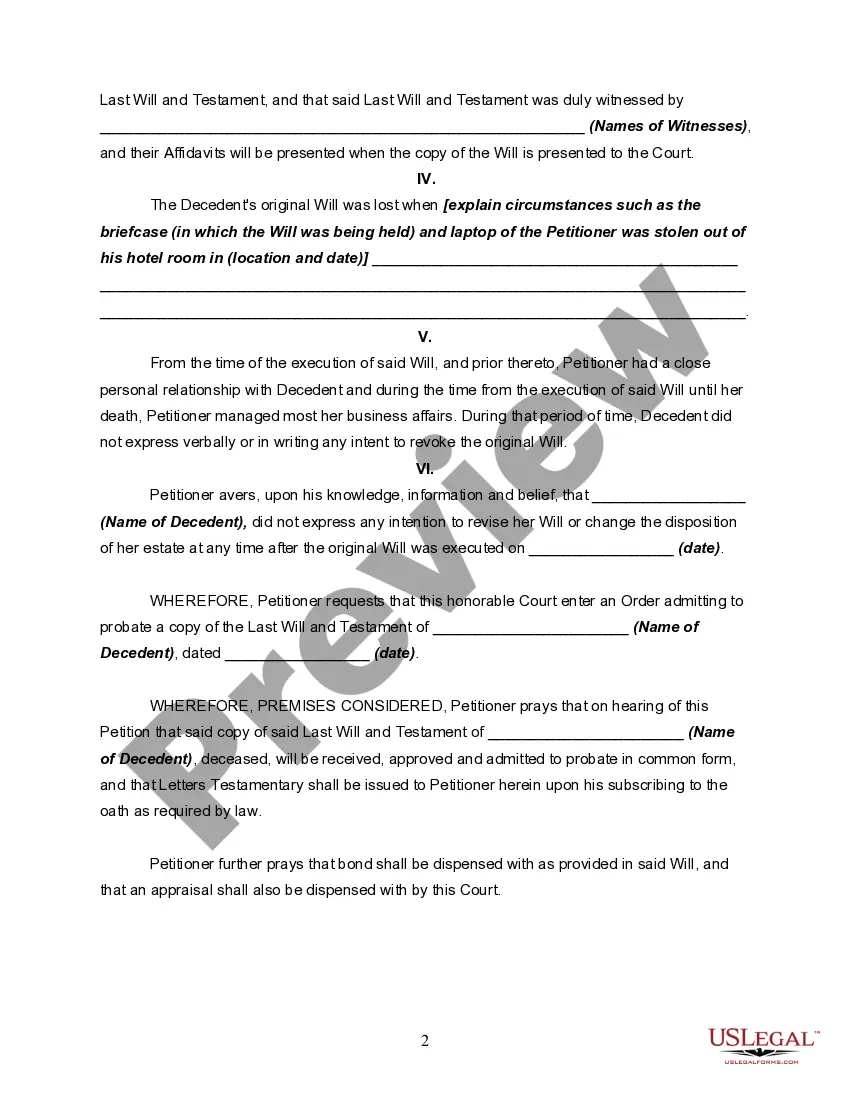
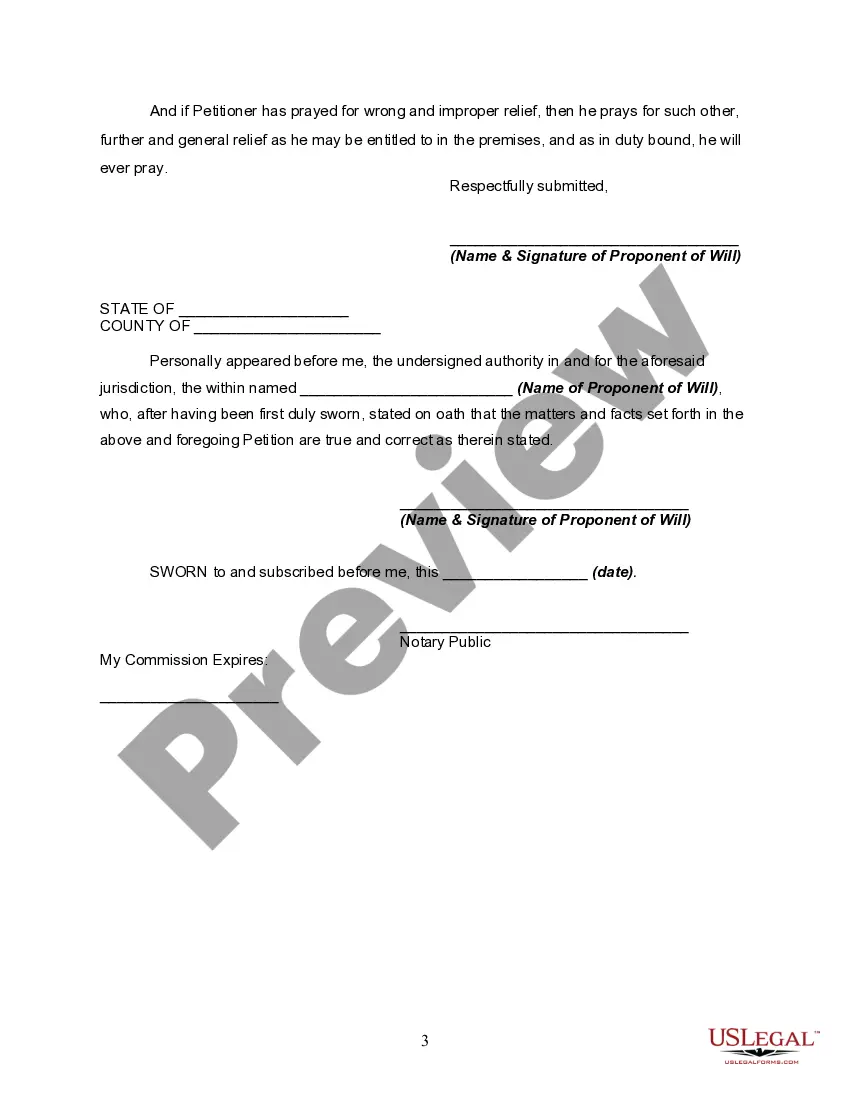
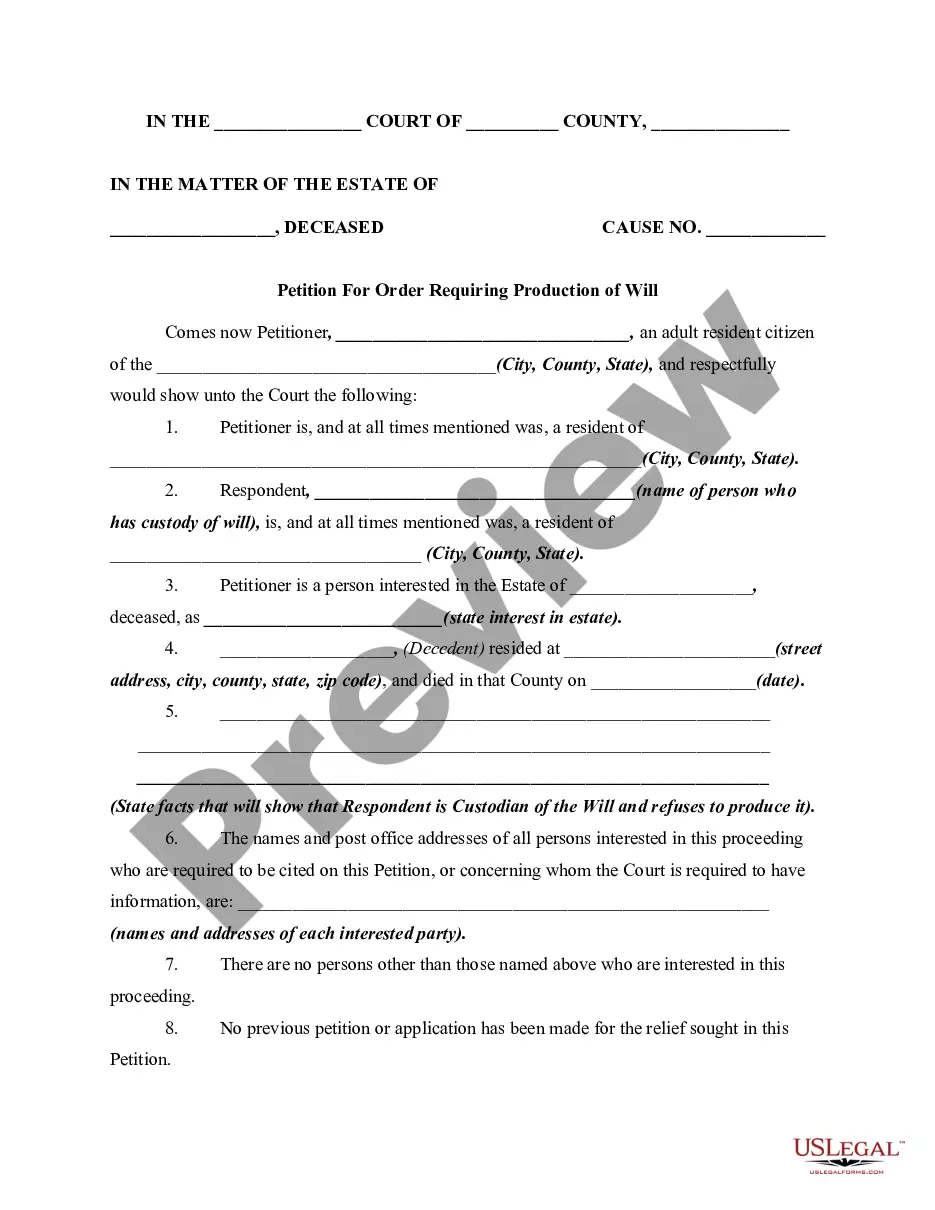
Description
Get your form ready online
Our built-in tools help you complete, sign, share, and store your documents in one place.
Make edits, fill in missing information, and update formatting in US Legal Forms—just like you would in MS Word.
Download a copy, print it, send it by email, or mail it via USPS—whatever works best for your next step.
Sign and collect signatures with our SignNow integration. Send to multiple recipients, set reminders, and more. Go Premium to unlock E-Sign.
If this form requires notarization, complete it online through a secure video call—no need to meet a notary in person or wait for an appointment.
We protect your documents and personal data by following strict security and privacy standards.

Make edits, fill in missing information, and update formatting in US Legal Forms—just like you would in MS Word.

Download a copy, print it, send it by email, or mail it via USPS—whatever works best for your next step.

Sign and collect signatures with our SignNow integration. Send to multiple recipients, set reminders, and more. Go Premium to unlock E-Sign.

If this form requires notarization, complete it online through a secure video call—no need to meet a notary in person or wait for an appointment.

We protect your documents and personal data by following strict security and privacy standards.
Looking for another form?
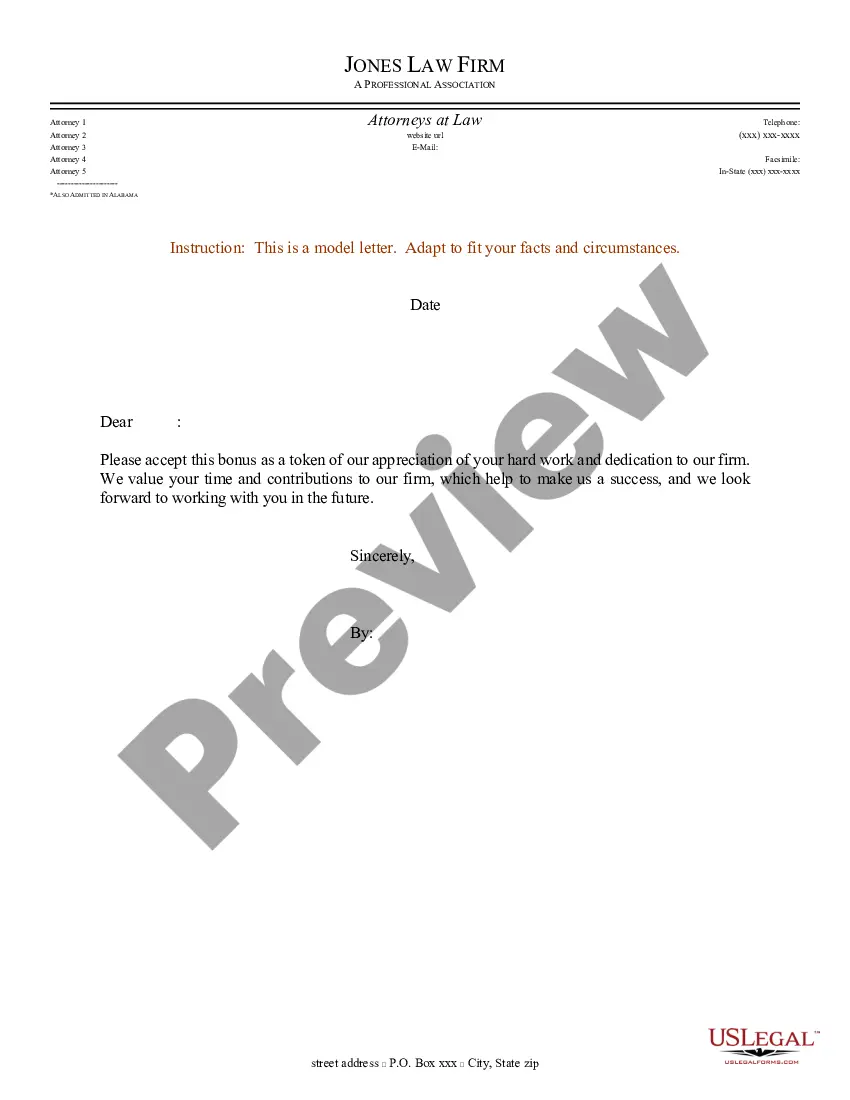


How to fill out Petition To Probate Lost Will?
- Log in to your account at US Legal Forms. If you are a first-time user, create an account before proceeding.
- Browse the extensive library of over 85,000 legal forms and check the preview for necessary details to ensure it fits your requirements.
- If you don’t find what you need, use the search feature to find the perfect template that complies with your jurisdiction.
- Select the desired document and click the 'Buy Now' button. Review the subscription plans available to choose one that suits your needs.
- Complete your purchase by providing the necessary payment details, using either a credit card or your PayPal account.
- Download the blank template directly to your device to fill it out, and access it anytime from the 'My Forms' section in your profile.
In conclusion, US Legal Forms is an empowering platform that allows individuals and attorneys alike to easily access a vast array of legal documents. With the right blank template in hand, you can ensure that your legal needs are met effectively and efficiently.
Start your journey with US Legal Forms today and explore the benefits of having reliable legal templates at your fingertips!
Form popularity
FAQ
To obtain a blank label template in Word, open Microsoft Word and go to the 'Mailings' tab. From there, select 'Labels' and then click on 'Options' to choose your label type. Next, pick a blank template that suits your needs, and you can easily customize it by adding your text or graphics. This process allows you to create personalized labels efficiently using the versatile blank template available.
File formats can generally be categorized into four main types: document formats, image formats, audio formats, and video formats. Document formats, like .docx and .pdf, are used for texts and templates. Image formats include .jpg and .png, while audio formats might include .mp3 and .wav. Understanding these formats can help you choose the right type for your blank template or project.
The .docx file extension is actually the standard format for Microsoft Word documents, not specifically for templates. However, you can use a .docx file to create a new blank template by saving it as a .dotx file. Remember, the distinction between these formats ensures clear organization for your documents and templates alike.
Creating a fill-in-the-blank template in Word involves designing a layout that prompts users to enter specific information. Start by opening a new document and formatting it as needed. Use placeholders, such as lines or boxes, to indicate where the user should fill in information. Save this document as a blank template to reuse it easily.
The file format for a template can differ depending on the software used. For example, Microsoft Word utilizes the .dotx format for templates, while other applications may use different formats. Ensuring you save your blank template in the correct file format is important for maximizing compatibility.
To convert a file into a template, first open the file in your desired application. After making any necessary edits, go to 'File' and select 'Save As,' then choose the template file type from the options available. This process preserves your document as a reusable blank template, allowing for easy future access.
The file extension for a template varies based on the application you are using. For Microsoft Word, the standard template file extension is .dotx. It's essential to use the correct file extension to ensure your blank template functions properly and can be opened easily in compatible programs.
To save a blank template in Word, start by creating your document layout. After setting it up, click on 'File,' then select 'Save As.' Choose the location where you want to save it, and from the 'Save as type' dropdown menu, choose 'Word Template (.dotx).' This allows you to easily create new documents based on your blank template.
Completing a Word template requires opening the document and filling in the specified fields. Simply click on the areas designed for input and provide the necessary information. If you're using a blank template that includes fillable fields, this process becomes quick and efficient.
Creating a fill-in-blank form starts with drafting your content and clearly indicating where responses are required. You can utilize underscores, lines, or designated spaces for users to fill in. Make this process easier by saving your design as a blank template that others can fill out easily.