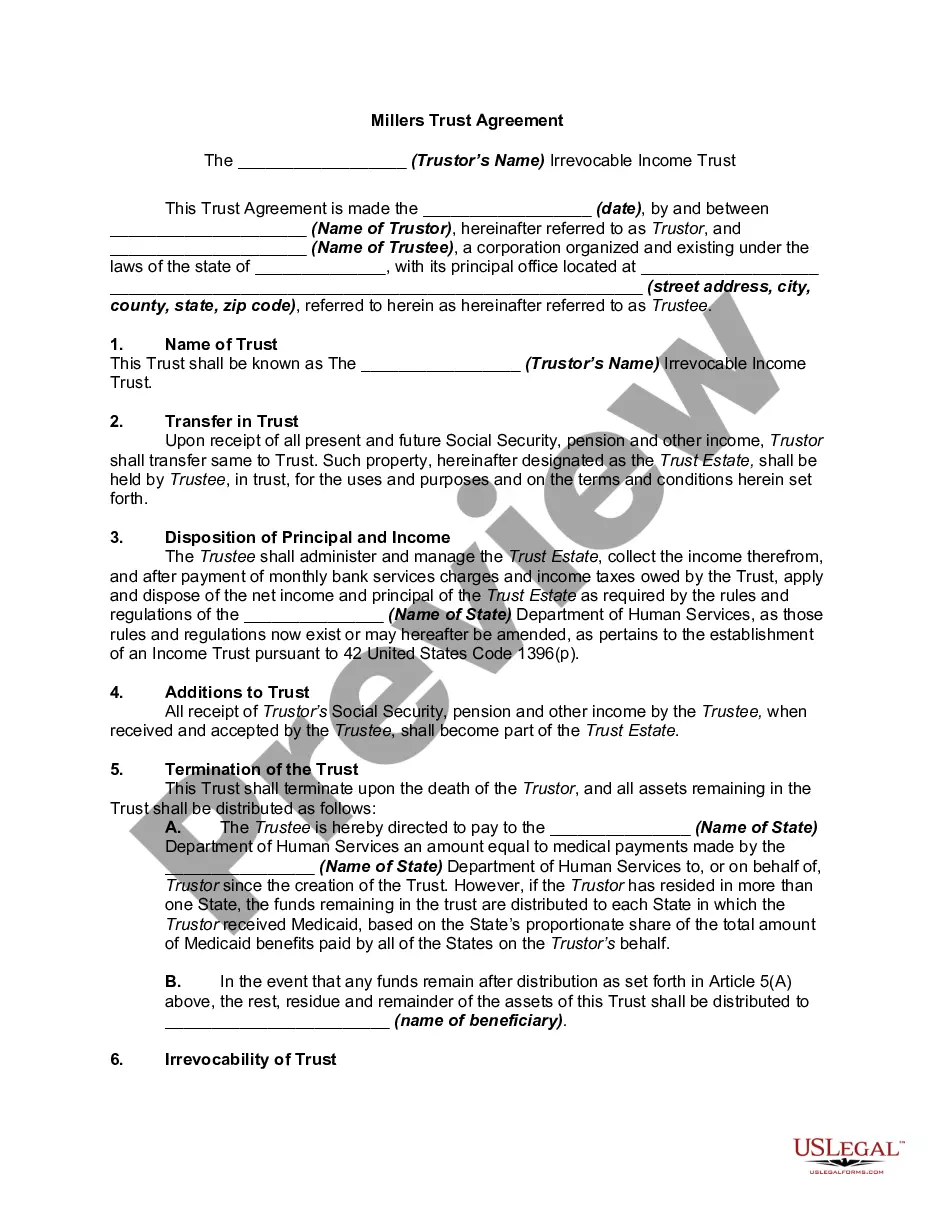
Miller Trust Fund For Elderly
Description
Get your form ready online
Our built-in tools help you complete, sign, share, and store your documents in one place.
Make edits, fill in missing information, and update formatting in US Legal Forms—just like you would in MS Word.
Download a copy, print it, send it by email, or mail it via USPS—whatever works best for your next step.
Sign and collect signatures with our SignNow integration. Send to multiple recipients, set reminders, and more. Go Premium to unlock E-Sign.
If this form requires notarization, complete it online through a secure video call—no need to meet a notary in person or wait for an appointment.
We protect your documents and personal data by following strict security and privacy standards.

Make edits, fill in missing information, and update formatting in US Legal Forms—just like you would in MS Word.

Download a copy, print it, send it by email, or mail it via USPS—whatever works best for your next step.

Sign and collect signatures with our SignNow integration. Send to multiple recipients, set reminders, and more. Go Premium to unlock E-Sign.

If this form requires notarization, complete it online through a secure video call—no need to meet a notary in person or wait for an appointment.

We protect your documents and personal data by following strict security and privacy standards.
Looking for another form?



How to fill out Qualified Income Miller Trust?
It’s well-known that you cannot transform into a legal expert instantly, nor can you swiftly understand how to draft the Miller Trust Fund For Elderly without having a specific expertise.
Producing legal documents is a lengthy endeavor that necessitates specialized education and abilities.
So why not delegate the creation of the Miller Trust Fund For Elderly to the experts.
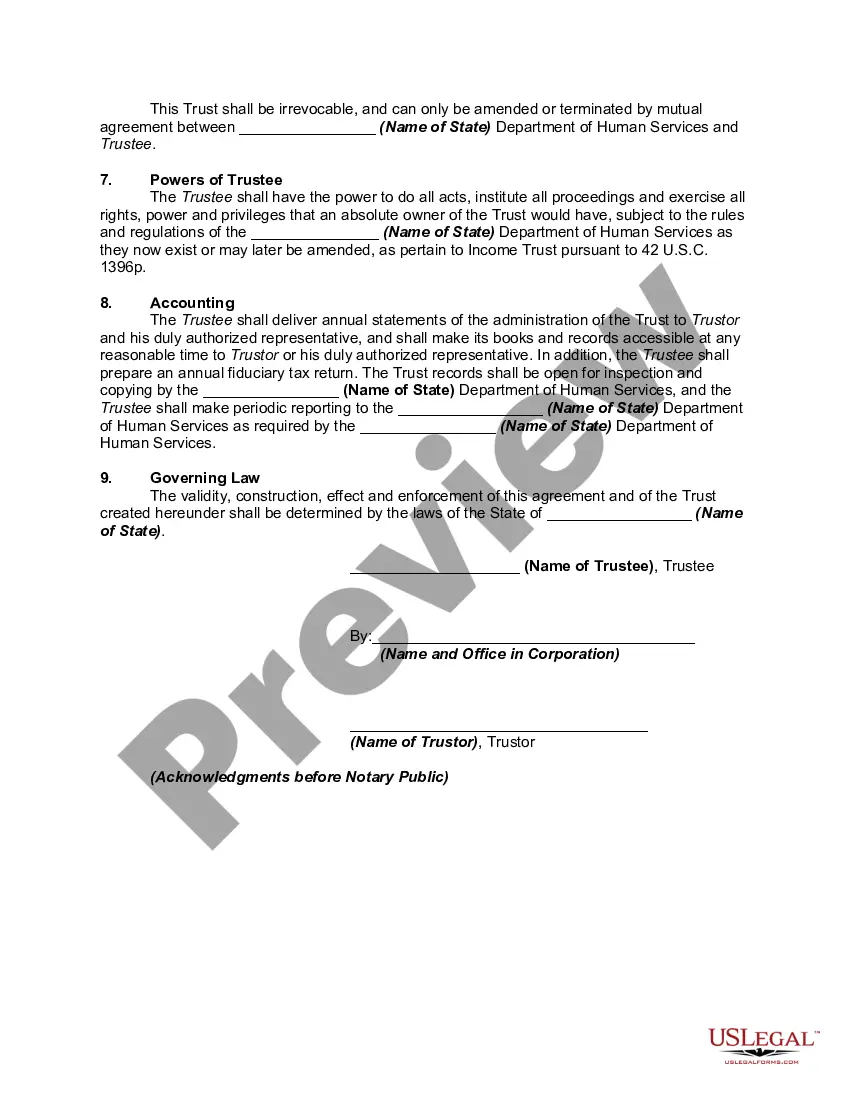
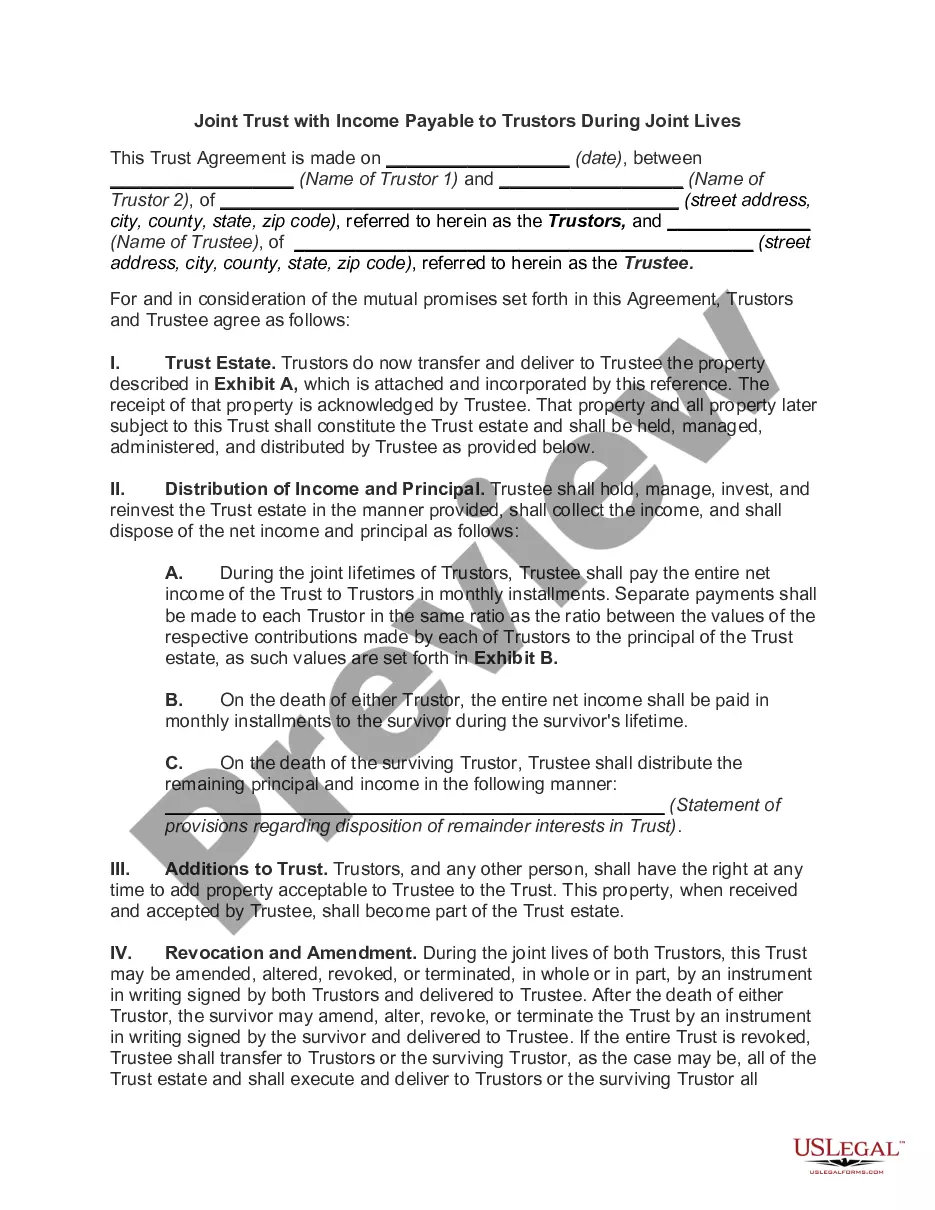
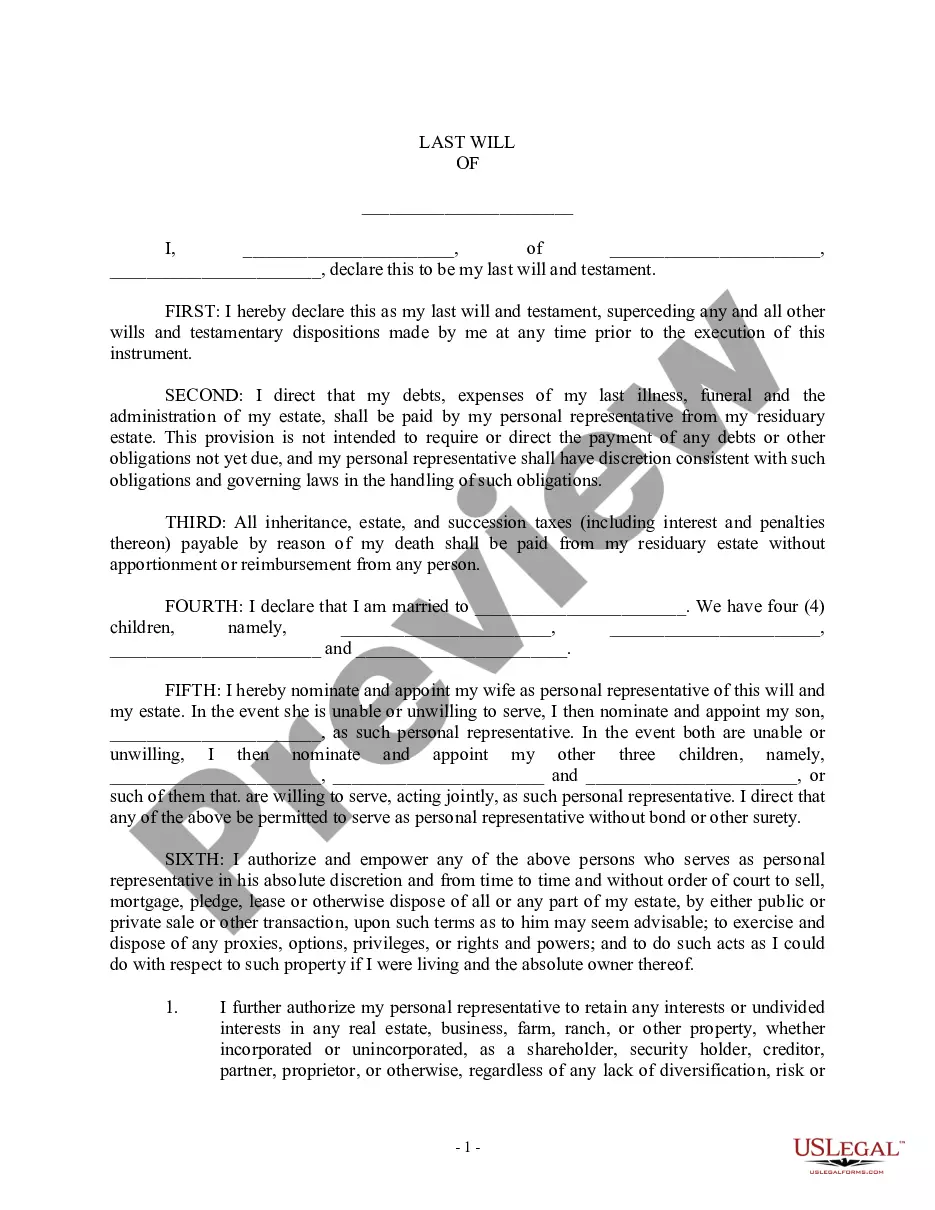
Preview it (if this feature is available) and review the accompanying description to determine if the Miller Trust Fund For Elderly is what you’re looking for.
Establish a free account and choose a subscription plan to acquire the form.
- With US Legal Forms, one of the most comprehensive legal template collections, you can find anything from court documents to in-office communication templates.
- We recognize how vital compliance with federal and local laws and regulations is.
- That’s why all templates on our platform are location-specific and current.
- Start with our website and acquire the form you need in just moments.
- Locate the form you need using the search bar located at the top of the page.
Form popularity
FAQ
Navigate to the folder that used to contain the file or folder, right-click it, and then select Restore previous versions. If the folder was at the top level of a drive, for example C:\, right-click the drive, and then select Restore previous versions.
Open the file you want to view. Click the title of your file and select Version history. Select a version to open it in a separate window. If you want to restore a previous version you've opened, select Restore.
Restore Previous Versions (PC) ? In Windows, if you right-click on a file, and go to ?Properties,? you will see an option titled ?Previous Versions.? This option can help you revert to a version of your file before the overwrite occurred, allowing you to get your data back.
If you don't see Version History, in the dialog, select the ... (ellipses), and then select Version History. In the Version History dialog, hover your mouse over the date link on an earlier version, and to show the menu, select the down arrow.
Go to File > History. Note: If you don't see History on your navigation pane it's possible that you actually have a subscription version of Microsoft 365. Select the Info button on the navigation pane and see if you can access Version History there. Select a version to open it in a separate window.
Once the file is selected, click on the ellipses that appear in the highlighted section (the three gray dots) and select ?version history? from the drop-down menu. This will give you access to view, restore, and delete previous versions of your file.
If you have the OneDrive sync app installed on your PC, right-click the file that you want to restore to an earlier version in File Explorer and select Version history. Then select the ellipses (...) next to the version you want and click Restore. The document version you selected becomes the current version.
To restore a previous version of a file in Team Folders: In the navigation pane, select Team Folders. On the Manage Team Folders page, navigate to the file you want to revert to a previous version. Click the version icon. A list of the previous versions opens.