Website Terms Used For Memory
Description
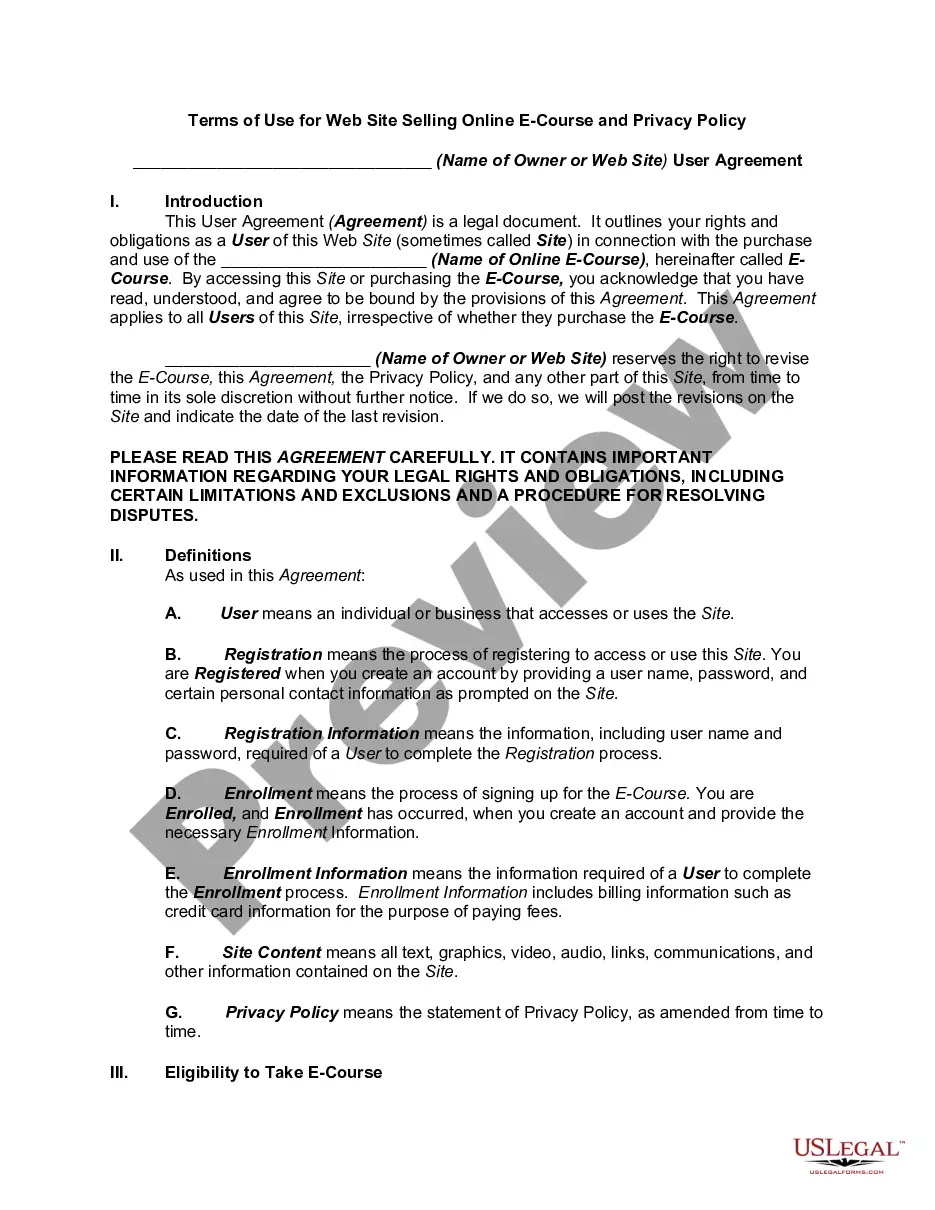
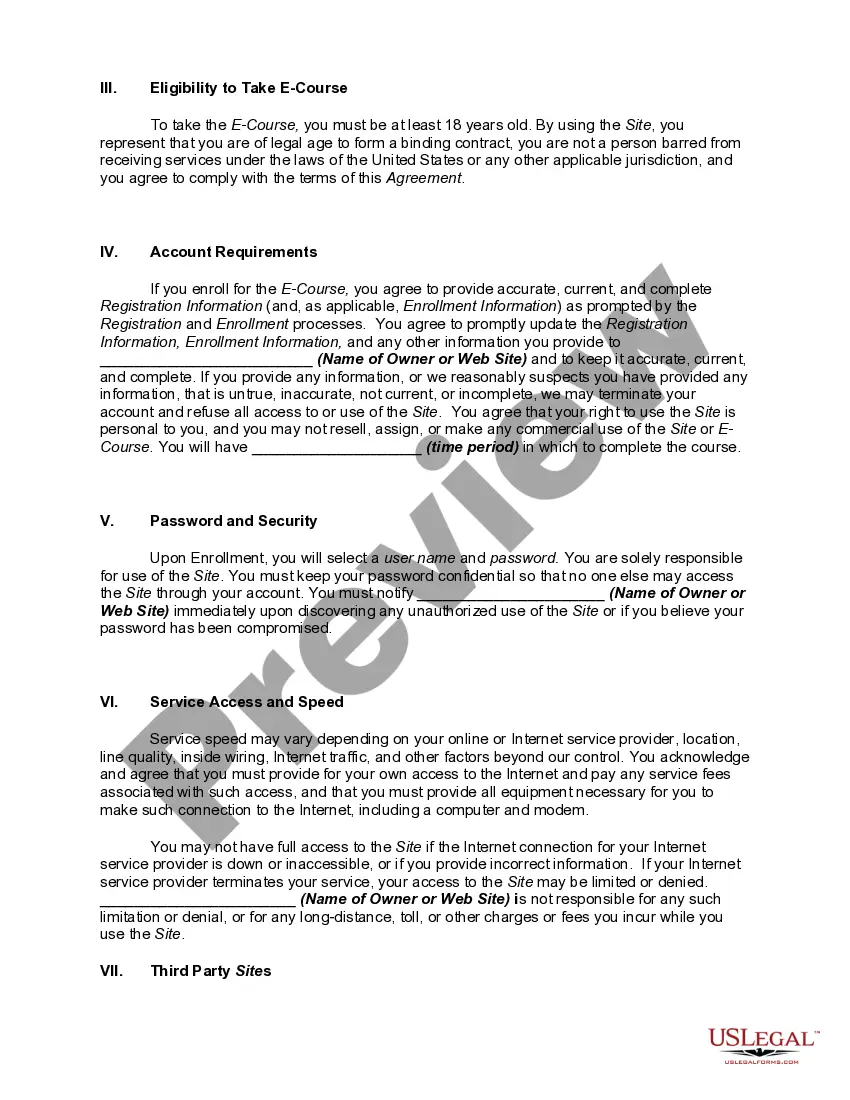
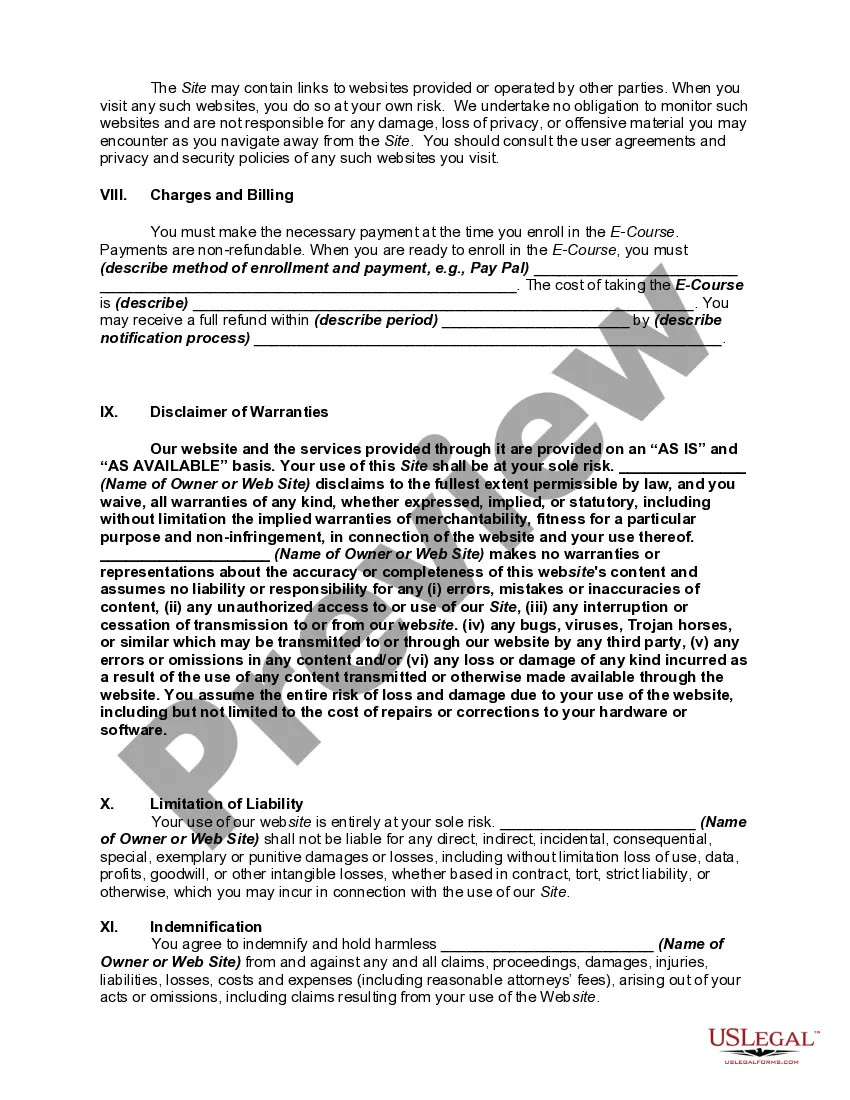
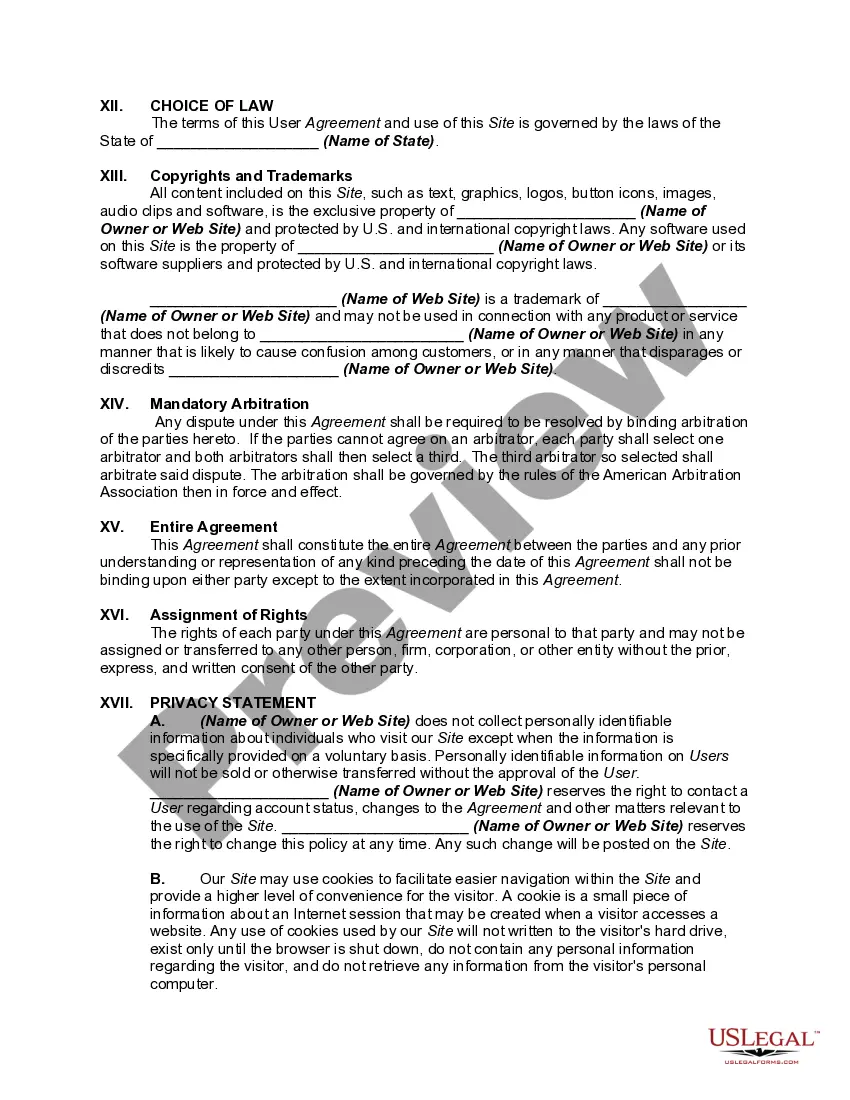
Get your form ready online
Our built-in tools help you complete, sign, share, and store your documents in one place.
Make edits, fill in missing information, and update formatting in US Legal Forms—just like you would in MS Word.
Download a copy, print it, send it by email, or mail it via USPS—whatever works best for your next step.
Sign and collect signatures with our SignNow integration. Send to multiple recipients, set reminders, and more. Go Premium to unlock E-Sign.
If this form requires notarization, complete it online through a secure video call—no need to meet a notary in person or wait for an appointment.
We protect your documents and personal data by following strict security and privacy standards.

Make edits, fill in missing information, and update formatting in US Legal Forms—just like you would in MS Word.

Download a copy, print it, send it by email, or mail it via USPS—whatever works best for your next step.

Sign and collect signatures with our SignNow integration. Send to multiple recipients, set reminders, and more. Go Premium to unlock E-Sign.

If this form requires notarization, complete it online through a secure video call—no need to meet a notary in person or wait for an appointment.

We protect your documents and personal data by following strict security and privacy standards.
Looking for another form?
How to fill out Website Subscription User Agreement - Terms Of Use For Website Selling Online E-Course Privacy Policy?
- Log in to your existing account to access your previous forms. If you need a new document, click on the appropriate template.
- Take advantage of the Preview mode and read the form description carefully to ensure that it meets your local jurisdiction requirements.
- If the selected form doesn’t fit your needs, utilize the Search feature to find a more suitable template.
- Once you find the right document, click the Buy Now button and select the subscription plan that best suits you. You will need to create an account if you're a new user.
- Complete your purchase by entering your payment details through credit card or PayPal.
- After your payment is confirmed, download the form directly to your device, and access it anytime via the 'My documents' section on your profile.
By utilizing US Legal Forms, you're not only ensuring speedy access to more than 85,000 editable legal documents, but you're also empowering yourself with the knowledge and resources necessary to navigate legal processes confidently.
Start simplifying your legal paperwork today—visit US Legal Forms and experience the benefits for yourself!
Form popularity
FAQ
To put information into long-term memory, practice techniques such as active recall and spaced repetition. Regularly revisit and engage with the material, which aids memory consolidation. By leveraging website terms used for memory, you can create associations that not only help in retaining information but also in retrieving it when needed.
Putting information into long-term memory requires systematic reviewing and meaningful connections with existing knowledge. Consider using organizational tools like mind maps or outlines that incorporate website terms used for memory. Such strategies can create a coherent structure, making the information easier to grasp and remember over the long term.
To turn information into long-term memory, focus on understanding the content rather than mere memorization. Use techniques like elaborative rehearsal, which involves connecting new information to what you already know. Regularly interacting with website terms used for memory ensures that the details are stored effectively in your memory for future retrieval.
Transferring information to long-term memory involves consistent practice and meaningful engagement with the content. Techniques like spaced repetition and visualization help solidify the connection. By applying website terms used for memory effectively in your learning routine, you can improve your ability to remember vital information over time.
To transfer knowledge to long-term memory, you can use strategies like repeating information and connecting new concepts to existing knowledge. Engage with the material actively by summarizing or teaching it to someone else. Additionally, utilizing cues or keywords related to website terms used for memory enhances recall and strengthens your memory retention.
To check your RAM and storage on Chrome OS, open the settings by clicking on the time in the bottom right corner, then select 'Settings'. In the 'Device' section, you will find 'Storage management', which shows how much space is used. You can also monitor system performance to ensure optimal memory utilization for your applications.
The memory consumed by the Chrome browser can be observed through the Chrome Task Manager. Access it by using Shift + Esc or from the 'More tools' menu. This tool provides insights into how much memory each tab and extension is consuming, allowing you to optimize resource usage effectively.
To monitor JavaScript memory usage in Chrome, open the Developer Tools by right-clicking anywhere on the page and selecting 'Inspect'. Navigate to the 'Performance' or 'Memory' tab, where you can take snapshots of memory usage over time. This analysis helps identify memory leaks caused by inefficient scripts.
Website memory refers to the amount of memory that a website consumes while running, which includes resources like images, scripts, and styles. Understanding website terms used for memory helps you manage how much data is loaded in the browser, impacting performance and user experience. Efficient memory management ensures faster load times and a smoother browsing experience.
You can check memory usage in Google Chrome by accessing the Task Manager. Simply click on the three dots in the upper right corner, hover over 'More tools', and click on 'Task Manager'. This will display the memory each tab is using, which can help you manage resources more effectively.