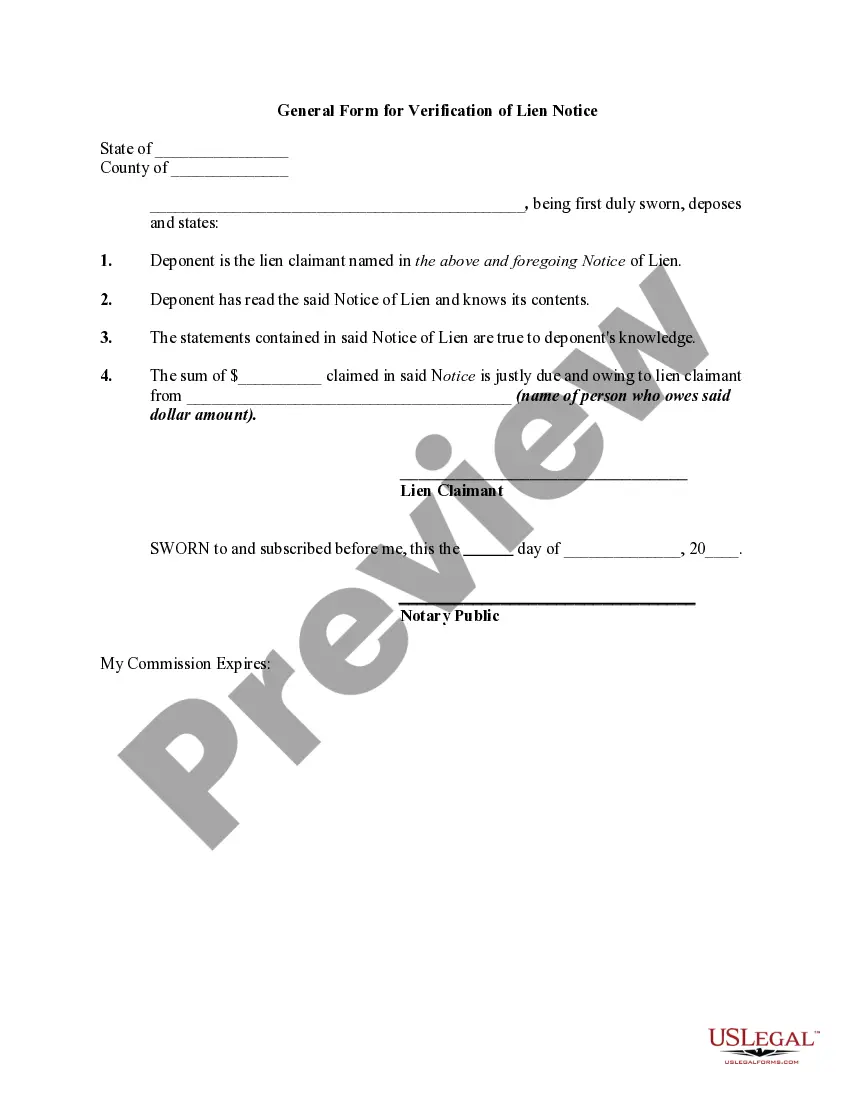
Form_with Check_box
Description
Get your form ready online
Our built-in tools help you complete, sign, share, and store your documents in one place.
Make edits, fill in missing information, and update formatting in US Legal Forms—just like you would in MS Word.
Download a copy, print it, send it by email, or mail it via USPS—whatever works best for your next step.
Sign and collect signatures with our SignNow integration. Send to multiple recipients, set reminders, and more. Go Premium to unlock E-Sign.
If this form requires notarization, complete it online through a secure video call—no need to meet a notary in person or wait for an appointment.
We protect your documents and personal data by following strict security and privacy standards.
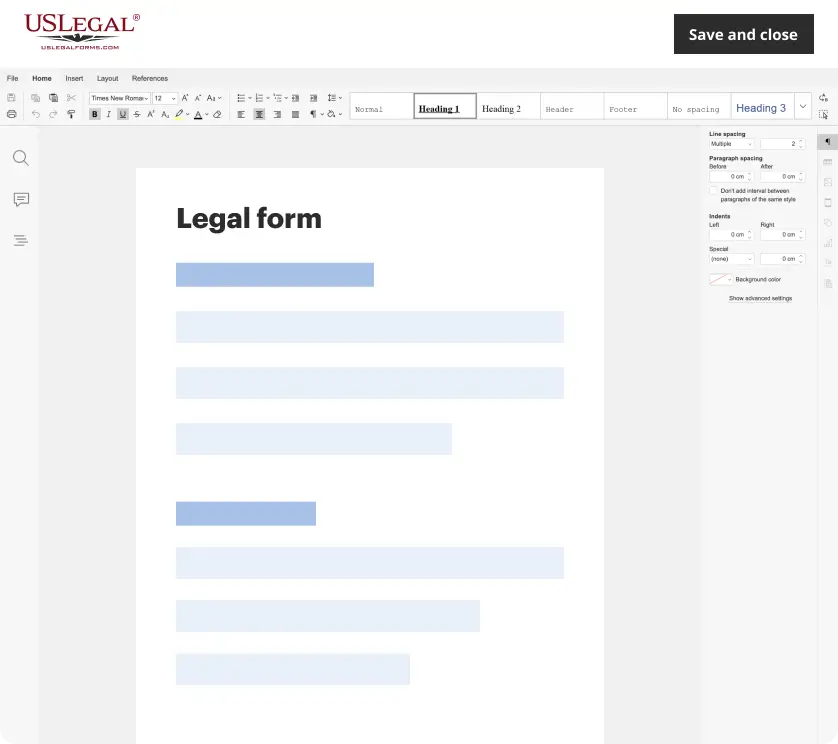
Make edits, fill in missing information, and update formatting in US Legal Forms—just like you would in MS Word.
Download a copy, print it, send it by email, or mail it via USPS—whatever works best for your next step.
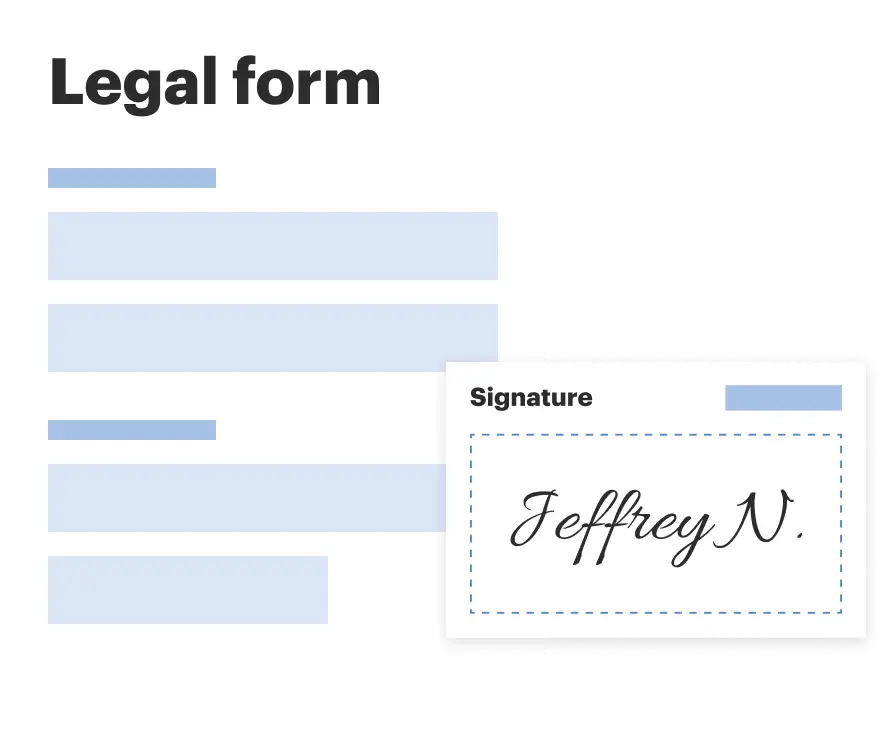
Sign and collect signatures with our SignNow integration. Send to multiple recipients, set reminders, and more. Go Premium to unlock E-Sign.
If this form requires notarization, complete it online through a secure video call—no need to meet a notary in person or wait for an appointment.
We protect your documents and personal data by following strict security and privacy standards.
Looking for another form?
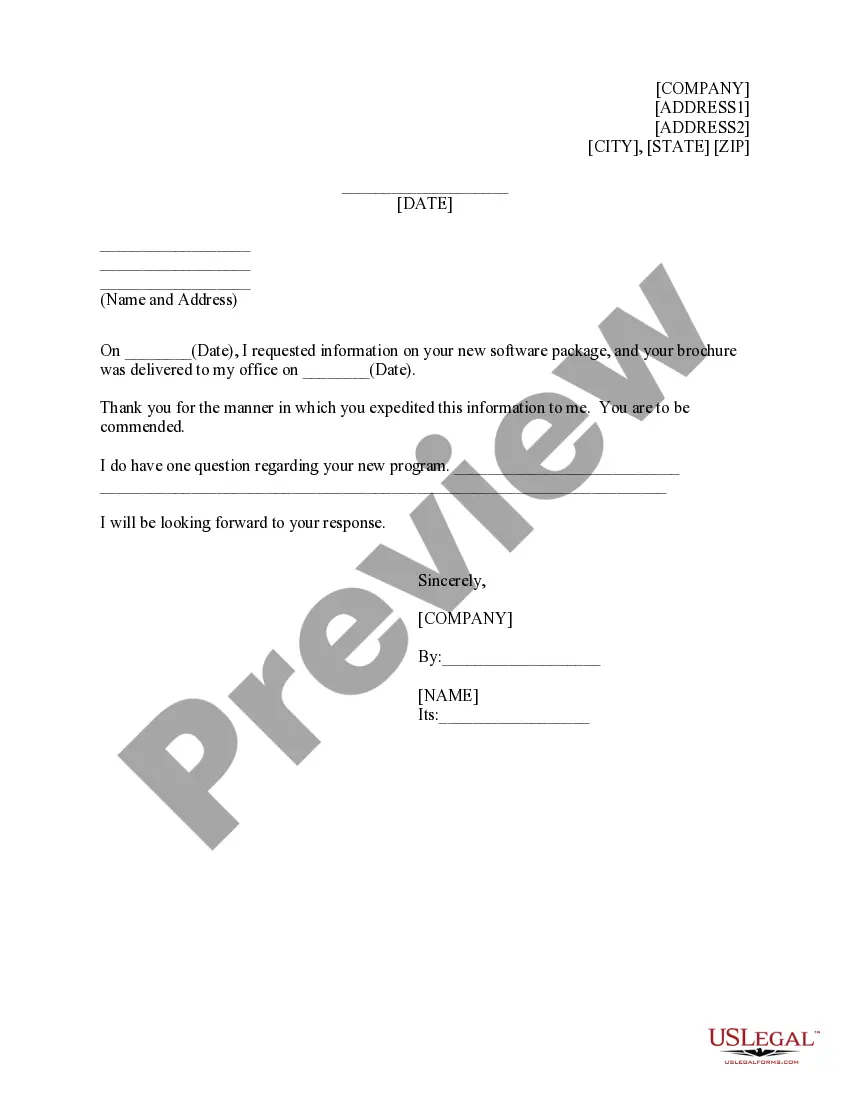

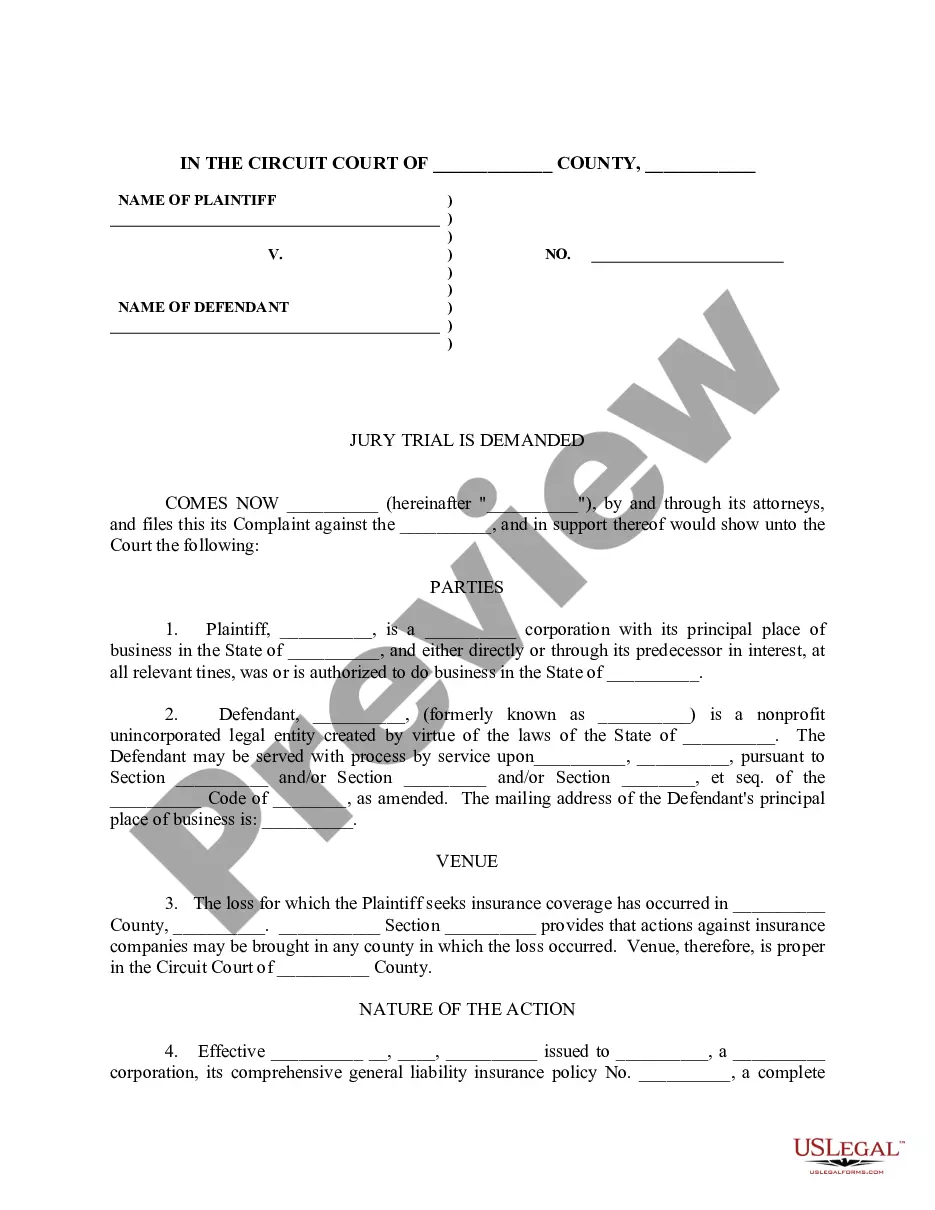
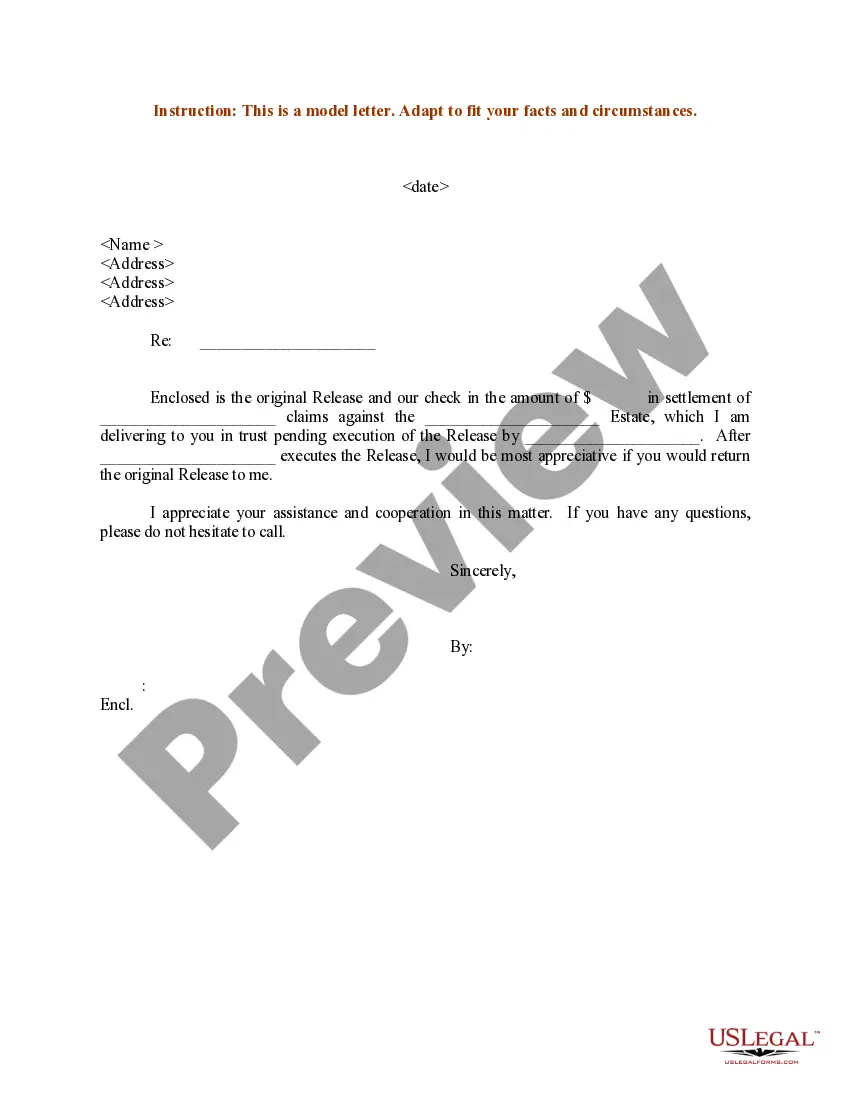
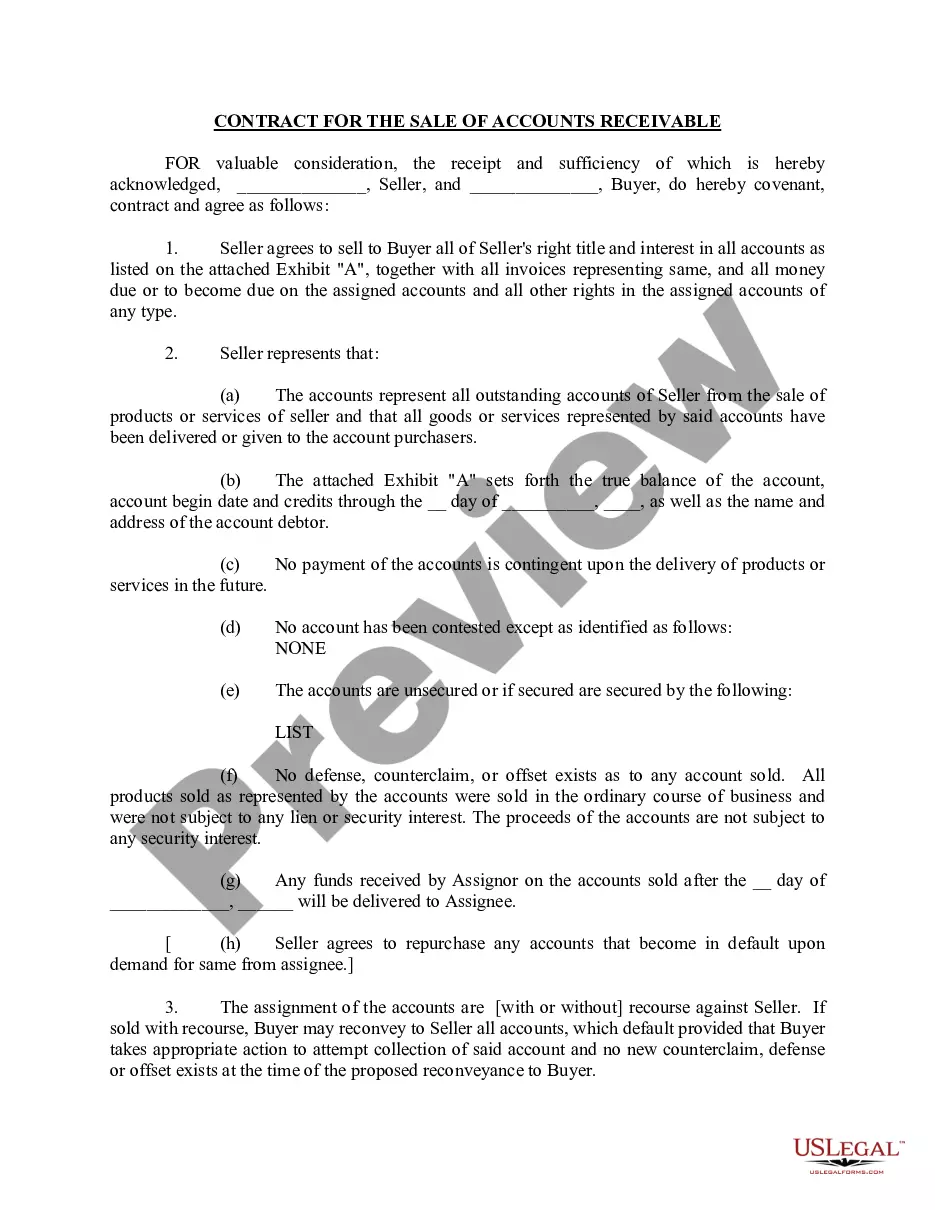
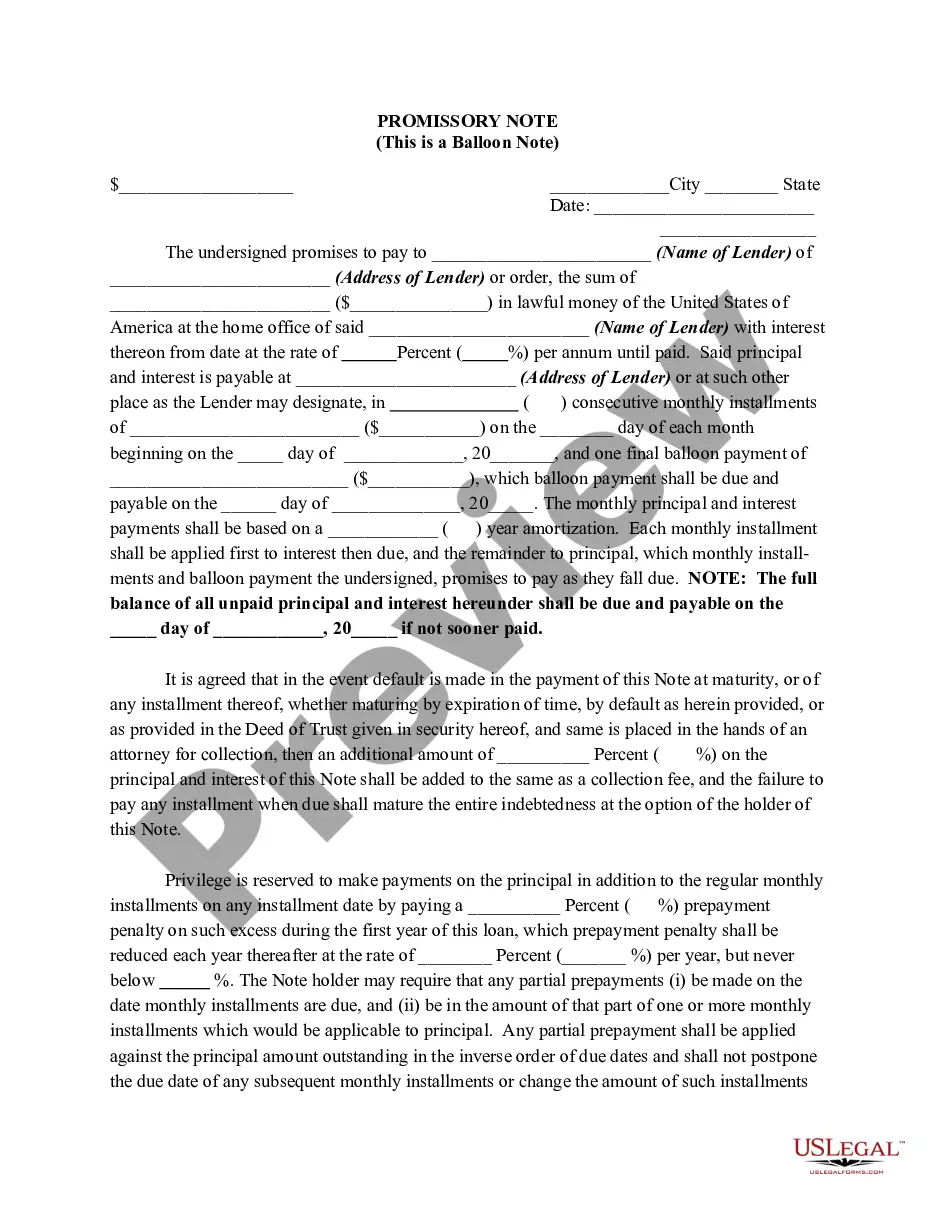
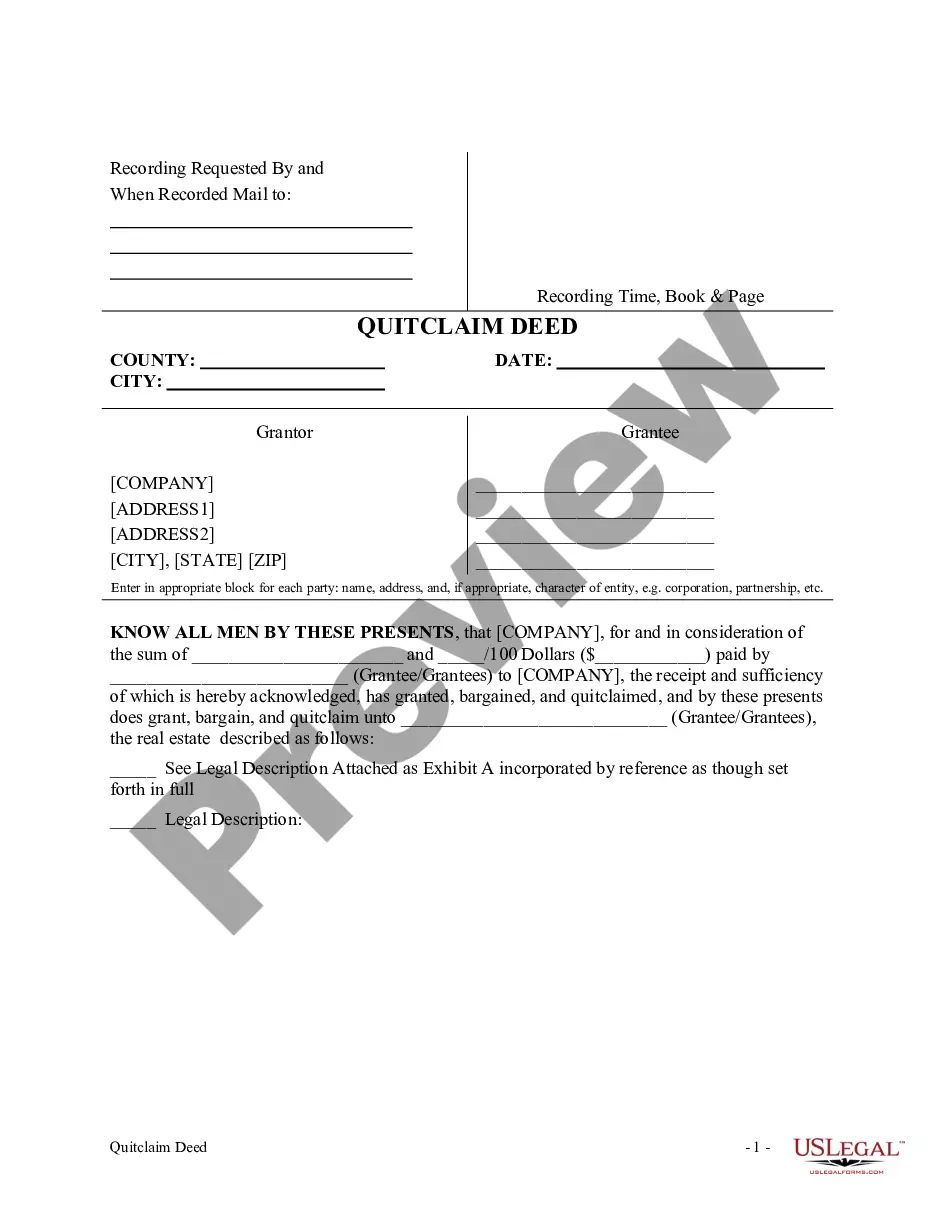
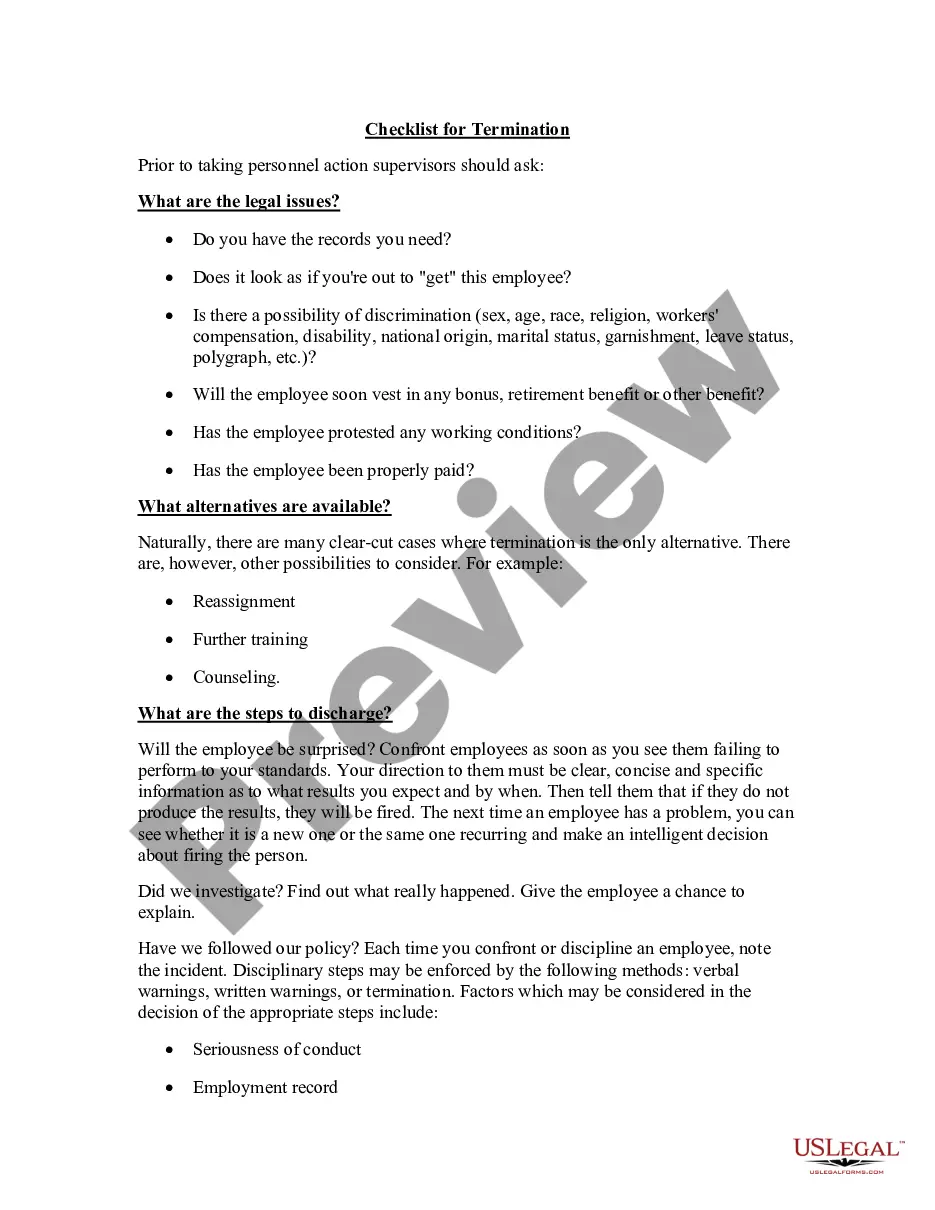
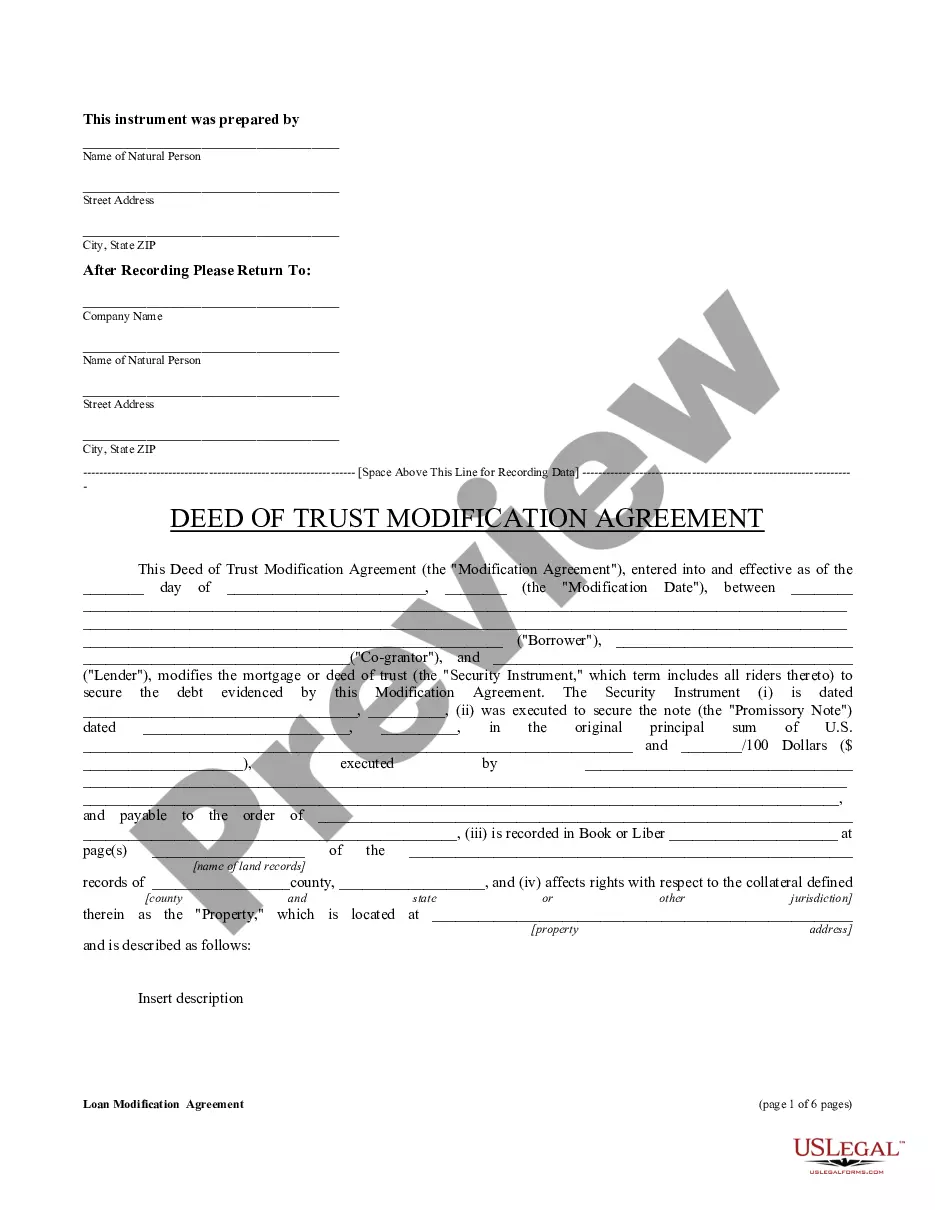
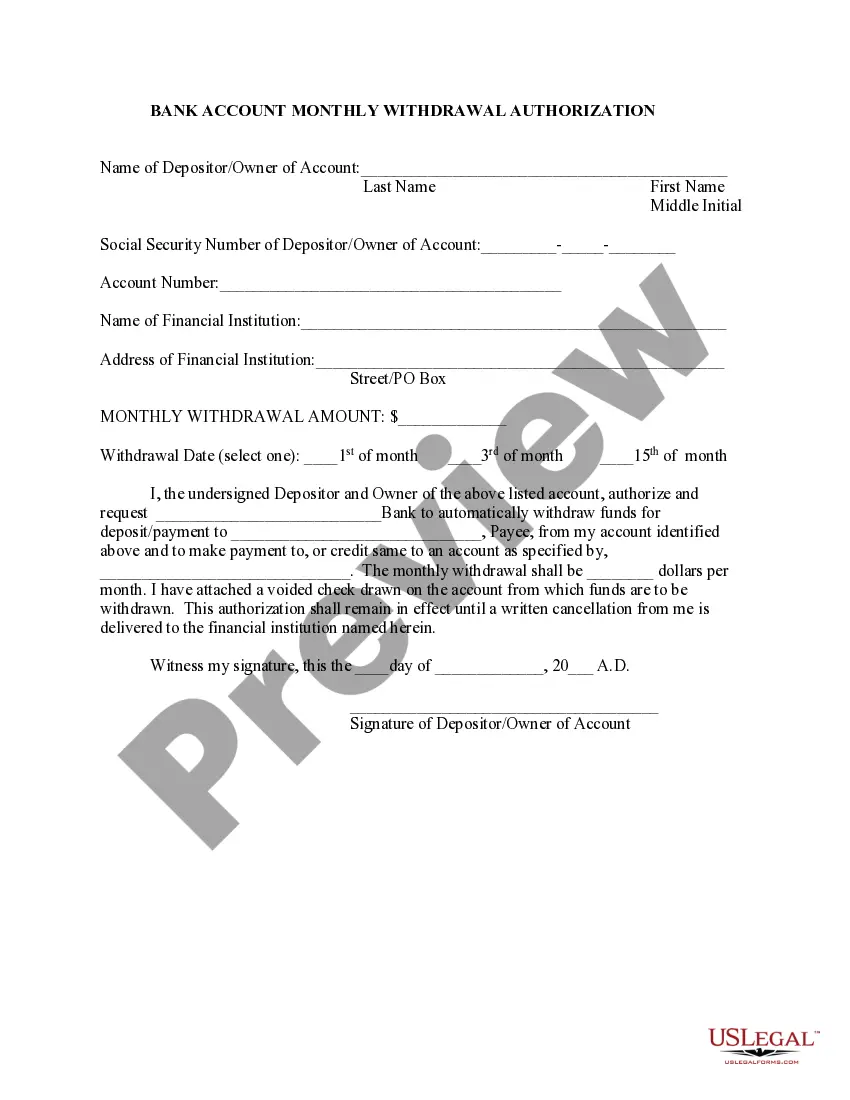
How to fill out General Form For Verification Of Lien Notice?
Managing legal paperwork and processes can be a lengthy addition to your whole day.
Form_with Check_box and similar forms typically require you to search for them and comprehend how to fill them out correctly.
For this reason, whether you are addressing financial, legal, or personal issues, possessing a thorough and useful online directory of forms readily available will be extremely beneficial.
US Legal Forms is the premier online platform for legal templates, offering over 85,000 state-specific documents and various tools to help you complete your paperwork effortlessly.
Is it your first time using US Legal Forms? Register and create your account in just a few minutes, and you will gain access to the forms directory and Form_with Check_box. Then, follow these steps to fill out your document: Make sure you have located the correct form using the Preview option and reviewing the form description. Select Buy Now when ready, and pick the monthly subscription plan that works for you. Click Download, then complete, eSign, and print the form. US Legal Forms has twenty-five years of experience helping users manage their legal documents. Find the form you need today and simplify any procedure with ease.
- Explore the collection of relevant documents with just a click.
- US Legal Forms provides state- and county-specific documents accessible at any time for download.
- Safeguard your document management processes with a high-quality service that allows you to create any form in minutes without additional or hidden charges.
- Simply Log In to your account, locate Form_with Check_box, and download it immediately from the My documents section.
- You can also access previously downloaded forms.
Form popularity
FAQ
You can insert form controls such as check boxes or option buttons to make data entry easier. Check boxes work well for forms with multiple options. Option buttons are better when your user has just one choice.
Here are some examples of how to use checkboxes in a Ruby on Rails application: Simple Form Checkbox. <%= simple_form_for @model do |f| %> ... Form Checkbox with Custom HTML Attributes. <%= form_for @model do |f| %> ... Multiple Checkboxes with Active Record Collection. <%= form_for @model do |f| %> ... Checkbox with AJAX Update.
How to add a checkbox in forms using HTML ? Firstly, create an HTML document that contains a <input> tag. Now use the type attribute with <input> element. Set the type attribute to value ?checkbox?
The <input type="checkbox"> defines a checkbox. The checkbox is shown as a square box that is ticked (checked) when activated. Checkboxes are used to let a user select one or more options of a limited number of choices. Tip: Always add the <label> tag for best accessibility practices!
In JavaScript, we can access the checkbox element using id, class, or tag name and apply '. checked' to the element, which returns either true or false based on the checkbox is checked.