Credit Card Form Statement For Amazon In Washington
Description
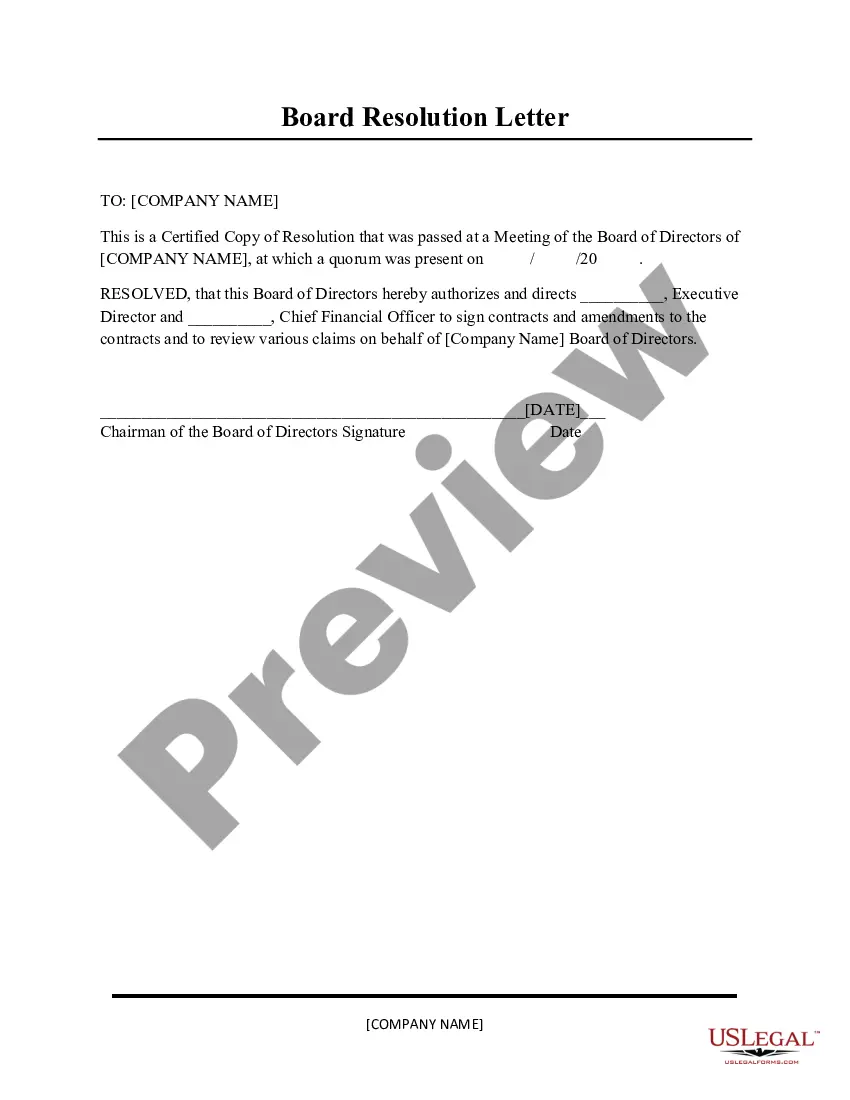
Get your form ready online
Our built-in tools help you complete, sign, share, and store your documents in one place.
Make edits, fill in missing information, and update formatting in US Legal Forms—just like you would in MS Word.
Download a copy, print it, send it by email, or mail it via USPS—whatever works best for your next step.
Sign and collect signatures with our SignNow integration. Send to multiple recipients, set reminders, and more. Go Premium to unlock E-Sign.
If this form requires notarization, complete it online through a secure video call—no need to meet a notary in person or wait for an appointment.
We protect your documents and personal data by following strict security and privacy standards.

Make edits, fill in missing information, and update formatting in US Legal Forms—just like you would in MS Word.

Download a copy, print it, send it by email, or mail it via USPS—whatever works best for your next step.

Sign and collect signatures with our SignNow integration. Send to multiple recipients, set reminders, and more. Go Premium to unlock E-Sign.

If this form requires notarization, complete it online through a secure video call—no need to meet a notary in person or wait for an appointment.

We protect your documents and personal data by following strict security and privacy standards.
Looking for another form?


Form popularity
FAQ
Online: To check your statement online, sign in to your Amazon Store Card account. If you don't have an account yet, you'll need to register for online access first. Once you're signed in to your account, click on “Activity” and then on “Statements”.
Go to Your Orders. Select Invoice underneath the order number. Select Print this page for your records on the top of the order summary. Select your browser's print button.
Go to the Manage Deposit Methods page, find the bank account that you are using to receive disbursements, and click on the Verify button. 5. Once you are on the Verify Bank Account page, select the Bank Account Holder Name, upload your bank account statement, and submit for Verification.
Log in to your online banking. Select Statements from the left menu and the required account. Select a statement number, followed by 'Print' at the top. Now, right-click your statement and choose to save as a PDF.
Go to the Manage Deposit Methods page, find the bank account that you are using to receive disbursements, and click on the Verify button. 5. Once you are on the Verify Bank Account page, select the Bank Account Holder Name, upload your bank account statement, and submit for Verification.
As an Amazon seller, you may require a bank statement for your store because it provides an accurate record of all your financial transactions. In addition, you can use the bank statement for many different purposes. These include tax reporting or verifying the financial health of your eCommerce operations.
Online: To check your statement online, sign in to your Amazon Store Card account. If you don't have an account yet, you'll need to register for online access first. Once you're signed in to your account, click on “Activity” and then on “Statements”.
Click Edit My Account Settings. Click Add, edit, or delete my credit cards. Enter the credit card and billing details. Click Add New Card.
Editing Credit Cards Log in to your Amazon Payments account and click Edit My Account Settings. Click Add, edit, or delete my credit cards to view your current credit card information. Click the Edit button next to the credit card that you want to edit. Click Confirm to complete the changes.