Contract Management With Docusign In Kings
Description
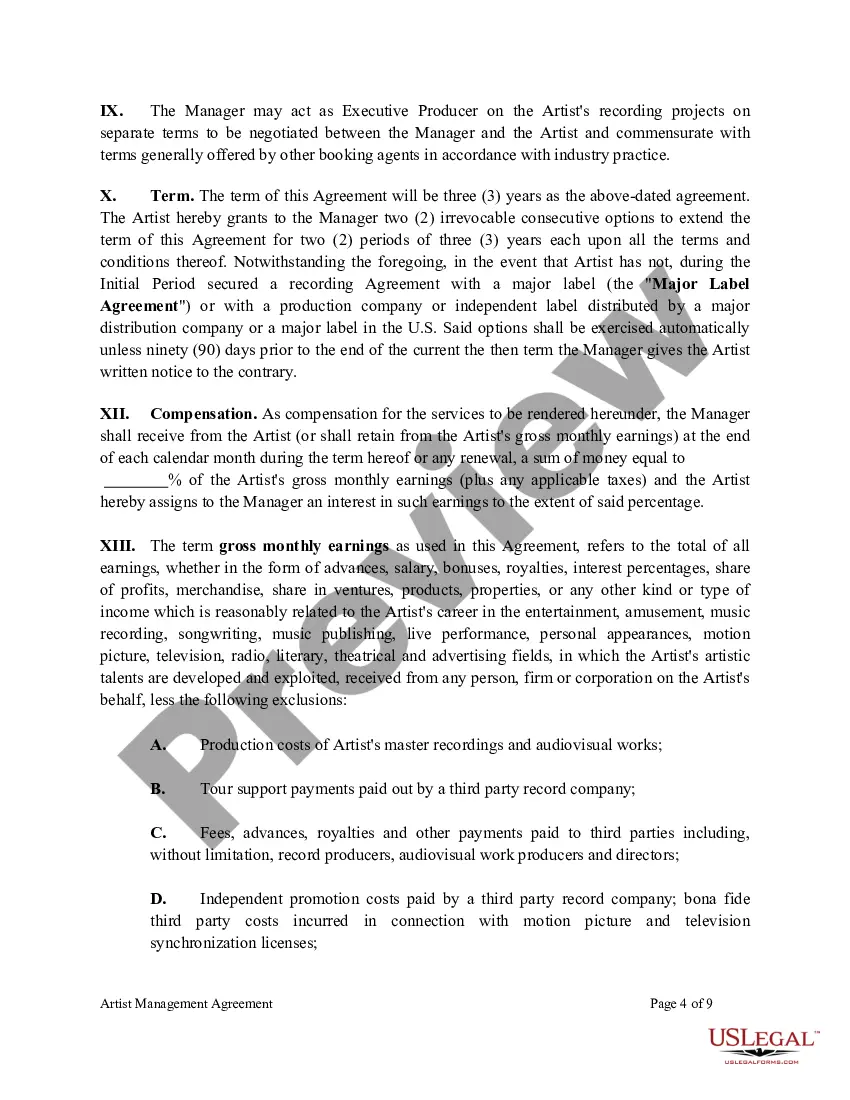
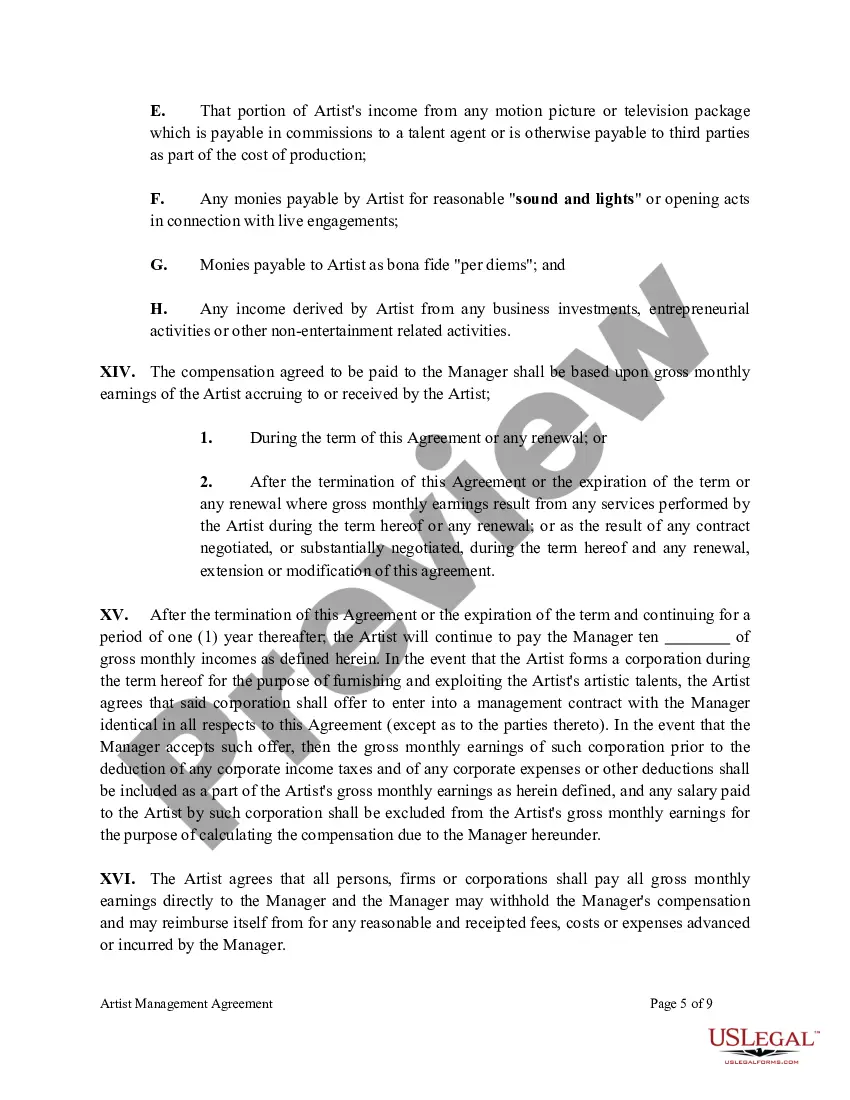
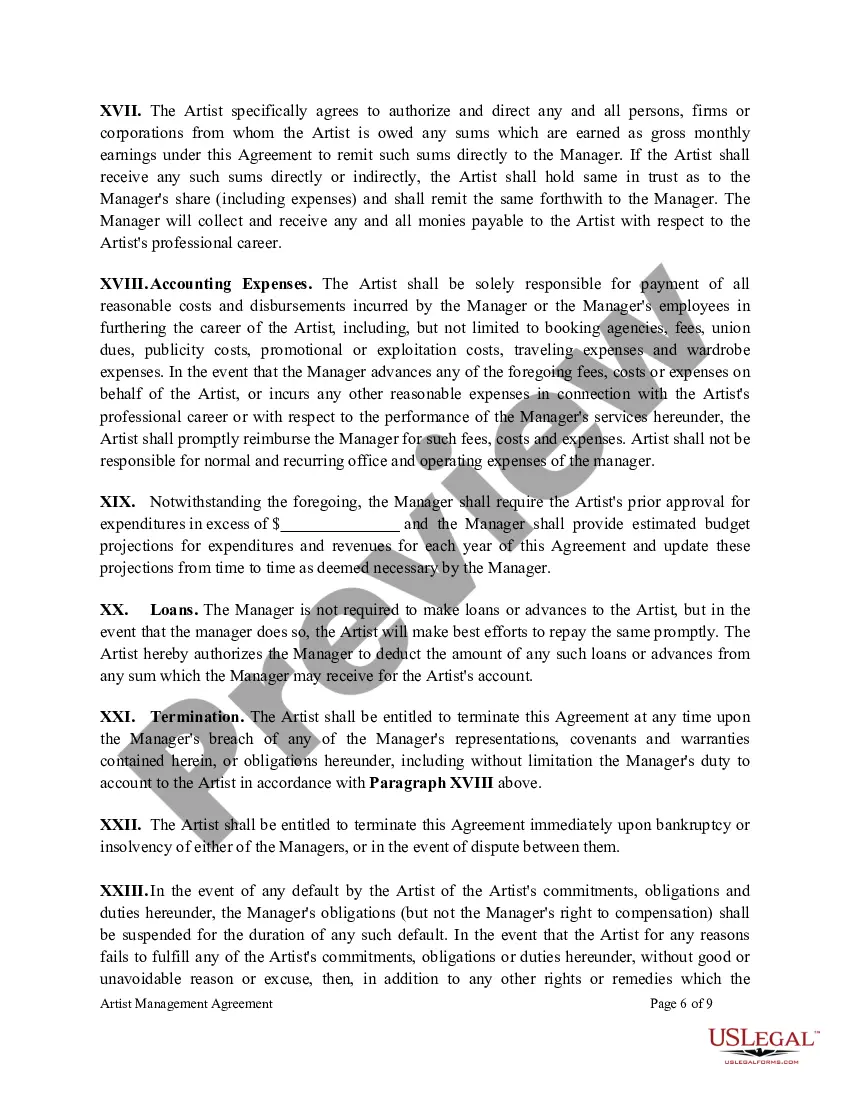
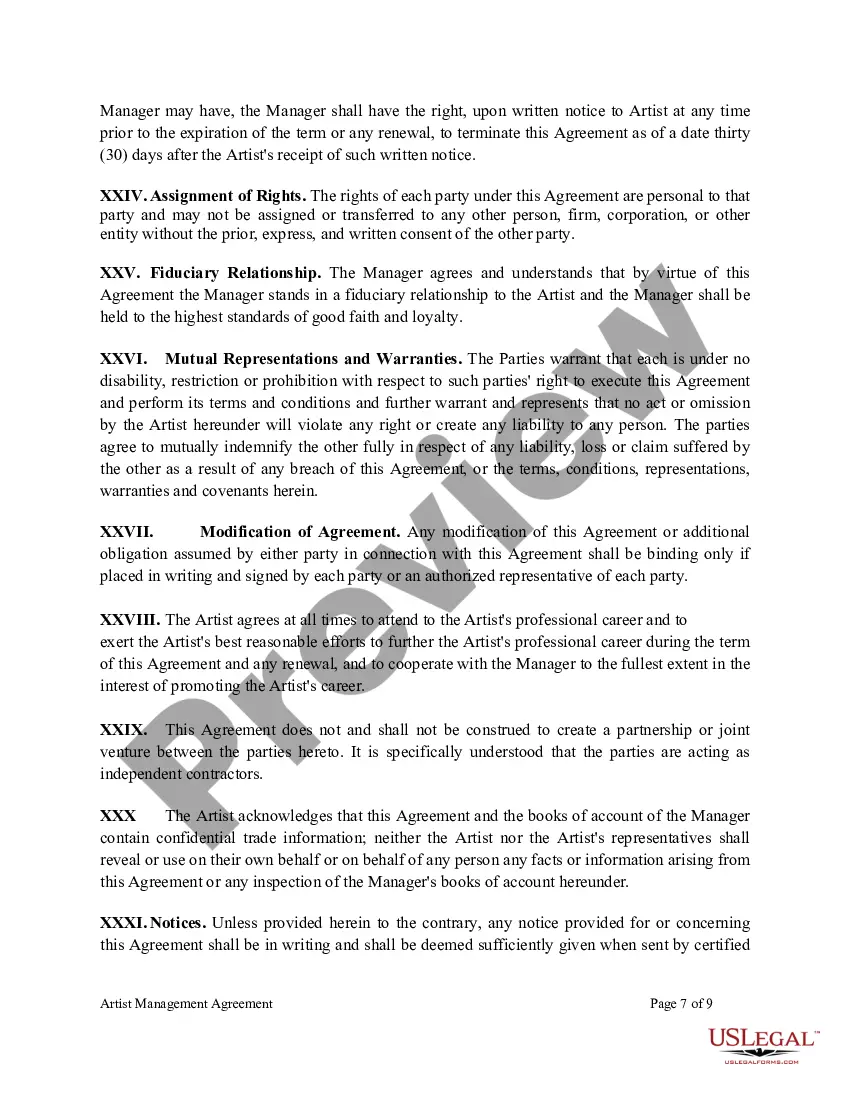
Get your form ready online
Our built-in tools help you complete, sign, share, and store your documents in one place.
Make edits, fill in missing information, and update formatting in US Legal Forms—just like you would in MS Word.
Download a copy, print it, send it by email, or mail it via USPS—whatever works best for your next step.
Sign and collect signatures with our SignNow integration. Send to multiple recipients, set reminders, and more. Go Premium to unlock E-Sign.
If this form requires notarization, complete it online through a secure video call—no need to meet a notary in person or wait for an appointment.
We protect your documents and personal data by following strict security and privacy standards.
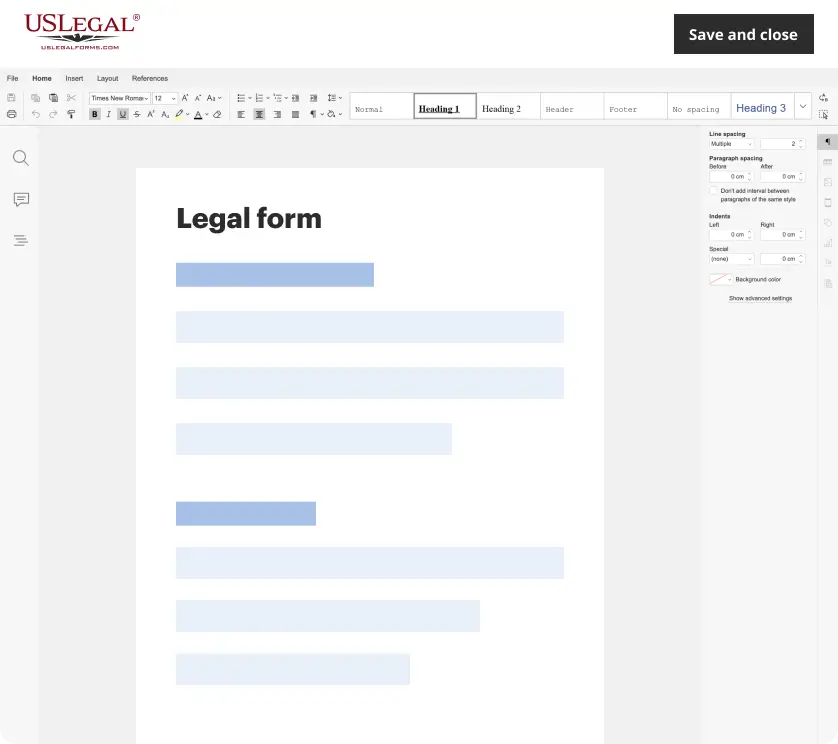
Make edits, fill in missing information, and update formatting in US Legal Forms—just like you would in MS Word.
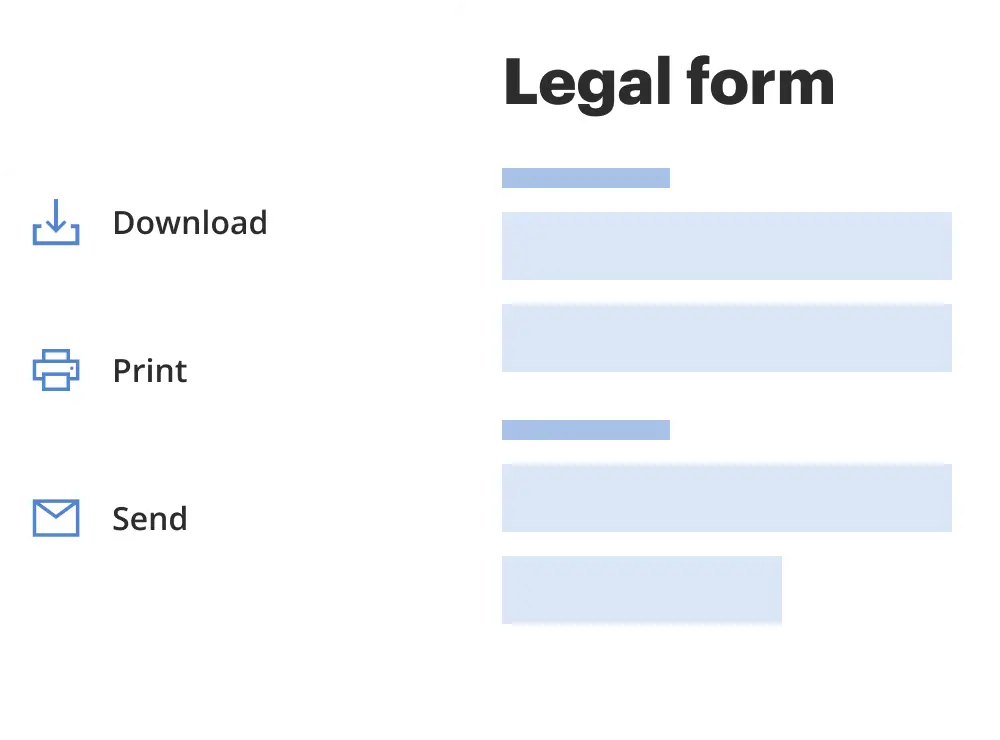
Download a copy, print it, send it by email, or mail it via USPS—whatever works best for your next step.
Sign and collect signatures with our SignNow integration. Send to multiple recipients, set reminders, and more. Go Premium to unlock E-Sign.
If this form requires notarization, complete it online through a secure video call—no need to meet a notary in person or wait for an appointment.
We protect your documents and personal data by following strict security and privacy standards.
Looking for another form?
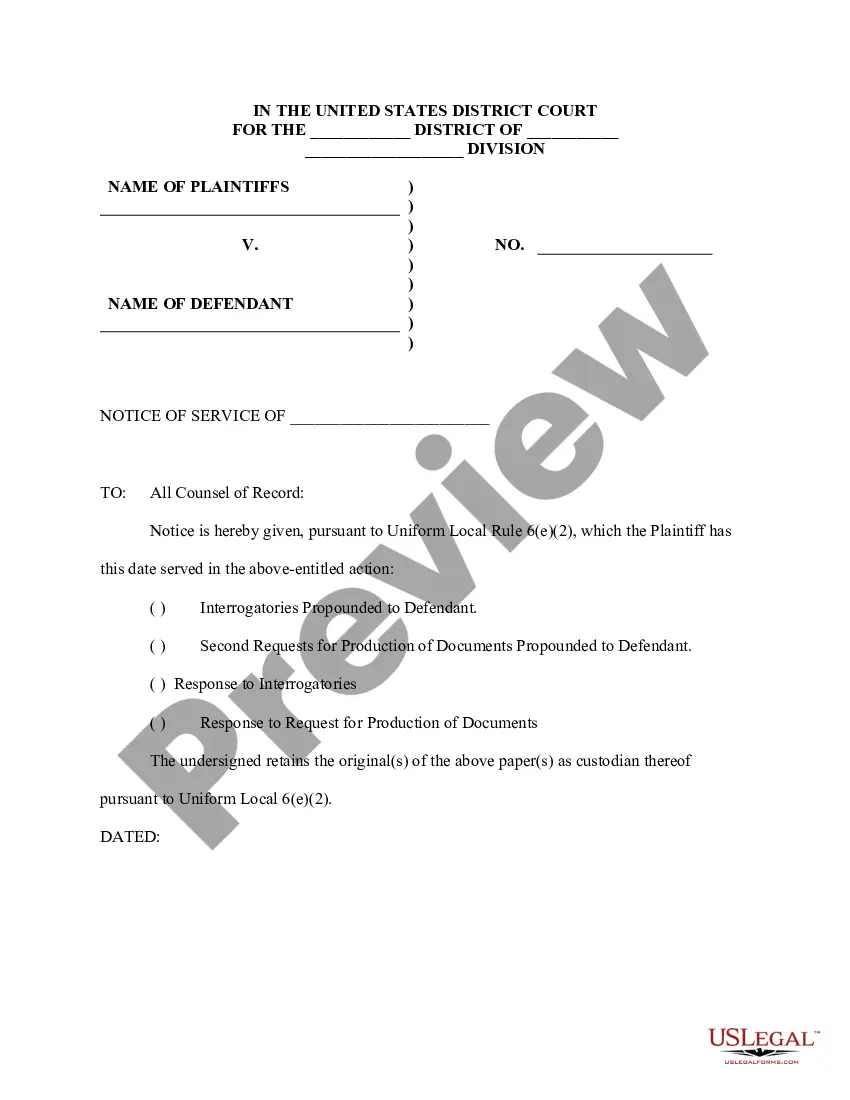


Form popularity
FAQ
How to Create a Contract Step 1: Set Up a Account. Step 2: Prepare Your Contract Document. Step 3: Add Recipients and Define Signing Order. Step 4: Add Fields for Recipients to Fill Out. Step 5: Customize the Email Message. Step 6: Send the Contract.
How To Enable Document Markup on an Envelope As you set up your envelope, in the Add Documents and Recipients view, select ADVANCED OPTIONS. In the Advanced Options modal, enable the setting Allow recipients to edit. Select SAVE. Finish setting up your document as usual, and send it.
The easiest way to redline a document is for both parties to work on it together. While that's not always possible in person, it can be easily accomplished through digital contracting. By using a cloud-based redlining editor, everyone involved can look at the contract at any time to edit it or approve or deny changes.
Allows you to sign, send, and manage agreements within a centralized space for all your documentation. It offers a secure, legally binding way to handle paperwork that needs signatures, saving you time on manual tasks. Because it's cloud-based, you can access from anywhere, on any device.
Can you redline in ? It is not possible to redline contracts natively in CLM. However, it is possible to integrate CLM with editors like Microsoft Word where you can add redlines using tracked changes, instead.
To allow customers to add NDA redlines before entering your room, you need to use the Integration. To enable redlining, access your templates in . Select the template that you are using as your NDA in your portal and open advanced options in order to select "Allow recipients to edit the document."
Step-by-Step Guide to Redlining in Step 1: Open the Document in . Step 2: Select the 'Prepare' Tab. Step 3: Click on 'Start Redlining' ... Step 4: Use the Redline Toolbar to Make Changes. Step 5: Save and Send the Document.